
Linux环境下配置Google Test、TBB、OpenMP和OpenCV(转)
最近逐渐把开发环境从Windows转到Linux下,原因是Visual Studio提供的环境太庞大,总感觉看不到全貌,并且对于C++11的支持实在是太慢了。而在Linux下,有非常大的选择空间,编辑器可以选vim或 者emacs,两者都是顶级的文本编辑器(不仅仅是文本编辑器)。编译器可以选g++或者clang,两者对于C++11的支持已经几乎完整了。另外还有 各种优秀的工具可以选择,可以用autotools或者cmake来build工程,用gdb进行调试,用cppcheck做静态类型检查(也可以配置到 VS中),用valgrind对程序进行动态分析。这就是Linux的好处,各种优秀的工具随你组合,VS是个巨无霸,感觉程序员的创造力受到了限制。
这两天把VS上的工程全部移植到Linux上,全部用g++配合makefile进行编译,因为代码规模不是特别大,所以makefile是直接手 写的。移植的过程中,一些第三方的库要配置,包括Goolge Test(Google的C++测试框架)、TBB(Intel的C++多线程库)、OpenMP(开放标准的并行程序指导性注释)和OpenCV(一个 跨平台的计算机视觉库)。所以把配置的过程记录下来,方便以后查阅,也希望能够给大家提供一些参考。
一、配置Google Test
现在gtest的最新版本是1.6.0,按以下步骤下载和安装:
wget https://googletest.googlecode.com/files/gtest-1.6.0.zip unzip gtest-1.6.0.zip cd gtest-1.6.0 g++ -I./include -I./ -c ./src/gtest-all.cc ar -rv libgtest.a gtest-all.o
注意:这边其实就是产生了libgtest.a文件,以后需要用的时候,就把这个静态库拷贝到对应的工程下,链接的时候加上它就可以了,如:
g++ –o target source1.o source2.o libgtest.a
另外,把gtest-1.6.0下面的include/gtest目录拷贝到全局头文件目录,如:
cp -r include/gtest/ /usr/local/include/ 在用到gtest的文件中,用#include <gtest/gtest.h>指令就可以让编译器找到gtest的头文件了。
比如我写了一个比较几个常用排序的算法的测试:

#include <gtest/gtest.h> // 引入gtest头文件 #include "QuickSort.h" #include "InsertionSort.h" #include "HeapSort.h" using namespace CodeMood; TEST(SortingTest, insertion_sort) // 用TEST宏定义一个测试用例,括号里的两个参数起标识作用 { vector<int> vec = generate_random(); TIME_STD(test_sorting(insertion_sort, vec)); EXPECT_TRUE(is_sorted(begin(vec), end(vec))); // 待验证的性质 } TEST(SortingTest, heap_sort) { vector<int> vec = generate_random(1); TIME_STD(test_sorting(heap_sort, vec)); EXPECT_TRUE(is_sorted(begin(vec), end(vec))); } TEST(SortingTest, quick_sort) { vector<int> vec = generate_random(); TIME_STD(test_sorting(quick_sort, vec)); EXPECT_TRUE(is_sorted(begin(vec), end(vec))); } TEST(SortingTest, std_sort) { vector<int> vec = generate_random(); TIME_STD(std::sort(begin(vec), end(vec))); EXPECT_TRUE(is_sorted(begin(vec), end(vec))); } int main(int argc, char* argv[]) { ::testing::InitGoogleTest(&argc, argv); // 初始化gtest return RUN_ALL_TESTS(); // 运行所有测试用例 }
用法很简单,从上面的例子应该就知道怎么用了,这边不具体说明用法,有兴趣的自己Google。运行结果如下:

其中TIME_STD是我自定义的一个记录函数运行时间的一个宏,gtest本身也是带时间统计的,总体来说两者时间还是差不多的。
二、配置TBB
TBB最新版本是4.1,按以下步骤下载安装:
wget http://threadingbuildingblocks.org/sites/default/files/software_releases/source/tbb41_20130314oss_src.tgz mkdir -p /opt/intel cd /opt/intel tar zxvf ~/tbb41_20130314oss_src.tgz cd tbb41_20130314oss gmake
上面的操作之所以放在/opt下面,是因为想把TBB装在/opt/intel目录下,然后用环境变量的方式让编译器找到这个位置,这是TBB推荐的做法。
以上这些步骤完成之后,会在tbb41_20130314oss目录下产生build目录,里面是编译出来的结果,然后:
cd build
看到里面有两个目录:linux_ia32_gcc_cc4.8.1_libc2.12_kernel2.6.32_debug和 linux_ia32_gcc_cc4.8.1_libc2.12_kernel2.6.32_release,分别是debug和release版本。
如何让编译器找到这个位置呢?推荐的做法是在~/.bashrc中添加这么几行:
如果使用release版本:
source /opt/intel/tbb41_20130314oss/build/linux_ia32_gcc_cc4.8.1_libc2.12_kernel2.6.32_release/tbbvars.sh export LD_LIBRARY_PATH=$LD_LIBRARY_PATH:/usr/local/lib
如果使用debug版本:
source /opt/intel/tbb41_20130314oss/build/linux_ia32_gcc_cc4.8.1_libc2.12_kernel2.6.32_debug/tbbvars.sh export LD_LIBRARY_PATH=$LD_LIBRARY_PATH:/usr/local/lib
关键在于tbbvars.sh,里面其实就是设置环境变量的过程,包括CPATH、LIBRARY_PATH和LD_LIBRARY_PATH,但是这个脚本直接将这三个环境变量设置为tbb的编译目录,而不是添加到当前的环境变量之后,所以需要注意一下。
在使用的时候,加上必要的头文件#include <tbb/xxxx.h>,并且需要通过-ltbb选项进行链接。下面是我用TBB里面的parallel_sort进行排序的的代码:
#include <iostream> #include <vector> #include <algorithm> #include <numeric> #include <cassert> #include <chrono> #include <iomanip> #include <tbb/task_scheduler_init.h> #include <tbb/parallel_sort.h> using namespace std; const int SIZE = 10000000; #define TIME_STD(X) { \ auto t0 = chrono::high_resolution_clock::now(); \ {X;} \ auto t1 = chrono::high_resolution_clock::now(); \ cout << setw(10) << fixed << (double)chrono::duration_cast<chrono::nanoseconds>(t1-t0).count() / (double)1000000000 << "ms " << #X << endl; \ } int main(int argc, char* argv[]) { vector<int> vec_int(SIZE); iota(begin(vec_int), end(vec_int), 0); srand(0); random_shuffle(begin(vec_int), end(vec_int)); //TIME_STD(sort(begin(vec_int), end(vec_int))); TIME_STD(tbb::task_scheduler_init _; tbb::parallel_sort(begin(vec_int), end(vec_int))); assert(is_sorted(begin(vec_int), end(vec_int))); return 0; }
makefile是这样的(本文中其它地方的例子的makefile和这个大体类似,所以只在这个地方贴出来):
OBJS = ParallelSort.o CPPFLAGS = -Wall -std=c++11 -O2 LDFLAGS = -ltbb ParallelSort: ${OBJS} g++ ${LDFLAGS} -o $@ ${OBJS} ParallelSort.o: ParallelSort.cpp g++ ${CPPFLAGS} -c ParallelSort.cpp -o $@ clean: rm -f ParallelSort ${OBJS}
parallel_sort的效率显然比std::sort高,根据核心数的多少略有不同,大家可以自己试一试。
三、配置OpenMP
OpenMP其实并不需要配置,多数C++编译器都是内在支持了,要注意的是,如果程序使用OpenMP指令,在源程序里面要加上#include <omp.h>,编译和链接的时候要加上-fopenmp选项,否则会有警告甚至是错误,比如:undefined reference to `omp_get_num_threads'。
四、配置OpenCV
OpenCV的最新版本为2.4.5,下载地址:http://superb-dca3.dl.sourceforge.net/project/opencvlibrary/opencv-unix/2.4.5/opencv-2.4.5.tar.gz。
安装方式主要参考:http://docs.opencv.org/doc/tutorials/introduction/linux_install/linux_install.html。
因为OpenCV是图形库(视觉库),所以依赖于很多包,包括:
GCC 4.4.x or later;
CMake 2.6 or higher,cmake相当于autotools,但是易用性和友好性更佳;
GTK+2.x or higher;
Git(如果用git方式下载源码的话);
pkgconfig;
Python 2.6 or later;
ffmpeg;
还有可选的libjpeg,libpng,libtiff等。
依赖包都装好了以后:
wget http://superb-dca3.dl.sourceforge.net/project/opencvlibrary/opencv-unix/2.4.5/opencv-2.4.5.tar.gz tar zxvf opencv-2.4.5.tar.gz cd opencv-2.4.5 mkdir release cd release cmake -D CMAKE_BUILD_TYPE=RELEASE -D CMAKE_INSTALL_PREFIX=/usr/local .. make make install
这样opencv就编译安装好了。
要注意的是要确保LD_LIBRARY_PATH中包含了/usr/local/lib,这样编译器才能连接到动态库。编译链接的时候,还需要加上这样的选项:
编译时:`pkg-config opencv --cflags opencv`
链接时:`pkg-config opencv --libs opencv`
如果编译和链接放在一起:`pkg-config opencv --libs --cflags opencv`。
贴出一段很有意思的代码:
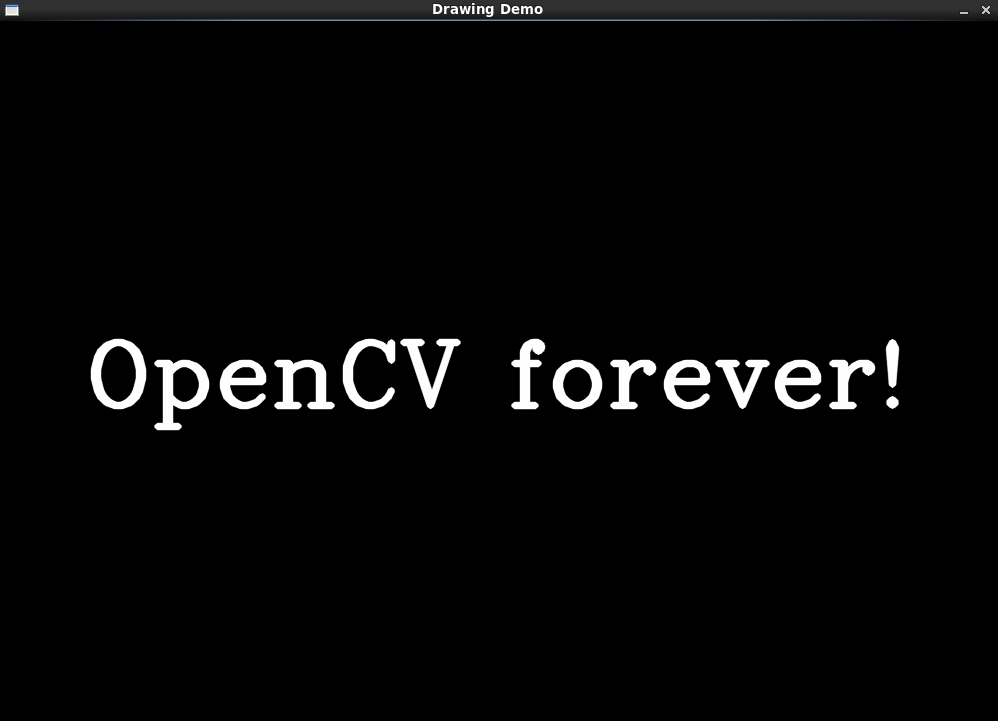
#include <omp.h> #include <opencv2/highgui/highgui.hpp> #include <opencv2/nonfree/features2d.hpp> #include <opencv2/features2d/features2d.hpp> #include <opencv2/legacy/legacy.hpp> using namespace std; #define NUMBER 100 #define DELAY 5 char wndname[] = "Drawing Demo"; CvScalar random_color(CvRNG* rng) { int icolor = cvRandInt(rng); return CV_RGB(icolor&255, (icolor>>8)&255, (icolor>>16)&255); } int test() { int line_type = CV_AA; // change it to 8 to see non-antialiased graphics int i; CvPoint pt1,pt2; double angle; CvSize sz; CvPoint ptt[6]; CvPoint* pt[2]; int arr[2]; CvFont font; CvRNG rng; int width = 1000, height = 700; int width3 = width*3, height3 = height*3; CvSize text_size; int ymin = 0; // Load the source image IplImage* image = cvCreateImage( cvSize(width,height), 8, 3 ); IplImage* image2; // Create a window cvNamedWindow(wndname, 1 ); cvZero( image ); cvShowImage(wndname,image); cvWaitKey(DELAY); rng = cvRNG((unsigned)-1); pt[0] = &(ptt[0]); pt[1] = &(ptt[3]); arr[0] = 3; arr[1] = 3; for (i = 0; i< NUMBER; i++) { pt1.x=cvRandInt(&rng) % width3 - width; pt1.y=cvRandInt(&rng) % height3 - height; pt2.x=cvRandInt(&rng) % width3 - width; pt2.y=cvRandInt(&rng) % height3 - height; cvLine( image, pt1, pt2, random_color(&rng), cvRandInt(&rng)%10, line_type, 0 ); cvShowImage(wndname,image); if(cvWaitKey(DELAY) >= 0) return 0; } for (i = 0; i< NUMBER; i++) { pt1.x=cvRandInt(&rng) % width3 - width; pt1.y=cvRandInt(&rng) % height3 - height; pt2.x=cvRandInt(&rng) % width3 - width; pt2.y=cvRandInt(&rng) % height3 - height; cvRectangle( image,pt1, pt2, random_color(&rng), cvRandInt(&rng)%10-1, line_type, 0 ); cvShowImage(wndname,image); if(cvWaitKey(DELAY) >= 0) return 0; } for (i = 0; i< NUMBER; i++) { pt1.x=cvRandInt(&rng) % width3 - width; pt1.y=cvRandInt(&rng) % height3 - height; sz.width =cvRandInt(&rng)%200; sz.height=cvRandInt(&rng)%200; angle = (cvRandInt(&rng)%1000)*0.180; cvEllipse( image, pt1, sz, angle, angle - 100, angle + 200, random_color(&rng), cvRandInt(&rng)%10-1, line_type, 0 ); cvShowImage(wndname,image); if(cvWaitKey(DELAY) >= 0) return 0; } for (i = 0; i< NUMBER; i++) { pt[0][0].x=cvRandInt(&rng) % width3 - width; pt[0][0].y=cvRandInt(&rng) % height3 - height; pt[0][1].x=cvRandInt(&rng) % width3 - width; pt[0][1].y=cvRandInt(&rng) % height3 - height; pt[0][2].x=cvRandInt(&rng) % width3 - width; pt[0][2].y=cvRandInt(&rng) % height3 - height; pt[1][0].x=cvRandInt(&rng) % width3 - width; pt[1][0].y=cvRandInt(&rng) % height3 - height; pt[1][1].x=cvRandInt(&rng) % width3 - width; pt[1][1].y=cvRandInt(&rng) % height3 - height; pt[1][2].x=cvRandInt(&rng) % width3 - width; pt[1][2].y=cvRandInt(&rng) % height3 - height; cvPolyLine( image, pt, arr, 2, 1, random_color(&rng), cvRandInt(&rng)%10, line_type, 0 ); cvShowImage(wndname,image); if(cvWaitKey(DELAY) >= 0) return 0; } for (i = 0; i< NUMBER; i++) { pt[0][0].x=cvRandInt(&rng) % width3 - width; pt[0][0].y=cvRandInt(&rng) % height3 - height; pt[0][1].x=cvRandInt(&rng) % width3 - width; pt[0][1].y=cvRandInt(&rng) % height3 - height; pt[0][2].x=cvRandInt(&rng) % width3 - width; pt[0][2].y=cvRandInt(&rng) % height3 - height; pt[1][0].x=cvRandInt(&rng) % width3 - width; pt[1][0].y=cvRandInt(&rng) % height3 - height; pt[1][1].x=cvRandInt(&rng) % width3 - width; pt[1][1].y=cvRandInt(&rng) % height3 - height; pt[1][2].x=cvRandInt(&rng) % width3 - width; pt[1][2].y=cvRandInt(&rng) % height3 - height; cvFillPoly( image, pt, arr, 2, random_color(&rng), line_type, 0 ); cvShowImage(wndname,image); if(cvWaitKey(DELAY) >= 0) return 0; } for (i = 0; i< NUMBER; i++) { pt1.x=cvRandInt(&rng) % width3 - width; pt1.y=cvRandInt(&rng) % height3 - height; cvCircle( image, pt1, cvRandInt(&rng)%300, random_color(&rng), cvRandInt(&rng)%10-1, line_type, 0 ); cvShowImage(wndname,image); if(cvWaitKey(DELAY) >= 0) return 0; } for (i = 1; i< NUMBER; i++) { pt1.x=cvRandInt(&rng) % width3 - width; pt1.y=cvRandInt(&rng) % height3 - height; cvInitFont( &font, cvRandInt(&rng) % 8, (cvRandInt(&rng)%100)*0.05+0.1, (cvRandInt(&rng)%100)*0.05+0.1, (cvRandInt(&rng)%5)*0.1, cvRound(cvRandInt(&rng)%10), line_type ); cvPutText( image, "Testing text rendering!", pt1, &font, random_color(&rng)); cvShowImage(wndname,image); if(cvWaitKey(DELAY) >= 0) return 0; } cvInitFont( &font, CV_FONT_HERSHEY_COMPLEX, 3, 3, 0.0, 5, line_type ); cvGetTextSize( "OpenCV forever!", &font, &text_size, &ymin ); pt1.x = (width - text_size.width)/2; pt1.y = (height + text_size.height)/2; image2 = cvCloneImage(image); for( i = 0; i < 255; i++ ) { cvSubS( image2, cvScalarAll(i), image, 0 ); cvPutText( image, "OpenCV forever!", pt1, &font, CV_RGB(255,i,i)); cvShowImage(wndname,image); if(cvWaitKey(DELAY) >= 0) return 0; } // Wait for a key stroke; the same function arranges events processing cvWaitKey(0); cvReleaseImage(&image); cvReleaseImage(&image2); cvDestroyWindow(wndname); return 0; } int main(int argc, char* argv[]) { test(); return 0; }
运行效果:

怎么样,很酷吧?
OK,四个环境的配置就写完了!吃饭去~

 浙公网安备 33010602011771号