
ArkTS状态管理V1
ArkTS状态管理V1
1.状态管理概述
在我们开发的用户界面(UI)中,所有的内容可以看作两部分,一部分是组件本身(它描述了组件的显示样式、位置、布局方式等),还有一部分就是组件内显示的数据。
ArkUI是采用数据驱动UI更新的模式进行状态管理的。如果希望在程序运行时,组件内的数据发生改变同步更新UI界面,这就需要用到ArkUI提供的状态管理机制。
实现状态管理需要两个前提
● 需要有状态变量:ArkUI提供了若干个状态装饰器,被状态装饰器修饰的变量才称为状态变量。
● 状态变量被UI组件引用:当状态变量发生改变时,引用该状态变量的UI组件会被重新渲染(build()函数重新执行)。

注意:想要数据成为状态变量,必须被状态修饰符修饰(如@State、@Prop、@Link、@Provide、@Consume等),如果变量没有被状态装饰器,是无法引起UI更新的。
2. @State 组件内状态
@State装饰的变量,或称为状态变量,一旦变量拥有了状态属性,就可以触发其直接绑定UI组件的刷新。但是,并不是状态变量的所有更改都会引起UI的刷新,只有可以被框架观察到的修改才会引起UI刷新。
● 当装饰的数据类型为boolean、string、number类型时,可以观察到数值的变化
● 当装饰的数据类型为class或者Object时,可以观察到自身的赋值的变化,和属性赋值的变化,即Object.keys(observedObject)返回的所有属性。
2.1 装饰简单类型变量
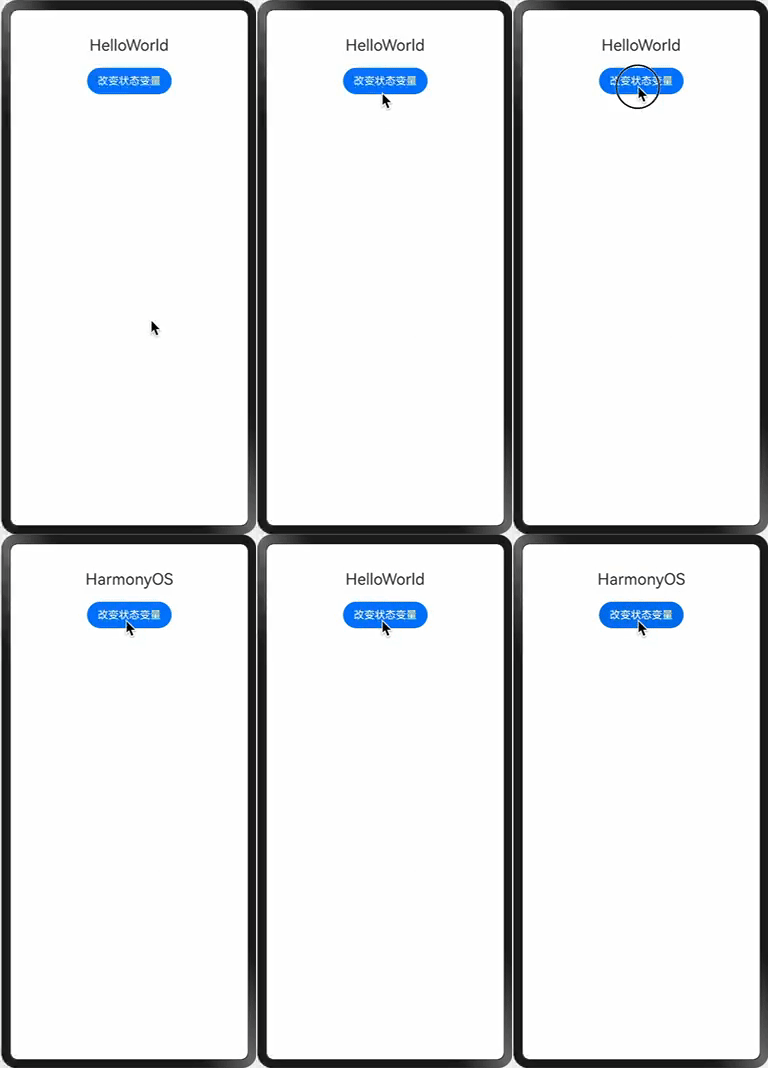
如果被观察的数据是简单类型:boolean、string、number类型时,都可以引起UI更新。下面以string类型为例。
如下图所示:点击按钮时,改变文本显示内容
@Entry
@Component
struct Index {
  @State message: string = 'HelloWorld'

  build() {
    Column() {
      Text(this.message).fontSize(24)

      Button('改变状态变量').margin({ top: 20 })
        .onClick(() => {
          this.message = this.message === 'HelloWorld' ? 'HarmonyOS' : 'HelloWorld'
        })
    }.width('100%')
    .alignItems(HorizontalAlign.Center)
  }
}
2.2 装饰对象类型变量
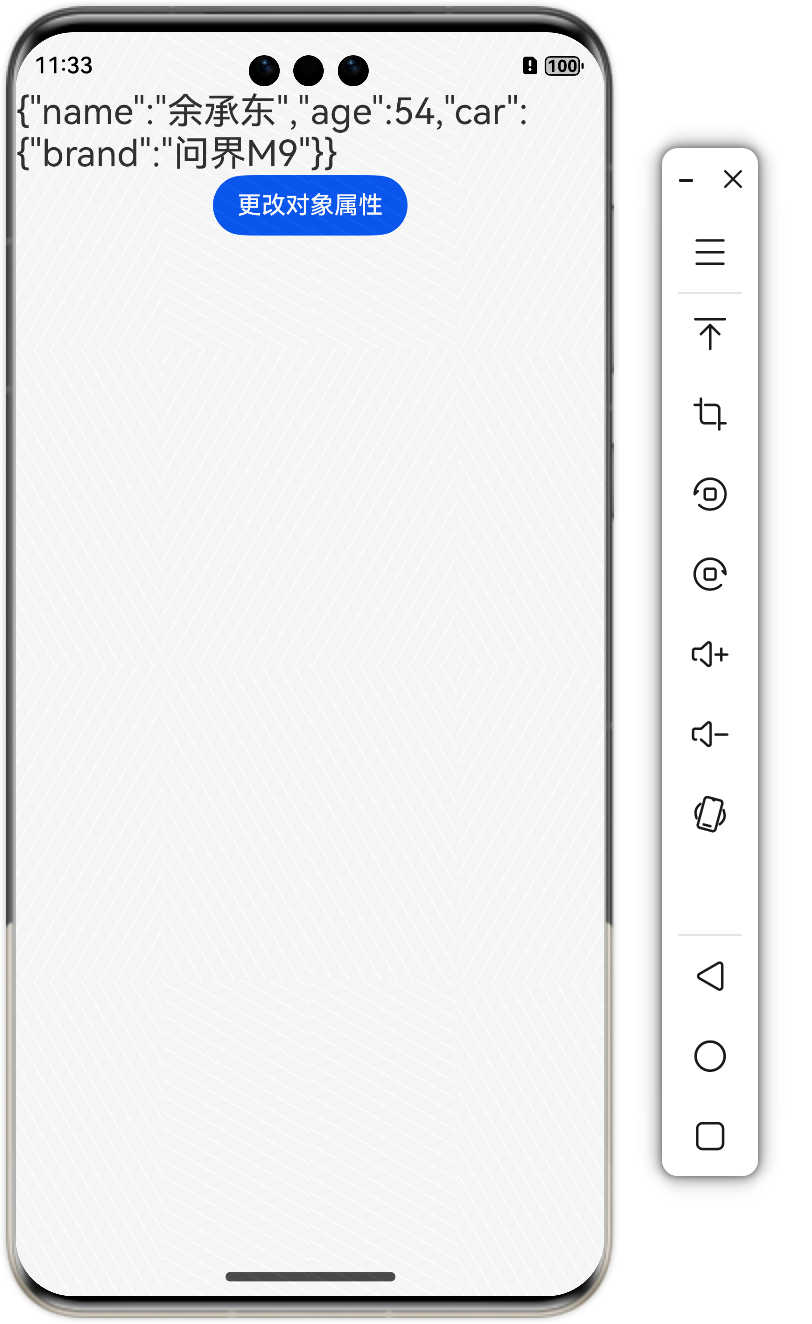
在下面的示例中,使用@State装饰类型为Person的变量,点击Button改变Person对象本身或者属性值,视图会随之刷新。
import { JSON } from '@kit.ArkTS'

class Person {
  name: string
  age: number
  car: Car

  constructor(name: string, age: number, car: Car) {
    this.name = name
    this.age = age
    this.car = car
  }
}

class Car {
  brand: string

  constructor(brand: string) {
    this.brand = brand
  }
}
@Entry
@Component
struct Index {
  @State person: Person = new Person('余承东', 54, new Car('问界M9'))

  build() {
    Column() {
      Text(JSON.stringify(this.person)).fontSize(24)
      Button('更改对象属性').onClick(()=>{
        this.person.name = '雷军'
        this.person.age = 55
        this.person.car.brand = '小米SU7'
      })
    }.width('100%').height('100%')
  }
}
注意:如果单独更改对象的嵌套属性,是无法更新UI的
2.3 装饰Map类型变量
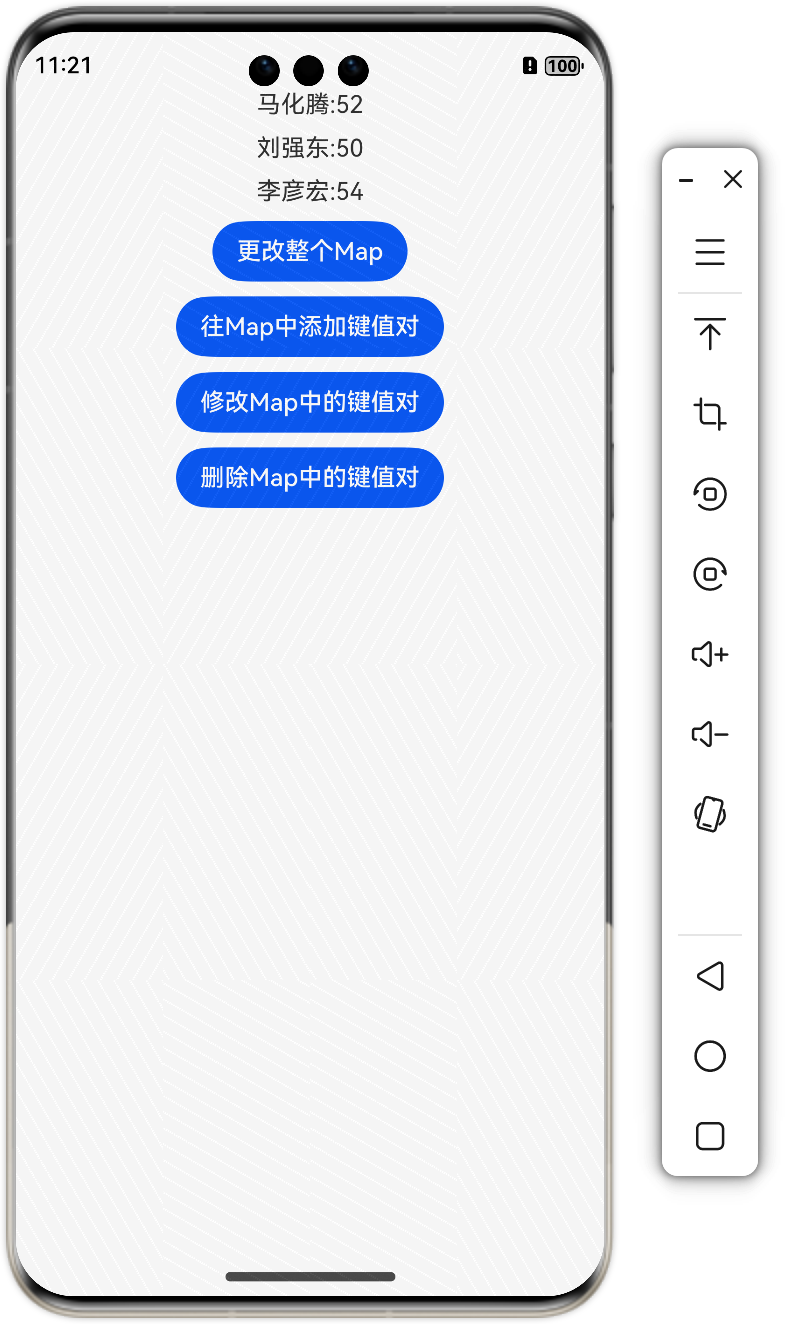
在下面的示例中,使用@State装饰类型为Map<number, string>的变量,点击Button改变Map的值,视图会随之刷新。
@Entry
@Component
struct Index {
  @State map: Map<string, number>
        = new Map([['马云', 50], ['任正非', 79], ['雷军', 55]])

  build() {
    Column({space:10}) {
      ForEach(Array.from(this.map.entries()), (item: [string, number]) => {
        Text(item[0] + ":" + item[1])
      })
      Button('更改整个Map').onClick(() => {
        this.map = new Map([['马化腾', 52], ['刘强东', 50], ['李彦宏', 54]])
      })

      Button('往Map中添加键值对').onClick(() => {
        this.map.set('余承东',55)
      })

      Button('修改Map中的键值对').onClick(() => {
        this.map.set('余承东',60)
      })

      Button('删除Map中的键值对').onClick(() => {
        this.map.delete('余承东')
      })
    }.width('100%').height('100%')
  }
}
2.4 装饰Set类型变量
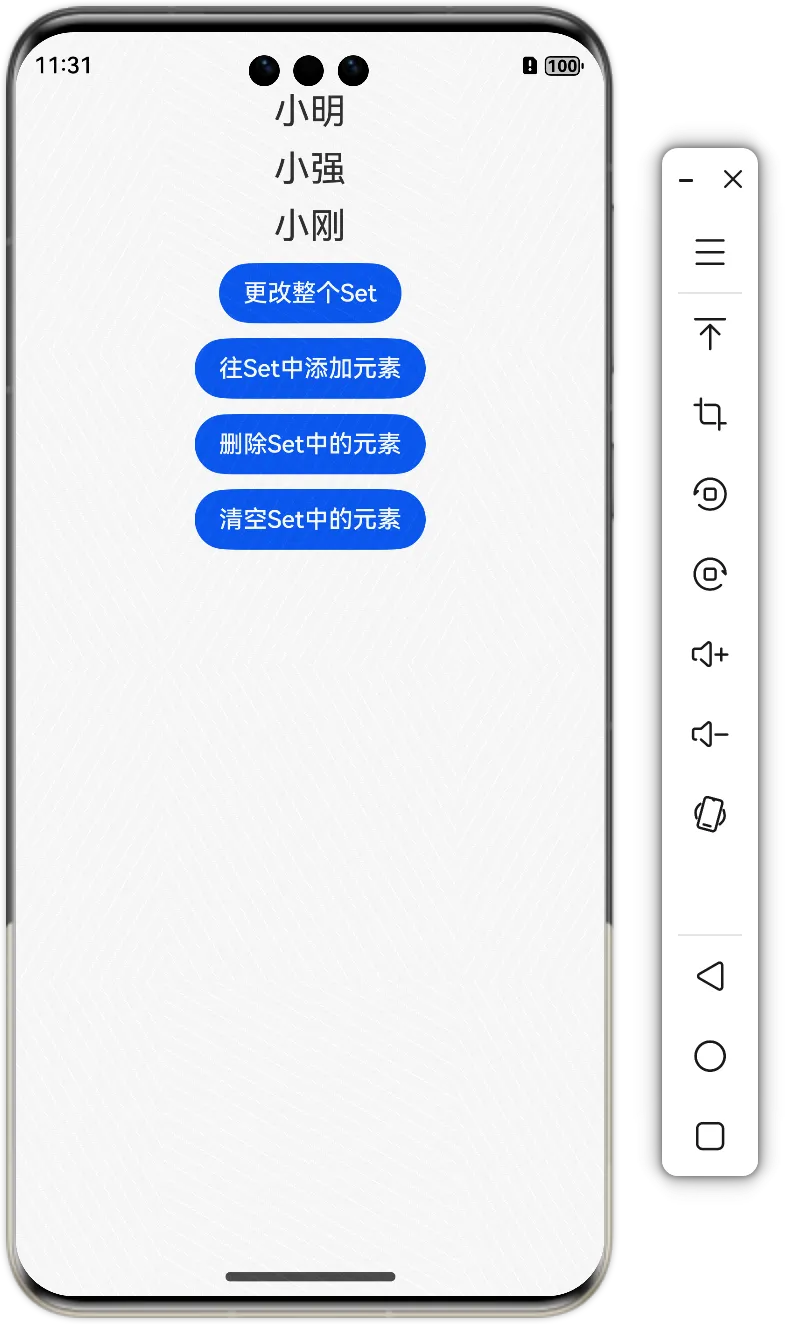
在下面的示例中,使用@State装饰类型为Set
@Entry
@Component
struct Index {
  @State set: Set<string> = new Set(['小明', '小强', '小刚'])

  build() {
    Column({ space: 10 }) {
      ForEach(Array.from(this.set), (item:string) => {
        Text(item).fontSize(24)
      })
      Button('更改整个Set').onClick(() => {
        this.set = new Set(['xiaoming','xiaoqiang','xiaogang'])
      })

      Button('往Set中添加元素').onClick(() => {
        this.set.add('小智')
      })

      Button('删除Set中的元素').onClick(() => {
        this.set.delete('小智')
      })

      Button('清空Set中的元素').onClick(() => {
        this.set.clear()
      })
    }.width('100%').height('100%')
  }
}
3. @Prop 父子单向同步
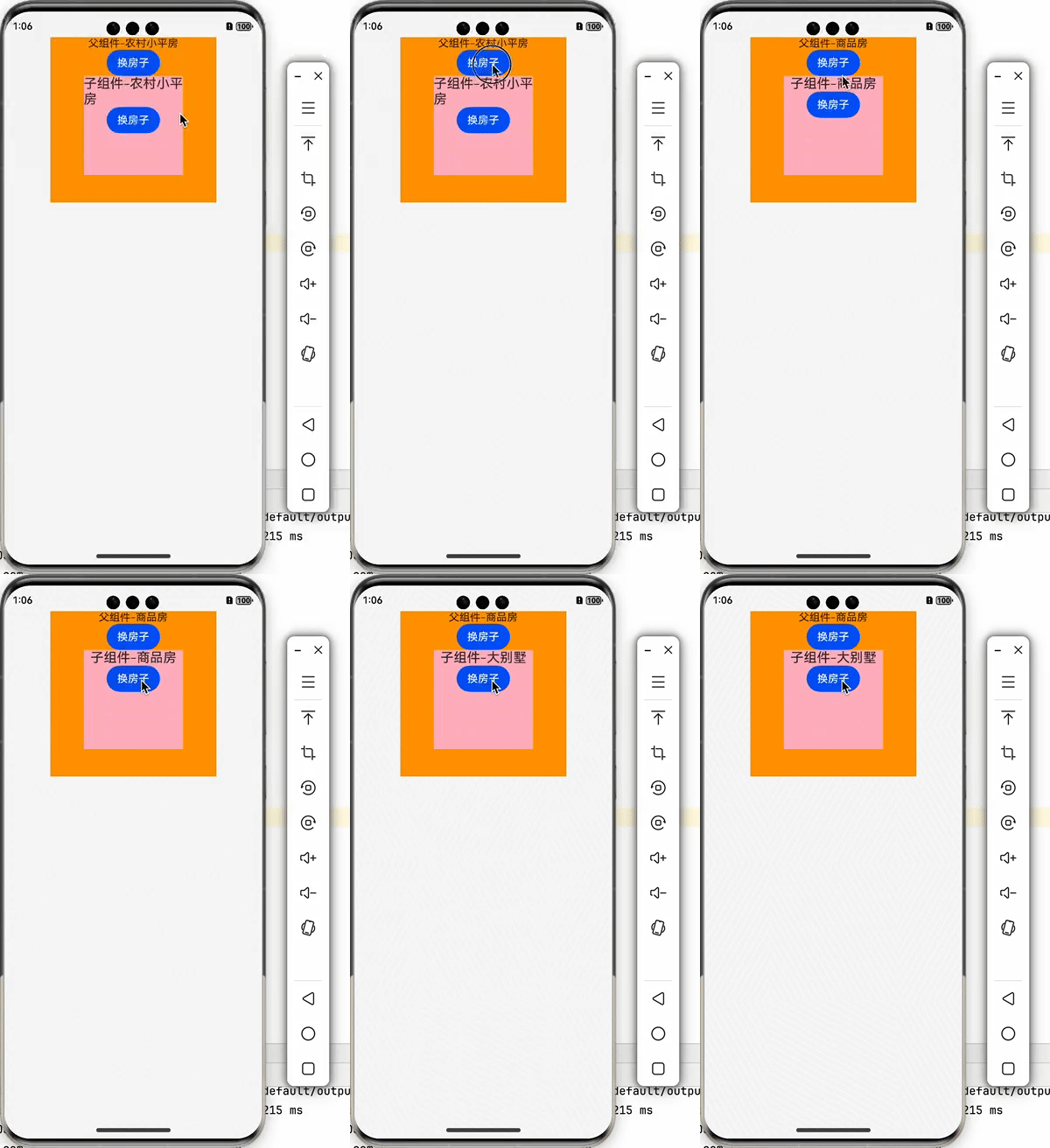
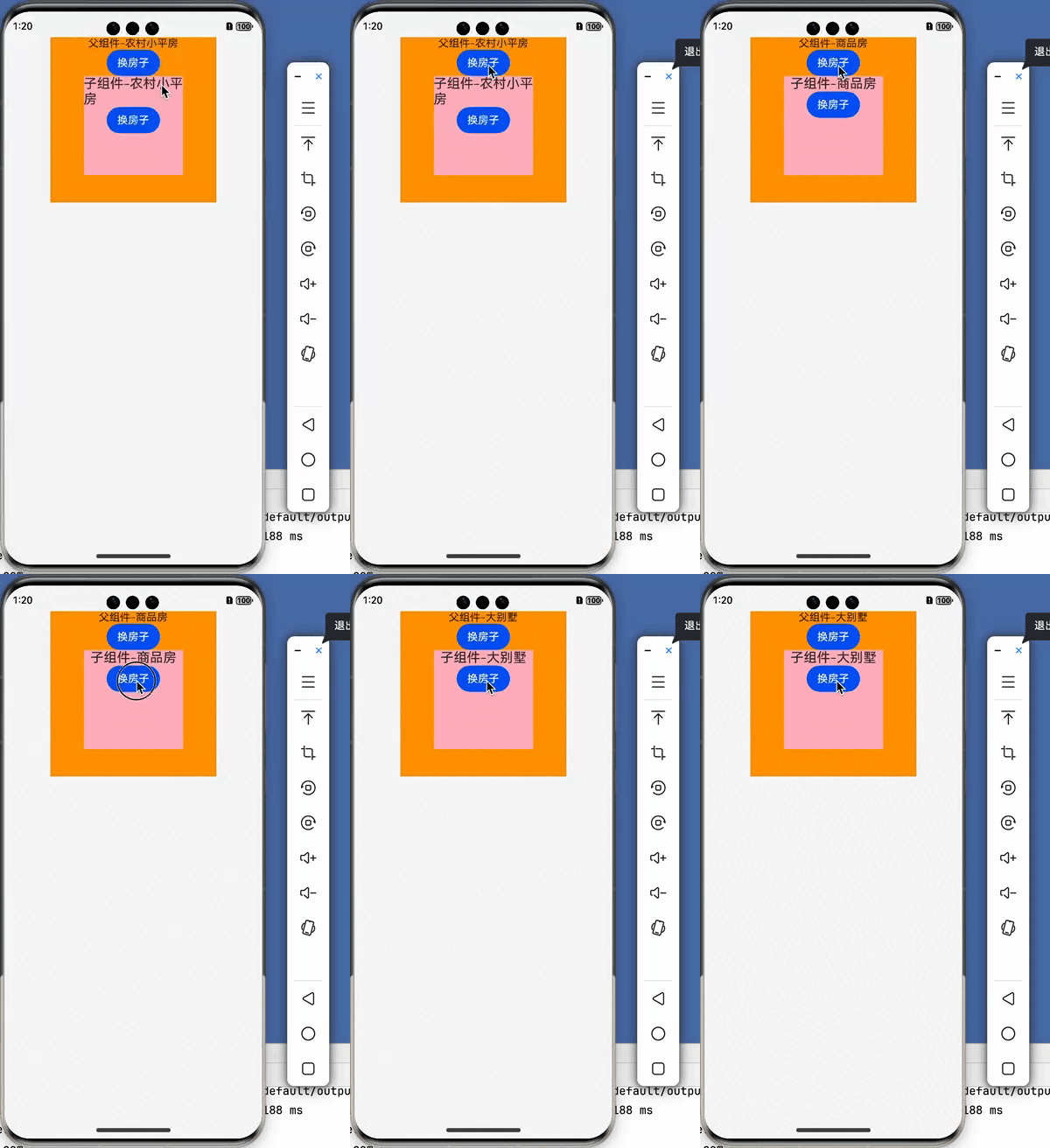
@Prop 装饰的变量可以和父组件建立单向的同步关系。@Prop装饰的变量是可变的,但是变化不会同步回其父组件。
如下图所示,点击更改父组件状态时,子组件能同步更新;但是,此时更改子组件状态变量时,不能把状态传递给父组件。
3.1 父组件更新子组件UI
把父组件的状态变量传递给子组件,当父组件状态变量发生改变时,子组件同步更新UI。步骤如下
- 使用@State装饰父组件变量,使其成为状态变量
- 使用@Prop装饰子组件变量,使其和父组件变量形成单向同步关系(父->子)
- 将父组件中的状态变量的值,通过子组件构造器传递给子组件
- 第1步:使用@State装饰父组件变量
@Component
struct FComponent {
  //1.使用@State修饰父组件变量
  @State fHouse: string = '农村小平房'

  build() {
    Column() {
      Text(`父组件-${this.fHouse}`)
      Button('换房子').onClick(() => {
        this.fHouse = '商品房'
      })
    }.width(250).height(250).backgroundColor(Color.Orange)
  }
}
- 第2步:使用@Prop修饰子组件变量
@Component
struct SComponent {
  //2.使用@Prop修饰子组件变量
  @Prop house: string = ''
  build() {
    Column() {
      Text(`子组件-${this.house}`).fontSize(20)
      Button('换房子').onClick(() => {
        this.house = '大别墅'
      })
    }
    .width(150).height(150).backgroundColor(Color.Pink)
  }
}
- 第3步:将父组件中的状态变量传递给子组件
@Component
struct FComponent {
  @State fHouse: string = '农村小平房'

  build() {
    Column() {
      Text(`父组件-${this.fHouse}`)
      Button('换房子').onClick(() => {
        this.fHouse = '商品房'
      })

      //3.将父组件的状态变量,传递给子组件
      SComponent({
        house: this.fHouse
      })
    }.width(250).height(250).backgroundColor(Color.Orange)
  }
}
3.2 子组件更新父组件UI
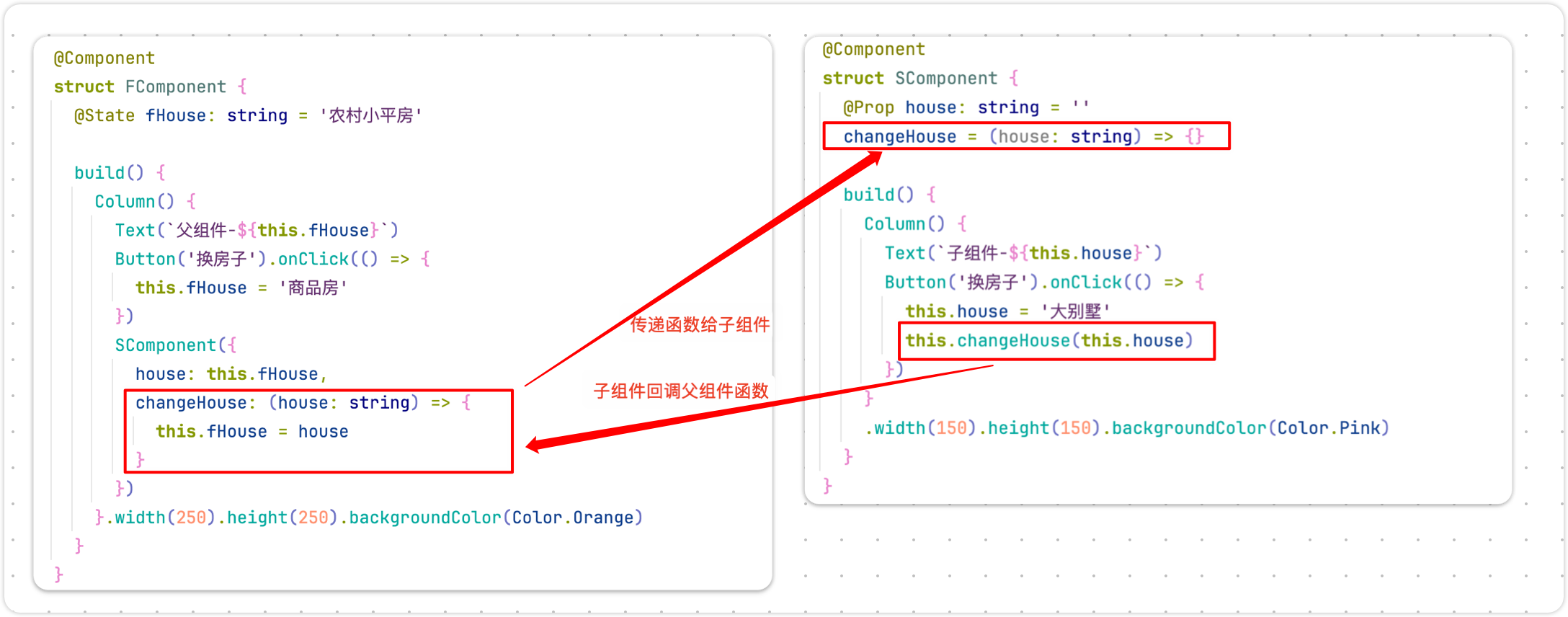
子组件是不能直接更改父组件状态变量,而是采用曲线救国的策略,具体步骤如下
- 我们可以在父组件中定义一个修改父组件状态的函数
- 然后将函数传递给子组件
- 在子组件中回调父组件传递过来的函数,修改父组件的状态
如图所示:实际上也是父组件更改自己的状态
完整代码如下
@Entry
@Component
struct Index {
  build() {
    Column() {
      FComponent()
    }.width('100%').height('100%')
  }
}


@Component
struct FComponent {
  @State fHouse: string = '农村小平房'

  build() {
    Column() {
      Text(`父组件-${this.fHouse}`)
      Button('换房子').onClick(() => {
        this.fHouse = '商品房'
      })

      SComponent({
        house: this.fHouse,
        changeHouse: (house: string) => {
          this.fHouse = house
        }
      })
    }.width(250).height(250).backgroundColor(Color.Orange)
  }
}

@Component
struct SComponent {
  @Prop house: string = ''
  changeHouse = (house: string) => {
  }

  build() {
    Column() {
      Text(`子组件-${this.house}`).fontSize(20)
      Button('换房子').onClick(() => {
        this.changeHouse('大别墅')
      })
    }
    .width(150).height(150).backgroundColor(Color.Pink)
  }
}
4.@Link 父子双向同步
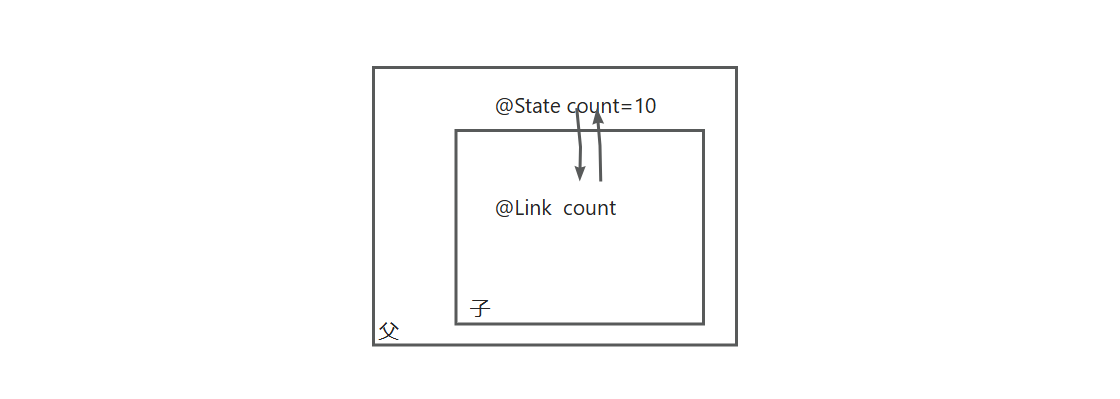
子组件中被@Link装饰的变量与其父组件中对应的数据源建立双向数据绑定。也就是说,父组件可以把状态改变传给子组件;子组件也可以把状态改变传给父组件。如下图所示
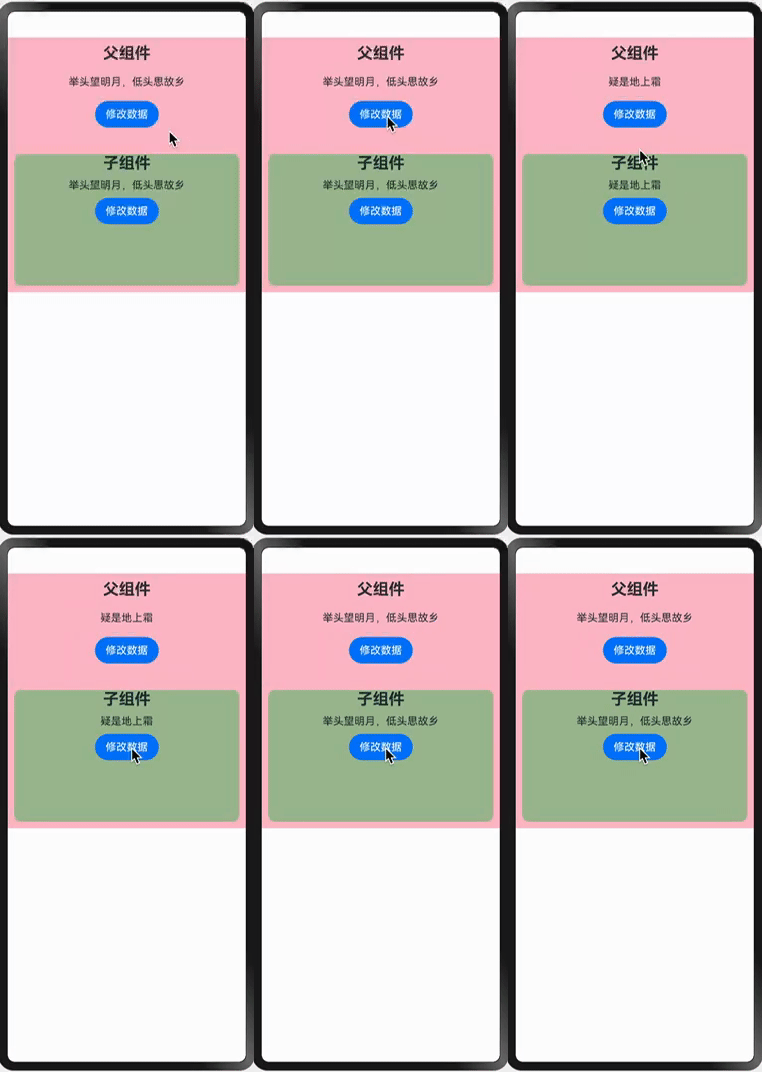
实现父子双向数据绑定的具体步骤如下
- 先使用@State装饰父组件状态变量
- 使用@Link装饰子组件状态变量
- 将父组件的状态变量传递给子组件
4.1 简单类型数据同步
- 第1步:先试用@State装饰父组件状态变量
@Entry
@Component
struct Index {
  build() {
    Column() {
      FuComponent()
    }.width('100%').height('100%')
  }
}

@Component
struct FuComponent {
  @State info: string = '床前明月光'

  build() {
    Column({ space: 20 }) {
      Text('父组件').fontSize(24).fontWeight(FontWeight.Bold)
      Text(this.info)
      Button('修改数据').onClick(() => {
        this.info = '疑是地上霜'
      })

    }.padding(10).backgroundColor(Color.Pink)
  }
}
- 第2步:使用@Link装饰子组件状态变量
@Component
struct SonCompoent {
  @Link info: string

  build() {
    Column({ space: 10 }) {
      Text('子组件').fontSize(24).fontWeight(FontWeight.Bold)
      Text(this.info)
      Button('修改数据').onClick(() => {
        this.info = '举头望明月,低头思故乡'
      })
    }.width('100%').height(200).backgroundColor('#A4BE97').border({ radius: 10 })
  }
}
- 第3步:将父组件状态变量传递给子组件
@Component
  struct FuComponent {
    @State info: string = '床前明月光'

    build() {
      Column({ space: 20 }) {
        Text('父组件').fontSize(24).fontWeight(FontWeight.Bold)
        Text(this.info)
        Button('修改数据').onClick(() => {
          this.info = '疑是地上霜'
        })

        SonCompoent({ info: this.info })
          .margin({ top: 20 })
      }.padding(10).backgroundColor(Color.Pink)
    }
  }
4.2 复杂类型数据同步
@Link除了装饰简单类型变量之外,还可以装饰复杂类型数据,如对象、Map、Set等,都可以使用@Link进行双向数据同步。
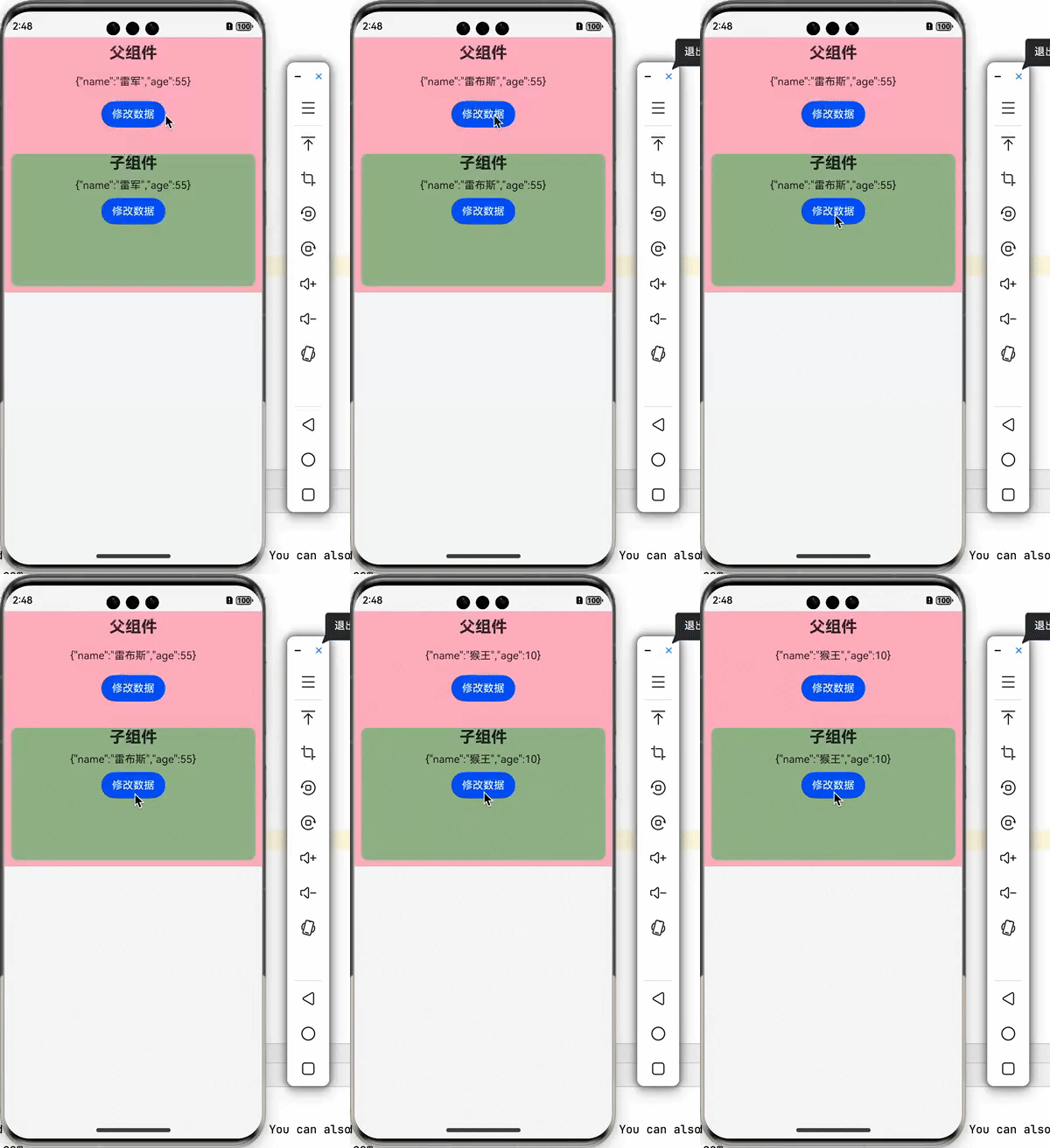
实现上述案例,代码如下
import { JSON } from '@kit.ArkTS'
class Person {
  name: string
  age: number

  constructor(name: string, age: number) {
    this.name = name
    this.age = age
  }
}

@Entry
@Component
struct Index {
  build() {
    Column() {
      FuComponent()
    }.width('100%').height('100%')
  }
}

@Component
struct FuComponent {
  @State info: Person = new Person('雷军', 55)

  build() {
    Column({ space: 20 }) {
      Text('父组件').fontSize(24).fontWeight(FontWeight.Bold)
      Text(JSON.stringify(this.info))
      Button('修改数据').onClick(() => {
        this.info.name = '雷布斯'
      })

      SonCompoent({ info: this.info }).margin({ top: 20 })
    }.padding(10).backgroundColor(Color.Pink)
  }
}

@Component
struct SonCompoent {
  @Link info: Person

  build() {
    Column({ space: 10 }) {
      Text('子组件').fontSize(24).fontWeight(FontWeight.Bold)
      Text(JSON.stringify(this.info))
      Button('修改数据').onClick(() => {
        this.info.name = '猴王'
        this.info.age = 10
      })
    }.width('100%').height(200).backgroundColor('#A4BE97').border({ radius: 10 })
  }
}
5.@Provide/@Consum 跨层级双向同步
如果组件的层级比较深,如果使用@Link装饰器就需要一层一层传递,比较麻烦;而@Provide/@Consum 可以实现跨层级数据的双向绑定。
如下图所示,有三个层级的组件,顶层组件数据的变化可以直接跨层级传给内层组件,内层组件的数据也可以跨层级直接传递给外层。
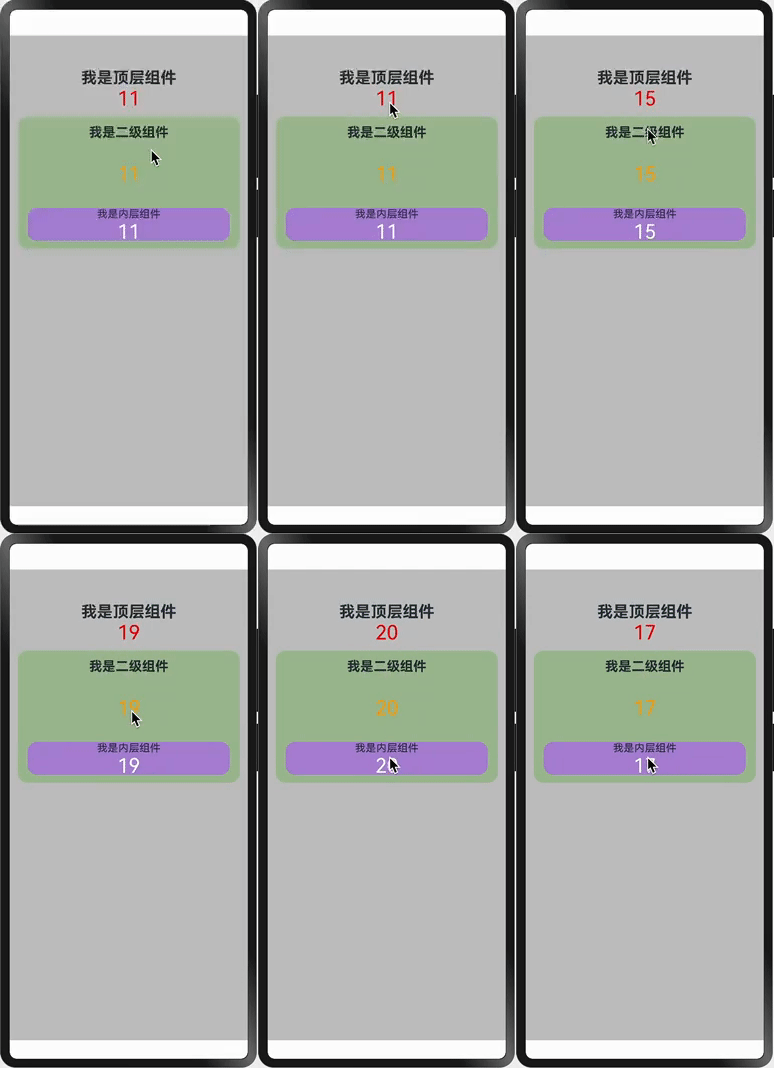
代码实现步骤如下
- 先试用@Provide装饰父组件状态变量
- 使用@Consum装饰子组及后代组件状态变量
5.1 顶层组件
//这是顶层组件
@Entry
@Component
struct Index {
  @Provide count: number = 0

  build() {
    Column() {
      Text(`我是顶层组件`)
        .fontSize(24)
        .fontWeight(FontWeight.Bold)
        .margin({ top: 50 })

      Text(`${this.count}`).fontSize(30).fontColor(Color.Red)
        .onClick(() => {
          this.count++
        })
      SecondComponent().margin({ top: 10 })
    }.width('100%').height('100%').backgroundColor('#C6C6C6').padding({ left: 12, right: 12 })
  }
}
5.2 中层组件
/这是二级组件
@Component
struct SecondComponent {
  @Consume count: number

  build() {
    Column() {
      Text('我是二级组件').fontSize(20).fontWeight(FontWeight.Bold)
      Text(`${this.count}`).fontSize(30).fontColor(Color.Orange).onClick(() => {
        this.count += 2
      })
      ThridComponent().margin({ right: 15, left: 15 })
    }
    .width('100%')
    .height(200)
    .backgroundColor('#A4BE97')
    .border({ radius: 15 })
    .padding({ top: 12, bottom: 12 })
    .justifyContent(FlexAlign.SpaceBetween)
  }
}
5.3 内层组件
/这是三级组件
@Component
struct ThridComponent {
  @Consume count: number

  build() {
    Column() {
      Text('我是内层组件')
      Text(`${this.count}`).fontSize(30).fontColor(Color.White).onClick(() => {
        this.count--
      })
    }
    .width('100%')
    .height(50)
    .backgroundColor('#AF88D7')
    .justifyContent(FlexAlign.Center)
    .border({ radius: 15 })
  }
}
6. @Observe/ObjectLink 嵌套类对象属性变化
上文所述的装饰器(包括@State、@Prop、@Link、@Provide和@Consume装饰器)仅能观察到对象第一层的属性变化,但是在实际应用开发中,应用会根据开发需要,封装自己的数据模型。对于多层嵌套的情况,比如二维数组,或者数组项class,或者class的属性是class,他们的第二层的属性变化是无法观察到的。这就引出了@Observed/@ObjectLink装饰器。
6.1 观察嵌套类对象属性变化存在的问题
● 假设有如下Person和Car类;
● 如下图所示,观察当修改person.car.brand属性值时,是否会触发UI更新;
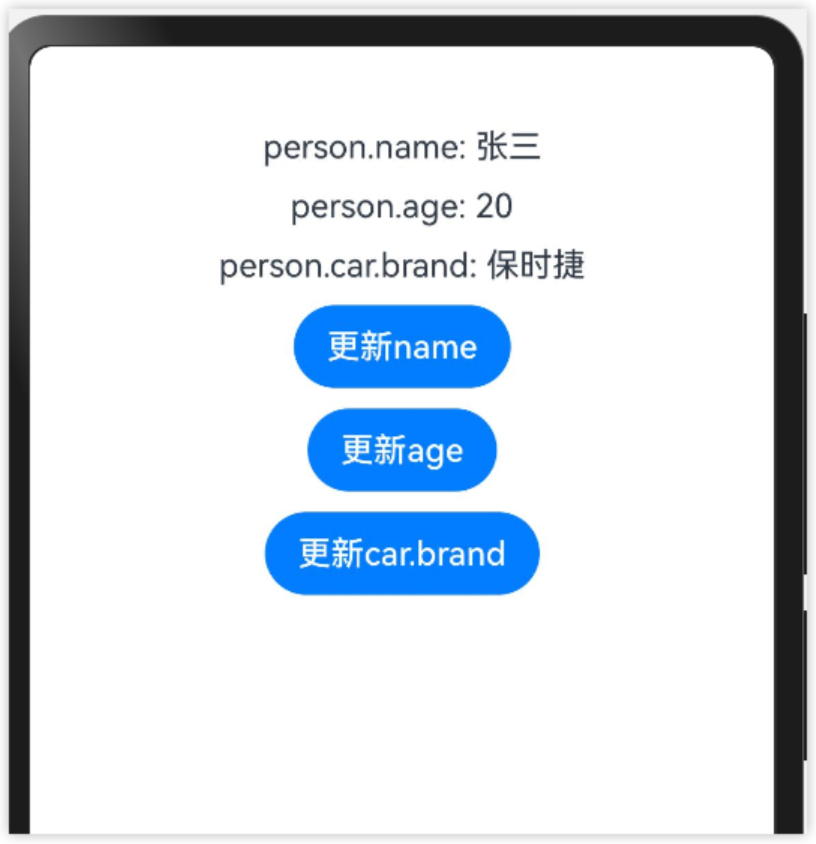
代码如下
class Person {
  name: string
  age: number
  car: Car

  constructor(name: string, age: number, car: Car) {
    this.name = name
    this.age = age
    this.car = car
  }
}

class Car {
  brand: string

  constructor(brand: string) {
    this.brand = brand
  }
}

@Entry
@Component
struct ObservedPage {
  @State person: Person = new Person("张三", 20, new Car("保时捷"))

  build() {
    Column({space:10}) {
      Text(`${this.person.name}`)
      Text(`${this.person.age}`)
      Text(`${this.person.car.brand}`)

      Button("更新name").onClick(() => {
        this.person.name = "李四"
      })

      Button("更新age").onClick(() => {
        this.person.age = 33
      })

      Button("更新car.brand").onClick(() => {
        this.person.car.brand = "拖拉机"   //无法观察到UI的变化
      })
    }
    .height('100%')
    .width('100%')
  }
}
⚠️ 结论:当修改嵌套对象的属性时,无法被观察到,UI不会刷新;
6.2 观察嵌套类对象属性变化
为了让嵌套类对象的属性能够被观察到,需要进行如下修改
❶ 给Person和Car类加上@Observed装饰
@Observed
class Person {
  name: string
  age: number
  car: Car

  constructor(name: string, age: number, car: Car) {
    this.name = name
    this.age = age
    this.car = car
  }
}

@Observed
class Car {
  brand: string
  constructor(brand: string) {
    this.brand = brand
  }
}
❷ 将引用car.brand属性的UI抽取出来,成为自定义组件Child,并在页面中引用Chid组件,并传递this.person.car对象
@Component
struct Child {
  @ObjectLink car: Car

  build() {
    Column({ space: 10 }) {
      Text(`person.car.brand: ${this.car.brand}`)
    }
  }
}

@Entry
@Component
struct ObservedPage {
  @State person: Person = new Person("张三", 20, new Car("保时捷"))

  build() {
    Column({space:10}) {
      Text(`person.name: ${this.person.name}`)
      Text(`person.age: ${this.person.age}`)
      Child({
        car: this.person.car
      })

      Button("更新name").onClick(() => {
        this.person.name = "李四"
      })

      Button("更新age").onClick(() => {
        this.person.age = 33
      })

      Button("更新car.brand").onClick(() => {
        this.person.car.brand = "拖拉机"
      })

    }
    .height('100%')
    .width('100%')
  }
}
6.3 观察对象数组的属性变化
如下图所示,在一个对象数组中存储了多个Person对象,并以列表的形式展示;点击“修改”按钮时,修改数组对象元素的属性。
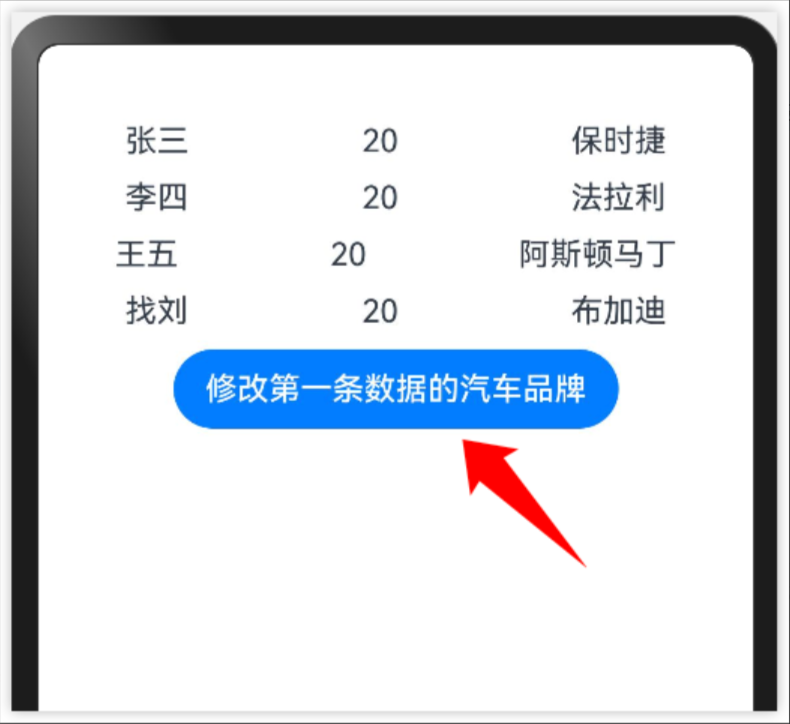
@Observed
class Person {
  name: string
  age: number
  car: Car

  constructor(name: string, age: number, car: Car) {
    this.name = name
    this.age = age
    this.car = car
  }
}

@Observed
class Car {
  brand: string

  constructor(brand: string) {
    this.brand = brand
  }
}

@Component
struct Child {
  @ObjectLink car: Car

  build() {
    Column({ space: 10 }) {
      Text(`${this.car.brand}`)
    }
  }
}

@Component
struct MyListItem {
  @ObjectLink person: Person

  build() {
    Row({ space: 10 }) {
      Text(`${this.person.name}`)
      Text(`${this.person.age}`)
      Child({
        car: this.person.car
      })
    }.width("100%").justifyContent(FlexAlign.SpaceAround)
  }
}


@Entry
@Component
struct ObservedPage {
  @State persons: Person[] = [
    new Person("张三", 20, new Car("保时捷")),
    new Person("李四", 20, new Car("法拉利")),
    new Person("王五", 20, new Car("阿斯顿马丁")),
    new Person("找刘", 20, new Car("布加迪")),
  ]

  build() {
    Column({ space: 10 }) {
      ForEach(this.persons, (person: Person) => {
        MyListItem({ person: person })
      })

      Button("修改第一条数据的汽车品牌").onClick(() => {
        this.persons[0].car.brand = "卡宴"
      })
    }
    .height('100%')
    .width('100%')
  }
}
7.@Watch 监视器
@Watch 应用于对状态变量的监听。如果开发者需要关注某个状态变量的值是否改变,可以使用@Watch为状态变量设置回调函数。
7.1 监听@State变量
@Entry
@Component
struct Index {
  @State @Watch("countChange") count: number = 0

  countChange() {
    console.log("检测到count发生改变了:count=" + this.count)
  }

  build() {
    Column() {
      Text(`${this.count}`)

      Button('更新')
        .onClick(() => {
          this.count++
        })
    }
    .width('100%')
    .height('100%')
  }
}
7.2 监听@Prop变量
@Watch可以监听@Prop状态变量。当父组件的count发生变化时,会将变化传递给子组件,所以在子组件中也能监听到状态的变化。
注意:由于@Prop是父子单向数据传递的,所以子组件中count的变化,在父组件中不能被观察到。

//定义子组件
@Component
struct MyComponent {
  @Prop @Watch("onCountChange") count: number

  onCountChange(){
    console.log("观察到子组件count变化"+this.count)
  }

  build() {
    Column() {
      Text(`${this.count}`)
    }
  }
}

//入口组件
@Entry
@Component
struct Index {
  @State count: number = 0

  build() {
    Column() {
      MyComponent({
        count:this.count
      })
      Button("父组件状态更新")
        .onClick(()=>{
          this.count++
        })
    }
    .width('100%')
    .height('100%')
  }
}
7.3 监听@Link变量
@Watch可以监听@Link状态变量。由于@State和@Link是双向同步的,所以当父组件的count发生变化时,会将变化传递给子组件,所以在子组件中可以监听到count状态的变化;反过来子组件中count状态发生改变时,也会将变化传递给父组件,在父组件中也能监听到count的变化。
@Component
struct MyComponent {
  @Link @Watch("onCountChange") count: number

  onCountChange() {
    console.log("观察到子组件count变化" + this.count)
  }

  build() {
    Column() {
      Text(`${this.count}`)
      Button('子组件更新')
        .onClick(()=>{
          this.count++
        })
    }.border({
      width: 1,
      color: Color.Black,
      style: BorderStyle.Solid
    })
    .width(200)
    .height(100)
  }
}

@Entry
@Component
struct Index {
  @State @Watch("onCountChange") count: number = 0

  onCountChange() {
    console.log("观察到父组件count变化" + this.count)
  }

  build() {
    Column() {
      MyComponent({
        count: this.count
      })
      Button("父组件状态更新")
        .onClick(() => {
          this.count++
        })
    }
    .border({
      width: 1,
      color: Color.Black,
      style: BorderStyle.Solid
    })
    .width(300)
    .height(200)
    .justifyContent(FlexAlign.Center)
  }
}
8.@Track 装饰器
@Track应用于class对象的属性级更新。@Track装饰的属性变化时,只会触发该属性关联的UI更新。使用@Track装饰器可以避免冗余刷新。
8.1 冗余刷新问题
如下图所示:当更新age时,虽然只更新了age的值,但是name和age都会重新渲染,这就叫做冗余刷新。
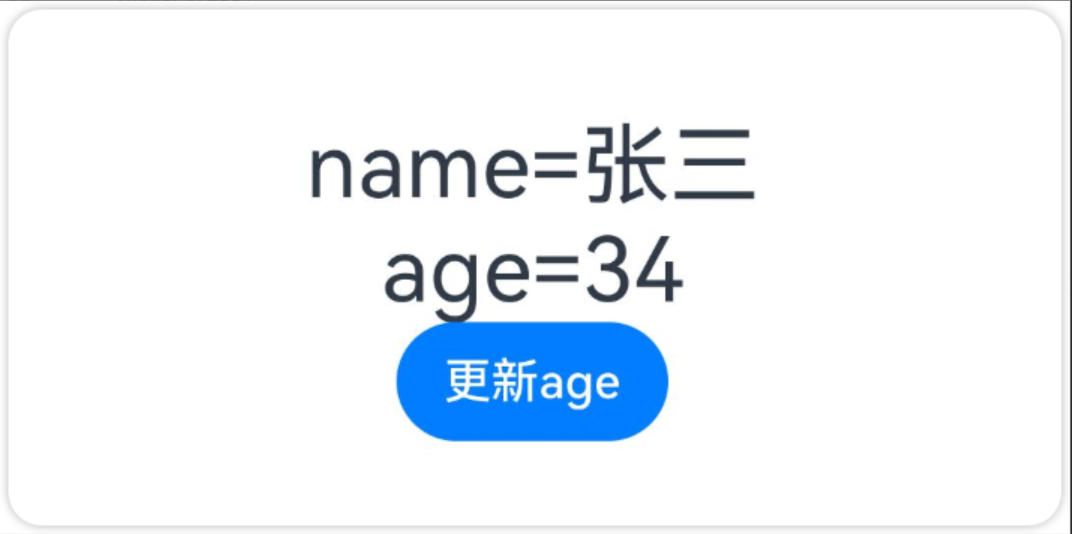
为了验证name和age的UI重新渲染,我们将Text的样式封装成了方法,如果该方法重复执行,则表示UI重新渲染了。
class Student {
  name: string
  age: number

  constructor(name: string, age: number) {
    this.name = name;
    this.age = age;
  }
}

@Entry
@Component
struct Index {
  @State student: Student = new Student("张三", 30)

  build() {
    Row() {
      Column() {
        Text(this.student.name).fontSize(this.getSize(1))
        Text(`${this.student.age}`).fontSize(this.getSize(2))
        Button("更新age").onClick(() => {
          this.student.age++
        })
      }
      .width('100%')
    }
    .height('100%')
  }

  getSize(index: number) {
    console.log(`Text ${index} is 更新了`);
    return 30
  }
}
观察打印结果如下:虽然我们只改变了text的值,但是text1和text2全都刷新了

8.2 @Track避免冗余刷新
使用 @Track 装饰类的属性,则@Track装饰的属性变化时,只会触发该属性关联的UI更新,其他UI不更新。
class Student {
  @Track name: string
  @Track age: number

  constructor(name: string, age: number) {
    this.name = name;
    this.age = age;
  }
}
观察打印结果如下:此时只有Text2更新了,Text1没有更新

注意:
● 不能在UI中使用非@Track装饰的属性,包括不能绑定在组件上、不能用于初始化子组件,错误的使用将导致JSCrash;

 浙公网安备 33010602011771号