
Stage应用模型及状态存储
Stage应用模型
1.Stage模型基本概念
应用模型是系统为开发者提供的应用程序所需能力的抽象提炼,它提供了应用程序必备的组件和运行机制。简而言之,应用模型就是像是应用的施工图纸,他规范化了程序运行流程、项目结构、文件功能等…...
随着系统的演进发展,先后提供了两种应用模型:
- FA 模型:从API7开始支持的模型,已经不再主推
- Stage 模型:从API9开始新增的模型,是目前主推且会长期演进的模型。
2. Stage模型配置文件
当我们创建一个State模型的项目时,项目的目录结构如下图所示。目录结构规定各种文件资源应在存放在哪些位置、以及应用程序的相关配置应该在哪个文件中编写等。
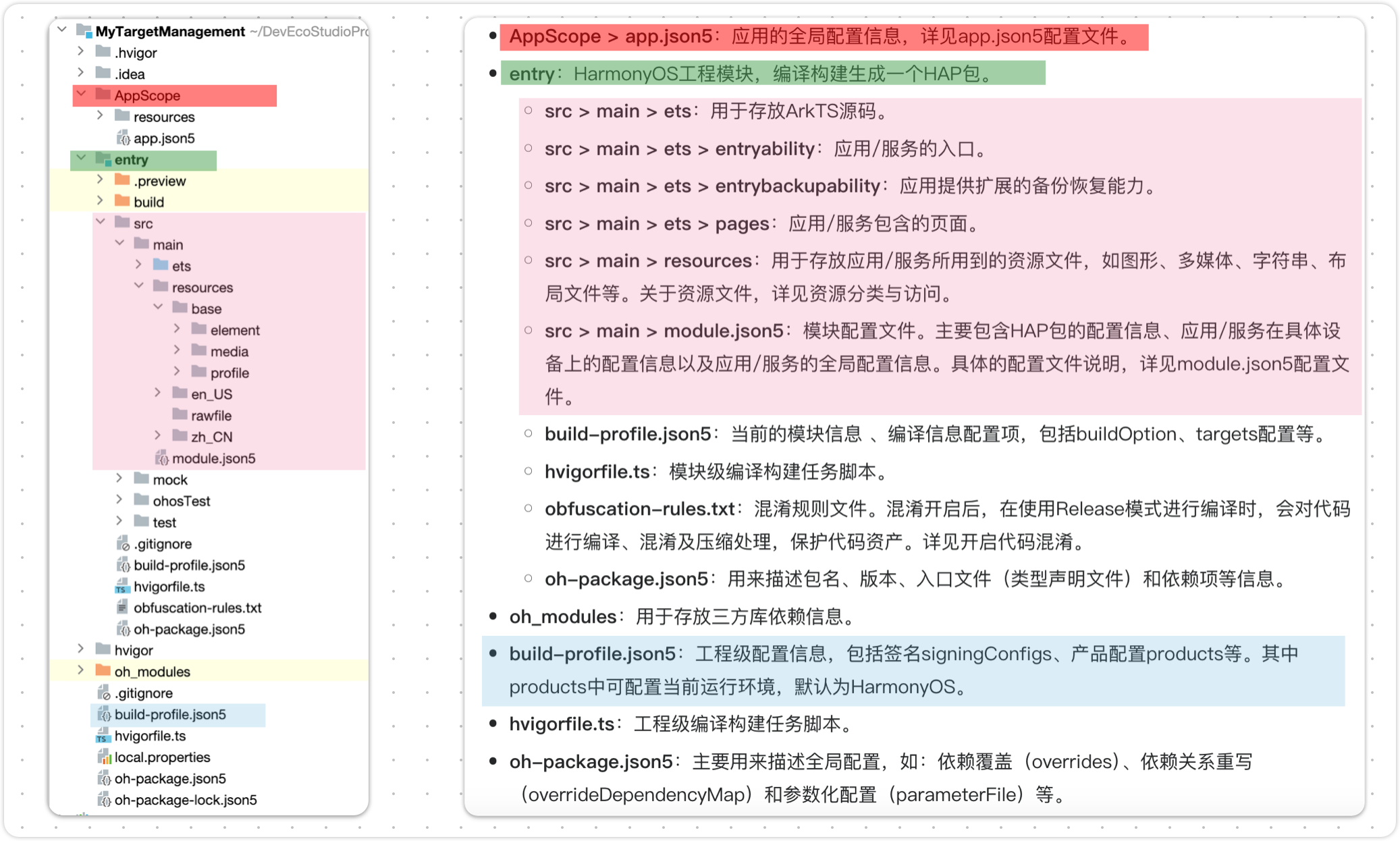
每个应用项目的代码目录下必须包含应用配置文件,这些配置文件会向编译工具、操作系统和应用市场提供应用的基本信息。
在基于Stage模型开发的应用项目代码下,都存在一个app.json5配置文件、以及一个或多个module.json5配置文件。
● app.json5配置文件:用于声明应用的全局配置信息,比如应用Bundle名称、应用名称、应用图标、应用版本号等
● module.json5配置文件:用于声明Module基本信息、支持的设备类型、所含的组件信息、运行所需申请的权限等。
2.1 app.json5 配置文件
{
  "app": {
    "bundleName": "com.example.mytargetmanagement", //应用包名
    "vendor": "example",        //表示对应用厂商的描述
    "versionCode": 1000000,     //应用程序版本号
    "versionName": "1.0.0",     //应用程序版本名称
    "icon": "$media:app_icon",  //应用程序图标
    "label": "$string:app_name" //应用程序名称
  }
}
2.2 model.json5 配置文件
{
  "module": {
    "name": "entry",			//模块名称
    "type": "entry",			//模块类型(entry:应用的主模块、feature:应用的动态特性模块)
    "description": "$string:module_desc",	//模块描述
    "mainElement": "EntryAbility",		//标识当前Module的入口UIAbility
    "deviceTypes": [		//设备类型
      "phone",
      "tablet",
      "2in1"
    ],
    "deliveryWithInstall": true,
    "installationFree": false,
    "pages": "$profile:main_pages",
    "abilities": [
      {
        "name": "EntryAbility",
        "srcEntry": "./ets/entryability/EntryAbility.ets",
        "description": "$string:EntryAbility_desc",
        "icon": "$media:layered_image",
        "label": "$string:EntryAbility_label",
        "startWindowIcon": "$media:startIcon",
        "startWindowBackground": "$color:start_window_background",
        "exported": true,
        "skills": [
          {
            "entities": [
              "entity.system.home"
            ],
            "actions": [
              "action.system.home"
            ]
          }
        ]
      }
    ],
    "extensionAbilities": [
      {
        "name": "EntryBackupAbility",
        "srcEntry": "./ets/entrybackupability/EntryBackupAbility.ets",
        "type": "backup",
        "exported": false,
        "metadata": [
          {
            "name": "ohos.extension.backup",
            "resource": "$profile:backup_config"
          }
        ],
      }
    ]
  }
}
3.State模型UIAbility
3.1 UIAbility组件概述
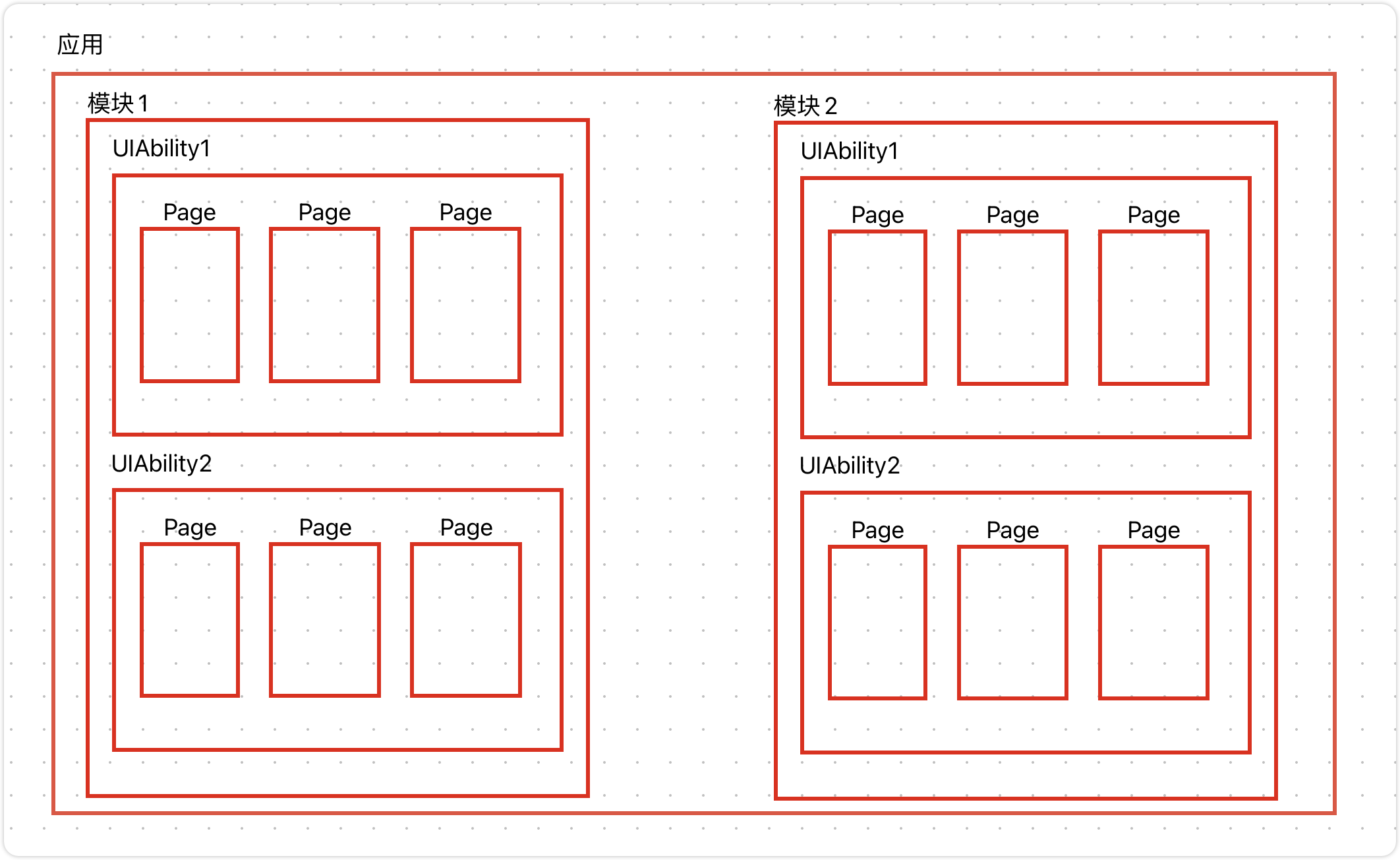
UIAbility是一种包含用户界面的应用组件,主要用于和用户进行交互。每一个UIAbility实例,都对应于一个最近任务列表中的任务;一个应用可以有一个 UIAbility 也可以有多个 UIAbility
3.2 创建UIAbility并指定启动页面
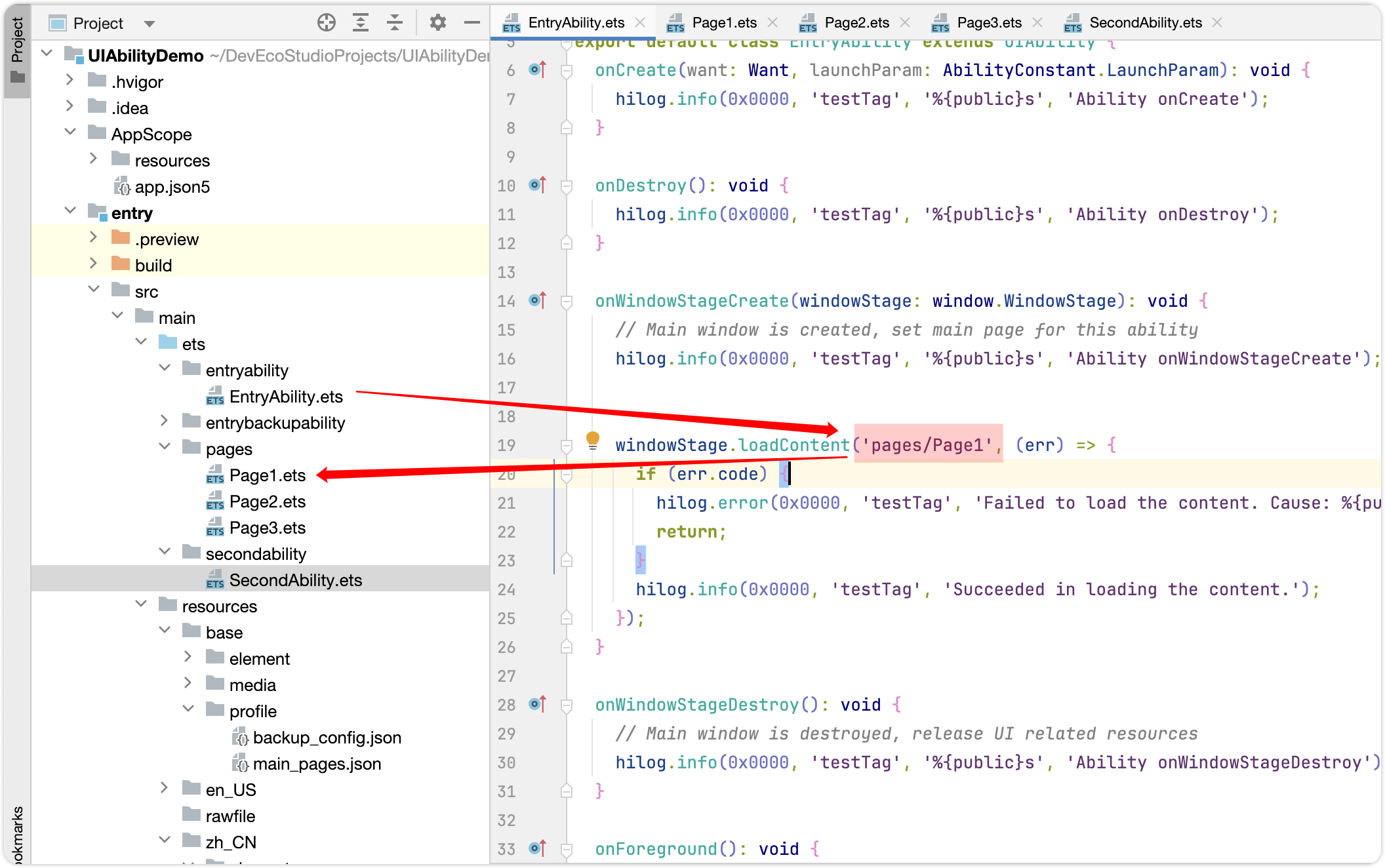
应用中的UIAbility在启动过程中,需要指定启动页面,否则应用启动后会因为没有默认加载页面而导致白屏。可以在UIAbility的onWindowStageCreate()生命周期回调中,通过WindowStage对象的loadContent()方法设置启动页面。
import { UIAbility } from '@kit.AbilityKit';
import { window } from '@kit.ArkUI';

export default class EntryAbility extends UIAbility {
  onWindowStageCreate(windowStage: window.WindowStage): void {
    windowStage.loadContent('pages/Index', (err, data) => {
      // ...
    });
  }
  // ...
}
说明:
在DevEco Studio中创建的UIAbility中,该UIAbility实例默认会加载Index页面,根据需要将Index页面路径替换为需要的页面路径即可。
3.3 启动UIAbility组件并传递参数
UIAbility是系统调度的最小单元。在设备内的功能模块之间跳转时,会涉及到启动特定的UIAbility,包括应用内的其他UIAbility、或者其他应用的UIAbility(例如启动三方支付UIAbility)。我们这里以启动应用内的Ability为例。
假设现在有如下需求
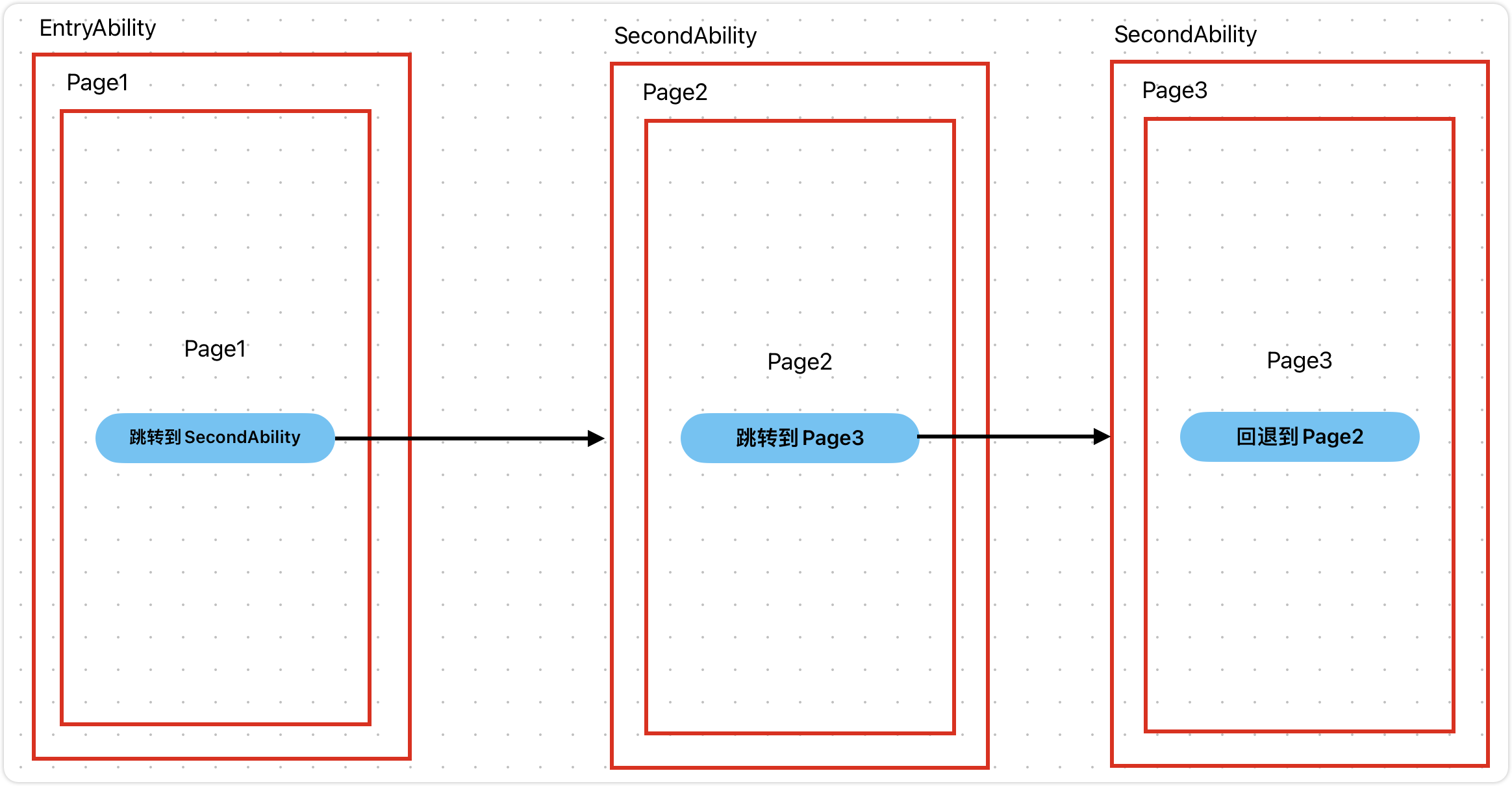
● 有两个Ability,分别是EntryAbility和SecondAbility,EntryAbility只有Page1页面,而SecondAbility中有Page2和Page3页面;EntryAbility作为默认的Ability。
● 启动EntryAbility时加载Page1页面,启动SecondAbility时加载Page2页面
● 在Page1页面中点击按钮时跳转到SecondAbility
● 在Page2页面中点击按钮跳转到Page3页面(Page2和Page3都属于SecondAbility)
下面是需求示意图
- 指定EntryAbility的启动页Page1
![在这里插入图片描述]()
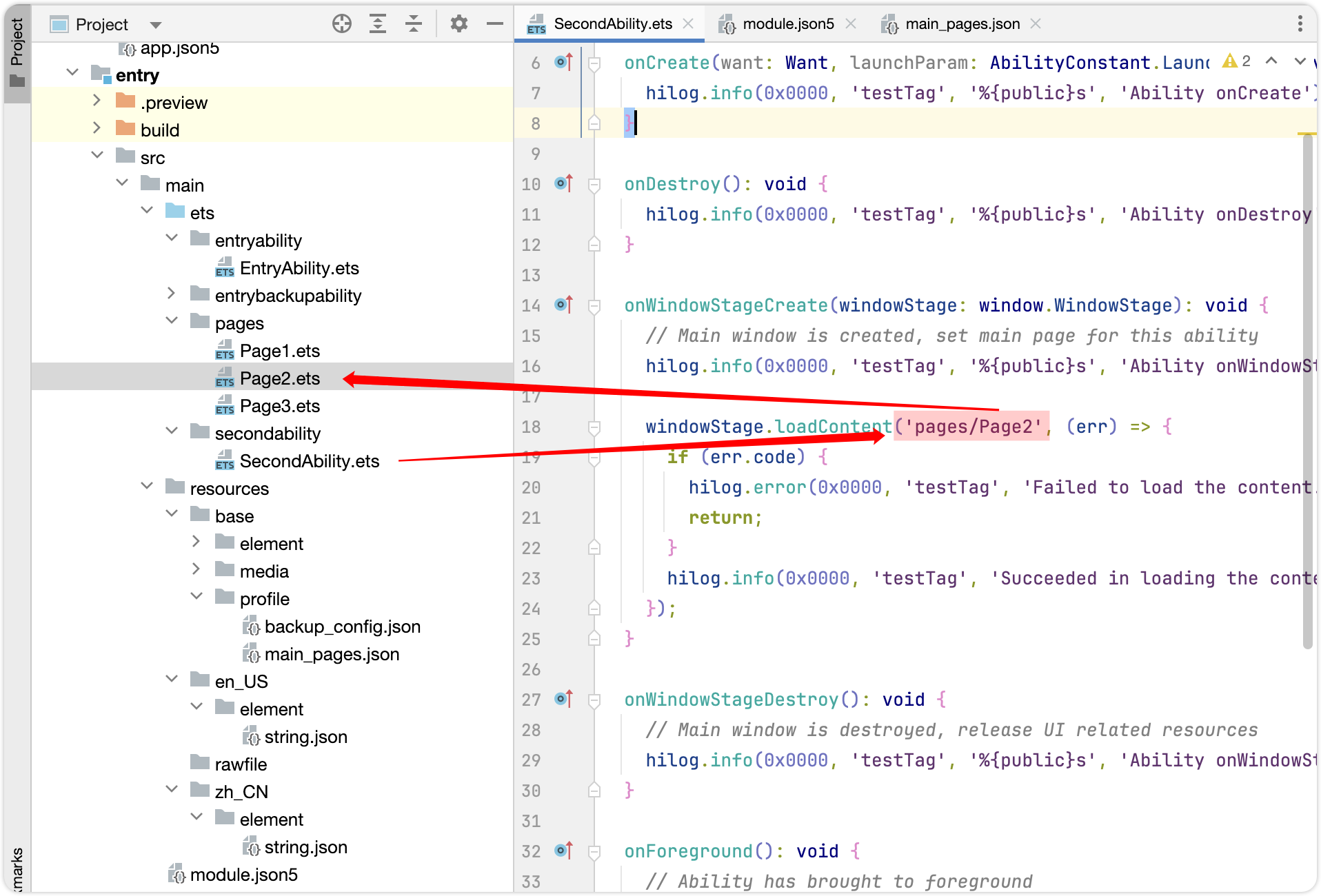
- 指定SecondAbility的启动页Page2
![在这里插入图片描述]()
- 接下来在Page1页面中启动SecondAbility,启动UIAbility只需要2步就可以了
- 获取应用上下文对象:context = getContext(this) as common.UIAbilityContext;
- 通过上下文对象启动指定的Ability:context.startAbility(Want);目标Ability通过Want参数来指定
import Want from '@ohos.app.ability.Want'
import { common } from '@kit.AbilityKit';
import { BusinessError } from '@kit.BasicServicesKit';

@Entry
@Component
struct Page1 {
  //1.获取应用上下文
  private context = getContext(this) as common.UIAbilityContext;
  @State info:string = '窗前明月光'

  build() {
    Column({ space: 10 }) {
      Text('Page1').fontSize(50).fontWeight(FontWeight.Bold)
      Text(`这是Page1的数据:${this.info}`)

      Button('跳转到SecondAbility').onClick(() => {
        //2.创建目标意图对象,并启动目标Ability
        let wantInfo: Want = {
          deviceId: '',
          bundleName: 'com.yutianedu.myapplication',
          moduleName: 'entry',
          abilityName: 'SecondAbility',
          parameters: {
            info: this.info
          }
        }

        this.context.startAbility(wantInfo).then(() => {
          console.log('SecondAbility启动成功')
        }).catch((error: BusinessError) => {
          console.log('SecondAbility启动失败')
        });
      })
    }
    .height('100%')
    .width('100%')
    .justifyContent(FlexAlign.Center)
  }
}
- 在SecondAbility中接收来自Page1的参数
export default class SecondAbility extends UIAbility {
  onCreate(want: Want, launchParam: AbilityConstant.LaunchParam): void {
    hilog.info(0x0000, 'testTag', '%{public}s', 'Ability onCreate');
    //获取来自Page1的数据
    let info = want?.parameters?.info as string
    console.log(`来自Page1的数据:${info}`)
  }
}
3.4 UIAbility生命周期
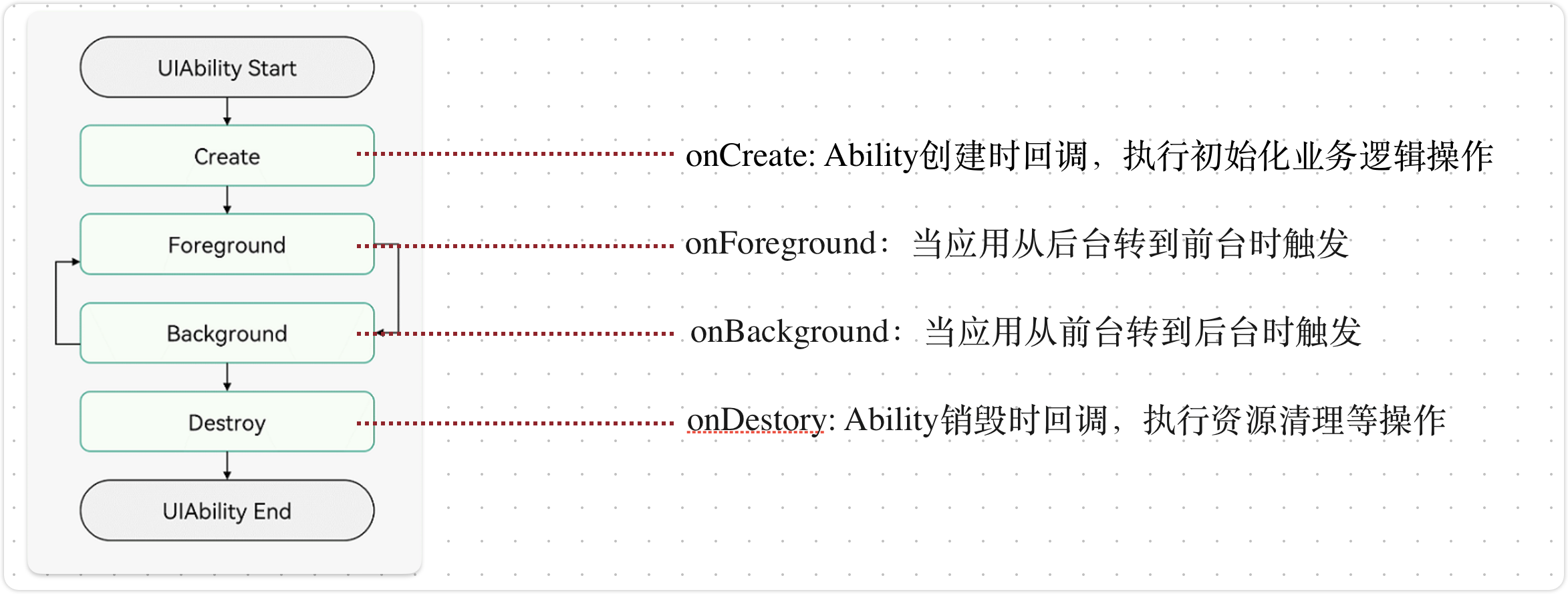
当用户打开、切换和返回到对应应用时,应用中的UIAbility实例会在其生命周期的不同状态之间转换。UIAbility的生命周期包括Create、Foreground、Background、Destroy四个状态,如下图所示。
完整生命周期如下
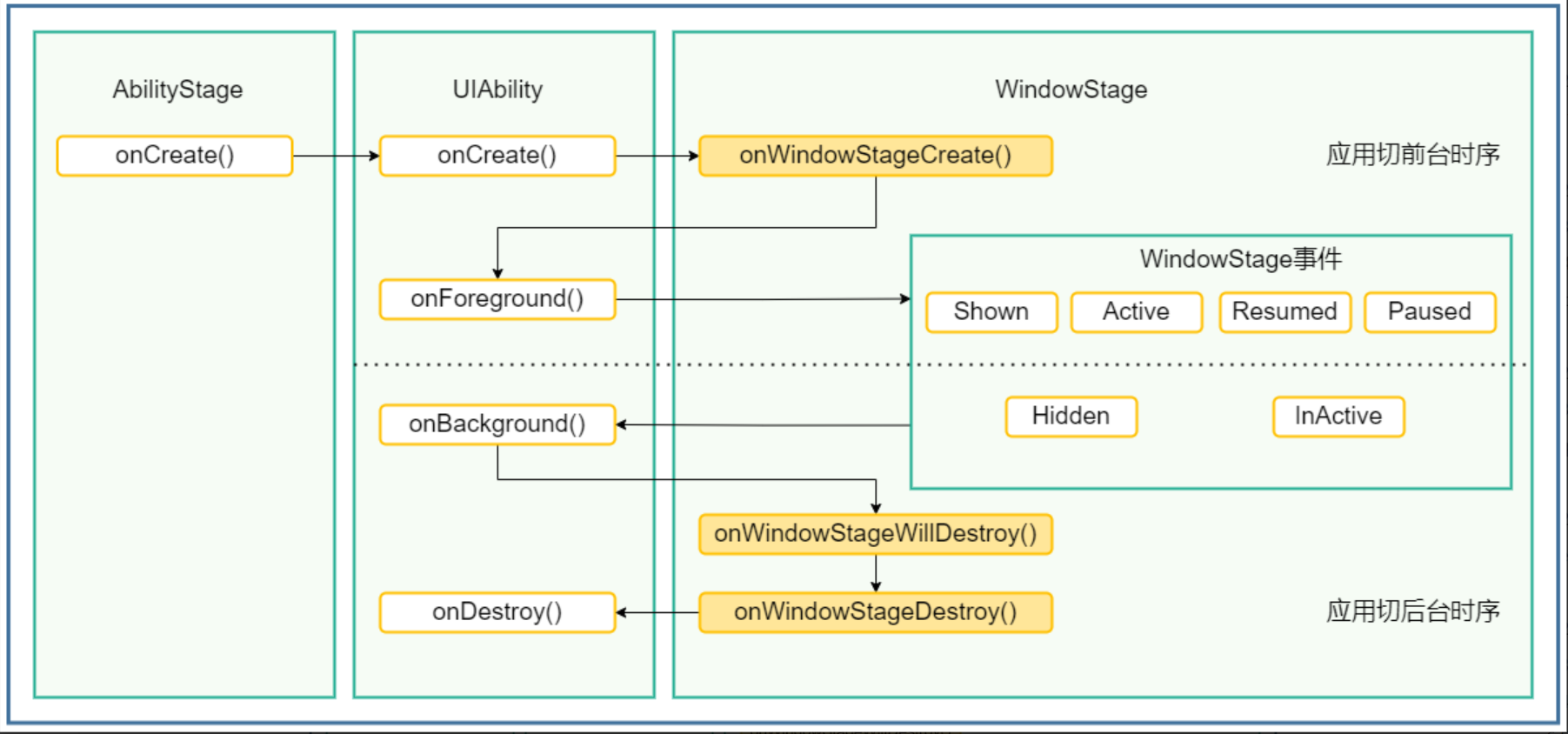
在DevEco Studio 中创建EntryAbiltiy时默认就帮我们写好几个生命周期函数,代码如下
import { AbilityConstant, UIAbility, Want } from '@kit.AbilityKit';
import { hilog } from '@kit.PerformanceAnalysisKit';
import { window } from '@kit.ArkUI';

export default class EntryAbility extends UIAbility {
  //1.Create状态为在应用加载过程中,UIAbility实例创建完成时触发,系统会调用onCreate()回调。可以在该回调中进行页面初始化操作,例如变量定义资源加载等,用于后续的UI展示。
  onCreate(want: Want, launchParam: AbilityConstant.LaunchParam): void {
    hilog.info(0x0000, 'EntryAbility', '%{public}s', 'Ability onCreate');
  }

  //2.UIAbility实例创建完成之后,在进入Foreground之前,系统会创建一个WindowStage。WindowStage创建完成后会进入onWindowStageCreate()回调,可以在该回调中设置UI加载
  onWindowStageCreate(windowStage: window.WindowStage): void {
    //再次指定该UIAbility启动页面
    windowStage.loadContent("pages/Page1",(err)=>{
      if (err.code) {
        hilog.error(0x0000, 'EntryAbility', 'Failed to load the content. Cause: %{public}s', JSON.stringify(err) ?? '');
        return;
      }
      hilog.info(0x0000, 'EntryAbility', 'Succeeded in loading the content.');
    })
  }

  //3.Ability转台前台时触发
  onForeground(): void {
    // Ability has brought to foreground
    hilog.info(0x0000, 'EntryAbility', '%{public}s', 'Ability onForeground');
  }

  //4.Ability转台后台时触发
  onBackground(): void {
    // Ability has back to background
    hilog.info(0x0000, 'EntryAbility', '%{public}s', 'Ability onBackground');
  }

  //5.Ability销毁时触发,用于执行一些清理资源操作
  onDestroy(): void {
    hilog.info(0x0000, 'EntryAbility', '%{public}s', 'Ability onDestroy');
  }
}
4.LocalStorage页面级UI状态存储
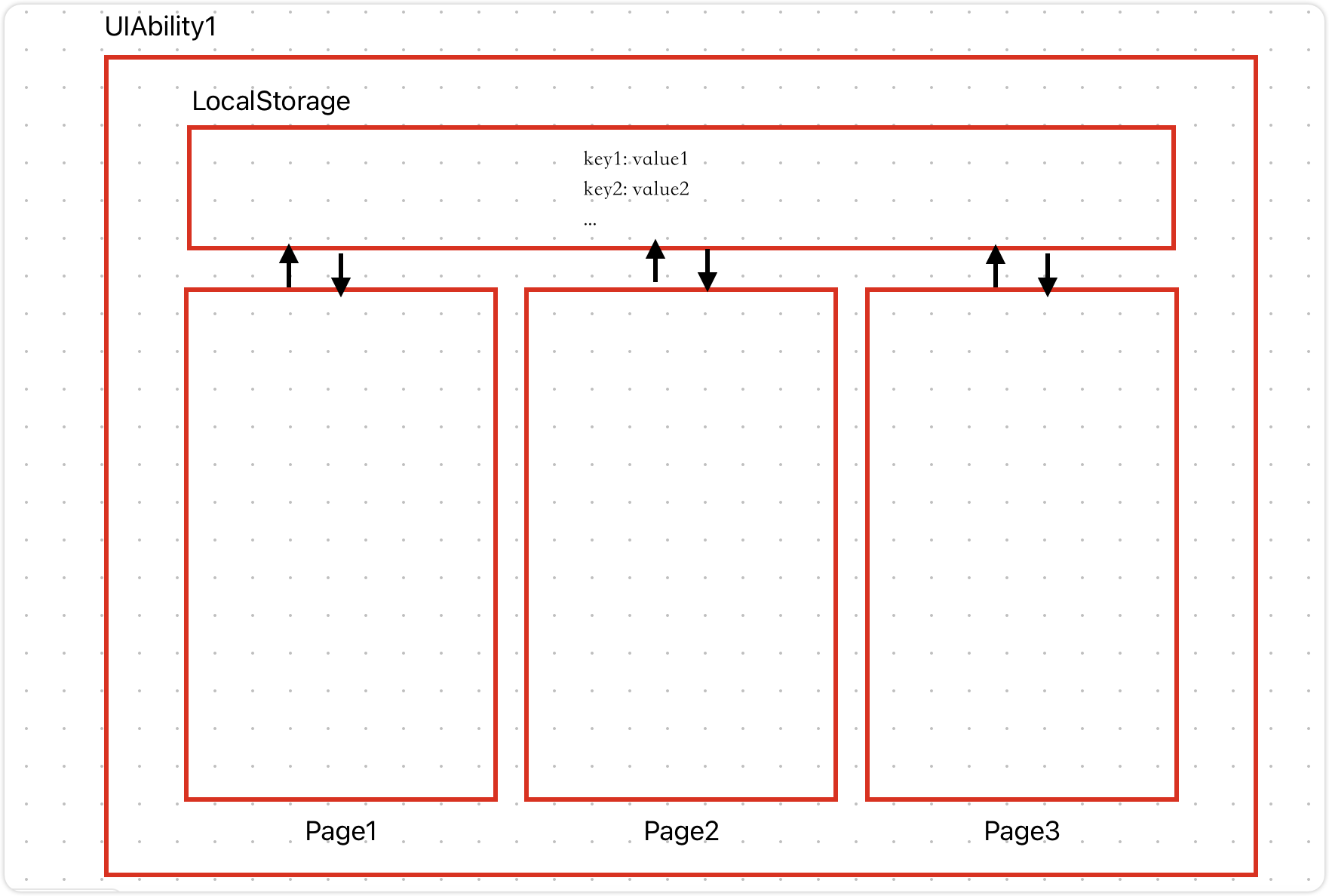
如果一个UIAbility中有多个Page页,想要实现UIAbility内Page页面间的数据共享,可以使用LocalStorage来实现, LocalStorage是页面级的UI状态存储。
具体步骤如下:
- 在UIAbility中创建LocalStorage对象,并存储数据
- 在Page页中获取LocalStorage对象,并从中获取数据
下面是UIAbility内Page页面间的数据共享的示意图
4.1 LocalStorage存储数据
接上面的案例,在SecondAbiltiy中将接收来自EntryAbility的数据赋值给info,然后将info数据存储到LocalStorage中,并加LocalStorage传递给Page2页面。
import { AbilityConstant, UIAbility, Want } from '@kit.AbilityKit';
import { hilog } from '@kit.PerformanceAnalysisKit';
import { window } from '@kit.ArkUI';

export default class SecondAbility extends UIAbility {
  //1.创建LocalStroage本地存储对象
  private storage: LocalStorage = new LocalStorage()

  onCreate(want: Want, launchParam: AbilityConstant.LaunchParam): void {
    //获取来自Page1的数据
    let info = want?.parameters?.info as string
    console.log(`来自Page1的数据:${info}`)
    //2. 将info数据存储到LocalStroage中
    this.storage.setOrCreate('PropA', info)
    this.storage.setOrCreate('PropB', info)
  }

  onDestroy(): void {
    hilog.info(0x0000, 'testTag', '%{public}s', 'Ability onDestroy');
  }

  onWindowStageCreate(windowStage: window.WindowStage): void {
    // Main window is created, set main page for this ability
    hilog.info(0x0000, 'testTag', '%{public}s', 'Ability onWindowStageCreate');

    windowStage.loadContent('pages/Page2', this.storage, (err) => {
      if (err.code) {
        hilog.error(0x0000, 'testTag', 'Failed to load the content. Cause: %{public}s', JSON.stringify(err) ?? '');
        return;
      }
      hilog.info(0x0000, 'testTag', 'Succeeded in loading the content.');
    });
  }

  //...
}
4.2 LocalStorage获取数据
- 在Page2中获取LocalStorage数据
import { router } from '@kit.ArkUI';

//1. 通过getShared接口获取stage共享的LocalStorage实例
let storage = LocalStorage.getShared()

//2. 将LocalStorage对象传递个页面
@Entry(storage)
@Component
struct Page2 {
  //3. 从LocalStroage中获取PropA键对应的值
  @LocalStorageLink('PropA') propA: string = ''

  build() {
    Column({ space: 10 }) {
      Text('Page2').fontSize(50).fontWeight(FontWeight.Bold)
      Text(`来自SecondAbility的数据:${this.propA}`)
      Button('跳转到Page3').onClick(() => {
        router.pushUrl({ url: 'pages/Page3' })
      })
    }
    .height('100%')
    .width('100%')
    .justifyContent(FlexAlign.Center)
  }
}
- 在Page3中获取LocalStorage数据
import { router } from '@kit.ArkUI'

//1.获取LocalStorage存储对象
let storage: LocalStorage = LocalStorage.getShared()

//2.将LocalStorage对象传递给页面
@Entry(storage)
@Component
struct Page3 {
  //3.从LocalStorage对象中获取数据
  @LocalStorageLink('PropA') propA: string = ''

  build() {
    Column({ space: 10 }) {
      Text('Page3').fontSize(50).fontWeight(FontWeight.Bold)
      Text(`来自SecondAbility的数据:${this.propA}`)
      Button('返回到Page2').onClick(() => {
        router.back()
      })
    }
    .height('100%')
    .width('100%')
    .justifyContent(FlexAlign.Center)
  }
}
4.3 LocalStorage状态管理
LocalStorage根据与@Component装饰的组件的同步类型不同,提供了两个装饰器:
● @LocalStorageProp:@LocalStorageProp装饰的变量与LocalStorage中给定属性建立单向同步关系。
● @LocalStorageLink:@LocalStorageLink装饰的变量与LocalStorage中给定属性建立双向同步关系。
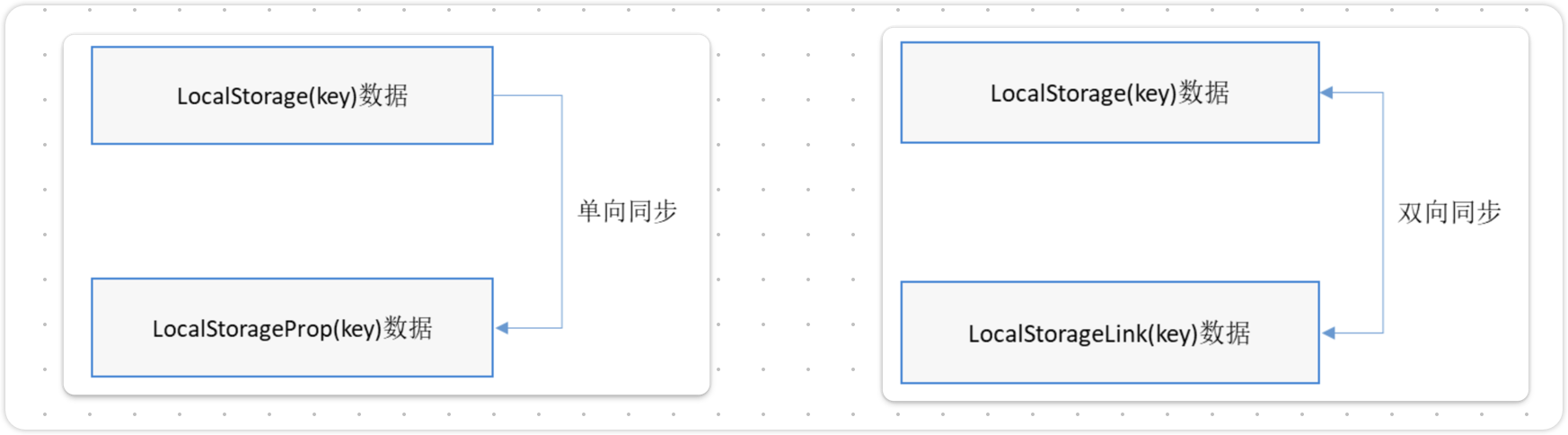
- @LocalStorageProp单向同步特点
- @LocalStorageLink(key)装饰的变量改变时,其变化不会同步回LocalStorage对应key的属性中。
- LocalStorage(key)中值的变化会引发所有被@LocalStorageProp对应key装饰的变量的变化,会覆盖@LocalStorageProp本地的改变。
import { router } from '@kit.ArkUI';

//1. 通过getShared接口获取stage共享的LocalStorage实例
let storage = LocalStorage.getShared()

//2. 将LocalStorage对象传递个页面
@Entry(storage)
@Component
struct Page2 {
  //3. 从LocalStroage中获取PropA键对应的值
  @LocalStorageProp('PropA') propA: string = ''

  build() {
    Column({ space: 10 }) {
      Text('Page2').fontSize(50).fontWeight(FontWeight.Bold)
      Text(`来自SecondAbility的数据:${this.propA}`)
      Button('跳转到Page3').onClick(() => {
        router.pushUrl({ url: 'pages/Page3' })
      })

      Button('点击修改数据').onClick(()=>{
        this.propA = '疑是地上霜'
        //storage.set('PropA','疑是地上霜')
      })
    }
    .height('100%')
    .width('100%')
    .justifyContent(FlexAlign.Center)
  }
}
- @LocalStorageProp双向同步特点
- @LocalStorageLink(key)装饰的变量改变时,其变化将被同步回LocalStorage对应key的属性中。
- LocalStorage中属性键值key对应的数据一旦改变,属性键值key绑定的所有的数据(包括双向@LocalStorageLink和单向@LocalStorageProp)都将同步修改。
import { router } from '@kit.ArkUI';

//1. 通过getShared接口获取stage共享的LocalStorage实例
let storage = LocalStorage.getShared()

//2. 将LocalStorage对象传递个页面
@Entry(storage)
@Component
struct Page2 {
  //3. 从LocalStroage中获取PropA键对应的值
  @LocalStorageLink('PropA') propA: string = ''

  build() {
    Column({ space: 10 }) {
      Text('Page2').fontSize(50).fontWeight(FontWeight.Bold)
      Text(`来自SecondAbility的数据:${this.propA}`)
      Button('跳转到Page3').onClick(() => {
        router.pushUrl({ url: 'pages/Page3' })
      })

      Button('点击修改数据').onClick(()=>{
        this.propA = '疑是地上霜'
        //storage.set('PropA','疑是地上霜')
      })
    }
    .height('100%')
    .width('100%')
    .justifyContent(FlexAlign.Center)
  }
}
5.AppStorage 应用级UI状态存储
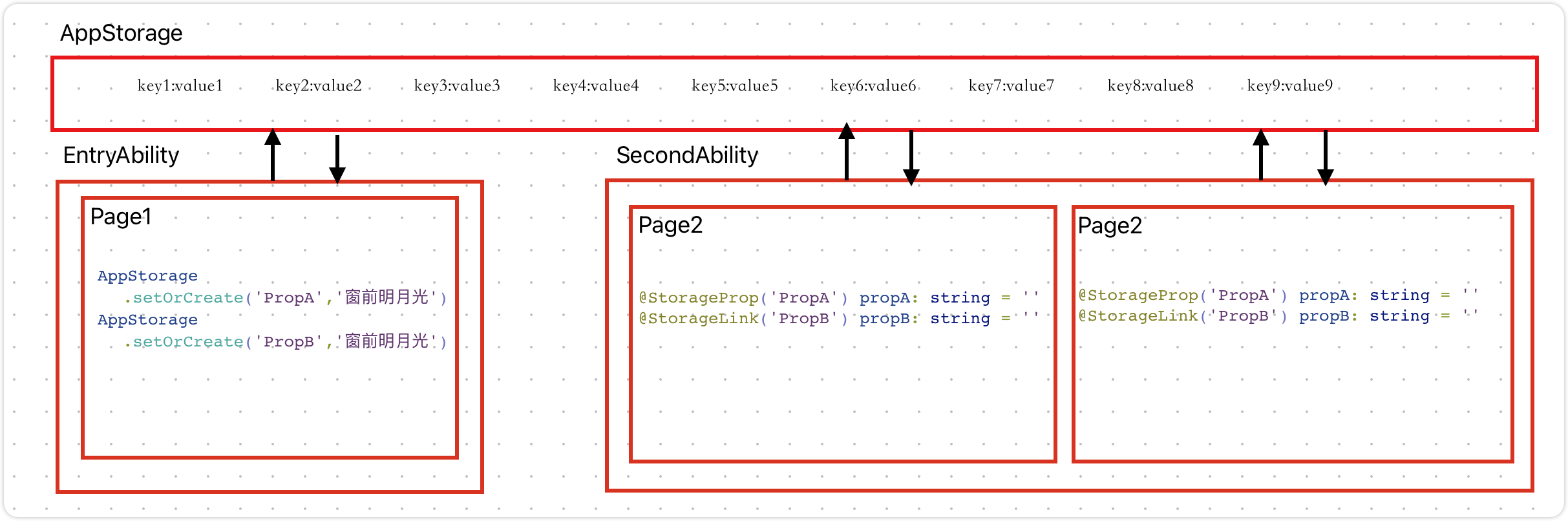
AppStorage是应用全局的UI状态存储,是和应用的进程绑定的,由UI框架在应用程序启动时创建,为应用程序UI状态属性提供中央存储。
和LocalStorage不同的是,LocalStorage是页面级的,通常应用于页面内的数据共享;而AppStorage是应用级的全局状态共享,还相当于整个应用的“中枢”。
AppStorage可以在应用的多个UIAbility中共享数据,如下图所示
5.1 AppStorage存储数据
在Page1中存储数据到AppStorage,并从AppStorage中获取数据与propA建立单向同步关系,与propB建立双向同步关系。
import { common, Want } from '@kit.AbilityKit'


@Entry
@Component
struct Page1 {
  private context = getContext(this) as common.UIAbilityContext
  @StorageProp('PropA') propA: string = ''		//与AppStorage单向同步数据
  @StorageLink('PropB') propB: string = ''		//与AppStorage双向同步数据

  aboutToAppear(): void {
    AppStorage
      .setOrCreate('PropA','窗前明月光')
    AppStorage
      .setOrCreate('PropB','窗前明月光')
  }

  build() {
    Column({ space: 10 }) {
      Text('Page1').fontSize(50).fontWeight(FontWeight.Bold)
      Text(`propA:${this.propA}`)
      Text(`propB:${this.propB}`)
      Button('启动SecondAbility')
        .onClick(() => {
          //1.创建Want信息载气
          let wantInfo: Want = {
            deviceId: '',
            bundleName: 'com.yutianedu.myapplication',
            moduleName: 'entry',
            abilityName: 'SecondAbility'
          }
          //2.根据Want信息启动SecondAbility
          this.context.startAbility(wantInfo)
        })
    }
    .width('100%')
    .height('100%')
  }
}
5.2 AppStorage获取数据
- 在Page2中获取数据,propA建立单向同步关系,与propB建立双向同步关系。
import { router } from '@kit.ArkUI'

@Entry
@Component
struct Page2 {
  //获取AppStorage中PropA、PropB属性的值,映射到变量propA、probB上
  @StorageProp('PropA') propA: string = ''
  @StorageLink('PropB') propB: string = ''

  build() {
    Column() {
      Text('Page2').fontSize(50).fontWeight(FontWeight.Bold)
      Text(`propA:${this.propA}`)
      Text(`propB:${this.propB}`)

      Button('修改propA').onClick(() => {
        this.propA = '疑是地上霜'
      })

      Button('修改propB').onClick(() => {
        this.propB = '疑是地上霜'
      })

      Button('跳转到Page3').onClick(() => {
        router.pushUrl({ url: 'pages/Page3' })
      })
    }
  }
}
- 在Page3中获取数据,propA建立单向同步关系,与propB建立双向同步关系。
import { router } from '@kit.ArkUI'

@Entry
@Component
struct Page3 {
  @StorageProp('PropA') propA:string = ''
  @StorageLink('PropB') propB:string = ''
  build() {
    Column() {
      Text('Page3').fontSize(50).fontWeight(FontWeight.Bold)
      Text(`来自AppStorge的数据:${this.propA}`)
      Text(`来自AppStorge的数据:${this.propB}`)

      Button('修改propA').onClick(()=>{
        this.propA = '低头思故乡'
      })

      Button('修改propB').onClick(()=>{
        this.propB = '低头思故乡'
      })

      Button('回退到Page2').onClick(()=>{
        router.back()
      })
    }
  }
}
6. Preferences 用户首选项
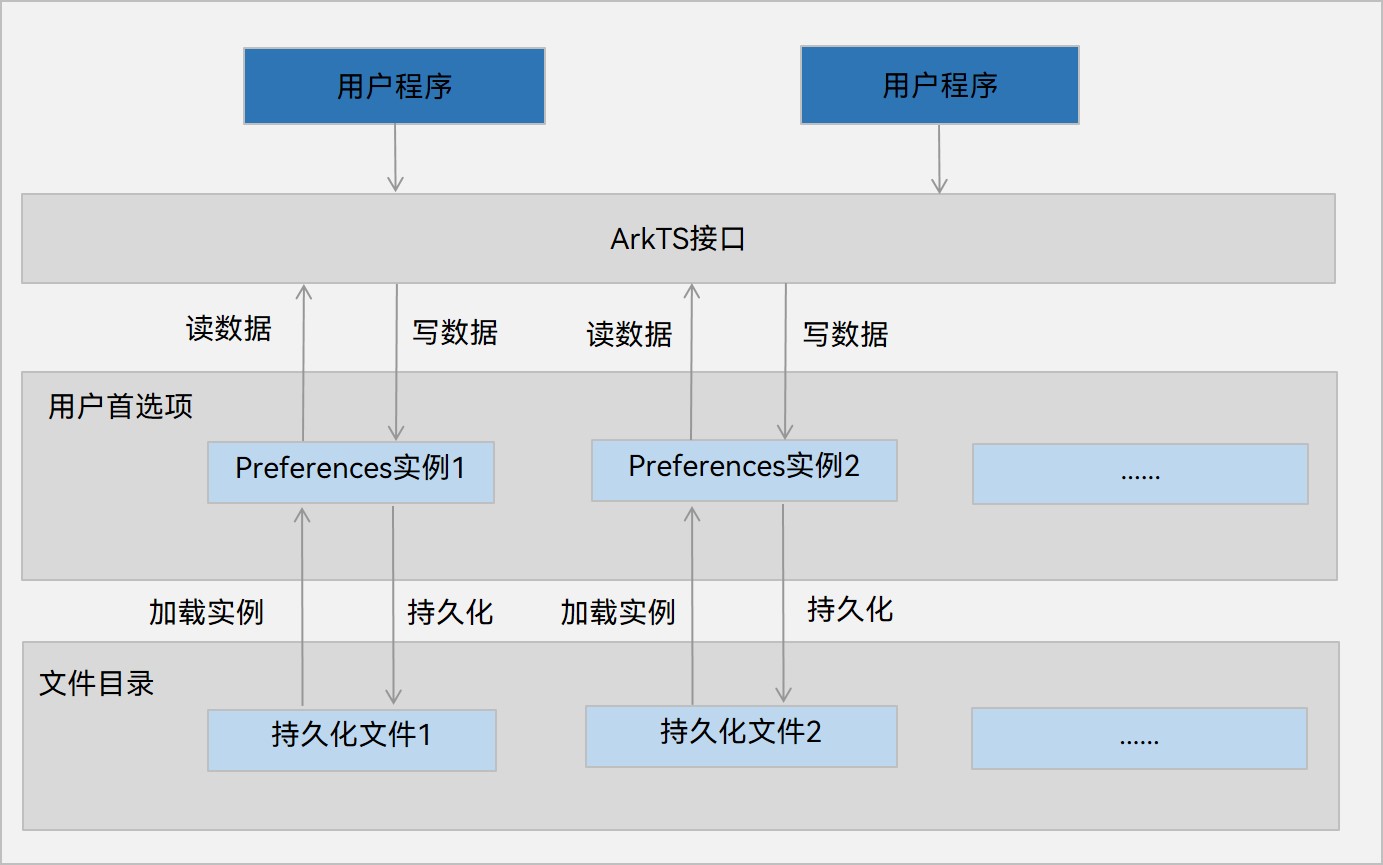
Preferences用户首选项为应用提供Key-Value键值型的数据处理能力,支持应用持久化轻量级数据,并对其修改和查询。当用户希望有一个全局唯一存储的地方,可以采用用户首选项来进行存储。Preferences会随着存放的数据量越多而导致应用占用的内存越大,因此,Preferences不适合存放过多的数据,也不支持通过配置加密,适用的场景一般为应用保存用户的个性化设置(字体大小,是否开启夜间模式)等。
6.1 运作机制
如图所示,用户程序通过ArkTS接口调用用户首选项读写对应的数据文件。开发者可以将用户首选项持久化文件的内容加载到Preferences实例,每个文件唯一对应到一个Preferences实例,系统会通过静态容器将该实例存储在内存中,直到主动从内存中移除该实例或者删除该文件。
约束限制
● 首选项无法保证进程并发安全,会有文件损坏和数据丢失的风险,不支持在多进程场景下使用。
● Key键为string类型,要求非空且长度不超过1024个字节。
● 如果Value值为string类型,请使用UTF-8编码格式,可以为空,不为空时长度不超过16 * 1024 * 1024个字节。
● 内存会随着存储数据量的增大而增大,所以存储的数据量应该是轻量级的,建议存储的数据不超过一万条,否则会在内存方面产生较大的开销。
6.2 常用接口
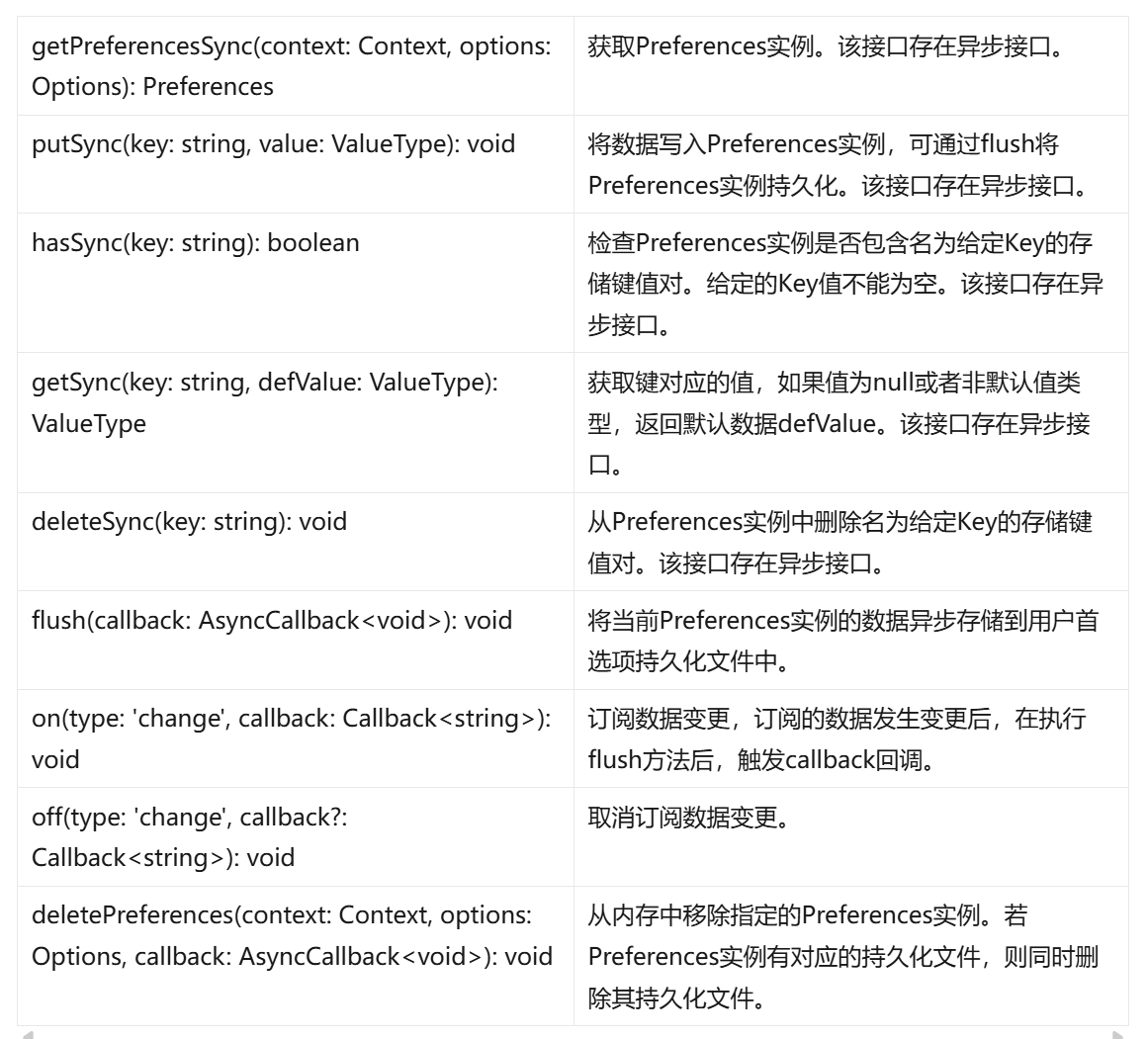
6.3 工具类
import { preferences, ValueType } from '@kit.ArkData'
import { Context } from '@ohos.arkui.UIContext'

export class PreferencesUtil {
  //1.写数据
  public static setData(context: Context, storename: string, key: string, value: ValueType) {
    //1.1 获取Preferences实例
    const dataPreferences = preferences.getPreferencesSync(context, { name: storename });
    //1.2 写入数据
    dataPreferences.putSync(key, value)
    //1.3 持久化到磁盘
    dataPreferences.flush()
  }

  //2.读数据
  public static getData(context: Context, storename: string, key: string, defaultValue?: ValueType) {
    //2.1 获取Preferences实例
    const dataPreferences = preferences.getPreferencesSync(context, { name: storename });
    //2.2 写入数据
    let value = dataPreferences.getSync(key, defaultValue)
    return value
  }

  //3.删除数据
  public static delete(context: Context, storename: string, key: string) {
    //3.1 获取Preferences实例
    const dataPreferences = preferences.getPreferencesSync(context, { name: storename });
    //3.2 删除数据
    dataPreferences.deleteSync(key)
    //3.3 持久化
    dataPreferences.flush()
  }

  //4.清空所有数据
  public static clear(context: Context, storename: string) {
    //4.1 获取Preferences实例
    const dataPreferences = preferences.getPreferencesSync(context, { name: storename });
    //4.2 删除数据
    dataPreferences.clearSync()
    //4.3 持久化
    dataPreferences.flush()
  }
}
6.4 保存字体大小
- 案例需求:如下图所示,改变字体大写和背景颜色,杀死应用后重启,字体大写和背景颜色依然保持。
![在这里插入图片描述]()
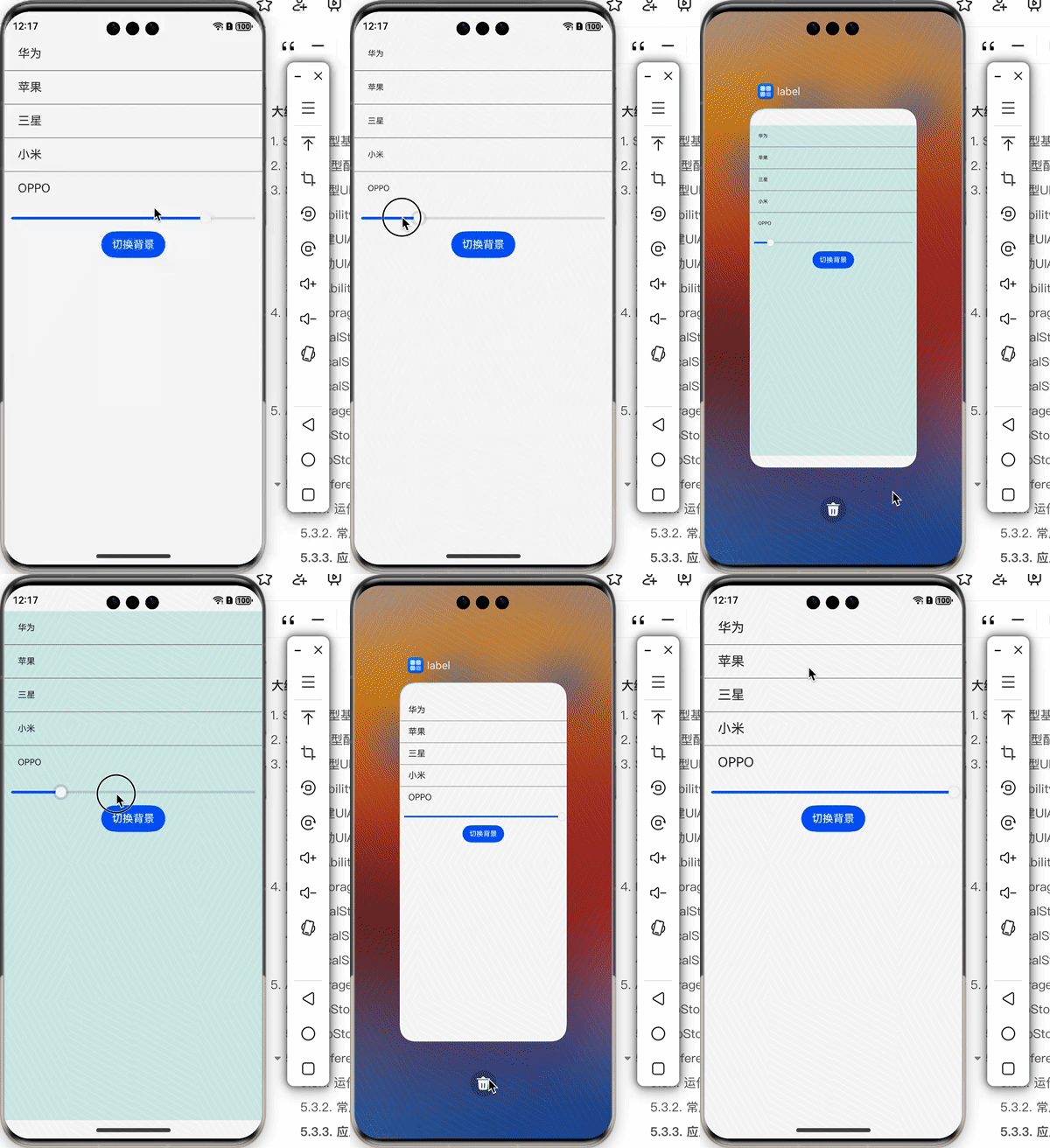
import { PreferencesUtil } from '../../utils/PreferencesUtil';

@Entry
@Component
struct Index {
  items: Array<string> = Array.of('华为', '苹果', '三星', '小米', 'OPPO')
  @State fontSize: number = 16
  @State bgColor: string = '#ffffff'

  //页面显示时获取字体大小,背景颜色
  onPageShow(): void {
    this.fontSize = PreferencesUtil.getData(getContext(this), 'myStore', 'fontSize',16) as number
    this.bgColor = PreferencesUtil.getData(getContext(this), 'myStore', 'bgColor','#ffffff') as string
    console.log("字体大小:", this.fontSize)
    console.log("背景颜色:", this.bgColor)
  }

  build() {
    Column({ space: 20 }) {
      List() {
        ForEach(this.items, (item: string, index: number) => {
          ListItem() {
            Text(this.items[index]).fontSize(this.fontSize).width('100%').height(50).padding({ left: 20 })
          }
        })
      }.divider({
        strokeWidth: 1,
        color: Color.Gray
      })

      Slider({
        step: 1,
        max: 20,
        min: 10,
        value: this.fontSize
      })
        .onChange((value) => {
          this.fontSize = value
          PreferencesUtil.setData(getContext(this), 'myStore', 'fontSize', this.fontSize)
        })

      Button('切换背景').onClick(() => {
        this.bgColor = this.bgColor === '#ffffff' ? '#def2ef' : '#ffffff'
        PreferencesUtil.setData(getContext(this), 'myStore', 'bgColor', this.bgColor)
      })

      Button('删除数据').onClick(() => {
        PreferencesUtil.clear(getContext(this), "myStore")
      })

    }.width('100%').height('100%')
    .backgroundColor(this.bgColor)
  }
}
6.5 搜索记录
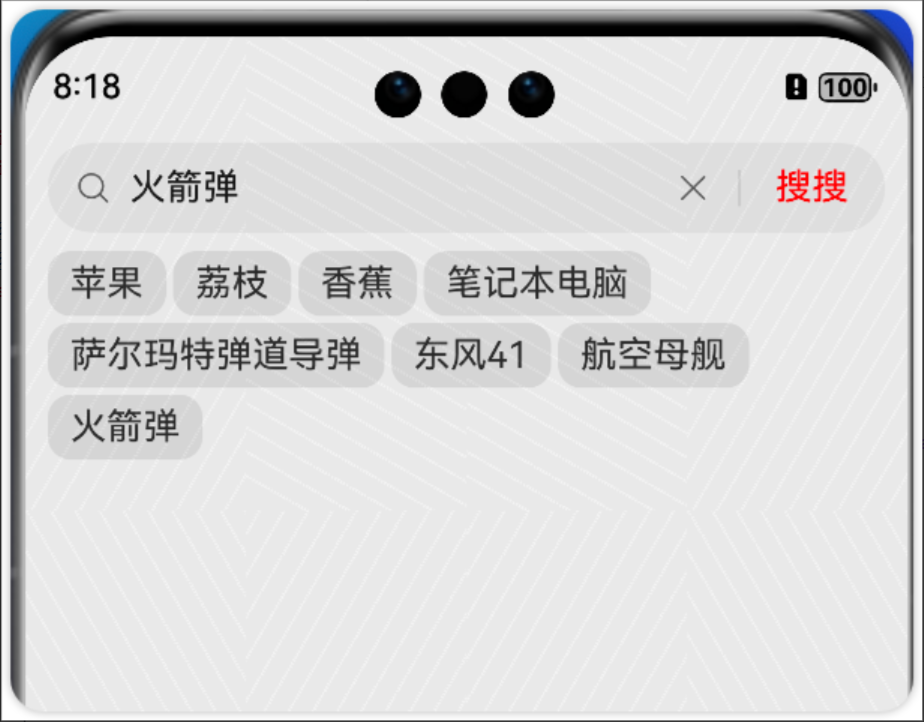
import { LengthMetrics, LengthMetricsUnit } from '@kit.ArkUI';
import { preferences, ValueType } from '@kit.ArkData';

@Entry
@Component
struct Index {
  @State searchHistory: string[] = []

  onPageShow(): void {
    console.log("onPageShow...")
    const dataPreferences = preferences.getPreferencesSync(getContext(this), { name: "store" })
    let searchValue = dataPreferences.getSync("searchKey", undefined)
    if (searchValue) {
      const valueArray = searchValue.toString().split("-")
      if (valueArray) {
        this.searchHistory = valueArray
        console.log(valueArray.toString())
      }
    }
  }

  build() {
    Row() {
      Column() {
        Row() {
          Search().width('100%')
            .searchButton("搜搜", {
              fontColor: Color.Red
            })
            .onSubmit((value) => {
              this.searchHistory.push(value)
              const dataPreferences = preferences.getPreferencesSync(getContext(this), { name: "store" })
              if (dataPreferences) {
                let searchValue = dataPreferences.getSync("searchKey", undefined)
                if (searchValue) {
                  //如果存在,则"-"分隔,往后面拼接
                  searchValue += "-" + value
                  dataPreferences.putSync("searchKey", searchValue)
                } else {
                  dataPreferences.putSync("searchKey", value)
                }
              }
            })
        }.padding({ left: 10, right: 10 })

        Flex({
          space: {
            cross: LengthMetrics.px(10),
            main: LengthMetrics.px(10)
          },
          wrap: FlexWrap.Wrap
        }) {
          ForEach(this.searchHistory as string[], (text: string) => {
            Text(text)
              .padding({
                left: 10,
                right: 10,
                top: 5,
                bottom: 5
              })
              .borderRadius(10)
              .backgroundColor('#dedede')
          })
        }.width('100%')
        .padding({ left: 10, right: 10 })
      }
      .width('100%')
      .height('100%')
    }
    .height('100%')
  }

  getSize(index: number) {
    console.log(`Text ${index} is 更新了`);
    return 30
  }
}

 浙公网安备 33010602011771号