


前言
此篇博客演示可以移动的View
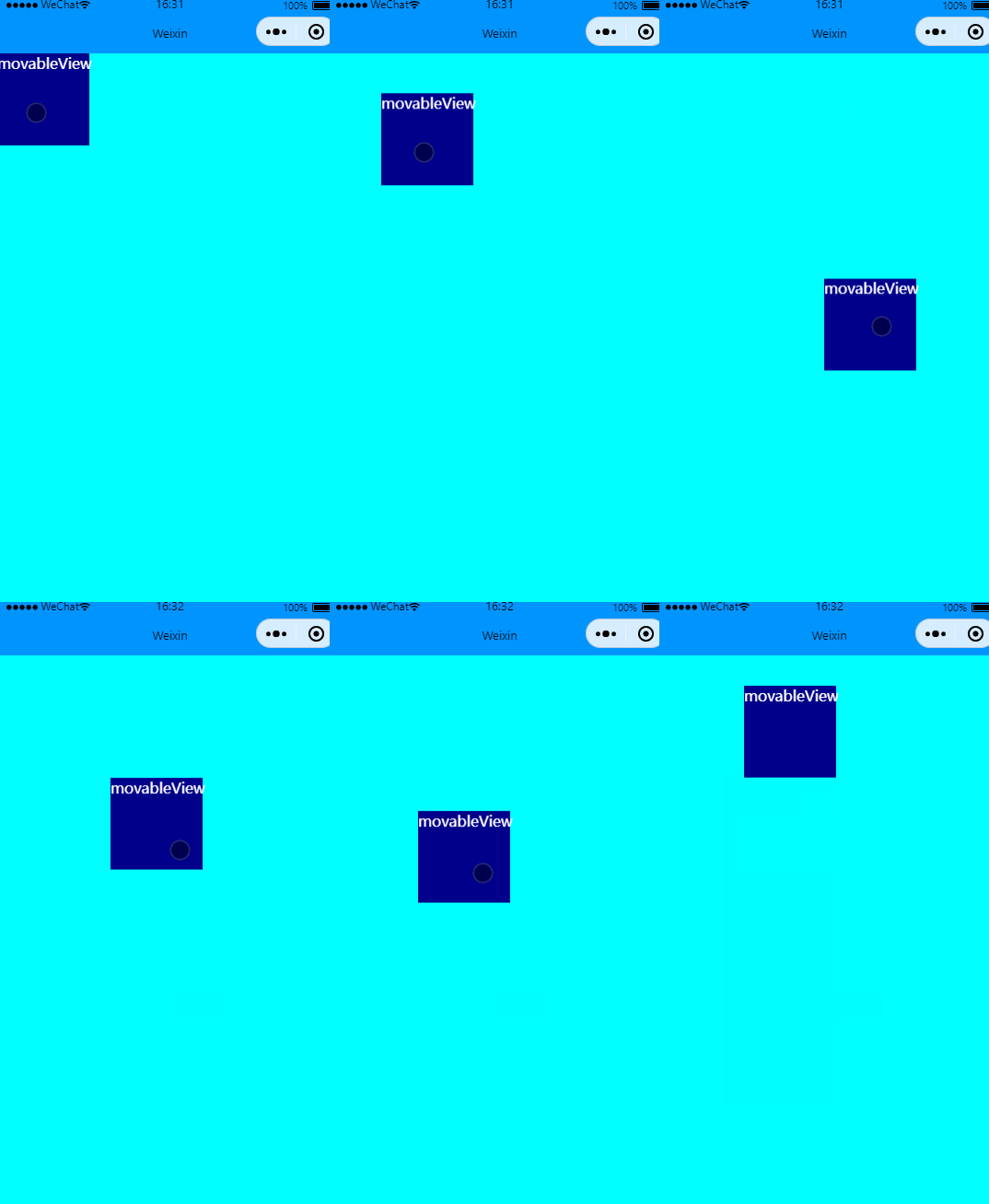
全方向移动
效果图
.js
Page({

    /**
     * 页面的初始数据,这里需要提供x和y2个数据
     */
    data: {
        x:0,
        y:0
    },
})
.wxml
    <movable-area class="myMovableStyle">
        <movable-view class="myMvableView" x="{{x}}" y="{{y}}" direction="all">movableView</movable-view>
    </movable-area>
.wxss
.myMovableStyle{
    /* position属性用于指定一个元素在文档中的定位方式,因为这里设置了absolute 才让宽度与高度的百分比有功能 */
    position: absolute;
    background-color: cyan;
    width: 100%;
    height: 100%;
}

.myMvableView{
    position: absolute;
    background-color:darkblue;
    color: white;
    width: 200rpx;
    height: 200rpx;
}
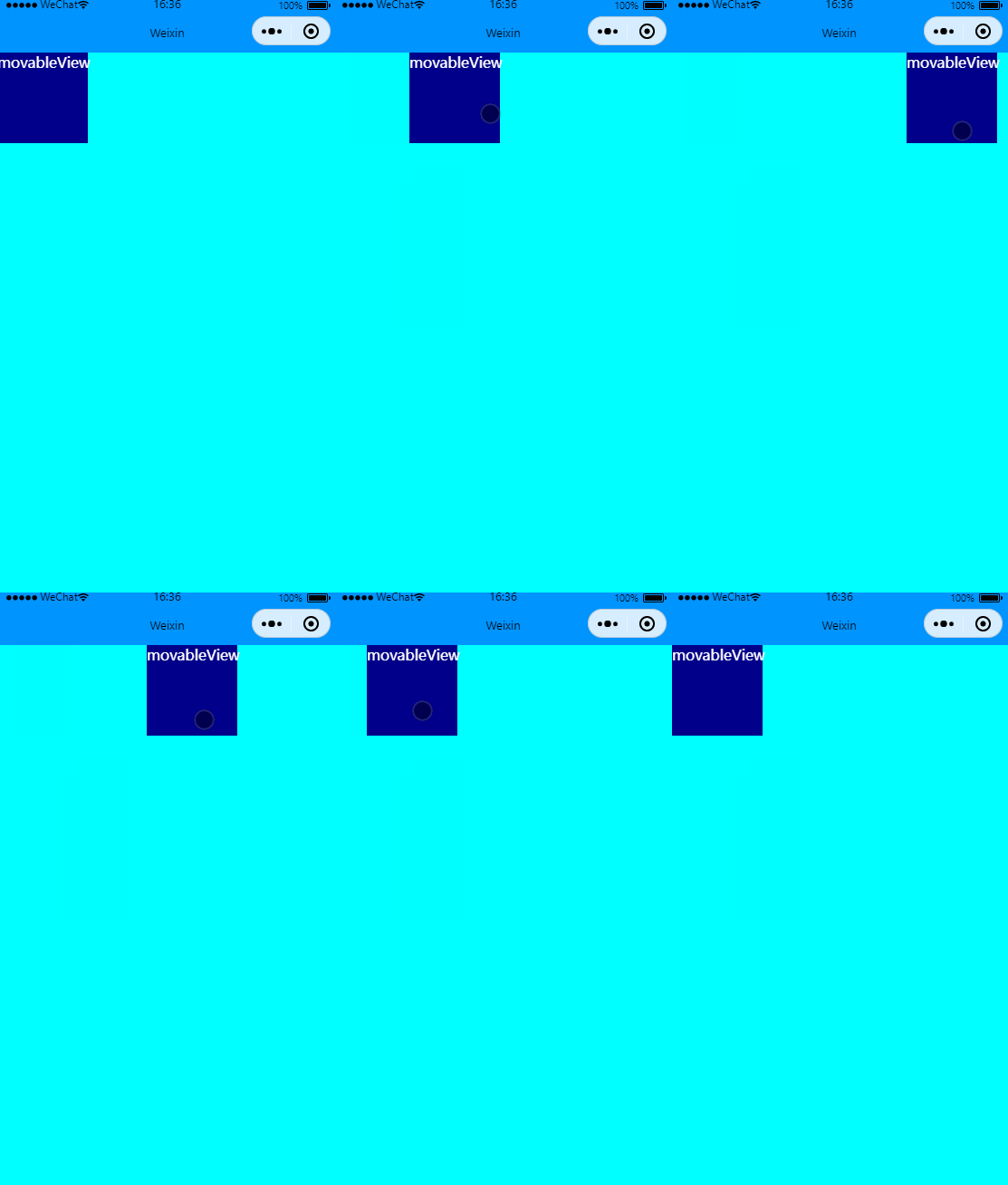
限制横竖方向移动
效果图:
.wxml
关键修改direction
    <movable-area class="myMovableStyle">
        <!--direction方向设置为横向horizontal 竖向为vertical  -->
        <movable-view class="myMvableView" x="{{x}}" y="{{y}}" direction="vertical">movableView</movable-view>
    </movable-area>
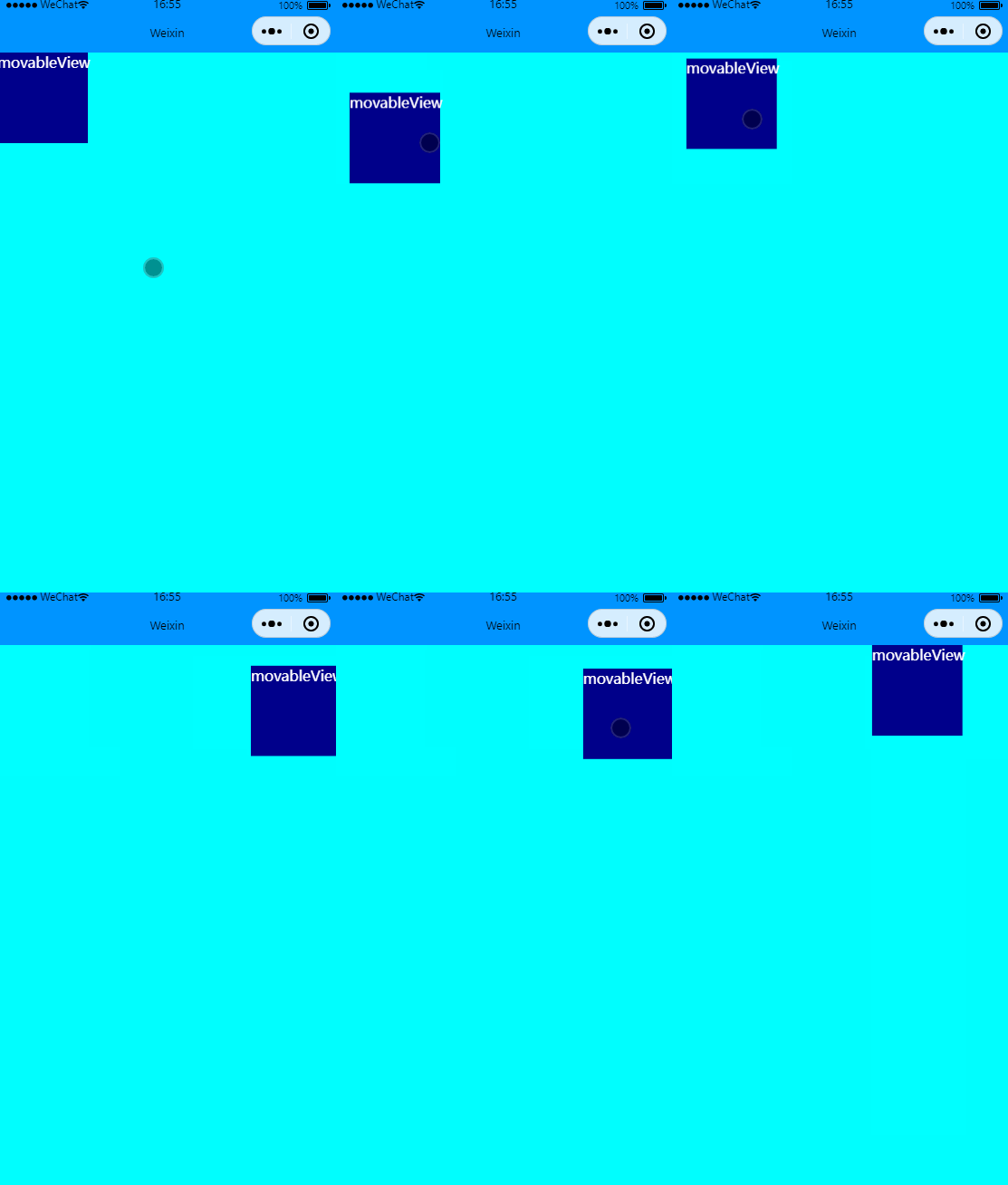
可超出边界移动
效果图:
.wxml
在movable-view里增加out-of-bounds实现
    <movable-area class="myMovableStyle">
        <movable-view class="myMvableView" x="{{x}}" y="{{y}}" direction="all"  out-of-bounds>movableView</movable-view>
    </movable-area>
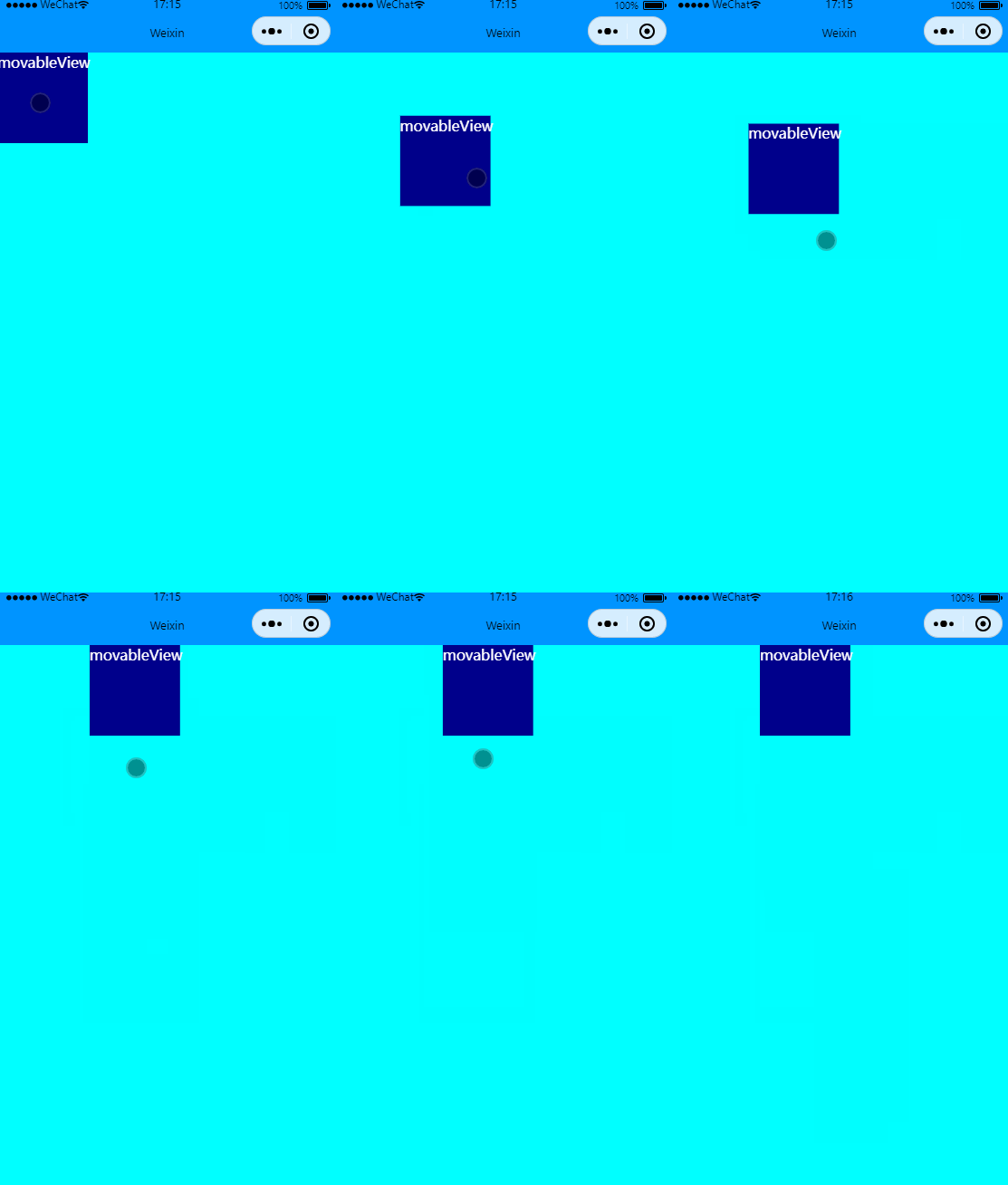
有惯性移动
效果图:
.wxml
在movable-view里增加inertia实现
    <movable-area class="myMovableStyle">
        <movable-view class="myMvableView" x="{{x}}" y="{{y}}" direction="all"  inertia>movableView</movable-view>
    </movable-area>
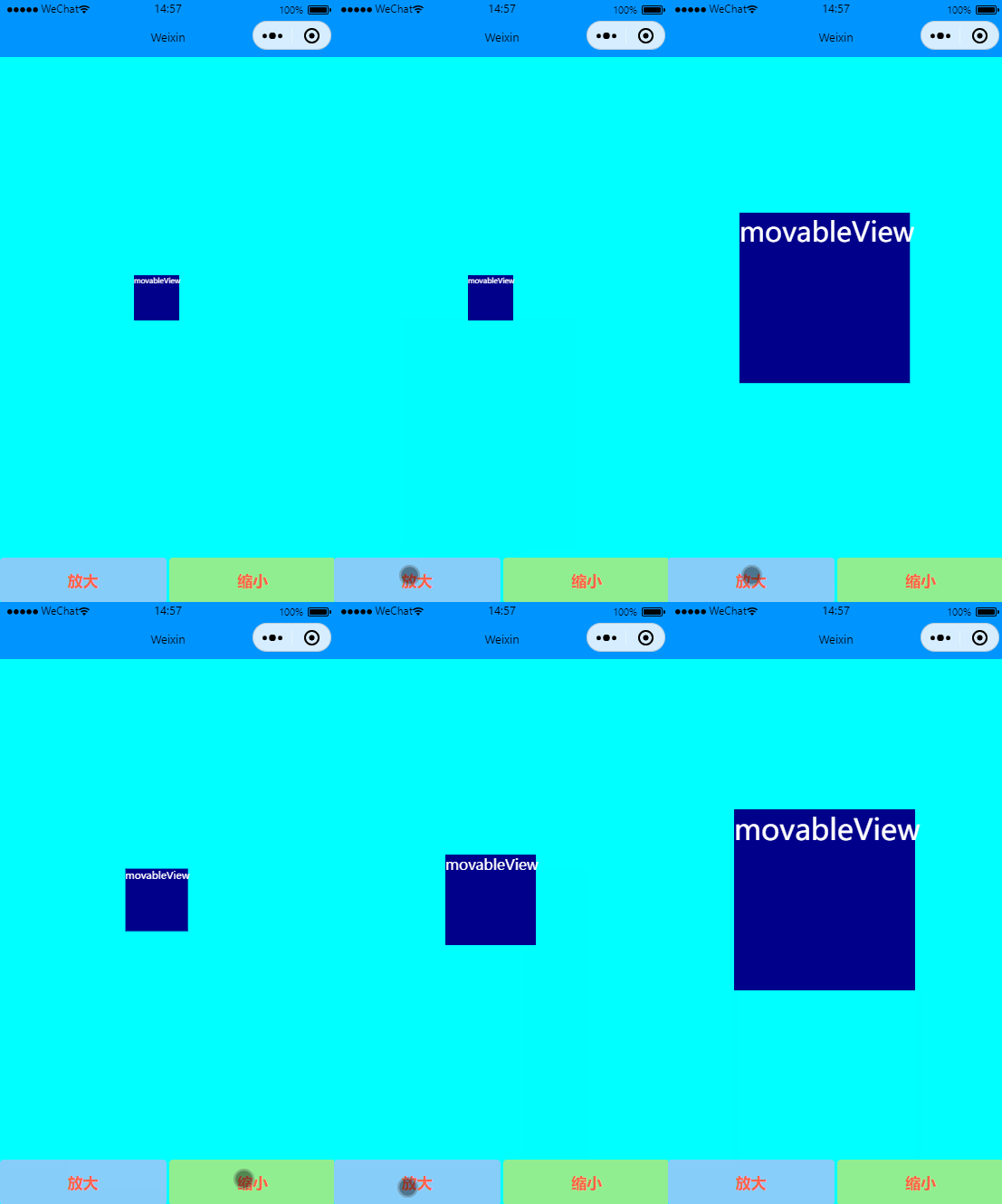
缩放
效果图:
.js
// pages/demo/demo.js
Page({

    data: {
        scale: 0,
    },

    onChange(e) {
        console.log(e.detail)
    },

    onScale(e) {
        console.log(e.detail)
    },
    //放大
    enlargeBtn: function () {
        this.setData( {
            scale: this.data.scale + 1
        })

    },
    //缩小
    narrowBtn: function () {
        this.setData( {
            scale: this.data.scale - 1
        })
    }
})
.wxml
<!--pages/demo/demo.wxml-->
<movable-area class="myMovableStyle">
    <movable-view class="myMvableView" x="{{x}}" y="{{y}}" direction="all" bindchange="onChange" bindscale="onScale" scale scale-min="0.5" scale-max="4" scale-value="{{scale}}">movableView</movable-view>
</movable-area>

<view class="myButtonParentView">
    <button bindtap="enlargeBtn" class="myButton">放大</button>
    <button bindtap="narrowBtn" class="myButton">缩小</button>
</view>
.wxss
/* pages/demo/demo.wxss */
.myMovableStyle {
    /* position属性用于指定一个元素在文档中的定位方式,因为这里设置了absolute 才让宽度与高度的百分比有功能 */
    position: absolute;
    background-color: cyan;
    width: 100%;
    height: 100%;
}

.myMvableView {
    position: absolute;
    top: 40%;
    left: 40%;
    background-color: darkblue;
    color: white;
    width: 200rpx;
    height: 200rpx;
}

.myButtonParentView {
    display: flex;
    position: absolute;
    bottom: 0%;
    width: 100%;
    height: 100rpx;
}

/* 指定某个child view的风格 */
.myButtonParentView button:nth-child(1) {
    display: flex;
    /* align-items 属性将所有直接子节点上的 align-self 值设置为一个组。align-self 属性设置项目在其包含块中在交叉轴方向上的对齐方式。 */
    align-items: center;
    /* justify-content 属性定义了浏览器之间,如何分配顺着弹性容器主轴 (或者网格行轴) 的元素之间及其周围的空间。 */
    justify-content: center;
    background-color: lightskyblue;
    color: tomato;
}

.myButtonParentView button:nth-child(2) {
    display: flex;
    align-items: center;
    justify-content: center;
    background-color: lightgreen;
    color: tomato;
}
End
本文来自博客园,作者:观心静 ,转载请注明原文链接:https://www.cnblogs.com/guanxinjing/p/16555017.html
本文版权归作者和博客园共有,欢迎转载,但必须给出原文链接,并保留此段声明,否则保留追究法律责任的权利。

 浙公网安备 33010602011771号