


前言
学习小程序的Demo记录博客
微信小程序开放文档 https://developers.weixin.qq.com/miniprogram/dev/framework/
css文档 https://developer.mozilla.org/zh-CN/docs/Web/CSS/border-radius
图片轮播Demo
效果图
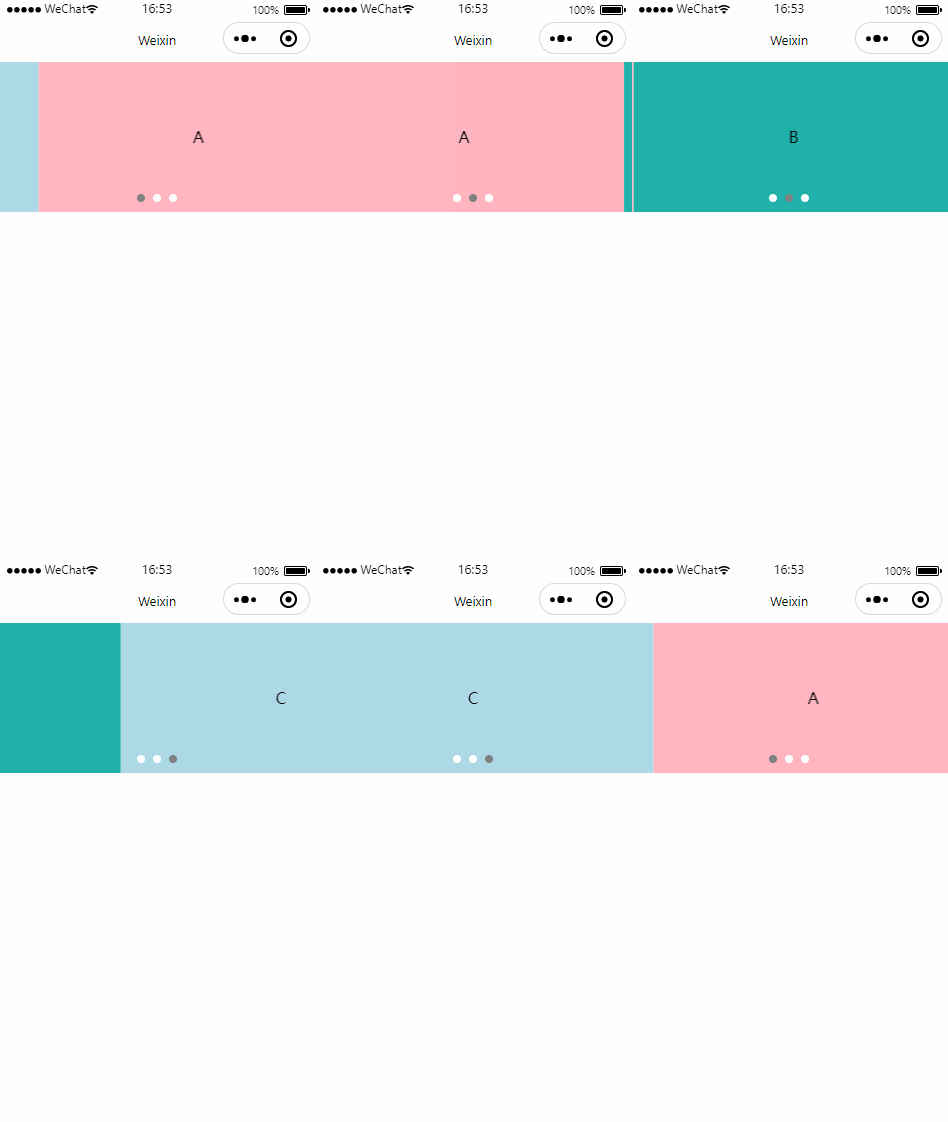
swiper.wxml
<!--pages/swiper/swiper.wxml-->
<!-- 轮播图的父布局 -->
<!-- indicator-dots 显示导航圆点 -->
<!-- indicator-color="white"  修改未选中的圆点颜色 -->
<!-- indicator-active-color="gray"  修改选中的圆点颜色 -->
<!-- autoplay="true" 自动切换轮播图 -->
<!-- interval="1000" 轮播图间隔时间 -->
<!-- circular="true" 自动衔接到第一页切换 -->
<!-- vertical="false" 切换放心 true=横向 false=纵向 -->
<!-- 注意!!!autoplay="{{true}}" 需要添加{{}} 才能生效 -->
<swiper class="swiper-container" indicator-dots indicator-color="white" indicator-active-color="gray" autoplay="{{true}}" interval="1000" circular="true">
    <!-- 轮播图的子View -->
    <swiper-item>
        <View class="item">A</View>
    </swiper-item>
    <swiper-item>
        <View class="item">B</View>
    </swiper-item>
    <swiper-item>
        <View class="item">C</View>
    </swiper-item>
</swiper>
swiper.wxss
/* pages/swiper/swiper.wxss */
.swiper-container {
    height: 150px;
}

.item {
    height: 100%;
    line-height: 150px;
    text-align: center;
}

/* 请注意 下面的swiper-item 前面没有.点  并且 .item前面要加空格*/
swiper-item:nth-child(1) .item {
    background-color: lightpink;
}

swiper-item:nth-child(2) .item {
    background-color: lightseagreen;
}

swiper-item:nth-child(3) .item {
    background-color: lightblue;
}
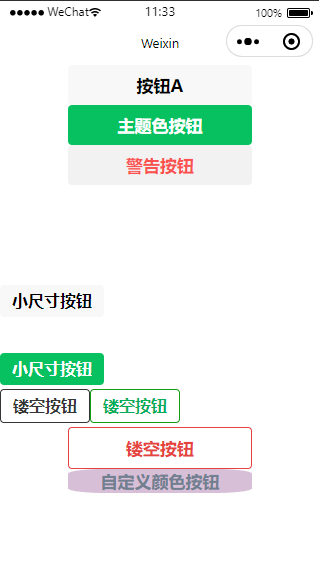
Button 按键Demo
效果图
button.wxml
<!--pages/button/button.wxml-->
<!--
    普通按钮
type的三种颜色  primary    绿色  default白色  warn    红色 -->
<button>按钮A</button>
<button type="primary">主题色按钮</button>
<button type="warn">警告按钮</button>

<!-- 小尺寸按钮 -->
<button size="mini" style=" margin-top: 100px;">小尺寸按钮</button>
<view>
    <button type="primary" size="mini" style="margin-top: 10%;">小尺寸按钮</button>
</view>

<!-- 镂空按钮 -->
<button size="mini" plain>镂空按钮</button>
<button type="primary" size="mini" plain>镂空按钮</button>
<button type="warn" size="default" plain>镂空按钮</button>

<button class="buttomstyle">自定义颜色按钮</button>
button.wxss
/* pages/button/button.wxss */

.buttomstyle{
    background-color:thistle;
    color: slategray;
    text-align: center;
    padding: 0px;
    margin: 0px;
    /* 圆角 */
    border-radius: 20%;
}
Image 图片Demo
请注意,微信小程序只支持png/jpg等格式图片
效果图
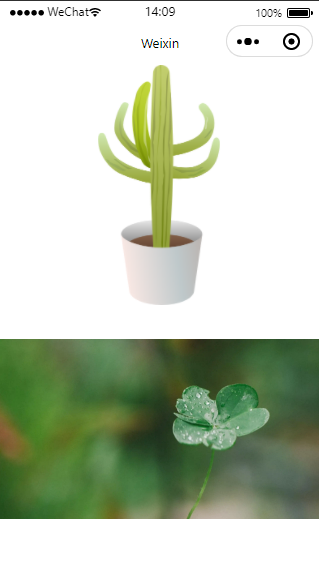
图片存放位置与代码

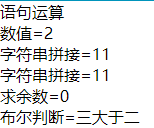
语句运算
<text>语句运算</text>
<view>数值={{1+1}}</view>
<view>字符串拼接={{'1'+'1'}}</view>
<view>字符串拼接={{'1'+'1'}}</view>
<view>求余数={{10%2}}</view>
<view>布尔判断={{3>2?'三大于二':'三小于二'}}</view>
效果:
数据绑定
在.js文件中添加默认数据
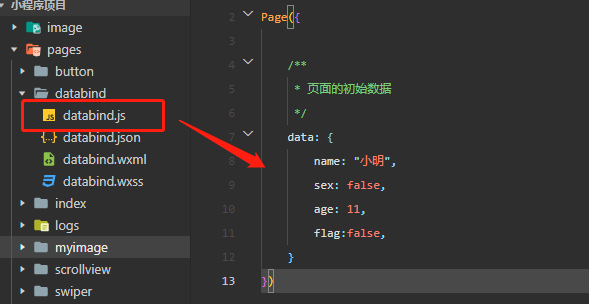
在.wxml文件中绑定默认数据
<!--pages/databind/databind.wxml-->
<view>姓名:{{name}}</view>
<view>性别:{{sex}}</view>
<view>年龄:{{age}}</view>
<!-- <view wx:for="{{array}}" wx:for-item="i">{{i}} </view> -->
<view wx:for="{{[1, 2, 3, 4, 5, 6, 7, 8, 9]}}" wx:for-item="i">j</view>
<checkbox checked="{{flag}}"> </checkbox>
<!-- hidden 隐藏View-->
<view hidden="{{flag ? true : false}}"> Hidden </view>
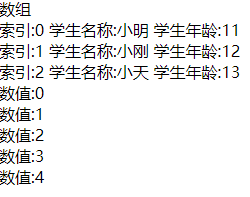
数组数据
.js文件
    /**
     * 页面的初始数据
     */
    data: {
        title:"主页",
        list:[
            {"name":"小明", "age":11},
            {"name":"小刚", "age":12},
            {"name":"小天", "age":13}
        ],
        listNum:[0,1,2,3,4]
    },
.wxml文件
<!-- wx:key是需要填入唯一值字段
     wx:for-item="item" wx:for-index="index" 可以不写,因为已经默认添加了这2个属性
 -->
<view wx:for="{{list}}" wx:for-item="item" wx:for-index="index" wx:key="">
    索引:{{index}}
    学生名称:{{item.name}}
    学生年龄:{{item.age}}
</view>
<!-- 在循环单纯的数组时可以直接添加 wx:key="*this"-->
<view wx:for="{{listNum}}" wx:key="*this" wx:for-item="item">
    数值:{{item}}
</view>
效果图:
对象数据循环
.js
    data: {
        userData:{
            name:"张三",
            age:24,
            sex:"男",
            address:"深圳市"
        }
    },
.wxml
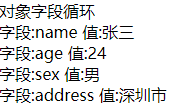
<text>对象字段循环</text>
<view wx:for="{{userData}}" wx:key="*this">
    字段:{{index}}    值:{{item}}
</view>
效果图:
view的显示与隐藏
.wxml
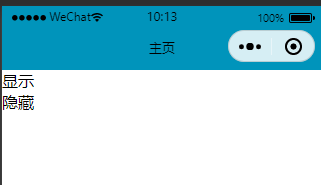
<!-- view的隐藏与显示 -->
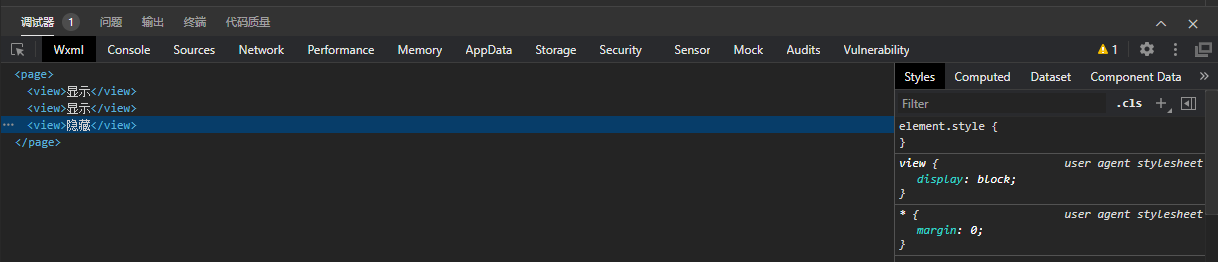
<view wx:if="{{true}}">显示</view>
<view wx:if="{{false}}">隐藏</view>

<!-- wx:if 与 hidden 在隐藏与显示的区别:
    hidden是使用style将view隐藏的 而 if则是整个view移除掉了-->
<view hidden="{{true}}">显示</view>
<view hidden="{{false}}">隐藏</view>
效果图
view的结构
tabBar
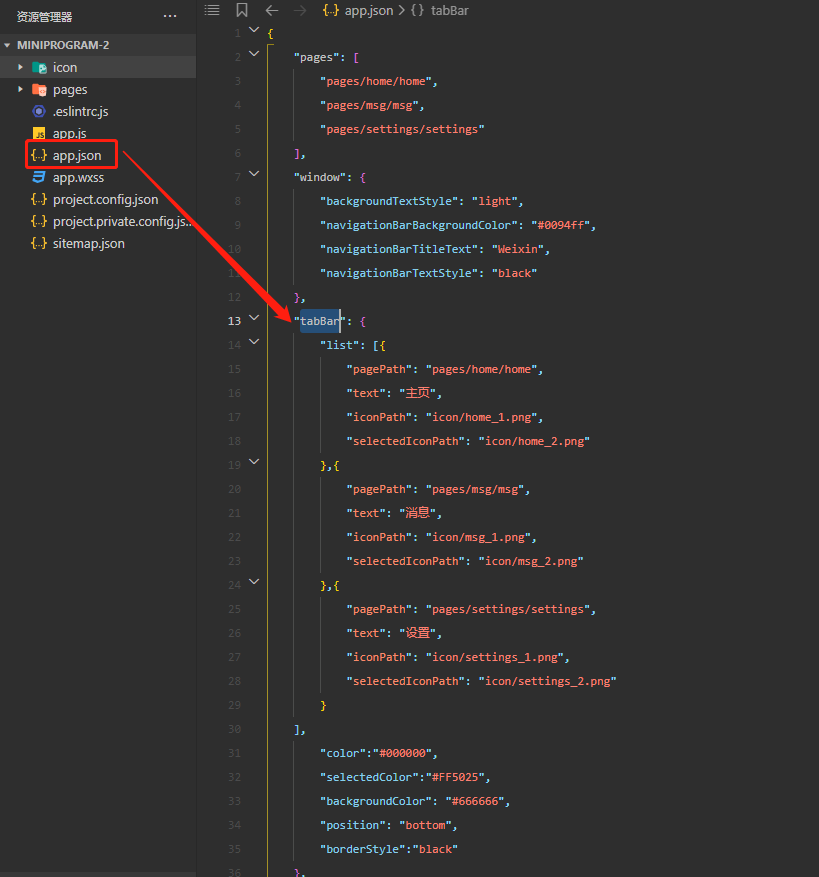
主要属性说明:
- "pagePath" 页面的路径
- "text" 页面tab的名称
- "iconPath" 未选中的图标
- "selectedIconPath" 选中的图标
次要属性说明
请注意,这些属性是在List 下面
- "color" 文字未选中颜色
- "selectedColor" 文字选中颜色
- "backgroundColor" 背景颜色
- "position" tabBar的显示位置有bottom与top2个属性,在选择top时会自动把图标隐藏起来(这是微信的固定模板)
- "borderStyle" 边框风格
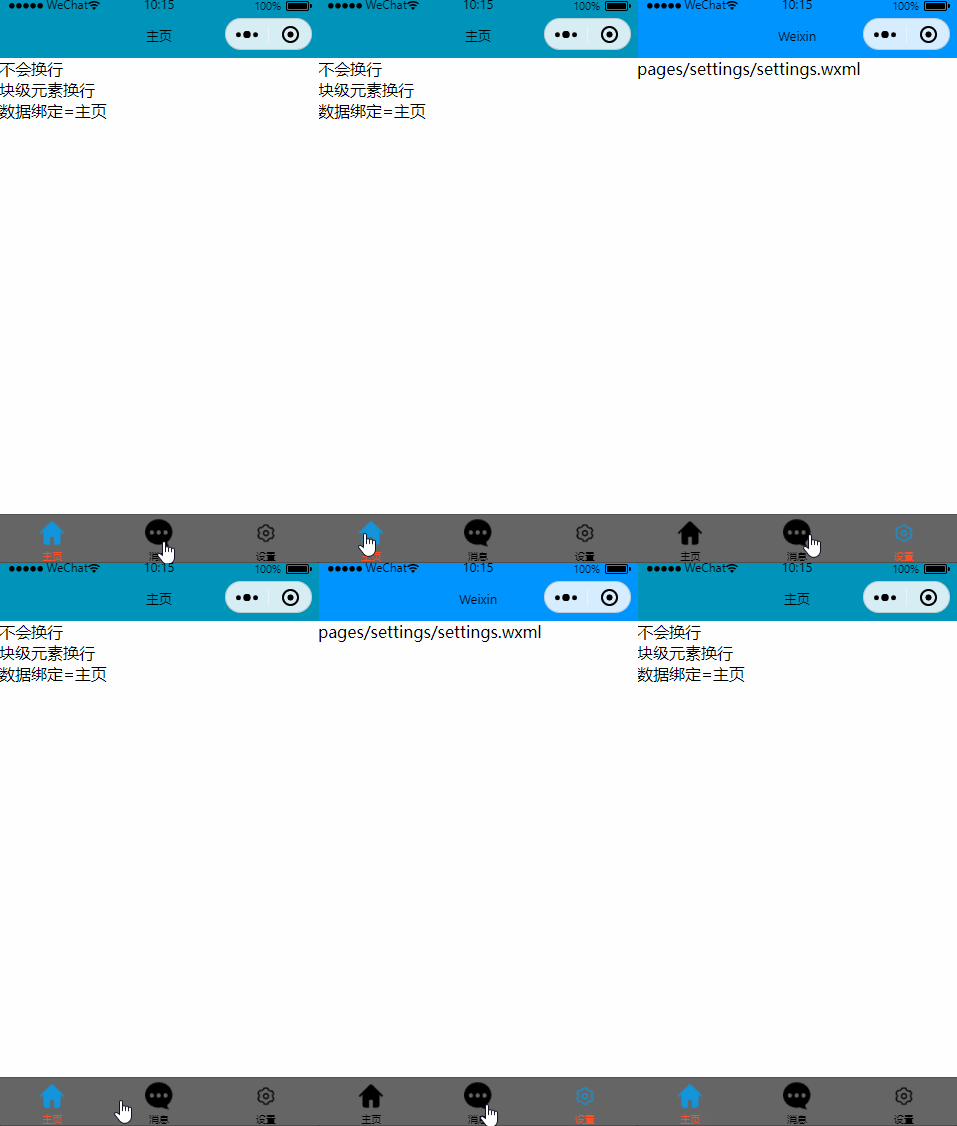
效果图:
代码
打开根目录的app.json,添加tabBar
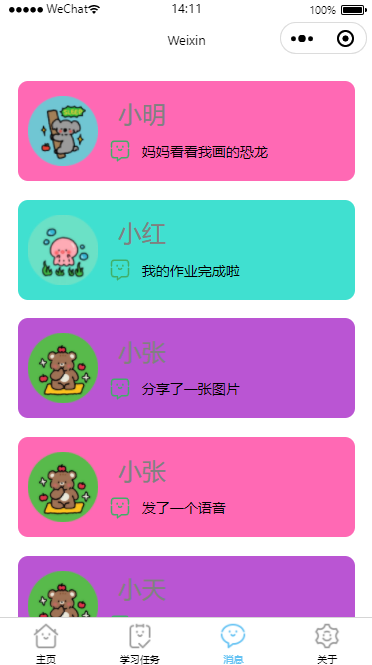
小程序for里实现随机背景颜色
效果图
js
Page({

    /**
     * 页面的初始数据
     */
    data: {
        colors: [],
        childList: [{
            childId: "0",
            name: "小明",
            headImageUrl: "http://data.xxx.com/portrait%2F%E5%9B%BE%E5%83%8F%201.png",
            newMsg: "妈妈看看我画的恐龙"
        }, {
            childId: "1",
            name: "小红",
            headImageUrl: "http://data.xxx.com/portrait%2F%E5%9B%BE%E5%83%8F%204.png",
            newMsg: "我的作业完成啦"
        }, {
            childId: "2",
            name: "小张",
            headImageUrl: "http://data.xxx.com/portrait%2F%E5%9B%BE%E5%83%8F%205.png",
            newMsg: "分享了一张图片"
        }, {
            childId: "2",
            name: "小张",
            headImageUrl: "http://data.xxx.com/portrait%2F%E5%9B%BE%E5%83%8F%205.png",
            newMsg: "发了一个语音"
        }, {
            childId: "2",
            name: "小天",
            headImageUrl: "http://data.xxx.com/portrait%2F%E5%9B%BE%E5%83%8F%205.png",
            newMsg: "发了一个语音"
        }, {
            childId: "2",
            name: "小王",
            headImageUrl: "http://data.xxx.com/portrait%2F%E5%9B%BE%E5%83%8F%205.png",
            newMsg: "发了一个语音"
        }],
    },

    randomColor() {
        const colors1 = ["#87CEEB", "#40E0D0", "#3CB371", "#F0F8FF","#BA55D3", "#FF69B4"]
        var colorsList = []
        for (var i = 0; i < this.data.childList.length; i++) {
            var random = Math.floor(Math.random() * colors1.length)
            const itemColor = colors1[random]
            colorsList.push(itemColor)
        }
        this.setData({
            colors: colorsList
        })
    },

    /**
     * 生命周期函数--监听页面加载
     */
    onLoad(options) {
        //这里调用随机颜色执行
        this.randomColor()
    },
})
wxml
<view class="msg-container">
    <scroll-view>
        <view wx:for="{{childList}}"  wx:for-item="item" wx:for-index="index" class="for-container">
            <view class="child-container" style="background-color: {{colors[index]}};">
                <image class="child-head-image" src="{{item.headImageUrl}}"/>
                <view class="child-info-container">
                    <text class="child-name">{{item.name}}</text>
                    <view class="new-msg-container">
                        <image class="new-msg-icon" src="data:image/svg+xml;base64,PD略...." mode=""/>
                        <text class="new-msg-text" >{{item.newMsg}}</text>
                    </view>
                </view>
            </view>
        </view>
    </scroll-view>
</view>
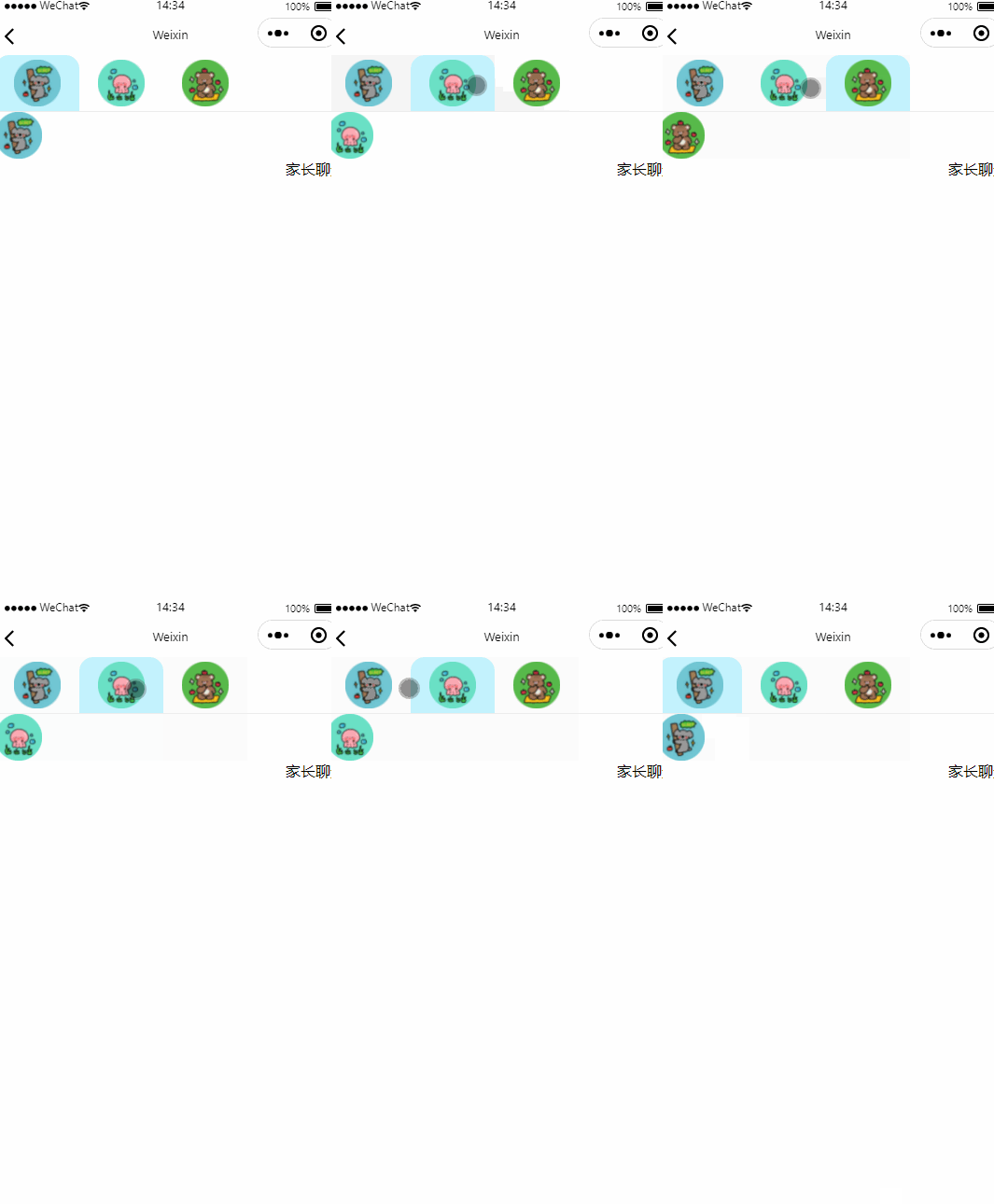
小程序自定义Tab
效果图:
js
Page({

    /**
     * 页面的初始数据
     */
    data: {
        currentSelectedChildIndex: 0,
        currentSelectedChildData: {},
        childList: [{
            childId: "0",
            name: "小明",
            headImageUrl: "http://data.szlwlx.com/portrait%2F%E5%9B%BE%E5%83%8F%201.png"
        }, {
            childId: "1",
            name: "小红",
            headImageUrl: "http://data.szlwlx.com/portrait%2F%E5%9B%BE%E5%83%8F%204.png"
        }, {
            childId: "2",
            name: "小张",
            headImageUrl: "http://data.szlwlx.com/portrait%2F%E5%9B%BE%E5%83%8F%205.png"
        }],
        msgList:[{
            chatId:0,
            chatStatus:1,//聊天身份 1=孩子 2=家长
            chatType:1, //聊天类型  1=文本 2=图片 3=音频
            imageUrl:"",
            chatText:"你好"
        }]
    },

    onSelectedChild(e) {
        let index = e.currentTarget.dataset.operation
        let childData = this.data.childList[index]
        this.setData({
            currentSelectedChildIndex: index,
            currentSelectedChildData: childData
        })
    },
})
wxml
<view>
    <view class="child-container">
        <view wx:for="{{childList}}" wx:for-item="item" wx:for-index="index">
            <image class="{{index==currentSelectedChildIndex?'child-selected-item':'child-no-selected-item'}}" src="{{item.headImageUrl}}" bindtap="onSelectedChild" data-operation="{{index}}"></image>
        </view>
    </view>
    <view class="line"> </view>
    <view class="msg-container">
        <view class="msg-child-container">
            <image class="msg-head-image" src="{{currentSelectedChildData.headImageUrl}}"></image>
            <view class="clear"></view>
        </view>
        <view class="msg-parent-container">家长聊天</view>
    </view>
</view>
wxss
.child-container {
    width: 100%;
    height: 60px;
    overflow-x: hidden;
    overflow-y: hidden;
    display: flex;
    flex-direction: row;
    justify-content: flex-start;
}

.child-no-selected-item {
    width: 50px;
    height: 50px;
    padding-left: 20px;
    padding-right: 20px;
    padding-bottom: 5px;
    padding-top: 5px;
    background-color: rgba(216, 215, 215, 0.26);
    border-top-left-radius: 15px;
    border-top-right-radius: 15px;
}

.child-selected-item {
    width: 50px;
    height: 50px;
    padding-left: 20px;
    padding-right: 20px;
    padding-bottom: 5px;
    padding-top: 5px;
    background-color: rgba(27, 207, 252, 0.26);
    border-top-left-radius: 15px;
    border-top-right-radius: 15px;
}

.line {
    width: 100vw;
    height: 1px;
    background-color: rgba(128, 128, 128, 0.144);
    border-radius: 25px;
}

.msg-container {
    width: 100%;
    height: 100%;
    overflow-x: hidden;
    overflow-y: scroll;
    display: flex;
    flex-direction: column;
}

.msg-child-container {
    width: 100%;
    height: auto;
    overflow-x: hidden;
    overflow-y: scroll;
    display: flex;
    flex-direction: row;
    justify-content: flex-start;
}

.msg-parent-container {
    width: 100%;
    height: auto;
    overflow-x: hidden;
    overflow-y: scroll;
    display: flex;
    flex-direction: row;
    justify-content: flex-end;
}

.msg-head-image {
    width: 50px;
    height: 50px;
}

.clear {
    clear: both;
}
End
本文来自博客园,作者:观心静 ,转载请注明原文链接:https://www.cnblogs.com/guanxinjing/p/16022185.html
本文版权归作者和博客园共有,欢迎转载,但必须给出原文链接,并保留此段声明,否则保留追究法律责任的权利。

 浙公网安备 33010602011771号