
vscode插件快餐教程 (合集)
vscode插件快餐教程(1) - 从写命令开始
简介: 自己的业务开发,只有自己最了解,作为程序员,写自己的plugin来加速自己的开发效率,现在正是好时机。 vscode的plugin种类非常丰富,我们先从最传统的定义新命令说起吧。
大致从2017年开始,vscode就越来越流行。vscode能够流行起来,除了功能强大、微软不断升级给力之外,优秀的插件机制也是非常重要的一环。vscode中相当多的功能也是通过自身的插件机制实现的。
比起使用coffeescript为主要开发语言的atom IDE,vscode使用越来越有王者气质的typescript做为主要的开发语言,这也为vscode插件开发提供了良好的助力。
随着插件机制的不断完善,文档、示例与脚手架工具等也日渐成熟。相关的文章与教程也非常丰富,现在写vscode的plugin已经是件比较容易的事情了。
自己的业务开发,只有自己最了解,作为程序员,写自己的plugin来加速自己的开发效率,现在正是好时机。
vscode的plugin种类非常丰富,我们先从最传统的定义新命令说起吧。
使用脚手架生成骨架
与其他主流前端工程一样,我们通过脚手架来生成插件的骨架。微软提供了基于脚手架生成工具yeoman的脚本。

我们通过npm来安装vscode plugin脚手架:
npm install -g yo generator-code
然后我们就可以通过yo code命令来生成vscode plugin骨架代码了。
yo code
脚手架会提示选择生成的plugin的类型:
     _-----_     ╭──────────────────────────╮
    |       |    │   Welcome to the Visual  │
    |--(o)--|    │   Studio Code Extension  │
   `---------´   │        generator!        │
    ( _´U`_ )    ╰──────────────────────────╯
    /___A___\   /
     |  ~  |
   __'.___.'__
 ´   `  |° ´ Y `

? What type of extension do you want to create? (Use arrow keys)
 New Extension (TypeScript)
  New Extension (JavaScript)
  New Color Theme
  New Language Support
  New Code Snippets
  New Keymap
  New Extension Pack
我们就选择New Extension (Typescript)。关于其他选择我们后面的文章会继续介绍。
我们从最简单的移动光标开始做起吧。比如写一个将光标移动到编辑区首,比如一篇文章或代码的首部,用emacs的命令叫做move-beginning-of-buffer。
光标移动命令实践
同是编辑器,都有相似的功能。这种移动到文章首的功能,肯定不用我们自己开发,vscode早就为我们做好了。在vscode中定义了一大堆光标控制的命令,比如这条就叫做cursorTop。
- cursorTop: 移动到文章首
- cursorBottom: 移动到文章尾
- cursorRight: 光标向右移,相当于emacs的forward-char
- cursorLeft: 光标左移,相当于emacs的backward-char
- cursorDown: 向下移一行,相当于emacs的next-line
- cursorUp: 向上移一行,相当于emacs的previous-line
- cursorLineStart: 移至行首,相当于emacs的move-beginning-of-line
- cursorLineEnd: 移至行尾,相当于emacs的move-end-of-line
我们新建一个move.ts,用于实现光标移动的功能。我们先以移动到文章首为例。我们通过vscode.commands.executeCommand函数来执行命令。
例:
import * as vscode from 'vscode';

export function moveBeginningOfBuffer(): void {
    vscode.commands.executeCommand('cursorTop');
}
在主文件extension.ts中,我们先把move.ts这个包引入进来:
import * as move from './move';
然后在activate函数中,注册这个命令:
    let disposable_begin_buffer = vscode.commands.registerCommand('extension.littleemacs.moveBeginningOfBuffer',
        move.moveBeginningOfBuffer);

    context.subscriptions.push(disposable_begin_buffer);
最后我们在package.json中给其绑定一个快捷键。'<'和'>'在键盘中是上排键,我们就不用它们了,比如绑定到alt-[上。
修改contributes部分如下:
    "contributes": {
        "commands": [{
            "command": "extension.littleemacs.moveBeginningOfBuffer",
            "title": "move-beginning-of-buffer"
        }],
        "keybindings": [{
            "command": "extension.littleemacs.moveBeginningOfBuffer",
            "key": "alt+["
        }]
    }
大功告成。我们用F5来启动调试,就会启动一个新的vscode界面。
我们在新开的vscode界面,打开命令窗口(F1或shift-cmd-p),输入move-beginning-of-buffer就可以看到这个命令了:
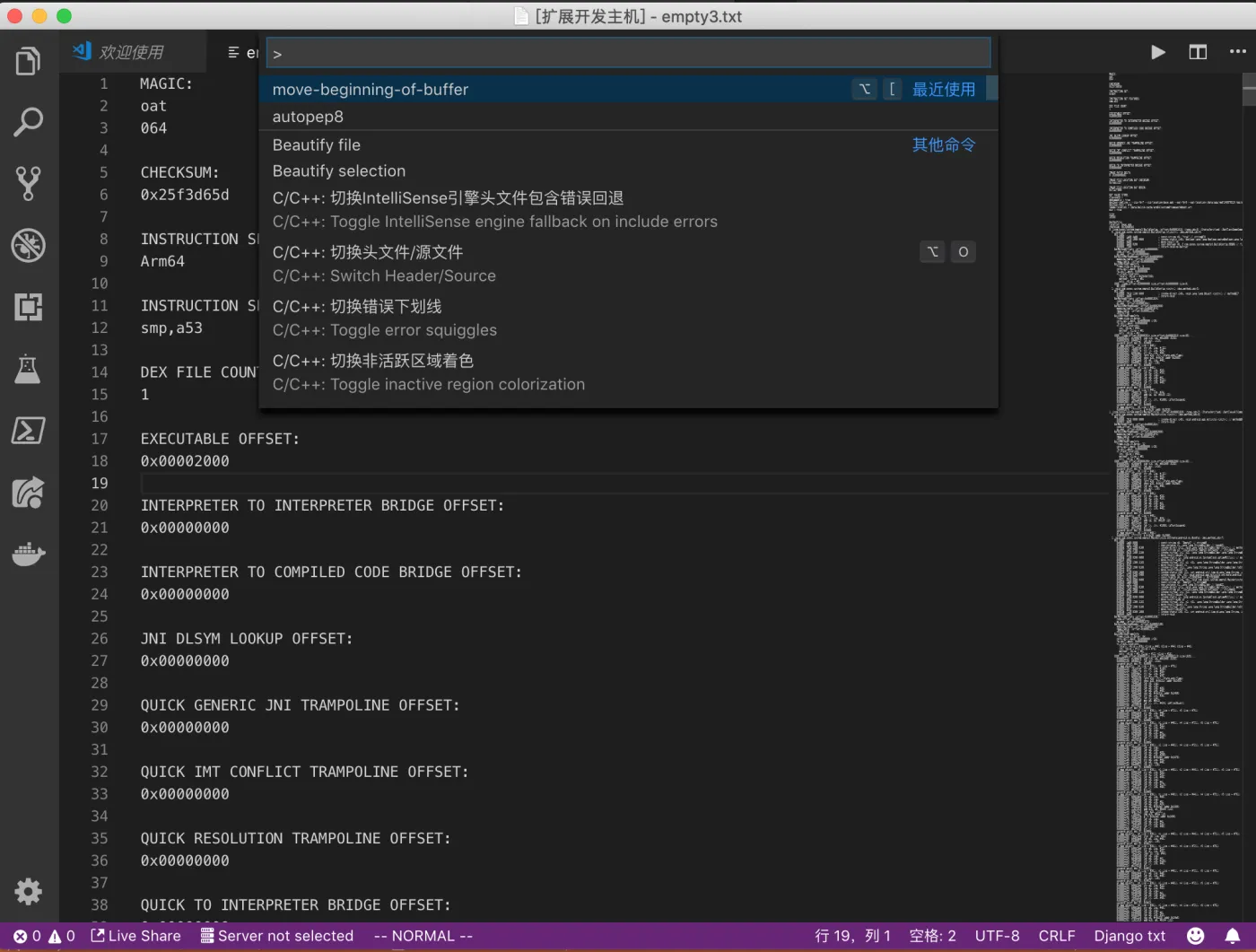
我们可以移到文件中间的位置,按alt+[就会回到文件头。
目前完整的extension.ts的代码为:
// The module 'vscode' contains the VS Code extensibility API
// Import the module and reference it with the alias vscode in your code below
import * as vscode from 'vscode';
import * as move from './move';

// this method is called when your extension is activated
// your extension is activated the very first time the command is executed
export function activate(context: vscode.ExtensionContext) {

    // Use the console to output diagnostic information (console.log) and errors (console.error)
    // This line of code will only be executed once when your extension is activated
    console.log('Congratulations, your extension "littleemacs" is now active!');

    // The command has been defined in the package.json file
    // Now provide the implementation of the command with registerCommand
    // The commandId parameter must match the command field in package.json
    let disposable_begin_buffer = vscode.commands.registerCommand('extension.littleemacs.moveBeginningOfBuffer',
        move.moveBeginningOfBuffer);

    context.subscriptions.push(disposable_begin_buffer);
}

// this method is called when your extension is deactivated
export function deactivate() {
    console.log('Plugin deactivated');
}
对应的完整package.json为:
{
    "name": "littleemacs",
    "displayName": "littleemacs",
    "description": "Some operations just like emacs",
    "version": "0.0.1",
    "engines": {
        "vscode": "^1.33.0"
    },
    "categories": [
        "Other"
    ],
    "activationEvents": [
        "onCommand:extension.littleemacs.moveBeginningOfBuffer"
    ],
    "main": "./out/extension.js",
    "contributes": {
        "commands": [{
            "command": "extension.littleemacs.moveBeginningOfBuffer",
            "title": "move-beginning-of-buffer"
        }],
        "keybindings": [{
            "command": "extension.littleemacs.moveBeginningOfBuffer",
            "key": "alt+["
        }]
    },
    "scripts": {
        "vscode:prepublish": "yarn run compile",
        "compile": "tsc -p ./",
        "watch": "tsc -watch -p ./",
        "postinstall": "node ./node_modules/vscode/bin/install",
        "test": "yarn run compile && node ./node_modules/vscode/bin/test"
    },
    "devDependencies": {
        "typescript": "^3.3.1",
        "vscode": "^1.1.28",
        "tslint": "^5.12.1",
        "@types/node": "^10.12.21",
        "@types/mocha": "^2.2.42"
    }
}
一个插件实现多条命令
一个不够,我们再写一个:
activate函数:
    let disposable_begin_buffer = vscode.commands.registerCommand('extension.littleemacs.beginningOfBuffer',
        move.beginningOfBuffer);

    let disposable_end_buffer = vscode.commands.registerCommand('extension.littleemacs.endOfBuffer',
        move.endOfBuffer);

    context.subscriptions.push(disposable_begin_buffer);
    context.subscriptions.push(disposable_end_buffer);
功能实现函数:
import * as vscode from 'vscode';

export function beginningOfBuffer(): void {
    vscode.commands.executeCommand('cursorTop');
}

export function endOfBuffer() {
    vscode.commands.executeCommand('cursorBottom');
}
package.json:
    "activationEvents": [
        "onCommand:extension.littleemacs.beginningOfBuffer",
        "onCommand:extension.littleemacs.endOfBuffer"
    ],
    "main": "./out/extension.js",
    "contributes": {
        "commands": [{
                "command": "extension.littleemacs.beginningOfBuffer",
                "title": "beginning-of-buffer"
            },
            {
                "command": "extension.littleemacs.endOfBuffer",
                "title": "end-of-buffer"
            }
        ],
        "keybindings": [{
                "command": "extension.littleemacs.beginningOfBuffer",
                "key": "alt+["
            },
            {
                "command": "extension.littleemacs.endOfBuffer",
                "key": "alt+]"
            }
        ]
    },
vscode插件快餐教程(2) - 编程语言扩展
上一节我们学习了如何写一个控制光标的vscode命令插件。
对于一个编辑器来说,编辑命令是非常重要的部分。不过vscode更主要的作用不是写文本,而是写代码。所以我们第二讲就直入辅助编写代码的部分。
可以做哪些编程语言相关的扩展
我们先看一张图,看看vscode支持我们做哪些编程语言的扩展。

vscode语言扩展
我们以Bill Gates起家的BASIC语言的一个小子集为例来展示下如何使进行编程语言的扩展。
首先,我们在package.json下的contributes下增加对于语言配置的支持:
        "languages": [{
            "id": "basic",
            "extensions": [
                ".bas"
            ],
            "configuration": "./language-configuration.json"
        }
注释
BASIC语言中使用'来表示单行注释,用/' '/来表示多行注释。我们这样来写language-configuation.json:
    "comments": {
        "lineComment": "'",
        "blockComment": [
            "/'",
            "'/"
        ]
    }
在传统Basic语言中,使用REM语句来表示注释,我们可以写成下面这样:
    "comments": {
        "lineComment": "REM ",
        "blockComment": [
            "/'",
            "'/"
        ]
    },
定义之后,我们就可以用Ctrl+K(Windows)或者Cmd-K(Mac)来触发打开或关闭注释了
括号匹配
我们对小括号和中括号进行配对:
    "brackets": [
        [
            "[",
            "]"
        ],
        [
            "(",
            ")"
        ],
    ],
括号的自动补齐
可以通过括号的自动补齐功能来防止少写一半括号:
    "autoClosingPairs": [
        {
            "open": "\"",
            "close": "\""
        },
        {
            "open": "[",
            "close": "]"
        },
        {
            "open": "(",
            "close": ")"
        },
        {
            "open": "Sub",
            "close": "End Sub"
        }
    ]
在上例中,输入一个",就会补上另一半"。对于其他括号也是如此。
选中区域加括号
在选中一个区域之后,再输入一半括号,就可以自动用一对完整括号将其包围起来,称为auto surrounding功能。
例:
    "surroundingPairs": [
        [
            "[",
            "]"
        ],
        [
            "(",
            ")"
        ],
        [
            "\"",
            "\""
        ],
        [
            "'",
            "'",
        ]
    ],
代码折叠
函数和代码块多了以后,给代码阅读带来一定困难。我们可以选择将一个代码块折叠起来。这也是Vim和emacs时代就有的老功能了。
我们以折叠Sub/End Sub为例,看看代码折叠的写法:
    "folding": {
        "markers": {
            "start": "^\\s*Sub.*",
            "end": "^\\s*End\\s*Sub.*"
        }
    }
我们来看下Sub折叠后的效果:

vscode插件快餐教程(3) - Diagnostic
简介: vscode语言扩展中一个重要的功能是代码扫描的诊断信息。这个诊断信息是以vscode.Diagnostic为载体呈现的。
上一节我们介绍了语言扩展的大致情况,这一节我们开始深入一些细节。
语言扩展中一个重要的功能是代码扫描的诊断信息。这个诊断信息是以vscode.Diagnostic为载体呈现的。
我们来看一下vscode.Diagnostic类的成员和与相关类的关系:
_--
以小到大,这些类为:
Position: 定位到一行上的一个字符的坐标
Range: 由起点和终点两个Position决定
Location: 一个Range配上一个URI
DiagnosticRelatedInformation: 一个Location配一个message
Diagnostic: 主体是一个message字符串,一个Range和一个DiagnosticRelatedInformation.
构造一个诊断信息
下面我们来构造一个诊断信息。
我们随便造一个BASIC语言的例子吧,保存为test.bas:
dim i as integer

for i = 1 to 10 step 1
    for i = 1 to 10 step 1
        print "*";
    next i
next i
这个例子中,循环控制变量在外循环和内循环中被重用,导致外循环失效。
出现问题的Range是第4行的第9字符到第10字符。位置是以0开始的,所以我们构造(3,8)到(3,9)这样两个Position为首尾的Range.
    new vscode.Range(
        new vscode.Position(3, 8), new vscode.Position(3, 9),
    )
有了Range,加上问题描述字符串,和问题的严重程序三项,就可以构造一个Diagnostic来。
let diag1: vscode.Diagnostic = new vscode.Diagnostic(
    new vscode.Range(
        new vscode.Position(3, 8), new vscode.Position(3, 9),
    ),
    '循环变量重复赋值',
    vscode.DiagnosticSeverity.Hint,
)
诊断相关信息
上一节提到,有Range,有message,有严重程度这三项,就可以构造一个Diagnostic信息出来。
除此之外,还可以设置一些高级信息。
第一个是来源,比如来自eslint某版本,使用了某某规则之类的。这个可以写到Diagnostic的source属性中。
diag1.source = 'basic-lint';
第二个是错误码,有助于分类和查询。这个是code属性来表示的,既可以是一个数字,也可以是一个字符串。
diag1.code = 102;
第三个是相关信息。以上节例子来说,我们说i已经被赋值过了,那么可以进一步告诉开发者是在哪里被赋值过了。所以要有一个uri,能找到代码的地址。还要有一个Range,告诉在uri中的具体位置。前面介绍过了,这是一个vscode.Location结构。
diag1.relatedInformation = [new vscode.DiagnosticRelatedInformation(
    new vscode.Location(document.uri,
        new vscode.Range(new vscode.Position(2, 4), new vscode.Position(2, 5))),
    '第一次赋值')];
下面我们把它们集合起来,针对上面的test.bas进行错误提示。主要就是将上面的提示信息写到传参进来的DiagnosticCollection中。
import * as vscode from 'vscode';
import * as path from 'path';

export function updateDiags(document: vscode.TextDocument,
    collection: vscode.DiagnosticCollection): void {
    let diag1: vscode.Diagnostic = new vscode.Diagnostic(
        new vscode.Range(
            new vscode.Position(3, 8), new vscode.Position(3, 9),
        ),
        '循环变量重复赋值',
        vscode.DiagnosticSeverity.Hint,
    );
    diag1.source = 'basic-lint';
    diag1.relatedInformation = [new vscode.DiagnosticRelatedInformation(
        new vscode.Location(document.uri,
            new vscode.Range(new vscode.Position(2, 4), new vscode.Position(2, 5))),
        '第一次赋值')];
    diag1.code = 102;

    if (document && path.basename(document.uri.fsPath) === 'test.bas') {
        collection.set(document.uri, [diag1]);
    } else {
        collection.clear();
    }
}
触发诊断信息的事件
下面我们在plugin的activate函数中增加到于刚才写的updateDiags函数的调用。
    const diag_coll = vscode.languages.createDiagnosticCollection('basic-lint-1');

    if (vscode.window.activeTextEditor) {
        diag.updateDiags(vscode.window.activeTextEditor.document, diag_coll);
    }

    context.subscriptions.push(vscode.window.onDidChangeActiveTextEditor(
        (e: vscode.TextEditor | undefined) => {
            if (e !== undefined) {
                diag.updateDiags(e.document, diag_coll);
            }
        }));
运行一下,在新启动的vscode中打开test.bas,然后在最后任意编辑一下代码,激活事情就可以触发。运行界面如下:
diagnostic_basic
从中可以看到,第4行的i变量下面有一个提示,错误码102,source是basic-lint。第二行是DiagnosticRelatedInformation的信息。
vscode插件快餐教程(4) - 语言服务器协议lsp
简介: 在有lsp之前,存在三个主要问题: 一是语言相关的扩展都是用该语言母语写的,不容易集成到插件中去。毕竟现在大量的语言都带有运行时。 二是语言扫描相关的工作都比较占用CPU资源,运行在vscode内部不如放在独立进程,甚至远程服务器上更好。
语言服务器协议lsp是vscode为了解决语言扩展中的痛点来实现的一套协议。如下图所示:
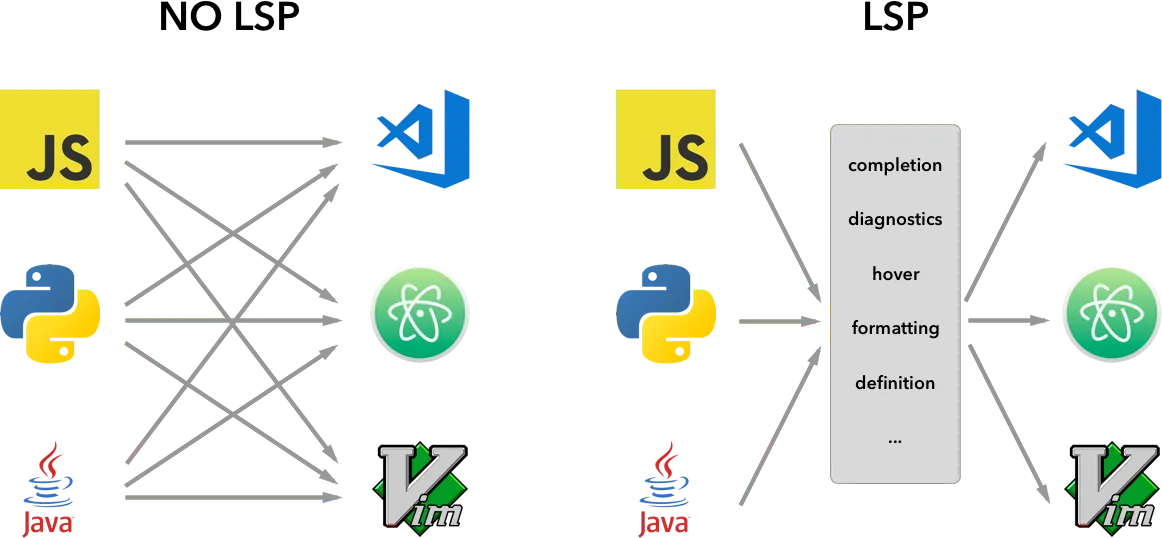
总体说来,在有lsp之前,存在三个主要问题:
一是语言相关的扩展都是用该语言母语写的,不容易集成到插件中去。毕竟现在大量的语言都带有运行时。
二是语言扫描相关的工作都比较占用CPU资源,运行在vscode内部不如放在独立进程,甚至远程服务器上更好。
三是如上图左边所示,缺少一套协议的话,每种语言服务需要适配多个编辑器。同样,每种编辑器也需要各种语言服务。这造成了较大的资源浪费。
LSP协议概述
LSP是基于json rpc的协议。
我们先来看一个例子:
Content-Length: ...\r\n
\r\n
{
    "jsonrpc": "2.0",
    "id": 1,
    "method": "textDocument/didOpen",
    "params": {
        ...
    }
}
jsonrpc是json rpc协议的头,LSP主要是定义了method和params。
从服务端发给客户端的,是Request,客户端返回Response。客户端主动发起的是Notification.
下面我们用一张图来看看LSP目前都支持哪些功能:
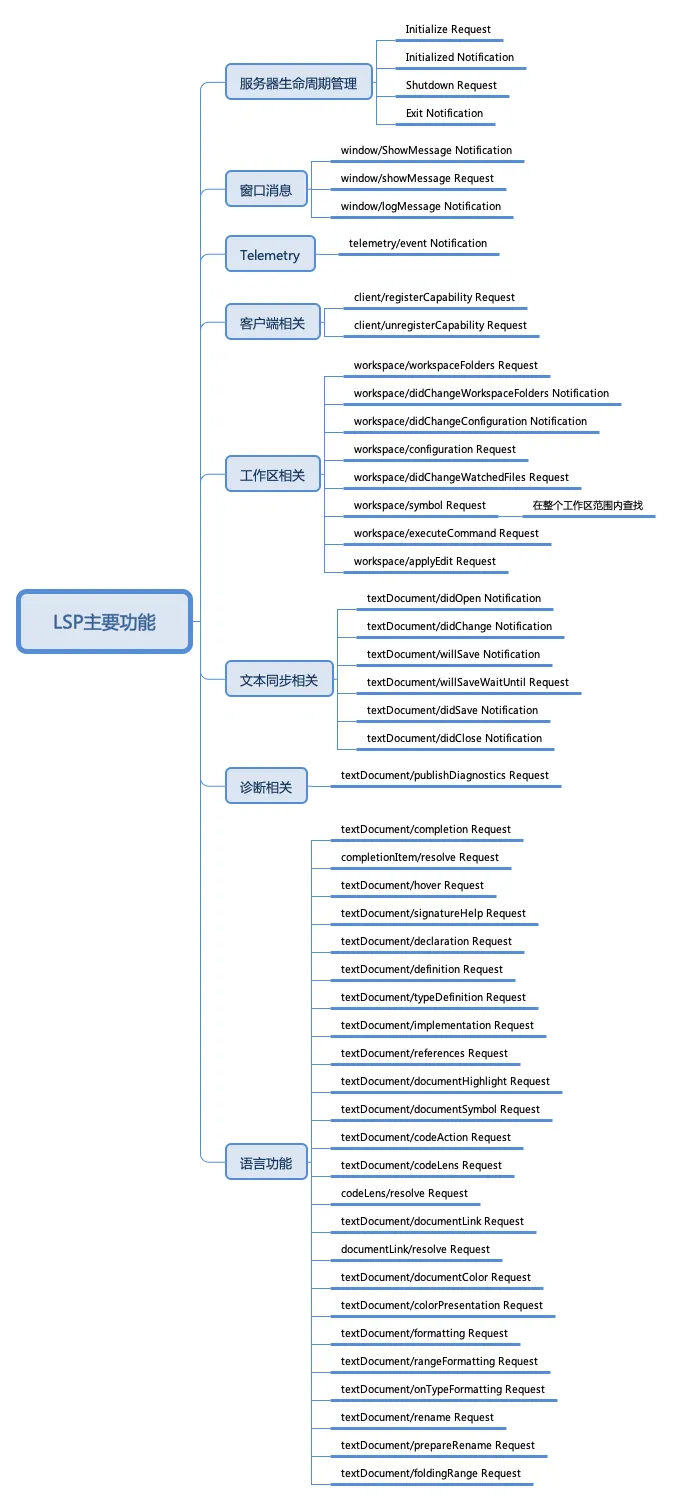
最大的一块是语言功能,这些也通可以通过本地的Provider等方法来实现。
生命周期管理
服务器的生命周期通过客户端发送initialize请求开始,负载为一个InitializeParameter对象:
interface InitializeParams {
    /**
     * The process Id of the parent process that started
     * the server. Is null if the process has not been started by another process.
     * If the parent process is not alive then the server should exit (see exit notification) its process.
     */
    processId: number | null;

    /**
     * The rootPath of the workspace. Is null
     * if no folder is open.
     *
     * @deprecated in favour of rootUri.
     */
    rootPath?: string | null;

    /**
     * The rootUri of the workspace. Is null if no
     * folder is open. If both `rootPath` and `rootUri` are set
     * `rootUri` wins.
     */
    rootUri: DocumentUri | null;

    /**
     * User provided initialization options.
     */
    initializationOptions?: any;

    /**
     * The capabilities provided by the client (editor or tool)
     */
    capabilities: ClientCapabilities;

    /**
     * The initial trace setting. If omitted trace is disabled ('off').
     */
    trace?: 'off' | 'messages' | 'verbose';

    /**
     * The workspace folders configured in the client when the server starts.
     * This property is only available if the client supports workspace folders.
     * It can be `null` if the client supports workspace folders but none are
     * configured.
     *
     * Since 3.6.0
     */
    workspaceFolders?: WorkspaceFolder[] | null;
}
而服务端返回的,是服务器的能力:
interface InitializeResult {
    /**
     * The capabilities the language server provides.
     */
    capabilities: ServerCapabilities;
}
ServerCapabilities的定义如下。主要对应了Workspace和TextDocument两大类型的API:
interface ClientCapabilities {
    /**
     * Workspace specific client capabilities.
     */
    workspace?: WorkspaceClientCapabilities;

    /**
     * Text document specific client capabilities.
     */
    textDocument?: TextDocumentClientCapabilities;

    /**
     * Experimental client capabilities.
     */
    experimental?: any;
}
客户端收到initialize result之后,按照三次握手的原则,将返回一个initialized消息做确认。至此,一个服务端与客户端通信的生命周期就算是成功建立。
LSP协议的实现
除了整个协议的详细描述之外,微软还为我们准备了LSP的SDK,源码在:https://github.com/microsoft/vscode-languageserver-node
我们首先从server侧来讲解LSP sdk的用法。
createConnection
服务端首先要获取一个Connection对象,通过vscode-languageserver提供的createConnection函数来创建Connection.
let connection = createConnection(ProposedFeatures.all);
Connection中对于LSP的消息进行了封装,比如:
        onInitialize: (handler) => initializeHandler = handler,
        onInitialized: (handler) => connection.onNotification(InitializedNotification.type, handler),
        onShutdown: (handler) => shutdownHandler = handler,
        onExit: (handler) => exitHandler = handler,
...
        onDidChangeConfiguration: (handler) => connection.onNotification(DidChangeConfigurationNotification.type, handler),
        onDidChangeWatchedFiles: (handler) => connection.onNotification(DidChangeWatchedFilesNotification.type, handler),
...
        onDidOpenTextDocument: (handler) => connection.onNotification(DidOpenTextDocumentNotification.type, handler),
        onDidChangeTextDocument: (handler) => connection.onNotification(DidChangeTextDocumentNotification.type, handler),
        onDidCloseTextDocument: (handler) => connection.onNotification(DidCloseTextDocumentNotification.type, handler),
        onWillSaveTextDocument: (handler) => connection.onNotification(WillSaveTextDocumentNotification.type, handler),
        onWillSaveTextDocumentWaitUntil: (handler) => connection.onRequest(WillSaveTextDocumentWaitUntilRequest.type, handler),
        onDidSaveTextDocument: (handler) => connection.onNotification(DidSaveTextDocumentNotification.type, handler),

        sendDiagnostics: (params) => connection.sendNotification(PublishDiagnosticsNotification.type, params),
...
        onHover: (handler) => connection.onRequest(HoverRequest.type, handler),
        onCompletion: (handler) => connection.onRequest(CompletionRequest.type, handler),
        onCompletionResolve: (handler) => connection.onRequest(CompletionResolveRequest.type, handler),
        onSignatureHelp: (handler) => connection.onRequest(SignatureHelpRequest.type, handler),
        onDeclaration: (handler) => connection.onRequest(DeclarationRequest.type, handler),
        onDefinition: (handler) => connection.onRequest(DefinitionRequest.type, handler),
        onTypeDefinition: (handler) => connection.onRequest(TypeDefinitionRequest.type, handler),
        onImplementation: (handler) => connection.onRequest(ImplementationRequest.type, handler),
        onReferences: (handler) => connection.onRequest(ReferencesRequest.type, handler),
        onDocumentHighlight: (handler) => connection.onRequest(DocumentHighlightRequest.type, handler),
        onDocumentSymbol: (handler) => connection.onRequest(DocumentSymbolRequest.type, handler),
        onWorkspaceSymbol: (handler) => connection.onRequest(WorkspaceSymbolRequest.type, handler),
        onCodeAction: (handler) => connection.onRequest(CodeActionRequest.type, handler),
        onCodeLens: (handler) => connection.onRequest(CodeLensRequest.type, handler),
        onCodeLensResolve: (handler) => connection.onRequest(CodeLensResolveRequest.type, handler),
        onDocumentFormatting: (handler) => connection.onRequest(DocumentFormattingRequest.type, handler),
        onDocumentRangeFormatting: (handler) => connection.onRequest(DocumentRangeFormattingRequest.type, handler),
        onDocumentOnTypeFormatting: (handler) => connection.onRequest(DocumentOnTypeFormattingRequest.type, handler),
        onRenameRequest: (handler) => connection.onRequest(RenameRequest.type, handler),
        onPrepareRename: (handler) => connection.onRequest(PrepareRenameRequest.type, handler),
        onDocumentLinks: (handler) => connection.onRequest(DocumentLinkRequest.type, handler),
        onDocumentLinkResolve: (handler) => connection.onRequest(DocumentLinkResolveRequest.type, handler),
        onDocumentColor: (handler) => connection.onRequest(DocumentColorRequest.type, handler),
        onColorPresentation: (handler) => connection.onRequest(ColorPresentationRequest.type, handler),
        onFoldingRanges: (handler) => connection.onRequest(FoldingRangeRequest.type, handler),
        onExecuteCommand: (handler) => connection.onRequest(ExecuteCommandRequest.type, handler),
协议中的所有的消息都有封装。
onInitialize
通过createConnection创建了Connection对象之后,我们就可以调用connection.listen()来实现对client的监听了。
在监听之前,我们需要把处理监听事件的回调函数设好。
首先是处理initialize消息的onInitialize,之前我们讲协议时介绍了,主要工作是告知client这个服务端的能力:
connection.onInitialize((params: InitializeParams) => {
    let capabilities = params.capabilities;

    return {
        capabilities: {
            textDocumentSync: documents.syncKind,
            // Tell the client that the server supports code completion
            completionProvider: {
                resolveProvider: true
            }
        }
    };
});
根据三次握手的原则,客户端还会返回initialized notification进行通知,服务端可以借用处理这个notification的返回值进行一些初始化的工作。例:
connection.onInitialized(() => {
    if (hasWorkspaceFolderCapability) {
        connection.workspace.onDidChangeWorkspaceFolders(_event => {
            connection.console.log('Workspace folder change event received.');
        });
    }
});
vscode插件快餐教程(5)
vscode插件快餐教程(5) - 代码补全
上节我们介绍了lsp的基本框架和协议的三次握手。
下面我们先学习一个最简单的功能协议:给vscode发送一条通知。
LSP窗口消息
在LSP协议中,跟窗口相关的协议有三条:
- window/ShowMessage Notification
- window/showMessage Request
- window/logMessage Notification
我们可以使用Connection.window.sendxxxMessage函数来向客户端发送消息。
根据消息程度的不同,分为Information, Warning和Error三个级别。
举个例子,我们可以在onInitialized,也就是客户端与服务端三次握手一切就绪之后,向客户端发一个消息。
connection.onInitialized(() => {connection.window.showInformationMessage('Hello World! form server side');
});
显示结果如下:
代码补全
我们用窗口通知热热身,测试一下链路通不通。下面我们就直奔我们最感兴趣的主题之一:代码补全。
代码补全的形式其实也很简单,输入是一个TextDocumentPositionParams,输出是一个CompletionItem的数组,这个函数注册到connection.onCompletion中:
connection.onCompletion((_textDocumentPosition: TextDocumentPositionParams): CompletionItem[] => {});
代码补全中用到的主要数据结构如下图所示:
其中kind属性由一个枚举定义:
大家不要被吓到,我们通过一个简单的例子看一下,其实基本实现方法还是很简单的:
connection.onCompletion((_textDocumentPosition: TextDocumentPositionParams): CompletionItem[] => {connection.console.log('[xulun]Position:' + _textDocumentPosition.textDocument);return [{label: 'TextView',kind: CompletionItemKind.Text,data: 1},{label: 'Button',kind: CompletionItemKind.Text,data: 2},{label: 'ListView',kind: CompletionItemKind.Text,data: 3}];}
)
补全的详细信息
除了补全信息textDocument/completion之外,lsp还支持completionItem/resolve请求,输入和输出都是CompletionItem,返回进一步的信息。
通过connection.onCompletionResolve方法可以注册对于completionItem/resolve请求的支持:
connection.onCompletionResolve((item: CompletionItem): CompletionItem => {if (item.data === 1) {item.detail = 'TextView';item.documentation = 'TextView documentation';} else if (item.data === 2) {item.detail = 'Button';item.documentation = 'JavaScript documentation';} else if (item.data === 3) {item.detail = 'ListView';item.documentation = 'ListView documentation';}return item;}
)
运行效果如下:
使用参数中的补全位置信息
输入参数中会带有发出补全申请的位置信息,我们可以根据这个信息来控制补全的信息。
我们以一个例子来说明下:
connection.onCompletion((_textDocumentPosition: TextDocumentPositionParams): CompletionItem[] => {return [{label: 'TextView' + _textDocumentPosition.position.character,kind: CompletionItemKind.Text,data: 1},{label: 'Button' + _textDocumentPosition.position.line,kind: CompletionItemKind.Text,data: 2},{label: 'ListView',kind: CompletionItemKind.Text,data: 3}];}
)
我们此时不光补全一个控件名,还将当前的行号或列号增加其中。
下面是补全Button的运行情况,会增加当前的行号到补全信息中,我们在934行触发补全,于是补全提示的信息变成Button
vscode插件快餐教程(6) - LSP协议的初始化参数
简介: 我们在第4节曾经介绍过LSP的初始化的握手过程。 我们可以在connection的onInitialize函数中来接收客户端的初始化参数,比如客户端的能力。
学习了lsp的代码补全之后,我们可以尝试搭建一套可以运行的lsp的系统。
在此之前,我们再将一些细节夯实一下。
我们在第4节曾经介绍过LSP的初始化的握手过程。
我们可以在connection的onInitialize函数中来接收客户端的初始化参数,比如客户端的能力。
connection.onInitialize((params: InitializeParams) => {
    let capabilities = params.capabilities;

    return {
        capabilities: {
            textDocumentSync: documents.syncKind,
            // Tell the client that the server supports code completion
            completionProvider: {
                resolveProvider: true
            }
        }
    };
})
我们先用一张图来看一下lsp初始化参数所包含的内容:
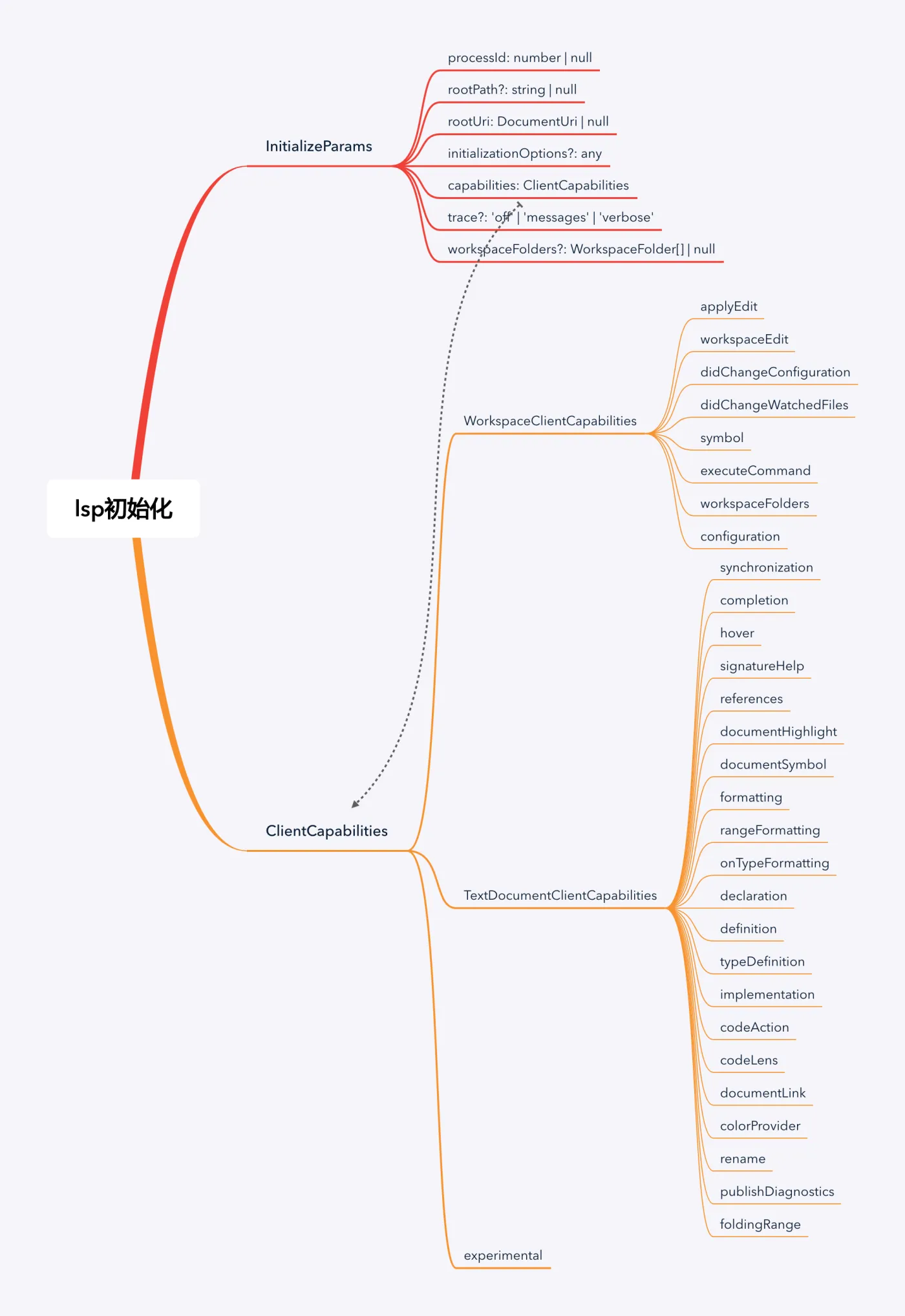
下面我们看下这些定义:
interface InitializeParams {
    /**
     * The process Id of the parent process that started
     * the server. Is null if the process has not been started by another process.
     * If the parent process is not alive then the server should exit (see exit notification) its process.
     */
    processId: number | null;

    /**
     * The rootPath of the workspace. Is null
     * if no folder is open.
     *
     * @deprecated in favour of rootUri.
     */
    rootPath?: string | null;

    /**
     * The rootUri of the workspace. Is null if no
     * folder is open. If both `rootPath` and `rootUri` are set
     * `rootUri` wins.
     */
    rootUri: DocumentUri | null;

    /**
     * User provided initialization options.
     */
    initializationOptions?: any;

    /**
     * The capabilities provided by the client (editor or tool)
     */
    capabilities: ClientCapabilities;

    /**
     * The initial trace setting. If omitted trace is disabled ('off').
     */
    trace?: 'off' | 'messages' | 'verbose';

    /**
     * The workspace folders configured in the client when the server starts.
     * This property is only available if the client supports workspace folders.
     * It can be `null` if the client supports workspace folders but none are
     * configured.
     *
     * Since 3.6.0
     */
    workspaceFolders?: WorkspaceFolder[] | null;
}
我们将上面的信息分下类,如下图所示:
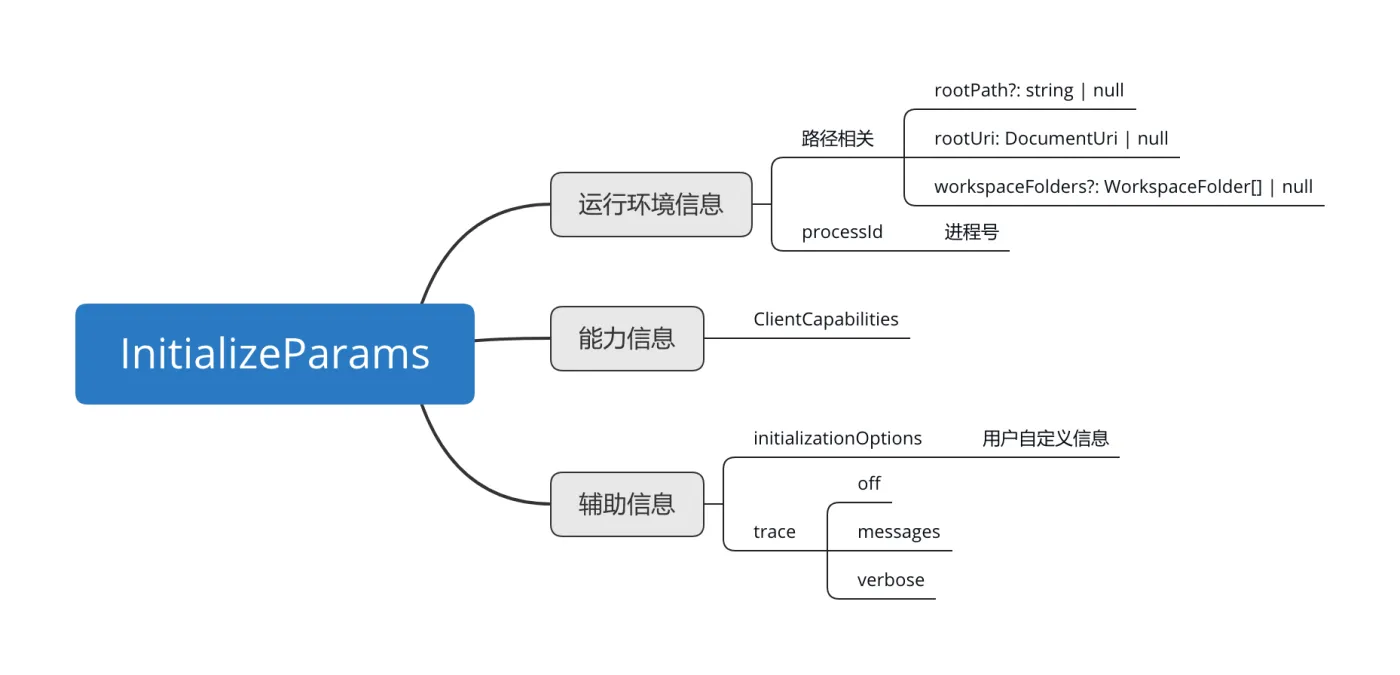
主要有三种信息:
- 一是运行环境相关的信息,如路径相关信息和进程相关信息。
- 二是能力信息。
- 三是一些辅助信息,包括trace设置和用户自定义信息。
vscode插件快餐教程(7) - 从头开始写一个完整的lsp工程
简介: 有了一定的基础知识之后,我们就可以开始搭建一个client和server模式的lsp的插件了。
有了一定的基础知识之后,我们就可以开始搭建一个client和server模式的lsp的插件了。
server目录
首先我们来写server端的代码。
package.json
首先我们来写package.json. 因为微软的sdk已经帮我们封装好了大部分细节,其实我们只要引用vscode-languageserver的模块就可以了:
{
    "name": "lsp-demo-server",
    "description": "demo language server",
    "version": "1.0.0",
    "author": "Xulun",
    "license": "MIT",
    "engines": {
        "node": "*"
    },
    "repository": {
        "type": "git",
        "url": "git@code.aliyun.com:lusinga/testlsp.git"
    },
    "dependencies": {
        "vscode-languageserver": "^4.1.3"
    },
    "scripts": {}
}
有了package.json之后,我们就可以在server目录下运行npm install命令将依赖安装进来。
安装之后会有下面的模块被引用进来:
- vscode-jsonrpc
- vscode-languageserver
- vscode-languageserver-protocol
- vscode-languageserver-types vscode-uri
tsconfig.json
因为我们是要用typescript来写server,所以我们用tsconfig.json来配置Typescript的选项:
{
    "compilerOptions": {
        "target": "es6",
        "module": "commonjs",
        "moduleResolution": "node",
        "sourceMap": true,
        "outDir": "out",
        "rootDir": "src",
        "lib": ["es6"]
    },
    "include": ["src"],
    "exclude": ["node_modules", ".vscode-test"]
}
server.ts
下面我们开始写服务端的ts文件,首先我们要把vscode-languageserver和vscode-jsonrpc的依赖引入进来:
import {
    createConnection,
    TextDocuments,
    TextDocument,
    Diagnostic,
    DiagnosticSeverity,
    ProposedFeatures,
    InitializeParams,
    DidChangeConfigurationNotification,
    CompletionItem,
    CompletionItemKind,
    TextDocumentPositionParams,
    SymbolInformation,
    WorkspaceSymbolParams,
    WorkspaceEdit,
    WorkspaceFolder
} from 'vscode-languageserver';
import { HandlerResult } from 'vscode-jsonrpc';
下面,为了打印日志方便,我们使用log4js来打印日志,通过npm i log4js --save将其模块引入进来,然后对其进行初始化:
import { configure, getLogger } from "log4js";
configure({
    appenders: {
        lsp_demo: {
            type: "dateFile",
            filename: "/Users/ziyingliuziying/working/lsp_demo",
            pattern: "yyyy-MM-dd-hh.log",
            alwaysIncludePattern: true,
        },
    },
    categories: { default: { appenders: ["lsp_demo"], level: "debug" } }
});
const logger = getLogger("lsp_demo");
然后我们就可以调用createConnection来创建连接了:
let connection = createConnection(ProposedFeatures.all);
接着我们就可以处理一个个的事件啦,比如处理第6节介绍的初始化事件:
connection.onInitialize((params: InitializeParams) => {
    let capabilities = params.capabilities;

    return {
        capabilities: {
            completionProvider: {
                resolveProvider: true
            }
        }
    };
});
三次握手之后,我们可以在vscode上显示一条消息:
connection.onInitialized(() => {
    connection.window.showInformationMessage('Hello World! form server side');
});
最后,我们可以把第5节学过的代码补全的部分给加上:
connection.onCompletion(
    (_textDocumentPosition: TextDocumentPositionParams): CompletionItem[] => {

        return [
            {
                label: 'TextView' + _textDocumentPosition.position.character,
                kind: CompletionItemKind.Text,
                data: 1
            },
            {
                label: 'Button' + _textDocumentPosition.position.line,
                kind: CompletionItemKind.Text,
                data: 2
            },
            {
                label: 'ListView',
                kind: CompletionItemKind.Text,
                data: 3
            }
        ];
    }
);

connection.onCompletionResolve(
    (item: CompletionItem): CompletionItem => {
        if (item.data === 1) {
            item.detail = 'TextView';
            item.documentation = 'TextView documentation';
        } else if (item.data === 2) {
            item.detail = 'Button';
            item.documentation = 'JavaScript documentation';
        } else if (item.data === 3) {
            item.detail = 'ListView';
            item.documentation = 'ListView documentation';
        }
        return item;
    }
);
client目录
服务端这就算开发就绪了,下面我们来开发客户端。
package.json
首先还是先写package.json,依赖于vscode-languageclient,不要跟服务端用的库vscode-languageserver搞混了哈。
{
    "name": "lspdemo-client",
    "description": "demo language server client",
    "author": "Xulun",
    "license": "MIT",
    "version": "0.0.1",
    "publisher": "Xulun",
    "repository": {
        "type": "git",
        "url": "git@code.aliyun.com:lusinga/testlsp.git"
    },
    "engines": {
        "vscode": "^1.33.1"
    },
    "scripts": {
        "update-vscode": "vscode-install",
        "postinstall": "vscode-install"
    },
    "dependencies": {
        "path": "^0.12.7",
        "vscode-languageclient": "^4.1.4"
    },
    "devDependencies": {
        "vscode": "^1.1.30"
    }
}
tsconfig.json
反正都是ts,客户端与服务端比也没有增加啥特别的,于是照抄一份:
{
    "compilerOptions": {
        "module": "commonjs",
        "target": "es6",
        "outDir": "out",
        "rootDir": "src",
        "lib": ["es6"],
        "sourceMap": true
    },
    "include": ["src"],
    "exclude": ["node_modules", ".vscode-test"]
}
extension.ts
下面我们来写extension.ts。
其实客户端要做的事情比server还少,本质上就是启动server就好:
    // Create the language client and start the client.
    client = new LanguageClient(
        'DemoLanguageServer',
        'Demo Language Server',
        serverOptions,
        clientOptions
    );

    // Start the client. This will also launch the server
    client.start();
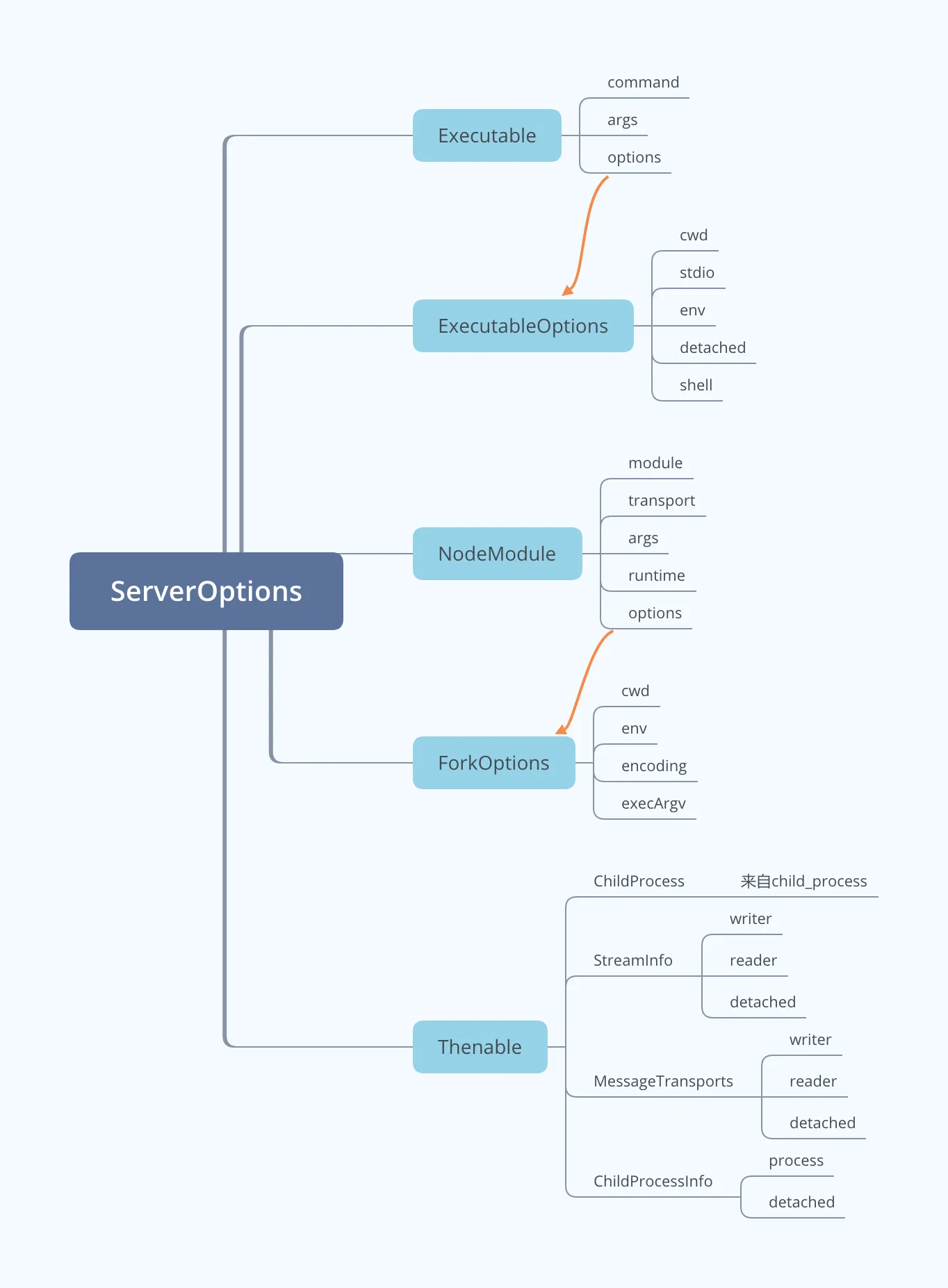
serverOptions用来配置服务端的参数,其定义为:
export type ServerOptions =
Executable |
{ run: Executable; debug: Executable; } |
{ run: NodeModule; debug: NodeModule } |
NodeModule |
(() => Thenable<ChildProcess | StreamInfo | MessageTransports | ChildProcessInfo>);
相关类型的简图如下:
下面我们来配置一下:
    // 服务端配置
    let serverModule = context.asAbsolutePath(
        path.join('server', 'out', 'server.js')
    );

    let serverOptions: ServerOptions = {
        module: serverModule, transport: TransportKind.ipc
    };

    // 客户端配置
    let clientOptions: LanguageClientOptions = {
        // js代码触发事情
        documentSelector: [{ scheme: 'file', language: 'js' }],
    };
extension.ts的完整代码如下:
import * as path from 'path';
import { workspace, ExtensionContext } from 'vscode';

import {
    LanguageClient,
    LanguageClientOptions,
    ServerOptions,
    TransportKind
} from 'vscode-languageclient';

let client: LanguageClient;

export function activate(context: ExtensionContext) {
    // 服务端配置
    let serverModule = context.asAbsolutePath(
        path.join('server', 'out', 'server.js')
    );

    let serverOptions: ServerOptions = {
        module: serverModule, transport: TransportKind.ipc
    };

    // 客户端配置
    let clientOptions: LanguageClientOptions = {
        // js代码触发事情
        documentSelector: [{ scheme: 'file', language: 'js' }],
    };

    client = new LanguageClient(
        'DemoLanguageServer',
        'Demo Language Server',
        serverOptions,
        clientOptions
    );

    // 启动客户端,同时启动语言服务器
    client.start();
}

export function deactivate(): Thenable<void> | undefined {
    if (!client) {
        return undefined;
    }
    return client.stop();
}
组装运行
万事俱备,只欠包装,下面我们将上面的客户端和服务器组装一下。
插件配置 - package.json
我们关注点主要是入口函数和触发事件:
    "activationEvents": [
        "onLanguage:javascript"
    ],
    "main": "./client/out/extension",
完整的package.json如下:
{
    "name": "lsp_demo_server",
    "description": "A demo language server",
    "author": "Xulun",
    "license": "MIT",
    "version": "1.0.0",
    "repository": {
        "type": "git",
        "url": "git@code.aliyun.com:lusinga/testlsp.git"
    },
    "publisher": "Xulun",
    "categories": [],
    "keywords": [],
    "engines": {
        "vscode": "^1.33.1"
    },
    "activationEvents": [
        "onLanguage:javascript"
    ],
    "main": "./client/out/extension",
    "contributes": {},
    "scripts": {
        "vscode:prepublish": "cd client && npm run update-vscode && cd .. && npm run compile",
        "compile": "tsc -b",
        "watch": "tsc -b -w",
        "postinstall": "cd client && npm install && cd ../server && npm install && cd ..",
        "test": "sh ./scripts/e2e.sh"
    },
    "devDependencies": {
        "@types/mocha": "^5.2.0",
        "@types/node": "^8.0.0",
        "tslint": "^5.11.0",
        "typescript": "^3.1.3"
    }
}
装配tsconfig.json
我们还需要一个总的tsconfig.json,引用client和server两个目录:
{
    "compilerOptions": {
        "module": "commonjs",
        "target": "es6",
        "outDir": "out",
        "rootDir": "src",
        "lib": [ "es6" ],
        "sourceMap": true
    },
    "include": [
        "src"
    ],
    "exclude": [
        "node_modules",
        ".vscode-test"
    ],
    "references": [
        { "path": "./client" },
        { "path": "./server" }
    ]
}
配置vscode
上面,我们就将client, server和整合它们的代码全部写完了。
下面我们在.vscode目录中写两个配置文件,使我们可以更方便地调试和运行。
.vscode/launch.json
有了这个文件之后,我们就有了运行的配置,可以通过F5来启动。
// A launch configuration that compiles the extension and then opens it inside a new window
{
    "version": "0.2.0",
    "configurations": [
        {
            "type": "extensionHost",
            "request": "launch",
            "name": "Launch Client",
            "runtimeExecutable": "${execPath}",
            "args": ["--extensionDevelopmentPath=${workspaceRoot}"],
            "outFiles": ["${workspaceRoot}/client/out/**/*.js"],
            "preLaunchTask": {
                "type": "npm",
                "script": "watch"
            }
        },
        {
            "type": "node",
            "request": "attach",
            "name": "Attach to Server",
            "port": 6009,
            "restart": true,
            "outFiles": ["${workspaceRoot}/server/out/**/*.js"]
        },
    ],
    "compounds": [
        {
            "name": "Client + Server",
            "configurations": ["Launch Client", "Attach to Server"]
        }
    ]
}
.vscode/tasks.json
配置npm compile和npm watch两个脚本。
{
    "version": "2.0.0",
    "tasks": [
        {
            "type": "npm",
            "script": "compile",
            "group": "build",
            "presentation": {
                "panel": "dedicated",
                "reveal": "never"
            },
            "problemMatcher": [
                "$tsc"
            ]
        },
        {
            "type": "npm",
            "script": "watch",
            "isBackground": true,
            "group": {
                "kind": "build",
                "isDefault": true
            },
            "presentation": {
                "panel": "dedicated",
                "reveal": "never"
            },
            "problemMatcher": [
                "$tsc-watch"
            ]
        }
    ]
}
一切就绪之后,在插件根目录下运行下npm install。
然后在vscode中运行build命令,比如mac下是cmd-shift-b,于是就构建生成了server和client的out目录下的js和map。
现在就可以通过F5键运行啦。
本示例的源代码放在code.aliyun.com:lusinga/testlsp.git中。
vscode插件快餐教程(8) - LSP文本同步
简介: 这一节开始我们介绍下通过LSP进行文本同步的方法。
这一节开始我们介绍下通过LSP进行文本同步的方法。
文件打开
我们先从简单的做起,先监听文件的打开。
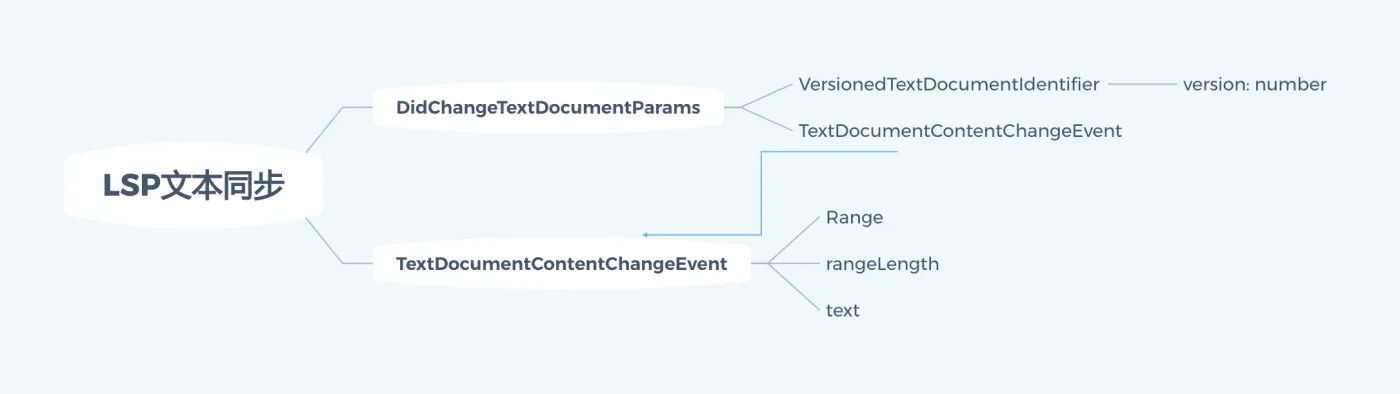
我们看一下LSP协议中对此部分的支持,参数是DidChangeTextDocumentParams结构。
微软的SDK在LSP的基础上是做了封装的,我们看下封装后的接口:
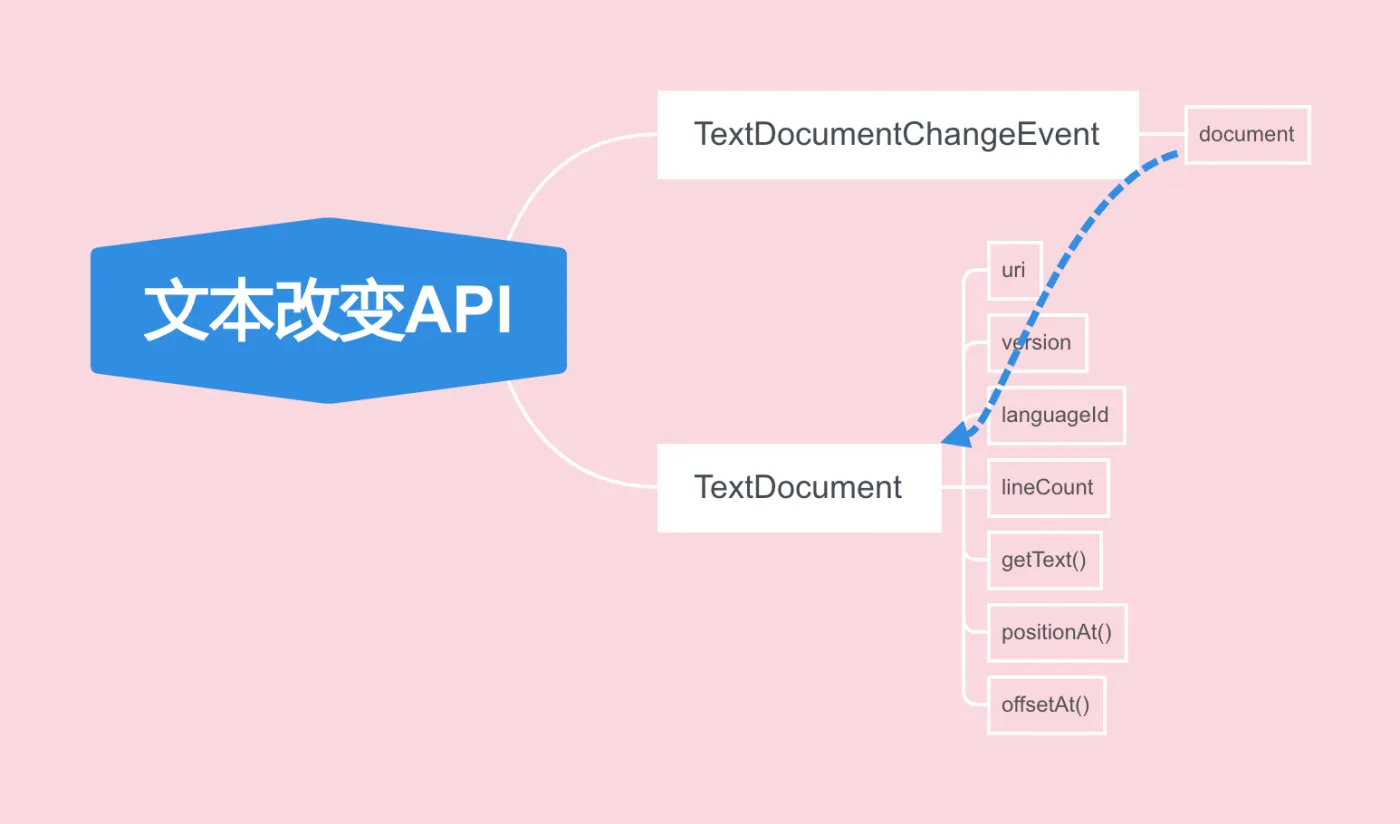
当前,TextDocument提供了4个属性:
- uri: 文件的URI
- version: 文件的版本号
- languageId: 编程语言
- lineCount: 有多少行
另外还有3个函数: - getText(): 获取文本
- positionAt和offsetAt用于Position和offset的转换
我们来看个例子:
documents.onDidOpen(
    (event: TextDocumentChangeEvent) => {
        logger.debug(`on open:${event.document.uri}`);
        logger.debug(`file version:${event.document.version}`);
        logger.debug(`file content:${event.document.getText()}`);
        logger.debug(`language id:${event.document.languageId}`);
        logger.debug(`line count:${event.document.lineCount}`);
    }
);
我们来看一个运行的例子:
[2019-06-04T18:11:31.999] [DEBUG] lsp_demo - on open:file:///Users/ziyingliuziying/test.vb
[2019-06-04T18:11:31.999] [DEBUG] lsp_demo - file version:1
[2019-06-04T18:11:31.999] [DEBUG] lsp_demo - file content:dim a as integer;
TextView1
Javascript
Button3
Test2

[2019-06-04T18:11:31.999] [DEBUG] lsp_demo - language id:vb
[2019-06-04T18:11:32.000] [DEBUG] lsp_demo - line count:6
监听文件变化
监听文件变化与监听打开文件基本上是一模一样的,代码如下:
documents.onDidChangeContent(
    (e: TextDocumentChangeEvent) => {
        logger.debug('document change received.');
        logger.debug(`document version:${e.document.version}`);
        logger.debug(`text:${e.document.getText()}`);
        logger.debug(`language id:${e.document.languageId}`);
        logger.debug(`line count:${e.document.lineCount}`);
    }
);
[2019-06-04T18:30:34.329] [DEBUG] lsp_demo - document change received.
[2019-06-04T18:30:34.329] [DEBUG] lsp_demo - document version:1
[2019-06-04T18:30:34.329] [DEBUG] lsp_demo - text:dim a as integer;
TextView1
Javascript
Button3
Test2

[2019-06-04T18:30:34.329] [DEBUG] lsp_demo - language id:vb
[2019-06-04T18:30:34.329] [DEBUG] lsp_demo - line count:6

[2019-06-04T18:30:39.457] [DEBUG] lsp_demo - document change received.
[2019-06-04T18:30:39.457] [DEBUG] lsp_demo - document version:2
[2019-06-04T18:30:39.457] [DEBUG] lsp_demo - text:

[2019-06-04T18:30:39.457] [DEBUG] lsp_demo - language id:vb
[2019-06-04T18:30:39.458] [DEBUG] lsp_demo - line count:2

[2019-06-04T18:30:41.576] [DEBUG] lsp_demo - document change received.
[2019-06-04T18:30:41.576] [DEBUG] lsp_demo - document version:3
[2019-06-04T18:30:41.577] [DEBUG] lsp_demo - text:b
[2019-06-04T18:30:41.577] [DEBUG] lsp_demo - language id:vb
[2019-06-04T18:30:41.577] [DEBUG] lsp_demo - line count:1

[2019-06-04T18:30:41.949] [DEBUG] lsp_demo - document change received.
[2019-06-04T18:30:41.949] [DEBUG] lsp_demo - document version:4
[2019-06-04T18:30:41.949] [DEBUG] lsp_demo - text:u
[2019-06-04T18:30:41.949] [DEBUG] lsp_demo - language id:vb
[2019-06-04T18:30:41.949] [DEBUG] lsp_demo - line count:1

[2019-06-04T18:30:42.447] [DEBUG] lsp_demo - document change received.
[2019-06-04T18:30:42.447] [DEBUG] lsp_demo - document version:5
[2019-06-04T18:30:42.447] [DEBUG] lsp_demo - text:Button5
[2019-06-04T18:30:42.447] [DEBUG] lsp_demo - language id:vb
[2019-06-04T18:30:42.447] [DEBUG] lsp_demo - line count:1
文本监听模式
上面的监听方式是增量监听,使用TextDocumentSyncKind.Incremental模式,代码如下:
connection.onInitialize((params: InitializeParams) => {
    return {
        capabilities: {
            textDocumentSync: {
                openClose: true,
                change: TextDocumentSyncKind.Incremental
            },
            completionProvider: {
                resolveProvider: true
            }
        }
    };
});
增量模式是每次只传变化的部分。
下面我们可以看看传全量模式与其的区别:
connection.onInitialize((params: InitializeParams) => {
    return {
        capabilities: {
            textDocumentSync: {
                openClose: true,
                change: TextDocumentSyncKind.Full
            },
            completionProvider: {
                resolveProvider: true
            }
        }
    };
});
全量模式下,每次变化后的全量都会通过消息传递过来,我们看个例子:
[2019-06-04T19:52:12.305] [DEBUG] lsp_demo - document change received.
[2019-06-04T19:52:12.305] [DEBUG] lsp_demo - document version:1
[2019-06-04T19:52:12.305] [DEBUG] lsp_demo - text:dim a as integer;
TextView1
Javascript
Button3
Test2
Button5

[2019-06-04T19:52:12.305] [DEBUG] lsp_demo - language id:vb
[2019-06-04T19:52:12.305] [DEBUG] lsp_demo - line count:7
[2019-06-04T19:52:19.442] [DEBUG] lsp_demo - document change received.
[2019-06-04T19:52:19.442] [DEBUG] lsp_demo - document version:2
[2019-06-04T19:52:19.442] [DEBUG] lsp_demo - text:dim a as integer;
TextView1
Javascript
Button3
Test2
Button5
T
[2019-06-04T19:52:19.443] [DEBUG] lsp_demo - language id:vb
[2019-06-04T19:52:19.443] [DEBUG] lsp_demo - line count:7
[2019-06-04T19:52:19.443] [DEBUG] lsp_demo - onCompletion
[2019-06-04T19:52:19.787] [DEBUG] lsp_demo - document change received.
[2019-06-04T19:52:19.787] [DEBUG] lsp_demo - document version:5
[2019-06-04T19:52:19.787] [DEBUG] lsp_demo - text:dim a as integer;
TextView1
Javascript
Button3
Test2
Button5
Test
[2019-06-04T19:52:19.787] [DEBUG] lsp_demo - language id:vb
[2019-06-04T19:52:19.787] [DEBUG] lsp_demo - line count:7
[2019-06-04T19:52:19.788] [DEBUG] lsp_demo - onCompletion
[2019-06-04T19:52:21.877] [DEBUG] lsp_demo - document change received.
[2019-06-04T19:52:21.877] [DEBUG] lsp_demo - document version:6
[2019-06-04T19:52:21.877] [DEBUG] lsp_demo - text:dim a as integer;
TextView1
Javascript
Button3
Test2
Button5
Test

[2019-06-04T19:52:21.877] [DEBUG] lsp_demo - language id:vb
[2019-06-04T19:52:21.877] [DEBUG] lsp_demo - line count:8
还可以选择TextDocumentSyncKind.None模式,这时候不同步文本信息。
vscode插件快餐教程(9) - LSP补全与本地补全
简介: 我们接续第5讲未介绍完的LSP的onCompletion补全的部分,还有本地补全和异步补全
我们接续第5讲未介绍完的LSP的onCompletion补全的部分。
TextDocumentPositionParams
在第5讲,我们曾经介绍过LSP处理onCompletion的例子,我们再复习一下:
connection.onCompletion(
    (_textDocumentPosition: TextDocumentPositionParams): CompletionItem[] => {
        return [
            {
                label: 'TextView',
                kind: CompletionItemKind.Text,
                data: 1
            },
            {
                label: 'Button',
                kind: CompletionItemKind.Text,
                data: 2
            },
            {
                label: 'ListView',
                kind: CompletionItemKind.Text,
                data: 3
            }
        ];
    }
)
这其中的TextDocumentPositionParams其实非常简单,只有文档uri,行,列三个参数。
我们来看下其定义:
export interface TextDocumentPositionParams {
    /**
     * The text document.
     */
    textDocument: TextDocumentIdentifier;

    /**
     * The position inside the text document.
     */
    position: Position;
}
TextDocumentIdentifier
TextDocumentIdentifier封装了两层,本质上就是一个URI的字符串。
/**
 * A literal to identify a text document in the client.
 */
export interface TextDocumentIdentifier {
    /**
     * The text document's uri.
     */
    uri: DocumentUri;
}
DocumentUri其实就是string的马甲,请看定义:
/**
 * A tagging type for string properties that are actually URIs.
 */
export type DocumentUri = string;
这个URI地址,一般是所编辑文件地址,以Windows上的地址为例:
file:///c%3A/working/temp/completions-sample/test.bas
Position
Position由行号line和列号character组成:
export interface Position {
    /**
     * Line position in a document (zero-based).
     * If a line number is greater than the number of lines in a document, it defaults back to the number of lines in the document.
     * If a line number is negative, it defaults to 0.
     */
    line: number;

    /**
     * Character offset on a line in a document (zero-based). Assuming that the line is
     * represented as a string, the `character` value represents the gap between the
     * `character` and `character + 1`.
     *
     * If the character value is greater than the line length it defaults back to the
     * line length.
     * If a line number is negative, it defaults to 0.
     */
    character: number;
}
LSP与本地CompleteProvider的对照
LSP毕竟是一套完整的协议,可以多条消息或命令配合执行。而本地Provider提供的功能相对更全面一些。
上面我们介绍了onComplete的参数是一个URI字符串,而在CompleteProvider中,则直接获取到完整的TextDocument的内容:
provideCompletionItems(document: vscode.TextDocument, position: vscode.Position, token: vscode.CancellationToken, context: vscode.CompletionContext)
通过TextDocument对象,我们就可以获取到文本的内容,版本号,所对应的语言等等:
    let provider1 = vscode.languages.registerCompletionItemProvider('plaintext', {

        provideCompletionItems(document: vscode.TextDocument, position: vscode.Position, token: vscode.CancellationToken, context: vscode.CompletionContext) {
            console.log('document version=' + document.version);
            console.log('text is:' + document.getText());
            console.log('URI is:' + document.uri);
            console.log('Language ID=' + document.languageId);
            console.log('Line Count=' + document.lineCount);
CompleteItem
说完参数,我们再说说返回值中的CompleteItem。
最简单的CompleteItem类型 - 字符串补全
最简单的就是直接给一个字符串,例:
const simpleCompletion = new vscode.CompletionItem('console.log');
这样,当用户输入c的时候,就会提示是否要补全console.log。
Code Snippets补全
另外高级一点的补全,是允许用户进行选择和替换的补全,类似于Code Snippets功能。
比如我们可以提供log, warn, error三个选项给console做补全:
            const snippetCompletion = new vscode.CompletionItem('console');
            snippetCompletion.insertText = new vscode.SnippetString('console.${1|log,warn,error|}. Is it console.${1}?');
            snippetCompletion.documentation = new vscode.MarkdownString("Code snippet for console");
也就是说,除了默认的label属性,这个例子中还指定了insertText和documentation属性。
指定commit键的补全
这一节我们增加commitCharacters,文档也选用更强大的MarkdownString:
            const commitCharacterCompletion = new vscode.CompletionItem('console');
            commitCharacterCompletion.commitCharacters = ['.'];
            commitCharacterCompletion.documentation = new vscode.MarkdownString('Press `.` to get `console.`');
然后,如第5节中所述一样,我们还需要为二段补全提供一个新的provider:
    const provider2 = vscode.languages.registerCompletionItemProvider(
        'plaintext',
        {
            provideCompletionItems(document: vscode.TextDocument, position: vscode.Position) {

                // get all text until the `position` and check if it reads `console.`
                // and if so then complete if `log`, `warn`, and `error`
                let linePrefix = document.lineAt(position).text.substr(0, position.character);
                if (!linePrefix.endsWith('console.')) {
                    return undefined;
                }

                return [
                    new vscode.CompletionItem('log', vscode.CompletionItemKind.Method),
                    new vscode.CompletionItem('warn', vscode.CompletionItemKind.Method),
                    new vscode.CompletionItem('error', vscode.CompletionItemKind.Method),
                ];
            }
        },
        '.' // triggered whenever a '.' is being typed
    );
终极大招:调用其它命令进行补全
最后,我们如果自己搞不定了,还可以通过指定command属性来调用其它命令来进行补全,比如本例中我们调用editor.action.triggerSuggest命令来进行进一步的处理:
            const commandCompletion = new vscode.CompletionItem('new');
            commandCompletion.kind = vscode.CompletionItemKind.Keyword;
            commandCompletion.insertText = 'new ';
            commandCompletion.command = { command: 'editor.action.triggerSuggest', title: 'Re-trigger completions...' };
实现异步补全
vscode的CompletionProvider另外强大的一点是,provideCompletionItems是可以async的,这样就可以去等待另一个费时的线程甚至是远程的服务返回来进行补全计算了,只要await真正计算的线程就好了。
我们来个需要服务器返回的例子看下:
    let provider1 = vscode.languages.registerCompletionItemProvider('javascript', {

        async provideCompletionItems(document: vscode.TextDocument, position: vscode.Position, token: vscode.CancellationToken, context: vscode.CompletionContext) {
            let item: vscode.CompletionItem = await instance.post('/complete', { code: getLine(document, position) })
                .then(function (response: any) {
                    console.log('complete: ' + response.data);
                    return new vscode.CompletionItem(response.data);
                })
                .catch(function (error: Error) {
                    console.log(error);
                    return new vscode.CompletionItem('No suggestion');
                });

            return [item];
vscode插件快餐教程(10) - 设置
简介: vscode中新增和读写配置项的方法
在插件中,根据用户的环境和个性化的不同,需要增加一些配置项。
读写配置项
可以通过vscode.workspace.getConfiguration()方法来获取所有的设置项。
let config: vscode.WorkspaceConfiguration = vscode.workspace.getConfiguration();
设置项可以分类,可以指定某一类前缀,来获取这一类的所有属性,例:
let config2: vscode.WorkspaceConfiguration = vscode.workspace.getConfiguration('launch');
获取的配置对象将包括:launch.configurations:Array和launch.compounds等子项。
取得到全部或者分类之后,就可以根据名称来通过get方法来读取配置项的值了:
例,我们读取一个tab等于多少个空格的选项:
    let editorConfig: vscode.WorkspaceConfiguration = vscode.workspace.getConfiguration('editor');
    let tabsize = editorConfig.get<number>('tabSize');
同样,我们可以通过WorkspaceConfiguration的update方法来更新配置项,例:
editorConfig.update('tabSize',4);
添加自己的配置项
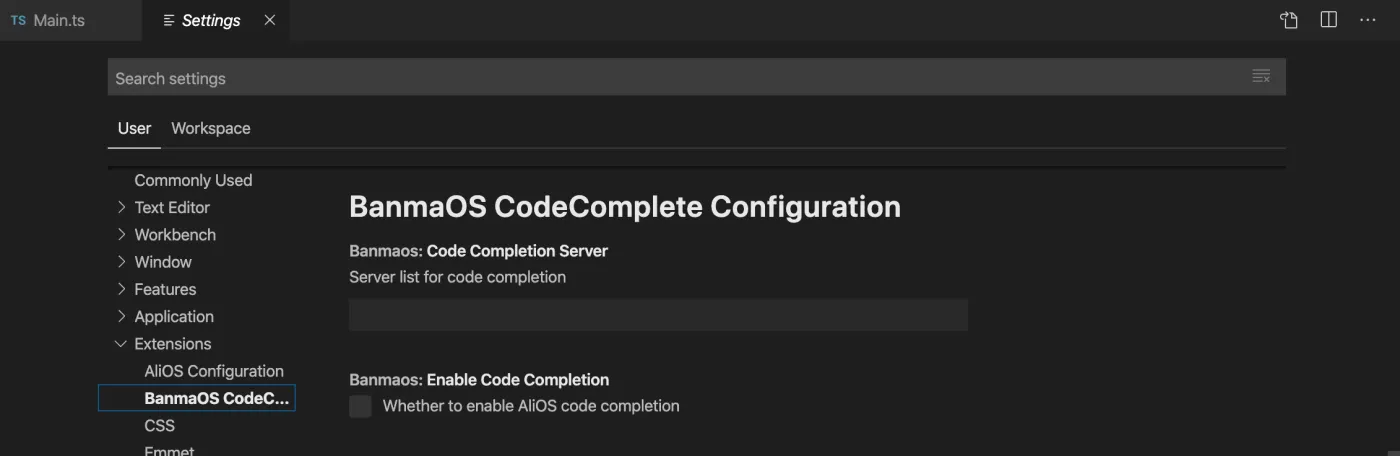
在package.json中,contributes下通过configuration来添加设置项,例:
    "contributes": {
        "configuration": {
            "title": "BanmaOS CodeComplete Configuration",
            "properties": {
                "banmaos.enableCodeCompletion": {
                    "type": "boolean",
                    "default": false,
                    "description": "Whether to enable AliOS code completion"
                },
                "banmaos.codeCompletionServer": {
                    "type": "string",
                    "default": "",
                    "description": "Server list for code completion"
                }
            }
        }
    }
运行后打开settings,显示出来是这个样子的:
指定缺省值
自己设置的配置项可能都设了默认值,但是如果是依赖别人的配置项,可能因为环境不同就没有这个项目。这时有三个解决方案:
- 假设存在,然后判断undefined
- 先用has方法判断下存不存在
- 指定一个默认值, get方法的第二个函数就是干这个的:
let whatisthis = editorConfig.get<string>('notExisted',"Unknown value");
因为这个项目就是没定义,所以返回值为Unknown value。
值的优先级
在目前的版本中,配置项的值有4种:默值值、全局值、工作区值、工作区目录值。
除了默认值不能改之外,其他三个值的类型叫做ConfigurationTarget,分为Global,Workspace和WorkspaceFolder三种。
前面讲到的update方法的第三个参数就是ConfigurationTarget值。可以直接指定ConfigurationTarget,也可以给一个布尔值,true表示Global,false表示Workspace。如果为空或者undefined,则优先选WorkspaceFolder,如果不适用则自动适配为Workspace.
例:带有ConfigurationTarget的更新:
    editorConfig.update('tabSize',4, vscode.ConfigurationTarget.Global);
    editorConfig.update('tabSize',4, true);
值这么多有点乱哈,所以vscode为我们提供了一个方法去检查这个配置项的所有值,即inspect方法。我们看个例子:
console.log(editorConfig.inspect<string>('tabSize'));
输出的对象类似这样:
key:"editor.tabSize"
defaultValue:4
globalValue:4
workspaceValue:4

 浙公网安备 33010602011771号