
LINUX学习笔记
Linux学习笔记1
VMware Workstation Pro中打开虚拟机后,
1.文件操作
(1)进入到home文件夹.
zzh@ubuntu:/$ cd home
zzh@ubuntu:/home$
(2)在home文件夹中添加一一个新的文件夹,叫做learn_ linux.
zzh@ubuntu:/home$ mkdir -m 711 learn_linux
mkdir: cannot create directory ‘learn_linux’: Permission denied
zzh@ubuntu:/home$ sudo mkdir -m 711 learn_linux
[sudo] password for zzh:
zzh@ubuntu:/home$ ls
learn_linux
这里直接执行命令会因为权限不足,可以sudo command创建目录。
(3)进入到learn_ linux 文件夹.
zzh@ubuntu:/home$ cd learn_linux
(4)新建一一个文件,叫做a(注意不要有拓展名).
zzh@ubuntu:/home/learn_linux$ sudo touch a
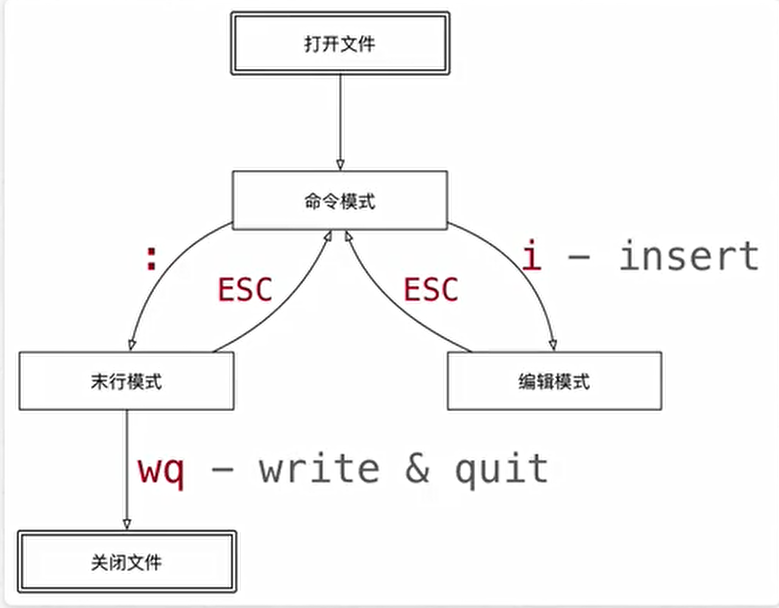
(5)使用vi修改a这个文件,在文件中写人“Nahida Best"
zzh@ubuntu:/home/learn_linux$ sudo vi a
进入后按i进入编辑模式
 )
)
(6)查看a里面的内容(提示:cat)
zzh@ubuntu:/home/learn_linux$ cat a
Nahida Best
(7)将文件a复制到桌面
zzh@ubuntu:/home/learn_linux$ cp a ~/Desktop
zzh@ubuntu:/home/learn_linux$ cd ~/Desktop
zzh@ubuntu:~/Desktop$ ls
a
(8)将文件a移动到桌面
zzh@ubuntu:/home/learn_linux$ sudo mv a ~/Desktop
(9)使用命令查看桌面有什么内容
zzh@ubuntu:/home/learn_linux$ cd ~/Desktop
zzh@ubuntu:~/Desktop$ ls
a
(10)删除掉learn_ linux 文件夹.
zzh@ubuntu:/home$ sudo rmdir -p learn_linux
(11)删除掉桌面上的a文件.
zzh@ubuntu:/home$ cd ~/Desktop
zzh@ubuntu:~/Desktop$ rm a
rm: remove write-protected regular file 'a'? y
2.软件包更新
1.更换软件源
- 备份官方软件源
sudo cp /etc/apt/sources.list /etc/apt/sources.list.backup - 无安装 vim 编辑器的,执行
sudo vi /etc/apt/sources.list有安装 vim 编辑器的,执行:sudo vim /etc/apt/sources.list - 将所有未注释的配置注释或者删除
- 将对应版本的镜像源复制粘贴到
sources.list(以阿里云镜像源为例,其他源类似) - 更换源后记得更新一下源和软件
sudo apt-get update && sudo apt-get upgrade - 如果出现依赖问题,执行
sudo apt-get -f install
2.安装git
1.尝试运行git init, 看看控制台的报错信息.根据报错使得这个
命令顺利运行
zzh@ubuntu:~$ git init
Command 'git' not found, but can be installed with:
sudo apt install git
zzh@ubuntu:~$ sudo apt install git
3.Linux权限管理
运行shell脚本前需要为脚本设置可执行权限chmod +x test.sh
4.shell脚本编写
写一个脚本,使得可以批量生成名字为1-40 的文件.体验Shell脚本的方便性。
1.编写脚本
for  i in `seq 1 40`
do
        touch ~/Desktop/test1/${i}.html
done
2.执行
zzh@ubuntu:~/Desktop/test1$ chmod +x test1.sh
zzh@ubuntu:~/Desktop/test1$ sh test1.sh
zzh@ubuntu:~/Desktop/test1$ ls -tr
test1.sh  2.html  5.html  7.html  9.html  11.html  13.html  15.html  16.html  18.html  21.html  22.html  24.html  27.html  28.html  30.html  32.html  33.html  35.html  38.html  40.html
3.html    1.html  4.html  6.html  8.html  10.html  12.html  14.html  19.html  17.html  20.html  25.html  23.html  26.html  31.html  29.html  34.html  36.html  39.html  37.html
5.Linux运行c语言
1.编译执行c语言
zzh@ubuntu:~/Desktop$ gcc hello.c -o hello
zzh@ubuntu:~/Desktop$ ./hello
Hello World!

2.输出汇编文件
要输出汇编文件zzh@ubuntu:~/Desktop$ gcc -S -o hello.s hello.c
	.file	"hello.c"
	.text
	.section	.rodata
.LC0:
	.string	"Hello World!"
	.text
	.globl	main
	.type	main, @function
main:
.LFB0:
	.cfi_startproc
	endbr64
	pushq	%rbp
	.cfi_def_cfa_offset 16
	.cfi_offset 6, -16
	movq	%rsp, %rbp
	.cfi_def_cfa_register 6
	leaq	.LC0(%rip), %rdi
	call	puts@PLT
	movl	$0, %eax
	popq	%rbp
	.cfi_def_cfa 7, 8
	ret
	.cfi_endproc
.LFE0:
	.size	main, .-main
	.ident	"GCC: (Ubuntu 9.4.0-1ubuntu1~20.04.1) 9.4.0"
	.section	.note.GNU-stack,"",@progbits
	.section	.note.gnu.property,"a"
	.align 8
	.long	 1f - 0f
	.long	 4f - 1f
	.long	 5
0:
	.string	 "GNU"
1:
	.align 8
	.long	 0xc0000002
	.long	 3f - 2f
2:
	.long	 0x3
3:
	.align 8
4:
3.进入其他文件夹运行hello
(1)直接进入并运行
zzh@ubuntu:/home/learn$ ./hello
bash: ./hello: No such file or directory
(2)更改全局变量
zzh@ubuntu:~/Desktop$export PATH="$HOME/Desktop:$PATH"
zzh@ubuntu:~/Desktop$cd /home/learn
zzh@ubuntu:/home/learn$hello
Hello World!

 浙公网安备 33010602011771号