概述
rsync可用于同步本地主机和远程主机的文件,在搭建集群环境时尤为常用。
此处以3台虚拟机作为例子,分别192.168.25.132、192.168.25.133、192.168.25.134
安装rsync
所有主机都要安装,并且服务都要启动
yum install rsync
# 启动服务
systemctl start rsyncd.service
# 设置开机启动
systemctl enable rsyncd.service
rsync命令
rsync -rvl [传输文件或目录Path] [用户]@[远程IP]:[远程存放目录]
举个例子:
cd /usr/local
#创建个测试文件test.txt
touch test.txt
#执行rsync
rsync -rvl ./test.txt root@192.168.25.133:/usr/local
#输入命令后,会弹出远程主机密码,直接输入即可
root@192.168.25.133's password:
sending incremental file list
test.txt

sent 87 bytes  received 35 bytes  22.18 bytes/sec
total size is 0  speedup is 0.00
切换到192.168.25.133主机,查看文件有传过来,验证通过

多主机传输
手动执行rsync存在一个问题,如果主机有多台,一个个执行效率很慢,我们可以写个shell脚本,只需要传递目录参数,就可以实现批次传输。
cd /usr/local/bin
touch xsync
xsync脚本如下:
if [ x"$1" = x ]; then
    echo "no cmd param!"
    exit 1
fi


#相对路径
p=$1

#绝对路径上层目录
fpdir="$(cd "$(dirname "$p")"; pwd)"

#账号
user='root'

#循环主机
hosts=('192.168.25.133' '192.168.25.134')
for host in ${hosts[@]}
do
        echo --------------- cluster$host ----------------
        rsync -rvl $p $user@$host:$fpdir
done
保存退出,需要提升权限:
chmod 777 xsync
#执行测试,把/usr/local/elasticsearch-7.6.0目录传到192.168.25.133、192.168.25.134
./xsync ../elasticsearch-7.6.0
#然后分别根据提示输入远程密码即可
查看结果:
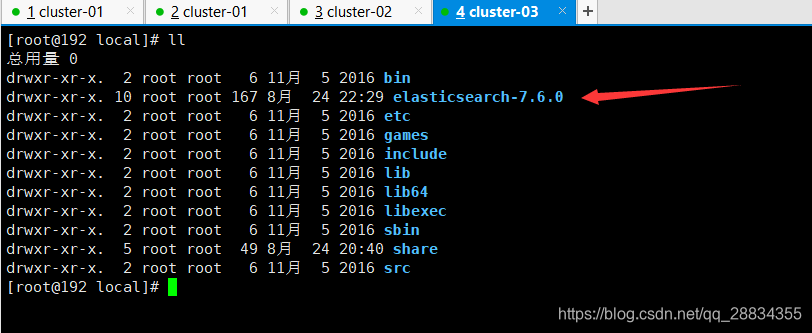
这样说明验证通过,每次使用传递一个目录参数就可以了。

 浙公网安备 33010602011771号