

harbor 安装和使用操作
安装harbor :
a.解压harbor:
[root@zabbix 14:59:20/data/recycle]# tar zxf harbor-offline-installer-v2.4.1.tgz
[root@zabbix 14:59:30/data/recycle]# ll
total 1237908
drwxr-xr-x 2 root root 4096 Mar 9 14:59 harbor
b.修改配置文件
[root@zabbix 15:00:06/data/software/harbor]# cp harbor.yml.tmpl harbor.yml
vim harbor.yml
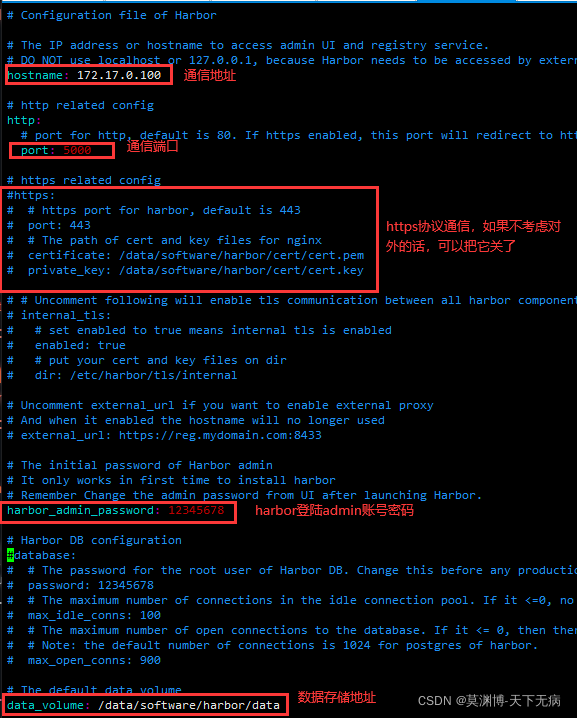
c.修改daemon,并添加http的通信地址,不然docker默认使用https进行通信,如果配置了https协议就不需要添加
## 如果不修改,可能会碰到如下错误,只是不一定
## [WARNING IsDockerSystemdCheck]: detected "cgroupfs" as the Docker cgroup driver. The recommended driver is "systemd".
[root@zabbix 16:08:52/data/software/harbor]# cat /etc/docker/daemon.json
{
"registry-mirrors": ["https://nr240upq.mirror.aliyuncs.com", "https://registry.docker-cn.com", "https://docker.mirrors.ustc.edu.cn", "https://dockerhub.azk8s.cn", "http://hub-mirror.c.163.com"],
"exec-opts": ["native.cgroupdriver=systemd"],
"log-driver": "json-file",
"log-opts": {
"max-size": "100m"
},
"insecure-registries": ["172.17.0.100:5000"]
}
[root@zabbix 16:16:59/data/software/harbor]#
d.改好之后,重新加载配置和重启docker
[root@zabbix 15:00:50/data/software/harbor]# systemctl daemon-reload && systemctl restart docker
e.执行部署脚本:./install.sh
f.配置开机自启:
/usr/local/sbin/docker-compose -f /data/software/harbor/docker-compose.yml up -d
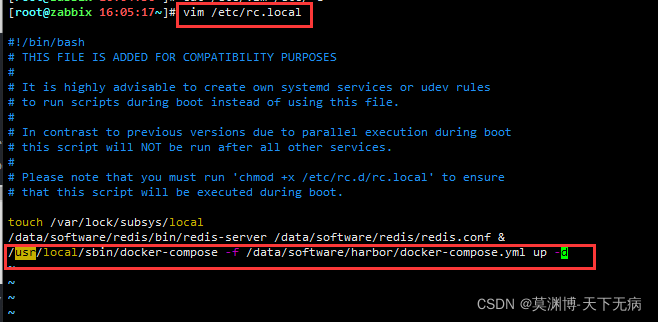
设置权限
chmod +x /etc/rc.local /etc/rc.d/rc.local
Linux系统中/etc/rc.local和/etc/rc.d/rc.local的区别
一般我们重启服务器的时,顺带开启其他的一些业务服务,这时候会使用到这个两个文件。可以将启动的命令【一定绝对路径】添加到这两个文件中去,添加之前先要给予这个两个文件操作的权限。
/etc/rc.d/rc.local 用于添加开机启动命令
/etc/rc.local是/etc/rc.d/rc.local的软连接
1.尝试登陆harbor
http://192.168.30.107:5012/
2.命令行登陆
[root@k8s-master01 ~]# docker login 192.168.30.107:5012
Username: admin
Password:
Error response from daemon: Get "https://192.168.30.107:5012/v2/": http: server gave HTTP response to HTTPS client
解决方法:在client机器上加入下面的配置,然后重启docker
vim /etc/docker/daemon.json
然后加入:
"insecure-registries": ["192.168.30.107:5012"]
[root@k8s-master01 metallb]# systemctl restart docker
[root@k8s-master01 ~]# docker login 192.168.30.107:5012
Username: admin
Password:
WARNING! Your password will be stored unencrypted in /root/.docker/config.json.
Configure a credential helper to remove this warning. See
https://docs.docker.com/engine/reference/commandline/login/#credentials-store
3. 测试上传
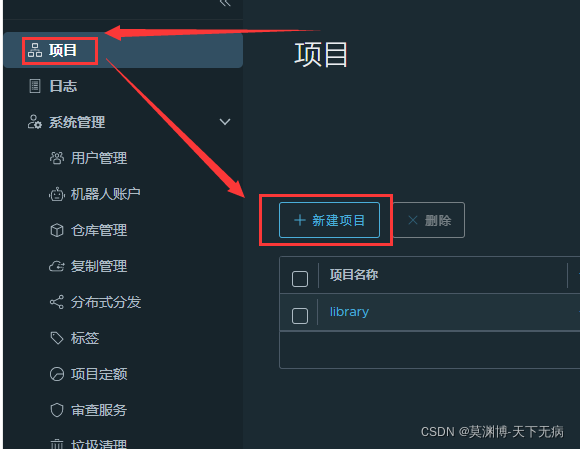
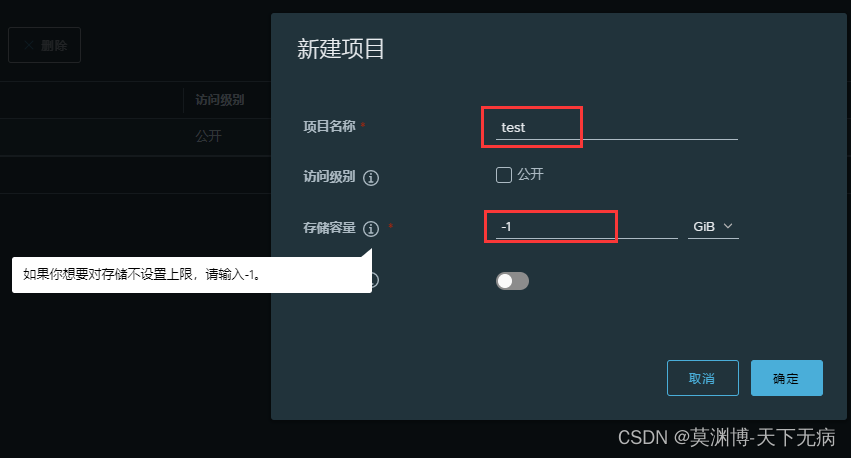
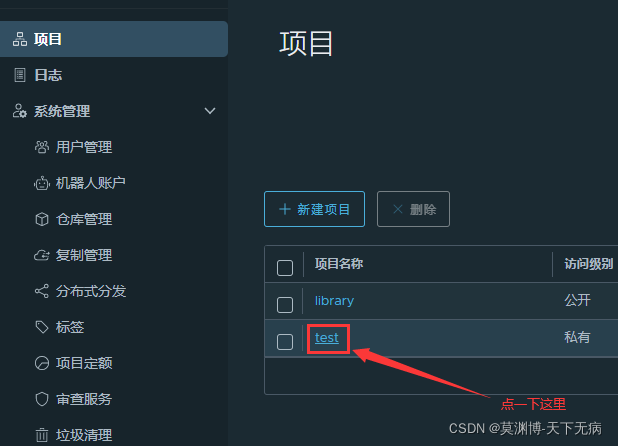
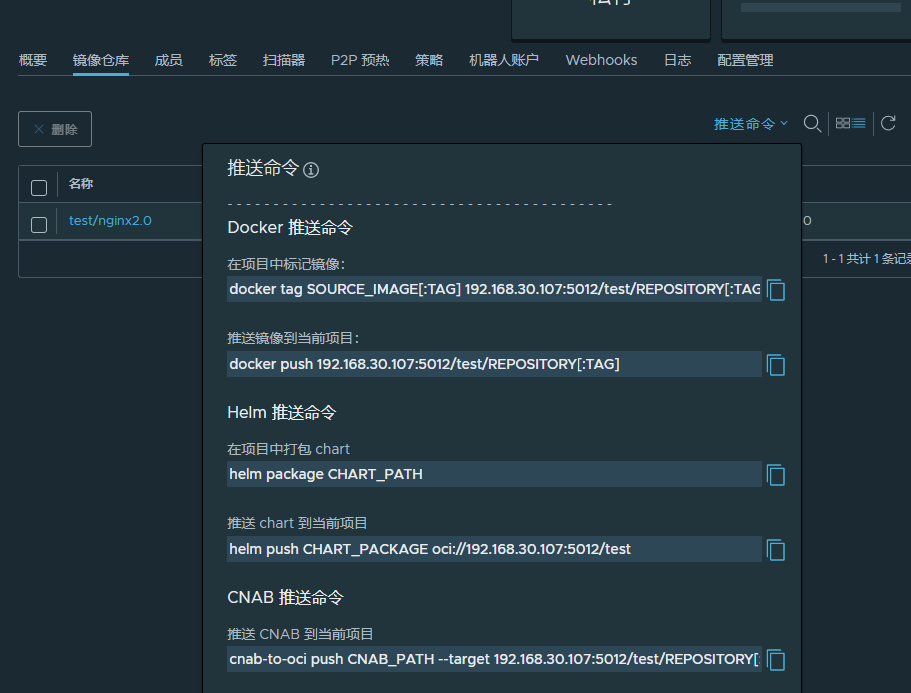
a.先把本地镜像做好标记
[root@k8s-master01 ~]# docker tag hello-world:latest 192.168.30.107:5012/test/nginx2.0:v1
docker tag fenghua:v2.0.0 192.168.30.107:5012/repo/fenghua:v2.0.0
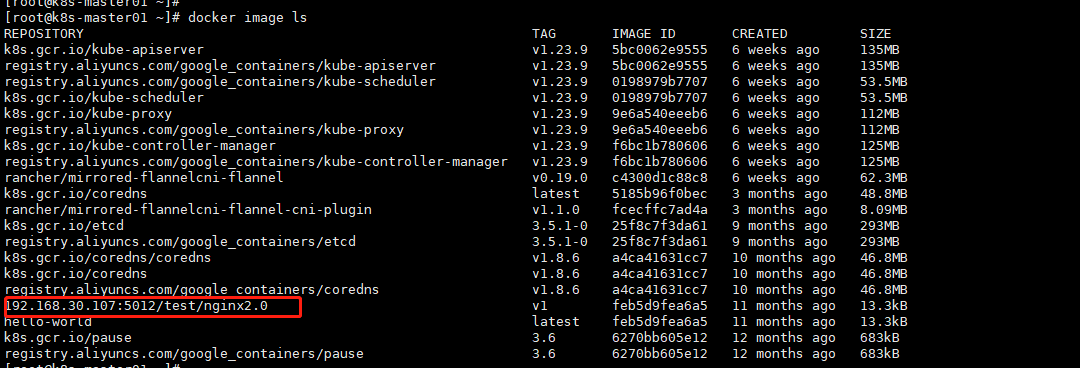
b.推送本地镜像到harbor仓库。
[root@k8s-master01 ~]# docker push 192.168.30.107:5012/test/nginx2.0:v1
[root@localhost ~]# docker push 192.168.30.107:5012/repo/fenghua:v2.0.0
报错:unauthorized: unauthorized to access repository: repo/fenghua, action: push: unauthorized to access repository: repo/fenghua, action: push
登入horbor就可以了。 docker login -uadmin -p Harbor12345 192.168.30.107:5012


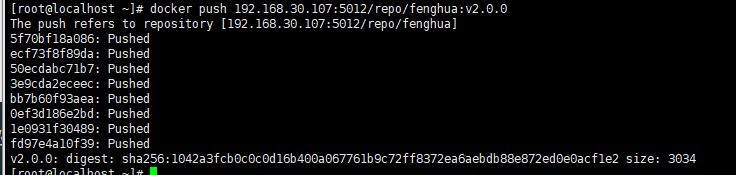
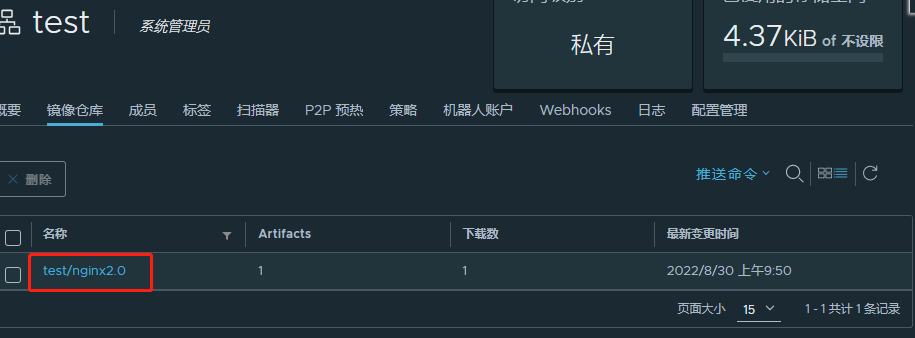
c.查看镜像仓库,可以看到多了一个镜像
4. 镜像拉取(镜像下载)
a.先在电脑上删除这个镜像
[root@k8s-master01 ~]# docker image rm 192.168.30.107:5012/test/nginx2.0:v1
b.然后拉去镜像
[root@k8s-master01 ~]# docker pull 192.168.30.107:5012/test/nginx2.0:v1
v1: Pulling from test/nginx2.0
Digest: sha256:f54a58bc1aac5ea1a25d796ae155dc228b3f0e11d046ae276b39c4bf2f13d8c4
Status: Downloaded newer image for 192.168.30.107:5012/test/nginx2.0:v1
192.168.30.107:5012/test/nginx2.0:v1
[root@localhost ~]# docker pull 192.168.30.107:5012/repo/fenghua:v2.0.0
至此,harbor部署完毕
知识补充:
1、如果以后修改了harbor.yml文件,那么先停止使用docker-compose down,再去修改harbor.yml文件,重新启动部署 ./install.sh
2、正常启动harbor启动:
docker-compose up -d
3、未修改配置文件,重启Harbor命令:docker-compose start | stop | restart
posted on 2022-08-30 10:52 FLOWERS_WAN 阅读(895) 评论(0) 收藏 举报

 浙公网安备 33010602011771号