

今天我们探索一个比较有趣的东西,Canvas(画布),这种技术允许我们直接更改一副图像的内容。在实际应用中,我们可以将不同批次的游戏要素绘制到不同的画布上,然后只需在主流程中依次绘制各个画布就可以展现出复杂的场景。更重要的是,利用Canvas我们可以定制blend mode——指定前景色与后景色如何混合——以达到不同的效果。
Canvas 画布的简单应用
程序运行效果如图所示:
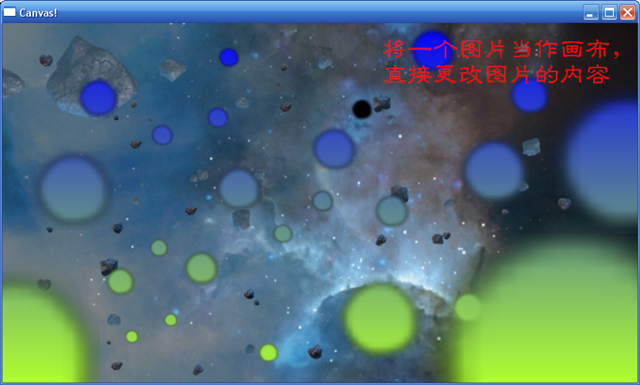
程序绘制过程中,先用Basic2D中的技术来用blue到greenyellow的渐变色填充背景,然后绘制一张图片作为地形terrain,这张图片就充当了Canvas。当用鼠标左键单击时,会在Canvas上绘制一个圆形的图像,这里采用erase的blend mode,因此后画的图像会清除画布上的颜色,因此就会出现上面的效果。
CL_FrameBuffer、CL_BlendMode是我们实现上述效果的关键角色。简单而言,FrameBuffer就是一个绘制目标,类似XNA中的RenderTarget。一般情况下,我们用gc绘制的东西都是绘制到window-system-provided framebuffer,即由窗口提供的backframebuffer,通过CL_FrameBuffer我们可以创建其他的绘制目标,即创建application-created framebuffer。一个frame buffer可以设置color_buffer、stencil_buffer和depth_buffer,而通过CL_FrameBuffer::attach_color_buffer可以将一个Texture指定为绘制目标,也即让一幅图像成为我们的画布。
具体详情,请参考下面的说明:
第一步,绘制出背景和地形!
基本上是Basic2D中的东西,唯一新加的就是CL_Texture。Texture表示一个贴图材质,在2D中相当于image,在3D中用来表示模型的贴图。在绘制Texture时,要先将Texture设置到gc中,使用translate、scale、rotation来移动、缩放、旋转Texture,绘制完毕后重置Texture以绘制其他要素。
CL_GraphicContext gc = window.get_gc();
CL_Texture background(gc, cl_text("background.png"));

// in myGame::Draw(gc)
CL_Draw::gradient_fill(gc,
	CL_Rectf(window.get_viewport().get_size()),
	CL_Gradient(CL_Colorf::blue, CL_Colorf::greenyellow));

gc.set_texture(0, background);
CL_Draw::texture(gc, CL_Rect(background.get_size()));
gc.reset_texture(0);
第二步,绘制移动的光标!
在程序中,我将窗口的光标设置为cl_cursor_no,也就是不显示系统光标。要显示移动的黑色圆形光标,只需在鼠标移动的时候,改变表示光标的Texture的位置,然后在Draw中绘制这个Texture就OK了!关键是如何在鼠标移动的时候获得一个处理的机会?ClanLib给我们提供了signal—slot模型,及信号量—槽模型。理解起来很简单,就是C#中event的用法,当信号事件发生时会依次调用connect到该信号上的各个处理函数。C#中我们用+=运算符来实现多播delegate,在ClanLib我们要调用相应signal的connect方法来实习多播。
CL_Slot slot_mouse_move;	// 声明一个槽实例对象,在槽生命周期中会一直响应消息;槽被释放后,就不再响应消息了,因此通常将槽对象声明为类成员变量
slot_mouse_move = window.get_ic().get_mouse().sig_pointer_move(this, &myGame::onMouseMove);

// 自定义的槽处理函数
void myGame::onMouseMove(const CL_InputEvent &input, const CL_InputState &state)
{
	CL_Point = mouse_pos = input.mouse_pos;
}

// myGame::Draw(gc)中
gc.set_texture(0, pointer);	// pointer = CL_Texture(gc, cl_text("pointer.png"));

gc.push_translate(trans_x, trans_y);	// int trans_x, trans_y;
gc.mult_scale(scale, scale);	// float scale = 1.0f;
CL_Draw::texture(gc, CL_Rectf(pointer.get_size()));
gc.pop_modelview();

gc.reset_texture(0);
第三步,在画布上绘制图像!
在相应鼠标sig_key_up消息判别input.id == CL_Mouse_LEFT后,就将在Canvas上绘制出一个光标来,由于使用了erase的blend mode,所以会消除Canvas上原来的内容。在绘制前,先做好初始化工作:
CL_Texture background;
CL_FrameBuffer fb_background;
CL_BlendMode blend_erase;

background = CL_Texture(gc, "background.png");

blend_erase.enable_blending(true);
blend_erase.set_blend_function(
	cl_blend_zero,
	cl_blend_one_minus_src_alpha,
	cl_blend_zero,
	cl_blend_one_minus_src_alpha);

fb_background = CL_FrameBuffer(gc);
fb_background.attach_color_buffer(0, background); // 在这里指定我们要充当Canvas的图像
然后,在鼠标左键弹起是进行如下的绘制,这些绘制均发生在画布上,而不是gc中!
gc.set_frame_buffer(fb_background);
gc.set_blend_mode(blend_erase);
gc.set_texture(0, cutter);

gc.push_translate(trans_x, trans_y);
gc.mult_scale(scale, scale);
CL_Draw::texture(gc, rect_cutter);
gc.pop_modelview();

gc.reset_texture(0);
gc.reset_blend_mode();
gc.reset_frame_buffer();
总结
Canvas是一种比较好的技术,使用的好的话可以产生出非常炫的效果!您可以在set_blend_function中尝试不同的blend_functor来看看有什么效果。好的,今天就到这里!
p.s. myGame的源码如下,以供参考:
 myGame代码

class myGame :
    public Game
{
public:

    void Draw(CL_GraphicContext &gc)
    {
        CL_Draw::gradient_fill(gc,
            CL_Rectf(window.get_viewport().get_size()),
            CL_Gradient(CL_Colorf::blue, CL_Colorf::greenyellow));

        // draw the terrain
        gc.set_texture(0, background);

        CL_Draw::texture(gc,
            CL_Rectf(background.get_size()));

        gc.reset_texture(0);

        // draw the mouse pointer
        gc.set_texture(0, cutter);

        gc.push_translate(trans_x, trans_y);
        gc.mult_scale(scale, scale);
        CL_Draw::texture(gc, rect_cutter);
        gc.pop_modelview();

        gc.reset_texture(0);
    }

    void Update()
    {
        trans_x = mouse_pos.x - rect_cutter.get_center().x * scale;
        trans_y = mouse_pos.y - rect_cutter.get_center().y * scale;
    }

    void LoadContent(CL_GraphicContext &gc)
    {
        background = CL_Texture(gc, cl_text("background.jpg"));
        cutter = CL_Texture(gc, cl_text("circle1.png"));

        mouse_pos = CL_Point(0, 0);

        rect_cutter = CL_Rectf(cutter.get_size());

        scale = 1.0f;

        blend_erase.enable_blending(true);
        blend_erase.set_blend_function(cl_blend_zero, cl_blend_one_minus_src_alpha,
            cl_blend_zero, cl_blend_one_minus_src_alpha);

        fb_background = CL_FrameBuffer(gc);
        fb_background.attach_color_buffer(0, background);
    }

    void UnLoadContent()
    {
        background = CL_Texture();
        cutter = CL_Texture();
    }

    void ModifyDisplayWindowDescription()
    {
        desc.set_size(CL_Size(800, 453), true);
        desc.set_title(cl_text("Canvas!"));
        desc.set_allow_resize(false);
    }

    void ModifyDisplayWindow()
    {
        window.set_cursor(cl_cursor_no);

        CL_InputDevice keyboard = window.get_ic().get_keyboard();
        slot_keydown = keyboard.sig_key_down().connect(this, &myGame::onKeyDown);

        slot_window_close = window.sig_window_close().connect(this, &myGame::onWindowClose);

        CL_InputDevice mouse = window.get_ic().get_mouse();
        slot_mouse_up = mouse.sig_key_up().connect(this, &myGame::onMouseUp);
        slot_mouse_move = mouse.sig_pointer_move().connect(this, &myGame::onMouseMove);
    }

    void onMouseUp(const CL_InputEvent &input, const CL_InputState &state)
    {
        CL_GraphicContext gc = window.get_gc();
        if (input.id == CL_MOUSE_LEFT)
        {
            gc.set_frame_buffer(fb_background);
            gc.set_blend_mode(blend_erase);
            gc.set_texture(0, cutter);

            gc.push_translate(trans_x, trans_y);
            gc.mult_scale(scale, scale);
            CL_Draw::texture(gc, rect_cutter);
            gc.pop_modelview();

            gc.reset_texture(0);
            gc.reset_blend_mode();
            gc.reset_frame_buffer();
        }

        if (input.id == CL_MOUSE_WHEEL_DOWN)
        {
            scale *= 1.1f;
        }

        if (input.id == CL_MOUSE_WHEEL_UP)
        {
            scale *= 0.9f;
        }
    }

    void onMouseMove(const CL_InputEvent &input, const CL_InputState &state)
    {
        mouse_pos = input.mouse_pos;
    }

    void onKeyDown(const CL_InputEvent &input, const CL_InputState &state)
    {
        if (input.id == CL_KEY_ESCAPE)
        {
            quit = true;
        }
    }

    void onWindowClose()
    {
        quit = true;
    }

private:

    CL_Texture background;

    CL_Texture cutter;
    CL_Point mouse_pos;
    CL_Rectf rect_cutter;

    CL_FrameBuffer fb_background;
    CL_BlendMode blend_erase;

    float trans_y;
    float trans_x;
    float scale;

    CL_Slot slot_keydown;
    CL_Slot slot_window_close;

    CL_Slot slot_mouse_up;
    CL_Slot slot_mouse_move;
};

 浙公网安备 33010602011771号