
GUI之AWT学习
1. AWT
java.awt包提供了基本的GUI设计工具,主要包括组件(Component)、容器(Container)和布局管理器(LayoutManager);
Java的图形用户界面的最基本组成部分是组件(Component),组件不能独立地显示出来,必须将组件放在一定的容器中才可以显示出来;
Container是一个类,实际上是Component的子类,因此容器本身也是一个组件,具有组件的所有性质,但是它的主要功能是用来放置其他组件和容器;
2.常用的容器
2.1 窗口Frame
import java.awt.*;
public class demo{
public static void main(String[] args) {
Frame f = new Frame("title");
// 设置可见性
f.setVisible(true);
// 设置窗口大小
f.setSize(400,400);
// 设置背景颜色
f.setBackground(Color.blue);
// 弹出的初始位置
f.setLocation(200,200);
// 设置大小固定
f.setResizable(false);
}
}
最后弹出出一个蓝色的窗口。
尝试封装一个MyFrame方法实现弹出多个窗口
import java.awt.*;
public class testFrame {
public static void main(String[] args) {
MyFrame f1 = new MyFrame(100,100,200,200,Color.blue);
MyFrame f2 = new MyFrame(300,100,200,200,Color.yellow);
MyFrame f3 = new MyFrame(100,300,200,200,Color.green);
MyFrame f4 = new MyFrame(300,300,200,200,Color.red);
}
}
//继承Frame类
class MyFrame extends Frame{
static int id=0;//区分不同窗口
public MyFrame(int x,int y,int w,int h,Color color){
super("MyFrame"+(++id));
setVisible(true);
setSize(w,h);
setLocation(x,y);
setBackground(color);
}
}
同时存在四个窗口
2.2 面板Panel
与Frame不同,它不能作为最外层的容器单独存在,它首先必须作为一个组件放在其他容器中,然后再把它当作容器,把其他组件放在它里面(类似div)
import java.awt.*;
import java.awt.event.WindowAdapter;
import java.awt.event.WindowEvent;
public class panelTest {
public static void main(String[] args) {
Frame f = new Frame();
Panel p = new Panel();
// 设置布局
f.setLayout(null);
f.setSize(400,400);
f.setLocation(200,200);
f.setBackground(new Color(36, 71, 160));
// 设置panel坐标,相对于frame
p.setBounds(50,50,200,200);
p.setBackground(new Color(255,255,2));
// 将panel添加到frame
f.add(p);
f.setVisible(true);
// 监听事件,监听窗口关闭(WindowListener)
f.addWindowListener(new WindowAdapter() {
// 窗口点击关闭时需要做的事情
@Override
public void windowClosing(WindowEvent e) {
// 结束程序
System.exit(0);
}
});
}
}
结果如下

2.3 布局管理器LayoutManager
2.3.1 FlowLayout流式布局
import java.awt.*;
import java.awt.event.WindowAdapter;
import java.awt.event.WindowEvent;
public class Layout1 {
public static void main(String[] args) {
Frame frame = new Frame();
// 按钮组件
Button button1 = new Button("button1");
Button button2 = new Button("button2");
Button button3 = new Button("button3");
// 设置为流式布局
frame.setLayout(new FlowLayout(FlowLayout.CENTER));
frame.setSize(300,300);
// 添加按钮
frame.add(button1);
frame.add(button2);
frame.add(button3);
frame.setVisible(true);
frame.addWindowListener(new WindowAdapter() {
@Override
public void windowClosing(WindowEvent e) {
System.exit(0);
}
});
}
}
会出现居中的三个并排按钮。
2.3.2 BorderLayout
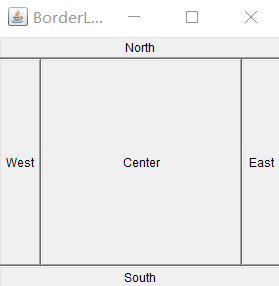
BorderLayout布局管理器把容器分成五个区域:North,South,East,West和Center,每个区域只能放置一个组件;
import java.awt.*;
import java.awt.event.WindowAdapter;
import java.awt.event.WindowEvent;
public class Layout2 {
public static void main(String[] args) {
Frame frame = new Frame("BorderLayout");
Button button1 = new Button("East");
Button button2 = new Button("West");
Button button3 = new Button("South");
Button button4 = new Button("North");
Button button5 = new Button("Center");
// 将按钮添加到五个位置
frame.add(button1,BorderLayout.EAST);
frame.add(button2,BorderLayout.WEST);
frame.add(button3,BorderLayout.SOUTH);
frame.add(button4,BorderLayout.NORTH);
frame.add(button5,BorderLayout.CENTER);
frame.setSize(300,300);
frame.setVisible(true);
frame.addWindowListener(new WindowAdapter() {
@Override
public void windowClosing(WindowEvent e) {
System.exit(0);
}
});
}
}
2.3.3 GridLayout
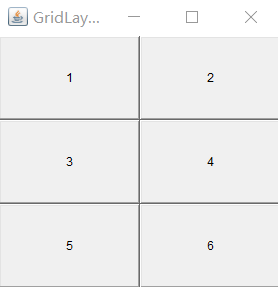
GridLayout布局管理器使容器中的各个组件呈网格状布局,平均占据容器的空间,即使容器的大小发生变化,每个组件还是平均占据容器的空间。
import java.awt.*;
public class Layout3 {
public static void main(String[] args) {
Frame frame = new Frame("GridLayout");
Button button1 = new Button("1");
Button button2 = new Button("2");
Button button3 = new Button("3");
Button button4 = new Button("4");
Button button5 = new Button("5");
Button button6 = new Button("6");
// 设置为三行两列的表格
frame.setLayout(new GridLayout(3,2));
frame.setSize(300,300);
frame.add(button1);
frame.add(button2);
frame.add(button3);
frame.add(button4);
frame.add(button5);
frame.add(button6);
frame.setVisible(true);
}
}
3 事件监听
也就是当某个事情发生时干什么
import java.awt.*;
import java.awt.event.ActionEvent;
import java.awt.event.ActionListener;
public class TestActionEvent {
public static void main(String[] args) {
Frame frame = new Frame();
Button button = new Button();
// 按下按钮触发事件
MyActionListener myActionListener = new MyActionListener();
// addActionListener需要一个ActionListener,可以自己构造一个ActionListener实现想要的操作
button.addActionListener(myActionListener);
frame.setSize(200,200);
frame.add(button);
frame.setVisible(true);
}
}
class MyActionListener implements ActionListener{
@Override
public void actionPerformed(ActionEvent e) {
System.out.println("123");
}
}
点击按钮会输出123
关于多个按钮只使用一个监听类
import java.awt.*;
import java.awt.event.ActionEvent;
import java.awt.event.ActionListener;
public class TestAction2 {
public static void main(String[] args) {
Frame frame = new Frame();
Button button1 = new Button("1");
Button button2 = new Button("2");
MyAction2 myAction2 = new MyAction2();
button1.addActionListener(myAction2);
button2.addActionListener(myAction2);
// 设置按钮的信息
button1.setActionCommand("1");
button2.setActionCommand("2");
frame.setSize(300,300);
frame.setLayout(new FlowLayout());
frame.add(button1);
frame.add(button2);
frame.setVisible(true);
}
}
class MyAction2 implements ActionListener{
@Override
public void actionPerformed(ActionEvent e) {
// e.getActionCommand();可以获得设置的按钮信息
if (e.getActionCommand().equals("1")) {
System.out.println(1);
}else if (e.getActionCommand().equals("2")) {
System.out.println(2);
}
}
}
点击不同按钮就可以输出不同数字
4 输入框TextFiled监听
可以获取输入的字符
import java.awt.*;
import java.awt.event.ActionEvent;
import java.awt.event.ActionListener;
public class Text1 {
public static void main(String[] args) {
new MyFrame1();
}
}
class MyFrame1 extends Frame{
public MyFrame1(){
TextField textField = new TextField();
add(textField);
// 监听输入的文字
MyActionListener1 myActionListener1 = new MyActionListener1();
// 按下回车就会触发输入框事件
textField.addActionListener(myActionListener1);
// textField.setEchoChar('*');//可以设置替换编码
setSize(200,200);
setVisible(true);
}
}
class MyActionListener1 implements ActionListener{
@Override
public void actionPerformed(ActionEvent e) {
// e.getSource();可以返回一个对象
TextField field = (TextField) e.getSource();
// 获得输入框中的文本
System.out.println(field.getText());
// 设置回车后清空
field.setText("");
}
}
会弹出输入框,输入后按回车可以获得并输出刚刚输入的字符
5. 简易计算器
利用输入框跟按钮监听实现的简易计算器
import java.awt.*;
import java.awt.event.ActionEvent;
import java.awt.event.ActionListener;
public class Calc {
public static void main(String[] args) {
new Calculator().loadFrame();
}
}
//计算器类
class Calculator extends Frame{
TextField field1,field2,field3;
public void loadFrame(){
field1 = new TextField(10);//字符数
field2 = new TextField(10);
field3 = new TextField(20);
Button button = new Button("=");
Label label = new Label("+");
button.addActionListener(new CalculatorListener());
setLayout(new FlowLayout());
setSize(600,300);
add(field1);
add(label);
add(field2);
add(button);
add(field3);
setVisible(true);
}
//监听器类
//使用内部类可以直接访问外部类的属性和方法
private class CalculatorListener implements ActionListener{
// 获取计算器这个对象,在一个类中组合另一个类
@Override
public void actionPerformed(ActionEvent e) {
// Integer.parseInt()可以将String字符类型数据转换为Integer整型数据
int n1 = Integer.parseInt(field1.getText());
int n2 = Integer.parseInt(field2.getText());
field3.setText(""+(n1+n2));
// 清除前两个框
field1.setText("");
field2.setText("");
}
}
}
前两个框输入数字点击等号会得到结果。

6. 画笔paint
静态的显示图像
import java.awt.*;
public class Pen {
public static void main(String[] args) {
new MyPen().loadFrame();
}
}
class MyPen extends Frame{
@Override
public void paint(Graphics g) {
// 画笔设置颜色
g.setColor(Color.red);
g.drawOval(100,100,100,100);//画圆
g.fillOval(300,300,100,100);//实心圆
}
public void loadFrame(){
setSize(800,800);
setVisible(true);
}
}

7. 鼠标监听
为画笔添加鼠标监听事件
import java.awt.*;
import java.awt.event.MouseAdapter;
import java.awt.event.MouseEvent;
import java.util.ArrayList;
import java.util.Iterator;
public class testMouth {
public static void main(String[] args) {
new MyMouth("draw");
}
}
class MyMouth extends Frame{
// 监听鼠标位置,需要集合来存储这个点
ArrayList
public MyMouth(String title){
super(title);
points = new ArrayList<>();//用于存鼠标点击的点
this.addMouseListener(new MyML());
setSize(700,800);
setVisible(true);
}
@Override
public void paint(Graphics g) {
// 监听鼠标的事件
// 将保存的每个点都画出来
for (Point point : points) {
g.setColor(Color.blue);
g.fillOval(point.x, point.y, 5, 5);
}
}
private class MyML extends MouseAdapter{
// 监听鼠标按压事件
@Override
public void mousePressed(MouseEvent e) {
MyMouth frame = (MyMouth) e.getSource();
new Point(e.getX(),e.getY());
points.add(new Point(e.getX(),e.getY()));//添加点
// 每次点击鼠标都重画一次
frame.repaint();
}
}
}
这样每点击一次就会出现一个点。
8. 窗口监听
例如之前的关闭窗口
import java.awt.*;
import java.awt.event.WindowAdapter;
import java.awt.event.WindowEvent;
public class testWindow {
public static void main(String[] args) {
new WindowFrame();
}
}
class WindowFrame extends Frame{
public WindowFrame() {
setSize(300,300);
addWindowListener(new MyWL());
setVisible(true);
}
class MyWL extends WindowAdapter{
@Override
public void windowClosing(WindowEvent e) {
System.exit(0);//退出
}
}
}
9.键盘监听
import java.awt.*;
import java.awt.event.KeyAdapter;
import java.awt.event.KeyEvent;
public class testKey {
public static void main(String[] args) {
new KeyFrame();
}
}
class KeyFrame extends Frame{
public KeyFrame() {
super();
setSize(300,400);
setVisible(true);
this.addKeyListener(new KeyAdapter() {
// 键盘按下事件
@Override
public void keyPressed(KeyEvent e) {
int keyCode = e.getKeyCode();//可以获得键盘按下的是哪一个键
System.out.println(keyCode);
if (keyCode == KeyEvent.VK_UP){
System.out.println("按下了上建");
}
}
});
}
}
可以输出每个键的KeyCode并且按下键的时候会额外输出一句话

 浙公网安备 33010602011771号