
Visual Studio初始设置
工具-选项
- “环境”-“字体和颜色”:Jetbrains Mono
扩展/插件
VsVim 2022
配置文件.vsvimrc
路径为 C:\Users\<yourusername>\.vsvimrc (或命名为_vsvimrc)
Resharper C++
我愿称之为 VS 写 C++ 的最强插件。安装后几个配置:
- 扩展 - 管理扩展:去掉Resharper前面的勾,让它直接显示在菜单栏
- Resharper - 选项:
- 环境-常规-本地化:Interface language 设置为中文简体
- 环境-键盘-Shortcut Scheme:Intellij IDEA -> Apply Scheme, 保存
P4VS - P4 for Visual Studio
如果使用 Perforce 作为版本管理工具的话可以安装这个。安装后 “工具-选项-Source Control” 中会有 P4 相关选项。
输出增强
Output enhancer 或 VSColorOutput64
二选一即可,VSColorOutput64更简单(仅彩色输出),Output enhancer功能多一些。


设置多个快捷键
由于使用vim绑定,我习惯在编辑模式能直接使用 Alt + hljk 移动光标 (点击展开)
直接添加即可:
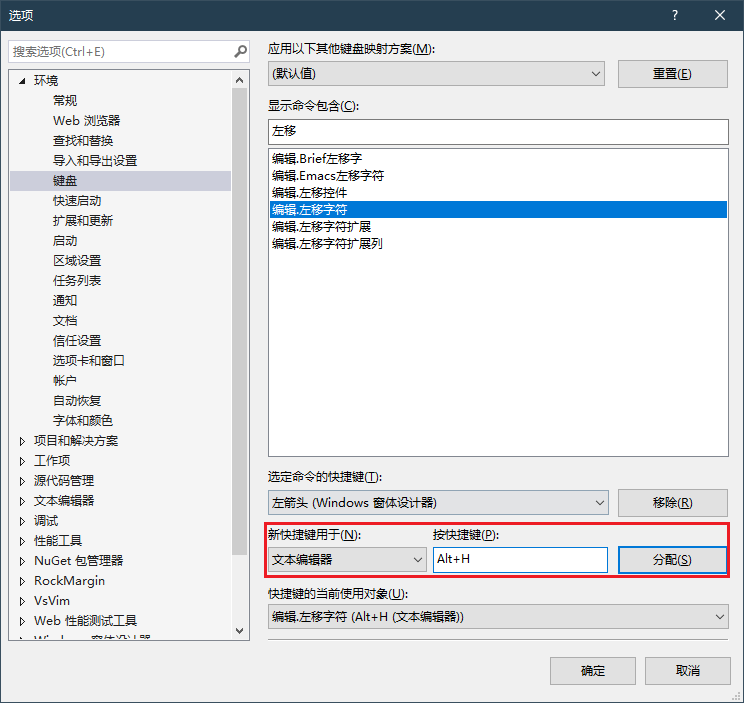
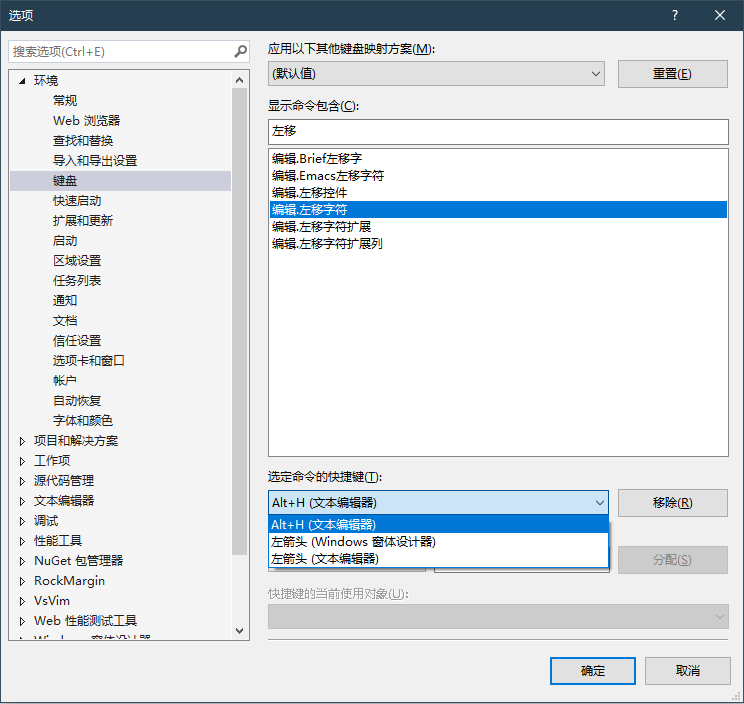
下图所示的三个快捷键是同时起作用的快捷键(而不是让你选一个生效)
设置代码片段(snippet)
工具 - 代码片段管理器,然后在任意位置创建一个 MyComment.snippet ,编辑后导入:

会自动保存到预设位置的目录下:

使用时 Ctrl+K,X ,选择snippet插入。
snippet文件示例:
<?xml version="1.0" encoding="utf-8"?>
<CodeSnippets xmlns="http://schemas.microsoft.com/VisualStudio/2005/CodeSnippet">
  <CodeSnippet Format="1.0.0">
    <Header>
      <Title>DongyuComment</Title>
      <Shortcut>DongyuComment</Shortcut>
      <Description>Tencent style BEGIN/END comment block</Description>
      <Author>Dongyu</Author>
      <SnippetTypes>
        <SnippetType>Expansion</SnippetType>
      </SnippetTypes>
    </Header>
    <Snippet>
      <Declarations>
        <Literal Editable="true">
          <ID>description</ID>
          <ToolTip>输入这段代码的描述</ToolTip>
          <Default>some description</Default>
        </Literal>
      </Declarations>
      <Code Language="cpp" Kind="any" Delimiter="$">
        <![CDATA[// [Tencent] Dongyu - BEGIN: $description$
// [Tencent] Dongyu - END]]>
      </Code>
    </Snippet>
  </CodeSnippet>
</CodeSnippets>

 浙公网安备 33010602011771号