
MVVM Prism NotifyIcon 计划休息
最近在工作中老是腰痛,发现罪魁祸首是久坐,故写了一个提醒工作时间的小软件,帮助合理分配工作时间,坐一段时间后就提醒休息。
软件使用效果很好,腰也不再痛了。分享给大家用用。
主要采用MVVM架构,对界面进行数据绑定,采用Prism,自动为软件生成viewmodel和view文件夹。可以说是一个小的采用prism的软件。
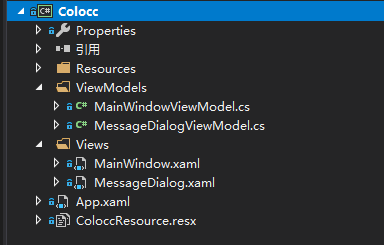
主要逻辑就是工作一段时间后,弹出休息提示,软件可设置工作和休息时间。核心代码如下
        private void Show()
        {
            while (true)
            {
                if (_stopwatch.ElapsedMilliseconds > _workTime * 60000)
                {
                    Application.Current.Dispatcher.Invoke(() =>
                    {
                        _dialogService.ShowDialog("MessageDialog", new DialogParameters() { { "message", "开始休息?" } }, ShowWorkShutDown);
                    });
                    while (_freeFlag)
                    {
                        if (_stopwatch.ElapsedMilliseconds > _freeTime * 60000)
                        {
                            Application.Current.Dispatcher.Invoke(() =>
                            {
                                _dialogService.ShowDialog("MessageDialog", new DialogParameters() { { "message", "开始工作?" } }, OpenShowWork);
                            });
                        }
                        Thread.Sleep(2000);
                        Message = "休息了" + Math.Round(_stopwatch.ElapsedMilliseconds / 60000.0,1)+"分钟";
                    }
                }
                Thread.Sleep(2000);
                Message = "工作了" + Math.Round(_stopwatch.ElapsedMilliseconds / 60000.0, 1) + "分钟";
            }
        }
        private void OpenShowWork(IDialogResult obj)
        {
            if (obj.Result == ButtonResult.Yes)
            {
                _log.Info("开始工作,此次休息" + _stopwatch.ElapsedMilliseconds / 60000 + "分钟");
                _stopwatch.Restart();
                _freeFlag = false;
            }
        }
        private void ShowWorkShutDown(IDialogResult obj)
        {
            if(obj.Result== ButtonResult.Yes)
            {
                _freeFlag = true;
                _log.Info("开始休息,此次工作"+_stopwatch.ElapsedMilliseconds/60000+"分钟");
                _stopwatch.Restart();
            }
        }
为了不影响正常工作,特意使用了NotifyIcon,可以在windows下建立一个通知图标,可以隐藏软件。使用方式就是在软件中添加一个NotifyIcon,设置它的弹出提示,设置交互,如图
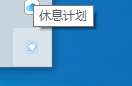
代码设置为
 #region 制作右下角的图标方法。
        //声明一个NotifyIcon类型的变量。
        private NotifyIcon _notifyIcon = null;
        private bool _shutDownFlag=true;

        /// <summary>
        /// 此方法用于制作右下角的图标。
        /// </summary>
        private void InitialTray()
        {
            //窗体打开的时候隐藏。
            //this.Visibility = Visibility.Hidden;
            //实例化NotifyIcon以及为其设置属性。
            _notifyIcon = new NotifyIcon();
            //当运行程序的时候右下角先显示服务开启中。
            _notifyIcon.BalloonTipText = "服务开启中。";
            //服务开启中这几个字显示的秒数。
            _notifyIcon.ShowBalloonTip(2000);
            //当光标放在上面之后,显示视频预览几个字。
            _notifyIcon.Text = "休息计划";
            //图标在通知栏区域中可见。
            _notifyIcon.Visible = true;

            //设置图标。
            _notifyIcon.Icon = ColoccResource.f8;
            //设置菜单栏。有3个item选项,分别是显示、隐藏、退出。并为其添加事件。
            System.Windows.Forms.MenuItem showMenuItem = new System.Windows.Forms.MenuItem("显示");
            showMenuItem.Click += new EventHandler(ShowMenuItem_Click);
            System.Windows.Forms.MenuItem hideMenuItem = new System.Windows.Forms.MenuItem("隐藏");
            hideMenuItem.Click += new EventHandler(HideMenuItem_Click);
            System.Windows.Forms.MenuItem quitMenuItem = new System.Windows.Forms.MenuItem("退出");
            quitMenuItem.Click += new EventHandler(QuitMenuItem_Click);
            //将上面的3个自选项加入到parentMenuitem中。
            System.Windows.Forms.MenuItem[] parentMenuitem = new System.Windows.Forms.MenuItem[] { showMenuItem, hideMenuItem, quitMenuItem };
            //为notifyIconContextMenu。
            _notifyIcon.ContextMenu = new System.Windows.Forms.ContextMenu(parentMenuitem);
            //notifyIcon的MouseDown事件。
            _notifyIcon.MouseClick += new System.Windows.Forms.MouseEventHandler(NotifyIcon_MouseClick);
            //窗体的StateChanged事件。
            this.StateChanged += new EventHandler(MainWindow_StateChanged);
            //不让在任务栏显示。
            this.ShowInTaskbar = false;
        }

        private void MainWindow_StateChanged(object sender, EventArgs e)
        {
            //如果最小化就隐藏。
            if (this.WindowState == System.Windows.WindowState.Minimized)
            {
                this.Visibility = System.Windows.Visibility.Hidden;
            }
        }
        private void NotifyIcon_MouseClick(object sender, MouseEventArgs e)
        {
            //如果点击了鼠标左键。
            if (e.Button == MouseButtons.Left)
            {
                //如果隐藏就显示,否则就隐藏。
                if (this.Visibility == System.Windows.Visibility.Visible)
                {
                    this.Hide();
                }
                else
                {
                    this.Visibility = System.Windows.Visibility.Visible;
                    //将窗口至于前台并激活。
                    this.Activate();
                }
            }
        }
        private void QuitMenuItem_Click(object sender, EventArgs e)
        {
            if (System.Windows.MessageBox.Show("你确定要退出吗?", "温馨提醒。", MessageBoxButton.OKCancel, MessageBoxImage.Warning) == MessageBoxResult.OK)
            {
                _shutDownFlag = false;
                this.Close();
            }
        }
        private void HideMenuItem_Click(object sender, EventArgs e)
        {
            //如果此窗口是显示模式就隐藏。
            if (this.Visibility == System.Windows.Visibility.Visible)
            {
                this.Visibility = System.Windows.Visibility.Hidden;
            }
        }
        private void ShowMenuItem_Click(object sender, EventArgs e)
        {
            //如果此窗口是隐藏模式就显示。
            if (this.Visibility == System.Windows.Visibility.Hidden)
            {
                this.Visibility = System.Windows.Visibility.Visible;
            }
        }

        #endregion
为了避免每次都要自动打开此软件,还增加了设置为开机自启动。
        private void OpenAotuRun(bool auto)
        {
            //设置开机自启动
            string path = System.Reflection.Assembly.GetExecutingAssembly().Location;
            RegistryKey rk = Registry.LocalMachine;
            RegistryKey rk2 = rk.CreateSubKey(@"Software\Microsoft\Windows\CurrentVersion\Run");
            rk2.SetValue("coloccWork", auto ? path : "false");
            rk2.Close();
            rk.Close();
        }
项目地址是https://github.com/Dovesee/Colocc.git

 浙公网安备 33010602011771号