
Android Studio 简单地仿微信界面
基本要求
利用Fragment和activity模仿简单地微信界面。
我的github仓库地址为:DobyAsa/rechat
界面展示
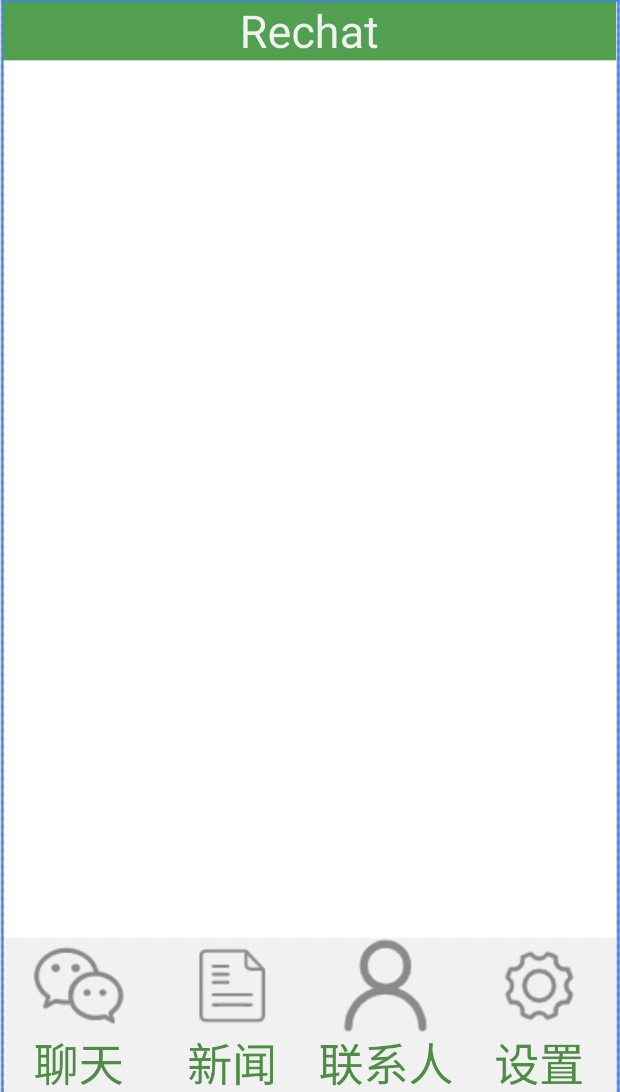
有“Rechat”字样的是一个LinearLayout:
<?xml version="1.0" encoding="utf-8"?>
<LinearLayout xmlns:android="http://schemas.android.com/apk/res/android"
  android:layout_width="match_parent"
  android:layout_height="wrap_content"
  android:background="@color/black">

  <TextView
    android:id="@+id/textView"
    android:layout_width="0dp"
    android:layout_height="wrap_content"
    android:layout_weight="1"
    android:background="#2BA245"
    android:gravity="center"
    android:text="@string/rechat_title"
    android:textColor="#F5F5F5"
    android:textSize="30sp" />

</LinearLayout>
底部的按钮也是用水平LinearLayout嵌套垂直LinearLayout实现的:
<?xml version="1.0" encoding="utf-8"?>
<LinearLayout xmlns:android="http://schemas.android.com/apk/res/android"
    xmlns:app="http://schemas.android.com/apk/res-auto"
    xmlns:tools="http://schemas.android.com/tools"
    android:layout_width="match_parent"
    android:background="@color/black"
    android:layout_height="wrap_content"
    android:baselineAligned="false">


    <LinearLayout
        android:id="@+id/LinearLayout1"
        android:layout_width="0dp"
        android:layout_height="match_parent"
        android:layout_weight="1"
        android:background="#F1F1F1"
        android:gravity="center"
        android:orientation="vertical">

        <ImageView
            android:id="@+id/imageView1"
            android:layout_width="match_parent"
            android:layout_height="0dp"
            android:layout_weight="1"
            android:src="@drawable/wechat1" />

        <TextView
            android:id="@+id/textView1"
            android:layout_width="match_parent"
            android:layout_height="wrap_content"
            android:gravity="center"
            android:text="@string/chat_button"
            android:textColor="#388E3C"
            android:textSize="30sp" />
    </LinearLayout>

    <LinearLayout
        android:id="@+id/LinearLayout2"
        android:layout_width="0dp"
        android:layout_height="match_parent"
        android:layout_weight="1"
        android:background="#F1F1F1"
        android:gravity="center"
        android:orientation="vertical">

        <ImageView
            android:id="@+id/imageView2"
            android:layout_width="match_parent"
            android:layout_height="0dp"
            android:layout_weight="1"
            android:src="@drawable/wechat2" />

        <TextView
            android:id="@+id/textView2"
            android:layout_width="match_parent"
            android:layout_height="wrap_content"
            android:gravity="center"
            android:text="@string/news_button"
            android:textColor="#388E3C"
            android:textSize="30sp" />
    </LinearLayout>

    <LinearLayout
        android:id="@+id/LinearLayout3"
        android:layout_width="0dp"
        android:layout_height="match_parent"
        android:layout_weight="1"
        android:gravity="center"
        android:background="#F1F1F1"
        android:orientation="vertical">

        <ImageView
            android:id="@+id/imageView3"
            android:layout_width="match_parent"
            android:layout_height="0dp"
            android:layout_weight="1"
            android:src="@drawable/wechat3" />

        <TextView
            android:id="@+id/textView3"
            android:layout_width="match_parent"
            android:layout_height="wrap_content"
            android:gravity="center"
            android:text="@string/firends"
            android:textColor="#388E3C"
            android:textSize="30sp" />
    </LinearLayout>

    <LinearLayout
        android:id="@+id/LinearLayout4"
        android:layout_width="0dp"
        android:layout_height="match_parent"
        android:layout_weight="1"
        android:gravity="center"
        android:background="#F1F1F1"
        android:orientation="vertical">

        <ImageView
            android:id="@+id/imageView4"
            android:layout_width="match_parent"
            android:layout_height="0dp"
            android:layout_weight="1"
            android:src="@drawable/wechat4" />

        <TextView
            android:id="@+id/textView4"
            android:layout_width="match_parent"
            android:layout_height="wrap_content"
            android:gravity="center"
            android:text="@string/config_button"
            android:textColor="#388E3C"
            android:textSize="30sp" />
    </LinearLayout>
</LinearLayout>
中间的FrameLayout用来包容fragment。
代码实现
先声明好要使用的变量:
    private ImageView mChatButton;
    private ImageView mFriendsButton;
    private ImageView mDiscoverButton;
    private ImageView mAccountButton;
    private NavController mNavController;
在创建activity的时候,初始化:
    @Override
    protected void onCreate(Bundle savedInstanceState) {
        super.onCreate(savedInstanceState);
        setContentView(R.layout.activity_main);
        mChatButton = findViewById(R.id.ChatButton);
        mFriendsButton = findViewById(R.id.FriendsButton);
        mDiscoverButton = findViewById(R.id.DiscoverButton);
        mAccountButton = findViewById(R.id.MyAccountButton);
        mNavController = ((NavHostFragment) Objects.requireNonNull(getSupportFragmentManager().
                findFragmentById(R.id.fragmentContainer))).getNavController();

        mChatButton.setOnClickListener(new View.OnClickListener() {
            @Override
            public void onClick(View view) {
                mNavController.navigate(R.id.chatFragment);
                mChatButton.setBackgroundColor(0xAAAAAA);
                mChatButton.invalidate();
            }
        });
在用户点击下方的按钮的时候,切换相应的fragment:
        mChatButton.setOnClickListener(new View.OnClickListener() {
            @Override
            public void onClick(View view) {
                mNavController.navigate(R.id.chatFragment);
                mChatButton.setBackgroundColor(0xAAAAAA);
                mChatButton.invalidate();
            }
        });

        mFriendsButton.setOnClickListener(new View.OnClickListener() {
            @Override
            public void onClick(View view) {
                mNavController.navigate(R.id.friendsFragment);
                mFriendsButton.setBackgroundColor(0xAAAAAA);
                mFriendsButton.invalidate();
            }
        });

        mDiscoverButton.setOnClickListener(new View.OnClickListener() {
            @Override
            public void onClick(View view) {
                mNavController.navigate(R.id.discoverFragment);
                mDiscoverButton.setBackgroundColor(0xAAAAAA);
            }
        });

        mAccountButton.setOnClickListener(new View.OnClickListener() {
            @Override
            public void onClick(View view) {
                mNavController.navigate(R.id.accountFragment);
                mAccountButton.setBackgroundColor(0xAAAAAA);
            }
        });
选择展示的fragment:
    private void showFragment(int i) {
        FragmentTransaction transaction = fragmentManager.beginTransaction();
        HideFragment(transaction);
        switch (i){
            case 0:
                transaction.show(chatFragment);
                break;
            case 1:
                transaction.show(newsFragment);
                break;
            case 2:
                transaction.show(friendFragment);
                break;
            case 3:
                transaction.show(configFragment);
                break;
            default:
                break;
        }
        transaction.commit();
    }
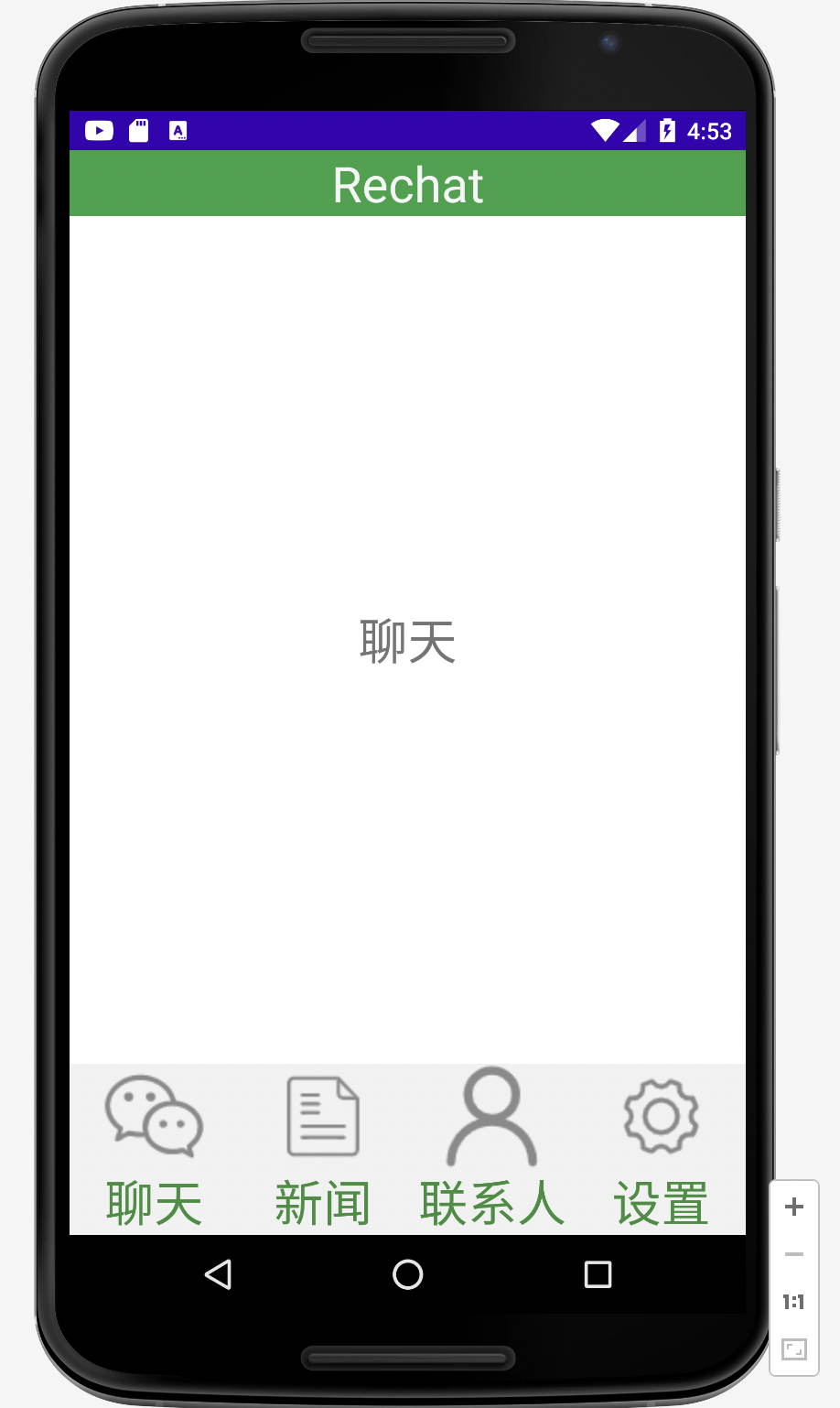
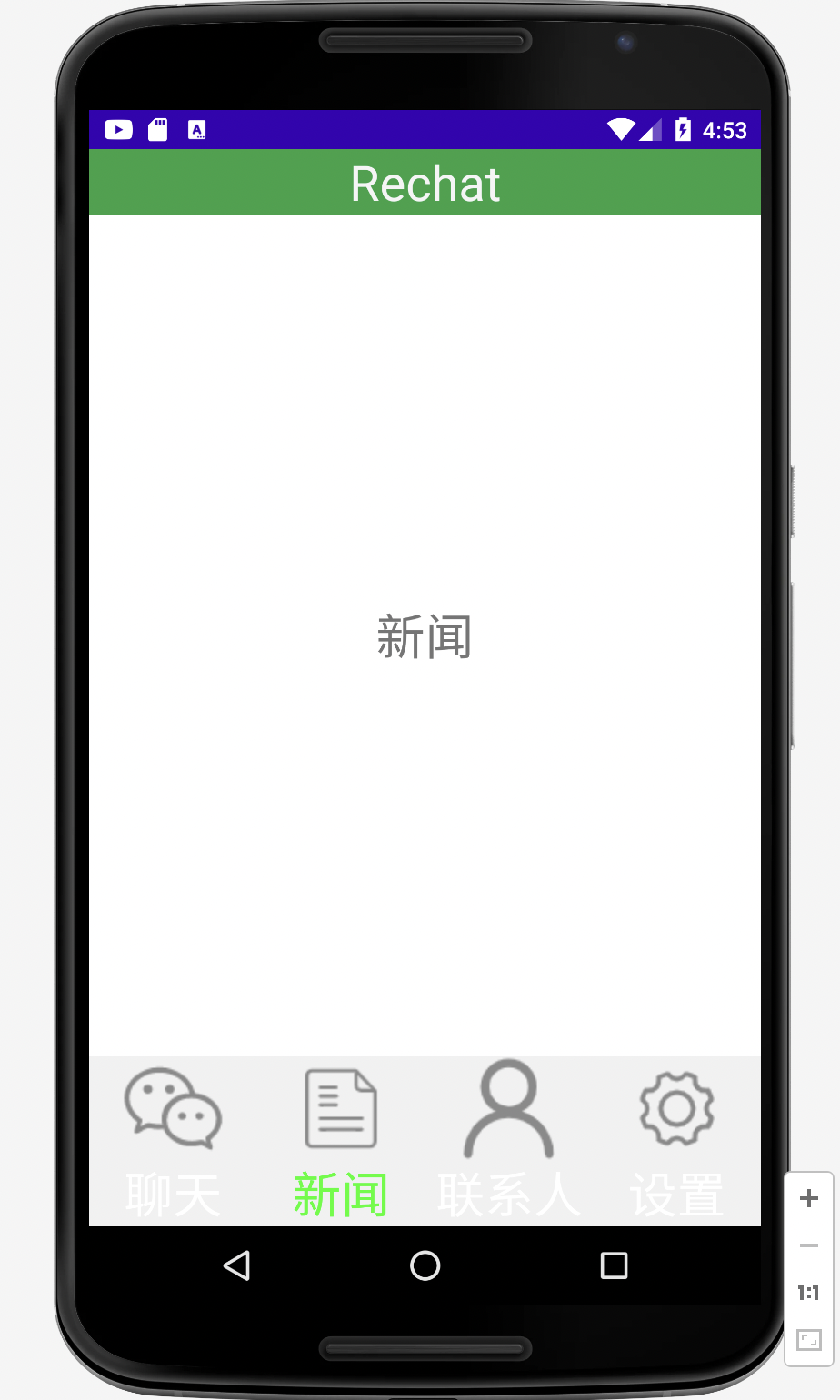
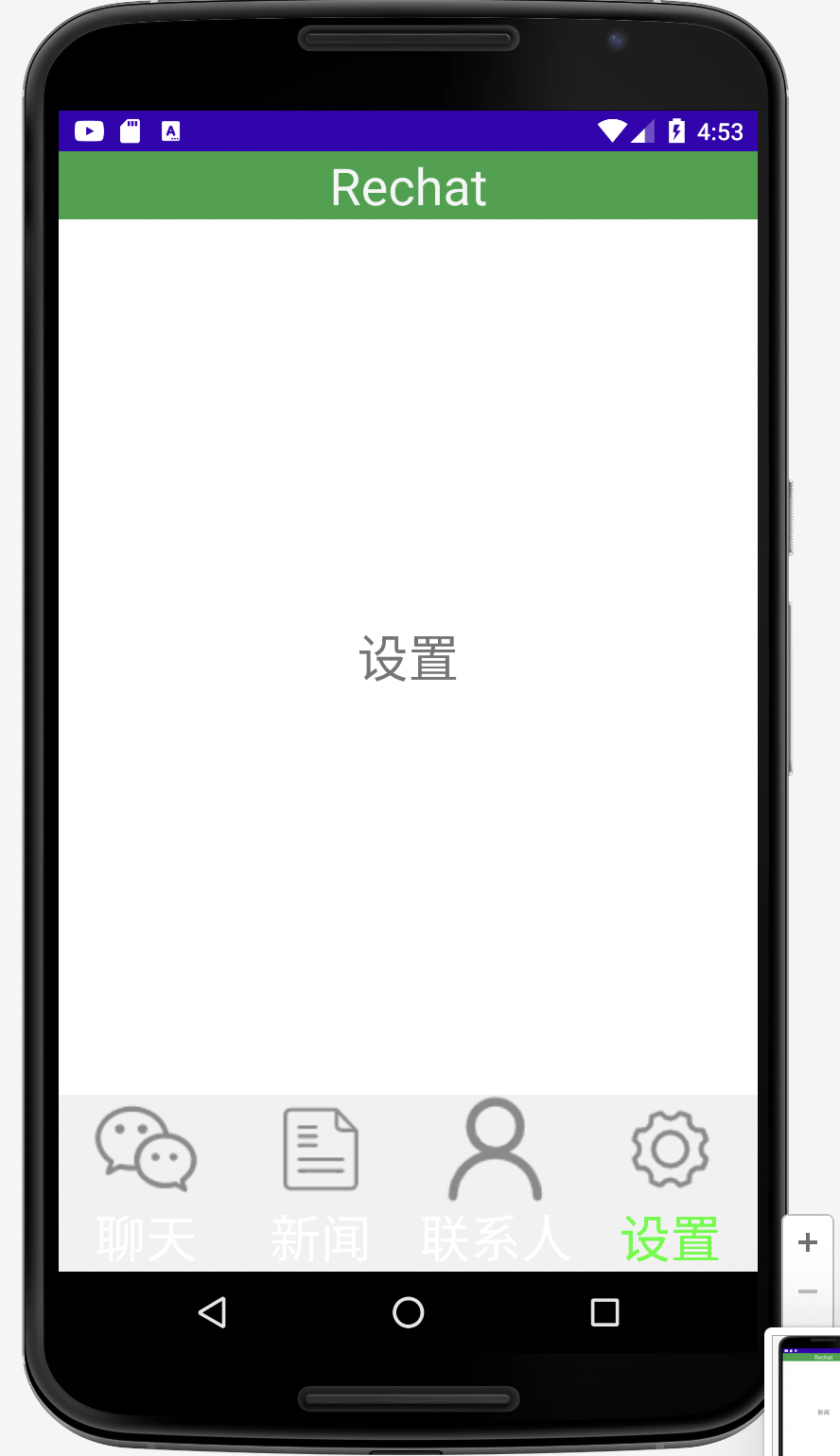
运行截图

 浙公网安备 33010602011771号