
LinearLayout(线性布局)
我是在菜鸟教程学习的安卓,图片大部分都是引用菜鸟教程上的图片。
一.LinearLayout(线性布局)
LinearLayout是控制容器内组件线性分布的一种布局方式。
1.学习图:
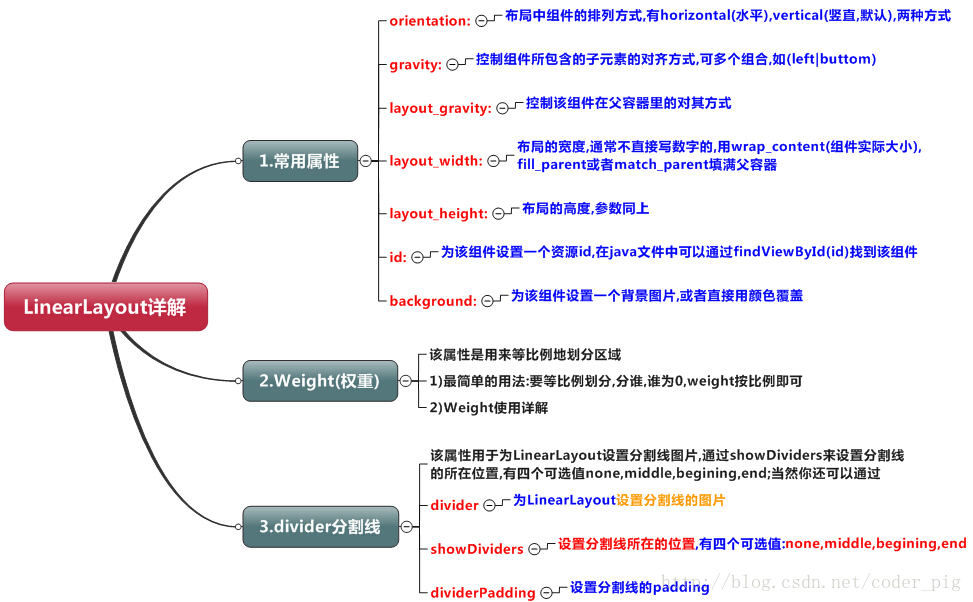
2.Weight(权重):
首先Weight是受父容器的orientation属性影响的,如果orientation属性是vertical,则Weight是在垂直方向上对区域进行划分,反之亦然。
①.最简单用法
代码如下:


 1 <LinearLayout xmlns:android="http://schemas.android.com/apk/res/android"
 2     xmlns:tools="http://schemas.android.com/tools"
 3     android:id="@+id/LinearLayout1"
 4     android:layout_width="match_parent"
 5     android:layout_height="match_parent"
 6     android:orientation="vertical">
 7
 8     <LinearLayout
 9         android:layout_height="0dp"
10         android:layout_width="fill_parent"
11         android:background="#ADFF2F"
12         android:layout_weight="1"/>
13
14
15     <LinearLayout
16         android:layout_height="0dp"
17         android:layout_width="fill_parent"
18         android:background="#DA70D6"
19         android:layout_weight="2"/>
20
21 </LinearLayout>
效果如图:
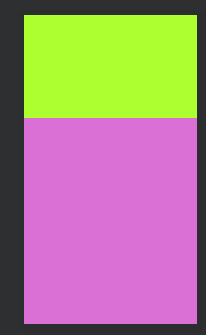
这是在垂直方向上的简单的1:2的划分,如果要更改比例为3:4,只需将weight分别改为3和4即可。 用法归纳: 按比例划分垂直方向:将涉及到的View的android:height属性设置为0dp,然后设置为android weight属性设置比例即可;类推,水平方向,只需先将父容器的orientation设为horizontal,再设android:width为0dp,然后设weight属性即可! 大家可以自己写个竖直方向的等比例划分的体验下简单用法!
②.属性详解
当然,如果我们不适用上述那种设置为0dp的方式,直接用wrap_content和match_parent的话, 则要接着解析weight属性了,分为两种情况,wrap_content与match_parent!另外还要看 LinearLayout的orientation是水平还是竖直,这个决定哪个方向等比例划分。
1)wrap_content最简单,直接按照weight比例划分
2)fill_parent(match_parent)就需要计算划分比例
代码如下:
 1 <LinearLayout xmlns:android="http://schemas.android.com/apk/res/android"
 2     xmlns:tools="http://schemas.android.com/tools"
 3     android:id="@+id/LinearLayout1"
 4     android:layout_width="match_parent"
 5     android:layout_height="match_parent" >
 6
 7     <TextView
 8         android:layout_weight="1"
 9         android:layout_width="fill_parent"
10         android:layout_height="fill_parent"
11         android:text="one"
12         android:background="#98FB98"
13      />
14      <TextView
15         android:layout_weight="2"
16         android:layout_width="fill_parent"
17         android:layout_height="fill_parent"
18         android:text="two"
19         android:background="#FFFF00"
20      />
21      <TextView
22         android:layout_weight="3"
23         android:layout_width="fill_parent"
24         android:layout_height="fill_parent"
25         android:text="three"
26         android:background="#FF00FF"
27      />
28
29 </LinearLayout>
效果如下:
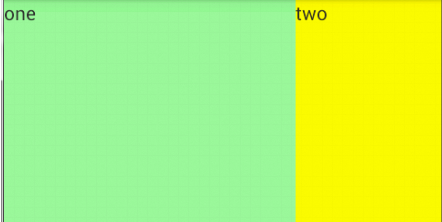
这个时候就会有疑问了,怎么会这样,这比例是2:1吧,那么three去哪了?代码里面明明有 three的啊,还设置了3的,而1和2的比例也不对耶,1:2:3却变成了2:1:0,怎么会这样呢? 答:这里其实没那么简单的,还是需要我们计算的,网上给出的算法有几种,这里就给出笔者 觉得比较容易理解的一种: step 1:个个都是fill_parent,那么首先要划分3个区域,但是屏幕只有一个,1 - 3 = - 2 fill_parent step 2:依次比例是1/6,2/6,3/6 step 3:先到先得,先分给one,计算: 1 - 2 * (1/6) = 2/3 fill_parent 接着到two,计算: 1 - 2 * (2/6) = 1/3 fill_parent 最后到three,计算 1 - 2 * (3/6) = 0 fill_parent step 4:所以最后的结果是:one占了两份,two占了一份,three什么都木有 以上就是为什么three没有出现的原因了,或许大家看完还是有点蒙,没事,我们举多几个例子试试就知道了!
如9:8:7:6
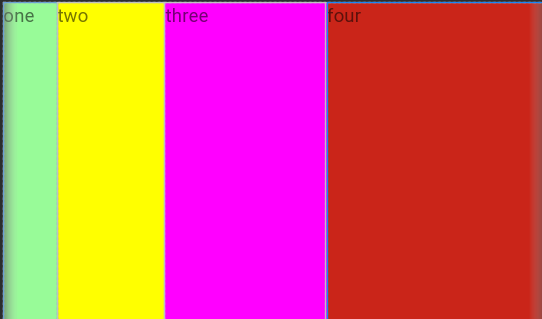
按上述方法计算结果是1:2:3:4,和图片结果吻合。
3.为LinearLayout设置划分线
很多界面开发中都会设置一些下划线,或者分割线,从而使得界面更加整洁美观,有两种方法
1.直接在布局中添加一个view,这个view的作用仅仅是显示出一条线
2.使用LinearLayout的driven属性,直接为LinearLayout设置分割线 这里就需要你自己准备一张线的图片了 1)android:divider设置作为分割线的图片 2)android:showDividers设置分割线的位置,none(无),beginning(开始),end(结束),middle(每两个组件间) 3)dividerPadding设置分割线的Padding
4.注意事项
LinearLayout只适用于对容器内组件的线性布局,如果你要实现对组件的花样排版,如一个组件在左上,一个在右下这种,不要使用LinearLayout,建议使用RelativeLayout,即相对布局。

 浙公网安备 33010602011771号