安装Centos7.9和ubuntu操作系统,创建一个自己名字的用户名,并可以正常登录,将主要步骤截图 Linux0102
一,进入VMware官网,下载VMware workstation
下载地址:https://www.vmware.com/go/getworkstation-win,下载版本为VMware-workstation-full-16.1.2-17966106,免费版试用期为30天,长期使用需要license,这个自己看着办,你懂的。安装过程就是一路下一步,直到安装完成。
二,准备Centos7.9和Ubuntu18.04.5安装镜像
镜像下载地址https://mirrors.aliyun.com/centos/7.9.2009/isos/x86_64/CentOS-7-x86_64-Everything-2009.iso
https://mirrors.aliyun.com/ubuntu-releases/bionic/ubuntu-18.04.5-live-server-amd64.iso
或http://mirrors.163.com/centos/7.9.2009/isos/x86_64/CentOS-7-x86_64-Everything-2009.iso
http://mirrors.163.com/ubuntu-releases/18.04.5/ubuntu-18.04.5-live-server-amd64.iso
若开源镜像站维护中时,清华大学开源镜像站(https://mirrors.tuna.tsinghua.edu.cn/),华为云开源镜像站(https://mirrors.huaweicloud.com/home)等。
三,安装步骤
1.创建新的虚拟机
2.对虚拟机进行设置
3.开启虚拟机进行安装,规划/ 分配100G 文件系统xfs, /boot 分配1G文件系统ext4, /data分配50G 文件系统xfs, swap分配2G,剩余空间根据需要以后再划分。
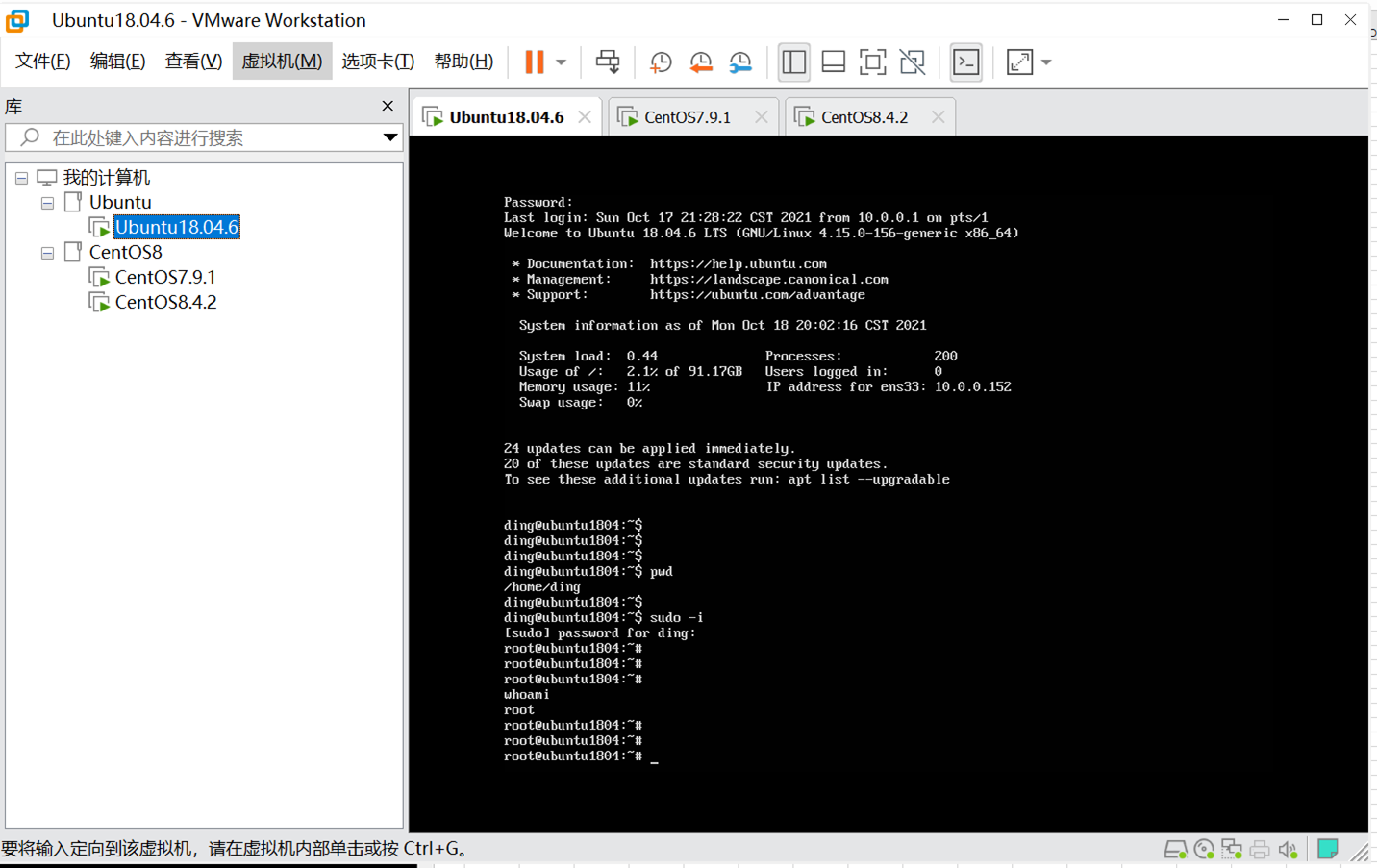
VMware截图
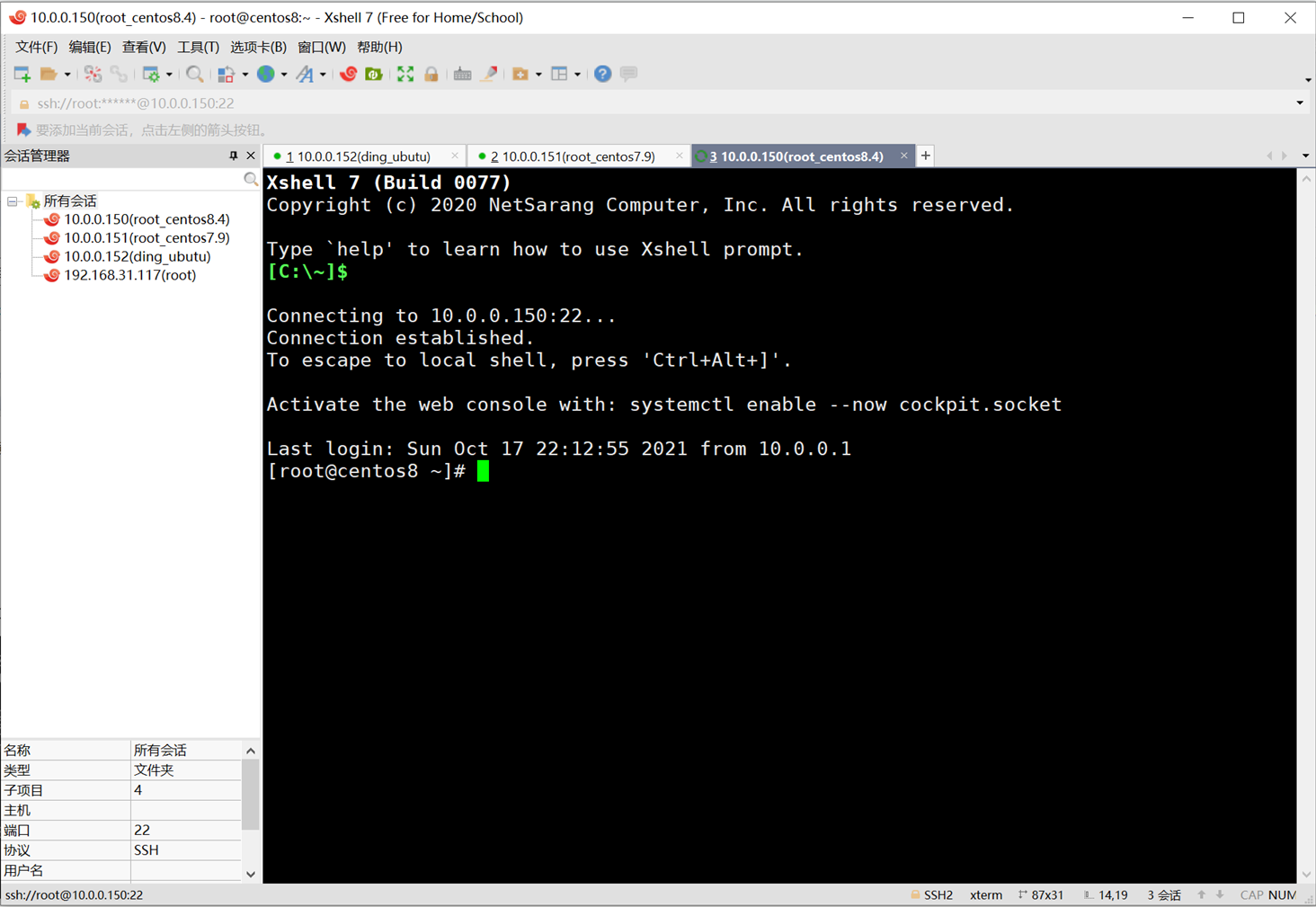
远程连接xshell截图

 浙公网安备 33010602011771号