

android游戏开发框架libgdx的使用(四)--舞台和演员
转载声明:http://www.cnblogs.com/htynkn/archive/2011/11/15/libgdx_4.html
我们先看几个游戏截图再来理解何为舞台。

请仔细观察图片中的元素,有些东西是不能动,有些可以动,有些有特效,有些没有。有些是按钮,有些是图片,但是其实它们都可以统一称为演员(Actor)。
而整个游戏界面就是我们的舞台。

再看一个射击类游戏

而其中的演员是

演员是游戏设计中常用的一个对象,它接受舞台的统一管理,拥有一些公共的事件,比如触摸,点击,但是同时还有自身的响应和属性。
而舞台就是容纳演员的场所。它统一管理所有演员,接受输入,同时提供一个方便的框架操作演员的时间变化。
我们来看一下Stage类:
1 protected final Group root;
2 protected final SpriteBatch batch;
3 protected Camera camera;
它拥有一个Group,一个SpriteBatch,还有一个相机。
SpriteBatch我们在前几篇说过,这里就不再重复了。
Group是一个类,用于容纳和控制演员。但是这里要注意Group本身其实也是继承自Actor。
相机我们这里跳过,以后再说,可以暂时理解成一个控制观察视角和指标转化的工具。
当我们拥有一个演员后就可以调用addActor方法加入舞台。
舞台可以获取输入,但是需要设置。
1 Gdx.input.setInputProcessor(stage);
下面来个列子,控制一个人物前进。

控制人物的按钮:

将所需的图片放到assert中
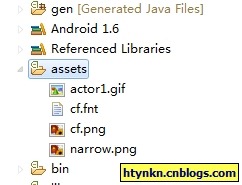
新建三个类:
FirstGame,实现接口ApplicationListener
FirstActor,继承Actor
NarrowButton,继承Actor
先看一下FirstGame
声明一个Stage,然后实例化FirstActor和NarrowButton,将二者加入舞台中,最后设置输入响应为Stage。
 1 package com.cnblogs.htynkn.listener;
 2
 3 import java.util.Date;
 4 import java.util.Random;
 5
 6 import javax.microedition.khronos.opengles.GL;
 7
 8 import android.util.Log;
 9
10 import com.badlogic.gdx.ApplicationListener;
11 import com.badlogic.gdx.Gdx;
12 import com.badlogic.gdx.graphics.GL10;
13 import com.badlogic.gdx.graphics.g2d.BitmapFont;
14 import com.badlogic.gdx.scenes.scene2d.Stage;
15 import com.cnblogs.htynkn.domain.FirstActor;
16 import com.cnblogs.htynkn.domain.NarrowButton;
17
18 public class FirstGame implements ApplicationListener {
19
20     private Stage stage;
21     private FirstActor firstActor;
22     private NarrowButton button;
23
24     @Override
25     public void create() {
26         stage = new Stage(Gdx.graphics.getWidth(), Gdx.graphics.getHeight(),
27                 true);
28         firstActor = new FirstActor("renwu");
29         button = new NarrowButton("narrow");
30         stage.addActor(firstActor);
31         stage.addActor(button);
32         Gdx.input.setInputProcessor(stage);
33     }
34
35     @Override
36     public void dispose() {
37         stage.dispose();
38     }
39
40     @Override
41     public void pause() {
42         // TODO Auto-generated method stub
43
44     }
45
46     @Override
47     public void render() {
48         Gdx.gl.glClear(GL10.GL_COLOR_BUFFER_BIT);
49         stage.act(Gdx.graphics.getDeltaTime());
50         stage.draw();
51     }
52
53     @Override
54     public void resize(int width, int height) {
55         // TODO Auto-generated method stub
56
57     }
58
59     @Override
60     public void resume() {
61         // TODO Auto-generated method stub
62
63     }
64 }
再看一下FirstActor。
声明一个Texture用于绘制。在构造方法中获取到高度和宽度,以便于后期的hit时间判断。
 1 package com.cnblogs.htynkn.domain;
 2
 3 import com.badlogic.gdx.Gdx;
 4 import com.badlogic.gdx.graphics.Texture;
 5 import com.badlogic.gdx.graphics.g2d.SpriteBatch;
 6 import com.badlogic.gdx.scenes.scene2d.Actor;
 7
 8 public class FirstActor extends Actor {
 9
10     Texture texture;
11
12     @Override
13     public void draw(SpriteBatch batch, float parentAlpha) {
14         batch.draw(texture, this.x, this.y);
15     }
16
17     @Override
18     public Actor hit(float x, float y) {
19         if (x > 0 && y > 0 && this.height > y && this.width > x) {
20             return this;
21         } else {
22             return null;
23         }
24     }
25
26     @Override
27     public boolean touchDown(float x, float y, int pointer) {
28         // TODO Auto-generated method stub
29         return false;
30     }
31
32     @Override
33     public void touchDragged(float x, float y, int pointer) {
34         // TODO Auto-generated method stub
35
36     }
37
38     @Override
39     public void touchUp(float x, float y, int pointer) {
40         // TODO Auto-generated method stub
41
42     }
43
44     public FirstActor(String name) {
45         super(name);
46         texture = new Texture(Gdx.files.internal("actor1.gif"));
47         this.height = texture.getHeight();
48         this.width = texture.getWidth();
49     }
50 }
NarrowButton中代码绘制部分和上面的以下,主要是有个点击后控制人物行动的问题。
修改touchDown事件:
通过Group获取到FirstActor,控制x值。
1 public boolean touchDown(float x, float y, int pointer) {
2         Actor actor = this.parent.findActor("renwu");
3         actor.x += 10;
4         return false;
5     }
效果:

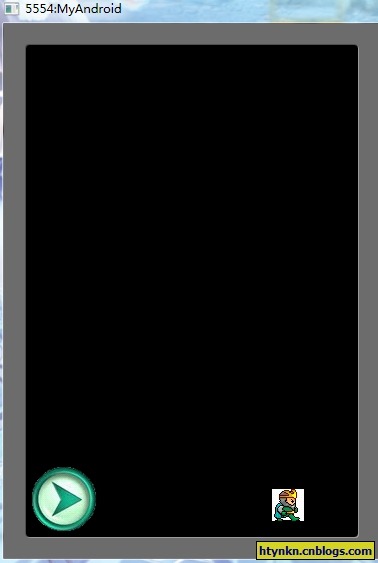
到此为止一个最简单的人物控制我们已经实现了。但是这个有实例还有很多可以改进的地方,比如方向按钮没有点击效果,人物没有移动效果。
我们可以使用Animation来实现。添加一张图片

具体的原理我们看一下Animation类:
 1 public class Animation {
 2     final TextureRegion[] keyFrames;
 3     public float frameDuration;
 4
 5     /** Constructor, storing the frame duration and key frames.
 6      *
 7      * @param frameDuration the time between frames in seconds.
 8      * @param keyFrames the {@link TextureRegion}s representing the frames. */
 9     public Animation (float frameDuration, List keyFrames) {
10         this.frameDuration = frameDuration;
11         this.keyFrames = new TextureRegion[keyFrames.size()];
12         for(int i = 0, n = keyFrames.size(); i < n; i++) {
13             this.keyFrames[i] = (TextureRegion)keyFrames.get(i);
14         }
15     }
16
17     /** Constructor, storing the frame duration and key frames.
18      *
19      * @param frameDuration the time between frames in seconds.
20      * @param keyFrames the {@link TextureRegion}s representing the frames. */
21     public Animation (float frameDuration, TextureRegion... keyFrames) {
22         this.frameDuration = frameDuration;
23         this.keyFrames = keyFrames;
24     }
25
26     /** Returns a {@link TextureRegion} based on the so called state time. This is the amount of seconds an object has spent in the
27      * state this Animation instance represents, e.g. running, jumping and so on. The mode specifies whether the animation is
28      * looping or not.
29      * @param stateTime the time spent in the state represented by this animation.
30      * @param looping whether the animation is looping or not.
31      * @return the TextureRegion representing the frame of animation for the given state time. */
32     public TextureRegion getKeyFrame (float stateTime, boolean looping) {
33         int frameNumber = (int)(stateTime / frameDuration);
34
35         if (!looping) {
36             frameNumber = Math.min(keyFrames.length - 1, frameNumber);
37         } else {
38             frameNumber = frameNumber % keyFrames.length;
39         }
40         return keyFrames[frameNumber];
41     }
42 }
可以看出所谓的动画其实是一张一张的图片不断切换(其实所有的动画都是这个样子的)。
我们构造一个图片列表然后根据事件变动不停取出,重新绘制就形成动画了。
注意一下传入的时间和图片列表大小的问题,修改FirstActor代码如下:
 1 package com.cnblogs.htynkn.domain;
 2
 3 import com.badlogic.gdx.Gdx;
 4 import com.badlogic.gdx.graphics.Texture;
 5 import com.badlogic.gdx.graphics.g2d.Animation;
 6 import com.badlogic.gdx.graphics.g2d.SpriteBatch;
 7 import com.badlogic.gdx.graphics.g2d.TextureRegion;
 8 import com.badlogic.gdx.scenes.scene2d.Actor;
 9
10 public class FirstActor extends Actor {
11
12     Texture texture1;
13     Texture texture2;
14     Animation animation;
15     TextureRegion[] walksFrame;
16     float stateTime;
17
18     @Override
19     public void draw(SpriteBatch batch, float parentAlpha) {
20         stateTime += Gdx.graphics.getDeltaTime();
21         TextureRegion currentFrame = animation.getKeyFrame(stateTime, true);
22         batch.draw(currentFrame, this.x, this.y);
23     }
24
25     @Override
26     public Actor hit(float x, float y) {
27         Gdx.app.log("INFO", x + " " + this.width);
28         if (x > 0 && y > 0 && this.height > y && this.width > x) {
29             return this;
30         } else {
31             return null;
32         }
33     }
34
35     @Override
36     public boolean touchDown(float x, float y, int pointer) {
37         // TODO Auto-generated method stub
38         return false;
39     }
40
41     @Override
42     public void touchDragged(float x, float y, int pointer) {
43         // TODO Auto-generated method stub
44
45     }
46
47     @Override
48     public void touchUp(float x, float y, int pointer) {
49         // TODO Auto-generated method stub
50
51     }
52
53     public FirstActor(String name) {
54         super(name);
55         texture1 = new Texture(Gdx.files.internal("actor1.gif"));
56         texture2 = new Texture(Gdx.files.internal("actor2.gif"));
57         this.height = texture1.getHeight();
58         this.width = texture1.getWidth();
59         TextureRegion region1;
60         TextureRegion region2;
61         region1 = new TextureRegion(texture1);
62         region2 = new TextureRegion(texture2);
63         walksFrame = new TextureRegion[30];
64         for (int i = 0; i < 30; i++) {
65             if (i % 2 == 0) {
66                 walksFrame[i] = region1;
67             } else {
68                 walksFrame[i] = region2;
69             }
70         }
71         animation = new Animation(0.25f, walksFrame);
72     }
73 }
效果:

这里注意一下,为什么我们要Texture转为TextureRegion。这是因为在实际开发中的图片是集成在一起的,比如所有角色要用的图片都是放在一张图里,然后分割截取的,对应的辅助方法TextureRegion.split。
另外我们可以发现NarrowButton和FirstActor中有大量代码重复了,可能有朋友觉得应该提取一下,其实libgdx已经帮我们做了,可以参考
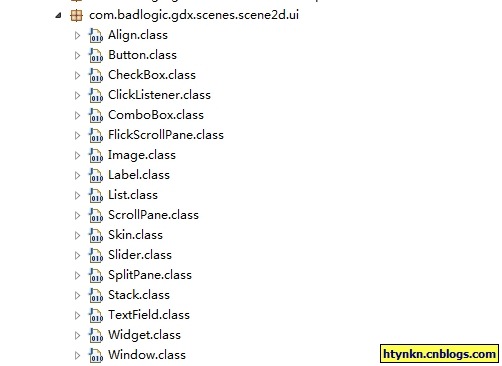
这里有一些常用的UI控件,估计下一篇可以讲到。

 浙公网安备 33010602011771号