GUI编程
GUI编程
问题:
-
这是什么
-
怎么玩
-
该如何应用
-
反编译 class->可阅读
组件
- 窗口
- 弹窗
- 面板
- 文本框
- 列表框
- 按钮
- 图片
- 监听事件
- 鼠标
- 键盘
- 破解工具
1、简介
GUI的核心技术: Swing AWT
- 因为界面不美观
- 需要 jre 环境!
为什么要学习?
- 是之后学习的基础
- 可以写出心中的小工具
- 工作时候可能维护 Swing 界面,概率非常小
- 了解 MVC 架构,了解监听!!
2、AWT
2.1、AWT介绍
- 包含了很多类和接口!GUI:图形用户界面编程(Eclipse:用Java写的)
- 元素:窗口,按钮,文本框
- java.awt

2.2、组件和容器
1、Frame
//Frame,JDK, 看源码
 Frame frame = new Frame("my first Java GUI");

 //设置可见性 w h
 frame.setVisible(true);

 //设置窗口大小
 frame.setSize(400,400);
 //color
// new Color():
 frame.setBackground(new Color(25, 202, 219));
 //弹出的初始位置
 frame.setLocation(200,200);
 //设置大小固定
 frame.setResizable(false);
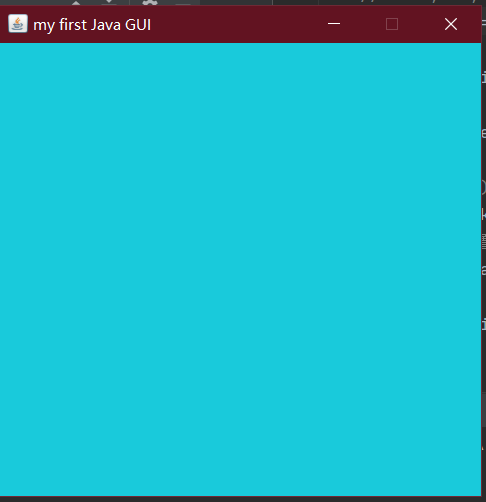
问题:发现关不掉(终止程序运行)
尝试回顾封装:
package com.wang.learn01;

import java.awt.*;

public class TestFrame2 {
    public static void main(String[] args){
        //展示多个窗口
        MyFrame myFrame1 = new MyFrame(100, 100, 200, 200, Color.blue);
        MyFrame myFrame2 = new MyFrame(300, 100, 200, 200, Color.yellow);
        MyFrame myFrame3 = new MyFrame(100, 300, 200, 200, Color.red);
        MyFrame myFrame4 = new MyFrame(300, 300, 200, 200, Color.magenta);
    }

    static class MyFrame extends Frame{
        static int id = 0;//可能存在多个窗口,需要计数器

        public MyFrame(int x,int y,int w, int h,Color color){
            super("MyFrame"+(++id));
            setBackground(color);
            setBounds(x, y, w, h);
            setVisible(true);

        }
    }
}
2、面板Panel
解决了关闭事件
package com.wang.learn01;

import java.awt.*;
import java.awt.event.WindowAdapter;
import java.awt.event.WindowEvent;
import java.awt.event.WindowListener;

//Panel看成是一个空间,但是不能单独存在
public class TestPanel {
    public static void main(String[] args) {
        Frame frame = new Frame();
//        布局的概念
        Panel panel = new Panel();
        //设置布局
        frame.setLayout(null);
//        坐标
        frame.setBounds(300,300,500,500);
        frame.setBackground(new Color(40,161,35));
//       panel设置坐标,相对于frame
        panel.setBounds(50,50,400,400);
        panel.setBackground(new Color(190, 17, 17));

//       Panel extends Container, Container extends Component
        frame.add(panel);

        frame.setVisible(true);

//        监听事件,监听窗口关闭事件 System.exit(0)
        //适配器模式:
        frame.addWindowListener(new WindowAdapter() {
//            窗口点击关闭,结束程序
            @Override
            public void windowClosing(WindowEvent e) {
//                super.windowClosing(e);
                System.exit(0);
            }
        });
    }
}
2.3、布局管理器
- 流式布局
package com.wang.learn01;

import java.awt.*;

public class TestFlowLayout {
    public static void main(String[] args) {
        Frame frame = new Frame();
        //组件-按钮
        Button button1 = new Button("button1");
        Button button2 = new Button("button2");
        Button button3 = new Button("button3");

//        设置为流式布局
//        frame.setLayout(new FlowLayout(FlowLayout.LEFT));
        frame.setLayout(new FlowLayout(FlowLayout.RIGHT));


        frame.setSize(200,200);

        frame.add(button1);
        frame.add(button2);
        frame.add(button3);

        frame.setVisible(true);

    }
}
- 东西南北中
![]()
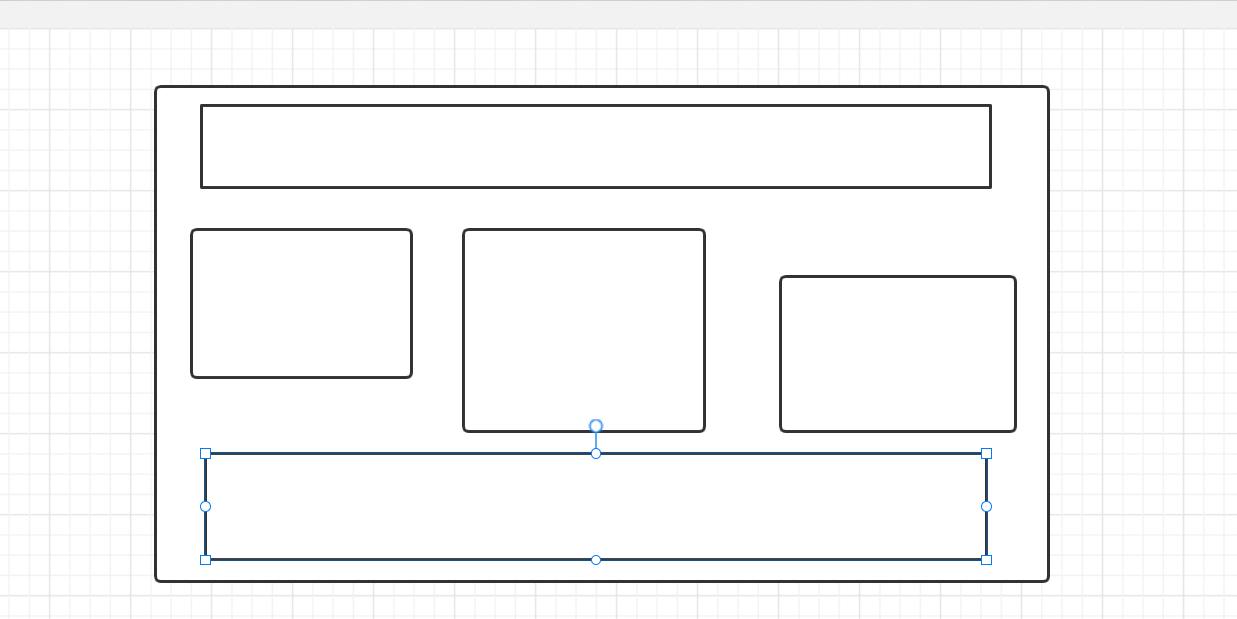
package com.wang.learn01;

import java.awt.*;

public class TestBorderLayout {
    public static void main(String[] args) {
        Frame frame = new Frame();

        Button east = new Button("East");
        Button west = new Button("West");
        Button south = new Button("South");
        Button north = new Button("North");
        Button center = new Button("Center");

        frame.add(east,BorderLayout.EAST);
        frame.add(west,BorderLayout.WEST);
        frame.add(south,BorderLayout.SOUTH);
        frame.add(north,BorderLayout.NORTH);
        frame.add(center,BorderLayout.CENTER);

        frame.setSize(200,200);
        frame.setVisible(true);
    }
}
- 表格布局 Grid
package com.wang.learn01;

import java.awt.*;

public class TestGridLayout {
    public static void main(String[] args) {
        Frame frame = new Frame();

        Button btn1 = new Button("btn1");
        Button btn2 = new Button("btn2");
        Button btn3 = new Button("btn3");
        Button btn4 = new Button("btn4");
        Button btn5 = new Button("btn5");
        Button btn6 = new Button("btn6");

        frame.setLayout(new GridLayout(3,2));

        frame.add(btn1);
        frame.add(btn2);
        frame.add(btn3);
        frame.add(btn4);
        frame.add(btn5);
        frame.add(btn6);

        frame.pack();//Java函数,自动选择最优布局
//        frame.setSize(200,200);
        frame.setVisible(true);
    }
}
- demo
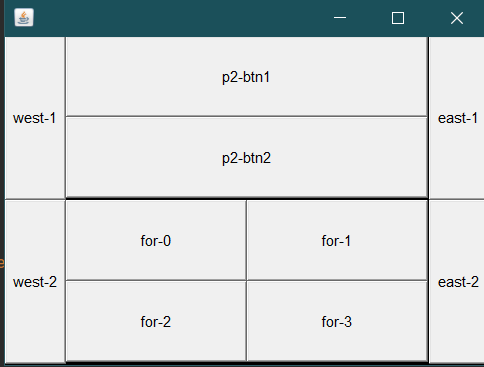
package com.wang.learn01;

import java.awt.*;
import java.awt.event.WindowAdapter;
import java.awt.event.WindowEvent;

public class TestGridLayout {
    public static void main(String[] args) {
        Frame frame = new Frame();

        Button btn1 = new Button("btn1");
        Button btn2 = new Button("btn2");
        Button btn3 = new Button("btn3");
        Button btn4 = new Button("btn4");
        Button btn5 = new Button("btn5");
        Button btn6 = new Button("btn6");

        frame.setLayout(new GridLayout(3,2));

        frame.add(btn1);
        frame.add(btn2);
        frame.add(btn3);
        frame.add(btn4);
        frame.add(btn5);
        frame.add(btn6);

        frame.pack();//Java函数,自动选择最优布局
//        frame.setSize(200,200);
        frame.setVisible(true);
        frame.addWindowListener(new WindowAdapter() {
            @Override
            public void windowClosing(WindowEvent e) {
                System.exit(0);
            }
        });
    }
}
- 总结
- Frame是顶级窗口
- Panel无法单独显示,必须添加到某个容器中
- 布局管理器
- 流式布局
- 东西南北中
- 表格
- 大小,背景颜色,定位,可见性,事件监听!
2.4、事件监听
事件监听:当事情发生时,应该干什么?
package com.wang.learn02;

import java.awt.*;
import java.awt.event.ActionEvent;
import java.awt.event.ActionListener;
import java.awt.event.WindowAdapter;
import java.awt.event.WindowEvent;

public class TestActionEvent {
    public static void main(String[] args) {
        //按钮发生事件
        Frame frame = new Frame();
        Button button = new Button();

        //因为addActionListener()需要一个ActionListener,所以需要构造一个ActionListener
        MyActionListener myActionListener = new MyActionListener();
        button.addActionListener(myActionListener);

        frame.add(button, BorderLayout.CENTER);
        frame.pack();

        windowClose(frame);//关闭窗口
        frame.setVisible(true);
    }
    //关闭窗体事件
    private static void windowClose(Frame frame){
        frame.addWindowListener(new WindowAdapter() {
            @Override
            public void windowClosing(WindowEvent e) {
                System.exit(0);
            }
        });
    }
}
//事件监听
class MyActionListener implements ActionListener{

    @Override
    public void actionPerformed(ActionEvent e) {
        System.out.println("aaa");
    }
}
多个按钮,共享应该事件
package com.wang.learn02;

import java.awt.*;
import java.awt.event.ActionEvent;
import java.awt.event.ActionListener;
import java.awt.event.WindowAdapter;
import java.awt.event.WindowEvent;

public class TestActionEvent2 {
    public static void main(String[] args) {
//        两个按钮实现同一个监听
//        开始,停止
        Frame frame = new Frame("开始-停止");

        Button button1 = new Button();
        Button button2 = new Button("stop");

        button2.setActionCommand("button2-stop");
//      可以显示定义触发会返回的命令,如果不写,显示默认值(按钮label值,没有则为空)
//        实现多个按钮只写一个监听类
        MyMonitor myMonitor = new MyMonitor();

        button1.addActionListener(myMonitor);
        button2.addActionListener(myMonitor);

        frame.add(button1,BorderLayout.NORTH);
        frame.add(button2,BorderLayout.SOUTH);

        windowClose(frame);
        frame.pack();
        frame.setVisible(true);

    }
    //关闭窗体事件
    private static void windowClose(Frame frame){
        frame.addWindowListener(new WindowAdapter() {
            @Override
            public void windowClosing(WindowEvent e) {
                System.exit(0);
            }
        });
    }
}

//事件监听
class MyMonitor implements ActionListener{

    @Override
    public void actionPerformed(ActionEvent e) {
        System.out.println("按钮被点击:msg"+e.getActionCommand());
//        if(e.getActionCommand().equals("start")){
//            System.out.println("hahaha");
//        }
//        e.getActionCommand()获取按钮信息

    }
}
2.5、输入框TextField监听
package com.wang.learn02;

import java.awt.*;
import java.awt.event.ActionEvent;
import java.awt.event.ActionListener;
import java.awt.event.WindowAdapter;
import java.awt.event.WindowEvent;

public class TestText01 {
    public static void main(String[] args) {
//        启动
        new MyFrame();
    }
}

class MyFrame extends Frame{
    public MyFrame(){
        TextField textField = new TextField();
        add(textField);

        //监听文本框输入的文字
//        按下Enter,就会触发输入框的事件
        textField.addActionListener(new MyActionListener2());

//        设置替换编码
        textField.setEchoChar('*');

        setVisible(true);
        pack();
        windowClose(this);
    }

    private void windowClose(MyFrame myFrame) {
        myFrame.addWindowListener(new WindowAdapter() {
            @Override
            public void windowClosing(WindowEvent e) {
                System.exit(0);
            }
        });
    }
}

class MyActionListener2 implements ActionListener{

    @Override
    public void actionPerformed(ActionEvent e) {
        TextField field = (TextField) e.getSource();//获得一些资源,返回一个对象Object
        System.out.println(field.getText());;//获得输入框中的文本
        field.setText("");//回车后,文本框设为空
    }
}
2.6、简易计算器,组合,内部类回顾复习
oop原则:组合大于继承
class A extends B{

}
class A{
    public B b;
}
内部类:
- 更好的包装
package com.wang.learn02;

import java.awt.*;
import java.awt.event.ActionEvent;
import java.awt.event.ActionListener;

public class TestCalc {
    public static void main(String[] args) {
        new Calculator().loadFrame();
    }
}

//计算器类
class Calculator extends Frame{
    //属性
    TextField num1;
    TextField num2;
    TextField num3;

//    方法
    public void loadFrame(){
        //3 text
        num1 = new TextField(10);//最大字符数
        num2 = new TextField(10);//最大字符数
        num3 = new TextField(10);//最大字符数
        //1 button
        Button button = new Button("=");
        button.addActionListener(new MyCalculatorListener());
        //1 label 用来写一些提示性东西
        Label label = new Label("+");

        //布局
        setLayout(new FlowLayout());
        add(num1);
        add(label);
        add(num2);
        add(button);
        add(num3);

        pack();
        setVisible(true);
    }
    public Calculator(){

    }
    //监听器类
    //内部类最大的好处就是可以畅通无阻地访问外部类的属性和方法
    private class MyCalculatorListener implements ActionListener{

        @Override
        public void actionPerformed(ActionEvent e) {
            //获得加数和被加数,
            int n1 = Integer.parseInt(num1.getText());
            int n2 = Integer.parseInt(num2.getText());
            // 将值加法运算放到第三个框,
            num3.setText(""+(n1+n2));
            // 清除前两个
            num1.setText("");
            num2.setText("");
        }
    }

}
2.7、画笔
package com.wang.learn03;

import java.awt.*;

public class TestPaint {
    public static void main(String[] args) {
        new MyPaint().loadFrame();
    }

}

class MyPaint extends Frame{

    public void loadFrame(){
        setBounds(200,200,600,500);
        setVisible(true);

    }
//画笔
    @Override
    public void paint(Graphics g) {
//        画笔需要颜色,可以画画
        g.setColor(Color.red);
//        g.drawOval(100,100,100,100);
        g.fillOval(100,100,100,100);//实心的圆

        g.setColor(Color.green);
        g.fillRect(200,200,100,100);

//        养成习惯,用完画笔,还原最初颜色
    }
}
2.8、鼠标监听
目的:实现鼠标画画
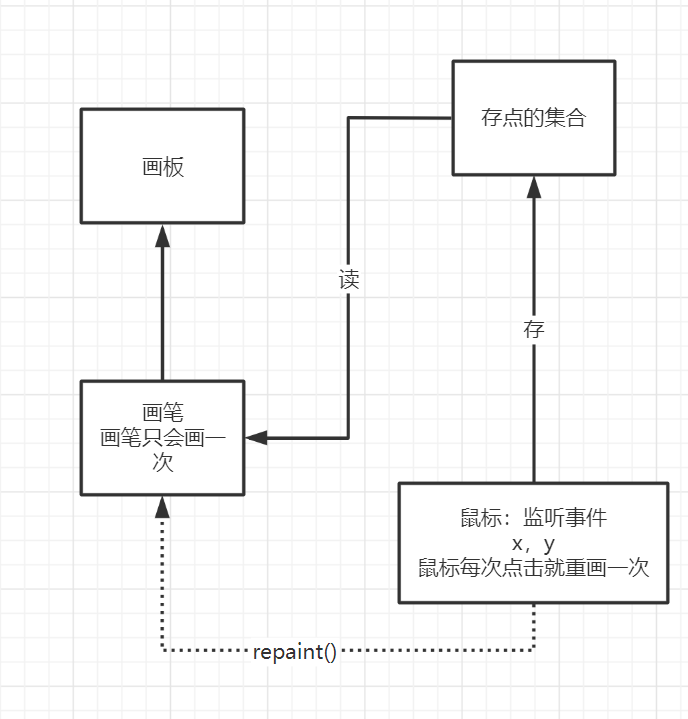
package com.wang.learn03;

import java.awt.*;
import java.awt.event.MouseAdapter;
import java.awt.event.MouseEvent;
import java.util.ArrayList;
import java.util.Iterator;

public class TestMouseListener {
    public static void main(String[] args) {
        new MyFrame("画图");
    }
}

//
class MyFrame extends Frame{
    //画画需要画笔,监听当前鼠标位置,需要集合来存储这个点
    ArrayList points;

    public MyFrame(String title){
        super(title);
        setBounds(200,200,400,300);
//        存鼠标点击的 点
        points = new ArrayList<>();
        //鼠标监听器,针对该窗口
        this.addMouseListener(new MyMouseListener());

        setVisible(true);

    }

    @Override
    public void paint(Graphics g) {
        //画画,监听鼠标事件
        Iterator iterator = points.iterator();
        while(iterator.hasNext()){
            Point point = (Point) iterator.next();
            g.setColor(Color.blue);
            g.fillOval(point.x,point.y,10,10);
        }
    }

    //添加一个点到界面上
    public void addPaint(Point point){
        points.add(point);
    }

    private class MyMouseListener extends MouseAdapter{
        //鼠标按下,弹起,按住不放

        @Override
        public void mousePressed(MouseEvent e) {
            MyFrame myFrame = (MyFrame) e.getSource();
//           这里点击,就会在界面产生一个点!
            //这个点就是鼠标的点
            myFrame.addPaint(new Point(e.getX(), e.getY()));
            //每次点击鼠标都重画一遍
            myFrame.repaint();//刷新
        }
    }
}
2.9、窗口监听
package com.wang.learn03;

import java.awt.*;
import java.awt.event.WindowAdapter;
import java.awt.event.WindowEvent;

public class TestWindow {
    public static void main(String[] args) {
        new WindowFrame();
    }
}

class WindowFrame extends Frame{
    public WindowFrame(){
        setBackground(Color.red);
        setBounds(200,200,400,300);
        setVisible(true);
//        addWindowListener(new MyWindowListener());
        this.addWindowListener(new WindowAdapter() {
            //匿名内部类
            //关闭窗口
            @Override
            public void windowClosing(WindowEvent e) {
                System.out.println("windowClosing");
                System.exit(0);
            }
            //激活窗口
            @Override
            public void windowActivated(WindowEvent e) {
                WindowFrame source = (WindowFrame) e.getSource();
                source.setTitle("被激活了");
                System.out.println("windowActivated");
            }
        });
    }
}
2.10、键盘监听
package com.wang.learn03;

import java.awt.*;
import java.awt.event.KeyAdapter;
import java.awt.event.KeyEvent;

public class TestKeyListener {
    public static void main(String[] args) {
        new KeyFrame();
    }
}

class KeyFrame extends Frame{
    public KeyFrame(){
        setBounds(1,2,300,400);
        setVisible(true);

        addKeyListener(new KeyAdapter() {
            //键盘按下
            @Override
            public void keyPressed(KeyEvent e) {
                //获取键盘按下的是哪一个,当前的码
                int keyCode = e.getKeyCode();//不需要记忆,直接使用静态属性VK_XXX
                System.out.println(keyCode);
                if(keyCode == KeyEvent.VK_UP){
                    System.out.println("你按下了上键");
                }
                //根据按下的不同键,实现不同的操作
            }
        });
    }
}
3、Swing
3.1、窗口、面板
package com.wang.learn04;

import javax.swing.*;
import java.awt.*;

public class JFrameDemo02 {
    public static void main(String[] args) {
        new MyJFrame2().init();
    }
}
class MyJFrame2 extends JFrame {
    public void init(){
        setVisible(true);
        setBounds(10,10,200,300);
        //设置文字 JLabel
        JLabel label = new JLabel("Welcome to Java");
        add(label);
        //文本标签居中,设置水平对齐
        label.setHorizontalAlignment(SwingConstants.CENTER);
        //获得容器
        Container contentPane = this.getContentPane();
        contentPane.setBackground(Color.blue);
    }
}
3.2、弹窗
JDialog,用来被弹出,默认有关闭事件
package com.wang.learn04;

import javax.swing.*;
import java.awt.*;
import java.awt.event.ActionEvent;
import java.awt.event.ActionListener;

//主窗口
public class DialogDemo extends JFrame {
    public DialogDemo(){
        this.setVisible(true);
        this.setSize(700,500);
        this.setDefaultCloseOperation(WindowConstants.EXIT_ON_CLOSE);

        //JFrame 放东西需要容器
        Container container = this.getContentPane();
        //绝对布局
        container.setLayout(null);
        //按钮
        JButton button = new JButton("点击弹出一个对话框");
        button.setBounds(30,30,200,50);
        //点击这个按钮时,弹出弹窗
        button.addActionListener(new ActionListener() {//监听器
            @Override
            public void actionPerformed(ActionEvent e) {
                //弹窗
                new MyDialogDemo();
            }
        });
        container.add(button);

    }
    public static void main(String[] args) {
        new DialogDemo();
    }
}
//弹窗的窗口
class MyDialogDemo extends JDialog{
    public MyDialogDemo(){
        this.setVisible(true);
        this.setBounds(100,100,500,500);

        Container container = this.getContentPane();
        //container.setLayout(null);

        container.add(new JLabel("learn Java"));
    }
}
3.3、标签
JLabel
new JLabel("xxx");
图标ICON,图片Icon
package com.wang.learn04;

import javax.swing.*;
import java.awt.*;
import java.net.URL;

public class ImageIconDemo extends JFrame{
    public ImageIconDemo(){
        //
        JLabel label = new JLabel("ImageIcon");
        URL resource = ImageIconDemo.class.getResource("101.jpg");

        ImageIcon imageIcon = new ImageIcon(resource);

        label.setIcon(imageIcon);
        label.setHorizontalAlignment(SwingConstants.CENTER);

        Container contentPane = getContentPane();
        contentPane.add(label);

        setVisible(true);
        setDefaultCloseOperation(WindowConstants.EXIT_ON_CLOSE);
        setBounds(100,100,200,200);
    }

    public static void main(String[] args) {
        new ImageIconDemo();
    }
}
3.4、面板
JPanel
package learn05;

import javax.swing.*;
import java.awt.*;

public class JPanelDemo extends JFrame {

    public JPanelDemo() {
        Container container = this.getContentPane();
        container.setLayout(new GridLayout(2,2, 10,10));//后面参数代表间距

        JPanel panel1 = new JPanel(new GridLayout(1,3));
        JPanel panel2 = new JPanel(new GridLayout(1,2));
        JPanel panel3 = new JPanel(new GridLayout(2,1));
        JPanel panel4 = new JPanel(new GridLayout(3,2));

        panel1.add(new JButton("1"));
        panel1.add(new JButton("1"));
        panel1.add(new JButton("1"));
        panel2.add(new JButton("2"));
        panel2.add(new JButton("2"));
        panel3.add(new JButton("3"));
        panel3.add(new JButton("3"));
        panel4.add(new JButton("4"));
        panel4.add(new JButton("4"));
        panel4.add(new JButton("4"));
        panel4.add(new JButton("4"));
        panel4.add(new JButton("4"));
        panel4.add(new JButton("4"));

        container.add(panel1);
        container.add(panel2);
        container.add(panel3);
        container.add(panel4);

        this.setVisible(true);
        this.setBounds(200,200,400,300);
        this.setDefaultCloseOperation(WindowConstants.EXIT_ON_CLOSE);
    }

    public static void main(String[] args) {
        new JPanelDemo();
    }
}
JScrollPanel
package learn05;

import javax.swing.*;
import java.awt.*;

public class JScrollDemo extends JFrame {
    public static void main(String[] args) {
        new JScrollDemo();
    }

    public JScrollDemo() {
        Container container = this.getContentPane();
        //container.setLayout(null);
        //文本域
        JTextArea textArea = new JTextArea(20, 50);
        textArea.setText("WELCOME TO JAVA");
        //Scroll面板
        JScrollPane scrollPane = new JScrollPane(textArea);
        container.add(scrollPane);

        this.setVisible(true);
        this.setDefaultCloseOperation(WindowConstants.EXIT_ON_CLOSE);
        this.setBounds(100,100,400,300);
    }
}
3.5、按钮
package learn05;

import javax.swing.*;
import java.awt.*;
import java.net.URL;

public class JButtonDemo01 extends JFrame{
    public JButtonDemo01() {
        Container container = this.getContentPane();
        //将一个图片变成图标
        URL url = JButtonDemo01.class.getResource("1.jpg");
        Icon icon = new ImageIcon(url);
        //图标放在按钮上
        JButton button = new JButton();
        button.setIcon(icon);
        button.setToolTipText("图片按钮");//鼠标放上去提示的文本

        //add
        container.add(button);
        setDefaultCloseOperation(WindowConstants.EXIT_ON_CLOSE);
        setVisible(true);
        setBounds(200,200,400,300);
        setResizable(false);
    }

    public static void main(String[] args) {
        new JButtonDemo01();
    }
}
- 单选按钮
package learn05;

import javax.swing.*;
import java.awt.*;
import java.net.URL;

public class JButtonDemo02 extends JFrame {
    public JButtonDemo02() {
        Container container = this.getContentPane();
        //将一个图片变成图标
        URL url = JButtonDemo01.class.getResource("1.jpg");
        Icon icon = new ImageIcon(url);

//        单选框
        JRadioButton radioButton01 = new JRadioButton("01");
        JRadioButton radioButton02 = new JRadioButton("02");
        JRadioButton radioButton03 = new JRadioButton("03");
//         由于单选框只能选择一个,必须分组!!!!,一个组里面只能选一个
        ButtonGroup group = new ButtonGroup();
        group.add(radioButton01);
        group.add(radioButton02);
        group.add(radioButton03);

      //add
        container.add(radioButton01,BorderLayout.CENTER);
        container.add(radioButton02,BorderLayout.NORTH);
        container.add(radioButton03,BorderLayout.SOUTH);
        setDefaultCloseOperation(WindowConstants.EXIT_ON_CLOSE);
        setVisible(true);
        setBounds(200, 200, 400, 300);
        setResizable(false);
    }

    public static void main(String[] args) {
        new JButtonDemo02();
    }
}
- 复选按钮
package learn05;

import javax.swing.*;
import java.awt.*;
import java.net.URL;

public class JButtonDemo03 extends JFrame {
    public JButtonDemo03() {
        Container container = this.getContentPane();
        //将一个图片变成图标
        URL url = JButtonDemo01.class.getResource("1.jpg");
        Icon icon = new ImageIcon(url);

        //多选框
        JCheckBox checkBox01 = new JCheckBox("01");
        JCheckBox checkBox02 = new JCheckBox("02");
      //add
        container.add(checkBox01,BorderLayout.NORTH);
        container.add(checkBox02,BorderLayout.SOUTH);
        setDefaultCloseOperation(WindowConstants.EXIT_ON_CLOSE);
        setVisible(true);
        setBounds(200, 200, 400, 300);
        setResizable(false);
    }

    public static void main(String[] args) {
        new JButtonDemo03();
    }
}
3.6、列表
- 下拉框
package com.wang.learn06;

import javax.swing.*;
import java.awt.*;

public class TestComboboxDemo01 extends JFrame {
    public TestComboboxDemo01() {

        Container container = this.getContentPane();

        JComboBox status = new JComboBox();
        status.addItem(null);
        status.addItem("正在上映");
        status.addItem("已下架");
        status.addItem("即将上映");

        container.add(status);
        this.setVisible(true);
        this.setBounds(200,200,400,300);
        this.setDefaultCloseOperation(WindowConstants.EXIT_ON_CLOSE);
    }

    public static void main(String[] args) {
        new TestComboboxDemo01();
    }
}
- 列表框
package com.wang.learn06;

import javax.swing.*;
import java.awt.*;
import java.util.Vector;

public class TestComboboxDemo02 extends JFrame {
    public TestComboboxDemo02() {

        Container container = this.getContentPane();

        //生成列表的内容
//        String[] contents = {"1","2","3"};//放静态变量
        Vector contents = new Vector();//动态变量
        //列表需要放入内容
        JList jList = new JList(contents);

        contents.add("1");
        contents.add("333");
        contents.add("2323");

        container.add(jList);
        this.setVisible(true);
        this.setBounds(200,200,400,300);
        this.setDefaultCloseOperation(WindowConstants.EXIT_ON_CLOSE);
    }

    public static void main(String[] args) {
        new TestComboboxDemo02();
    }
}
- 应用场景
- 选择地区,或者一个单个选项,两个用单选按钮,多于两个用下拉框
- 列表,展示一些信息,一般是动态扩容
3.7、文本框
- 文本框
package com.wang.learn06;

import javax.swing.*;
import java.awt.*;
import java.util.Vector;

public class TestTextDemo01 extends JFrame {
    public TestTextDemo01() {

        Container container = this.getContentPane();
       // container.setLayout(null);

        JTextField textField1 = new JTextField("hello");
        JTextField textField2 = new JTextField("world",20);

        container.add(textField1, BorderLayout.NORTH);
        container.add(textField2, BorderLayout.SOUTH);

        this.setVisible(true);
        this.setBounds(200,200,400,300);
        this.setDefaultCloseOperation(WindowConstants.EXIT_ON_CLOSE);
    }

    public static void main(String[] args) {
        new TestTextDemo01();
    }
}
- 密码框
package com.wang.learn06;

import javax.swing.*;
import java.awt.*;

public class TestTextDemo02 extends JFrame {
    public TestTextDemo02() {

        Container container = this.getContentPane();
        // container.setLayout(null);
        //尽量在面板里,不要直接放在container里
        JPasswordField passwordField = new JPasswordField();
        //passwordField.setEchoChar('*');

        container.add(passwordField);

        this.setVisible(true);
        this.setBounds(200,200,400,300);
        this.setDefaultCloseOperation(WindowConstants.EXIT_ON_CLOSE);
    }

    public static void main(String[] args) {
        new TestTextDemo02();
    }
}
- 文本域
package com.wang.learn05;

import javax.swing.*;
import java.awt.*;

public class JScrollDemo extends JFrame {
    public static void main(String[] args) {
        new JScrollDemo();
    }

    public JScrollDemo() {
        Container container = this.getContentPane();
        //container.setLayout(null);
        //文本域
        JTextArea textArea = new JTextArea(20, 50);
        textArea.setText("WELCOME TO JAVA");
        //Scroll面板
        JScrollPane scrollPane = new JScrollPane(textArea);
        container.add(scrollPane);

        this.setVisible(true);
        this.setDefaultCloseOperation(WindowConstants.EXIT_ON_CLOSE);
        this.setBounds(100,100,400,300);
    }
}
贪吃蛇
帧,如果时间足够小,就是动画,一秒30帧,60帧。连起来是动画,拆开来就是静态的图片
键盘监听
- 把键盘监听写在JFrame上可以直接用???
- 键盘监听写在JPanel上需要按下tab键才能跳转到面板上???(不确定)
- 好像把frame.setVisible(true);写在添加面板的语句后面就可以直接用了
定时器Timer
- 实现ActionListener接口,重写actionPerformed()方法
- 初始化时,time.start(),在actionPerformed()方法中也要time.start(),表示间隔多久执行一次actionPerformed()方法
添加游戏中对象的方法:定义一个事物,初始化,放上去,监听它
相对路径:
注意:IDEA 中如果相对路径没有加/,则表示类所在包的目录,否则表示out/production/项目名/ 路径
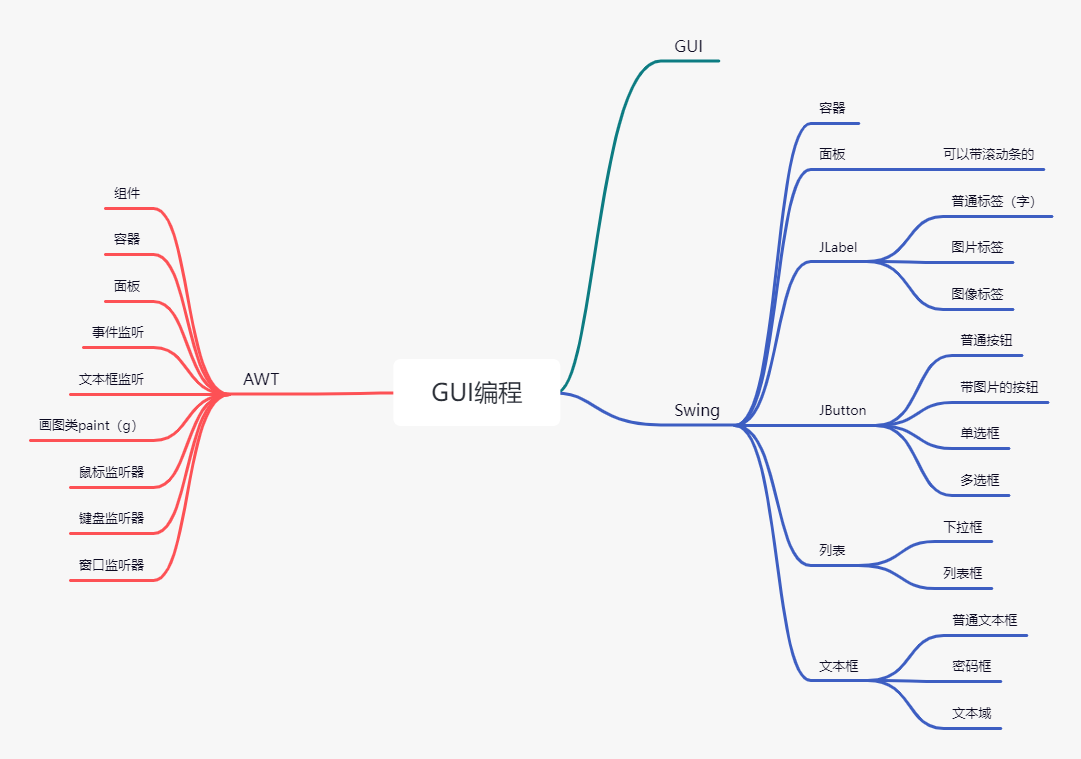
思维导图总结:

 浙公网安备 33010602011771号