
Docker学习之使用Dockerfile创建CentOS7.8.2003基础镜像下nginx-rtmp-ffmpeg流服务镜像
Dockerfile创建CentOS7.8.2003基础镜像下nginx-rtmp-ffmpeg流服务镜像
创建镜像
为了方便镜像的创建,比如缩小镜像体积、更改配置等,现在使用Dockerfile文件创建镜像。
编写Dockerfile文件
针对基于CentOS7.8.2003基础镜像下创建nginx-rtmp-ffmpeg流服务镜像我的Dockerfile文件如下:
FROM centos:7.8.2003

LABEL author xnz <xnzsir@gmail.com>

ENV NGINX_VERSION 1.18.0
ENV NGINX_RTMP_VERSION 1.2.1
ENV FFMPEG_VERSION 2.8.15

# Mapping Port
EXPOSE 1935
EXPOSE 80
EXPOSE 443


# FFmpeg.
# Install EPEL Release because the installation needs to use another REPO source
# Install Nux-Dextop source
# Install FFmpeg
RUN yum install -y epel-release --nogpgcheck \
	&& rpm --import http://li.nux.ro/download/nux/RPM-GPG-KEY-nux.ro \
	&& rpm -Uvh http://li.nux.ro/download/nux/dextop/el7/x86_64/nux-dextop-release-0-5.el7.nux.noarch.rpm \
	&& yum install ffmpeg ffmpeg-devel -y


# Nginx And Nginx-rtmp-module.
# Build dependencies
# Install wget
# Download nginx and nginx-rtmp-module
# Install nginx and nginx-rtmp-module
# Cleanup.
RUN yum -y install gcc gcc-c++ make zlib zlib-devel openssl openssl-devel pcre pcre-devel pkgconf pkgconfig \
	&& cd /tmp \
	&& mkdir -p ./data/nginx-rtmp-ffmpeg \
	&& cd ./data/nginx-rtmp-ffmpeg/ \
	&& yum -y install wget \
	&& wget http://nginx.org/download/nginx-${NGINX_VERSION}.tar.gz \
	&& wget https://github.com/arut/nginx-rtmp-module/archive/v${NGINX_RTMP_VERSION}.tar.gz \
	&& tar -zxf nginx-${NGINX_VERSION}.tar.gz \
	&& tar -zxf v${NGINX_RTMP_VERSION}.tar.gz \
	&& cd nginx-${NGINX_VERSION}/ \
	&& ./configure --prefix=/usr/local/src/nginx  --add-module=../nginx-rtmp-module-${NGINX_RTMP_VERSION} --with-debug --with-http_ssl_module \
	&& make && make install \
	&& cd /usr/local/src/nginx \
	&& mkdir -p ./data/hls \
	&& mkdir certs \
	&& rm -rf /var/cache/* /tmp/* \
	&& yum -y remove gcc*


# COPY NGINX config and static files.
COPY nginx.conf /usr/local/src/nginx/conf
COPY static /usr/local/src/nginx/data/static

# COPY SSL CERT.
COPY certs /usr/local/src/nginx/certs

# Start Nginx.
ENTRYPOINT ["/usr/local/src/nginx/sbin/nginx","-g","daemon off"]
CMD ["-c","/usr/local/src/nginx/conf/nginx.conf"]
Dockerfile语法可参考Docker官网: Dockerfile reference
大佬博文:
使用dockerfile构建nginx镜像 docker部署nginx–dockerfile方法 dockerfile方式创建nginx服务
创建Dockerfile执行目录及相关文件
-
首先在服务器宿主机创建空目录
nginx-rtmp-ffmpeg-centos7.8.2003 -
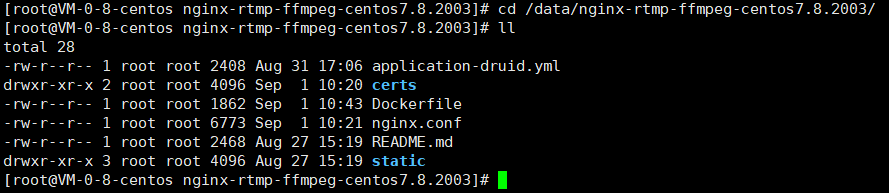
将Dockerfile文件,以及涉及到的其他文件,如:nginx.conf、SSL证书(server.crt、server.key)等文件,上传至该目录下:
-
nginx.conf 配置如下:
worker_processes 1; error_log logs/error.log debug; events { worker_connections 1024; } rtmp { server { listen 1935; chunk_size 4096; application stream { live on; exec ffmpeg -i rtmp://localhost:1935/stream/$name #-c:a libfdk_aac -b:a 128k -c:v libx264 -b:v 3500k -f flv -g 30 -r 30 -s 1920x1080 -preset superfast -profile:v baseline rtmp://localhost:1935/hls/$name_1080p2628kb -c:a libfdk_aac -b:a 128k -c:v libx264 -b:v 2500k -f flv -g 30 -r 30 -s 1280x720 -preset superfast -profile:v baseline rtmp://localhost:1935/hls/$name #_720p2628kbs #-c:a libfdk_aac -b:a 128k -c:v libx264 -b:v 1000k -f flv -g 30 -r 30 -s 854x480 -preset superfast -profile:v baseline rtmp://localhost:1935/hls/$name_480p1128kbs #-c:a libfdk_aac -b:a 128k -c:v libx264 -b:v 750k -f flv -g 30 -r 30 -s 640x360 -preset superfast -profile:v baseline rtmp://localhost:1935/hls/$name_360p878kbs #-c:a libfdk_aac -b:a 128k -c:v libx264 -b:v 400k -f flv -g 30 -r 30 -s 426x240 -preset superfast -profile:v baseline rtmp://localhost:1935/hls/$name_240p528kbs #-c:a libfdk_aac -b:a 64k -c:v libx264 -b:v 200k -f flv -g 15 -r 15 -s 426x240 -preset superfast -profile:v baseline rtmp://localhost:1935/hls/$name_240p264kbs ; } application hls { live on; hls on; hls_fragment_naming system; hls_fragment 2s; hls_playlist_length 20; hls_path /usr/local/src/nginx/data/hls; hls_nested on; #hls_variant _1080p2628kbs BANDWIDTH=2628000,RESOLUTION=1920x1080; #hls_variant _720p2628kbs BANDWIDTH=2628000,RESOLUTION=1280x720; #hls_variant _480p1128kbs BANDWIDTH=1128000,RESOLUTION=854x480; #hls_variant _360p878kbs BANDWIDTH=878000,RESOLUTION=640x360; #hls_variant _240p528kbs BANDWIDTH=528000,RESOLUTION=426x240; #hls_variant _240p264kbs BANDWIDTH=264000,RESOLUTION=426x240; } } } http { include mime.types; default_type application/octet-stream; sendfile on; keepalive_timeout 65; gzip on; gzip_min_length 1k; gzip_comp_level 4; gzip_types text/plain application/javascript application/x-javascript text/javascript text/xml text/css application/json; gzip_disable "MSIE [[1-6]]\."; gzip_vary on; access_log logs/access.log; log_format main '$remote_addr - $remote_user [$time_local] "$request" $http_host' '$status $body_bytes_sent "$http_referer" ' '"$http_user_agent" "$http_x_forwarded_for"'; server { listen 80; server_name localhost; location / { root html; index index.html index.htm; } location /hls { add_header 'Cache-Control' 'no-cache'; add_header 'Access-Control-Allow-Origin' '*'; add_header 'Access-Control-Allow-Credentials' 'true'; add_header 'Access-Control-Allow-Methods' 'GET, POST, OPTIONS'; add_header 'Access-Control-Allow-Headers' 'DNT,web-token,app-token,Authorization,Accept,Origin,Keep-Alive,User-Agent,X-Mx-ReqToken,X-Data-Type,X-Auth-Token,X-Requested-With,If-Modified-Since,Cache-Control,Content-Type,Range'; add_header 'Access-Control-Expose-Headers' 'Content-Length,Content-Range'; if ($request_method = 'OPTIONS') { add_header 'Access-Control-Max-Age' 1728000; add_header 'Content-Type' 'text/plain; charset=utf-8'; add_header 'Content-Length' 0; return 200; } types { application/vnd.apple.mpegurl m3u8; video/mp2t ts; } root /usr/local/src/nginx/data; } location /live { alias /usr/local/src/nginx/data/hls; types { application/vnd.apple.mpegurl m3u8; video/mp2t ts; } add_header Cache-Control no-cache; add_header Access-Control-Allow-Origin *; } location /rtmpstat { rtmp_stat all; rtmp_stat_stylesheet rtmpstatic/stat.xsl; } location /rtmpstatic { alias /usr/local/src/nginx/data/static; } location /rtmpindex { root /usr/local/src/nginx/data/static; index index.html index.htm; } location = /crossdomain.xml { root /usr/local/src/nginx/data/static; default_type text/xml; expires 24h; } } # HTTPS server # server { listen 443 ssl; server_name localhost; ssl_certificate /usr/local/src/nginx/certs/server.crt; ssl_certificate_key /usr/local/src/nginx/certs/server.key; ssl_session_cache shared:SSL:10m; ssl_session_timeout 10m; ssl_ciphers HIGH:!aNULL:!MD5; ssl_prefer_server_ciphers on; location / { root html; index index.html index.htm; } location /hls { add_header 'Access-Control-Allow-Origin' '*'; add_header 'Access-Control-Allow-Credentials' 'true'; add_header 'Access-Control-Allow-Methods' 'GET, POST, OPTIONS'; add_header 'Access-Control-Allow-Headers' 'DNT,web-token,app-token,Authorization,Accept,Origin,Keep-Alive,User-Agent,X-Mx-ReqToken,X-Data-Type,X-Auth-Token,X-Requested-With,If-Modified-Since,Cache-Control,Content-Type,Range'; add_header 'Access-Control-Expose-Headers' 'Content-Length,Content-Range'; if ($request_method = 'OPTIONS') { add_header 'Access-Control-Max-Age' 1728000; add_header 'Content-Type' 'text/plain; charset=utf-8'; add_header 'Content-Length' 0; return 200; } types { application/vnd.apple.mpegurl m3u8; video/mp2t ts; } root /usr/local/src/nginx/data; } location /live { alias /usr/local/src/nginx/data/hls; types { application/vnd.apple.mpegurl m3u8; video/mp2t ts; } add_header Cache-Control no-cache; add_header Access-Control-Allow-Origin *; } location /rtmpstat { rtmp_stat all; rtmp_stat_stylesheet rtmpstatic/stat.xsl; } location /rtmpstatic { alias /usr/local/src/nginx/data/static; } location /rtmpindex { root /usr/local/src/nginx/data/static; index index.html index.htm; } location = /crossdomain.xml { root /usr/local/src/nginx/data/static; default_type text/xml; expires 24h; } } } -
OpenSSL证书生成方式见文章 创建HTTPS访问SSL免费证书 。
执行命令docker build,运行Dockerfile
参考Docker官网语法: docker build🔗
[root@VM-0-8-centos /]# docker build -t dancefingers/nginx-rtmp-ffmpeg-centos7.8.2003:1.0.0 .
在执行文件过程中出现错误:

解决方式:
[root@VM-0-8-centos ~]# vim /etc/sysctl.conf
[root@VM-0-8-centos ~]# net.ipv4.ip_forward=1   ##添加路由转发
或者:
[root@VM-0-8-centos ~]# vim /usr/lib/sysctl.d/00-system.conf
[root@VM-0-8-centos ~]# net.ipv4.ip_forward=1

重启网卡:
[root@VM-0-8-centos ~]# service network restart
或者:
[root@VM-0-8-centos ~]# systemctl restart network

如果你不是上面我那样的配置,在执行
docker build,可能会出现警告:

解决方式就是yum安装epel-release时,加一个参数
--nogpgcheck:yum install -y epel-release --nogpgcheck参考: 【Docker】安装镜像报错warning: /var/cache/yum/x86_64/7/extras/packages/epel-release-7-11.noarch.rpm: Header
另外,由于我最开始使用
yum -y install gcc*安装了gcc所有依赖包,安装时会有下面警告,并且安装等待时间有点长,不过没什么使用影响,但是可以避免,使用yum -y install gcc gcc-c++安装nginx编译需要的gcc,这样安装时间缩短并且没有警告。

再次执行
docker build:

镜像创建成功


由于使用Dockerfile创建镜像时,使用命令
&& rm -rf /var/cache/* /tmp/* && yum -y remove gcc*删除并卸载了不必要得依赖和零时文件,所以生成得镜像相对于使用docker commit生成得镜像要小很多。
验证镜像
启动镜像创建容器
[root@VM-0-8-centos nginx-rtmp-ffmpeg-centos7.8.2003]# docker run -it -d -p 11935:1935 -p 1443:443 -p 180:80 dancefingers/nginx-rtmp-ffmpeg-centos7.8.2003:1.0.0
b1be3253ca75b8b9f5f6a40f11018f3f9210c4546e7f7650b18be172413d2ee3
[root@VM-0-8-centos nginx-rtmp-ffmpeg-centos7.8.2003]# docker ps -a
CONTAINER ID   IMAGE                                                 COMMAND                  CREATED         STATUS         PORTS                                                                 NAMES
b1be3253ca75   dancefingers/nginx-rtmp-ffmpeg-centos7.8.2003:1.0.0   "/usr/local/src/ngin…"   1 second ago     Up 1 second    0.0.0.0:180->80/tcp, 0.0.0.0:1443->443/tcp, 0.0.0.0:11935->1935/tcp   vigilant_mirzakhani
容器由镜像创建后可以使用
docker diff CONTAINER(参考Docker官网: docker diff🔗)命令查看修改项

浏览器访问http与https
使用浏览器进行http访问180端口:

使用浏览器进行https访问1443端口:

推拉流测试
OBS配置

OBS推流

推流文件

VLC配置

VLC拉流

保存镜像至Docker Hub
退出原登录账号
[root@VM-0-8-centos ~]# docker logout
Removing login credentials for https://index.docker.io/v1/
登录Docker Hub
[root@VM-0-8-centos ~]# docker login -u dancefingers
Password:
WARNING! Your password will be stored unencrypted in /root/.docker/config.json.
Configure a credential helper to remove this warning. See
https://docs.docker.com/engine/reference/commandline/login/#credentials-store

Login Succeeded
推送镜像至Docker Hub
[root@VM-0-8-centos ~]# docker push [镜像名称]:[TAG]




拉取Docker Hub镜像
[root@VM-0-8-centos ~]# docker pull [镜像名称]:[TAG]

保存镜像至阿里云镜像服务器
网页登录阿里云镜像网站
地址:https://cr.console.aliyun.com/cn-hangzhou/instances/repositories
创建命名空间
地址: https://cr.console.aliyun.com/cn-hangzhou/instances/namespaces

创建镜像仓库
地址: https://cr.console.aliyun.com/cn-hangzhou/instances/repositories

退出原登录地址及账号并登录阿里镜像服务器
[root@VM-0-8-centos ~]# docker logout
[root@VM-0-8-centos ~]# docker login --username=[用户名] registry.cn-shenzhen.aliyuncs.com

重命名镜像
[root@VM-0-8-centos ~]# docker tag [IMAGE ID] registry.cn-shenzhen.aliyuncs.com/[阿里云命名空间]/[阿里云镜像仓库名称]:[TAG]

将镜像推送到Registry
[root@VM-0-8-centos ~]# docker push registry.cn-shenzhen.aliyuncs.com/[阿里云命名空间]/[阿里云镜像仓库名称]:[TAG]



 浙公网安备 33010602011771号