
day5(图片验证码接口)
1.django缓存设置
django的六种缓存(mysql+redis) :https://www.cnblogs.com/xiaonq/p/7978402.html#i6
1.1安装Django缓存模块
pip install django-redis==4.12.1
1.2 syl/settings.py 中配置缓存


CACHES ={
# django存缓默认位置,redis 0号库
# default: 连接名称
    "default": {
        "BACKEND": "django_redis.cache.RedisCache",
        "LOCATION": "redis://127.0.0.1:6379/0",
        "OPTIONS": {
            "CLIENT_CLASS": "django_redis.client.DefaultClient",
        }
    }, # django session存 reidis 1 号库(现在基本不需要使用)
    "session": {
        "BACKEND": "django_redis.cache.RedisCache",
        "LOCATION": "redis://127.0.0.1:6379/1",
        "OPTIONS": {
            "CLIENT_CLASS": "django_redis.client.DefaultClient",
        }
    },
    # 图形验证码,存redis 2号库
    "img_code": {
            "BACKEND": "django_redis.cache.RedisCache",
            "LOCATION": "redis://127.0.0.1:6379/2",
            "OPTIONS": {
                    "CLIENT_CLASS": "django_redis.client.DefaultClient",
            }
        }
    }
# 配置session使用redis存储
SESSION_ENGINE = "django.contrib.sessions.backends.cache"
# 配置session存储的位置: 使用cache中的 session配置
SESSION_CACHE_ALIAS = "session"
2.新建应用verifications
- 图片验证
- 短信验证码
- 邮政验证
'''2.1 在apps文件夹下新建应用: verifications'''

 python ../manage.py startapp verifications # 切换到apps文件夹下执行创建命令
'''2.2 在syl/settings.py中添加应用'''
INSTALLED_APPS = [
   'verifications.apps.VerificationsConfig',
]

'''2.3 在syl/urls.py主路由中添加'''

 path('verify/', include('verifications.urls')),
 '''2.4 添加子路由: verifications/urls.py'''

from django.urls import path

from . import views
urlpatterns = [
   # path('image_codes/', views.ImageCodeView.as_view())
 ]
3.图形验证码captcha使用
1.下载captcha压缩包captcha.zip,放到项目packages文件夹下
2.解压captcha.zip放到syl/libs文件夹下
3.解压文件中的syl/libs/captcha/captcha.py 右键运行即可生成图片验证码 unzip xxx.zip
4.在verifications/views.py中使用
from django.http import HttpResponse, HttpResponseForbidden
from django.views import View
from django_redis import get_redis_connection
from libs.captcha.captcha import captcha
class ImageCodeView(View):
    def get(self,request):
        uuid=request.GET.get('uuid')
        if not uuid:
            return HttpResponseForbidden('uuid无效')
        # 3.处理业务
        # 获取图片文本内容和图片二进制代码
        text, image = captcha.generate_captcha()
        # 4.把uuid和图片文本存入redis
        redis_client = get_redis_connection('img_code') # 获取redis客户端
        # 5.写入redis(是字符串)
        redis_client.setex(uuid, 60 * 5, text)
        # 6.返回响应图片
        return HttpResponse(image, content_type='image/jpg')
5.测试验证码接口
http://192.168.56.100:8888/verify/image_codes/?uuid=66ea64aa-fbe6-11ea-a3d3- 005056c00008
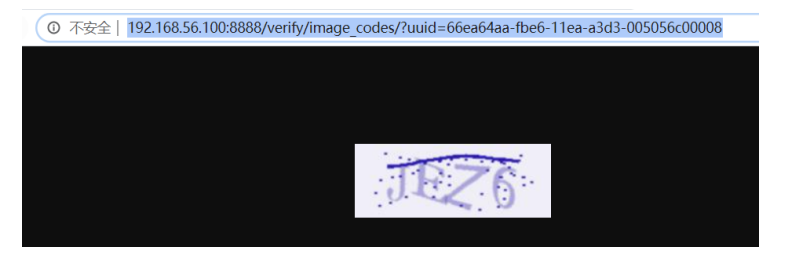
127.0.0.1:6379># select 2
 OK
127.0.0.1:6379[2]># keys *
1) "66ea64aa-fbe6-11ea-a3d3-005056c00008" 127.0.0.1:6379[2]># get 66ea64aa-fbe6-11ea-a3d3-005056c00008 "JEZ6"

 浙公网安备 33010602011771号