
android抽屉DrawerLayout在2025的沉浸式兼容 - 详解
目前使用View的DrawerLayout+NavigationView实现抽屉似乎已经年久失修。官方已经逐渐转向compose的Drawer。本文暂时没有使用compose。
基本使用
布局如下:基本逻辑为DrawerLayout+底部你的主界面+一层遮罩+navigationView。
navigationView可以使用headerLayout和menu。自行查阅。这里我自定义一行title+recyclerView+底部登录设置样式。
<?xml version="1.0" encoding="utf-8"?>
    <androidx.drawerlayout.widget.DrawerLayout xmlns:android="http://schemas.android.com/apk/res/android"
    xmlns:tools="http://schemas.android.com/tools"
    xmlns:app="http://schemas.android.com/apk/res-auto"
    android:layout_width="match_parent"
    android:layout_height="match_parent"
    tools:openDrawer="start">
  <!-- 主屏幕显示内容 -->
    <include
      android:id="@+id/content"
      layout="@layout/activity_drawer_layout_content"
      android:layout_width="match_parent"
      android:layout_height="match_parent" />
    <View
      android:id="@+id/mask"
      android:alpha="0"
      android:background="#80000000"
      android:layout_width="match_parent"
      android:layout_height="match_parent"/>
    <!-- 侧滑菜单显示内容 -->
      <com.google.android.material.navigation.NavigationView
        android:id="@+id/nav"
        app:drawerLayoutCornerSize="0dp"
        android:layout_gravity="start"
        android:layout_width="match_parent"
        android:layout_height="match_parent">
      <LinearLayout
        android:orientation="vertical"
        android:layout_width="match_parent"
        android:layout_height="match_parent">
      <androidx.constraintlayout.widget.ConstraintLayout
        android:layout_width="match_parent"
        android:layout_height="48dp">
      <TextView
        android:text="DrawerLayout-Tester"
        app:layout_constraintTop_toTopOf="parent"
        app:layout_constraintStart_toStartOf="parent"
        app:layout_constraintEnd_toEndOf="parent"
        app:layout_constraintBottom_toBottomOf="parent"
        android:layout_width="match_parent"
        android:layout_height="wrap_content"/>
    </androidx.constraintlayout.widget.ConstraintLayout>
    <androidx.recyclerview.widget.RecyclerView
      android:id="@+id/rcv"
      android:layout_weight="1"
      android:layout_width="match_parent"
      android:layout_height="0dp"/>
    <androidx.constraintlayout.widget.ConstraintLayout
      android:layout_width="match_parent"
      android:layout_height="64dp">
    <androidx.appcompat.widget.AppCompatImageView
      android:id="@+id/headIcon"
      app:layout_constraintTop_toTopOf="parent"
      android:layout_marginStart="@dimen/ui_padding_edge"
      app:layout_constraintStart_toStartOf="parent"
      app:layout_constraintBottom_toBottomOf="parent"
      android:src="@drawable/ic_floating_wrap"
      android:tint="#111111"
      android:layout_width="48dp"
      android:layout_height="48dp"/>
    <TextView
      android:text="用户abc123"
      android:textSize="18sp"
      app:layout_constraintTop_toTopOf="parent"
      app:layout_constraintStart_toEndOf="@id/headIcon"
      android:layout_marginStart="8dp"
      app:layout_constraintBottom_toBottomOf="parent"
      android:layout_width="wrap_content"
      android:layout_height="wrap_content"/>
    <androidx.appcompat.widget.AppCompatImageView
      android:id="@+id/ivTag"
      app:layout_constraintTop_toTopOf="parent"
      android:layout_marginEnd="8dp"
      app:layout_constraintEnd_toStartOf="@id/ivMenu"
      app:layout_constraintBottom_toBottomOf="parent"
      android:src="@drawable/ic_floating_tag"
      android:tint="#111111"
      android:layout_width="36dp"
      android:layout_height="36dp"/>
    <androidx.appcompat.widget.AppCompatImageView
      android:id="@+id/ivMenu"
      app:layout_constraintTop_toTopOf="parent"
      android:layout_marginEnd="@dimen/ui_padding_edge"
      app:layout_constraintEnd_toEndOf="parent"
      app:layout_constraintBottom_toBottomOf="parent"
      android:src="@drawable/ic_floating_menu"
      android:tint="#111111"
      android:layout_width="36dp"
      android:layout_height="36dp"/>
  </androidx.constraintlayout.widget.ConstraintLayout>
</LinearLayout>
</com.google.android.material.navigation.NavigationView>
</androidx.drawerlayout.widget.DrawerLayout>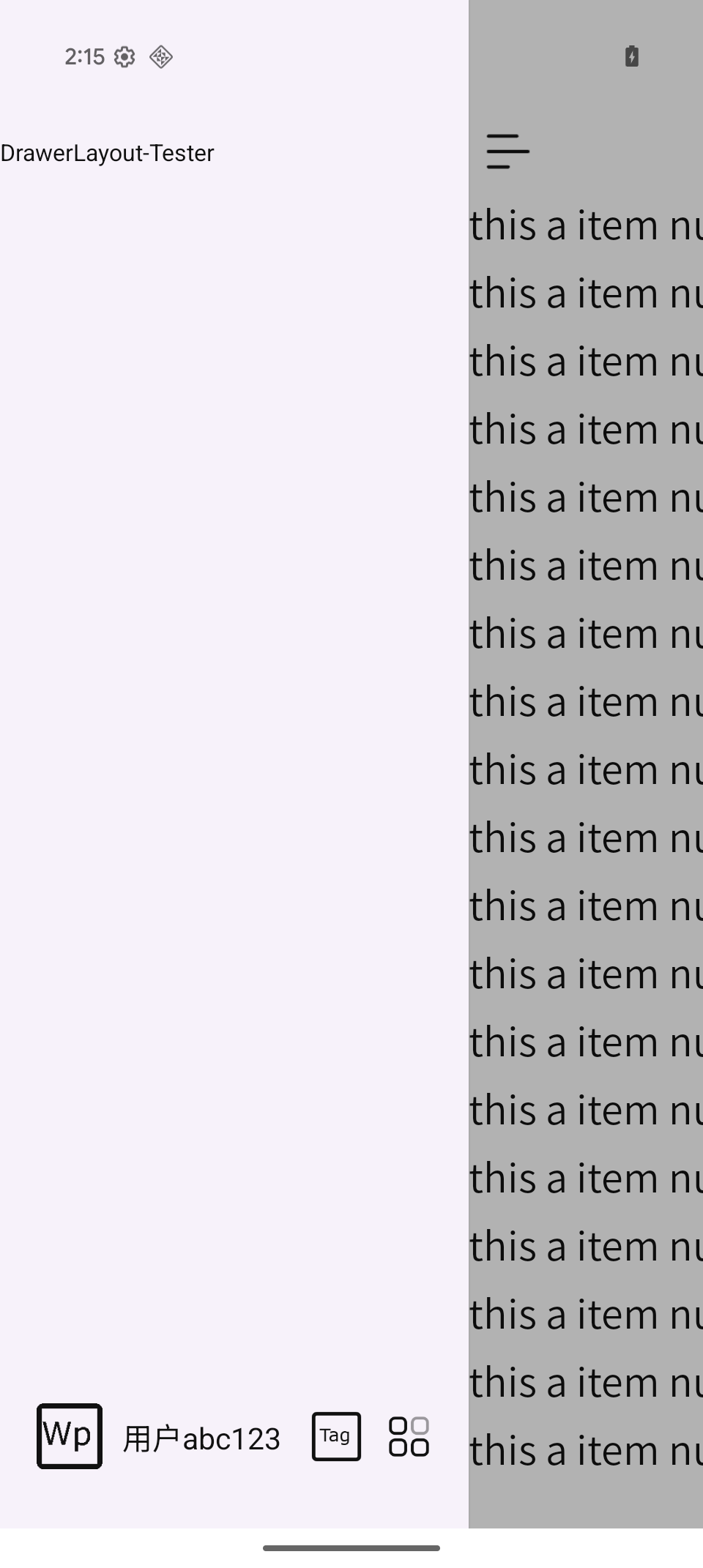
上图为目标。
于是就开始踩坑了。
不要乱加fitsSystemWindows
android:fitsSystemWindows=“true” 会出现一个title栏。 不好。
主题圆角问题
如果你的activity或者application使用Theme.Material3.Light.NoActionBar 主题,抽屉打开就是圆角效果。
使用MaterialComponents(M2)就没有圆角。
可以在 NavigationView上添加 app:drawerLayoutCornerSize=“0dp” 去除圆角。
沉浸式处理
现在android最难兼容的就是沉浸式。
通过如下代码获取statusBar和navBar的高度进行padding操作。
rootDrawer.post {
if (rootDrawer.isAttachedToWindow) {
val heights = this@AgentChatActivity.currentStatusBarAndNavBarHeight()
heights?.let { pair->
val statusBarHeight = pair.first
val navBarHeight = pair.second
navigationView.updatePadding(top = statusBarHeight, bottom = navBarHeight)
navigationView.layoutParams = navigationView.layoutParams.apply {
width = rootDrawer.width * 2 / 3
}
}
}
}
fun Activity.currentStatusBarAndNavBarHeight() : Pair<Int, Int>? {
  val insets = ViewCompat.getRootWindowInsets(window.decorView) ?: return null
  val nav = insets.getInsets(WindowInsetsCompat.Type.navigationBars()).bottom
  val sta = insets.getInsets(WindowInsetsCompat.Type.statusBars()).top
  return sta to nav
  }
沉浸式后出现navigationView上方StatusBar遮罩
<!-- 侧滑菜单显示内容 追加layout_marginTop="0.1dp" 解决status bar背景overlay-->
  <com.google.android.material.navigation.NavigationView
  android:id="@+id/navigationView"
  android:layout_gravity="start"
  android:layout_marginTop="0.1dp"
发现侧滑过来,抽屉的上方被statusBar遮挡。通过尝试,给出一点点marginTop就能解决。谁知道什么原因呢。
实现推拉的效果
很多app有左右推拉效果,比如腾讯元宝,DeepSeek。
第一步移除自带的黑色遮罩 drawer.setScrimColor(Color.TRANSPARENT)
第二步 addDrawerListener mask+translation实现右侧跟随
rootDrawer.addDrawerListener(object : DrawerListener {
override fun onDrawerSlide(drawerView: View, slideOffset: Float) {
// slideOffset: 0(完全关闭)到 1(完全打开)
// 计算主内容应该平移的距离:抽屉宽度 * 滑动比率
val moveX = drawerView.width * slideOffset
chatLayout.mask.alpha = slideOffset * 0.5f
// 如果是左侧抽屉,主内容应向右平移
if (drawerView.layoutDirection == View.LAYOUT_DIRECTION_LTR) {
chatLayout.translationX = moveX
} else {
chatLayout.translationX = -moveX
}
}
override fun onDrawerOpened(drawerView: View) {
}
override fun onDrawerClosed(drawerView: View) {
// 抽屉关闭后,将主内容复位
chatLayout.translationX = 0f
// 清除遮罩
chatLayout.mask.alpha = 0f
}
override fun onDrawerStateChanged(newState: Int) {}
})
//沉浸式处理
屏幕内左滑
主要就是实现在主界面上左滑能触发左边的抽屉拉出。
如果你的主界面很复杂,有一些嵌套的左滑操作就不要搞这个。
参考:
https://github.com/PureWriter/FullDraggableDrawer
实现逻辑就是touch事件检测,浏览了下代码中写了不少忽略的逻辑,避免与主界面冲突减少误触的风险。

 浙公网安备 33010602011771号