
Rust Slint虚拟键盘源码分享 - 详解
Rust Slint虚拟键盘源码分享
一、效果展示
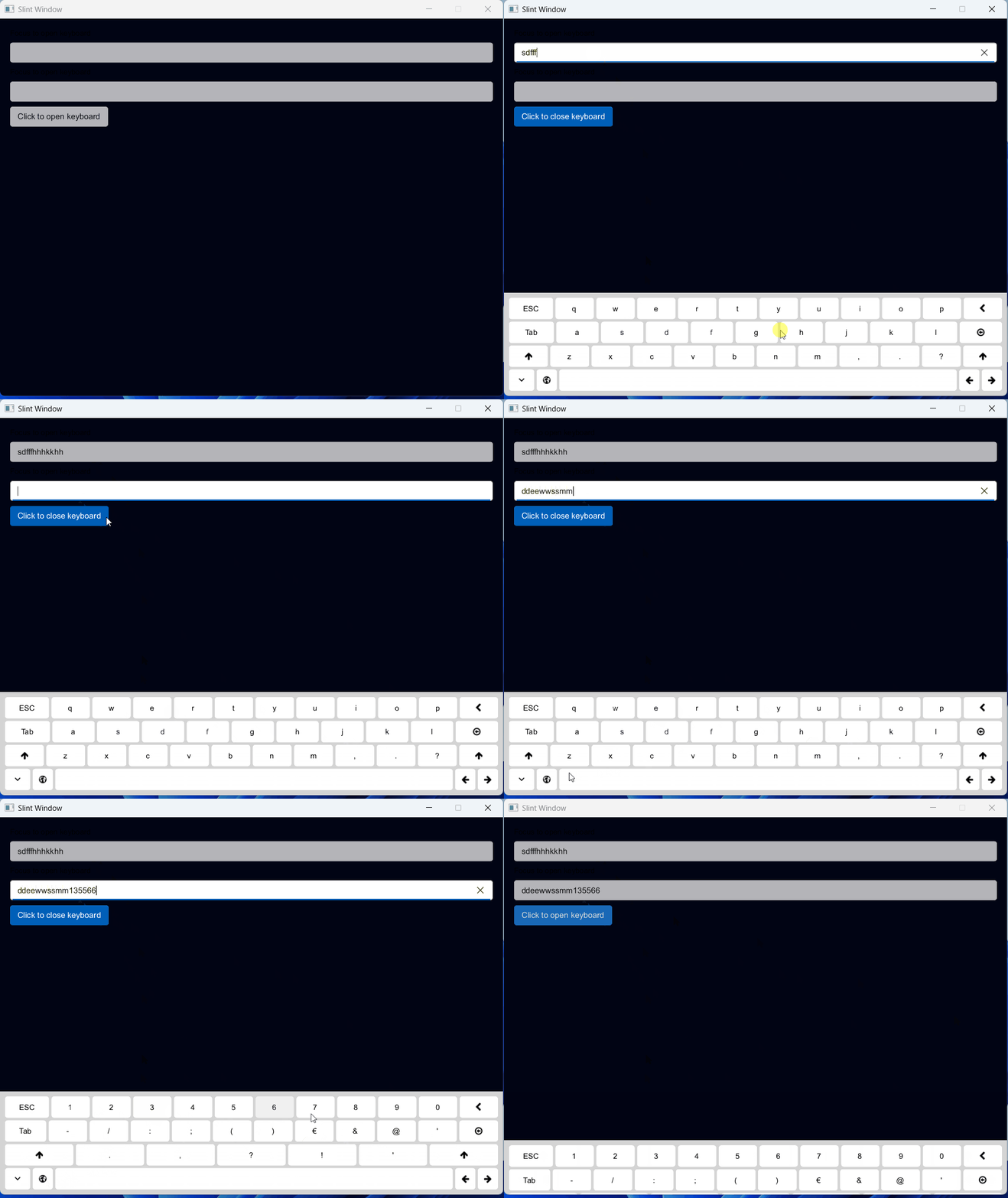
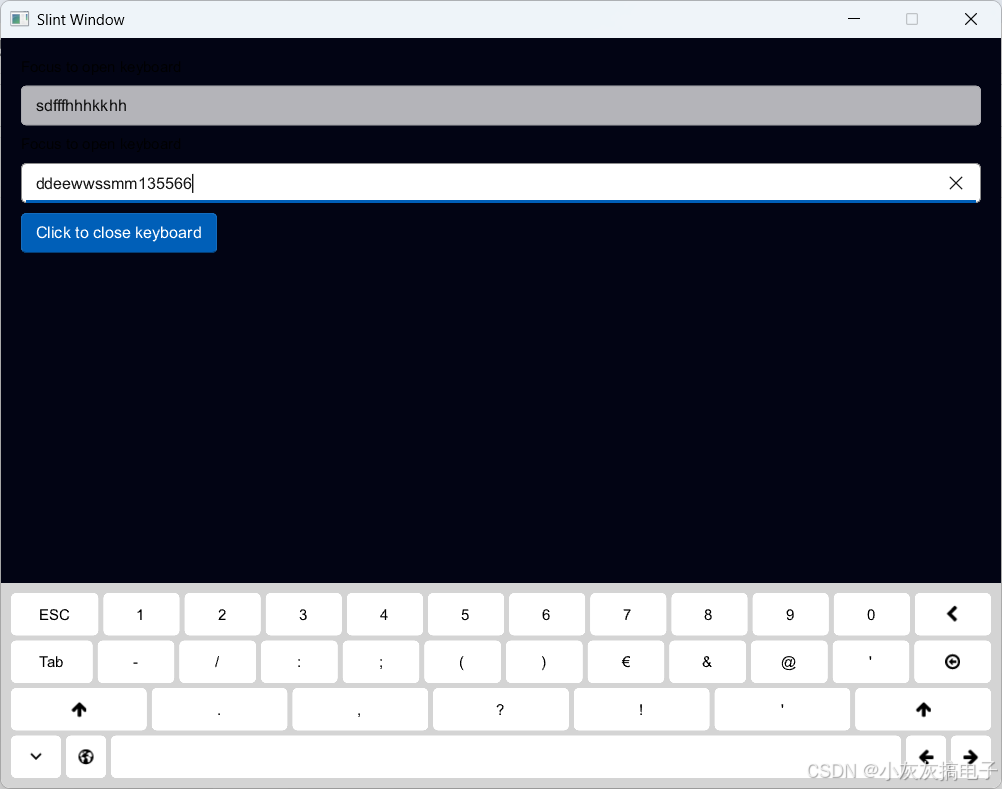
二、源码分享
1、main.rs
use std::any::Any;
use slint::{PlatformError};
slint::include_modules!();
fn main() ->Result<(), PlatformError>{
  let app: MainWindow  = MainWindow::new()?;
  let weak: slint::Weak<MainWindow> = app.as_weak();
    app.global::<DataAdapter>().on_btn_clicked({
      let weak = weak.clone();
      move |text|{
      if let Some(strong) = weak.upgrade(){
      let adapter = strong.global::<DataAdapter>();
        println!("{}",text);
        }
        }
        });
        app.global::<VirtualKeyboardHandler>().on_key_pressed({
          move |key| {
          weak.unwrap()
          .window()
          .dispatch_event(slint::platform::WindowEvent::KeyPressed { text: key.clone() });
          weak.unwrap()
          .window()
          .dispatch_event(slint::platform::WindowEvent::KeyReleased { text: key });
          }
          });
          let _ = app.run();
          Ok(())
          }
2、icons.slint
// Copyright © SixtyFPS GmbH <info@slint.dev>
  // SPDX-License-Identifier: MIT
  export global Icons {
  out property <image> arrow-up: @image-url("image/arrow-up.svg");
    out property <image> arrow-left: @image-url("image/arrow-left.svg");
      out property <image> arrow-right: @image-url("image/arrow-right.svg");
        out property <image> chevron-left: @image-url("image/chevron-left.svg");
          out property <image> arrow-circle-o-left: @image-url("image/arrow-circle-o-left.svg");
            out property <image> globe: @image-url("image/globe.svg");
              out property <image> expand-more: @image-url("image/expand-more.svg");
                }
3、main.slint
import { AboutSlint, VerticalBox, LineEdit, HorizontalBox, Button, GroupBox, GridBox,
ComboBox, Spinner, Slider, ListView, Palette, ProgressIndicator, CheckBox, Switch } from "std-widgets.slint";
import { DataAdapter} from "models.slint";
export { DataAdapter}
import { VirtualKeyboardHandler, VirtualKeyboard, KeyModel } from "virtual_keyboard.slint";
export { VirtualKeyboardHandler, KeyModel }
export component MainWindow inherits Window {
width: 800px;
height: 600px;
background: #020414;
Rectangle {
VerticalLayout {
alignment: start;
padding: 16px;
spacing: 8px;
Text {
text: "Focus to open keyboard";
horizontal-alignment: left;
}
LineEdit {}
Text {
text: "Focus to open keyboard";
horizontal-alignment: left;
}
LineEdit {}
HorizontalLayout {
alignment: start;
Button {
text: self.checked ? "Click to close keyboard" : "Click to open keyboard";
checked: TextInputInterface.text-input-focused;
clicked => {
TextInputInterface.text-input-focused = !TextInputInterface.text-input-focused;
}
}
}
}
keyboard := VirtualKeyboard {
y: TextInputInterface.text-input-focused ? parent.height - self.height : parent.height;
}
}
}
4、virtual_keyboard.slint
// Copyright © SixtyFPS GmbH <info@slint.dev>
  // SPDX-License-Identifier: MIT
  import { Button, Palette } from "std-widgets.slint";
  import { Icons } from "icons.slint";
  component VirtualKeyboardButton {
  in property <string> key;
    in property <image> icon;
      callback key-pressed(/* key */ string);
      min-width: 32px;
      min-height: 32px;
      horizontal-stretch: 0;
      states [
      pressed when i-touch-area.pressed : {
      i-state-area.opacity: 0.5;
      }
      ]
      i-container := Rectangle {
      border-radius: 4px;
      background: Palette.color-scheme == ColorScheme.dark ? #373737 : #ffffff;
      HorizontalLayout {
      padding: 8px;
      if (root.key != "") : Text {
      text: root.key;
      color: Palette.color-scheme == ColorScheme.dark ? #ffffff : #000000;
      font-size: 12px;
      vertical-alignment: center;
      horizontal-alignment: center;
      }
      if (root.key == "") : Image {
      y: (parent.height - self.height) / 2;
      source: root.icon;
      height: 18px;
      colorize: Palette.color-scheme == ColorScheme.dark ? #ffffff : #000000;
      }
      }
      }
      i-state-area := Rectangle {
      border-radius: i-container.border-radius;
      opacity: 0;
      background: #000000;
      animate opacity { duration: 150ms; }
      }
      i-touch-area := TouchArea {
      pointer-event(event) => {
      if(event.kind == PointerEventKind.down) {
      root.key-pressed(key);
      }
      }
      }
      }
      export struct KeyModel {
      key: string,
      shift-key: string,
      }
      export global VirtualKeyboardHandler {
      in property <[[[KeyModel]]]> default-key-sets: [
        [
        [
        { key: "q", shift-key: "Q" },
        { key: "w", shift-key: "W"  },
        { key: "e", shift-key: "E"  },
        { key: "r", shift-key: "R"  },
        { key: "t", shift-key: "T"  },
        { key: "y", shift-key: "Y"  },
        { key: "u", shift-key: "U"  },
        { key: "i", shift-key: "I"  },
        { key: "o", shift-key: "O"  },
        { key: "p", shift-key: "P"  }
        ],
        [
        { key: "a", shift-key: "A" },
        { key: "s", shift-key: "S" },
        { key: "d", shift-key: "D" },
        { key: "f", shift-key: "F" },
        { key: "g", shift-key: "G" },
        { key: "h", shift-key: "H" },
        { key: "j", shift-key: "J" },
        { key: "k", shift-key: "K" },
        { key: "l", shift-key: "L" }
        ],
        [
        { key: "z", shift-key: "Z" },
        { key: "x", shift-key: "X" },
        { key: "c", shift-key: "C" },
        { key: "v", shift-key: "V" },
        { key: "b", shift-key: "B" },
        { key: "n", shift-key: "N" },
        { key: "m", shift-key: "M" },
        { key: ",", shift-key: ";" },
        { key: ".", shift-key: ":" },
        { key: "?", shift-key: "?" }
        ],
        ],
        [
        [
        { key: "1", shift-key: "[" },
        { key: "2", shift-key: "]" },
        { key: "3", shift-key: "{" },
        { key: "4", shift-key: "}" },
        { key: "5", shift-key: "#" },
        { key: "6", shift-key: "%" },
        { key: "7", shift-key: "^" },
        { key: "8", shift-key: "*" },
        { key: "9", shift-key: "+" },
        { key: "0", shift-key: "=" }
        ],
        [
        { key: "-", shift-key: "_" },
        { key: "/", shift-key: "\\" },
        { key: ":", shift-key: "|" },
        { key: ";", shift-key: "~" },
        { key: "(", shift-key: "<" },
        { key: ")", shift-key: ">" },
        { key: "€", shift-key: "$" },
        { key: "&", shift-key: "€" },
        { key: "@", shift-key: "°" },
        { key: "'", shift-key: "#" },
        ],
        [
        { key: ".", shift-key: "." },
        { key: ",", shift-key: "," },
        { key: "?", shift-key: "?" },
        { key: "!", shift-key: "!" },
        { key: "'", shift-key: "'" },
        ],
        ]
        ];
        out property <int> current-key-set;
          out property <[[KeyModel]]> keys: default-key-sets[self.current-key-set];
            in-out property <bool> open;
              callback key_pressed(/* key */ string);
              public function switch-keyboard() {
              if (self.current-key-set < self.default-key-sets.length - 1) {
              self.current-key-set += 1;
              } else {
              self.current-key-set -= 1;
              }
              self.current-key-set = min(self.default-key-sets.length - 1, max(0, self.current-key-set))
              }
              }
              export component VirtualKeyboard  {
              private property <bool> shift;
                callback close();
                preferred-width: 100%;
                TouchArea {}
                Rectangle {
                background: Palette.color-scheme == ColorScheme.dark ? #1c1c1c : #d4d4d4;
                height: 100%;
                }
                i-layout := VerticalLayout {
                padding: 8px;
                spacing: 4px;
                for row[index] in VirtualKeyboardHandler.keys : HorizontalLayout {
                spacing: 4px;
                if (index == 0) : VirtualKeyboardButton {
                key: "ESC";
                key-pressed => {
                VirtualKeyboardHandler.key-pressed(Key.Escape);
                }
                }
                if (index == 1) : VirtualKeyboardButton {
                key: "Tab";
                key-pressed => {
                VirtualKeyboardHandler.key-pressed(Key.Tab);
                }
                }
                // shift
                if (index == 2) : VirtualKeyboardButton {
                icon: Icons.arrow-up;
                key-pressed => {
                root.shift = !root.shift;
                }
                }
                for km in row : VirtualKeyboardButton {
                key: root.shift ? km.shift-key : km.key;
                key-pressed(key) => {
                VirtualKeyboardHandler.key-pressed(key);
                root.shift = false;
                }
                }
                if (index == 0) : VirtualKeyboardButton {
                icon: Icons.chevron-left;
                key-pressed => {
                VirtualKeyboardHandler.key-pressed(Key.Backspace);
                }
                }
                if (index == 1) : VirtualKeyboardButton {
                icon: Icons.arrow-circle-o-left;
                key-pressed => {
                VirtualKeyboardHandler.key-pressed(Key.Return);
                }
                }
                // shift
                if (index == 2) : VirtualKeyboardButton {
                icon: Icons.arrow-up;
                key-pressed => {
                root.shift = !root.shift;
                }
                }
                }
                HorizontalLayout {
                spacing: 4px;
                VirtualKeyboardButton {
                icon: Icons.expand-more;
                key-pressed(key) => {
                root.close();
                }
                }
                VirtualKeyboardButton {
                icon: Icons.globe;
                key-pressed(key) => {
                VirtualKeyboardHandler.switch-keyboard();
                }
                }
                VirtualKeyboardButton {
                horizontal-stretch: 1;
                key: " ";
                key-pressed(key) => {
                root.shift = false;
                VirtualKeyboardHandler.key-pressed(key);
                }
                }
                VirtualKeyboardButton {
                icon: Icons.arrow-left;
                key-pressed(key) => {
                VirtualKeyboardHandler.key-pressed(Key.LeftArrow);
                }
                }
                VirtualKeyboardButton {
                icon: Icons.arrow-right;
                key-pressed(key) => {
                VirtualKeyboardHandler.key-pressed(Key.RightArrow);
                }
                }
                }
                }
                animate y { duration: 500ms; easing: cubic-bezier(0.05, 0.7, 0.1, 1.0); }
                }
5、资源文件
文章顶部下载
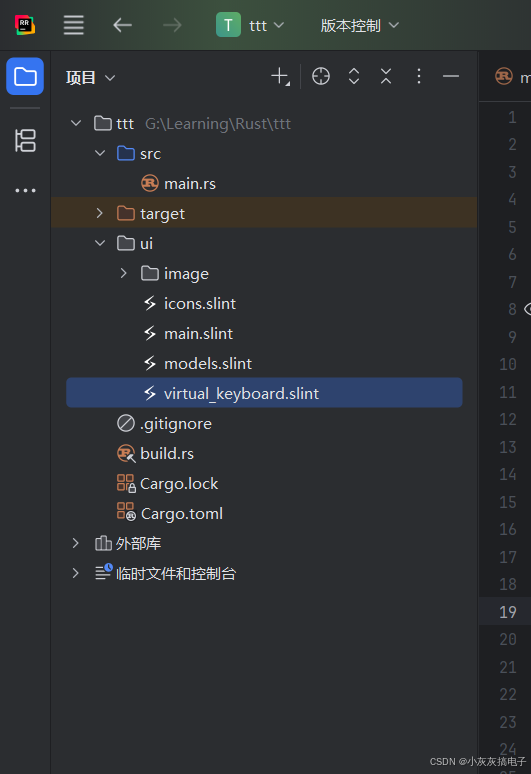
6、工程结构
三、Slint介绍
1、 Slint 是什么?
Slint 是一个用于构建原生用户界面的工具包,特别适用于嵌入式设备和桌面应用程序。它最初是用 Rust 编写的,并且为 Rust 开发者提供了优秀的支持。其核心目标是提供一种高效、安全且现代化的方式来创建流畅、响应式的 UI。
2、核心特点
- 声明式 UI:Slint 使用一种名为
.slint的声明式语言(受 QML 和 HTML 启发)来描述用户界面。开发者专注于定义 UI 的结构和状态,而不是编写大量的命令式代码来控制每个像素。 - 高效渲染:它使用轻量级的渲染引擎,针对性能进行了优化,特别适合资源受限的环境(如微控制器)。
- 数据绑定:UI 元素可以轻松绑定到 Rust 代码中的数据模型或属性。当底层数据发生变化时,UI 会自动更新(响应式)。
- 内存安全:得益于 Rust 的所有权和借用规则,Slint 能够帮助开发者避免常见的内存错误和安全漏洞。
- 跨平台:支持 Linux、Windows、macOS 以及各种嵌入式平台(如通过 LVGL 集成)。
3、 Slint 的核心组成部分
.slint文件:这是定义 UI 布局、组件、属性、状态和交互逻辑的主要文件。它使用类似 QML 的语法。- Slint 编译器 (
slint-compiler):将.slint文件编译成高效的 Rust 代码(或 C++ 代码)。 - Slint 运行时库 (
slintcrate):提供在运行时渲染 UI、处理事件、管理状态和执行数据绑定所需的库功能。
4、 基本用法示例 (Rust)
假设我们有一个简单的 UI,包含一个按钮和一个标签。点击按钮时,标签显示点击次数。
Step 1: 定义 UI (example.slint)
import { Button, VerticalBox } from "std-widgets.slint";
export component ExampleWindow {
    callback button-clicked;
    in-out property  count: 0;
    VerticalBox {
        Text {
            text: "Count: " + count;
        }
        Button {
            text: "Click Me!";
            clicked => {
                button-clicked();
            }
        }
    }
}
Step 2: Rust 代码集成
// 引入 slint 宏和类型
slint::slint! {
// 编译器会自动处理 example.slint 并生成 Rust 代码
include!("example.slint");
}
use slint::ComponentHandle; // 用于访问窗口实例的方法
fn main() {
// 创建 UI 窗口实例
let ui = ExampleWindow::new().unwrap();
// 获取对 count 属性的弱引用 (Weak<> 避免循环引用)
let ui_weak = ui.as_weak();
// 连接按钮点击信号到 Rust 闭包
ui.on_button_clicked(move || {
let ui = ui_weak.unwrap();
// 更新 count 属性 (会自动触发 UI 更新)
let current_count = ui.get_count();
ui.set_count(current_count + 1);
});
// 运行 UI 主循环
ui.run().unwrap();
}
关键点解释
slint::slint!宏:它将.slint文件编译并集成到 Rust 代码中,生成ExampleWindow结构体和相关方法。- 属性 (
property <int> count):在.slint文件中定义了一个可读写的整数属性count。在 Rust 中,可以通过get_count()和set_count()方法访问和修改它。 - 信号 (
callback button-clicked):定义了一个信号button-clicked。在 Rust 中,使用on_button_clicked方法注册一个闭包来处理这个信号。 - 数据绑定:在
.slint文件中,Text的text属性绑定到表达式"Count: " + count。当 Rust 代码调用set_count改变count的值时,这个文本会自动更新。 ComponentHandle:提供访问窗口实例的方法,如as_weak用于获取弱引用。run():启动 UI 的事件循环。
5、 优势
- 开发效率:声明式语法和数据绑定简化了 UI 开发。
- 性能:轻量级渲染引擎和优化的 Rust 代码带来流畅体验。
- 安全:Rust 的内存安全特性贯穿整个 UI 开发过程。
- 跨平台:一套代码可部署到多种设备。
- 现代性:响应式设计理念。
6、适用场景
- 嵌入式设备仪表盘
- 桌面应用 GUI (替代部分 Electron 场景)
- 工业控制界面
- 需要高性能和低资源占用的 UI
7、与其他 Rust GUI 库的比较
| 特性 | Slint | Druid | Iced | egui |
|---|---|---|---|---|
| 范式 | 声明式 (.slint) | 命令式/响应式 | 响应式/Elm-like | 即时模式 (Immediate) |
| 学习曲线 | 中等 (需学新语言) | 中等 | 中等 | 较低 |
| 性能 | 非常高 | 高 | 高 | 中等 |
| 跨平台 | 广泛 (含嵌入式) | 桌面 | 桌面/Web | 桌面/Web/WASM |
| 成熟度 | 快速发展 | 较成熟 | 较成熟 | 较成熟 |
| 强项 | 嵌入式、性能、安全性 | 数据驱动、灵活性 | 纯 Rust、Elm 架构 | 简单、快速原型 |
8、总结
Slint 为 Rust 开发者提供了一个强大且现代的解决方案,用于构建高性能、安全且美观的用户界面,尤其是在嵌入式系统和资源受限的桌面环境中表现出色。其声明式的 .slint 语言结合 Rust 的强大功能,使得开发响应式 UI 变得更加高效和安全。如果你正在寻找一个高效、跨平台且安全的 Rust GUI 框架,Slint 绝对值得一试。
 浙公网安备 33010602011771号