
Tweened Animations 渐变动作
Tweened Animations 渐变动作
Animations分两类:
第一类:渐变的(Tweened): 淡入淡出(Alpha),旋转(Rotate),移动(Translate),缩放(Scale);
第二类:Frame-by-Frame: 就如电影一般由多张图片按照一定的时间间隔显示。
使用Tweened Animations的Java代码使用步骤(当然你也可以不用AnimationSet):
1. 创建一个AnimationSet对象
2. 根据需要创建相应的Animation对象(AlphaAnimation、RotateAnimation、ScaleAnimation、TranslateAnimation)
3. 设置Animation对象相应的数据(duration, startoffset......)
4. 使用addAnimation方法将Animation对象添加到AnimationSet对象当中
5. 使用控件对象开始执行AnimationSet
l view.startAnimation(animation);
l view.setAnimation(animation);
view.startNow();
取消动作:
l animation.cancel(); //动作本身取消
l animationset.cancel(); //动作集取消
l (View控件)img.clearAnimation(); //控件取消附在其上的动作
AnimationSet
用于控制View对象进行多个动作的组合,该类继承于Animation类
l AnimationSet animationSet = new AnimationSet(true);
l animationSet.addAnimation(rotateAnimation);
l animationSet.cancel();
e.g.创建一个移动的动作

l //设置动画执行事件(单位:毫秒)
l setDuration(long durationMills);
l //如果fillAfter的值为true,则动画执行后,控件将停留在执行结果的状态
l setFillAfter(boolean fillAfter);
l //如果fillBefore的值为true,则动画执行后,控件将回到动画执行之前的状态
l setFillBefore(boolen fillBefore);
l //设置动画执行之前的等待时间
l setStartOffSet(long startOffSet);
l //设置动画再重复执行的次数 注意repeatcount(x)共执行x+1次
l setRepeatCount(int repeatCount);
l //设置动作重复的模式 repeatMode为Animation.REVERSE或Animation.RESTART
l setRepeatMode(int repeatMode);
AlphaAnimation
public AlphaAnimation (float fromAlpha, float toAlpha)
起始透明度和终止透明度,1为不透明,0为透明。
RotateAnimation
l RotateAnimation(float fromDegrees, float toDegrees)
l RotateAnimation(float fromDegrees, float toDegrees, float pivotX, float pivotY)
l RotateAnimation (float fromDegrees, float toDegrees, int pivotXType, float pivotXValue, int pivotYType, float pivotYValue)
参数说明:
float fromDegrees:旋转的开始角度。 0f
float toDegrees:旋转的结束角度。 360f
这2个参数确定从什么角度旋转到什么角度
int pivotXType:X轴的伸缩模式,可以取值为ABSOLUTE、RELATIVE_TO_SELF、RELATIVE_TO_PARENT。
float pivotXValue:旋转中心X坐标的伸缩值。
int pivotYType:Y轴的伸缩模式,可以取值为ABSOLUTE、RELATIVE_TO_SELF、RELATIVE_TO_PARENT。
float pivotYValue:旋转中心Y坐标的伸缩值。
这4个参数确定旋转的中心点,即以哪个点为轴进行旋转。
Animation.ABSOLUTE:具体的坐标值,指绝对的屏幕像素单位
Animation.RELATIVE_TO_SELF:相对自己的坐标值,0.1f是指自己的坐标值乘以0.1
Animation.RELATIVE_TO_PARENT:相对父容器的坐标值,0.1f是指父容器的坐标值乘以0.1
TranslateAnimation
l TranslateAnimation(float fromXDelta, float toXDelta, float fromYDelta, float toYDelta)
l TranslateAnimation(int fromXType, float fromXValue, int toXType, float toXValue, int fromYType, float fromYValue, int toYType, float toYValue)
参数说明:
float fromXDelta:这个参数表示动画开始的点离当前View X坐标上的差值;
float toXDelta, 这个参数表示动画结束的点离当前View X坐标上的差值;
float fromYDelta, 这个参数表示动画开始的点离当前View Y坐标上的差值;
float toYDelta, 这个参数表示动画开始的点离当前View Y坐标上的差值;
这4个参数确定移动的起点和终点
fromXType:x轴(Animation.ABSOLUTE, Animation.RELATIVE_TO_SELF, Animation.RELATIVE_TO_PARENT);
fromXValue:第二个参数是第一个参数类型的起始值;
toXType,toXValue:第三个参数与第四个参数是x轴方向的终点参照与对应值;
这8个参数也是确定移动的起点和终点
l ScaleAnimation(float fromX, float toX, float fromY, float toY)
l ScaleAnimation(float fromX, float toX, float fromY, float toY, float pivotX, float pivotY)
l ScaleAnimation(float fromX, float toX, float fromY, float toY, int pivotXType, float pivotXValue, int pivotYType, float pivotYValue)
参数说明:
float fromX 动画起始时 X坐标上的伸缩尺寸
float toX 动画结束时 X坐标上的伸缩尺寸
float fromY 动画起始时Y坐标上的伸缩尺寸
float toY 动画结束时Y坐标上的伸缩尺寸
这4个参数确定从什么大小缩放到什么大小
int pivotXType 动画在X轴相对于物件位置类型
float pivotXValue 动画相对于物件的X坐标的开始位置
int pivotYType 动画在Y轴相对于物件位置类型
float pivotYValue 动画相对于物件的Y坐标的开始位置
这4个参数确定开始缩放的坐标,最后坐标是原来的坐标
疑问:
明明已经在每个动作开始之前取消了动作,但是……
若在渐变过程中点击其他动作,如旋转,则图片还是会以渐变过程中保持的透明度进行其他动作,而后正常。
但若在选择过程中点击其他动作,如移动,那图片的方向还是正常的。
也就是说,取消动作并不能改变当前图片的透明度,但是方向却恢复了正常。
代码如下:


<?xml version="1.0" encoding="utf-8"?>
<RelativeLayout xmlns:android="http://schemas.android.com/apk/res/android"
              android:orientation="vertical"
              android:layout_width="fill_parent"
              android:layout_height="fill_parent">


    <ImageView
            android:layout_width="wrap_content"
            android:layout_height="wrap_content"
            android:src="@drawable/n"
            android:id="@+id/img"
            android:layout_gravity="center"></ImageView>

    <Button
            android:layout_width="wrap_content"
            android:layout_height="wrap_content"
            android:text="渐变"
            android:id="@+id/button1"
            android:layout_alignParentRight="true"
            android:layout_alignParentTop="true"/>

    <Button
            android:layout_width="wrap_content"
            android:layout_height="wrap_content"
            android:text="旋转"
            android:id="@+id/button2"
            android:layout_alignRight="@+id/button1"
            android:layout_below="@+id/button1"/>

    <Button
            android:layout_width="wrap_content"
            android:layout_height="wrap_content"
            android:text="移动"
            android:id="@+id/button3"
            android:layout_alignRight="@+id/button2"
            android:layout_below="@+id/button2"/>

    <Button
            android:layout_width="wrap_content"
            android:layout_height="wrap_content"
            android:text="缩放"
            android:id="@+id/button4"
            android:layout_alignRight="@+id/button3"
            android:layout_below="@+id/button3"/>

</RelativeLayout>
package com.example.Animations;

import android.app.Activity;
import android.os.Bundle;
import android.view.View;
import android.view.animation.*;
import android.widget.Button;
import android.widget.ImageView;

public class MyActivity extends Activity
{
    private Button button1, button2, button3, button4;
    private ImageView img;

    /*
    * 若在渐变过程中点击其他动作,如旋转,则图片还是会以渐变过程中保持的透明度进行其他动作,而后正常
    */
    @Override
    public void onCreate(Bundle savedInstanceState)
    {
        super.onCreate(savedInstanceState);
        setContentView(R.layout.main);
        init();
        Alpha();
        Rotate();
        Translate();
        Scale();
    }

    public void init()
    {
        button1 = (Button) findViewById(R.id.button1);
        button2 = (Button) findViewById(R.id.button2);
        button3 = (Button) findViewById(R.id.button3);
        button4 = (Button) findViewById(R.id.button4);
        img = (ImageView) findViewById(R.id.img);
    }

    public void Alpha()
    {
        //public AlphaAnimation (float fromAlpha, float toAlpha)
        //起始透明度和终止透明度,1为不透明,0为透明。
        final AlphaAnimation alphaAnimation = new AlphaAnimation(1, 0);
        alphaAnimation.setDuration(1000);
        alphaAnimation.setRepeatCount(1);
        alphaAnimation.setFillAfter(true);
        alphaAnimation.setStartOffset(10);
        button1.setOnClickListener(new View.OnClickListener()
        {
            @Override
            public void onClick(View view)
            {
                //若不清除,则每按一次动作叠加。
                img.clearAnimation();
                img.startAnimation(alphaAnimation);
            }
        });
    }

    public void Rotate()
    {
        final RotateAnimation rotateAnimation = new RotateAnimation(0f, 360f, Animation.RELATIVE_TO_SELF, 1.5f,
                Animation.RELATIVE_TO_SELF, 1.5f);
        rotateAnimation.setDuration(3000);
        button2.setOnClickListener(new View.OnClickListener()
        {
            @Override
            public void onClick(View view)
            {
                img.clearAnimation();
                img.startAnimation(rotateAnimation);
            }
        });
    }

    public void Translate()
    {
        final TranslateAnimation translateAnimation = new TranslateAnimation(Animation.RELATIVE_TO_SELF, 0f,
                Animation.RELATIVE_TO_SELF, 2f, Animation.RELATIVE_TO_SELF, 0f, Animation.RELATIVE_TO_SELF, 2f);
        translateAnimation.setDuration(3000);
        translateAnimation.setRepeatMode(Animation.REVERSE);
        translateAnimation.setRepeatCount(3);
        button3.setOnClickListener(new View.OnClickListener()
        {
            @Override
            public void onClick(View view)
            {
                img.clearAnimation();
                img.startAnimation(translateAnimation);
            }
        });
    }

    public void Scale()
    {
        final ScaleAnimation scaleAnimation = new ScaleAnimation(0f, 1f, 0f, 1f, Animation.RELATIVE_TO_SELF, 1.5f,
                Animation.RELATIVE_TO_SELF, 1.5f);
        scaleAnimation.setDuration(3000);
        scaleAnimation.setRepeatMode(Animation.RESTART);
        scaleAnimation.setRepeatCount(2);
        button4.setOnClickListener(new View.OnClickListener()
        {
            @Override
            public void onClick(View view)
            {
                img.clearAnimation();
                img.startAnimation(scaleAnimation);
            }
        });
    }
}
效果图:
渐变

旋转
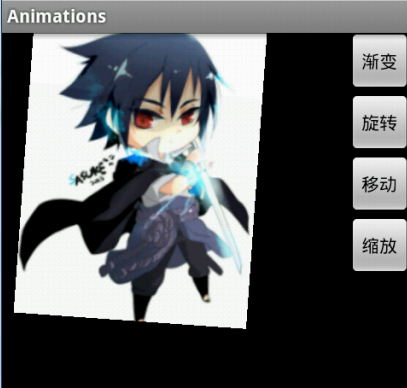
移动

缩放

ps.这篇本来是在wps上写好的,若直接复制过来格式全没了,幸好找到了一个方法,就是将wps另存为html,然后将html的源代码复制到这里的html编辑框,很实用。以后就不用每次都用这个垃圾编辑框了。不过在wps上有些格式处理的不统一,所以有些地方格式乱了。

 浙公网安备 33010602011771号