
VScode在顶部生成作者信息
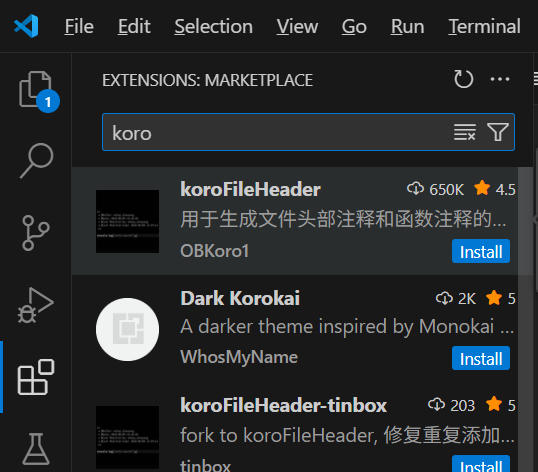
1、安装koroFileHeader
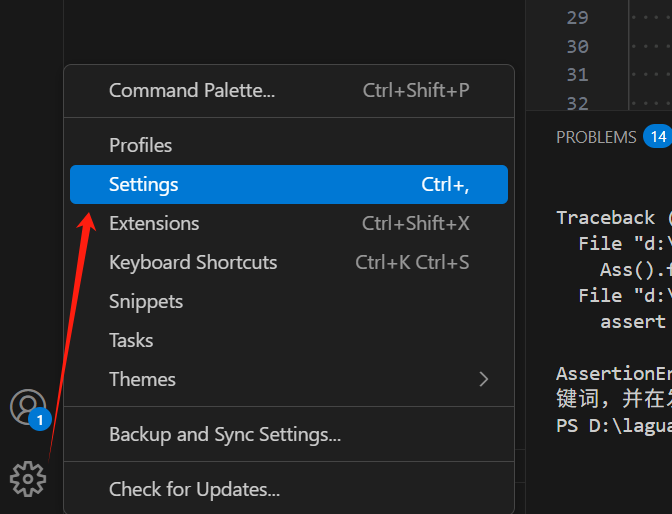
2、左下角选择管理---设置---输入"fileheader"---点击"在setting.json中编辑"
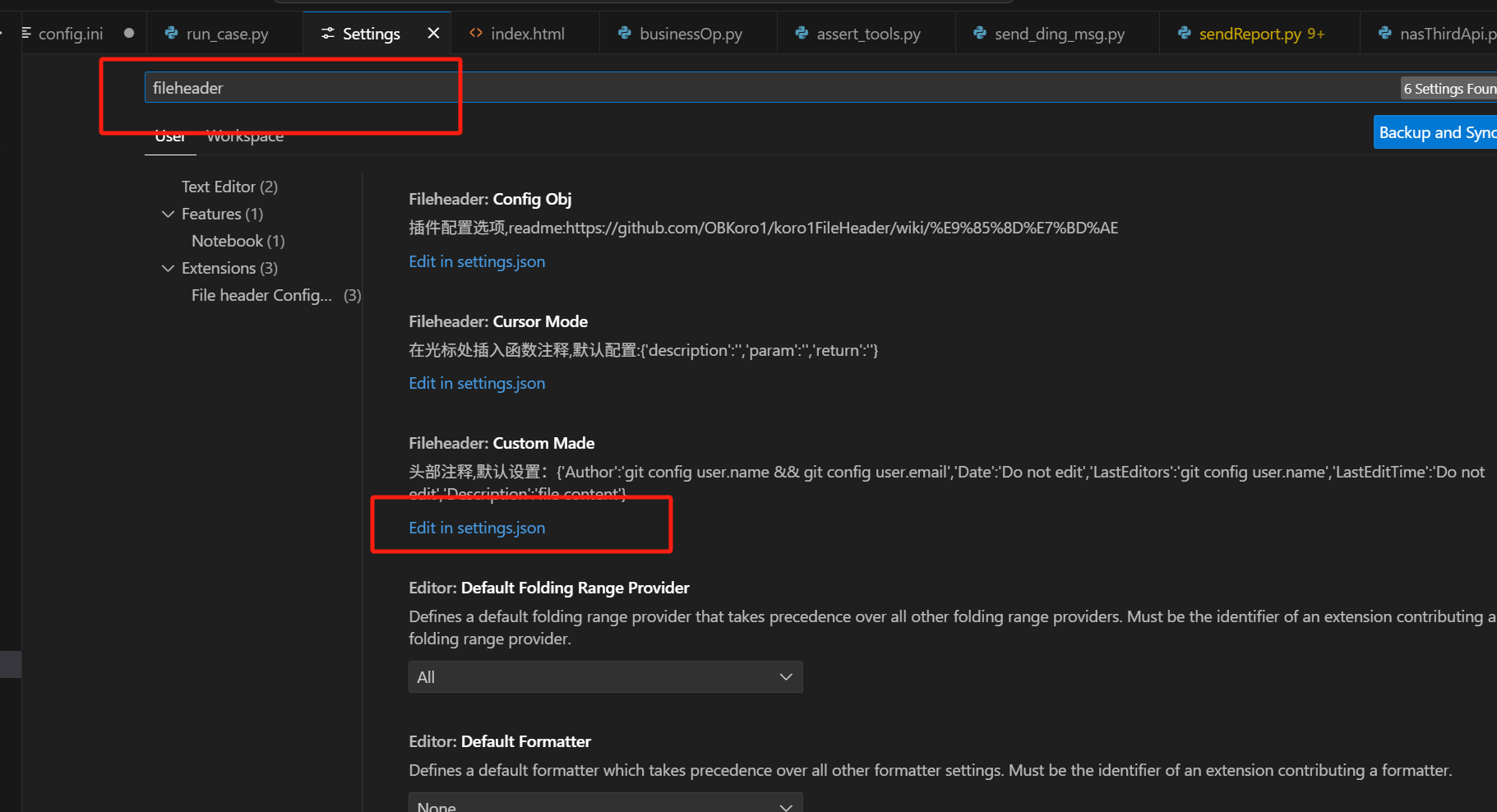
3、输入"fileheader"-点击"在setting.json中编辑
初始文件代码如下:
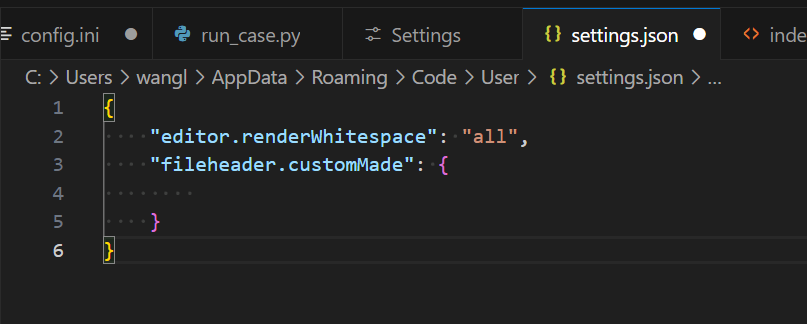
{
  "fileheader.customMade": {
    "Author": "你的名字",
    "Date": "Do not edit", // 文件创建日期(自动生成)
    "LastEditors": "你的名字", // 最后编辑者
    "LastEditTime": "Do not edit", // 最后编辑时间(自动更新)
    "Description": "文件用途描述",
    "FilePath": "Do not edit" // 文件路径(可选)
  }
}
(2)默认支持变量(自动替换)
| 变量 | 作用 |
|---|---|
Do not edit |
自动填充当前日期/时间 |
$/ |
获取 Git 用户名 |
%Y-%m-%d |
格式化日期(2024-05-21) |
${env:USERNAME} |
获取系统用户名(Windows) |
OBS-xxx |
自定义变量(在 settings.json 里定义) |
3. 自定义触发快捷键
默认快捷键是 Ctrl + Alt + I(插入文件头)和 Ctrl + Alt + T(更新最后修改信息)。
如需更改:
{
  "fileheader.cursorMode": {
    "description": "快速插入注释",
    "key": "Ctrl+Alt+C"
  }
}
3. 自定义触发快捷键
默认快捷键是 Ctrl + Alt + I(插入文件头)和 Ctrl + Alt + T(更新最后修改信息)。
如需更改:
{
  "fileheader.cursorMode": {
    "description": "快速插入注释",
    "key": "Ctrl+Alt+C"
  }
}
4. 示例效果
Python
#!/usr/bin/env python
# -*- coding: utf-8 -*-
# @Author: 你的名字
# @Date: 2024-05-21 14:00:00
# @LastEditors: 你的名字
# @LastEditTime: 2024-05-21 15:30:00
# @Description: 文件用途描述
JavaScript
/*
 * @Author: 你的名字
 * @Date: 2024-05-21 14:00:00
 * @LastEditors: 你的名字
 * @LastEditTime: 2024-05-21 15:30:00
 * @Description: 文件用途描述
 */
5. 进阶配置
(1)不同语言使用不同模板
"fileheader.configObj": {
  "language": {
    "python": {
      "head": "# -*- coding: utf-8 -*-",
      "middle": "# ",
      "end": ""
    },
    "javascript": {
      "head": "/**",
      "middle": " * ",
      "end": " */"
    }
  }
}
(2)自动从 Git 获取用户名
"fileheader.customMade": {
    "Author": "git config user.name",
    "Email": "git config user.email"
}
(3)不显示某些字段
"fileheader.configObj": {
    "noWithStr": true,  // 不显示 @ 符号
    "autoAdd": true     // 新文件自动添加头部注释
}
声明 欢迎转载,但请保留文章原始出处:) 博客园:https://www.cnblogs.com/chenxiaomeng/
如出现转载未声明 将追究法律责任~谢谢合作

 浙公网安备 33010602011771号