
WPF中如何实现在一个弹窗中一个输入内容的表单,并在父窗口显示
在wpf开发中,你有没有需要用到这样的场景,比如:在父窗口显示表单的输入的内容,然后再进行一些处理逻辑等,表单可以很复杂,也可以很简单,下面我就以示例代码来做一个demo展示。
1.父窗口界面展示如下:
<Grid.RowDefinitions>
</Grid.RowDefinitions>
表单子窗口如下:
<Window.Resources>
</Window.Resources>
表单子窗口后台代码:
///
/// UserInputChildrenView.xaml 的交互逻辑
///
public partial class UserInputChildrenView : Window
{
public UserInputChildrenView()
{
InitializeComponent();
Owner ??= Application.Current.MainWindow;
this.InputBox.Focus();
this.InputBox.SelectAll();
}
public string? UserInput { get; private set; }
public UserInputChildrenView(string prompt, string title, string text = "") : this()
{
this.promptText.Text = prompt;
this.Title = title;
this.InputBox.Text = text;
}
private void OKButton_Click(object sender, RoutedEventArgs e)
{
this.InputBox.Text = this.InputBox.Text.Trim();
this.DialogResult = true;
}
private void CancelButton_Click(object sender, RoutedEventArgs e)
{
this.DialogResult = false;
}
}
2.接口服务IUserInputService和UserInputService实现:
public interface IUserInputService
{
string RequestInputBox(string prompt, string title, string text = "");
}
实现类,用来获取表单输入的内容:
public class UserInputService : IUserInputService
{
public string RequestInputBox(string prompt, string title, string text = "")
{
var input = new UserInputChildrenView(prompt, title, text);
var res = input.ShowDialog();
if (res == true)
{
return input.InputBox.Text;
}
else
{
return null;
}
}
}
3.新建UserInputViewModel类,通过构造函数,注入IUserInputService服务,实现调用弹窗表单输入的子窗口;
public partial class UserInputViewModel : ObservableObject
{
private readonly IUserInputService _userInputService;
public UserInputViewModel(IUserInputService userInputService)
{
_userInputService = userInputService;
}
[ObservableProperty]
private string userInput;
[RelayCommand]
private void Input()
{
var userInput = _userInputService.RequestInputBox("请输入内容:", "用户输入", UserInput);
if (!string.IsNullOrEmpty(userInput))
{
UserInput = userInput;
}
}
}
4.服务注册
在App.xaml类中实现注册,就可以UserInputViewModel类中使用

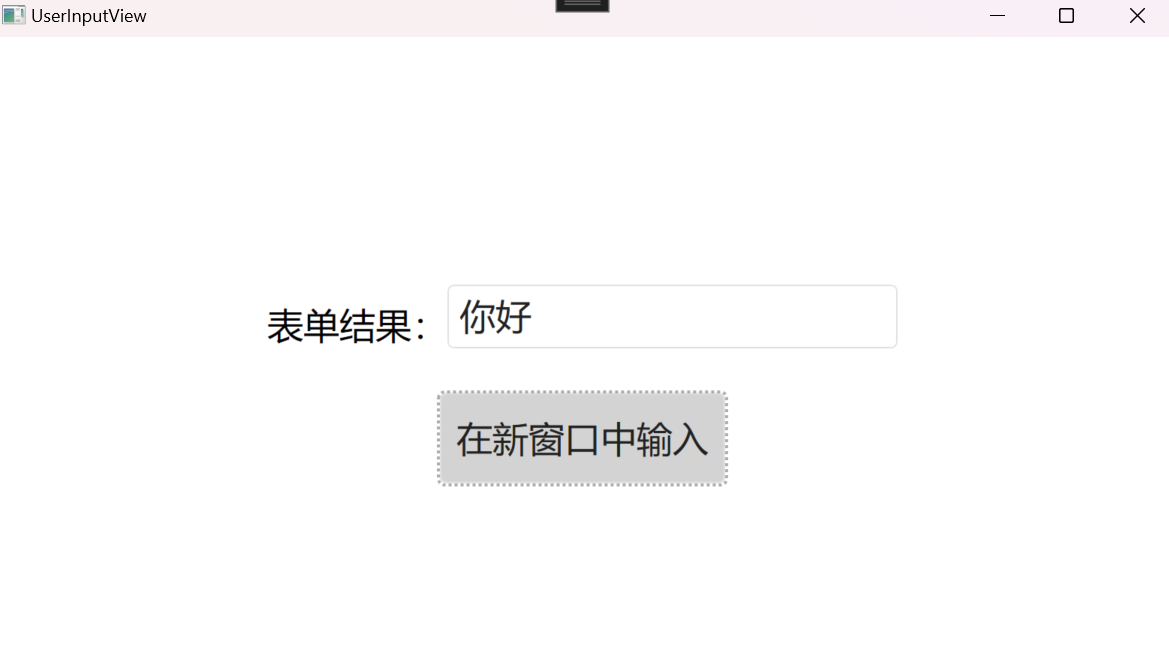
5.效果如下:
点击 “用户输入表单”

父窗口如下。点击“在新窗口中输入”
在表单中输入内容:你好,点击确定就可实现;

源代码地址:https://gitee.com/chenshibao/wpfdemo.git
如果本文介绍对你有帮助,可以一键四连:点赞+评论+收藏+推荐,谢谢!

 浙公网安备 33010602011771号