

MD 在WPF中的使用
md 全名MaterialDesignThemes
项目地址:https://github.com/MaterialDesignInXAML/MaterialDesignInXamlToolkit
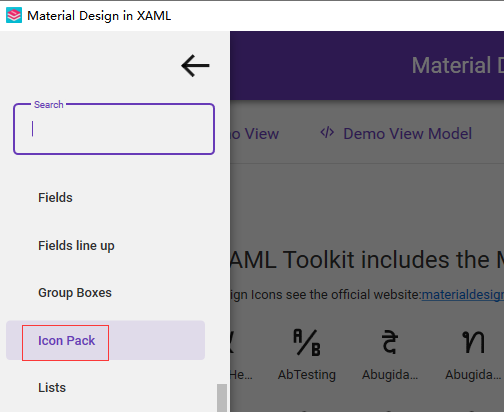
帮助app 找内置的图片:
https://github.com/MaterialDesignInXAML/MaterialDesignInXamlToolkit/releases

简单使用
1 、下载包
如果运用到主题就需要这个否则可以不用下载这个
<PackageReference Include="MaterialDesignColors" Version="2.1.4" />
这个一定要
<PackageReference Include="MaterialDesignThemes" Version="4.9.0" />
2 、在app.xaml 中添加资源文件
    <Application.Resources>
        <ResourceDictionary>
            <ResourceDictionary.MergedDictionaries>
                <materialDesign:BundledTheme
                     BaseTheme="Dark"
                     ColorAdjustment="{materialDesign:ColorAdjustment}"
                     PrimaryColor="DeepPurple"
                     SecondaryColor="Amber" />
                <!--添加md主题 添加到主界面中-->
                <ResourceDictionary Source="pack://application:,,,/MaterialDesignThemes.Wpf;component/Themes/MaterialDesignTheme.Defaults.xaml" />
            </ResourceDictionary.MergedDictionaries>
        </ResourceDictionary>
    </Application.Resources>
3 、页面中调用
xmlns:md="http://materialdesigninxaml.net/winfx/xaml/themes"
  <md:ColorZone md:ElevationAssist.Elevation="Dp2" Mode="PrimaryDark">
    </md:ColorZone>
控件介绍
1、 抽屉使用
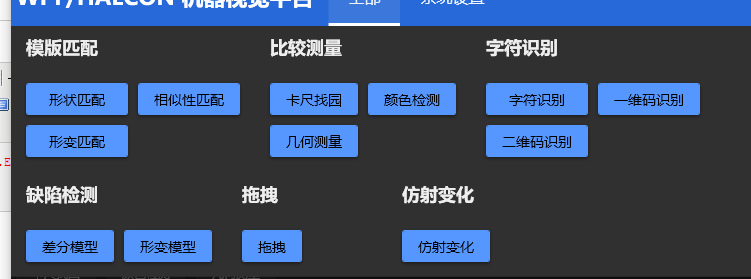
IsTopDrawerOpen 是否打开,在后台绑定一个bool类型
 <md:DialogHost Grid.Row="1" Background="Red">
            <md:DrawerHost IsTopDrawerOpen="{Binding IsTopDrawerOpen}" Content="{Binding ElementName=mainviewContent,Path=Content,Mode=TwoWay}">
                <md:DrawerHost.TopDrawerContent>
                      控件
                </md:DrawerHost.TopDrawerContent>
            </md:DrawerHost>
        </md:DialogHost>
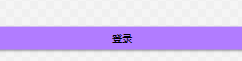
2 、面板显示或者隐藏 Transitioner
        <!--默认显示第一块  ,实际情况要绑定 SelectedIndex-->
        <md:Transitioner SelectedIndex="0">
            <!--第一块登录通过 SelectedIndex控制显示哪个面板-->
            <md:TransitionerSlide>
                <Button  Content="登录"/>
            </md:TransitionerSlide>

            <!--第二块注册-->
            <md:TransitionerSlide>
                <Button  Content="注册"/>
            </md:TransitionerSlide>
        </md:Transitioner>
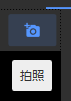
3 、图标显示 PackIcon
                            <Button   x:Name="btnSnap"
                                     ToolTip="拍照"
                                     Style="{DynamicResource MaterialDesignFlatButton}">
                                <md:PackIcon  Kind="CameraPlus"/>
                            </Button>
Kind 里面的内容就是通过上图下载的app里面找到的
4 主界面的模仿设计
下载程序到本地

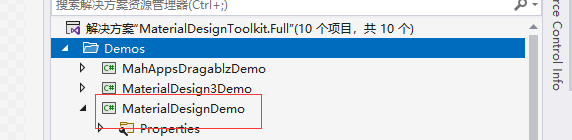

将代码拷贝到另一个页面中看效果


 浙公网安备 33010602011771号