
Elasticsearch集群安装,Head插件,IK分词器
一:集群的安装
###【在多台机器上执行下面的命令】###
#es启动时需要使用非root用户,所有创建一个xiaoniu用户:
useradd xiaoniu
#为hadoop用户添加密码:
echo 123456 | passwd --stdin xiaoniu
#将bigdata添加到sudoers
echo "xiaoniu ALL = (root) NOPASSWD:ALL" | tee /etc/sudoers.d/xiaoniu
chmod 0440 /etc/sudoers.d/xiaoniu
#解决sudo: sorry, you must have a tty to run sudo问题,在/etc/sudoer注释掉 Default requiretty 一行
sudo sed -i 's/Defaults    requiretty/Defaults:xiaoniu !requiretty/' /etc/sudoers

#创建一个bigdata目录
mkdir /{bigdata,data}
#给相应的目录添加权限
chown -R xiaoniu:xiaoniu /{bigdata,data}

-------------------------------------------------------------------------------------------------
1.安装jdk(jdk要求1.8.20以上)

2.上传es安装包

3.解压es
tar -zxvf elasticsearch-5.4.3.tar.gz -C /bigdata/

4.修改配置
vi /bigdata/elasticsearch-5.4.3/config/elasticsearch.yml
#集群名称,通过组播的方式通信,通过名称判断属于哪个集群
cluster.name: bigdata
#节点名称,要唯一
node.name: es-1
#数据存放位置
path.data: /data/es/data
#日志存放位置(可选)
path.logs: /data/es/logs
#es绑定的ip地址
network.host: 192.168.10.16
#初始化时可进行选举的节点
discovery.zen.ping.unicast.hosts: ["node-4", "node-5", "node-6"]


/bigdata/elasticsearch-5.4.3/bin/elasticsearch -d
-------------------------------------------------------------------------------------------------
#出现错误
[1]: max file descriptors [4096] for elasticsearch process is too low, increase to at least [65536]
[2]: max virtual memory areas vm.max_map_count [65530] is too low, increase to at least [262144]

---su root 切换到root用户
#用户最大可创建文件数太小
sudo vi /etc/security/limits.conf
* soft nofile 65536
* hard nofile 65536

#查看可打开文件数量
ulimit -Hn


#最大虚拟内存太小
sudo vi /etc/sysctl.conf
vm.max_map_count=262144

#查看虚拟内存的大小
sudo sysctl -p


5.使用scp拷贝到其他节点
scp -r elasticsearch-5.4.3/ node-5:$PWD
scp -r elasticsearch-5.4.3/ node-6:$PWD

6.在其他节点上修改es配置,需要修改的有node.name和network.host

-----TMD 改完这些,我机器还得重启一下才行!!!!

7.启动es(/bigdata/elasticsearch-5.4.3/bin/elasticsearch -h查看帮助文档)
/bigdata/elasticsearch-5.4.3/bin/elasticsearch -d


8.用浏览器访问es所在机器的9200端口
http://192.168.10.16:9200/
{
  "name" : "node-2",
  "cluster_name" : "bigdata",
  "cluster_uuid" : "v4AHbENYQ8-M3Aq8J5OZ5g",
  "version" : {
    "number" : "5.4.3",
    "build_hash" : "eed30a8",
    "build_date" : "2017-06-22T00:34:03.743Z",
    "build_snapshot" : false,
    "lucene_version" : "6.5.1"
  },
  "tagline" : "You Know, for Search"
}

kill `ps -ef | grep Elasticsearch | grep -v grep | awk '{print $2}'`

#查看集群状态
curl -XGET 'http://192.168.10.16:9200/_cluster/health?pretty'
http://192.168.10.16:9200/_cluster/health?pretty
curl -XGET 'http://ES-01:9200/_cluster/health?pretty'
http://ES-02:9200/_cluster/health?pretty
------------------------------------------------------------------------------------------------------------------

RESTful接口URL的格式:
http://192.168.10.16:9200/<index>/<type>/[<id>]
其中index、type是必须提供的。
id是可选的,不提供es会自动生成。
index、type将信息进行分层,利于管理。
index可以理解为数据库;type理解为数据表;id相当于数据库表中记录的主键,是唯一的。


#向store索引中添加一些书籍
curl -XPUT 'http://192.168.10.16:9200/store/books/1' -d '{
  "title": "Elasticsearch: The Definitive Guide",
  "name" : {
    "first" : "Zachary",
    "last" : "Tong"
  },
  "publish_date":"2015-02-06",
  "price":"49.99"
}'

#在linux中通过curl的方式查询
curl -XGET 'http://192.168.10.18:9200/store/books/1'

#通过浏览器查询
http://192.168.10.18:9200/store/books/1


#在添加一个书的信息
curl -XPUT 'http://192.168.10.18:9200/store/books/2' -d '{
  "title": "Elasticsearch Blueprints",
  "name" : {
    "first" : "Vineeth",
    "last" : "Mohan"
  },
  "publish_date":"2015-06-06",
  "price":"35.99"
}'


# 通过ID获得文档信息
curl -XGET 'http://192.168.10.18:9200/store/books/1'

#在浏览器中查看
http://92.168.10.18:9200/store/books/1

# 通过_source获取指定的字段
curl -XGET 'http://192.168.10.16:9200/store/books/1?_source=title'
curl -XGET 'http://192.168.10.16:9200/store/books/1?_source=title,price'
curl -XGET 'http://192.168.10.16:9200/store/books/1?_source'

#可以通过覆盖的方式更新
curl -XPUT 'http://192.168.10.16:9200/store/books/1' -d '{
  "title": "Elasticsearch: The Definitive Guide",
  "name" : {
    "first" : "Zachary",
    "last" : "Tong"
  },
  "publish_date":"2016-02-06",
  "price":"99.99"
}'

# 或者通过 _update  API的方式单独更新你想要更新的
curl -XPOST 'http://192.168.10.16:9200/store/books/1/_update' -d '{
  "doc": {
     "price" : 88.88
  }
}'

curl -XGET 'http://192.168.10.16:9200/store/books/1'

#删除一个文档
curl -XDELETE 'http://192.168.10.16:9200/store/books/1'


curl -XPUT 'http://192.168.10.16:9200/store/books/4' -d '{
  "title": "Elasticsearch: The Definitive Guide",
  "author": "Guide",
  "publish_date":"2016-02-06",
  "price":"35.99"
}'


#https://www.elastic.co/guide/en/elasticsearch/reference/current/query-dsl.html
# 最简单filter查询
# SELECT * FROM books WHERE price = 35.99
# filtered 查询价格是35.99的
# 返回的的分是1.0
curl -XGET 'http://192.168.10.16:9200/store/books/_search' -d '{
  "query": {
    "bool": {
      "must": {
        "match_all": {}
      },
      "filter": {
        "term": {
          "price": 35.99
        }
      }
    }
  }
}'

# 返回的的分是1.0
curl -XGET 'http://192.168.10.16:9200/store/books/_search' -d '{
  "query": {
    "constant_score": {
      "filter": {
        "term": {
          "price": 35.99
        }
      }
    }
  }
}'

# 返回的的分是0.0
curl -XGET 'http://192.168.10.16:9200/store/books/_search' -d '{
    "query": {
        "bool": {
           "filter" : {
                "term" : {
                  "price" : 35.99
                }
            }
        }
    }
}'

#指定多个值
curl -XGET 'http://192.168.10.16:9200/store/books/_search' -d '{
    "query" : {
        "bool" : {
            "filter" : {
                "terms" : {
                    "price" : [35.99, 99.99]
                  }
              }
        }
    }
}'

curl -XGET 'http://192.168.10.16:9200/store/books/_search' -d '{
    "query" : {
        "bool" : {
            "must": {
                "match_all": {}
            },
            "filter" : {
                "terms" : {
                    "price" : [35.99, 99.99]
                  }
              }
        }
    }
}'


# SELECT * FROM books WHERE publish_date = "2015-02-06"
curl -XGET 'http://192.168.10.16:9200/store/books/_search' -d '{
  "query" : {
    "bool" : {
        "filter" : {
           "term" : {
              "publish_date" : "2015-02-06"
            }
          }
      }
  }
}'

# bool过滤查询,可以做组合过滤查询
# SELECT * FROM books WHERE (price = 35.99 OR price = 99.99) AND publish_date != "2016-02-06"
# 类似的,Elasticsearch也有 and, or, not这样的组合条件的查询方式
# 格式如下:
#  {
#    "bool" : {
#    "must" :     [],
#    "should" :   [],
#    "must_not" : [],
#    }
#  }
#
# must: 条件必须满足,相当于 and
# should: 条件可以满足也可以不满足,相当于 or
# must_not: 条件不需要满足,相当于 not

curl -XGET 'http://192.168.10.16:9200/store/books/_search' -d '{
  "query" : {
    "bool" : {
      "should" : [
        { "term" : {"price" : 35.99}},
        { "term" : {"price" : 99.99}}
      ],
      "must_not" : {
        "term" : {"publish_date" : "2016-02-06"}
      }
    }
  }
}'


# 嵌套查询
# SELECT * FROM books WHERE price = 35.99 OR ( publish_date = "2016-02-06" AND price = 99.99 )

curl -XGET 'http://192.168.10.16:9200/store/books/_search' -d '{
    "query": {
        "bool": {
            "should": [
                {
                    "term": {
                        "price": 35.99
                    }
                },
                {
                    "bool": {
                        "must": [
                            {
                                "term": {
                                    "publish_date": "2016-02-06"
                                }
                            },
                            {
                                "term": {
                                    "price": 99.99
                                }
                            }
                        ]
                    }
                }
            ]
        }
    }
}'

# range范围过滤
# SELECT * FROM books WHERE price >= 10 AND price < 99
# gt :  > 大于
# lt :  < 小于
# gte :  >= 大于等于
# lte :  <= 小于等于

curl -XGET 'http://192.168.10.16:9200/store/books/_search' -d '{
    "query": {
        "range" : {
            "price" : {
                "gte" : 10,
                "lt" : 99
            }
        }
    }
}

#name和author都必须包含Guide,并且价钱等于33.99或者188.99
curl -XGET 'http://192.168.10.16:9200/store/books/_search' -d '{
    "query": {
        "bool": {
            "must": {
                "multi_match": {
                    "operator": "and",
                    "fields": [
                        "name",
                        "author"
                    ],
                    "query": "Guide"
                }
            },
            "filter": {
                "terms": {
                    "price": [
                        35.99,
                        188.99
                    ]
                }
            }
        }
    }
}'


http://192.168.10.16:9200/store/books/_search
二:Head插件安装与使用
只需要在一台机器上安装即可
head 插件安装
(1)安装git插件
yum -y install git
(2)安装node.js 及 npm
(一)下载及解压
cd /usr/local/node --如有没有就自行创建
tar zxvf node-v4.4.3-linux-x86.tar.gz
(二)设置环境变量
vim /etc/profile
在文件最后添加
export NODE_HOME=/usr/local/node/node-v4.4.3-linux-x86 export PATH=$NODE_HOME/bin:$PATH
编译使配置立即生效
source /etc/profile
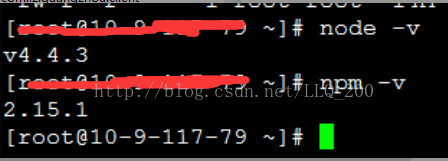
(三)验证是否安装成功
node -v npm -v
--如果只想node -v报错如下:

解决办法:在 http://rpmfind.net/linux/rpm2html/search.php?query=libgcc_s.so.1&submit=Search+...&system=centos&arch=
找到库 libstdc++.so.6
libstdc++-4.4.7-17.el6.i686.rpm
libgcc-4.4.7-17.el6.i686.rpm
libgcc-4.4.7-17.el6.i686.rpm
安装 rpm -ivh libstdc++-4.4.7-17.el6.i686.rpm 然后再安装 rpm -ivh libgcc-4.4.7-17.el6.i686.rpm
输出版本号则表示安装成功
(2)安装head 插件
(一)
git clone git://github.com/mobz/elasticsearch-head.git
cd elasticsearch-head
npm install
在elasticsearch-head目录下node_modules/grunt下如果没有grunt二进制程序,需要执行
cd elasticsearch-head
npm install grunt --save
(二)修改head配置
vim /opt/elasticsearch/elasticsearch-head/Gruntfile.js
添加hostname字段,如下

(四)启动
进入目录 cd /opt/elasticsearch/elasticsearch-head/node_modules/grunt/bin
前台启动:./grunt server
后台启动:nohup ./grunt server &
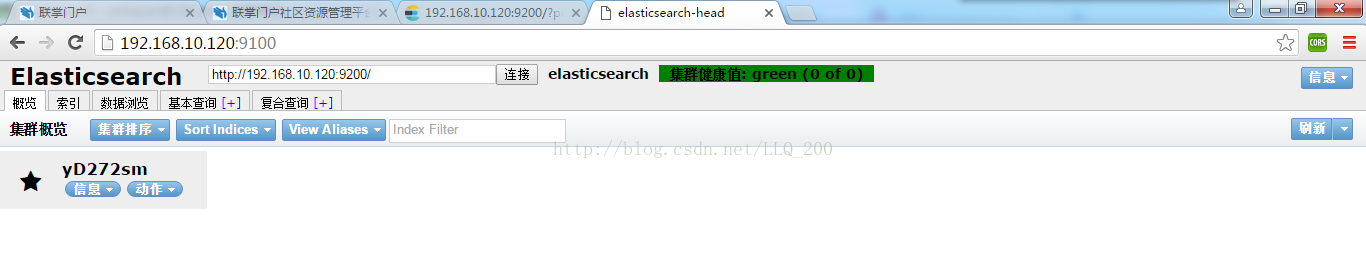
(五)访问
三:IK分词器安装
http://blog.csdn.net/napoay/article/details/53896348

#更新
sudo yum update -y


sudo rpm -ivh http://dl.fedoraproject.org/pub/epel/epel-release-latest-7.noarch.rpm
sudo rpm -ivh http://dl.fedoraproject.org/pub/epel/epel-release-6-8.noarch.rpm
sudo rpm -ivh https://kojipkgs.fedoraproject.org//packages/http-parser/2.7.1/3.el7/x86_64/http-parser-2.7.1-3.el7.x86_64.rpm


sudo yum install npm

sudo yum install -y git

sudo yum install -y bzip2

git clone git://github.com/mobz/elasticsearch-head.git

#将源码包下载后剪切到/bigdata目录,并改所属用户和组
sudo chown -R xiaoniu:xiaoniu /bigdata/elasticsearch-head

#进入到elasticsearch-head中
cd elasticsearch-head
#编译安装
npm install


打开elasticsearch-head-master/Gruntfile.js,找到下面connect属性,新增hostname: '0.0.0.0',
        connect: {
                        server: {
                                options: {
                                        hostname: '0.0.0.0',
                                        port: 9100,
                                        base: '.',
                                        keepalive: true
                                }
                        }
                }


编辑elasticsearch-5.4.3/config/elasticsearch.yml,加入以下内容:
http.cors.enabled: true
http.cors.allow-origin: "*"

-------------先启动ES再启动插件----------------

#运行服务  一定要在插件目录下执行
npm run start

---------------------------------------------------------------------------------------------
关闭ES集群
kill `ps -ef | grep Elasticsearch | grep -v grep | awk '{ print $2}'`


安装IK分词器
下载对应版本的插件
https://github.com/medcl/elasticsearch-analysis-ik/releases


首先下载es对应版本的ik分词器的zip包,上传到es服务器上,在es的安装目录下有一个plugins的目录,在这个目录下创建一个叫ik的目录
然后将解压好的内容,拷贝到ik目录
将ik目录拷贝到其他的es节点
重新启动所有的es


#创建索引名字叫news
curl -XPUT http://192.168.100.211:9200/news

#创建mapping(相当于数据中的schema信息,表名和字段名以及字段的类型)
curl -XPOST http://192.168.100.211:9200/news/fulltext/_mapping -d'
{
        "properties": {
            "content": {
                "type": "text",
                "analyzer": "ik_max_word",
                "search_analyzer": "ik_max_word"
            }
        }

}'


curl -XPOST http://192.168.100.211:9200/news/fulltext/1 -d'
{"content":"美国留给伊拉克的是个烂摊子吗"}'

curl -XPOST http://192.168.100.211:9200/news/fulltext/2 -d'
{"content":"公安部:各地校车将享最高路权"}'

curl -XPOST http://192.168.100.211:9200/news/fulltext/3 -d'
{"content":"中韩渔警冲突调查:韩警平均每天扣1艘中国渔船"}'

curl -XPOST http://192.168.100.211:9200/news/fulltext/4 -d'
{"content":"中国驻洛杉矶领事馆遭亚裔男子枪击 嫌犯已自首"}'

curl -XPOST http://192.168.100.211:9200/news/fulltext/_search  -d'
{
    "query" : { "match" : { "content" : "中国" }},
    "highlight" : {
        "pre_tags" : ["<font color='red'>", "<tag2>"],
        "post_tags" : ["</font>", "</tag2>"],
        "fields" : {
            "content" : {}
        }
    }
}'

-------------------------------------------------------------------


curl -XGET 'http://192.168.100.211:9200/_analyze?pretty&analyzer=ik_max_word' -d '联想是全球最大的笔记本厂商'

curl -XGET 'https://192.168.100.211:9200/_analyze?pretty&analyzer=ik_smart' -d '联想是全球最大的笔记本厂商'

curl -XPUT 'https://192.168.100.211:9200/iktest?pretty' -d '{
    "settings" : {
        "analysis" : {
            "analyzer" : {
                "ik" : {
                    "tokenizer" : "ik_max_word"
                }
            }
        }
    },
    "mappings" : {
        "article" : {
            "dynamic" : true,
            "properties" : {
                "subject" : {
                    "type" : "string",
                    "analyzer" : "ik_max_word"
                }
            }
        }
    }
}'

curl -XPUT 'https://192.168.100.211:9200/iktest?pretty' -d '{
    "settings" : {
        "analysis" : {
            "analyzer" : {
                "ik" : {
                    "tokenizer" : "ik_max_word"
                }
            }
        }
    },
    "mappings" : {
        "article" : {
            "dynamic" : true,
            "properties" : {
                "subject" : {
                    "type" : "string",
                    "analyzer" : "ik_max_word"
                }
            }
        }
    }
}'


curl -XGET 'http://192.168.10.16:9200/_analyze?pretty&analyzer=ik_max_word' -d ‘中华人民共和国’

---------------------------------------------------------------------------------------------

es安装SQL插件
./bin/elasticsearch-plugin install https://github.com/NLPchina/elasticsearch-sql/releases/download/5.4.3.0/elasticsearch-sql-5.4.3.0.zip

#然后将解压到plugins目录下的内容拷贝到其他es的节点的plugins目录

下载SQL的Server
wget https://github.com/NLPchina/elasticsearch-sql/releases/download/5.4.1.0/es-sql-site-standalone.zip

用npm编译安装
unzip es-sql-site-standalone.zip
cd site-server/
npm install express --save

修改SQL的Server的端口
vi site_configuration.json
启动服务
node node-server.js &
四:遇到 的问题
1:解决CentOS缺少共享库:libstdc++.so.6
当在CentOS 6.2下执行某些命令时,有缺少共享库的报错:

error while loading shared libraries: libstdc++.so.6: cannot open shared object file: No such file or directory

解决办法:
 1、执行命令: yum whatprovides libstdc++.so.6

然后会提示哪个安装包有这个库文件如下:

[root@localhost ~]# yum whatprovides libstdc++.so.6
 Loaded plugins: aliases, changelog, downloadonly, fastestmirror, kabi, presto, refresh-packagekit, security, tmprepo, verify,
              : versionlock
 Loading support for CentOS kernel ABI
 Loading mirror speeds from cached hostfile
  * base: centos.ustc.edu.cn
  * centosplus: centos.ustc.edu.cn
  * contrib: centos.ustc.edu.cn
  * extras: centos.ustc.edu.cn
  * updates: centos.ustc.edu.cn
 libstdc++-4.4.7-3.el6.i686 : GNU Standard C++ Library
 Repo        : base
 Matched from:
 Other      : libstdc++.so.6

2、然后执行:

yum install libstdc++-4.4.7-3.el6.i686

本篇文章来源于 Linux公社网站(www.linuxidc.com)  原文链接:https://www.linuxidc.com/Linux/2013-04/82494.htm
2:Centos6.5 升级glibc解决“libc.so.6: version GLIBC_2.14 not found”报错问题
报错,信息如下:
./agent: /lib64/libc.so.6: version `GLIBC_2.14' not found (required by./agent)
从上面报错可以看出,程序运行时候,没有找到“GLIBC_2.14”这个版本库,而默认的Centos6.5 glibc版本最高为2.12, 所以需要更新系统glibc库。
glibc是gnu发布的libc库,即c运行库,glibc是linux系统中最底层的api,几乎其它任何运行库都会依赖于glibc。glibc除了封装linux操作系统所提供的系统服务外,它本身也提供了许多其它一些必要功能服务的实现。
很多linux的基本命令,比如cp, rm, ll,ln等,都得依赖于它,如果操作错误或者升级失败会导致系统命令不能使用,严重的造成系统退出后无法重新进入,所以操作时候需要慎重。
解决办法:
1.查看系统版本和glibc库版本
# cat /etc/redhat-release
CentOS release 6.5 (Final)
# strings /lib64/libc.so.6 |grep GLIBC_
GLIBC_2.2.5
GLIBC_2.2.6
GLIBC_2.3
GLIBC_2.3.2
GLIBC_2.3.3
GLIBC_2.3.4
GLIBC_2.4
GLIBC_2.5
GLIBC_2.6
GLIBC_2.7
GLIBC_2.8
GLIBC_2.9
GLIBC_2.10
GLIBC_2.11
GLIBC_2.12
GLIBC_PRIVATE
由上面的信息可以看出系统是CentOS 6.5,最高支持glibc的版本为2.12,而研发程序要2.14版本,所以需要升级。
2.下载软件并升级:
# wget http://ftp.gnu.org/gnu/glibc/glibc-2.14.tar.gz
# wget http://ftp.gnu.org/gnu/glibc/glibc-ports-2.14.tar.gz
# tar -xvf glibc-2.14.tar.gz
# tar -xvf glibc-ports-2.14.tar.gz
# mv glibc-ports-2.14 glibc-2.14/ports
# mkdir glibc-build-2.14
# cd glibc-build-2.14/
# ../glibc-2.14/configure --prefix=/usr --disable-profile --enable-add-ons --with-headers=/usr/include --with-binutils=/usr/bin
# make
注意:当make成功后,会在当前glibc-build-2.14目录下生成一个新的libc.so.6的软连接,指向的是本目录下的libc.so文件,如下所示:
# ll glibc-build-2.14/libc.so.6
glibc-build-2.14/libc.so.6 -> libc.so
可以将上面的libc.so文件直接拷贝到/lib64下面改名为libc-2.14.so,删除原来的libc.so.6软连接,建立新的连接即可使用,但是此处有一个大坑,后面会介绍,此处还是按照正常流程安装。
继续完成后续的安装:
# make install
以上完成不报错的话,查看库文件,发现/lib64/libc.so.6软链接指向了2.14版本
# ll /lib64/libc.so.6
/lib64/libc.so.6 -> /lib64/libc-2.14.so
3.再次查看glibc支持的版本:
# strings /lib64/libc.so.6 |grep GLIBC_
GLIBC_2.2.5
GLIBC_2.2.6
GLIBC_2.3
GLIBC_2.3.2
GLIBC_2.3.3
GLIBC_2.3.4
GLIBC_2.4
GLIBC_2.5
GLIBC_2.6
GLIBC_2.7
GLIBC_2.8
GLIBC_2.9
GLIBC_2.10
GLIBC_2.11
GLIBC_2.12
GLIBC_2.13
GLIBC_2.14
GLIBC_PRIVATE
可以看到glibc支持的版本已经到2.14,再次执行程序就不会报错了。
其他知识点:
有些安装方法是编译时候指定的目录不是/usr,而是通过建立软链指向新的libc-2.14.so版本,在此过程中需要删除原来连接,建立新的软连接,但是此处有一个大坑,就是当你删除libc.so.6之后会导致系统命令不可用,如下在测试机中演示的错误过程:
# rm -rf /lib64/libc.so.6
接下来当你建立新的软链接时候,会发现ln命令不能用了。
# ln -s /lib64/libc-2.14.so /lib64/libc.so.6
ln: error while loading shared libraries: libc.so.6: cannot open shared object file: No such file or directory
当出现上面的状况时候,可以使用以下方法解决(假设libc-2.14.so已经拷贝到/lib64/目录下):
# LD_PRELOAD=/lib64/libc-2.14.so ln -s /lib64/libc-2.14.so /lib64/libc.so.6
当然如果升级失败,还可以使用下面命令还原至系统升级前的版本libc-2.12.so:
# LD_PRELOAD=/lib64/libc-2.12.so ln -s /lib64/libc-2.12.so /lib64/libc.so.6
“LD_PRELOAD”是一个环境变量,定义在程序运行前优先加载的动态链接库,本处作用就是在执行后面的ln命令时,指定使用的glibc库,这样命令就可以正常使用了。
收集整理用的,用到的原文链接太多了,找不回来了
posted on 2018-08-20 22:04 CodeArtist 阅读(229) 评论(0) 收藏 举报

 浙公网安备 33010602011771号