
Markdown详解
Markdown详解
基于Markdown参考做的翻译,仅供参考
Overview/概述
Markdown is created by Daring Fireball; the original guideline is here. Its syntax, however, varies between different parsers or editors. Typora try to follow GitHub Flavored Markdown, but may still have small incompatibilities.
Markdown 是由Daring Fireball创造的;最初的指导方针是这里。这个解析器,然而它的语法在不同的解析器或者编辑器之间有所不同。Typora试图遵循GitHub给Markdown调味,但可能仍有小的不兼容性
Block Elements/块元素
Paragraph and line breaks/段落和换行
A paragraph is simply one or more consecutive lines of text. In markdown source code, paragraphs are separated by two or more blank lines. In Typora, you only need one blank line (press
Returnonce) to create a new paragraph.
段落只是一行或多行连续的文本。在Markdown源代码中,段落由两行或多行空行分隔。在Typora中,您只需要一个空行(按Return键一次)就可以创建一个新段落。
Press
Shift+Returnto create a single line break. Most other markdown parsers will ignore single line breaks, so in order to make other markdown parsers recognize your line break, you can leave two spaces at the end of the line, or insert<br/>.
按“Shift”+“Return”创建一个换行符。大多数其他标记解析器都会忽略单行分隔符,因此为了让其他标记解析器识别您的行分隔符,您可以在行的末尾留下两个空格,或者插入<br/>。
Headers/标题
Headers use 1-6 hash (
#) characters at the start of the line, corresponding to header levels 1-6. For example:
标题在行首使用1-6个哈希(#)字符,对应于标头级别1-6。例如:
# This is an H1

## This is an H2

###### This is an H6
In Typora, input ‘#’s followed by title content, and press
Returnkey will create a header. Or type ⌘1 to ⌘6 as a shortcut.
在Typora中,输入“#”,后跟标题内容,然后按“Return”键将创建标题。或者键入⌘1到⌘6作为快捷方式。
Blockquotes/块引用
Markdown uses email-style > characters for block quoting. They are presented as:
Markdown使用email-style>字符进行块引用。它们表示为:
> This is a blockquote with two paragraphs. This is first paragraph.
>
> This is second pragraph. Vestibulum enim wisi, viverra nec, fringilla in, laoreet vitae, risus.


> This is another blockquote with one paragraph. There is three empty line to seperate two blockquote.
In Typora, typing ‘>’ followed by your quote contents will generate a quote block. Typora will insert a proper ‘>’ or line break for you. Nested block quotes (a block quote inside another block quote) by adding additional levels of ‘>’.
在Typora中,键入“>”并后跟引用内容将生成引用块。排版将为您插入一个正确的“>”或换行符。嵌套的块引号(另一个块引号中的块引号),方法是添加额外的'>'级别。
Lists/列表
Typing
* list item 1will create an unordered list. (The*symbol can be replace with+or-.)Typing
1. list item 1will create an ordered list.
键入“*list item 1”将创建无序列表。(*符号可以替换为+或-。)
键入1. list item1将创建一个有序列表。
For example:
## un-ordered list
*   Red
*   Green
*   Blue

## ordered list
1.  Red
2. 	Green
3.	Blue
Task List/任务列表
Task lists are lists with items marked as either [ ] or [x] (incomplete or complete). For example:
任务列表是带有标记为[]或[x](不完整或完整)的项的列表。例如:
- [ ] a task list item
- [ ] list syntax required
- [ ] normal **formatting**, @mentions, #1234 refs
- [ ] incomplete
- [x] completed
You can change the complete/incomplete state by clicking on the checkbox before the item.
您可以通过单击项目前面的复选框来更改完成/未完成状态。
(Fenced) Code Blocks/(围栏)代码块
Typora only supports fences in GitHub Flavored Markdown, not the original code block style.
Using fences is easy: type and press `return`. Add an optional language identifier after and Typora runs it through syntax highlighting:
Here's an example:
```
function test() {
console.log("notice the blank line before this function?");
}
```
syntax highlighting:
```ruby
require 'redcarpet'
markdown = Redcarpet.new("Hello World!")
puts markdown.to_html
```
Math Blocks/数学块
You can render LaTeX mathematical expressions using MathJax.
To add a mathematical expression, enter $$ and press the ‘Return’ key. This will trigger an input field which accepts Tex/LaTex source. For example:
V1×V2=∣∣∣∣∣i∂X∂u∂X∂vj∂Y∂u∂Y∂vk00∣∣∣∣∣V1×V2=|ijk∂X∂u∂Y∂u0∂X∂v∂Y∂v0|
In the markdown source file, the math block is a LaTeX expression wrapped by a pair of ‘$$’ marks:
$$
\mathbf{V}_1 \times \mathbf{V}_2 =  \begin{vmatrix}
\mathbf{i} & \mathbf{j} & \mathbf{k} \\
\frac{\partial X}{\partial u} &  \frac{\partial Y}{\partial u} & 0 \\
\frac{\partial X}{\partial v} &  \frac{\partial Y}{\partial v} & 0 \\
\end{vmatrix}
$$
You can find more details here.
Tables/表格
Standard Markdown has been extended in several ways to add table support., including by GFM. Typora supports this with a graphical interface, or writing the source code directly.
标准的Markdown已经以多种方式扩展以添加表支持,包括GFM。Typora通过图形界面支持这一点,或者直接编写源代码。
Enter
| First Header | Second Header |and press thereturnkey. This will create a table with two columns.
输入| First Header | Second Header |然后按下回车 return键。这将创建一个包含两个列的表
After a table is created, placing the focus on that table will open up a toolbar for the table where you can resize, align, or delete the table. You can also use the context menu to copy and add/delete individual columns/rows.
创建表后,将焦点放在该表上将打开该表的工具栏,您可以在其中调整、对齐或删除该表。也可以使用关联菜单复制和添加/删除单个列/行。
The full syntax for tables is described below, but it is not necessary to know the full syntax in detail as the markdown source code for tables is generated automatically by Typora.
表的完整语法如下所述,但不必详细了解完整语法,因为表的Markdown源代码是由Typora自动生成的。复制并添加/删除单个列/行。
In markdown source code, they look like:
在 markdown的源代码,他们看起来像:
| First Header  | Second Header |
| ------------- | ------------- |
| Content Cell  | Content Cell  |
| Content Cell  | Content Cell  |
You can also include inline Markdown such as links, bold, italics, or strikethrough in the table.
还可以在表中包含内联标记,如链接、粗体、斜体或删除线。
By including colons (
:) within the header row, you can set text in that column to be left-aligned, right-aligned, or center-aligned:
通过在标题行中包含冒号(:),可以将该列中的文本设置为左对齐、右对齐或居中对齐:
| Left-Aligned  | Center Aligned  | Right Aligned |
| :------------ |:---------------:| -----:|
| col 3 is      | some wordy text | $1600 |
| col 2 is      | centered        |   $12 |
| zebra stripes | are neat        |    $1 |
A colon on the left-most side indicates a left-aligned column; a colon on the right-most side indicates a right-aligned column; a colon on both sides indicates a center-aligned column.
最左侧的冒号表示左对齐的列;最右侧的冒号表示右对齐的列;两侧的冒号表示居中对齐的列。
Footnotes/脚注
MultiMarkdown extends standard Markdown to provide two ways to add footnotes.
MultiMarkdown扩展了标准Markdown,提供了两种添加脚注的方法。
你可以像这样创建参考脚注1和这个[2](https://support.typora.io/Markdown Reference/#fn:fn2).
will produce:
将产出
You can create footnotes like this[^fn1] and this[^fn2].
 您可以创建这样的脚注[^fn1]和[^fn2]。
[^fn1]: Here is the *text* of the first **footnote**.
[^fn2]: Here is the *text* of the second **footnote**.
Hover over the ‘fn1’ or ‘fn2’ superscript to see content of the footnote. You can use whatever unique identified you like as the footnote marker (e.g. “fn1”).
将光标悬停在“fn1”或“fn2”上标上可查看脚注的内容。您可以使用任何您喜欢的唯一标识作为脚注标记(例如“fn1”)。
Hover over the footnote superscripts to see content of the footnote.
将光标悬停在脚注上标上,以查看脚注的内容。
Horizontal Rules/横向规则
Entering
***or---on a blank line and pressingreturnwill draw a horizontal line.
在空行上输入***或--并按``return`将画一条水平线。
YAML Front Matter/YAML前端
Typora now supports YAML Front Matter. Enter --- at the top of the article and then press Return to introduce a metadata block. Alternatively, you can insert a metadata block from the top menu of Typora.
Typora现在支持YAML Front Matter. 在文章顶部输入“---”,然后按“Return”引入元数据块。或者,您可以从Typora的顶部菜单插入元数据块。
Table of Contents (TOC)/目录(TOC)
Enter
[toc]and press theReturnkey to create a “Table of Contents” section. The TOC extracts all headers from the document, and its contents are updated automatically as you add to the document.
输入“
Span Elements/跨度元素
Span elements will be parsed and rendered right after typing. Moving the cursor in middle of those span elements will expand those elements into markdown source. Below is an explanation of the syntax for each span element.
Span元素将在键入后立即进行分析和呈现。将光标移到这些span元素的中间将把这些元素展开为markdown source。下面是每个span元素的语法说明。
Links/链接
Markdown supports two styles of links: inline and reference.
In both styles, the link text is delimited by [square brackets].
Markdown支持两种链接样式:inline和reference。
在这两种样式中,链接文本都由[方括号]分隔。
Inline Links/内联链接
To create an inline link, use a set of regular parentheses immediately after the link text’s closing square bracket. Inside the parentheses, put the URL where you want the link to point, along with an optional title for the link, surrounded in quotes. For example:
要创建内联链接,请在链接文本的右方括号之后立即使用一组常规括号。在圆括号内,将链接指向的URL以及链接的可选标题放在引号中。例如:
This is [an example](http://example.com/ "Title") inline link.

[This link](http://example.net/) has no title attribute.
will produce:
This is an example inline link. (
<p>This is <a href="http://example.com/" title="Title">)
This link has no title attribute. (
<p><a href="http://example.net/">This link</a> has no)
将产生:
这是一个例子内联链接。(<p>This is <a href="http://example.com/" title="Title">)
此链接没有标题属性 (<p><a href="http://example.net/">This link</a> has no)
Internal Links/内部链接
To create an internal link that creates a ‘bookmark’ that allow you to jump to that section after clicking on it, use the name of the header element as the href. For example:
要创建一个内部链接,创建一个“书签”,允许您在单击该节后跳转到该节,请使用header元素的名称作为href。例如:
Hold down Cmd (on Windows: Ctrl) and click on this link to jump to header
Block Elements.
按住Cmd(在Windows:Ctrl上)并单击此链接跳转到标题“Block elements”。
Hold down Cmd (on Windows: Ctrl) and click on [this link](#block-elements) to jump to header `Block Elements`.
Reference Links/参考链接
Reference-style links use a second set of square brackets, inside which you place a label of your choosing to identify the link:
参照样式链接使用第二组方括号,在其中放置所选标签以标识链接:
This is [an example][id] reference-style link.

Then, anywhere in the document, you define your link label on a line by itself like this:

[id]: http://example.com/  "Optional Title Here"
In Typora, they will be rendered like so:
在Typora中,它们将被呈现为:
This is an example reference-style link.
这是一个例子参考样式链接。
The implicit link name shortcut allows you to omit the name of the link, in which case the link text itself is used as the name. Just use an empty set of square brackets — for example, to link the word “Google” to the google.com web site, you could simply write:
隐式链接名称快捷方式允许您省略链接的名称,在这种情况下,链接文本本身用作名称。只需使用一组空的方括号——例如,将单词“Google”链接到谷歌网站网站上,您只需写下:
[Google][]
And then define the link:

[Google]: http://google.com/
In Typora, clicking the link will expand it for editing, and command+click will open the hyperlink in your web browser.
在Typora中,单击链接将展开它进行编辑,command+单击将在web浏览器中打开超链接。
URLs
Typora allows you to insert URLs as links, wrapped by <brackets>. For example <i@typora.io>becomes i@typora.io.
Typora允许您将url作为链接插入,并用<brackets>包装。例如<邮箱:i@typora.io>变成邮箱:i@typora.io.
Typora will also automatically link standard URLs (for example: www.google.com) without these brackets.
Typora还会自动链接标准URL(例如:www.google.com)没有这些括号。
Images/图片
Images have similar syntax as links, but they require an additional
!char before the start of the link. The syntax for inserting an image looks like this:
图像的语法与链接类似,但它们需要一个附加的!链接开始前的字符。插入图像的语法如下所示:


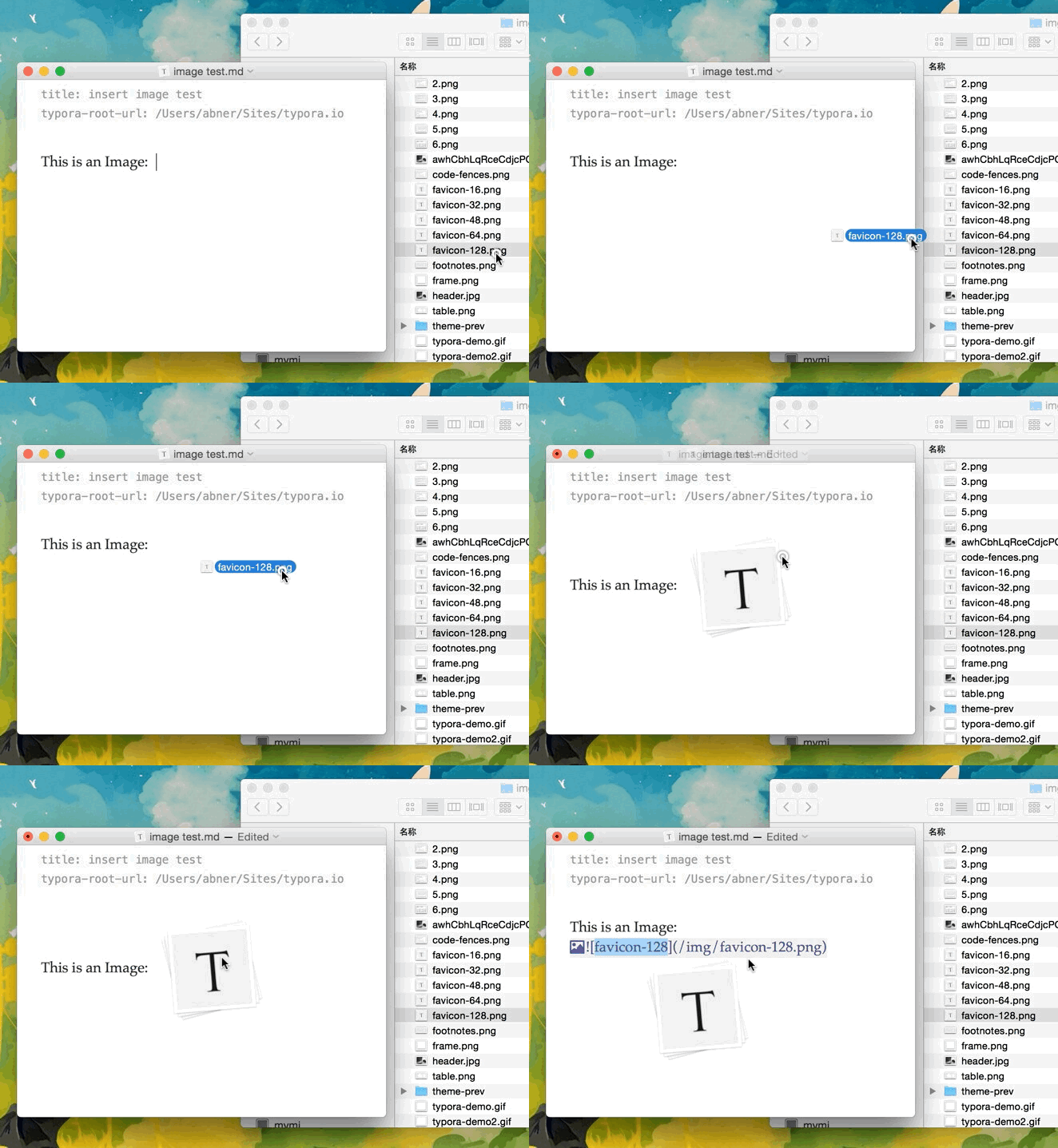
You are able to use drag and drop to insert an image from an image file or your web browser. You can modify the markdown source code by clicking on the image. A relative path will be used if the image that is added using drag and drop is in same directory or sub-directory as the document you’re currently editing.
您可以使用拖放从图像文件或web浏览器插入图像。您可以通过单击图像来修改标记源代码。如果使用拖放添加的图像与当前正在编辑的文档位于同一目录或子目录中,则将使用相对路径。
If you’re using markdown for building websites, you may specify a URL prefix for the image preview on your local computer with property typora-root-url in YAML Front Matter. For example, Enter typora-root-url:/User/Abner/Website/typora.io/ in YAML Front Matter, and then  will be treated as in Typora.
Emphasis/强调
Markdown treats asterisks (
*) and underscores (_) as indicators of emphasis. Text wrapped with one*or_will be wrapped with an HTML<em>tag. For example:
Markdown将星号(*)和下划线(_)作为强调的指示符。用一个*'或``包装的文本将用HTML '标记包装。例如:
*single asterisks*

_single underscores_
produces:
single asterisks
single underscores
GFM will ignore underscores in words, which is commonly used in code and names, like this:
产生:
单个星号
单下划线
GFM将忽略单词中的下划线,通常用于代码和名称中,如下所示:
wow_great_stuff
do_this_and_do_that_and_another_thing.
To produce a literal asterisk or underscore at a position where it would otherwise be used as an emphasis delimiter, you can backslash escape it with a backslash character:
要在原本用作强调分隔符的位置生成文字星号或下划线,可以使用反斜杠字符对其进行反斜杠转义:
\*this text is surrounded by literal asterisks\*
Typora recommends using the
*symbol.
Typora建议使用*符号。
Strong
A double * or _ will cause its enclosed contents to be wrapped with an HTML <strong> tag, e.g:
双*或``将使其包含的内容用HTML <strong>标记包装,例如:
**double asterisks**

__double underscores__
produces:
double asterisks
double underscores
Typora recommends using the
**symbol.
产生:
双星号
双下划线
Typora建
Use theprintf()function.
将产生:
使用printf()函数。
Strikethrough/删除线
GFM adds syntax to create strikethrough text, which is missing from standard Markdown.
~~Mistaken text.~~becomesMistaken text.
GFM添加了语法来创建删除线文本,这是标准标记中缺少的。
~~错误的文本。~~变成了错误的文本
Emoji :happy:
Enter emoji with syntax
:smile:. To make it easier, an auto-complete helper will pop up after typing:and the start of an emoji name.
输入语法为“:smile:”的表情符号。为方便起见,键入:和表情符号名称开头后,会弹出一个自动完成的帮助程序。
Entering UTF-8 emoji characters directly is also supported by going to
Edit->Emoji & Symbolsin the menu bar.
进入菜单栏中的“编辑”->“表情符号”也支持直接输入UTF-8表情符号。
Inline Math
To use this feature, please enable it first in the
Markdowntab of the preference panel. Then, use$to wrap a LaTeX command. For example:$\lim_{x \to \infty} \exp(-x) = 0$.
要使用此功能,请先在“首选项”面板的“标记”选项卡中启用它。然后,使用$包装LaTeX命令。例如:$\lim{x\to\infty}\exp(-x)=0$。
To trigger inline preview for inline math: input “$”, then press the
ESCkey, then input a TeX command.
要触发内联数学的内联预览:输入“$”,然后按“ESC”键,然后输入TeX命令。
You can find more details here.
你可以在这里找到更多的细节(http://support.typora.io/Math/).
Subscript/下标
To use this feature, please enable it first in the
Markdowntab of the preference panel. Then, use~to wrap subscript content. For example:H~2~O,X~long\ text~/
要使用此功能,请先在“首选项”面板的“标记”选项卡中启用它。然后,使用~包装下标内容。例如:H~2~O,X~长\text~/
Superscript/上标
To use this feature, please enable it first in the
Markdowntab of the preference panel. Then, use^to wrap superscript content. For example:X^2^.
要使用此功能,请先在“首选项”面板的“标记”选项卡中启用它。然后,使用^包装上标内容。例如:X^2^。
Highlight/突出
To use this feature, please enable it first in the
Markdowntab of the preference panel. Then, use==to wrap highlight content. For example:==highlight==.
要使用此功能,请先在“首选项”面板的“标记”选项卡中启用它。然后,使用==包装突出显示的内容。例如:==突出显示==。
HTML/HTML格式
You can use HTML to style content what pure Markdown does not support. For example, use
<span style="color:red">this text is red</span>to add text with red color.
您可以使用HTML来设置纯标记不支持的内容的样式。例如,使用“此文本为红色`添加红色文本。
Underlines/下划线
Underline isn’t specified in Markdown of GFM, but can be produced by using underline HTML tags:
<u>Underline</u> becomes Underline.
Embed Contents/嵌入内容
Some websites provide iframe-based embed code which you can also paste into Typora. For example:
有些网站提供基于iframe的嵌入代码,你也可以将其粘贴到Typora中。例如:
<iframe height='265' scrolling='no' title='Fancy Animated SVG Menu' src=' http://codepen.io/jeangontijo/embed/OxVywj/?height=265&theme-id=0&default-tab=css ,result&embed-version=2' frameborder='no' allowtransparency='true' allowfullscreen='true' style='width: 100%;'></iframe>
Video/视频
You can use the
<video>HTML tag to embed videos. For example:
您可以使用<video>HTML标记嵌入视频。例如:
<video src="xxx.mp4" />
Other HTML Support/其他HTML支持
You can find more details here.
