android:常用的几种ObjectAnimator属性动画
一,代码:
xml
<?xml version="1.0" encoding="utf-8"?>
<androidx.constraintlayout.widget.ConstraintLayout xmlns:android="http://schemas.android.com/apk/res/android"
    xmlns:app="http://schemas.android.com/apk/res-auto"
    xmlns:tools="http://schemas.android.com/tools"
    android:id="@+id/main"
    android:layout_width="match_parent"
    android:layout_height="match_parent"
    tools:context=".activity.AnimActivity">

    <LinearLayout
        android:layout_width="match_parent"
        android:layout_height="match_parent"
        android:orientation="vertical"
        android:background="#ffff00"
        android:paddingStart="16dp"
        android:paddingEnd="16dp"
        >

        <ImageView
            android:id="@+id/image01"
            android:layout_width="180dp"
            android:layout_height="180dp"
            android:background="#ff0000"
            android:layout_marginTop="96dp"
            android:layout_gravity="center_horizontal"
            android:src="@drawable/ic_launcher_foreground" />


        <Button
            android:id="@+id/rotateButton"
            android:layout_width="wrap_content"
            android:layout_height="wrap_content"
            android:layout_marginTop="96dp"
            android:text="旋转动画"
            android:layout_gravity="center_horizontal"
            />
        <Button
            android:id="@+id/alphaButton"
            android:layout_width="wrap_content"
            android:layout_height="wrap_content"
            android:layout_marginTop="16dp"
            android:text="透明度动画"
            android:layout_gravity="center_horizontal"
            />

        <Button
            android:id="@+id/translateButton"
            android:layout_width="wrap_content"
            android:layout_height="wrap_content"
            android:layout_marginTop="16dp"
            android:text="移动动画"
            android:layout_gravity="center_horizontal"
            />

        <Button
            android:id="@+id/scaleButton"
            android:layout_width="wrap_content"
            android:layout_height="wrap_content"
            android:layout_marginTop="16dp"
            android:text="缩放动画"
            android:layout_gravity="center_horizontal"
            />
    </LinearLayout>

</androidx.constraintlayout.widget.ConstraintLayout>
java:
package com.example.okdemo1.activity;

import android.animation.AnimatorSet;
import android.animation.ObjectAnimator;
import android.app.ActivityOptions;
import android.content.Intent;
import android.os.Bundle;
import android.view.View;
import android.widget.Button;
import android.widget.ImageView;

import androidx.activity.EdgeToEdge;
import androidx.appcompat.app.AppCompatActivity;
import androidx.core.graphics.Insets;
import androidx.core.view.ViewCompat;
import androidx.core.view.WindowInsetsCompat;

import com.bumptech.glide.Glide;
import com.bumptech.glide.load.engine.DiskCacheStrategy;
import com.example.okdemo1.MainActivity;
import com.example.okdemo1.R;

public class AnimActivity extends AppCompatActivity {

    @Override
    protected void onCreate(Bundle savedInstanceState) {
        super.onCreate(savedInstanceState);
        EdgeToEdge.enable(this);
        setContentView(R.layout.activity_anim);

        //初始化图片
        String imageUrl = "https://wx4.sinaimg.cn/mw690/0034c2ttly1i0s6zu16kuj62bc3cge8102.jpg";
        ImageView imageView = findViewById(R.id.image01);
        Glide.with(this)
                .load(imageUrl)
                //.apply(RequestOptions.circleCropTransform()) // 使用 circleCropTransform() 方法设置圆形图片,也可以使用圆角半径的方法设置圆角
                .diskCacheStrategy(DiskCacheStrategy.ALL) // 缓存原始图片和转换后的图片到磁盘
                .skipMemoryCache(false) // 不跳过内存缓存
                .into(imageView);
        //按纽点击事件

        //给按钮增加点击事件:旋转
        Button rotateButton = findViewById(R.id.rotateButton);
        rotateButton.setOnClickListener(new View.OnClickListener() {
            @Override
            public void onClick(View v) {
                ObjectAnimator animator = ObjectAnimator.ofFloat(imageView, "rotation", 0f, 360f);
                animator.setDuration(2000);
                animator.start(); // 启动动画
            }
        });

        //给按钮增加点击事件:透明度
        Button alphaButton = findViewById(R.id.alphaButton);
        alphaButton.setOnClickListener(new View.OnClickListener() {
            @Override
            public void onClick(View v) {
                //0到1,从透明到不透明
                ObjectAnimator animator = ObjectAnimator.ofFloat(imageView, "alpha",  0, 1);
                animator.setDuration(2000);
                animator.start(); // 启动动画
            }
        });

        //给按钮增加点击事件:移动
        Button translateButton = findViewById(R.id.translateButton);
        translateButton.setOnClickListener(new View.OnClickListener() {
            @Override
            public void onClick(View v) {
                //-360f: 向左移动,改为正值则向右移动
                ObjectAnimator animator = ObjectAnimator.ofFloat(imageView, "translationX", 0f, -360f);
                animator.setDuration(2000);
                animator.start(); // 启动动画
            }
        });

        //给按钮增加点击事件:缩放
        Button scaleButton = findViewById(R.id.scaleButton);
        scaleButton.setOnClickListener(new View.OnClickListener() {
            @Override
            public void onClick(View v) {
                final AnimatorSet animatorSet = new AnimatorSet();
                //x和y两个方向同时放大,从1倍大到2倍
                animatorSet.playTogether(
                        ObjectAnimator.ofFloat(imageView, "scaleX", 1, 2)
                                .setDuration(2000),
                        ObjectAnimator.ofFloat(imageView, "scaleY", 1, 2)
                                .setDuration(2000)
                );

                animatorSet.start(); // 启动动画
            }
        });

    }
}
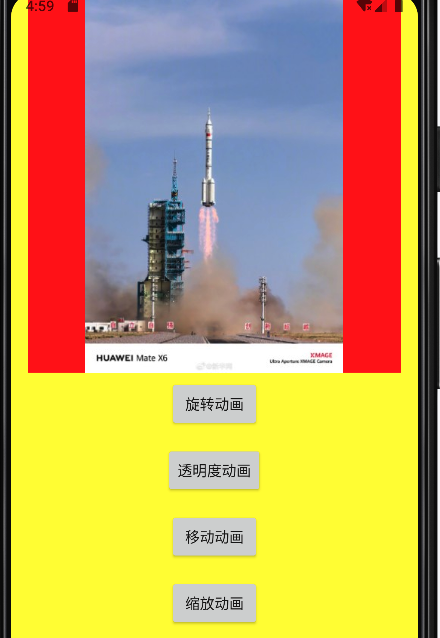
二,测试效果:

 浙公网安备 33010602011771号