flutter: 用url_launcher拨打电话或打开浏览器
一,下载
库的地址:
https://pub.dev/packages/url_launcher编辑pubspec.yaml
dependencies:
  flutter:
    sdk: flutter
  url_launcher: ^6.3.1
然后点击 pub get
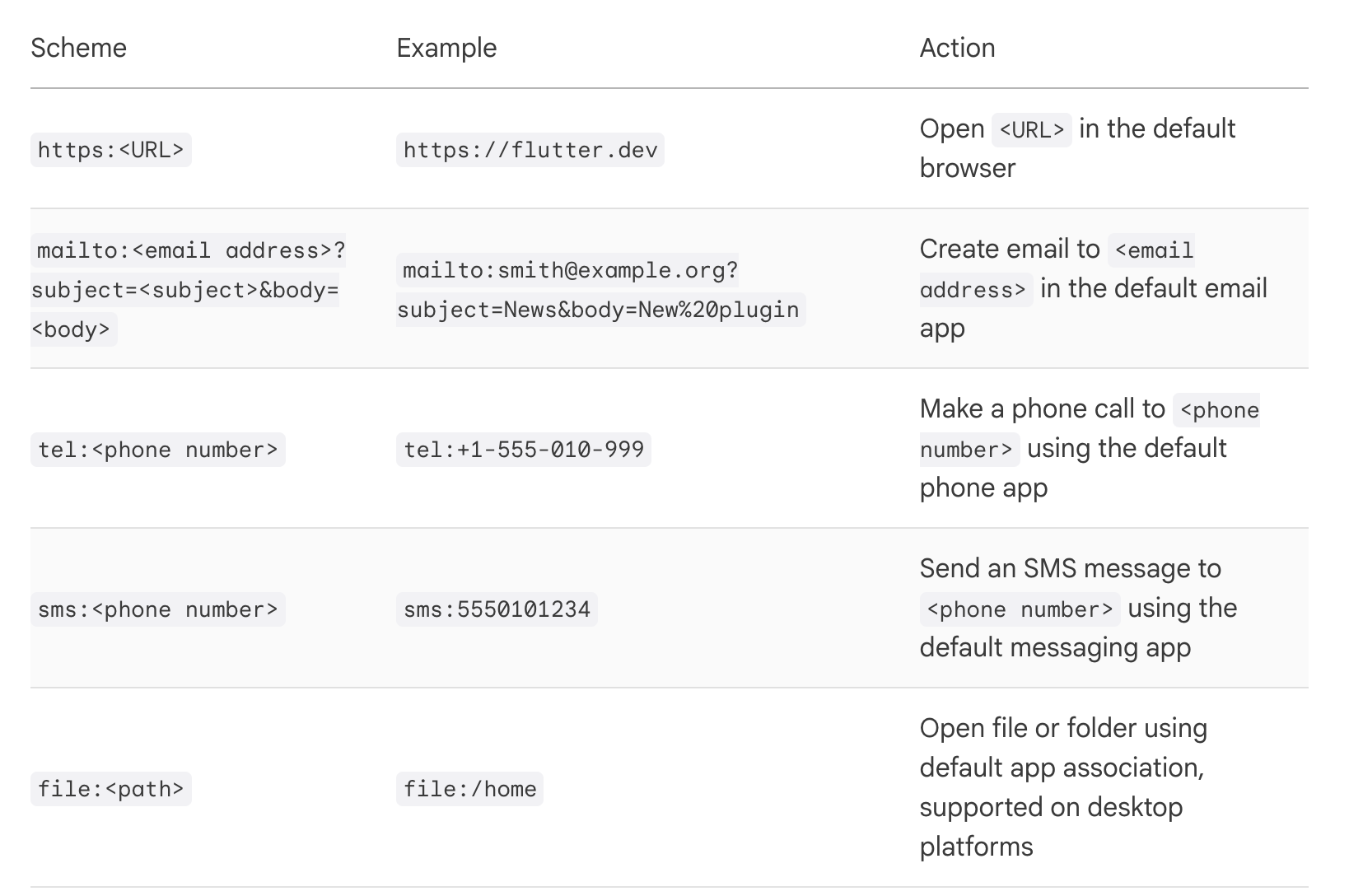
配置权限:android
编辑android/app/src/main/AndoridManifest.xml
在queries一项中增加:
<!-- If your app checks for SMS support -->
  <intent>
    <action android:name="android.intent.action.VIEW" />
    <data android:scheme="sms" />
  </intent>
  <!-- If your app checks for call support -->
  <intent>
    <action android:name="android.intent.action.VIEW" />
    <data android:scheme="tel" />
  </intent>
  <!-- If your application checks for inAppBrowserView launch mode support -->
  <intent>
    <action android:name="android.support.customtabs.action.CustomTabsService" />
  </intent>
二,代码
import 'package:flutter/material.dart';
import 'package:url_launcher/url_launcher.dart';

class CallPhonePage extends StatefulWidget {
  final Map arguments;

  // 为title设置一个默认参数,这样的跳转该界面时可以不传值。
  CallPhonePage({super.key, required this.arguments});
  @override
  State<CallPhonePage> createState() => _CallPhonePageState();
}

class _CallPhonePageState extends State<CallPhonePage> {

  //打开游览器/电话/短信等
  Future<void> _launchUrl(String url) async {
    final Uri _url = Uri.parse(url);
    if (!await launchUrl(_url)) {
      throw Exception('Could not launch $_url');
    }
  }


  @override
  Widget build(BuildContext context) {
    return Scaffold(
      appBar: AppBar(
        backgroundColor: Theme.of(context).colorScheme.primaryContainer,
        title: Text(widget.arguments["title"]),
      ),

      body: Center(
        child:Column(
          children: [
            ElevatedButton(
              onPressed: () async {

                //var url = 'https://weibo.com';
                var url = "tel:10086";
                _launchUrl(url);

              },
              child:  Row(
                mainAxisSize: MainAxisSize.min, // 根据内容调整大小
                children: <Widget>[
                  Icon(Icons.add), // 图标在左侧
                  SizedBox(width: 10), // 可选:添加一些间隔
                  Text("打开浏览器"), // 文本在右侧
                ],
              ),
            ),
            Column(
              mainAxisAlignment: MainAxisAlignment.center,
              children: [
                //Image.file(File(imageData), width: 600.0, height: 290.0)
              ],
            ),
          ],
        ),

      ),
    );
  }
}
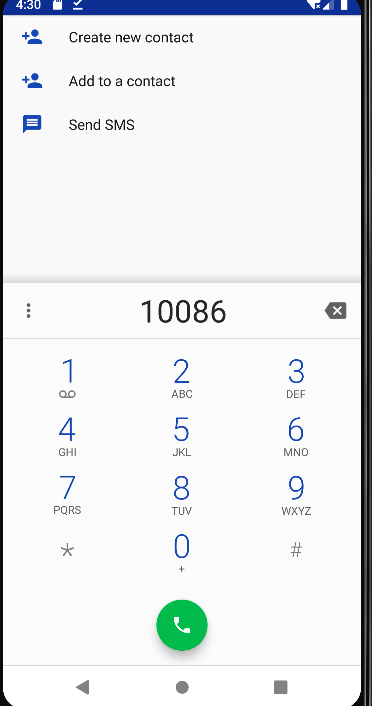
三,测试效果:

 浙公网安备 33010602011771号