
ragflow源码启动、打包镜像及问题解决
RAGFlow 源码启动、打包镜像及问题解决(WSL2 Ubuntu 22.04)
本文档整理并规范了在 WSL2 Ubuntu 22.04 环境下部署与启动 RAGFlow 的步骤,包括前端、后端与中间件,以及常见问题的处理方式。文档内容由大模型进行了重新排版。
环境准备
- 操作系统:WSL2 Ubuntu 22.04
- Node.js:建议
>= 18(示例使用v20.19.5) - Python:建议
3.10 - Docker 与 docker compose:已安装并可用
拉取项目
git clone https://github.com/infiniflow/ragflow.git
cd ragflow
前端启动
- 进入前端目录并安装依赖:
cd web
npm install
- 启动开发服务:
npm run dev
常见问题:Tailwind 生成超时
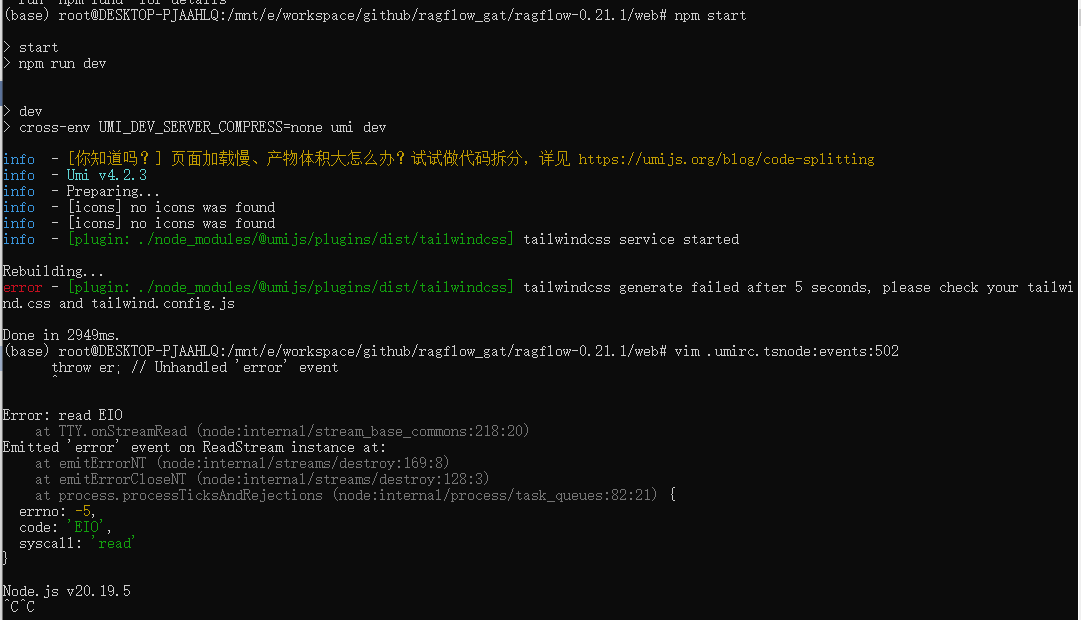
启动时可能出现如下错误:
error - [plugin: ./node_modules/@umijs/plugins/dist/tailwindcss] tailwindcss generate failed after 5 seconds, please check your tailwind.css and tailwind.config.js
处理办法:增大超时时间
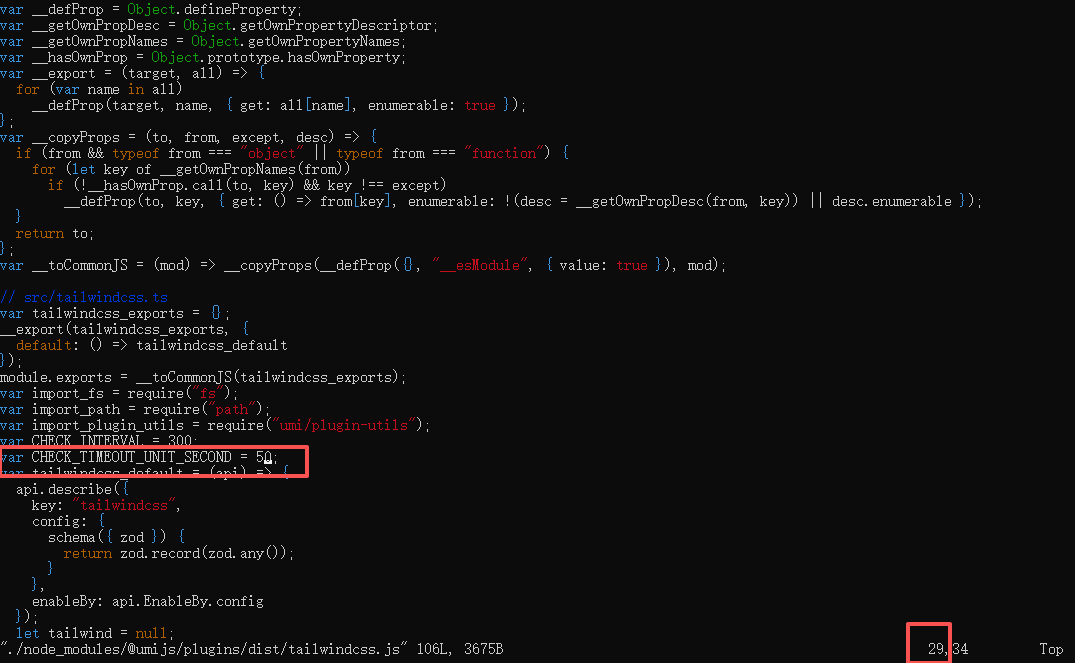
vi ./node_modules/@umijs/plugins/dist/tailwindcss.js
将第 29 行的 CHECK_TIMEOUT_UNIT_SECOND 值调整为 50,保存后重新运行:
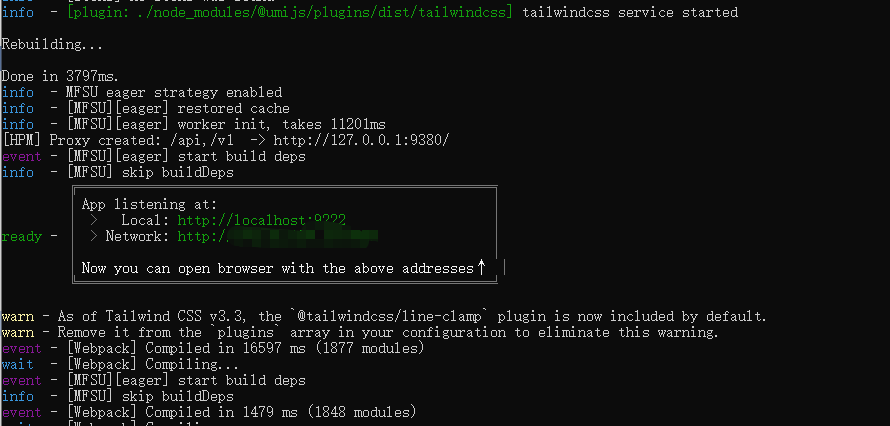
npm run dev
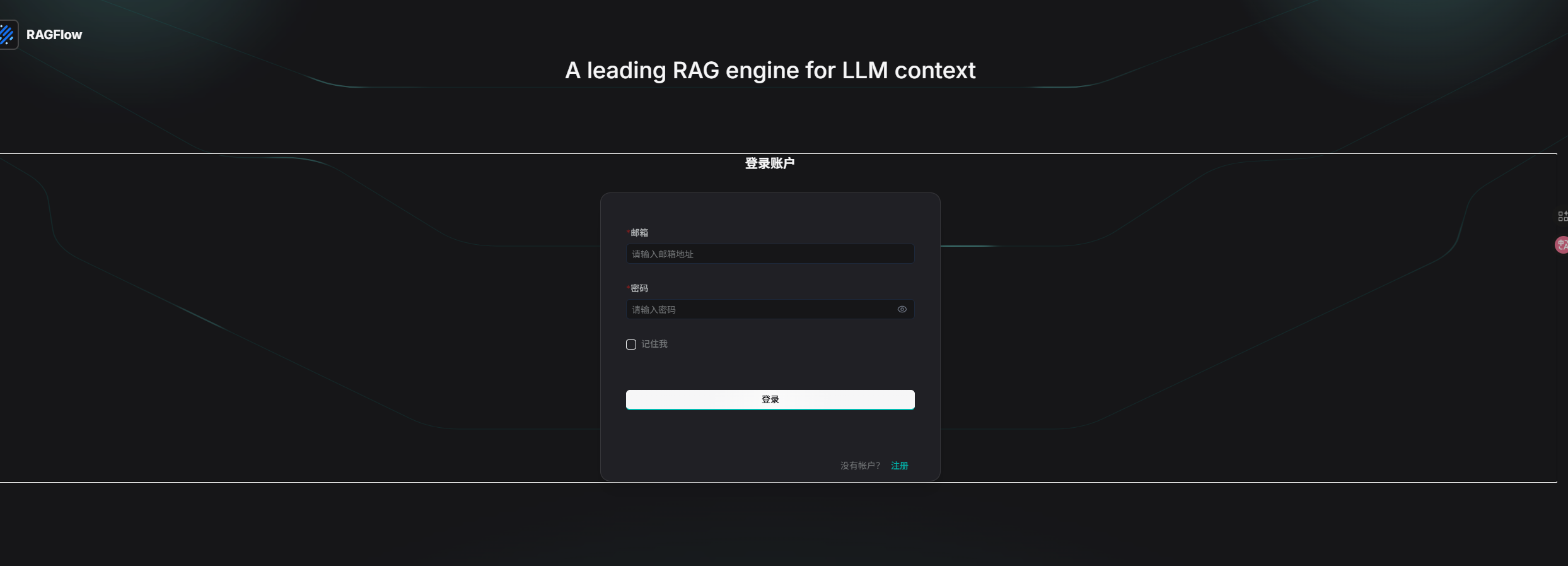
(参考截图)
中间件启动
在项目根目录下运行:
docker compose -f docker/docker-compose-base.yml up -d
后端启动
- 轻量版安装依赖(使用
uv):
uv sync --python 3.10
- 激活虚拟环境并设置
PYTHONPATH:
source .venv/bin/activate
export PYTHONPATH=$(pwd)
- 若使用完整版下载模型失败,可设置镜像站点:
export HF_ENDPOINT=https://hf-mirror.com
启动任务执行器与后台服务
在 Linux/WSL 环境下,推荐预加载 jemalloc 改善内存分配性能:
JEMALLOC_PATH=$(pkg-config --variable=libdir jemalloc)/libjemalloc.so
LD_PRELOAD=$JEMALLOC_PATH python rag/svr/task_executor.py 1
1为执行器编号,用于区分多个并发执行器实例。
启动后端服务:
python api/ragflow_server.py
打包镜像(不嵌入模型构建docker镜像)
- 进入目录
cd ragflow/
- 执行下载脚本
uv run download_deps.py --china-mirrors
- 加入 --china-mirrors参数可以使用国内源下载,避免超时等问题
- 也可以尝试使用python3执行下载脚本
python3 download_deps.py --china-mirrors
- 执行依赖打包脚本
docker build -f Dockerfile.deps -t infiniflow/ragflow_deps .
- 执行后会生成infiniflow/ragflow_deps镜像
- 执行主镜像打包脚本
docker build --build-arg LIGHTEN=1 --build-arg NEED_MIRROR=1 -f Dockerfile -t infiniflow/ragflow:nightly-slim_v1 .
- --build-arg LIGHTEN=1 :构建“瘦身版”镜像开关。为减少镜像体积,跳过拷贝大体积模型,并减少可选依赖安装。
- --build-arg NEED_MIRROR=1 :开启国内镜像加速。切换 APT、pip、uv、Rustup 等到国内镜像源,加快依赖下载。
- 启动容器
修改.env文件,设置RAGFLOW_IMAGE=infiniflow/ragflow:nightly-slim_v1
docker compose -f docker/docker-compose-base.yml up -d
- 启动后即完成部署,可通过浏览器访问查看 RAGFlow 界面。
问题
- 报错下载nltk失败
报错信息:
  Resource punkt_tab not found.
  Please use the NLTK Downloader to obtain the resource:

  >>> import nltk
  >>> nltk.download('punkt_tab')

  For more information see: https://www.nltk.org/data.html

  Attempted to load tokenizers/punkt_tab/english/

  Searched in:
    - '/root/nltk_data'
    - '/mnt/e/workspace/github/ragflow_gat/ragflow-0.21.1/.venv/nltk_data'
    - '/mnt/e/workspace/github/ragflow_gat/ragflow-0.21.1/.venv/share/nltk_data'
    - '/mnt/e/workspace/github/ragflow_gat/ragflow-0.21.1/.venv/lib/nltk_data'
    - '/usr/share/nltk_data'
    - '/usr/local/share/nltk_data'
    - '/usr/lib/nltk_data'
    - '/usr/local/lib/nltk_data'
解决方法:
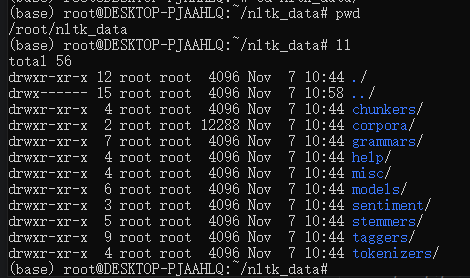
从其他地方下载nltk(比如其他博主提供的百度云盘资源),将文件放在上文报错信息中指定的路径下(任意一个路径即可,例如我放在了/root下)。
2)uv run download_deps.py下载谷歌驱动时超时
解决方法:
- 加入 --china-mirrors参数可以使用国内源下载,避免超时等问题
- 也可以尝试使用python3执行下载脚本
python3 download_deps.py --china-mirrors
- docker build构建镜像时超时
报错信息:
Dockerfile:2
--------------------
   1 |     # base stage
   2 | >>> FROM ubuntu:22.04 AS base
   3 |     USER root
   4 |     SHELL ["/bin/bash", "-c"]
--------------------
ERROR: failed to build: failed to solve: failed to fetch anonymous token: Get "https://auth.docker.io/token?scope=repository%3Alibrary%2Fubuntu%3Apull&service=registry.docker.io": dial tcp 199.59.148.102:443: i/o timeout
解决方法:
挂**以后单独拉取ubuntu:22.04镜像后再重新执行构建
docker pull ubuntu:22.04
- 构建镜像时报错找不到huggingface.co/InfiniFlow/huqie/huqie.txt.trie
报错信息:
ERROR: failed to build: failed to solve: process "/bin/bash -c cp /huggingface.co/InfiniFlow/huqie/huqie.txt.trie /ragflow/rag/res/ && tar --exclude='.*' -cf - /huggingface.co/InfiniFlow/text_concat_xgb_v1.0 /huggingface.co/InfiniFlow/deepdoc | tar -xf - --strip-components=3 -C /ragflow/rag/res/deepdoc" did not complete successfully: exit code: 1
解决方法:重新执行download_deps.py脚本
uv run download_deps.py --china-mirrors
本文来自博客园,作者:日报初级开发工程师,转载请注明原文链接:https://www.cnblogs.com/april-code/p/19209129

 浙公网安备 33010602011771号