
[1125] Using Regular Expressions in Word's Find and Replace Function
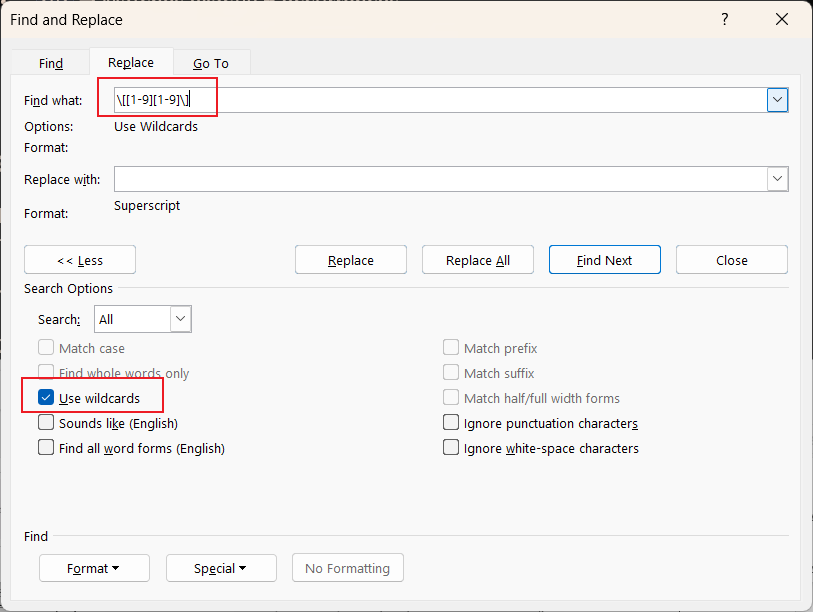
Microsoft Word doesn’t fully support traditional regular expressions (RegExp) but offers a wildcard-based Find and Replace function that behaves similarly. Here’s how to use it effectively:
1. Enabling Wildcards
- Press
Ctrl + Hto open Find and Replace. - Click More >>, then check Use wildcards.
2. Common Wildcard Patterns
?→ Matches any single character.*→ Matches any string of characters.[abc]→ Matches a, b, or c.[0-9]→ Matches any digit.{n}→ Matches exactly n occurrences.{n,}→ Matches n or more occurrences.{n,m}→ Matches between n and m occurrences.
3. Example: Converting Citation Numbers to Superscripts
If you want to find numbers inside square brackets ([1], [12], etc.) and convert them to superscripts:
- Find what:
\[([0-9]{1,3})\] - Replace with:
\1 - Click Format → Font, then check Superscript.
- Click Replace All.
4. Updating Fields
After replacing, press Ctrl + A and F9 to update all fields.
For further details, check Microsoft’s guide or this tutorial. Let me know if you need specific refinements! 😊
To match single-digit numbers (0-9) and two-digit numbers (10-99) using regular expressions, you can use the following patterns:
-
Single-digit numbers:
^\d$- This matches any number from
0to9.
- This matches any number from
-
Two-digit numbers:
^\d{2}$- This matches numbers from
10to99.
- This matches numbers from
-
Both single and two-digit numbers:
^\d{1,2}$- This matches numbers from
0to99.
- This matches numbers from
If you need to exclude 0 and only match positive integers, use:
- Single-digit (1-9):
^[1-9]$ - Two-digit (10-99):
^[1-9]\d$ - Both (1-99):
^[1-9]\d?$
For more details, you can check this guide or this reference. Let me know if you need further refinements! 😊

 浙公网安备 33010602011771号