文章转载于http://www.cnblogs.com/guanjinke/archive/2006/12/19/597260.html
在上一篇文章,我介绍了如何编写模态对话框属性编辑器,这篇文章我将介绍如何编写下拉式属性编辑器。下拉式(DropDown)属性编辑器和模态对话框属性编辑器的不同之处就是,当你点击属性值修改的时候,模态对话框编辑器是弹出一个模态对话框,而下拉式属性编辑器却是在紧贴着属性值的地方显示一个下拉的控件。不知道大家注意到了没有,这里我说的是显示一个下拉的控件,而这个控件也是需要你去开发的,接下来我还是以Scope属性为例,介绍一下具体的实现。
首先我们要创建一个用于编辑属性的控件,在本系列文章的开始,我们介绍了自定义控件有三种类型:复合控件,扩展控件,自定义控件。在本例中我们制作一个复合控件(Compsite control),复合控件的开发比较简单,不在本系列文章的讲解范围,我简单做个介绍,在Solution 浏览器里右键点击CustomControlSample工程选择Add->User Control…,输入文件名ScopeEditorControl.cs。我们做的这个复合控件上一篇文章介绍的模态对话框所包含子控件基本一样,除了用于确认和取消的按钮,如下图: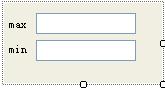
由于我们取消了用于确认和取消的按钮,并且是一个下拉的编辑器控件,在出现下面三种情况的时候下拉的编辑器控件会关闭:用户敲了回车,用户敲了ESC键,用户点击了编辑器以外的地方。当下拉编辑器控件关闭的时候我们就需要更新属性的值。下边是这个控件的代码:
 1 using System;
 2  using System.Collections.Generic;
 3 using System.ComponentModel;
 4 using System.Drawing;
 5 using System.Data;
 6 using System.Text;
 7 using System.Windows.Forms;
 8
 9 namespace CustomControlSample
10 {
11     public partial class ScopeEditorControl : UserControl
12     {
13         private Scope _oldScope;
14         private Scope _newScope;
15         private Boolean canceling;
16
17         public ScopeEditorControl(Scope scope)
18         {
19             _oldScope = scope;
20             _newScope = scope;
21             InitializeComponent();
22         }
23
24         public Scope Scope
25         {
26             get
27             {
28                 return _newScope;
29             }
30         }
31
32         private void textBox1_Validating(object sender, CancelEventArgs e)
33         {
34             try
35             {
36                 Int32.Parse(textBox1.Text);
37
38             }
39             catch (FormatException)
40             {
41                 e.Cancel = true;
42                 MessageBox.Show("无效的值", "验证错误", MessageBoxButtons.OK, MessageBoxIcon.Error);
43             }
44         }
45
46         private void textBox2_Validating(object sender, CancelEventArgs e)
47         {
48             try
49             {
50                 Int32.Parse(textBox2.Text);
51             }
52             catch (FormatException)
53             {
54                 e.Cancel = true;
55                 MessageBox.Show("无效的值", "验证错误", MessageBoxButtons.OK, MessageBoxIcon.Error);
56             }
57         }
58
59         protected override bool ProcessDialogKey(Keys keyData)
60         {
61             if (keyData == Keys.Escape)
62             {
63                 _oldScope = _newScope;
64                 canceling = true;
65             }
66             return base.ProcessDialogKey(keyData);
67         }
68
69         private void ScopeEditorControl_Leave(object sender, EventArgs e)
70         {
71             if (!canceling)
72             {
73                 _newScope.Max = Convert.ToInt32(textBox1.Text);
74                 _newScope.Min = Convert.ToInt32(textBox2.Text);
75             }
76         }
77
78         private void ScopeEditorControl_Load(object sender, EventArgs e)
79         {
80             textBox1.Text = _oldScope.Max.ToString();
81             textBox2.Text = _oldScope.Min.ToString();
82         }
83
84
85     }
86 }
 1 using System;
 2 using System.ComponentModel;
 3 using System.Drawing.Design;
 4 using System.Windows.Forms.Design;
 5 using System.Windows.Forms;
 6
 7 namespace CustomControlSample
 8 {
 9     public class ScopeDropDownEditor : UITypeEditor
10     {
11         public override UITypeEditorEditStyle GetEditStyle(ITypeDescriptorContext context)
12         {
13             if (context != null && context.Instance != null)
14             {
15                 return UITypeEditorEditStyle.DropDown;
16             }
17
18             return base.GetEditStyle(context);
19         }
20
21         public override object EditValue(ITypeDescriptorContext context, IServiceProvider provider, object value)
22         {
23             IWindowsFormsEditorService editorService = null;
24
25             if (context != null && context.Instance != null && provider != null)
26             {
27                 editorService = (IWindowsFormsEditorService)provider.GetService(typeof(IWindowsFormsEditorService));
28                 if (editorService != null)
29                 {
30                     MyListControl control = (MyListControl)context.Instance;
31                     ScopeEditorControl editorControl = new ScopeEditorControl(control.Scope);
32                     editorService.DropDownControl(editorControl);
33                     value = editorControl.Scope;
34                     return value;
35                 }
36             }
37
38             return value;
39         }
40
41     }
42 }
看过上一篇文章的朋友应该对这段代码很熟悉,是的,这两个编辑器的代码只有几行不同之处,在GetEditStyle方法中,我们返回的是UITypeEditorEditStyle.DropDown,而不是UITypeEditorEditStyle.Modal,表明我们的编辑器是一个下拉式的编辑器。在EditValue中的不同之处是,我们使用DropDownControl方法来显示编辑器。编辑器制作完毕,我们把Scope以前的编辑器替换成下拉式编辑器,如下:
 1 [Browsable(true)]
 2         [Editor(typeof(ScopeDropDownEditor), typeof(UITypeEditor))]
 3         public Scope Scope
 4         {
 5             get
 6             {
 7                 return _scope;
 8             }
 9             set
10             {
11                 _scope = value;
12             }
13         }
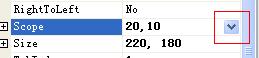
当点击这个按钮的时候,下拉的属性编辑器出现了: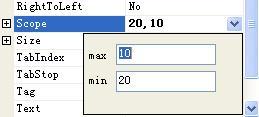
好了,属性的编辑到这里就讲完了。

 浙公网安备 33010602011771号