Introduction
The wonderful PropertyGrid control, provided by Microsoft, is a very useful component for editing settings or parameters in your application. You can easily let the user customize any object at runtime. When you pass an object to the SelectedObject property of a PropertyDataGrid, the PropertyDataGrid will display all the properties of your object that has the BrowsableAttribute set to true. It is both very simple and efficient.
But sometimes, you only want to expose just some properties, not all of them. Suppose you want to allow the user of your application to edit the appearance of your main form. How would you do that ? In fact, this can be done very easily. Microsoft thought about this matter and gave us a very interesting property, named BrowsableAttributes. In this article, we'll first see how this property works, and how we can use it. Next, we'll see how it is not sufficient for most cases, and introduce a new approach, using inheritance.
BrowsableAttributes: the easy but insufficient way
With the PropertyGrid.BrowsableAttributes, you can choose to display only the properties that have the attributes contained in AttributeCollection. Suppose you want to only show the properties that are grouped in the "Appearance" category.
 Collapse | Copy Code
Attribute myfilterattribute =
new CategoryAttribute("Appearance");
mypropertygrid.BrowsableAttributes = new
AttributeCollection(new Attribute[]
{ myfilterattribute });
You can choose several attributes, and of any sort:
Collapse | Copy Code
mypropertygrid.BrowsableAttributes =
  new AttributeCollection(new Attribute[] {
    new CategoryAttribute("Appearance"),
    new CategoryAttribute("Layout"),
    new DisplayNameAttribute("zzzz"),
    new BrowsableAttribute(false)
  });
Note that by default, all the browsable attributes are displayed. In other words, if you let the BrowsableAttributesempty, you'll display all the properties of the SelectedObject that have the BrowsableAttribute set to true.
This is simple and works fine. But how can we just filter by properties? Unfortunately, the PropertyGrid doesn't provide a BrowsableProperties. If you want to display a selection of properties, you have to write some code ... or read the paragraph below.
Inheritance for selected properties: the FilteredPropertyGrid
Now, we'll discuss about another problem. Suppose your SelectedObject is a TextBox, and you want to display in a PropertyGrid only the "Size" property of your TextBox. As the PropertyGrid control is, it is not possible. If you read what is written in the previous section, you may imagine passing to thePropertyGrid.BrowsableAttributes property a collection of attributes like "PropertyNameAttribute". But unfortunately, such attributes don't exist.
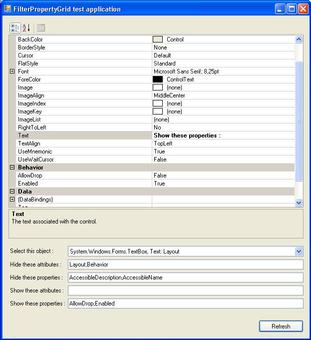
I propose another approach: using a wrapper object that contains the object you want to display in thePropertyGrid. This wrapper will be passed to the PropertyGrid, instead of the object itself. So, thePropertyGrid will not directly display the object's properties, but the wrapper's ones. In this case, you need to subclass the PropertyGrid with a new control that overrides the SelectedObject property. That's exactly what I did, while writing the FilteredPropertyGrid control. This control is inherited from PropertyGrid and works the same way. I just added these useful properties:
BrowsableAttributes: overridden from PropertyGrid.HiddenAttributes: all the properties that have the attributes contained in the collection are hidden.BrowsableProperties: all the properties contained in the collection are displayed.HiddenProperties: all the properties contained in the collection are not displayed.
Here's how you can use it. To display only the "Size" property of your TextBox, write these lines of code:
Collapse | Copy Code
TextBox mycontrol = new TextBox();
FilteredPropertyGrid mygrid = new FilteredPropertyGrid();
mygrid.BrowsableProperties = new string[] { "Size" };
mygrid.SelectedObject = mycontrol;
mygrid.Refresh();
That's all! You can combine these four properties as you wish. Suppose you want to display all the categories, except the "Accessibility" and "Layout" ones. But you want the "AccessibilityRole" property, and not the "DataBinidngs" one. Write this code:
Collapse | Copy Code
mygrid.HiddenPAttributes =
   new AttibuteCollection(new Attribute[] {
       new CategoryAttribute("Accessibility"),
       new CategoryAttribute("Layout") });
mygrid.HiddenProperties = new string[] { "DataBinidngs" };
mygrid.BrowsableProperties =
   new string[] { "AccessibilityRole" }
Note: these properties only work with SelectedObject. There is no warranty of them working withSelectedObjects.
How does it work?
Well, I will just describe the big pants of the FilteredPropertyGrid. For more information, you can download the source code above. When one of these four properties changes, the private methodFilteredPropertyGrid.RefreshProperties() is called and builds a list containing all thePropertyDescriptors of the properties to display. This collection is passed to a wrapper, and the wrapper is linked to the PropertyGrid:
Collapse | Copy Code
public class FilteredPropertyGrid : PropertyGrid
{
private List<PropertyDescriptor>
m_PropertyDescriptors =
new List<PropertyDescriptor>();
private ObjectWrapper m_Wrapper = null;
( ... )
public new object SelectedObject {
get { return m_Wrapper != null ?
((ObjectWrapper)
base.SelectedObject).SelectedObject :
null; }
set {
if(m_Wrapper == null) {
m_Wrapper = new ObjectWrapper(value);
m_Wrapper.PropertyDescriptors =
m_PropertyDescriptors;
RefreshProperties();
} else {
base.SelectedObject = m_Wrapper;
}
}
}
( ... )
}
The RefreshProperties() method strongly uses the TypeDescriptor class and its GetProperties() method, to get the properties of the SelectedObject and build the list.





 浙公网安备 33010602011771号