
【记录】复现A2TP
https://github.com/CSU-NetLab/A2TP-Eurosys2023
步骤
首先,clone 一下项目
dell10@dell10-Precision-5820-Tower:~/wyq$ git clone https://github.com/CSU-NetLab/A2TP-Eurosys2023.git
进入 client 和 server 目录下进行编译
dell10@dell10-Precision-5820-Tower:~/wyq$ cd A2TP-Eurosys2023/client/
dell10@dell10-Precision-5820-Tower:~/wyq/A2TP-Eurosys2023/client$ make
但是遇到错误
g++ -std=c++11 -g -O1 -c -o main.o main.cc
In file included from ../common/dma_common.h:4,
                 from p4ml_manager.h:5,
                 from main.cc:1:
../common/mlx5_defs.h:4:10: fatal error: infiniband/verbs_exp.h: 没有那个文件或目录
    4 | #include <infiniband/verbs_exp.h>
      |          ^~~~~~~~~~~~~~~~~~~~~~~~
compilation terminated.
make: *** [Makefile:22:all] 错误 1
解决方法详见:
项目中提到
For each host, the NIC driver version is MLNX_OFED_LINUX-4.9-4.1.7.0. For aggregating switch, the SDE version is bf-sde-8.9.1.
查看MLNX_OFED版本
ofed_info -s
$ ofed_info -s
MLNX_OFED_LINUX-5.4-3.1.0.0:
选择下载 MLNX_OFED 4.9-4.1.7.0.
下载驱动
先检查硬件是否被识别
确认 PCI 设备是否可见
lspci | grep -i mellanox
$ lspci | grep -i mellanox
0000:17:00.0 Ethernet controller: Mellanox Technologies MT27800 Family [ConnectX-5] (rev ff)
0000:17:00.1 Ethernet controller: Mellanox Technologies MT27800 Family [ConnectX-5] (rev ff)
如果输出为空,可能是硬件未插好、未供电,或虚拟机 PCI 透传未启用。
访问
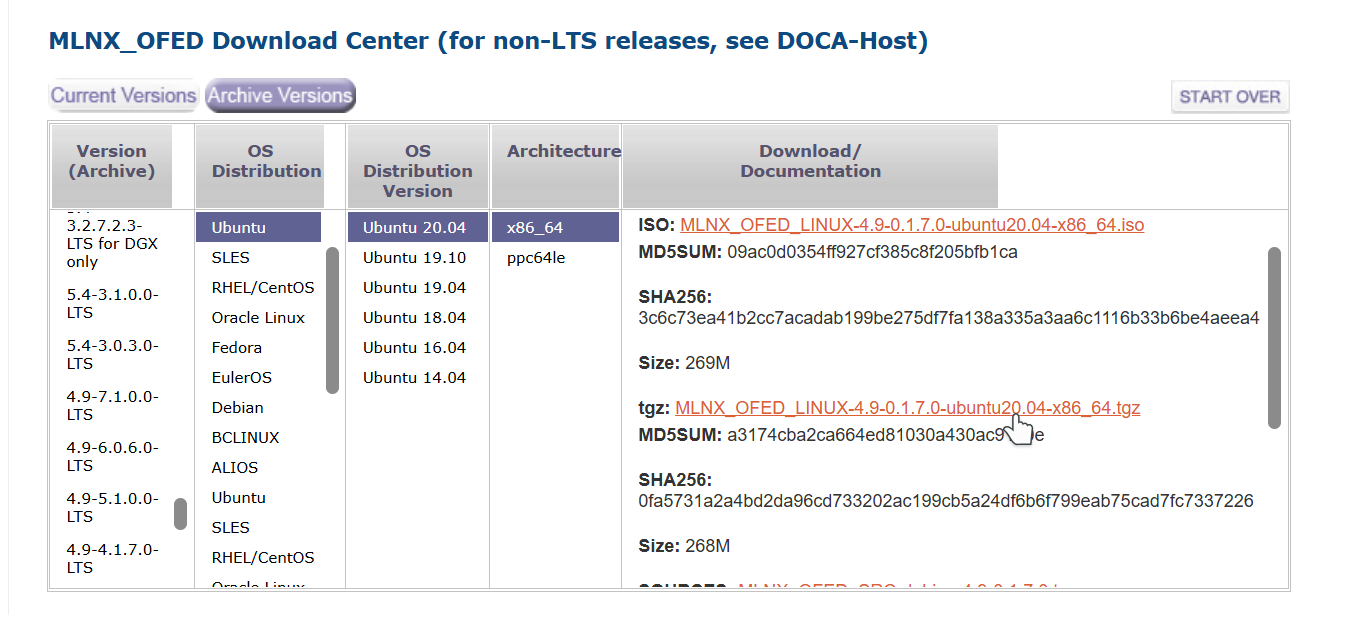

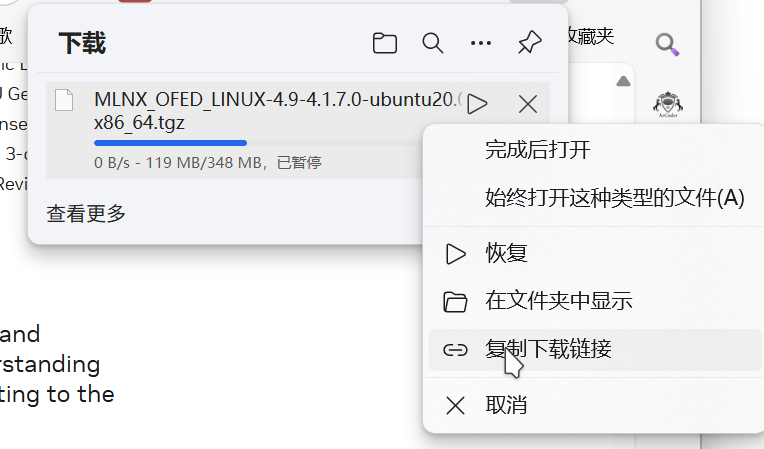
以 Ubuntu 20.04 为例
wget https://content.mellanox.com/ofed/MLNX_OFED-4.9-4.1.7.0/MLNX_OFED_LINUX-4.9-4.1.7.0-ubuntu20.04-x86_64.tgz
tar -xvzf MLNX_OFED_LINUX-4.9-0.1.7.0-ubuntu20.04-x86_64.tgz
cd MLNX_OFED_LINUX-4.9-4.1.7.0-ubuntu20.04-x86_64/
如果版本完全匹配,按照官网文档所说,只需要执行下面这个命令就可以安装成功了
sudo ./mlnxofedinstall --dpdk
安装成功后根据提示 运行 /etc/init.d/openibd restart,记得加 sudo
sudo /etc/init.d/openibd restart


报错,驱动被占用
解决方案
sudo rmmod 卸载驱动名称

接下来就可以进入 client 目录和 server 目录执行代码啦
一些可能问题
-bash: /usr/sbin/ibstat: 没有那个文件或目录
ibstat 属于 Infiniband 诊断工具包,在 Ubuntu/Debian 系统中需安装 infiniband-diags
sudo apt update
sudo apt install infiniband-diags
找不到ib设备
官方文档
安装驱动时报错
Uninstalling the previous version of MLNX_OFED_LINUX
Failed to uninstall the previous installation
Collecting debug info...
See /tmp/MLNX_OFED_LINUX.145237.logs/ofed_uninstall.log
查看驱动加载错误,可以把报错信息丢给 AI
dmesg | grep -i mlx
dmesg | grep -i ib
mlx5_core 0000:17:00.0: firmware version: 65535.65535.65535  # 固件版本异常
mlx5_core 0000:17:00.0: Refused to change power state, currently in D3  # 设备处于深度休眠状态
mlx5_core 0000:17:00.0: Firmware over 120000 MS in pre-initializing state, aborting  # 固件初始化超时
检查 InfiniBand 设备时候报错
$ ibstatus
Fatal error:  device '*': sys files not found (/sys/class/infiniband/*/ports)
这个往往是驱动版本不匹配导致的
一些可能用到的命令
查看设备
sudo mst status
强制烧写固件
sudo mstflint -d <device> -i <firmware_image.bin> burn --allow_psid_change --no_fw_ctrl
sudo mstflint -d /dev/mst/mt4125_pciconf0 -i fw-ConnectX5-xxx.bin burn --allow_psid_change --no_fw_ctrl
检查是否安装了 InfiniBand/RDMA 硬件
lspci | grep -i mellanox
$ lspci | grep -i mellanox
0000:17:00.0 Ethernet controller: Mellanox Technologies MT27800 Family [ConnectX-5]
0000:17:00.1 Ethernet controller: Mellanox Technologies MT27800 Family [ConnectX-5]
检查内核驱动是否加载
lsmod | grep -E 'ib_core|mlx|rdma'
关键模块:应包含 ib_core、mlx5_core、rdma_ucm 等。
$ lsmod | grep -E 'mlx5_core|mlx5_ib|ib_core'
ib_core               393216  0
mlx5_ib                16384  0
mlx5_core            1957888  0
pci_hyperv_intf        16384  1 mlx5_core
mlxdevm               176128  1 mlx5_core
mlx_compat             69632  3 mlxdevm,mlx5_ib,mlx5_core
mlxfw                  32768  1 mlx5_core
psample                20480  1 mlx5_core
tls                   114688  1 mlx5_core
检查 OFED 驱动是否安装
ofed_info -n
如果已安装,会返回版本
$ ofed_info -n
5.8-3.0.7.0
如果提示 ofed_info: command not found,说明未安装 Mellanox OFED 驱动。
加载驱动
sudo modprobe mlx5_core mlx5_ib
手动加载驱动模块
sudo rmmod mlx5_ib mlx5_core
sudo modprobe mlx5_core
sudo modprobe mlx5_ib
正确状态
ibv_devices       # 列出 mlx5_0 设备
$ ibv_devices
    device                 node GUID
    ------              ----------------
    mlx5_1              0c42a103005a5381
    mlx5_0              0c42a103005a5380
查看firmware版本
ibstat
查看MLNX_OFED版本
ofed_info -s
查看mft版本
sudo mst start

 浙公网安备 33010602011771号