
Jenkins配置master-slave模式
本来想着先写一篇jenkins安装的流程,但是现在jenkins做的已经非常完善了,有.war文件,直接在tomcat启动即可,所以这里就不多说了,小白自己试试就行,有问题可以给我留言。
先说说master-slave模式,因为Jenkins是一个持续集成平台,像我们现在做的SSD的测试系统,需要有client端运行测试工具,将测试结果返回给Jenkins进行汇总显示,所以这就用到master-client模式,下面是我的具体步骤:
1.管理员建立新账户,client使用该账户登录
使用管理员账户在用户管理中添加一个新用户,这里我是使用zwj作为举例。
2.添加client节点
A) Manage Jenkins->New Node
B) 设置新节点信息
·Name:非必须的识别信息,一般情况使用client账户名,应避免重复;
·Description:主要描述client主机的信息
# of executors:Jenkins在该代理(client)上支持的最大并发生成数,一般情况与client的CPU核数一致即可。
Tips:1.A good value to start with would be the number of CPU cores on the machine. Setting a higher value would cause each build to take longer, but could increase the overall throughput. For example, one build might be CPU-bound, while a second build running at the same time might be I/O-bound — so the second build could take advantage of the spare I/O capacity at that moment.
2.ents must have at least one executor. To temporarily prevent any builds from being executed on an agent, use the Mark this node temporarily offline button on the agent's page.
3.is does not apply to the Jenkins master — setting the number of executors to zero will prevent any builds from being executed on the master.
·Remote root directory:client节点需要有一个文件夹专门用于Jenkins,这里填写路径,比如:windows环境下,是:D:\Jenkins
Tips:1.client(代理)并不保存/持有重要数据信息。比如logs和artifacts存储在master上。Agent一般存储cache data比如installations,build workspace。
2.如果填写的是相对信息,那么将会以jenkins的Launch目录来选取相对地址信息。
·Labels:用于多个代理组组成一个逻辑组。
Tips:1.For example, if you have multiple Windows agents and you have a job that must run on Windows, then you could configure all your Windows agents to have the label windows, and then tie that job to this label.
This would ensure that your job runs on one of your Windows agents, but not on any agents without this label.
2.Labels do not necessarily have to represent the operating system on the agent; you can also use labels to note the CPU architecture, or that a certain tool is installed on the agent.
3.Multiple labels must be separated by a space. For example, windows docker would assign two labels to the agent: windows and docker.
4.Labels may contain any non-space characters, but you should avoid special characters such as any of these: !&|<>(), as other Jenkins features allow for defining label expressions, where these characters may be used.
·Usage:两种模式,控制该节点上,Jenkins的生成方式。
Tips:1.Use this node as much as possible
This is the default setting.
In this mode, Jenkins uses this node freely. Whenever there is a build that can be done by using this node, Jenkins will use it.
2.Only build jobs with label expressions matching this node
In this mode, Jenkins will only build a project on this node when that project is restricted to certain nodes using a label expression, and that expression matches this node's name and/or labels.
This allows a node to be reserved for certain kinds of jobs. For example, if you have jobs that run performance tests, you may want them to only run on a specially configured machine, while preventing all other jobs from using that machine. To do so, you would restrict where the test jobs may run by giving them a label expression matching that machine.
Furthermore, if you set the # of executors value to 1, you can ensure that only one performance test will execute at any given time on that machine; no other builds will interfere.
·Launch methos:控制Jenkins在该节点上如何启动。
Tips:Launch agent via Java Web Start
Allows an agent to be launched using Java Web Start.
In this case, a JNLP file must be opened on the agent machine, which will establish a TCP connection to the Jenkins master.
This means that the agent need not be reachable from the master; the agent just needs to be able to reach the master. If you have enabled security via the Configure Global Security page, you can customize the port on which the Jenkins master will listen for incoming JNLP agent connections.
By default, the JNLP agent will launch a GUI, but it's also possible to run a JNLP agent without a GUI, e.g. as a Window service.
·Avaliability:控制Jenkins何时启动或关闭该代理(client)
Tips:1.Keep this agent online as much as possible
In this mode, Jenkins will keep this agent online as much as possible.
If the agent goes offline, e.g. due to a temporary network failure, Jenkins will periodically attempt to restart it.
2.Take this agent online and offline at specific times
In this mode, Jenkins will bring this agent online at the scheduled time(s), remaining online for a specified amount of time.
If the agent goes offline while it is scheduled to be online, Jenkins will periodically attempt to restart it.
After this agent has been online for the number of minutes specified in the Scheduled 3.Uptime field, it will be taken offline.
If Keep online while builds are running is checked, and the agent is scheduled to be taken offline, Jenkins will wait for any any builds that may be in progress to complete.
Take this agent online when in demand, and offline when idle
In this mode, Jenkins will bring this agent online if there is demand, i.e. there are queued builds which meet the following criteria:
They have been in the queue for at least the specified In demand delay time period
They can be executed by this agent (e.g. have a matching label expression)
This agent will be taken offline if:
There are no active builds running on this agent
This agent has been idle for at least the specified Idle delay time period
·Node Properties:
Environment variables
Tool Locations
以上两个参数暂时还不清楚会起什么作用,暂时跳过不够选。
直接save。
3.Client登录配置
A) Agent登录
在新加入的节点计算机(client)上,打开浏览器,使用之前注册的新用户信息登录Jenkins。
B) 配置打开JNLP功能
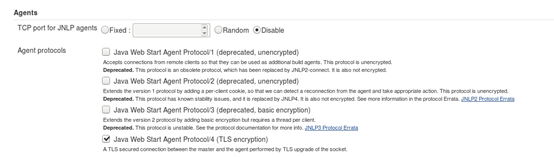
Manage Jenkins->Configure Global Security
在Agents分类中修改TCP port for JNLP agents选项为Random.
点击Agent protocols…,勾选Java Web Start Agent Protocol/4 (TLS encryption)即可。
C) 启动client连接
Manage Jenkins->Manage Nodes
选择刚才添加的client节点计算机
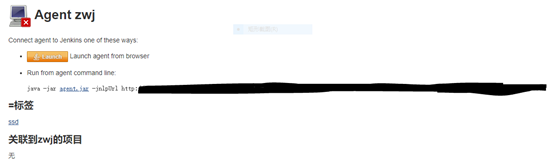
点击Launch
这时,会下载一个文件slave-agent.jnlp,双击打开(前提需要安装Java Web Start Launcher或jdk环境)会有如下所示:
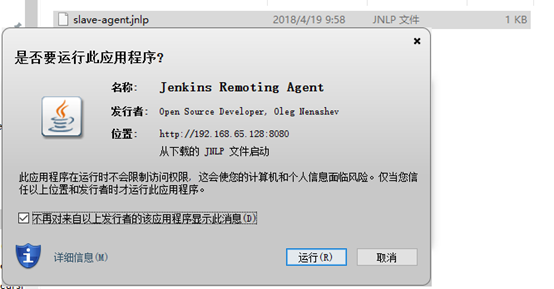
选择“运行”,将会启动连接程序,等待一会儿
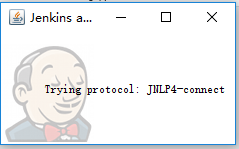
当出现Connected,就说明已经连接上Master
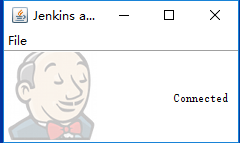
打开Manage Jenkins->Manage Nodes,然后就可以看到如下列表,显示client的信息:

点击client,可以跳转至其信息,如下所示:

4.设置自启动(optional)
如果需要client在启动时,自动连接,则需要如下设置:
A)在Agent program running界面,选择File->Install as a service
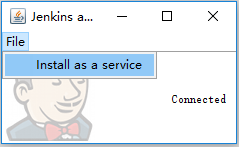
Tips:该功能需要有“.NET Framework 3.5 Features”

点击确定进行安装。
安装失败,显示如下错误,此处并未亲测解决:
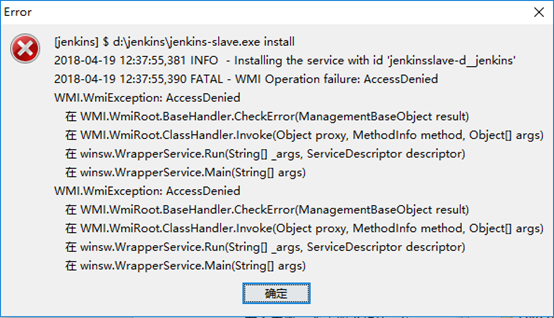
查找到d:\jenkins\jenkins-slave.exe,双击运行,出现:
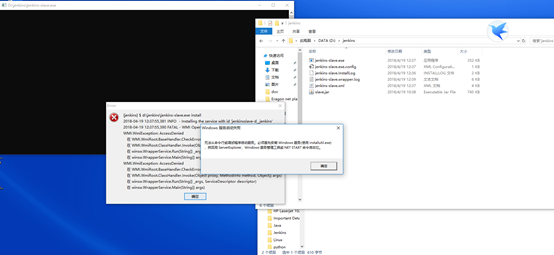
怀疑installutil的问题,电脑已安装.net3.5,但是仍然报错,具体定位到.net目录,通过cmd命令运行,结果如下:
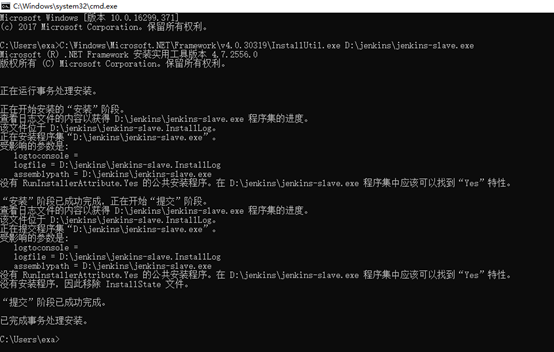
然而关闭页面后,仍然无法自动连接。
这里考虑两方面的问题:
1) 理解层面:可能这里的启动并不是通过installutil
2) 技术层面:自动启动部分的安装还有原理不清楚
希望这里的问题有人可以解决的话,我们相互讨论和交流,期待您的不吝赐教,谢谢~
