

Python——CSS基础
CSS
css概述
CSS是Cascading Style Sheets的简称,中文称为层叠样式表,用来控制网页数据的表现,可以使网页的表现与数据内容分离。
一 css的四种引入方式
1.行内式
行内式是在标记的style属性中设定CSS样式。这种方式没有体现出CSS的优势,不推荐使用。
|
1
|
<p style="background-color: rebeccapurple">hello yuan</p> |
2.嵌入式
嵌入式是将CSS样式集中写在网页的<head></head>标签对的<style></style>标签对中。格式如下:
|
1
2
3
4
5
6
7
8
9
|
<head> <meta charset="UTF-8"> <title>Title</title> <style> p{ background-color: #2b99ff; } </style></head> |
3 链接式
将一个.css文件引入到HTML文件中
|
1
|
<link href="mystyle.css" rel="stylesheet" type="text/css"/> |
4.导入式
将一个独立的.css文件引入HTML文件中,导入式使用CSS规则引入外部CSS文件,<style>标记也是写在<head>标记中,使用的语法如下:
|
1
2
3
4
5
|
<style type="text/css"> @import"mystyle.css"; 此处要注意.css文件的路径</style> |
注意:
导入式会在整个网页装载完后再装载CSS文件,因此这就导致了一个问题,如果网页比较大则会儿出现先显示无样式的页面,闪烁一下之后,再出现网页的样式。这是导入式固有的一个缺陷。使用链接式时与导入式不同的是它会以网页文件主体装载前装载CSS文件,因此显示出来的网页从一开始就是带样式的效果的,它不会象导入式那样先显示无样式的网页,然后再显示有样式的网页,这是链接式的优点。
二 css的选择器(Selector)
“选择器”指明了{}中的“样式”的作用对象,也就是“样式”作用于网页中的哪些元素
1 基础选择器
* :           通用元素选择器,匹配任何元素                    * { margin:0; padding:0; }

E  :          标签选择器,匹配所有使用E标签的元素               p { color:green; }

.info和E.info: class选择器,匹配所有class属性中包含info的元素   .info { background:#ff0; }    p.info { background:blue; }

#info和E#info  id选择器,匹配所有id属性等于footer的元素         #info { background:#ff0; }   p#info { background:#ff0; }
2 组合选择器
 E,F         多元素选择器,同时匹配所有E元素或F元素,E和F之间用逗号分隔         div,p { color:#f00; }

 E F         后代元素选择器,匹配所有属于E元素后代的F元素,E和F之间用空格分隔    li a { font-weight:bold;
 E > F       子元素选择器,匹配所有E元素的子元素F                            div > p { color:#f00; }

 E + F       毗邻元素选择器,匹配所有紧随E元素之后的同级元素F                  div + p { color:#f00; }


<!DOCTYPE html>
<html lang="en">
<head>
    <meta charset="UTF-8">
    <title>Title</title>
    <style>

        .div1>p{
            background-color: aqua;
            color: deeppink;
        }

        .main2>div{
            background-color: blueviolet;
            color: chartreuse;
        }
    </style>
</head>
<body>

      <div class="div1">hello1
          <div class="div2">hello2
              <div>hello4</div>
              <p>hello5</p>
          </div>
          <p>hello3</p>
      </div>
      <p>hello6</p>

<hr>

     <div class="main2">1
       <div>2
           <div>
               4
           </div>
       </div>
       <div>
               3
           </div>
     </div>
</body>
</html>
注意嵌套规则:
- 块级元素可以包含内联元素或某些块级元素,但内联元素不能包含块级元素,它只能包含其它内联元素。
- 有几个特殊的块级元素只能包含内联元素,不能包含块级元素。如h1,h2,h3,h4,h5,h6,p,dt
- li内可以包含div
- 块级元素与块级元素并列、内联元素与内联元素并列。
<!DOCTYPE html>
<html lang="en">
<head>
    <meta charset="UTF-8">
    <title>Title</title>
    <style>
        [suoning]{
            color: blueviolet;
        }
        .he>div{
            color: bisque;
        }

    </style>
</head>
<body>

<div class="he">111
    <p class="fr">222
        <div>333</div>
    </p>
    <div>444</div>
</div>


***************************

<div suoning="sb">ddd
         <p>pppp</p>
     </div>
     <p suoning="sb2">ddd2
         <p>pppp2</p>
     </p>
</body>
</html>
3 属性选择器
 E[att]         匹配所有具有att属性的E元素,不考虑它的值。(注意:E在此处可以省略,比如“[cheacked]”。以下同。)   p[title] { color:#f00; }


 E[att=val]     匹配所有att属性等于“val”的E元素                                 div[class=”error”] { color:#f00; }


 E[att~=val]    匹配所有att属性具有多个空格分隔的值、其中一个值等于“val”的E元素      td[class~=”name”] { color:#f00; }

 E[attr^=val]    匹配属性值以指定值开头的每个元素                     div[class^="test"]{background:#ffff00;}

 E[attr$=val]    匹配属性值以指定值结尾的每个元素                     div[class$="test"]{background:#ffff00;}

 E[attr*=val]    匹配属性值中包含指定值的每个元素                     div[class*="test"]{background:#ffff00;}
4 伪类(Pseudo-classes)
CSS伪类是用来给选择器添加一些特殊效果。
anchor伪类:专用于控制链接的显示效果
a:link(没有接触过的链接),用于定义了链接的常规状态。

a:hover(鼠标放在链接上的状态),用于产生视觉效果。

a:visited(访问过的链接),用于阅读文章,能清楚的判断已经访问过的链接。

a:active(在链接上按下鼠标时的状态),用于表现鼠标按下时的链接状态。

伪类选择器 : 伪类指的是标签的不同状态:

           a ==> 点过状态 没有点过的状态 鼠标悬浮状态 激活状态

a:link {color: #FF0000} /* 未访问的链接 */

a:visited {color: #00FF00} /* 已访问的链接 */

a:hover {color: #FF00FF} /* 鼠标移动到链接上 */

a:active {color: #0000FF} /* 选定的链接 */ 格式: 标签:伪类名称{ css代码; }
<style type="text/css">
    a:link{
        color: red;
    }
    a:visited {
        color: blue;
    }
    a:hover {
        color: green;
    }
    a:active {
        color: yellow;
    }
</style>
</head>
<body>
    <a href="01-hello-world.html">hello-world</a>
</body>
</html>
补充:
|
1
|
.outer:hover .right{color: red} |
before after伪类 :
:before    p:before       在每个<p>元素之前插入内容
:after     p:after        在每个<p>元素之后插入内容
 p:before        在每个 <p> 元素的内容之前插入内容                    p:before{content:"hello";color:red}
 p:after         在每个 <p> 元素的内容之前插入内容                    p:after{ content:"hello";color:red}
5 css优先级和继承
CSS优先级:
所谓CSS优先级,即是指CSS样式在浏览器中被解析的先后顺序。
样式表中的特殊性描述了不同规则的相对权重,它的基本规则是:
      1 内联样式表的权值最高       style=""-------------------1000;
   2 统计选择符中的ID属性个数。    #id    -------------100
  3 统计选择符中的CLASS属性个数。 .class  -------------10
 4 统计选择符中的HTML标签名个数。     p     --------------1
按这些规则将数字符串逐位相加,就得到最终的权重,然后在比较取舍时按照从左到右的顺序逐位比较。
<style>
        #p{
            color: rebeccapurple;
        }
        .p{
            color: #2459a2;
        }
        p{
            color: yellow;
        }
    </style>
<p id="p" class="p" style="color: deeppink">hello yuan</p>
|
1
|
body{color:red;} <p>helloyuan</p> |
这段文字都继承了由body {color:red;}样式定义的颜色。然而CSS继承性的权重是非常低的,是比普通元素的权重还要低的0。
|
1
|
p{color:green} |
发现只需要给加个颜色值就能覆盖掉它继承的样式颜色。由此可见:任何显示申明的规则都可以覆盖其继承样式。
此外,继承是CSS重要的一部分,我们甚至不用去考虑它为什么能够这样,但CSS继承也是有限制的。有一些属性不能被继承,如:border, margin, padding, background等。
div{
  border:1px solid #222
}

<div>hello <p>yuan</p> </div>
附加说明:
1、文内的样式优先级为1,0,0,0,所以始终高于外部定义。这里文内样式指形如<div style="color:red>blah</div>的样式,而外部定义指经由<link>或<style>卷标定义的规则。

  2、有!important声明的规则高于一切。

  3、如果!important声明冲突,则比较优先权。

  4、如果优先权一样,则按照在源码中出现的顺序决定,后来者居上。

  5、由继承而得到的样式没有specificity的计算,它低于一切其它规则(比如全局选择符*定义的规则)。
三 CSS的常用属性
1 颜色属性
|
1
2
3
4
5
6
7
|
<div style="color:blueviolet">ppppp</div><div style="color:#ffee33">ppppp</div><div style="color:rgb(255,0,0)">ppppp</div> <div style="color:rgba(255,0,0,0.5)">ppppp</div> |
2 字体属性
|
1
2
3
4
5
6
7
|
font-size: 20px/50%/largerfont-family:'Lucida Bright'font-weight: lighter/bold/border/<h1 style="font-style: oblique">老男孩</h1> |
3 背景属性
background-color: cornflowerblue

background-image: url('1.jpg');

background-repeat: no-repeat;(repeat:平铺满)

background-position: right top(20px 20px);(横向:left center right)(纵向:top center bottom)

      简写:<body style="background: 20px 20px no-repeat #ff4 url('1.jpg')">

              <div style="width: 300px;height: 300px;background: 20px 20px no-repeat #ff4 url('1.jpg')">
注意:如果将背景属性加在body上,要记得给body加上一个height,否则结果异常,这是因为body为空,无法撑起背景图片;另外,如果此时要设置一个width=100px,你也看不出效果,除非你设置出html。
<!DOCTYPE html>
<html lang="en">
<head>
    <meta charset="UTF-8">
    <title>Title</title>
    <style>
        html{
            background-color: antiquewhite;

        }
        body{
            width: 100px;
            height: 600px;
            background-color: deeppink;
            background-image: url(1.jpg);
            background-repeat: no-repeat;
            background-position: center center;
        }
    </style>
</head>
<body>

</body>
</html>
eg:
<!DOCTYPE html>
<html lang="en">
<head>
    <meta charset="UTF-8">
    <title>Title</title>

    <style>

        span{
            display: inline-block;
            width: 18px;
            height: 20px;
            background-image: url("http://dig.chouti.com/images/icon_18_118.png?v=2.13");
            background-position: 0 -100px;
        }
    </style>
</head>
<body>


    <span></span>

</body>
</html>
4 文本属性
font-size: 10px;

text-align: center;   横向排列

line-height: 200px;   文本行高 通俗的讲,文字高度加上文字上下的空白区域的高度 50%:基于字体大小的百分比

vertical-align:-4px  设置元素内容的垂直对齐方式 ,只对行内元素有效,对块级元素无效


text-indent: 150px;   首行缩进
letter-spacing: 10px;
word-spacing: 20px;
text-transform: capitalize;
思考:
<!DOCTYPE html>
<html lang="en">
<head>
    <meta charset="UTF-8">
    <title>Title</title>
    <style>


        .outer .item {
            width: 300px;
            height: 200px;
            background-color: chartreuse;
            display: inline-block;
        }


    </style>
</head>
<body>
    <div class="outer">
        <div class="item" style="vertical-align: top">ll
        </div>
        <div class="item">
        </div>
    </div>

    <script>

    </script>
</body>
</html>
5 边框属性
|
1
2
3
4
5
6
7
|
border-style: solid;border-color: chartreuse;border-width: 20px;简写:border: 30px rebeccapurple solid; |
6 列表属性
|
1
2
3
4
|
ul,ol{ list-style: decimal-leading-zero; list-style: none; <br> list-style: circle; list-style: upper-alpha; list-style: disc; } |
7 dispaly属性
|
1
2
3
|
noneblockinline |
display:inline-block可做列表布局,其中的类似于图片间的间隙小bug可以通过如下设置解决:
|
1
2
3
4
|
#outer{ border: 3px dashed; word-spacing: -5px; } |
8 外边距和内边


- margin: 用于控制元素与元素之间的距离;margin的最基本用途就是控制元素周围空间的间隔,从视觉角度上达到相互隔开的目的。
- padding: 用于控制内容与边框之间的距离;
- Border(边框) 围绕在内边距和内容外的边框。
- Content(内容) 盒子的内容,显示文本和图像。
元素的宽度和高度:
 重要: 当您指定一个CSS元素的宽度和高度属性时,你只是设置内容区域的宽度和高度。要知道,完全大小的元素,你还必须添加填充,边框和边距。.
margin:10px 5px 15px 20px;-----------上 右 下 左
margin:10px 5px 15px;----------------上 右左 下
margin:10px 5px;---------------------上下  右左
margin:10px;    ---------------------上右下左
下面的例子中的元素的总宽度为300px:
width:250px;
padding:10px;
border:5px solid gray;
margin:10px;
练习: 300px*300px的盒子装着100px*100px的盒子,分别通过margin和padding设置将小盒子 移到大盒子的中间
<!DOCTYPE html>
<html lang="en">
<head>
    <meta charset="UTF-8">
    <title>Title</title>
    <style>

        .div1{
            background-color: aqua;
            width: 300px;
            height: 300px;
        }
        .div2{
            background-color: blueviolet;
            width: 100px;
            height: 100px;
        }
    </style>
</head>
<body>
       <div class="div1">
           <div class="div2"></div>
           <div class="div2"></div>
       </div>
</body>
</html>
思考1:
边框在默认情况下会定位于浏览器窗口的左上角,但是并没有紧贴着浏览器的窗口的边框,这是因为body本身也是一个盒子(外层还有html),在默认情况下, body距离html会有若干像素的margin,具体数值因各个浏览器不尽相同,所以body中的盒子不会紧贴浏览器窗口的边框了,为了验证这一点,加上:
|
1
2
3
4
|
body{ border: 1px solid; background-color: cadetblue;} |
>>>>解决方法:
|
1
2
3
|
body{ margin: 0;} |
思考2:
margin collapse(边界塌陷或者说边界重叠)
外边距的重叠只产生在普通流文档的上下外边距之间,这个看起来有点奇怪的规则,其实有其现实意义。设想,当我们上下排列一系列规则的块级元素(如段 落P)时,那么块元素之间因为外边距重叠的存在,段落之间就不会产生双倍的距离。又比如停车场
1兄弟div:上面div的margin-bottom和下面div的margin-top会塌陷,也就是会取上下两者margin里最大值作为显示值
2父子div
if 父级div中没有 border,padding,inline content,子级div的margin会一直向上找,直到找到某个标签包括border,padding,inline content 中的其中一个,然后按此div 进行margin ;
<!DOCTYPE html>
<html lang="en" style="padding: 0px">
<head>
    <meta charset="UTF-8">
    <title>Title</title>
    <style>

        body{
            margin: 0px;
        }

        .div1{
            background-color: aqua;
            width: 300px;
            height: 300px;
        }
        .div2{
            background-color: blueviolet;
            width: 100px;
            height: 100px;
            margin: 20px;

        }
    </style>
</head>
<body>

<div style="background-color: cadetblue;width: 300px;height: 300px"></div>

       <div class="div1">
           <div class="div2"></div>
           <div class="div2"></div>
       </div>

</body>
</html>
解决方法:
1: border:1px solid transparent
2:  padding:1px
3: over-flow:hidden;
float属性
基本浮动规则
先来了解一下block元素和inline元素在文档流中的排列方式。
block元素通常被现实为独立的一块,独占一行,多个block元素会各自新起一行,默认block元素宽度自动填满其父元素宽度。block元素可以设置width、height、margin、padding属性;
inline元素不会独占一行,多个相邻的行内元素会排列在同一行里,直到一行排列不下,才会新换一行,其宽度随元素的内容而变化。inline元素设置width、height属性无效
- 常见的块级元素有 div、form、table、p、pre、h1~h5、dl、ol、ul 等。
- 常见的内联元素有span、a、strong、em、label、input、select、textarea、img、br等
所谓的文档流,指的是元素排版布局过程中,元素会自动从左往右,从上往下的流式排列。
脱离文档流,也就是将元素从普通的布局排版中拿走,其他盒子在定位的时候,会当做脱离文档流的元素不存在而进行定位。
假如某个div元素A是浮动的,如果A元素上一个元素也是浮动的,那么A元素会跟随在上一个元素的后边(如果一行放不下这两个元素,那么A元素会被挤到下一行);如果A元素上一个元素是标准流中的元素,那么A的相对垂直位置不会改变,也就是说A的顶部总是和上一个元素的底部对齐。此外,浮动的框之后的block元素元素会认为这个框不存在,但其中的文本依然会为这个元素让出位置。 浮动的框之后的inline元素,会为这个框空出位置,然后按顺序排列。
示例代码:
<!DOCTYPE html>
<html lang="en">
<head>
    <meta charset="UTF-8">
    <title>Title</title>
    <style>
        *{
            margin: 0;
        }

        .r1{
            width: 300px;
            height: 100px;
            background-color: #7A77C8;
            float: left;
        }
        .r2{
            width: 200px;
            height: 200px;
            background-color: wheat;
            /*float: left;*/

        }
        .r3{
            width: 100px;
            height: 200px;
            background-color: darkgreen;
            float: left;
        }
    </style>
</head>
<body>

<div class="r1"></div>
<div class="r2"></div>
<div class="r3"></div>


</body>
</html>
非完全脱离文档流
左右结构div盒子重叠现象,一般是由于相邻两个DIV一个使用浮动一个没有使用浮动。一个使用浮动一个没有导致DIV不是在同个“平面”上,但内容不会造成覆盖现象,只有DIV形成覆盖现象。
<!DOCTYPE html>
<html lang="en">
<head>
    <meta charset="UTF-8">
    <title>Title</title>
    <style>
        *{
            margin: 0;
        }

        .r1{
            width: 100px;
            height: 100px;
            background-color: #7A77C8;
            float: left;
        }
        .r2{
            width: 200px;
            height: 200px;
            background-color: wheat;

        }
    </style>
</head>
<body>

<div class="r1"></div>
<div class="r2">region2</div>


</body>
</html>
>>>>解决方法:要么都不使用浮动;要么都使用float浮动;要么对没有使用float浮动的DIV设置margin样式。
父级坍塌现象
<!DOCTYPE html>
<html lang="en">
<head>
    <meta charset="UTF-8">
    <title>Title</title>
<style type="text/css">
         * {
             margin:0;padding:0;
         }
        .container{
            border:1px solid red;width:300px;
        }
        #box1{
            background-color:green;float:left;width:100px;height:100px;
        }
        #box2{
            background-color:deeppink; float:right;width:100px;height:100px;
        }
         #box3{
             background-color:pink;height:40px;
         }
</style>
</head>
<body>

        <div class="container">
                <div id="box1">box1 向左浮动</div>
                <div id="box2">box2 向右浮动</div>
        </div>
        <div id="box3">box3</div>
</body>
</body>
</html>
例子如上:.container和box3的布局是上下结构,上图发现box3跑到了上面,与.container产生了重叠,但文本内容没有发生覆盖,只有div发生覆盖现象。这个原因是因为第一个大盒子里的子元素使用了浮动,脱离了文档流,导致.container没有被撑开。box3认为.container没有高度(未被撑开),因此跑上去了。
>>>>解决方法:
1、固定高度
给.container设置固定高度,一般情况下文字内容不确定多少就不能设置固定高度,所以一般不能设置“.container”高度(当然能确定内容多高,这种情况下“.container是可以设置一个高度即可解决覆盖问题。
或者给.container加一个固定高度的子div:
<div class="container">
                <div id="box1">box1 向左浮动</div>
                <div id="box2">box2 向右浮动</div>
                <div id="empty" style="height: 100px"></div>
</div>
<div id="box3">box3</div>
但是这样限定固定高度会使页面操作不灵活,不推荐!
2、清除浮动(推荐)。
clear语法:
clear : none | left | right | both
取值:
none : 默认值。允许两边都可以有浮动对象
left : 不允许左边有浮动对象
right : 不允许右边有浮动对象
both : 不允许有浮动对象
但是需要注意的是:clear属性只会对自身起作用,而不会影响其他元素。
<!DOCTYPE html>
<html lang="en">
<head>
    <meta charset="UTF-8">
    <title>Title</title>
    <style>
        *{
            margin: 0;
        }

        .r1{
            width: 300px;
            height: 100px;
            background-color: #7A77C8;
            float: left;
        }
        .r2{
            width: 200px;
            height: 200px;
            background-color: wheat;
            float: left;
            clear: left;

        }
        .r3{
            width: 100px;
            height: 200px;
            background-color: darkgreen;
            float: left;
        }
    </style>
</head>
<body>

<div class="r1"></div>
<div class="r2"></div>
<div class="r3"></div>


</body>
</html>
把握住两点:1、元素是从上到下、从左到右依次加载的。
2、clear: left;对自身起作用,一旦左边有浮动元素,即切换到下一行来保证左边元素不是浮动的,依据这一点解决父级塌陷问题。
思考:
<!DOCTYPE html>
<html lang="en">
<head>
    <meta charset="UTF-8">
    <title>Title</title>
    <style>
        *{
            margin: 0;
        }

        .r1{
            width: 300px;
            height: 100px;
            background-color: #7A77C8;
            float: left;
        }
        .r2{
            width: 200px;
            height: 200px;
            background-color: wheat;
            float: left;
            clear: both;

        }
        .r3{
            width: 100px;
            height: 200px;
            background-color: darkgreen;
            float: left;
        }
    </style>
</head>
<body>

<div class="r1"></div>
<div class="r2"></div>
<div class="r3"></div>


</body>
</html>
解决父级塌陷:
'''

    .clearfix:after {             <----在类名为“clearfix”的元素内最后面加入内容;
    content: ".";                 <----内容为“.”就是一个英文的句号而已。也可以不写。
    display: block;               <----加入的这个元素转换为块级元素。
    clear: both;                  <----清除左右两边浮动。
    visibility: hidden;           <----可见度设为隐藏。注意它和display:none;是有区别的。
                                       visibility:hidden;仍然占据空间,只是看不到而已;
    line-height: 0;               <----行高为0;
    height: 0;                    <----高度为0;
    font-size:0;                  <----字体大小为0;
    }

    .clearfix { *zoom:1;}         <----这是针对于IE6的,因为IE6不支持:after伪类,这个神
                                       奇的zoom:1让IE6的元素可以清除浮动来包裹内部元素。


整段代码就相当于在浮动元素后面跟了个宽高为0的空div,然后设定它clear:both来达到清除浮动的效果。
之所以用它,是因为,你不必在html文件中写入大量无意义的空标签,又能清除浮动。
<div class="head clearfix"></div>

'''
3、overflow:hidden
overflow:hidden的含义是超出的部分要裁切隐藏,float的元素虽然不在普通流中,但是他是浮动在普通流之上的,可以把普通流元素+浮动元素想象成一个立方体。如果没有明确设定包含容器高度的情况下,它要计算内容的全部高度才能确定在什么位置hidden,这样浮动元素的高度就要被计算进去。这样包含容器就会被撑开,清除浮动。
position(定位)
1 static
static 默认值,无定位,不能当作绝对定位的参照物,并且设置标签对象的left、top等值是不起作用的的。
2 position: relative/absolute
relative: 相对定位。
相对定位是相对于该元素在文档流中的原始位置,即以自己原始位置为参照物。有趣的是,即使设定了元素的相对定位以及偏移值,元素还占有着原来的位置,即占据文档流空间。对象遵循正常文档流,但将依据top,right,bottom,left等属性在正常文档流中偏移位置。而其层叠通过z-index属性定义。
注意:position:relative的一个主要用法:方便绝对定位元素找到参照物。
absolute: 绝对定位。
定义:设置为绝对定位的元素框从文档流完全删除,并相对于最近的已定位祖先元素定位,如果元素没有已定位的祖先元素,那么它的位置相对于最初的包含块(即body元素)。元素原先在正常文档流中所占的空间会关闭,就好像该元素原来不存在一样。元素定位后生成一个块级框,而不论原来它在正常流中生成何种类型的框。
重点:如果父级设置了position属性,例如position:relative;,那么子元素就会以父级的左上角为原始点进行定位。这样能很好的解决自适应网站的标签偏离问题,即父级为自适应的,那我子元素就设置position:absolute;父元素设置position:relative;,然后Top、Right、Bottom、Left用百分比宽度表示。
另外,对象脱离正常文档流,使用top,right,bottom,left等属性进行绝对定位。而其层叠通过z-index属性定义。
示例代码:
<!DOCTYPE html>
<html lang="en">
<head>
    <meta charset="UTF-8">
    <title>Title</title>
    <style>
        *{
            margin: 0;
        }
        .outet{
            /*position: relative;*/

        }
        .item{
            width: 200px;
            height:200px ;
        }
        .r1{
            background-color: #7A77C8;
        }
        .r2{
            background-color: wheat;
            /*position: relative;*/
            position: absolute;
            top: 200px;
            left: 200px;
        }
        .r3{
            background-color: darkgreen;
        }
    </style>
</head>
<body>

<div class="item r1"></div>
<div class="outet">

    <div class="item r2"></div>
    <div class="item r3"></div>
</div>


</body>
</html>
总结:参照物用相对定位,子元素用绝对定位,并且保证相对定位参照物不会偏移即可。
3 position:fixed
fixed:对象脱离正常文档流,使用top,right,bottom,left等属性以窗口为参考点进行定位,当出现滚动条时,对象不会随着滚动。而其层叠通过z-index属性 定义。 注意点: 一个元素若设置了 position:absolute | fixed; 则该元素就不能设置float。这 是一个常识性的知识点,因为这是两个不同的流,一个是浮动流,另一个是“定位流”。但是 relative 却可以。因为它原本所占的空间仍然占据文档流。
在理论上,被设置为fixed的元素会被定位于浏览器窗口的一个指定坐标,不论窗口是否滚动,它都会固定在这个位置。
示例代码:
<!DOCTYPE html>
<html lang="en">
<head>
    <meta charset="UTF-8">
    <title>Title</title>
    <style>
        *{
            margin: 0;
        }
        .back{
            background-color: wheat;
            width: 100%;
            height: 1200px;
        }
        span{
            display: inline-block;
            width: 80px;
            height: 50px;
            position: fixed;
            bottom: 20px;
            right: 20px;
            background-color: rebeccapurple;
            color: white;
            text-align: center;
            line-height: 50px;

        }
    </style>
</head>
<body>


<div class="back">
    <span>返回顶部</span>
</div>
</body>
</html>
Caution!
1、默认的高度和宽度问题
(1)父子都是块级元素
<!DOCTYPE html>
<html>
<head>
    <title>fortest</title>
    <style>
        div.parent{
            width: 500px;
            height: 300px;
            background: #ccc;
        }
        div.son{
            width: 100%;
            height: 200px;
            background: green;
        }
    </style>
</head>
<body>
    <div class="parent">
        <div class="son"></div>
    </div>
</body>
</html>
这时,子元素设置为了父元素width的100%,那么子元素的宽度也是500px;
但是如果我们把子元素的width去掉之后,就会发现子元素还是等于父元素的width。也就是说,对于块级元素,子元素的宽度默认为父元素的100%。
当我们给子元素添加padding和margin时,可以发现宽度width是父元素的宽度减去子元素的margin值和padding值。
毫无疑问,如果去掉子元素的height,就会发先子元素的高度为0,故height是不会为100%的,一般我们都是通过添加内容(子元素)将父元素撑起来。
(2)父:块级元素 子:内联元素
如果内联元素是不可替换元素(除img,input以外的一般元素),元素是没有办法设置宽度的,也就谈不上100%的问题了。 即内联元素必须依靠其内部的内容才能撑开。
如果内联元素是可替换元素(img,input,本身可以设置长和宽),不管怎么设置父元素的宽度和高度,而不设置img的宽和高时,img总是表现为其原始的宽和高。
<!DOCTYPE html>
<html>
<head>
    <title>...</title>
    <style>
        div.parent{
            width: 500px;
            height: 300px;
            background: #ccc;
        }
        img{
            height: 100px;
            background: green;
        }
    </style>
</head>
<body>
    <div class="parent">
        <img class="son" src="s1.jpg"></img>
    </div>
</body>
</html>
由此我们可以发现,虽然没有设置宽度,但是表现在浏览器上为160px,它并没有继承父元素的100%得到500px,而是根据既定的高度来等比例缩小宽度。 同样, 如果只设置width,那么height也会等比例改变。 如果我们把img的width设置为100%,就可以发现其宽度这时就和父元素的宽度一致了。而我们一般的做法时,首先确定img的父元素的宽度和高度,然后再将img的宽度和高度设置位100%,这样,图片就能铺满父元素了。
后台管理布局
<!DOCTYPE html>
<html lang="en">
<head>
    <meta charset="UTF-8">
    <title>Title</title>

    <style>

        .pg-header{
           height: 48px;
           width: 100%;
           background-color: #2459a2;
           position: fixed;
           top:0;
           left: 0;
        }
        .left{
            position:absolute;
            left:0;
            top:48px;
            bottom:0;
            width:200px;
            background-color: #ededed;
        }

        .right{
            position:absolute;
            right:0;
            left:200px;
            top:48px;
            bottom:0;
            overflow:auto;

        }
        .content{
            height: 2000px;
            width: 100%;

        }
    </style>
</head>
<body>


<div class="pg-header"></div>
<div>
    <div class="left">

    </div>
    <div class="right">
      <div class="content"></div>
    </div>
</div>

</body>
</html>
css响应式布局
<!DOCTYPE html>
<html lang="en">
<head>
    <meta charset="UTF-8">
    <title>Title</title>
    <style>

        /*======================================初始化=====================*/
            *{
             margin: 0;
             padding: 0;
                  }

            body{
                font-size: 12px;
            }

            a{
              text-decoration: none;
            }

        /*======================================header区域设置=====================*/
        .header{
               height: 44px;
               width: 100%;
               background-color: #2459a2;
               position: fixed;
               top:0;
               left: 0;
        }


        .header_content{
            width: 80%;
            height: 44px;
            background-color: #2459a2;
            margin: 0 auto;
            line-height: 44px;
            position: relative;

        }


/*======header区part1:logo ===========*/


               .logo{

                    float: left;
                    width: 121px;
                    height: 23px;
                    margin-top: 9px;

                }

/*======header区part2:action-menu =====*/

               .action-menu{
                    float: left;
                    margin-left: 30px;
                }

                .action-menu a.tb{
                            color: #c0cddf;
                            padding: 0 10px;
                            text-align: center;
                            margin-left: -3px;
                            display: inline-block;


                        }

                .action-menu a.tb:hover {
                    color: #fff;
                    background-color: lightslategrey;

                }

                 .action-menu a.active, .action-menu a.active:hover {
                                color: #fff;
                                background-color:#204982;;

                            }

/*======header区part3:key-search =====*/

                 .key-search{
                         margin-top: 5px;
                         float: right;
                    }


                 .key-search a.search-icon-box, .search-txt {
                        float: left;
                    }

                .search-txt {

                    color: #333;
                    line-height: 25px;
                    padding: 2px 2px 2px 5px;
                    height: 25px;
                    width: 91px;

                }

                .key-search a.search-icon-box {
                    border: 1px solid #e0e0e0;
                    background-color: #f4f4f4;
                    width: 30px;
                    height: 31px;
                    border-left: 0;
                }


                .key-search a.search-icon-box span.search-icon{
                    background: url("images/icon.png") no-repeat 0 -197px;
                    float: left;
                    height: 12px;
                    width: 11px;
                    margin-left: 10px;
                    margin-top: 9px;
                }

/*======header区part4:action-nav =====*/

                .action-nav {
                       float: right;
                       margin-right: 10px;
                    }

                 .action-nav a {
                        color: white;
                        padding: 14px 18px;

                    }

                .action-nav a:hover{
                    background-color: lightslategrey;
                    color: white;
                }
 /*======================================content区域设置=====================*/

             .content-box {
                    background-color: #ededed;
                    padding-top: 44px;
                    height: 100%;
                }

             .content {
                    width: 960px;
                    margin: 0 auto;
                    height: auto!important;
                    overflow: hidden;
                    min-height: 713px;
                    padding: 6px 28px;
                    background-color: #fff;
                    /*overflow: hidden;取消后看看效果*/
                }

        /*===============================响应式布局=====================*/


         @media(max-width:1050px) {


          .action-menu a.item{

              display: none;
              background-color: gold;
              border: dashed 1px rebeccapurple;

              color: black;


          }

             .action-menu a.active{

                 padding: 0 25px;

             }

             .action-nav{

                 float: left;

                 margin-left: 80px;

             }

             .key-search{
                 float: right;
                 margin-right: 100px;
             }


          .action-menu:hover a.item{
              display: block;


          }


         }


        @media(max-width:810px) {

             .key-search{
                 display: none;
             }

            .action-nav{
                display: none;
            }
        }


    </style>
</head>
<body>


    <!--header结构-->
    <div class="header">

         <div class="header_content">

               <div class="logo">
                   <a href="/"><img src="images/logo.png" alt=""></a>
               </div>

               <div class="action-menu">

                        <a href="#" class="tb active">全部</a>
                        <a href="#" class="tb item">42区</a>
                        <a href="#" class="tb item">段子</a>
                        <a href="#" class="tb item">图片</a>
                        <a href="#" class="tb item">挨踢1024</a>
                        <a href="#" class="tb item">你问我答</a>
               </div>

               <div class="key-search">

                    <form action="/" method="post">
                        <input type="text" class="search-txt">

                        <a href="#" class="search-icon-box" >
                            <span class="search-icon"></span>
                        </a>
                    </form>

               </div>

               <div class="action-nav">

                    <a href="#" class="register-btn">注册</a>
                    <a href="#" class="login-btn">登录</a>
               </div>

         </div>
    </div>


    <!--content结构-->

    <div class="content-box">

        <div class="content">


        </div>

    </div>


</body>
</html>
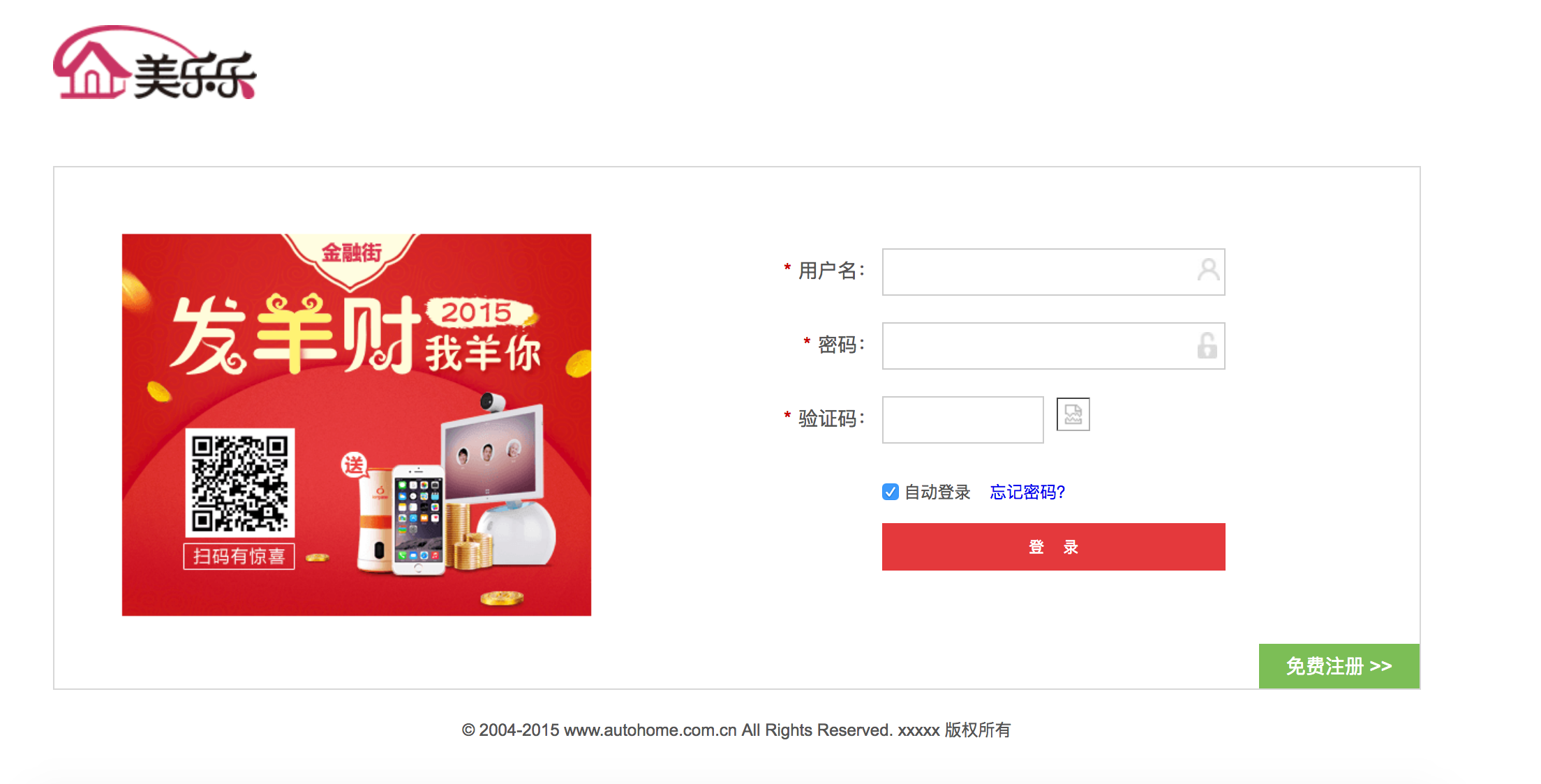
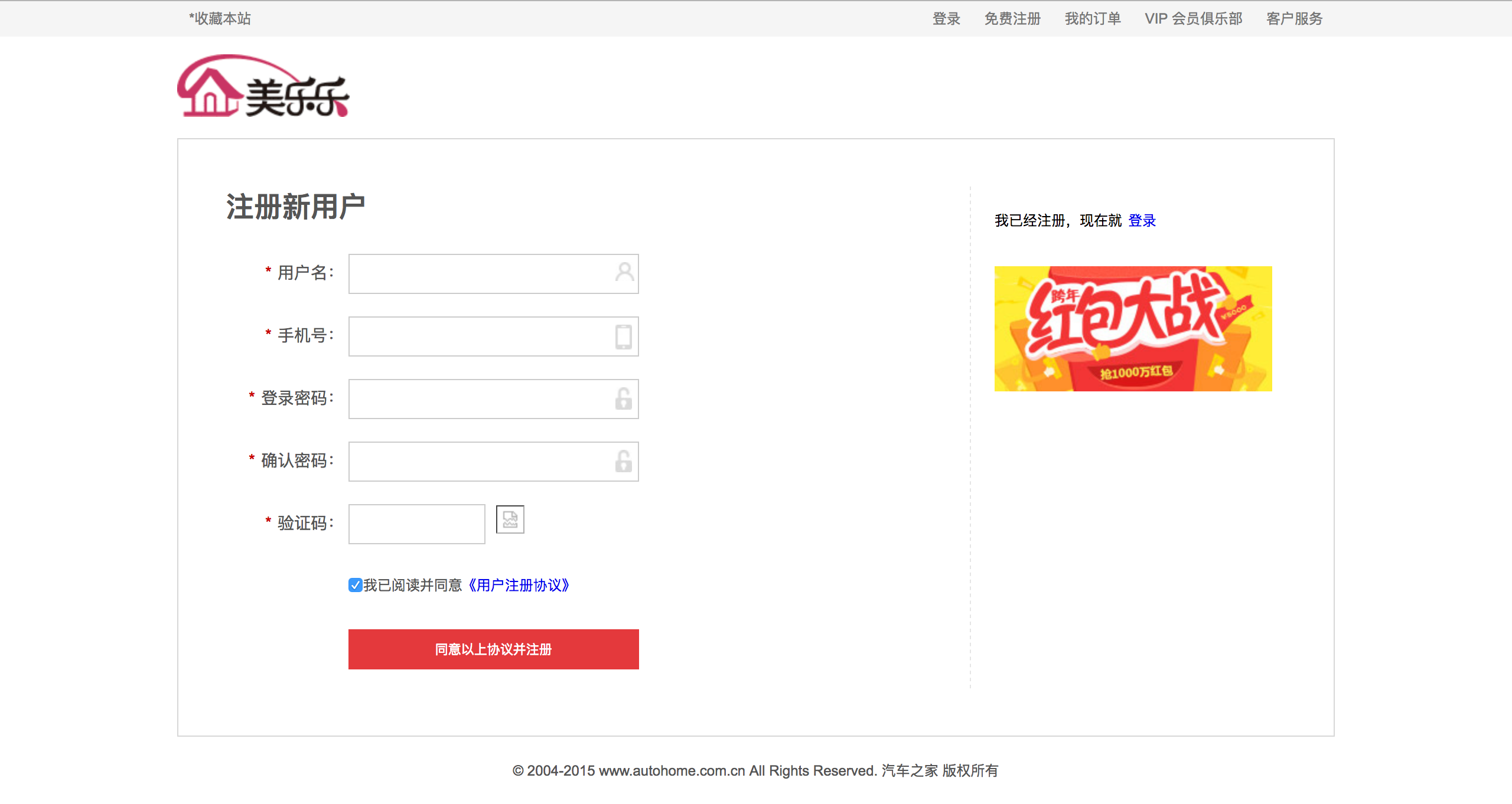
课下作业
1、实现一个登陆页面,样式如下:
2、实现一个注册页面,样式如下:
参考袁老师:https://www.cnblogs.com/yuanchenqi/articles/5977825.html
http://www.cnblogs.com/yuanchenqi/articles/6856399.html

 浙公网安备 33010602011771号