

2025.3.27(周四)
androi实验二
1、 控件的属性
(1) TextView(文本控件)
TextView 用于显示文本内容,常见属性包括:
- android:text: 设置文本内容。
- android:textSize: 设置文本的大小(单位:sp)。
- android:textColor: 设置文本的颜色。
- android:fontFamily: 设置字体。
- android:textStyle: 设置文本样式(bold, italic 等)。
- android:gravity: 设置文本的对齐方式(例如,center, left, right)。
- android:maxLines: 设置最大行数。
- android:ellipsize: 当文本超出范围时的处理方式(例如,end, marquee)。
- android:lineSpacingExtra: 设置行间距。
- android:lineSpacingMultiplier: 设置行间距倍数。
xml
CopyEdit
<TextView
android:id="@+id/textView"
android:layout_width="wrap_content"
android:layout_height="wrap_content"
android:text="Hello World!"
android:textSize="18sp"
android:textColor="#000000"
android:gravity="center"/>
(2) Button(按钮控件)
Button 用于创建可点击的按钮,常见属性包括:
- android:text: 设置按钮的文本。
- android:textSize: 设置按钮文本的大小(单位:sp)。
- android:textColor: 设置按钮文本的颜色。
- android:background: 设置按钮的背景颜色或图像。
- android:onClick: 设置按钮点击时触发的方法。
- android:drawableLeft, android:drawableRight: 设置按钮左边或右边的图标。
- android:padding: 设置按钮的内边距。
xml
CopyEdit
<Button
android:id="@+id/button"
android:layout_width="wrap_content"
android:layout_height="wrap_content"
android:text="Click Me"
android:textSize="16sp"
android:background="#FF6200EE"
android:onClick="onClickButton"/>
(3) EditText(文本输入框)
EditText 用于接收用户输入,常见属性包括:
- android:text: 设置输入框的初始文本。
- android:hint: 设置提示文本。
- android:inputType: 设置输入类型(例如 text, textPassword, number)。
- android:maxLength: 设置输入内容的最大长度。
- android:imeOptions: 设置输入法的操作(例如 actionDone,actionNext)。
- android:drawableLeft, android:drawableRight: 设置输入框的图标。
- android:singleLine: 设置是否单行显示。
xml
CopyEdit
<EditText
android:id="@+id/editText"
android:layout_width="match_parent"
android:layout_height="wrap_content"
android:hint="Enter text"
android:inputType="text"/>
(4)ImageView(图片控件)
ImageView 用于显示图片,常见属性包括:
- android:src: 设置显示的图片资源。
- android:contentDescription: 设置图片的描述,用于无障碍访问。
- android:scaleType: 设置图片缩放方式(例如 fitCenter, centerCrop, fitXY)。
- android:adjustViewBounds: 设置是否调整视图边界以适应内容。
- android:tint: 设置图片的颜色滤镜。
xml
CopyEdit
<ImageView
android:id="@+id/imageView"
android:layout_width="wrap_content"
android:layout_height="wrap_content"
android:src="@drawable/sample_image"
android:scaleType="centerCrop"/>
(5)LinearLayout(线性布局)
LinearLayout 用于垂直或水平方向排列子控件,常见属性包括:
- android:orientation: 设置布局的方向(vertical 或 horizontal)。
- android:weightSum: 设置权重总和,通常与 layout_weight 属性配合使用。
- android:gravity: 设置子控件的对齐方式。
- android:padding: 设置内边距。
- android:background: 设置背景。
xml
CopyEdit
<LinearLayout
android:layout_width="match_parent"
android:layout_height="wrap_content"
android:orientation="vertical"
android:gravity="center">
<!-- 子控件 -->
</LinearLayout>
(6)RelativeLayout(相对布局)
RelativeLayout 用于根据相对位置排列子控件,常见属性包括:
- android:layout_alignParentTop, android:layout_alignParentBottom, android:layout_alignParentLeft, android:layout_alignParentRight: 设置子控件与父布局的对齐方式。
- android:layout_below: 设置子控件位于另一个控件的下方。
- android:layout_toEndOf, android:layout_toStartOf: 设置子控件位于另一个控件的右侧或左侧。
xml
CopyEdit
<RelativeLayout
android:layout_width="match_parent"
android:layout_height="wrap_content">
<Button
android:id="@+id/button1"
android:layout_width="wrap_content"
android:layout_height="wrap_content"
android:text="Button 1"
android:layout_alignParentTop="true" />
</RelativeLayout>
(7)ConstraintLayout(约束布局)
ConstraintLayout 是一种更灵活的布局方式,可以根据控件之间的约束关系来决定它们的位置。常见属性包括:
- app:layout_constraintTop_toTopOf, app:layout_constraintBottom_toBottomOf: 设置控件与父布局或其他控件的约束。
- app:layout_constraintStart_toStartOf, app:layout_constraintEnd_toEndOf: 设置控件的左右约束。
- app:layout_constraintWidth_default: 控制控件的宽度调整方式。
xml
CopyEdit
<androidx.constraintlayout.widget.ConstraintLayout
android:layout_width="match_parent"
android:layout_height="match_parent">
<TextView
android:id="@+id/textView"
android:layout_width="wrap_content"
android:layout_height="wrap_content"
android:text="Hello"
app:layout_constraintTop_toTopOf="parent"
app:layout_constraintStart_toStartOf="parent" />
</androidx.constraintlayout.widget.ConstraintLayout>
(8)RecyclerView(列表控件)
RecyclerView 用于显示滚动的列表或网格,常见属性包括:
- android:layoutManager: 设置布局管理器(如 LinearLayoutManager, GridLayoutManager)。
- android:adapter: 设置适配器,用于绑定数据。
- android:orientation: 设置布局的方向(垂直或水平)。
xml
CopyEdit
<androidx.recyclerview.widget.RecyclerView
android:id="@+id/recyclerView"
android:layout_width="match_parent"
android:layout_height="match_parent"
android:layoutManager="androidx.recyclerview.widget.LinearLayoutManager"/>
(9)ScrollView(滚动视图)
ScrollView 用于包裹可以滚动的内容,常见属性包括:
- android:scrollbars: 设置滚动条类型(例如 vertical)。
- android:fillViewport: 设置内容是否充满整个视口。
xml
CopyEdit
<ScrollView
android:layout_width="match_parent"
android:layout_height="match_parent"
android:fillViewport="true">
<!-- 可滚动的内容 -->
</ScrollView>
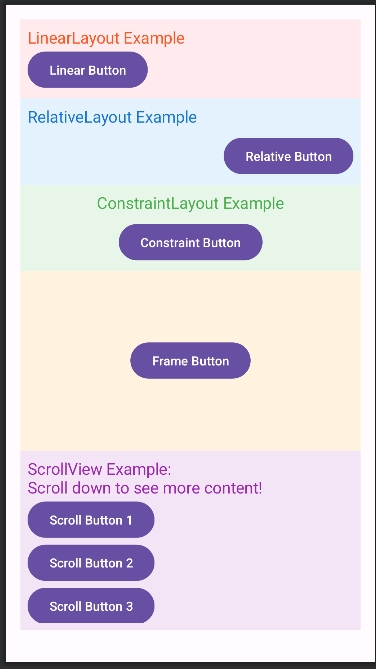
一、界面布局
- LinearLayout:适合用于简单的线性排列,支持水平和垂直排列。
- RelativeLayout:用于控件之间的相对布局,可以更灵活地控制控件的位置。
- ConstraintLayout:最强大的布局管理器,支持复杂的布局逻辑,并能有效管理控件的约束。
- FrameLayout:适合显示一个或多个控件,通常用于层叠式的布局。
- ScrollView:适合显示长内容并提供滚动功能。
例如以下activity_2.xml布局:
<?xml version="1.0" encoding="utf-8"?>
<ScrollView
xmlns:android="http://schemas.android.com/apk/res/android"
xmlns:app="http://schemas.android.com/apk/res-auto"
android:layout_width="match_parent"
android:layout_height="match_parent">
<LinearLayout
android:layout_width="match_parent"
android:layout_height="wrap_content"
android:orientation="vertical"
android:padding="16dp">
<!-- LinearLayout 示例
-->
<LinearLayout
android:layout_width="match_parent"
android:layout_height="wrap_content"
android:orientation="vertical"
android:padding="8dp"
android:background="#FFEBEE">
<TextView
android:layout_width="wrap_content"
android:layout_height="wrap_content"
android:text="LinearLayout Example"
android:textSize="18sp"
android:textColor="#FF5722" />
<Button
android:layout_width="wrap_content"
android:layout_height="wrap_content"
android:text="Linear
Button" />
</LinearLayout>
<!-- RelativeLayout 示例
-->
<RelativeLayout
android:layout_width="match_parent"
android:layout_height="wrap_content"
android:padding="8dp"
android:background="#E3F2FD">
<TextView
android:id="@+id/relativeText"
android:layout_width="wrap_content"
android:layout_height="wrap_content"
android:text="RelativeLayout Example"
android:textSize="18sp"
android:textColor="#1976D2" />
<Button
android:id="@+id/relativeButton"
android:layout_width="wrap_content"
android:layout_height="wrap_content"
android:text="Relative Button"
android:layout_below="@id/relativeText"
android:layout_alignParentRight="true"
android:layout_marginTop="8dp"
/>
</RelativeLayout>
<!-- ConstraintLayout 示例
-->
<androidx.constraintlayout.widget.ConstraintLayout
android:layout_width="match_parent"
android:layout_height="wrap_content"
android:padding="8dp"
android:background="#E8F5E9">
<TextView
android:id="@+id/constraintText"
android:layout_width="wrap_content"
android:layout_height="wrap_content"
android:text="ConstraintLayout Example"
android:textSize="18sp"
android:textColor="#4CAF50"
app:layout_constraintTop_toTopOf="parent"
app:layout_constraintStart_toStartOf="parent"
app:layout_constraintEnd_toEndOf="parent" />
<Button
android:id="@+id/constraintButton"
android:layout_width="wrap_content"
android:layout_height="wrap_content"
android:text="Constraint
Button"
app:layout_constraintTop_toBottomOf="@id/constraintText"
app:layout_constraintStart_toStartOf="parent"
app:layout_constraintEnd_toEndOf="parent"
android:layout_marginTop="8dp" />
</androidx.constraintlayout.widget.ConstraintLayout>
<!-- FrameLayout 示例
-->
<FrameLayout
android:layout_width="match_parent"
android:layout_height="200dp"
android:padding="8dp"
android:background="#FFF3E0">
<ImageView
android:layout_width="match_parent"
android:layout_height="match_parent"
android:scaleType="centerCrop" />
<Button
android:layout_width="wrap_content"
android:layout_height="wrap_content"
android:text="Frame
Button"
android:layout_gravity="center" />
</FrameLayout>
<!-- ScrollView 示例
-->
<ScrollView
android:layout_width="match_parent"
android:layout_height="200dp"
android:padding="8dp"
android:background="#F3E5F5">
<LinearLayout
android:layout_width="match_parent"
android:layout_height="wrap_content"
android:orientation="vertical">
<TextView
android:layout_width="wrap_content"
android:layout_height="wrap_content"
android:text="ScrollView
Example: \nScroll down to see more content!"
android:textSize="18sp"
android:textColor="#9C27B0" />
<Button
android:layout_width="wrap_content"
android:layout_height="wrap_content"
android:text="Scroll Button 1" />
<Button
android:layout_width="wrap_content"
android:layout_height="wrap_content"
android:text="Scroll
Button 2" />
<Button
android:layout_width="wrap_content"
android:layout_height="wrap_content"
android:text="Scroll Button 3" />
</LinearLayout>
</ScrollView>
</LinearLayout>
</ScrollView>

 浙公网安备 33010602011771号