vscode c语言配置
安装 vscode
- 安装curl
sudo apt install curl
- 用 curl 导入 Microsoft GPG 公钥:
curl -sSL https://packages.microsoft.com/keys/microsoft.asc | sudo apt-key add -
一旦成功,这个命令将会返回OK.
- 添加 Visual Studio Code 软件源
sudo add-apt-repository "deb [arch=amd64] https://packages.microsoft.com/repos/vscode stable main"
- 安装 Visual Studio Code 软件包:
sudo apt update
sudo apt install code
- 如发生错误,可安装下列依赖包
sudo apt install software-properties-common apt-transport-https
vscode 插件
- chinese
- C/C++
- code runner
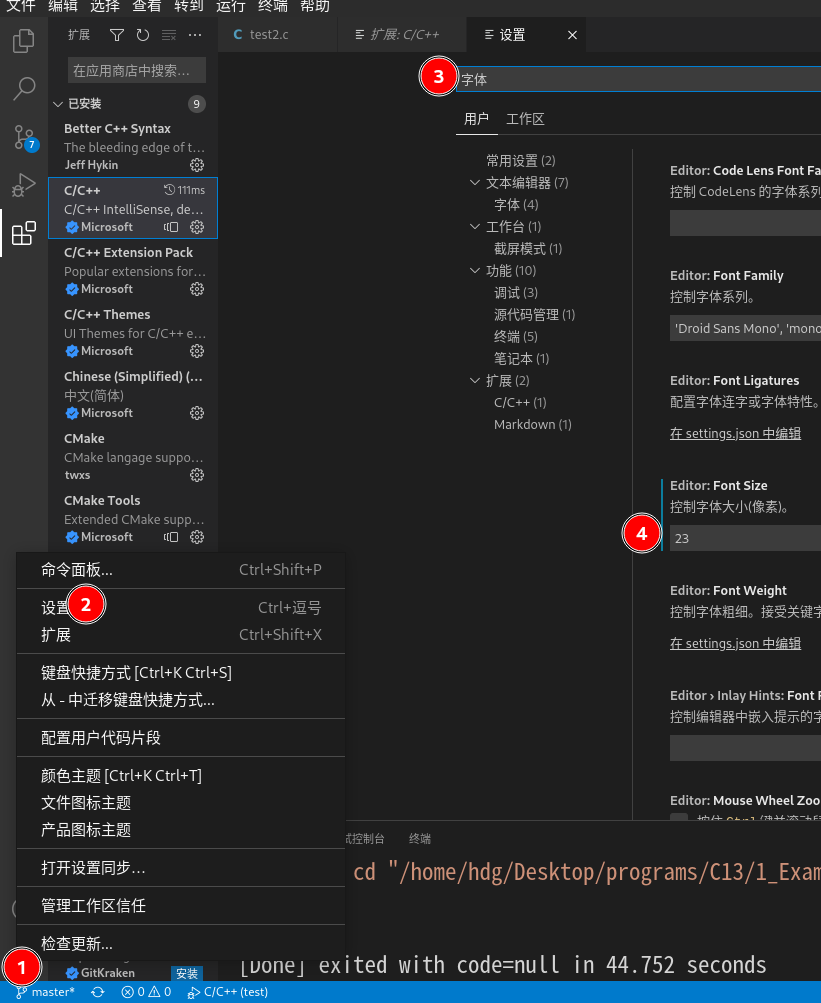
字体大小
右下角齿轮->设置->搜索字体->Editor:Font Sizer 里写上23
编译配置设置
- 新建名为 test 的文件夹作为工作区
- 在test文件夹里可写test.c源文件
- 新建 .vscode 文件夹,不要省略 '.'
- 在 .vscode 文件夹里新建launch.json,填写下面
{
    "version": "0.2.0",
    "configurations": [
        {
            "name": "C/C++",
            "type": "cppdbg",
            "request": "launch",
            "program": "${fileDirname}/${fileBasenameNoExtension}",
            "args": [],
            "stopAtEntry": false,
            "cwd": "${workspaceFolder}",
            "environment": [],
            "externalConsole": false,
            "MIMode": "gdb",
            "preLaunchTask": "compile",
            "setupCommands": [
                {
                    "description": "Enable pretty-printing for gdb",
                    "text": "-enable-pretty-printing",
                    "ignoreFailures": true
                }
            ]
        }
    ]
}
- 在.vscode 文件夹里新建task.json,填写下面
{
    "version": "2.0.0",
    "tasks": [{
            "label": "compile",
            "command": "gcc",
            "args": [
                "-g",
                "${file}",
                "-lm",
                "-o",
                "${fileDirname}/${fileBasenameNoExtension}"
            ],
            "problemMatcher": {
                "owner": "cpp",
                "fileLocation": [
                    "relative",
                    "${workspaceRoot}"
                ],
                "pattern": {
                    "regexp": "^(.*):(\\d+):(\\d+):\\s+(warning|error):\\s+(.*)$",
                    "file": 1,
                    "line": 2,
                    "column": 3,
                    "severity": 4,
                    "message": 5
                }
            },
            "group": {
                "kind": "build",
                "isDefault": true
            }
        }
    ]
}
code runner 设置
- 清除先前的运行记录
![]()
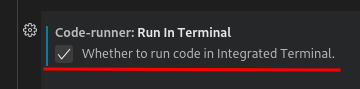
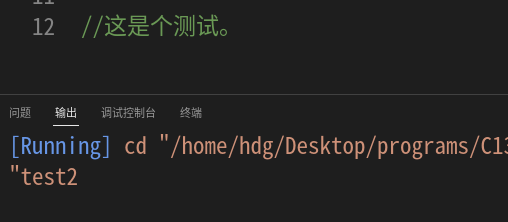
- 在底部终端输出/输入结果
![]()

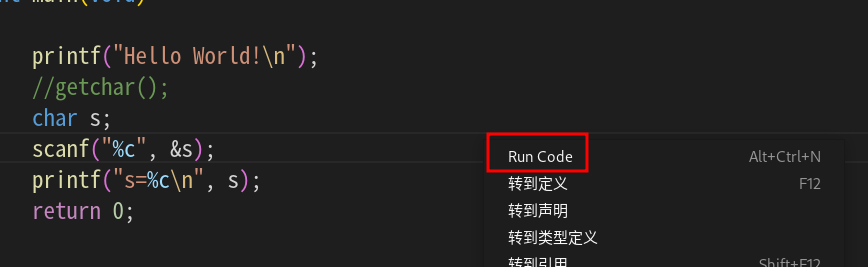
如何运行/停止?
- 编辑区->右键->Run Code
![]()
- 停止:输出区->右键->stop run code
![]()

 浙公网安备 33010602011771号