03-WinCC VBS错误处理
在WinCC VBS中常用的错误判断方式有两种,一种是直接使用弹窗指令msgbox直接将错误结果err.description以弹窗的形式进行输出,另外一种使用WinCC自带的应用程序窗口,结合指令HMIruntime.trace来输出错误信息。
1、on error resume next
建议在书写VBS脚本的时候,在脚本的首行加入该指令,该指令用途为,当脚本发生错误的时候,程序不中断,并且将错误信息存储到错误描述中,即err.description中。
2、使用msgbox提示错误信息
如下脚本所示:
'按钮1中
on error resume next
set testVal1=hmiruntime.tags("SEND")
testVal1.value=1
testVal1.write

dim b
b=testVal.value+10
msgbox b

msgbox err.description
执行以上脚本,点下按钮后,会弹出以下提示:
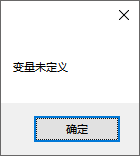
当脚本改为以下脚本时:
'按钮1中
on error resume next
set testVal1=hmiruntime.tags("SEND")
testVal1.value=1
testVal1.write

dim testVal2
testVal2=1/0
msgbox err.description
执行以上脚本,点下按钮后,弹出以下提示:
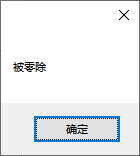
由此可见,err.description中保存的错误信息为最近发生错误的错误信息,不会保存所有的错误信息,所以根据这个特点,如果需要定位错误的位置,就需要在不同的地点分别放置不同的msgbox弹窗指令,输出错误信息,同时再加上判断指令,判断是否有错误发生,如下指令:
'按钮1中
on error resume next
set testVal1=hmiruntime.tags("SEND")
testVal1.value=1
testVal1.write
if err.description<>"" then Msgbox "1#错误="+err.description,vbExclamation, "操作提示"
dim testVal2
testVal2=1/0
if err.description<>"" then Msgbox "2#错误="+err.description,vbExclamation, "操作提示"
按下按钮,弹出以下提示:
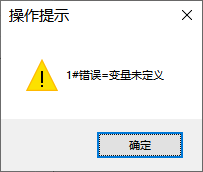
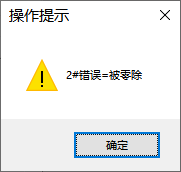
由此,可以大致定位错误的发生位置,从而对脚本进行更改。
3、使用Hmiruntime.trace+应用程序窗口提示错误信息
首先在需要进行错误诊断的页面上拉入应用程序窗口,步骤如下:
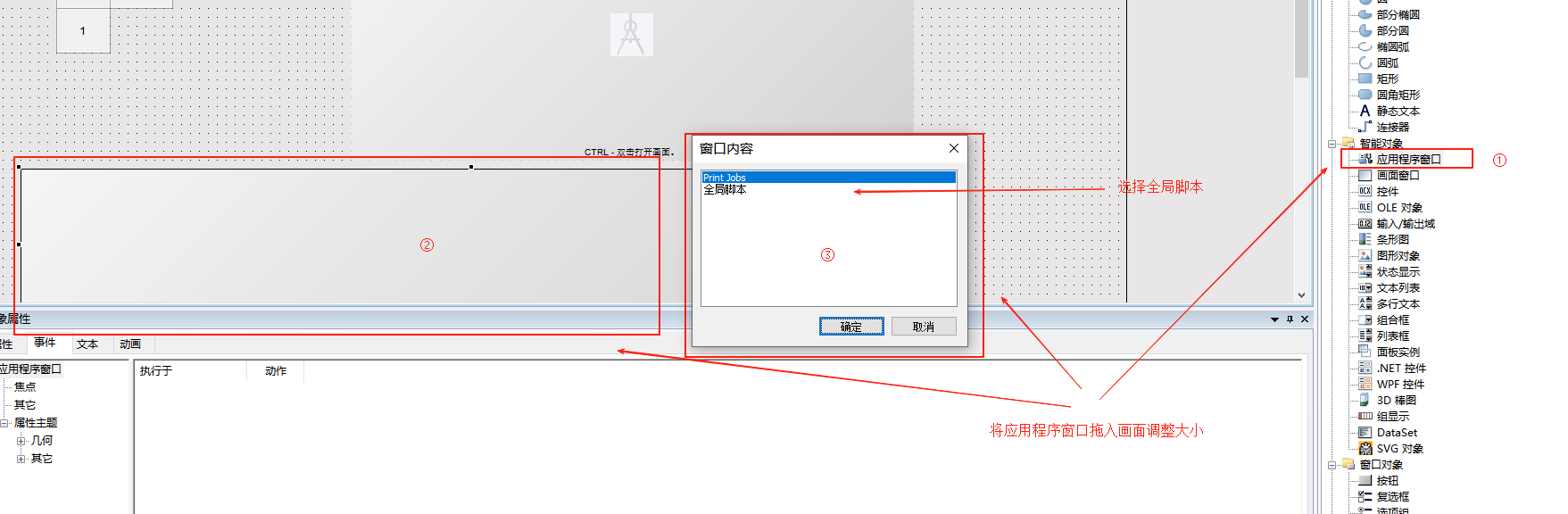
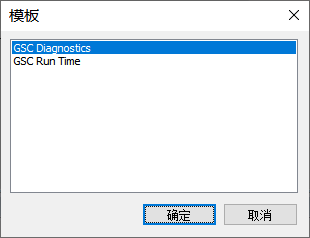
选择全局脚本后,在弹窗中选择GSC Diagnostics
在按钮1中写入以下脚本:
'按钮1中
On Error Resume Next
Set testVal1=HMIRuntime.tags("SEND")
testVal1.value=1
testVal1.write

If err.description<>"" Then HMIruntime.Trace "1#错误="+err.description+vbCrlf  'vbCrlf意为换行
Dim testVal2
testVal2=1/0
If err.description<>"" Then HMIruntime.Trace "2#错误="+err.description+vbCrlf
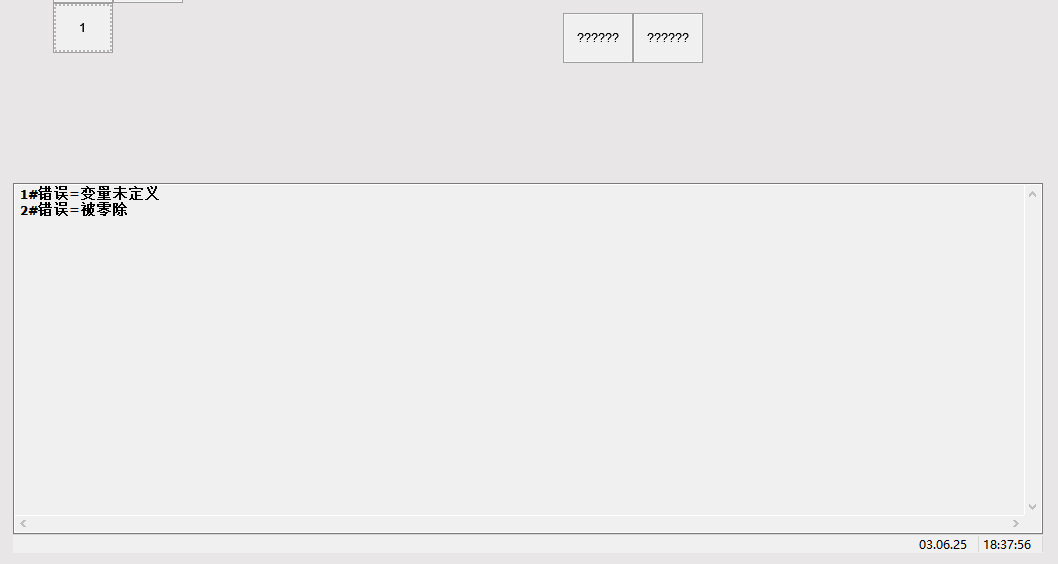
按下按钮1后,在应用程序窗口中会弹出所需要追踪的错误信息内容,err.descrption的用法参考msgbox。
4、Err的对象和方法
<1>错误代码
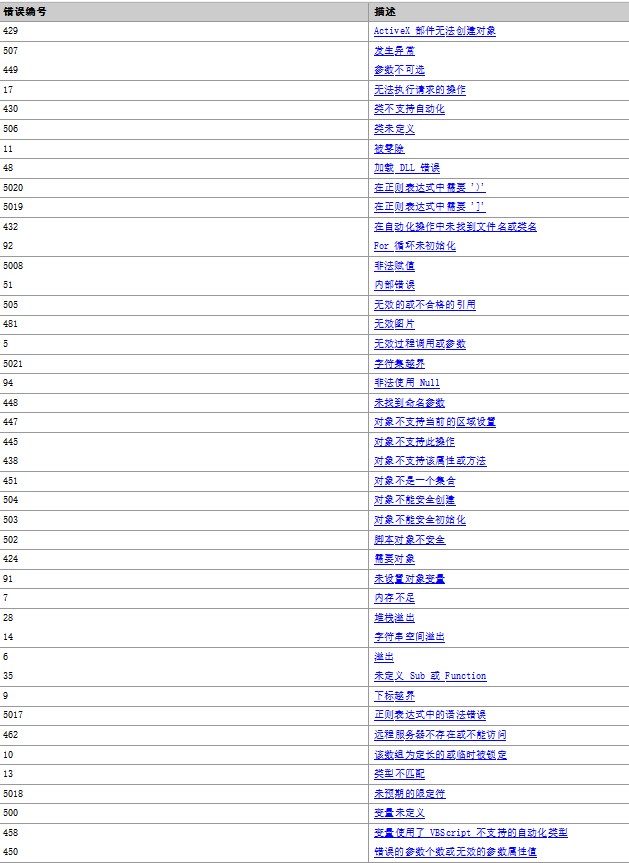
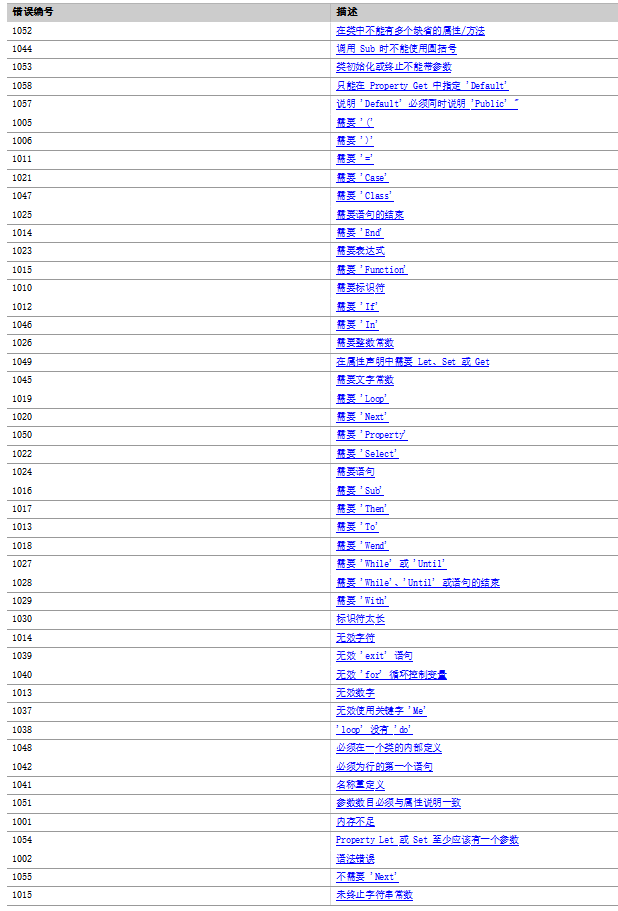
可以使用err.number显示出当前的错误代码,实际用处并不是很多,一般使用err.description直接读出错误描述,以下为VBS运行时的错误代码表:
以下为VBS语法错误代码表:
<2> Err的对象和方法



 浙公网安备 33010602011771号