

Git使用教程
【本文以 Gitee 为例】
Git 安装
-
进入官网,下载 git
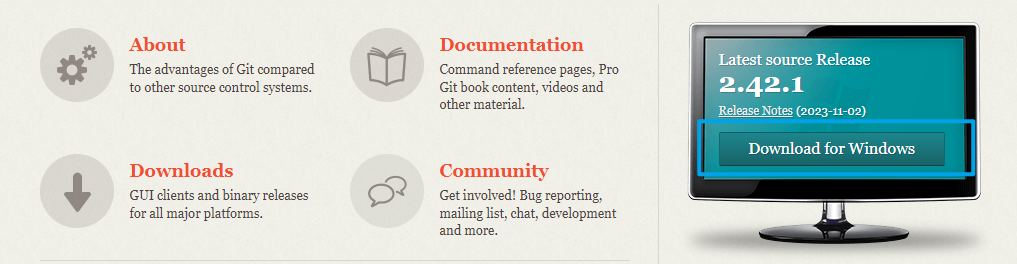
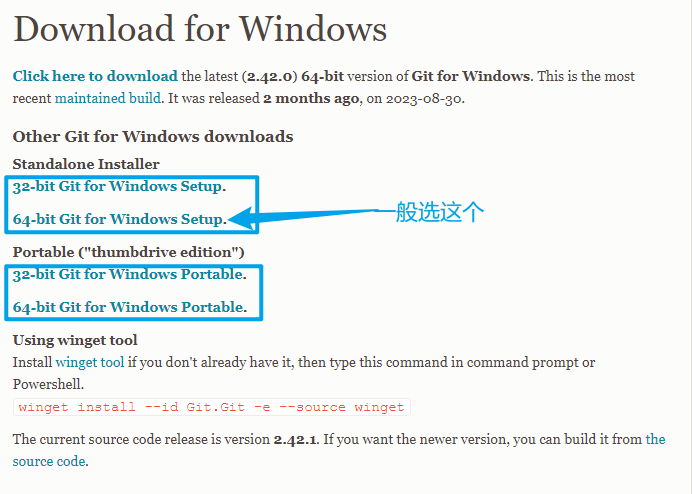
-
安装 git
其实一直点击 next 就可以了
【具体安装选项的阐述等之后再安装 git 时再写 awa】 -
验证安装是否成功
右键出现如下选项时表示安装成功

基础使用
仓库
通过网站快速创建
创建仓库
管理仓库
仓库成员
通过终端配置
创建仓库
管理仓库
仓库成员
代码托管
信息配置
git config --global user.name "uaer_name"
git config --global user.email "user_email"
如果没有配置,bash 不会报错,但是会有 " 请配置 用户名和密码 "的提示
git clone
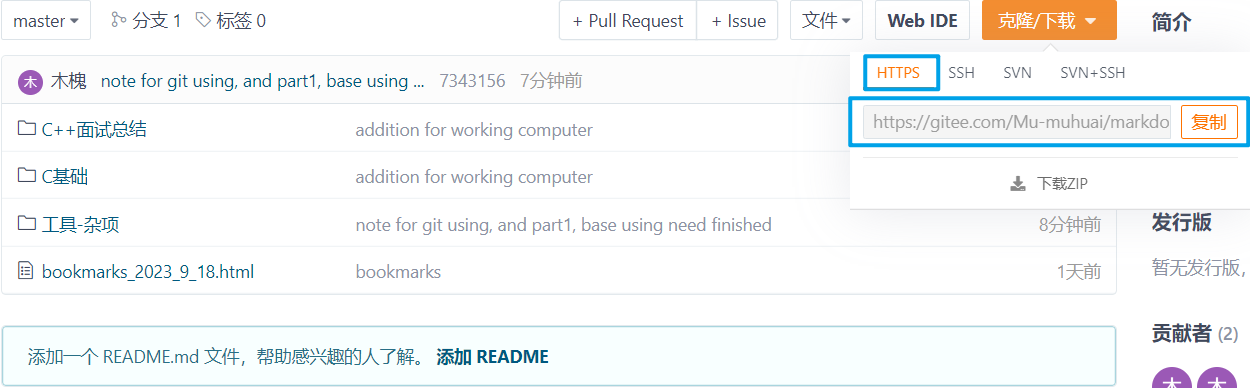
git clone http_url
git init
对于一个本地的,未连接远程仓库的项目,执行git init将生成 .git 文件夹
git pull
拉取项目
git stash
git stash	# 将现在的状态存入暂存区
git stash list	# 查看暂存的状态列表
git stash pop	# 恢复栈顶的状态
git stash drop	# 删除栈顶状态
git stash save "message"	# 暂存现在的状态并添加备注 "message"
stash 保存到的暂存区,可以理解为一个栈
git add
将文件更新到暂存区
git add .	# 将所有文件添加到暂存区
git add doc_url		# 将特定文件添加到暂存区(需要文件后缀名)
git add doc_url1 doc_url2	# 将指定的几个文件添加到暂存区
git commit
git commit -m "message" # 提交暂存区的内容到本地仓库
git push
git push # 提交本地仓库的内容到远程仓库
深入介绍
基本理论
忽略文件配置
比较粗糙的一个办法【针对 不需要同步的 新加入 的文件】
在已有项目的 .gitignore 文件处,右键执行 在集成终端中打开
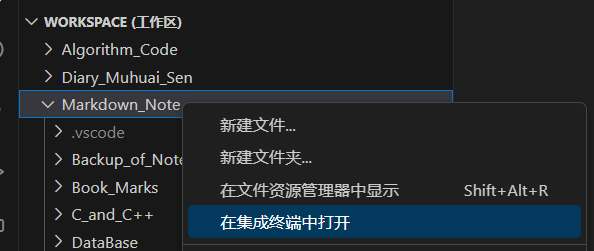
然后执行
git status
则不需要同步的文件路径会出现在终端窗口,将文件路径复制到 .gitignore 文件中
分支
基础使用
创建分支
-
终端命令行创建
git branch branch_namegit branch branch_name创建的分支,它的备注是分支起点的备注
它的分支七点为当前分支【它的内容为当前分支的克隆】使用终端命令创建的分支,创建完成后需要 git push,将分支与远程仓库连接
-
网页创建
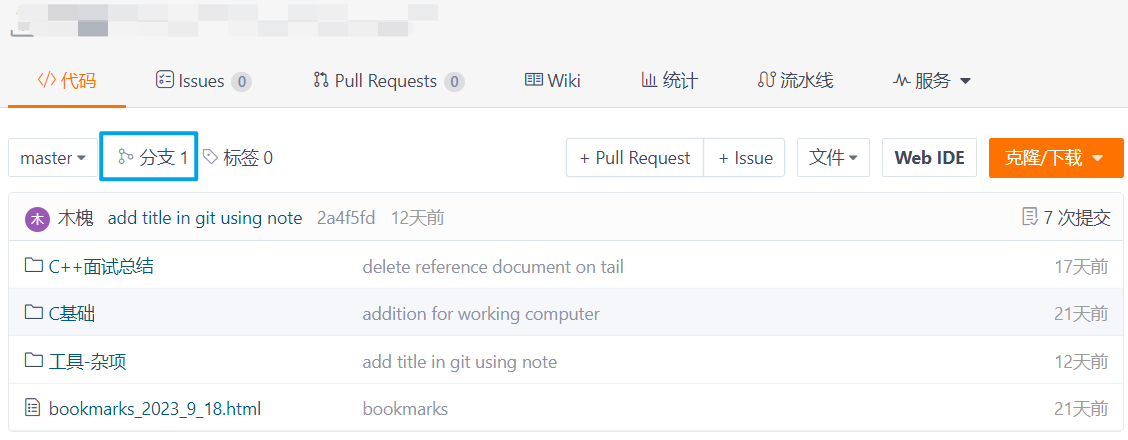
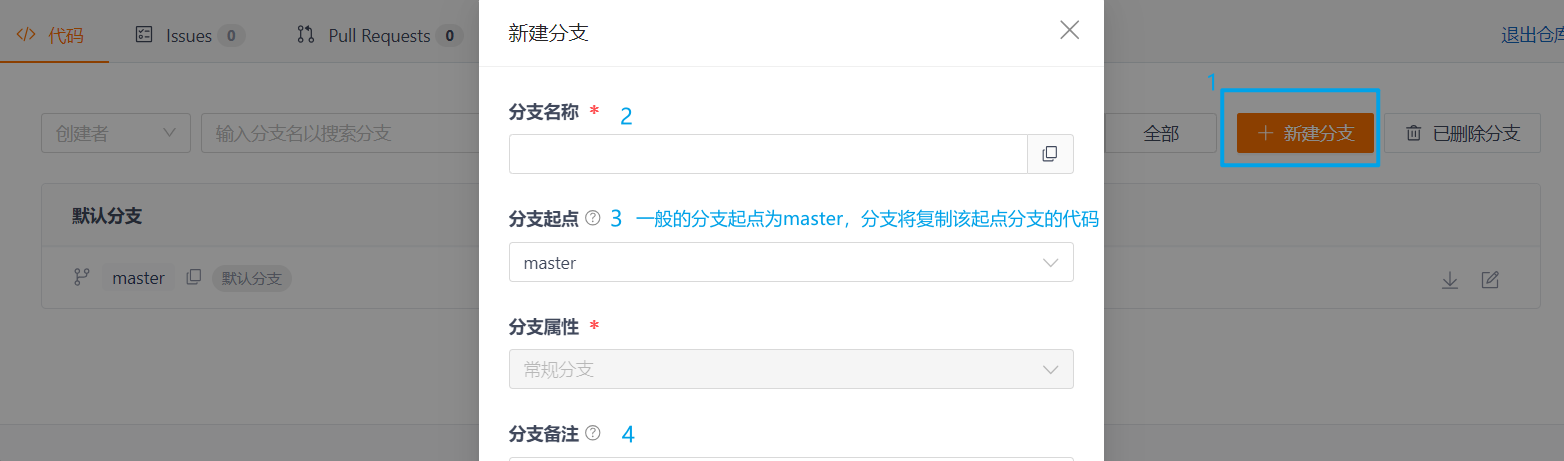
更新分支及代码
-
git pullgit pull可以理解成git fetch之后再git merge
查看分支
-
git branch -
git branch -v -
git branch -agit branch -v可以查看该分支的分支备注
git branch -a还可以查询到远程仓库的分支情况当前所在分支会用 * 进行特别标注
可能在创建分支之后使用命令查询,并不能查询到分支情况,在网页上也不能跟踪到该分支
但是不用担心
需要通过git push连接分支到仓库
依然使用git checkout branch_name可以成功切换分支
切换分支
git checkout branch_name
开发及提交
后续在分支中开发及提交流程与仓库的基础使用一致
git add
git commit -m ""
git push
分支合并
-
自行切换到主分支进行合并
此方法由开发者使用git checkout branch_name切换到主分支后
使用git merge branch_name将该分支合并到主分支上 -
请求Pull Requests
此方法由开发者在网页端点击 Pull Requests 并完善 PR 请求信息后,由他人进行审核、冲突解决等操作
【注意,拉取远程仓库之前,使用git stash save进行暂存并添加说明】I.
git pullgit pull将拉取该分支的远程代码以及该分支所关联的远程仓库的代码II.
git merge branch_name将当前分支与 branch_name 分支进行合并
在实际开发中,向远程发起 PR 之前需要进行这一步,以达到与远程代码的同步III.
git stash popIV.
git addgit commit -m ""git pushV. 发起PR
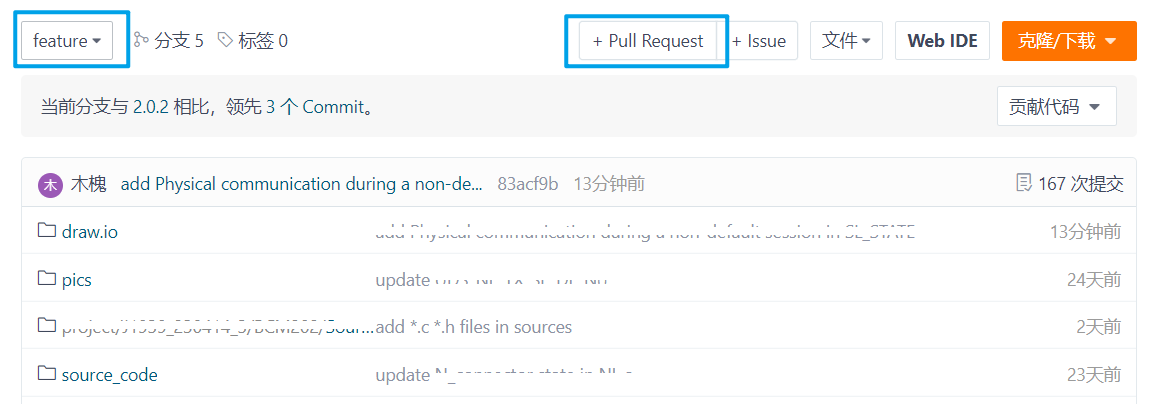
合并其他分支的代码
- 理论上来讲只需要进行
git merge branch_name即可 - 可能出现 Already up to date. 的情况,是因为 git pull 执行时并未对其他分支的代码、状态进行更新,因此在本地, git 认为当前分支与其他分支版本一致
- 切换到需要被合并的分支
git checkout branch_name git pull
这将拉取该分支的代码到本地- 切换回自己原来的分支
git merge branch_name
可能遇到的问题
-
git pullgit merge branch_main操作不能拉取到主分支最新的代码,显示 Already up to date.理论上是 git pull 将拉取远程仓库中本分支 + 主分支的代码,然后执行 git merge 将对分支进行合并
但是(以使用 Visual Studio Code为例)
则需要先切换到主分支,然后 git pull
然后返回原分支,进行 git pull 和 git merge -
git push --set-upstream origin branch_name使用终端命令创建的分支
在提交时要求链接上游分支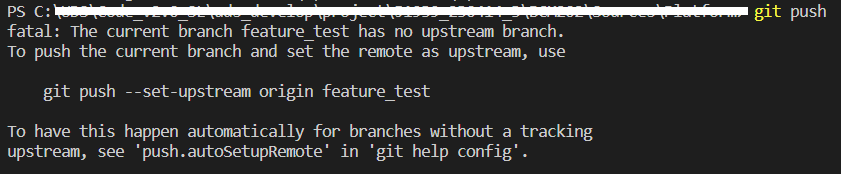
使用
git push -u origin branch_name提交一次即可
可能遇到的问题
身份验证
【git 报错The requested URL returned error: 403】
【Git pull 或 push 提示:The requested URL returned error: 403】
问题复现:
我有一个 Gitee 账号 H,我用 H 账号参加了别人的项目(加入别人的仓库),并在本地进行了开发;
我修改了 H 账号的邮箱及手机号;
我注册了一个新的账号 MH,手机号为原来 H 账号的手机号;
我使用 MH 创建了仓库,并在本地进行了全局配置,然后开发和更新;我再次登陆 H 账号,进行 H 项目的更新;

- 配置全局 user.name | user.email
git config --global user.name "uaer_name"
git config --global user.email "user_email"
没有起效
- 清除缓存
git config --local --unset credential.helper
git config --global --unset credential.helper
git config --system --unset credential.helper
- pull ==> 输入用户名和密码 ==> 白色输入框中点击【取消】
git pull
error: unable to read askpass response from 'git-askpass.exe所在位置'
Username for 'https://gitee.com': username
error: unable to read askpass response from 'git-askpass.exe所在位置'
Password for 'https://user_name@gitee.com':
Already up to date.
一般 git-askpass.exe 在 Git 的安装目录下:
Git/mingw64/bin/git-askpass.exe
Password for 'https://muhuai-muhuai@gitee.com': password(密码不会显示)
- 配置全局信息
 git config --global credential.helper store
 git config --global user.username "user_name"
 git config --global user.password "password"

- 查看全局配置信息
我是傻子,配置全局信息的时候打错指令了
git config --global --list
credential.https://gitee.com.provider=generic
user.username=user_name
user.password=password.
(user.uaername=user_name) ~~我也不知道为什么打成这样了,我是傻子~~
- 修改全局配置
git config --global --edit
I -- 开始写入
Esc -- 退出写操作
:wq -- 保存并退出
- pull ==> 输入用户名和密码 ==> 白色输入框中点击【取消】
- 配置局部信息
git config --local credential.helper store
git config --local user.username "user_name"
git config --local user.password "password"

- 清除缓存
- 查看配置信息
git config --global --list
credential.https://gitee.com.provider=generic
user.username=user_name
user.password=password.
其实到这里应该已经可以了,但是我是傻子,我加了一句指令就不行了
git config --global credential.helper store
- 修改项目文件夹下的 .git ==> config 文件
[core]
	repositoryformatversion = 0
	filemode = false
	bare = false
	logallrefupdates = true
	symlinks = false
	ignorecase = true
[remote "origin"]
	url = https://user_name:password@gitee.com/project_url.git
	fetch = +refs/heads/*:refs/remotes/origin/*
[branch "master"]
	remote = origin
	merge = refs/heads/master
全局配置文件 -- 用户目录
"C:\Users\username\.gitconfig"[credential "https://gitee.com"] provider = generic [user] username = user_name password = password
默认局部设置
可能
Git\git\Git\etc[diff "astextplain"] textconv = astextplain [filter "lfs"] clean = git-lfs clean -- %f smudge = git-lfs smudge -- %f process = git-lfs filter-process required = true [http] sslBackend = openssl sslCAInfo = Git/git/Git/mingw64/etc/ssl/certs/ca-bundle.crt(安装目录下) [core] autocrlf = true fscache = true symlinks = false [pull] rebase = false [credential "https://dev.azure.com"] useHttpPath = true [init] defaultBranch = master
代码冲突
一般代码冲突发生在
- 如果每次提交代码按照
git stash --> git pull --> git stash pop,那么冲突一般发生在git stash pop时 - 使用分支进行分支合并,即
git merge branch_name时,也可能出现冲突
解决冲突的工具很多,git 自带的网站、IDEA、Git GUI等
以 Visual Studio Code 为例
-
文件的末尾出现 ! 表示该文件中发生冲突 -- 点击 在合并编辑器中解析
-
合并冲突
一般来讲,左边部分是 stash pop 出来的更改,右边部分是 pull 或 merge 之后的更改,下面是结果,结果中的内容可以手动修改 -
合并完成之后,文件默认已经执行了
git add指令,因此需要先提交
版本回退
其他
warning: in the working copy of ‘...‘, LF will be replaced by CRLF the next time Git touche
在执行 git add 操作之后,可能出现以上警告
warning: in the working copy of ‘...‘, LF will be replaced by CRLF the next time Git touche
警告的含义是:Git 已自动将 LF 换行替换为 CRLF 回车换行

 浙公网安备 33010602011771号