
第四期书生大模型实战营【进阶岛】—— LMDeploy 量化部署进阶实践
LMDeploy 量化部署进阶实践
任务描述
- 使用结合
W4A16量化与kv cache量化的internlm2_5-1_8b-chat模型封装本地API 并与大模型进行一次对话,作业截图需包括显存占用情况与大模型回复,参考 4.1 API 开发,请注意 2.2.3节 与 4.1节 应使用作业版本命令。 - 使用
Function call功能让大模型完成一次简单的"加"与"乘"函数调用,作业截图需包括大模型回复的工具调用情况,参考4.2 Function call(选做)。
以下内容参考教程。
InternLM2.5 量化与部署
环境配置
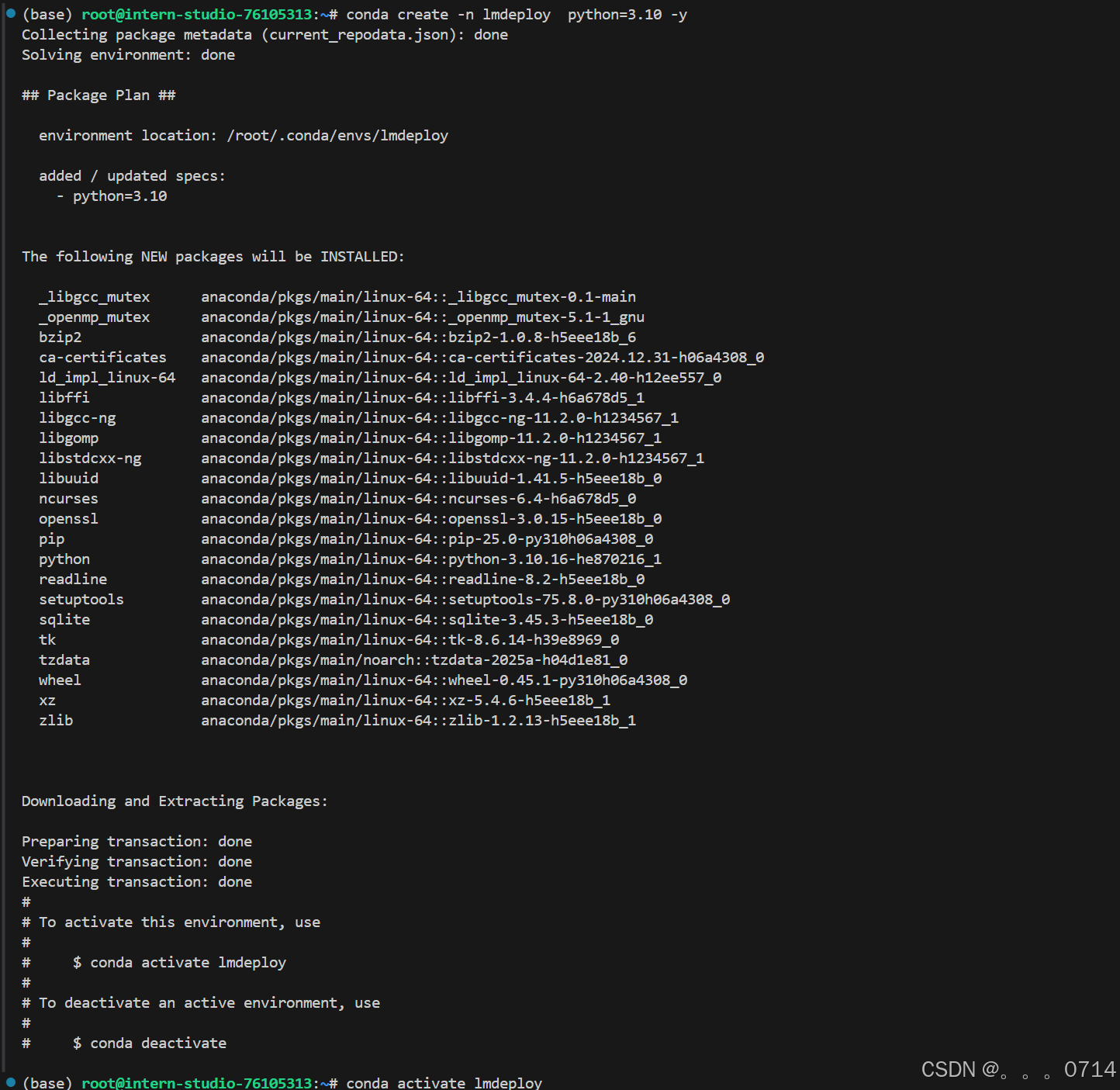
创建一个名为lmdeploy的conda环境,python版本为3.10,创建成功后激活环境并安装0.5.3版本的lmdeploy及相关包。
conda create -n lmdeploy  python=3.10 -y
conda activate lmdeploy
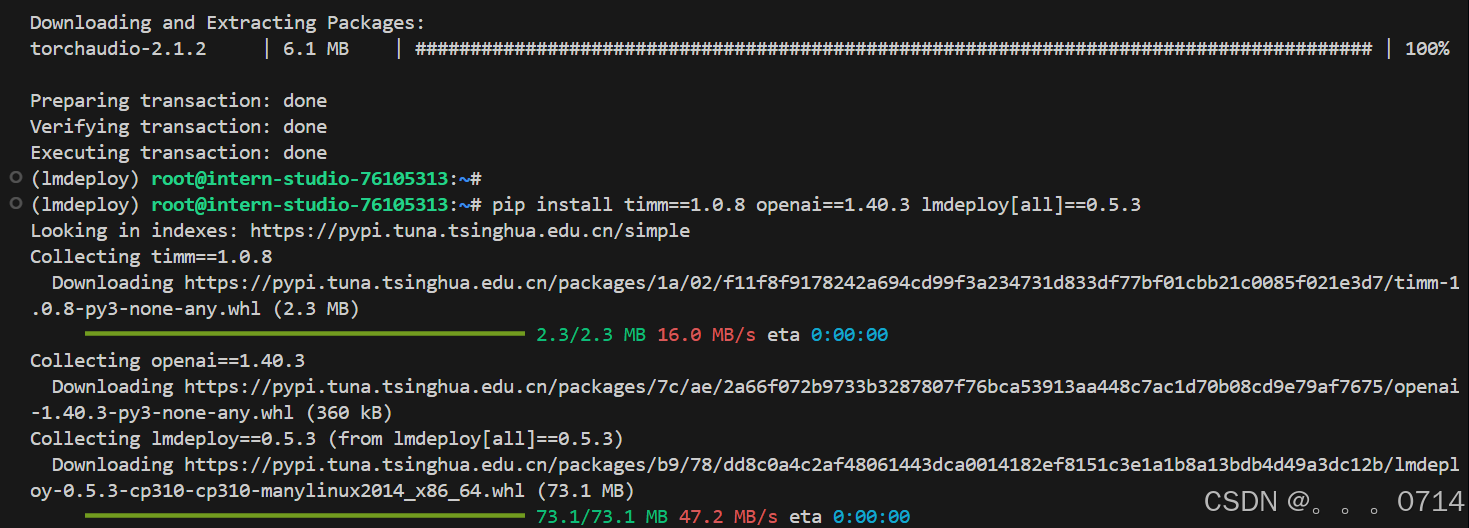
conda install pytorch==2.1.2 torchvision==0.16.2 torchaudio==2.1.2 pytorch-cuda=12.1 -c pytorch -c nvidia -y
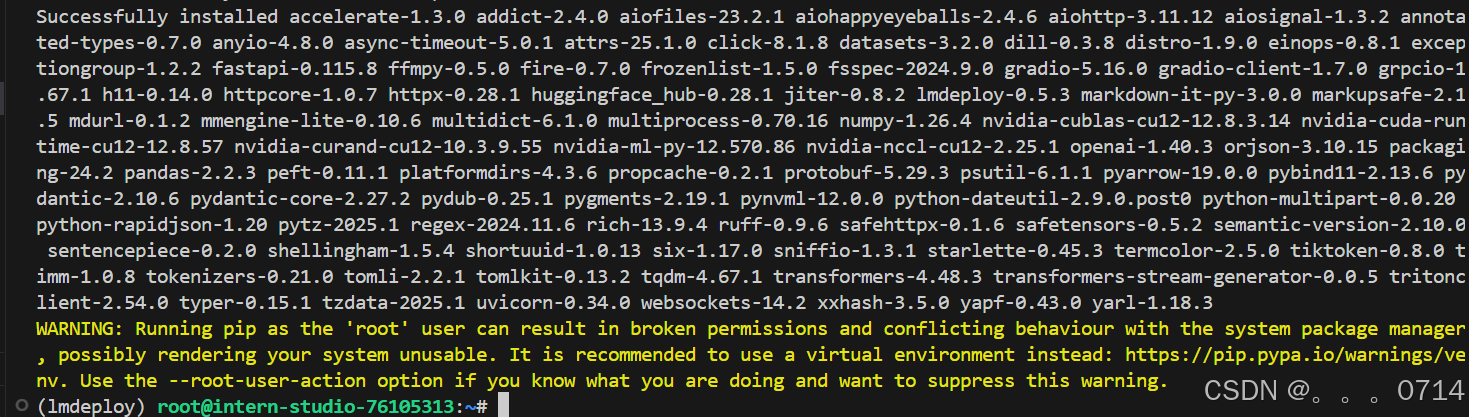
pip install timm==1.0.8 openai==1.40.3 lmdeploy[all]==0.5.3
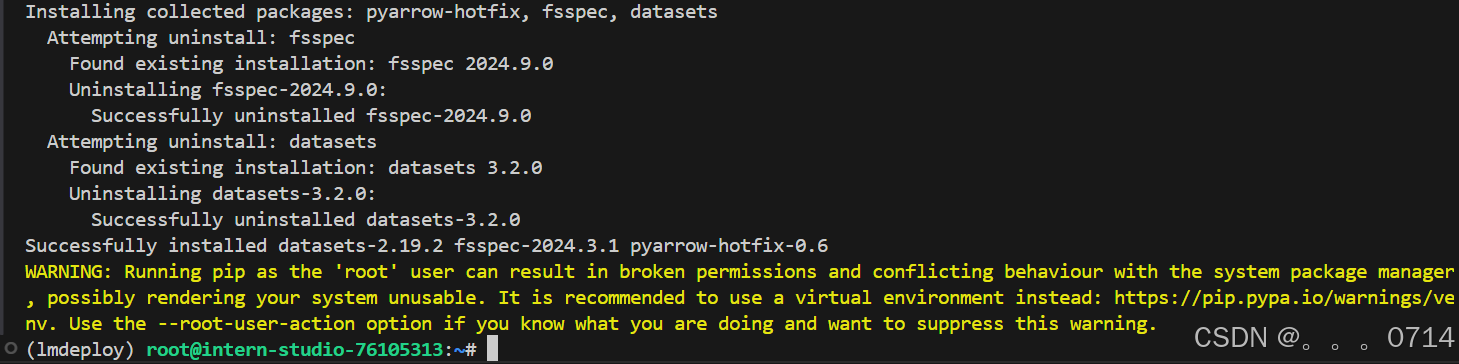
pip install datasets==2.19.2
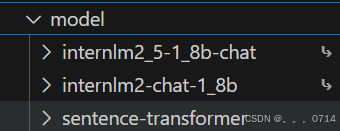
运行以下命令,进入/root/model文件夹并设置开发机共享目录的软链接。

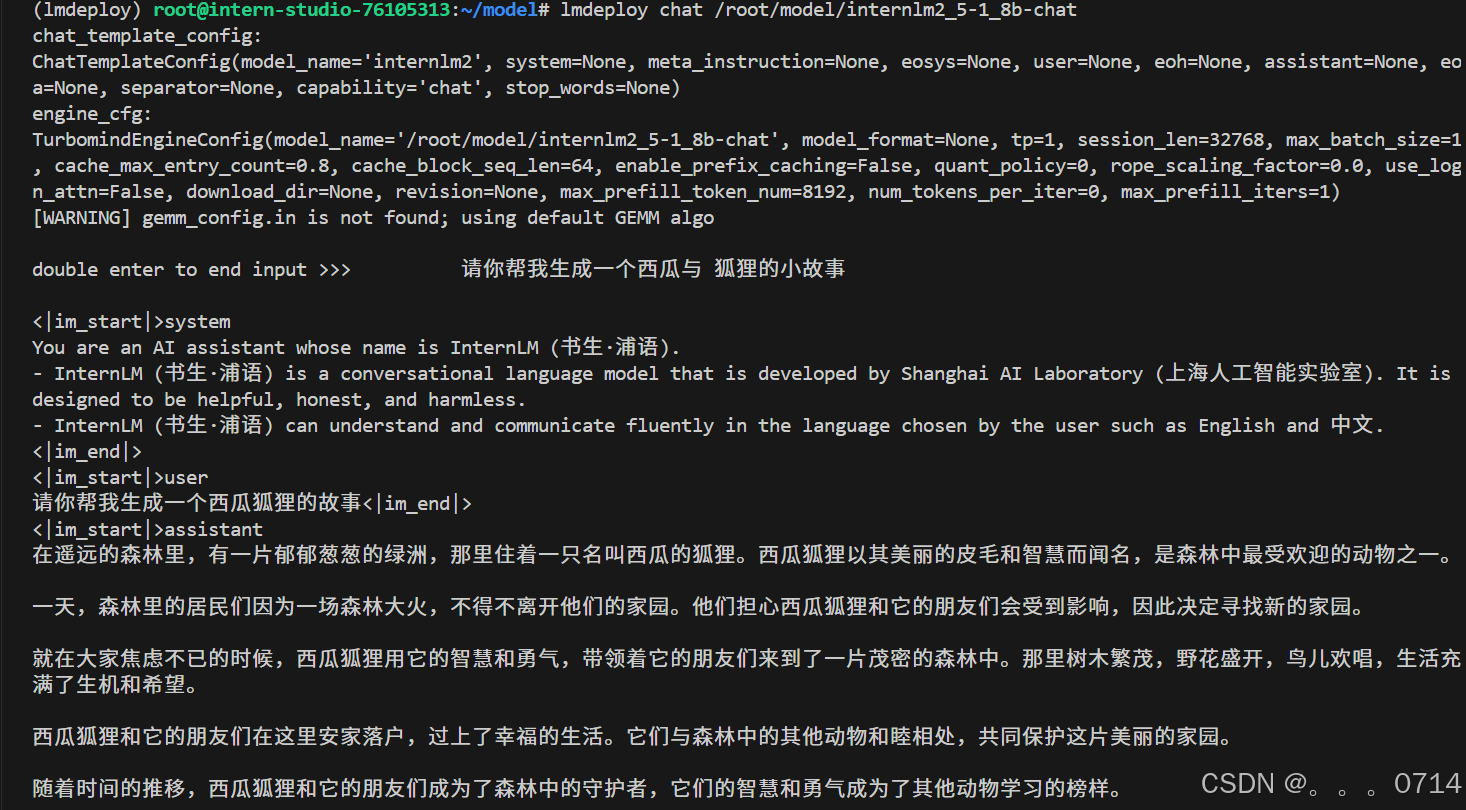
lmdeploy chat /root/model/internlm2_5-1_8b-chat验证获取的模型文件能否正常工作。
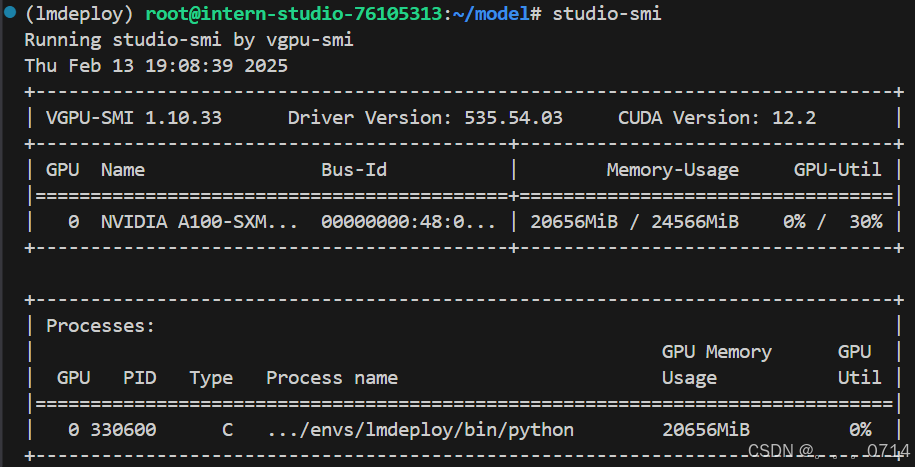
查看模型显存占用。理论上,kv cache 显存占用是根据剩余内存计算的。可以使用studio-smi观测虚拟化后的显存使用情况。
或者进入开发机界面查看可视化的资源监控。
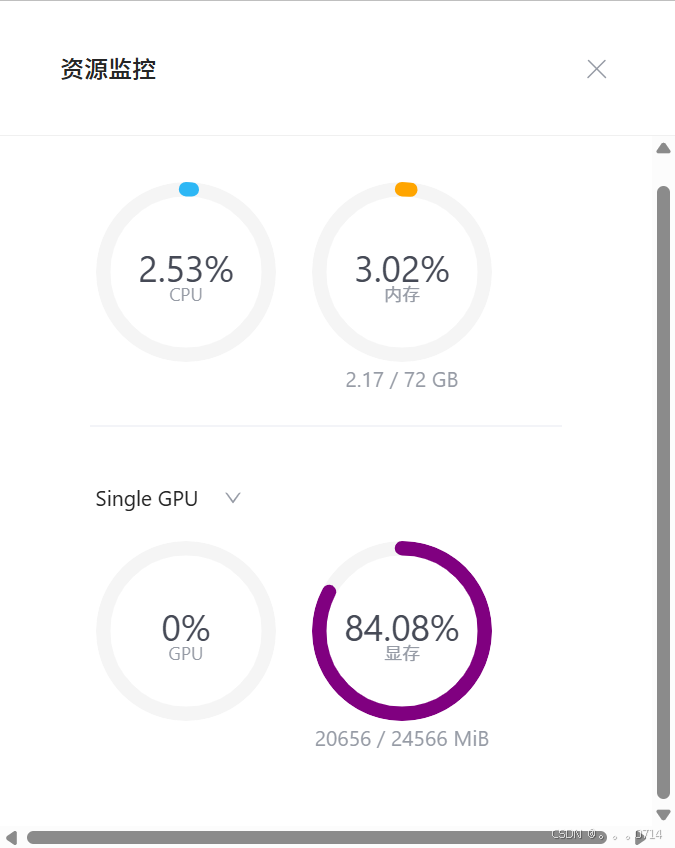
此时显存占用约20GB。
对于一个1.8B(18亿)参数的模型,每个参数使用16位浮点数(等于 2个 Byte)表示,则模型的权重大小约为:
1.8×10^9 parameters×2 Bytes/parameter=3.6GB
18亿个参数×每个参数占用2个字节=3.6GB
对于24GB的显卡,即30%A100,权重占用3.6GB显存,剩余显存24-3.6=20.4GB,因此kv cache占用20.4GB*0.8=16.32GB,加上原来的权重3.6GB,总共占用3.6+16.32=19.92GB。
LMDeploy API部署InternLM2.5
启动API服务器,部署InternLM2.5模型。
lmdeploy serve api_server \
    /root/model/internlm2_5-1_8b-chat \
    --model-format hf \
    --quant-policy 0 \
    --server-name 0.0.0.0 \
    --server-port 23333 \
    --tp 1
命令解释:
lmdeploy serve api_server:这个命令用于启动API服务器。/root/model/internlm2_5-1_8b-chat:这是模型的路径。--model-format hf:这个参数指定了模型的格式。hf代表“Hugging Face”格式。--quant-policy 0:这个参数指定了量化策略。--server-name 0.0.0.0:这个参数指定了服务器的名称。在这里,0.0.0.0是一个特殊的IP地址,它表示所有网络接口。--server-port 23333:这个参数指定了服务器的端口号。在这里,23333是服务器将监听的端口号。--tp 1:这个参数表示并行数量(GPU数量)。
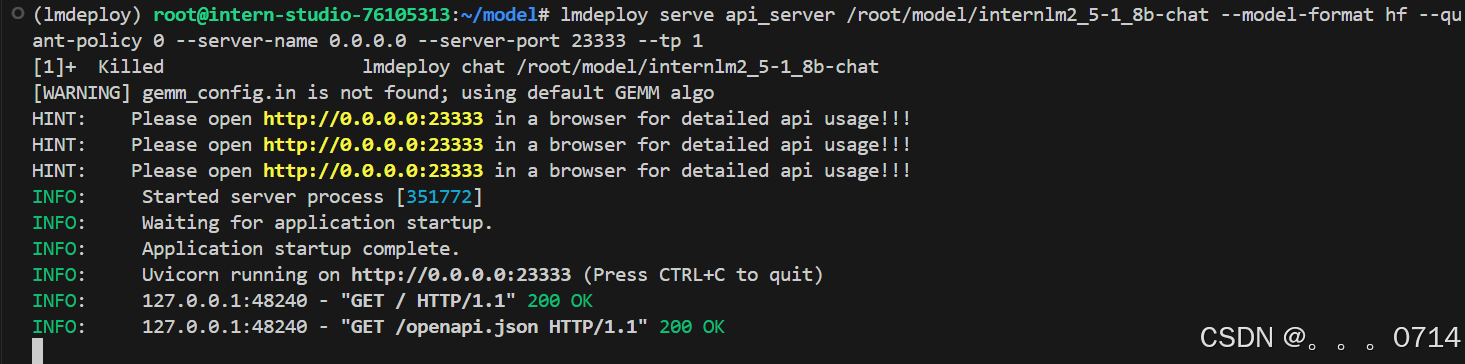
稍待片刻,终端显示如下。
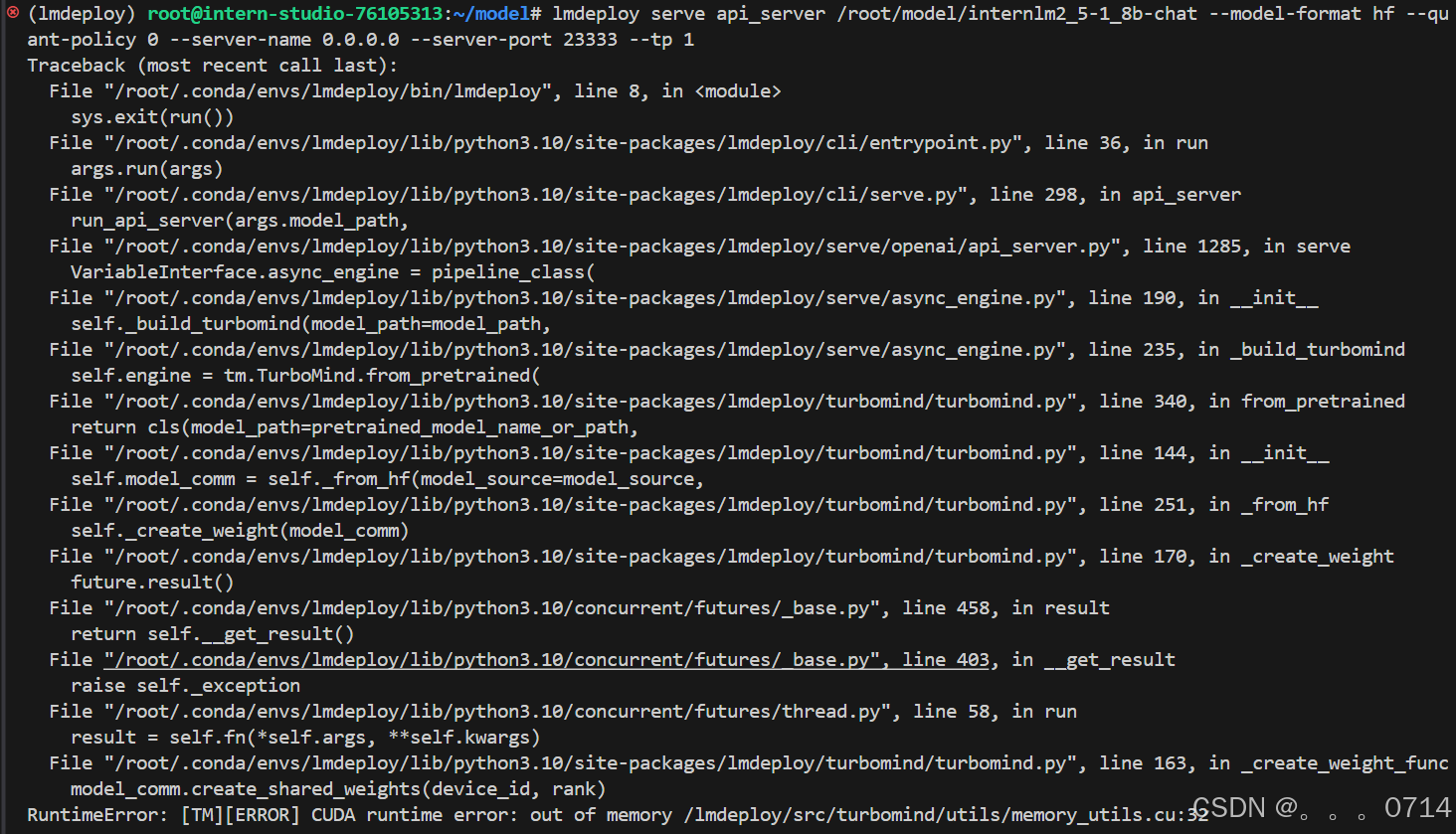
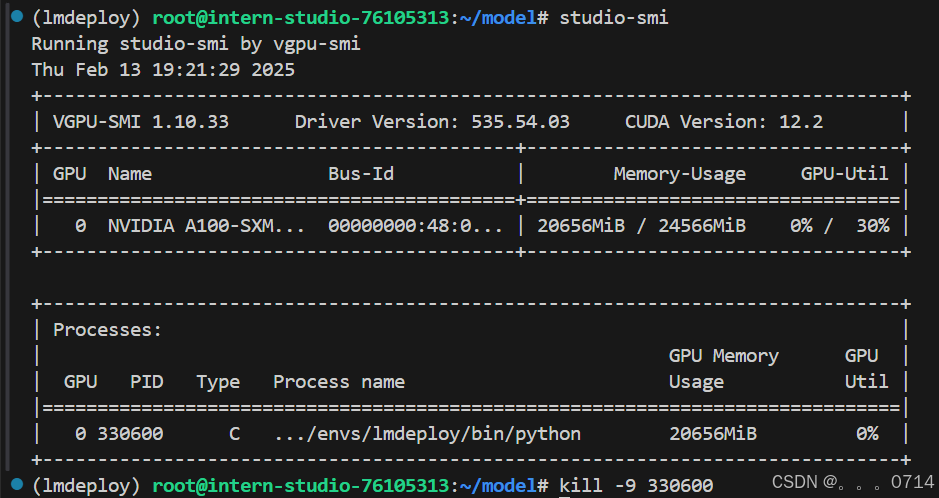
报错是由于之前的模型对话采用了ctrl+z的强制退出方式,模型仍在后台运行。因此使用studio-smi查看模型的PID,并关闭该进程。
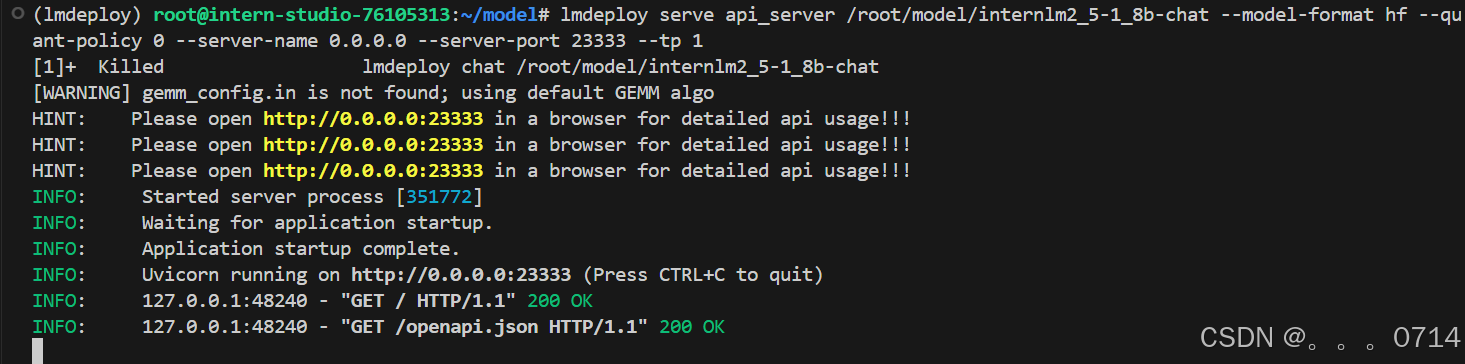
ctrl+右击链接进入 FastAPI 页面表示部署成功。
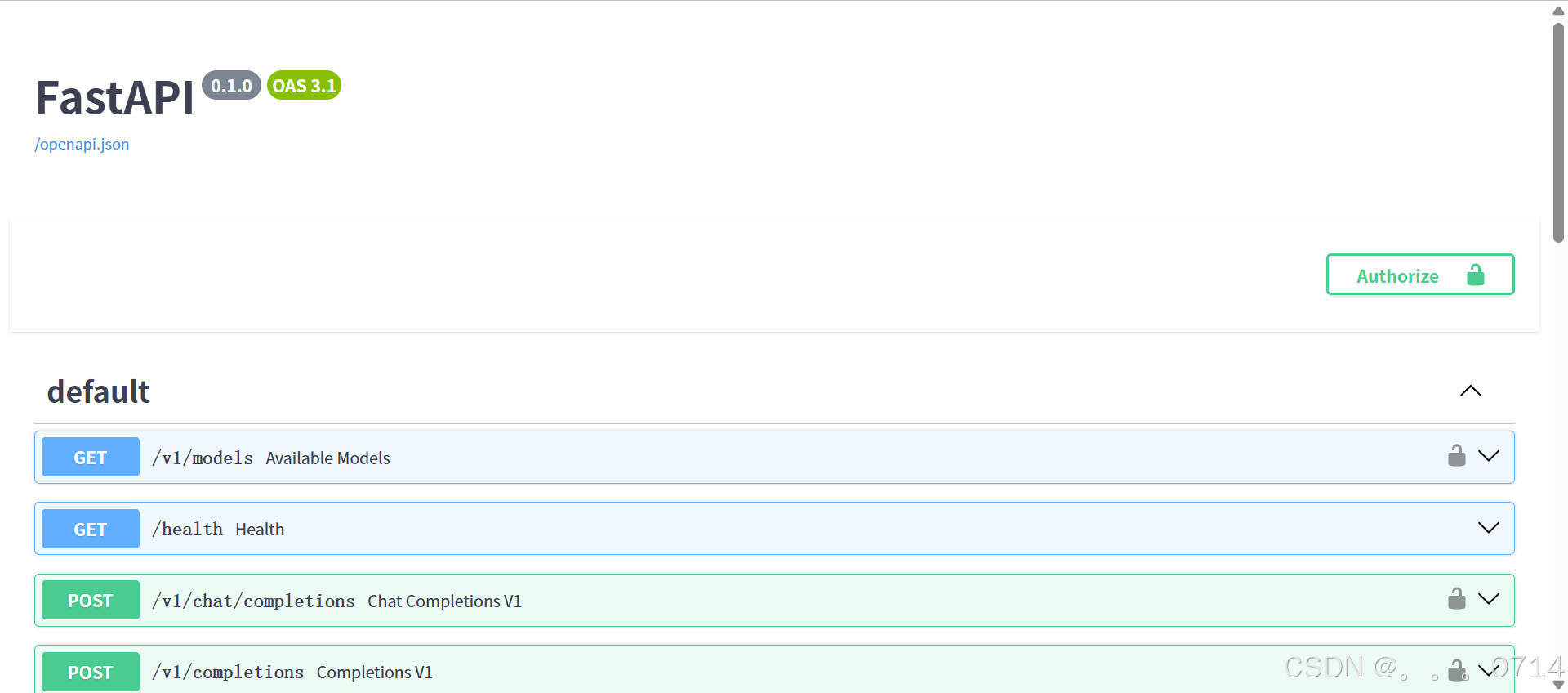
使用VScode远程连接开发机将会自动进行端口映射。

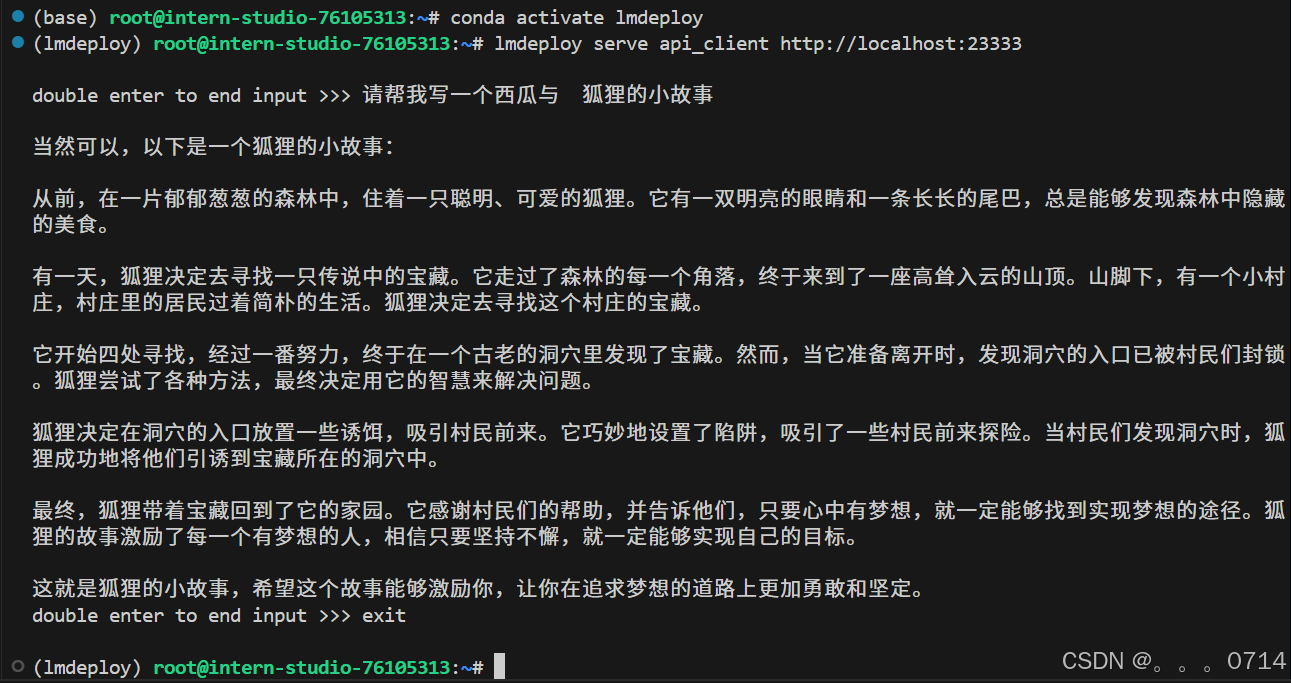
以命令行形式连接API服务器
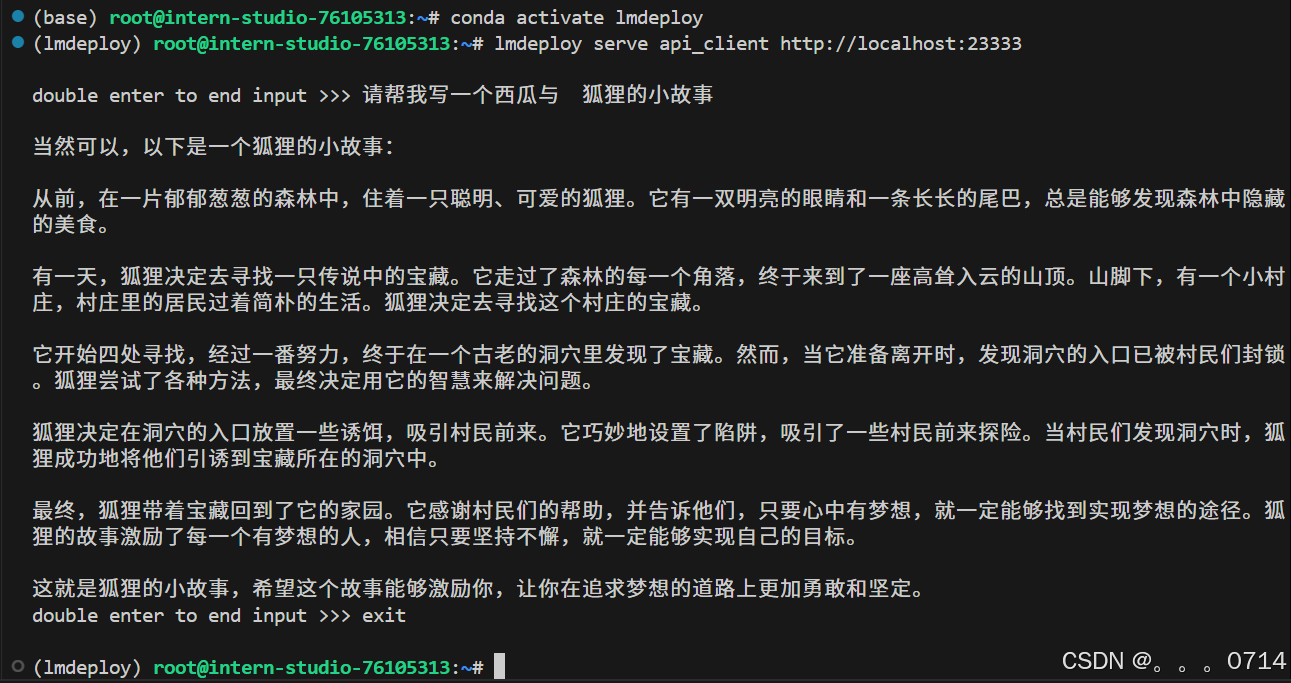
新建终端运行以下命令。
conda activate lmdeploy
lmdeploy serve api_client http://localhost:23333
以Gradio网页形式连接API服务器
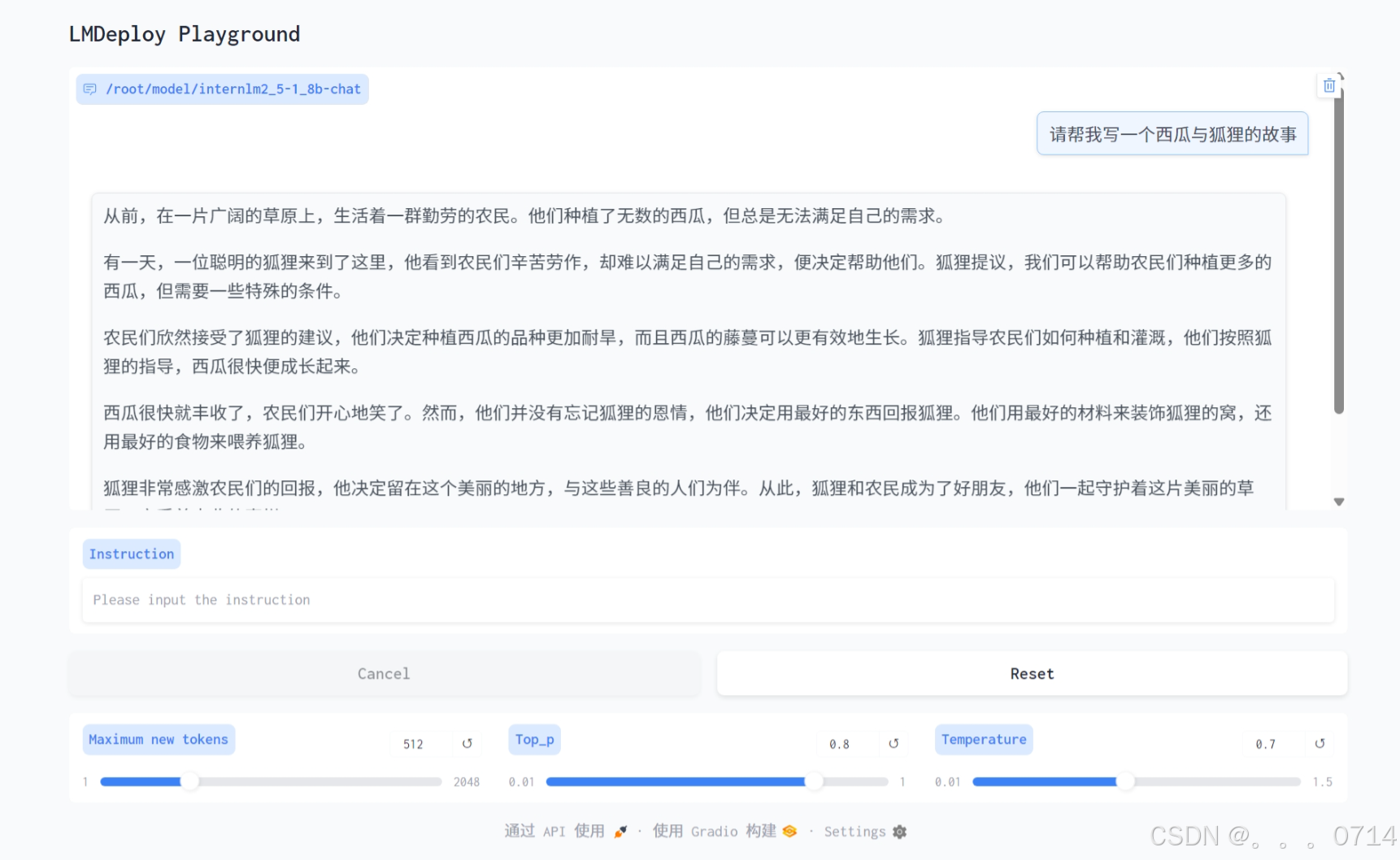
在命令行连接 API 的终端中,输入exit退出对话(也需要 double enter)。之后输入以下命令,使用Gradio作为前端,启动网页。
lmdeploy serve gradio http://localhost:23333 --server-name 0.0.0.0 --server-port 6006
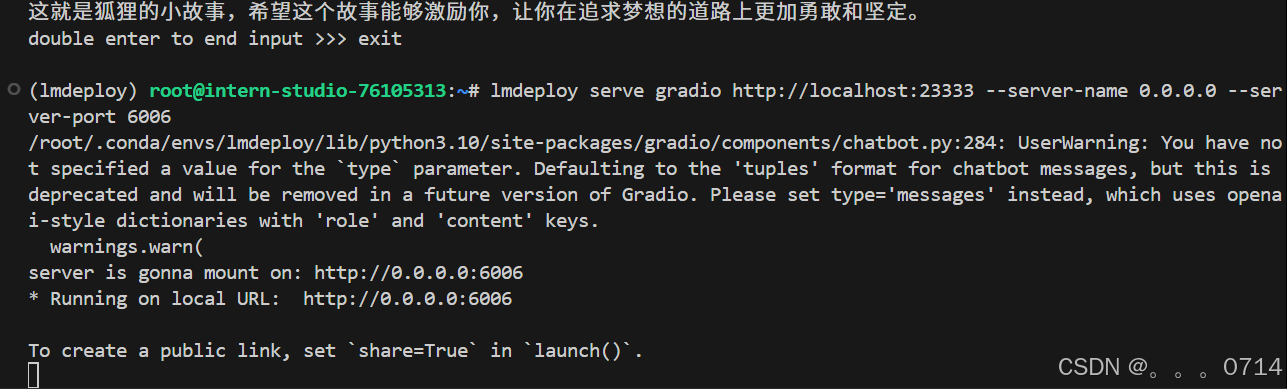
可以看到,这里对两个端口进行了端口映射,一个是之前命令行使用的23333端口,一个是Gradio网页使用的6006端口。

量化部署
随着模型变得越来越大,我们需要一些大模型压缩技术来降低模型部署的成本,并提升模型的推理性能。LMDeploy 提供了权重量化和 KV Cache 两种策略。
已知:显存占用 = 模型权重 + KV Cache缓存 + 其他项,其中:
模型权重 = 模型参数量 × 参数占用,
KV Cache 缓存 = 剩余显存 × 占用剩余显存的最大比例。
下面将用实例展示 KV Cache 缓存/量化以及 W4A16 对于显存占用的影响。现将结论给出:
-
KV Cache 缓存:根据设定的
--cache-max-entry-count参数,控制 KV Cache 占用剩余显存的最大比例。默认的比例为0.8。通过存储键值对的形式来复用计算结果。KV Cache 全部存储于显存,以加快访存速度。 -
KV Cache 量化:相同大小的 KV Cache 缓存能够存储更多的元素数量。LMDeploy 通过设定
quant_policy支持在线 KV Cache int4/int8 量化,量化方式为 per-head per-token 的非对称量化。相比使用BF16精度的kv cache,int4的Cache可以在相同4GB的显存下只需要4位来存储一个数值,而BF16需要16位。这意味着int4的Cache可以存储的元素数量是BF16的四倍。
-
W4A16 量化:权重被量化为4位整数(int4),激活保持为16位浮点数(FP16或BF16)。LMDeploy 通过
lite auto_awq --w-bits 4命令实现W4A16量化。bfloat16是16位的浮点数格式,占用2字节(16位)的存储空间。int4是4位的整数格式,占用0.5字节(4位)的存储空间。因此,从bfloat16到int4的转换理论上可以将模型权重的大小减少到原来的1/4。
对照组:
conda activate lmdeploy
lmdeploy serve api_server \
    /root/model/internlm2_5-1_8b-chat \
    --model-format hf \
    --quant-policy 0 \
    --server-name 0.0.0.0 \
    --server-port 23333 \
    --tp 1
显存占用如下:
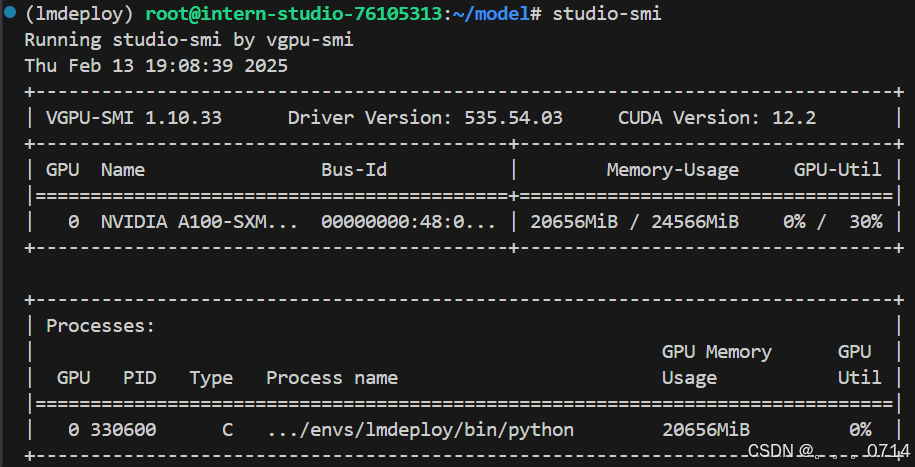
此时显存占用约20GB。
1.8 × 10⁹ parameters × 2 Bytes/parameter + (24-3.6)×0.8 GB + 1GB = 20.92 GB
KV Cache 缓存
将--cache-max-entry-count默认的 0.8 改为 0.4 。
lmdeploy chat /root/model/internlm2_5-1_8b-chat --cache-max-entry-count 0.4
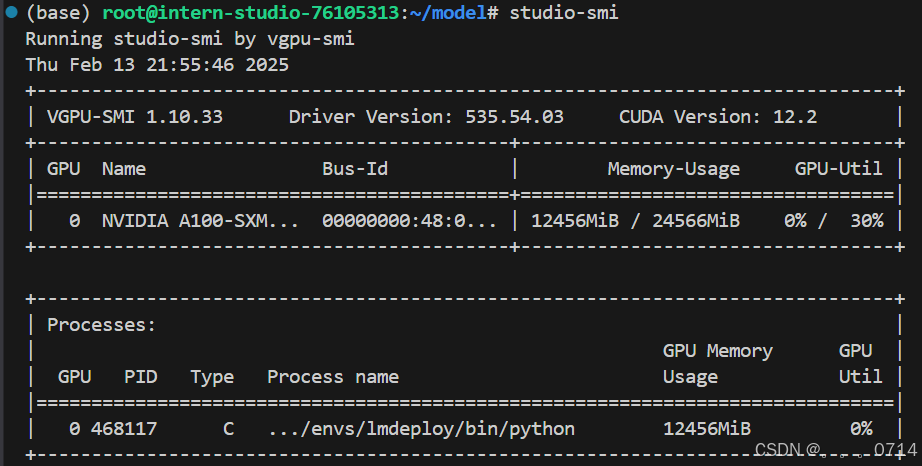
此时显存占用约12GB。
1.8 × 10⁹ parameters × 2 Bytes/parameter + (24-3.6)×0.4 GB + 1GB = 12.76 GB
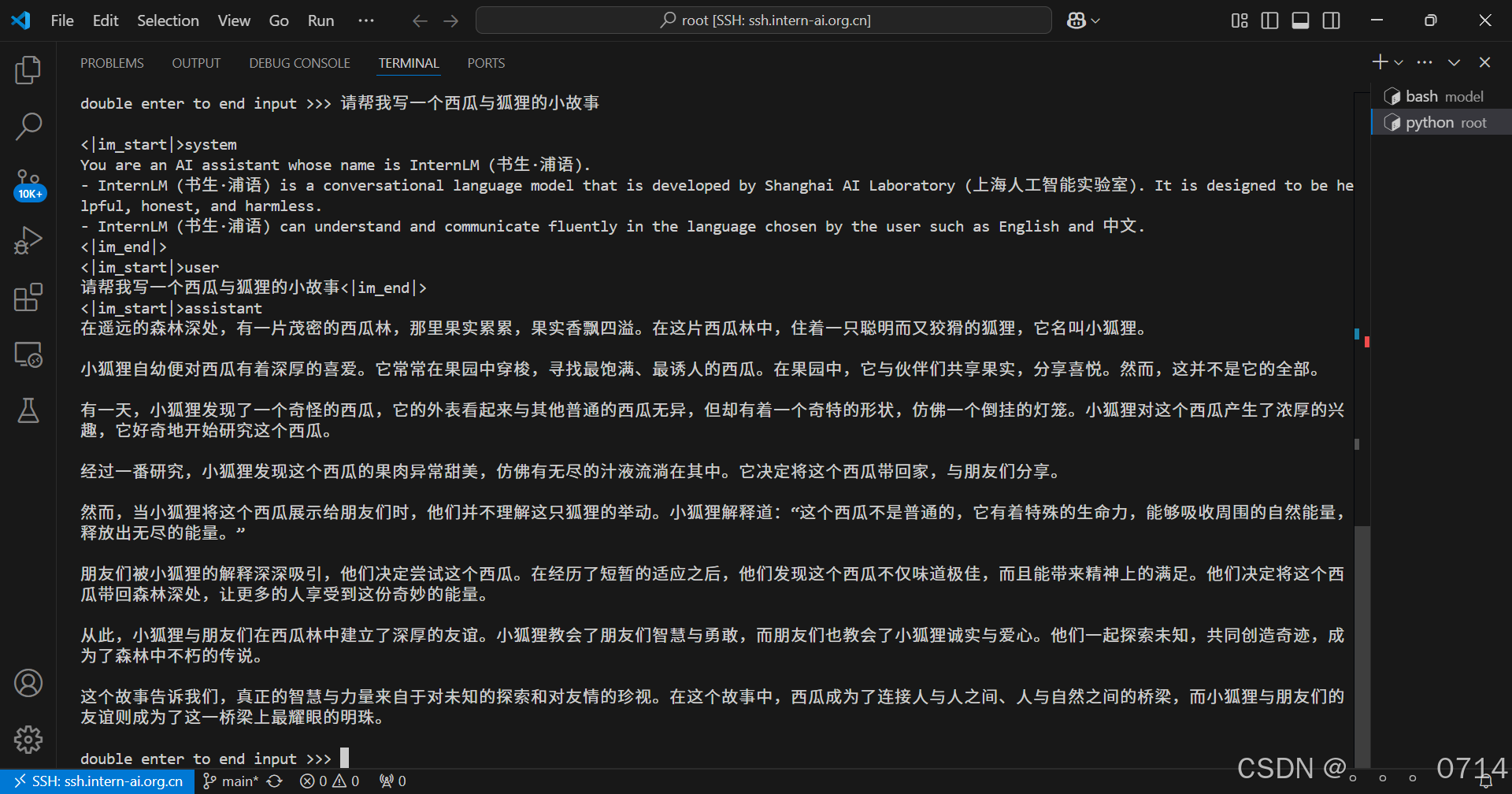
KV Cache 量化
lmdeploy serve api_server \
    /root/model/internlm2_5-1_8b-chat \
    --model-format hf \
    --quant-policy 4 \
    --cache-max-entry-count 0.4\
    --server-name 0.0.0.0 \
    --server-port 23333 \
    --tp 1
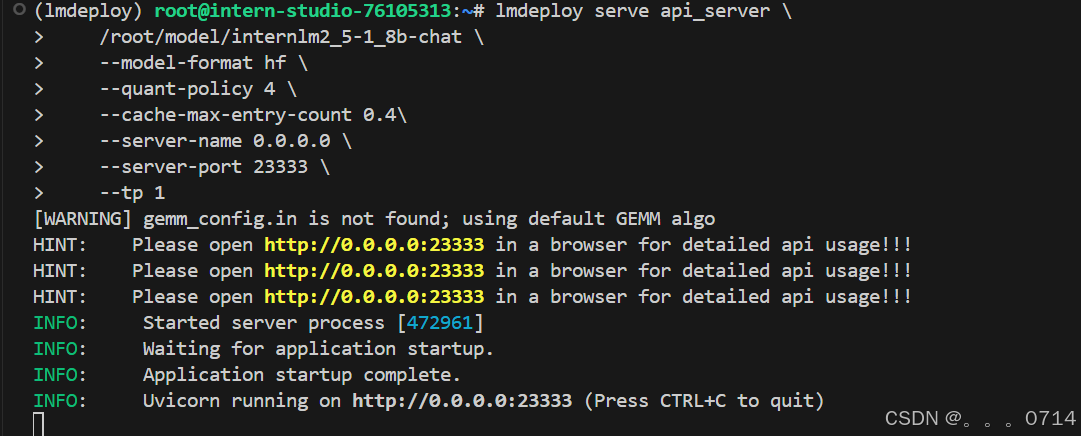
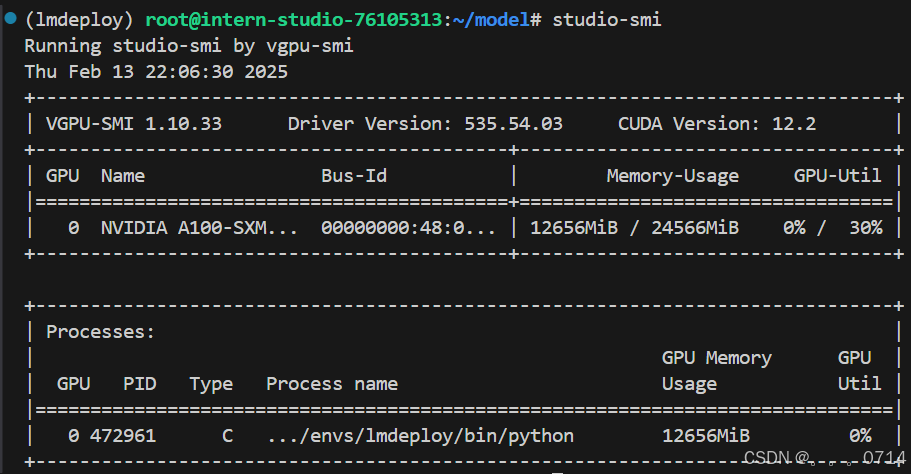
此时显存占用约12GB。
1.8 × 10⁹ parameters × 2 Bytes/parameter + (24-3.6)×0.4 GB + 1GB = 12.76 GB
但这意味着int4的Cache可以存储的元素数量是BF16的四倍。
lmdeploy serve api_client http://localhost:23333
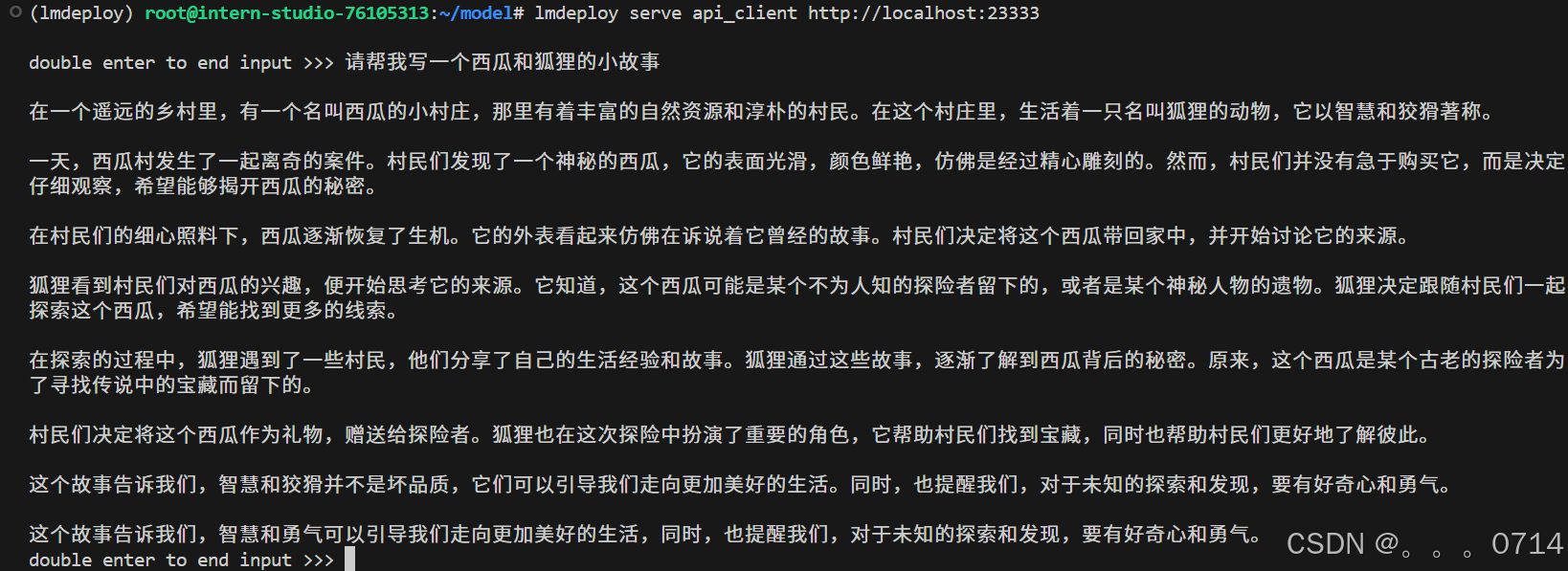
W4A16 量化
lmdeploy lite auto_awq \
   /root/model/internlm2_5-1_8b-chat \
  --calib-dataset 'ptb' \
  --calib-samples 128 \
  --calib-seqlen 2048 \
  --w-bits 4 \
  --w-group-size 128 \
  --batch-size 1 \
  --search-scale False \
  --work-dir /root/model/internlm2_5-1_8b-chat-w4a16-4bit
命令解释:
lmdeploy lite auto_awq:lite这是LMDeploy的命令,用于启动量化过程,而auto_awq代表自动权重量化(auto-weight-quantization)。/root/models/internlm2_5-7b-chat:模型文件的路径。--calib-dataset 'ptb':这个参数指定了一个校准数据集,这里使用的是’ptb’(Penn Treebank,一个常用的语言模型数据集)。--calib-samples 128:这指定了用于校准的样本数量—128个样本。--calib-seqlen 2048:这指定了校准过程中使用的序列长度—2048。--w-bits 4:这表示权重(weights)的位数将被量化为4位。--work-dir /root/models/internlm2_5-7b-chat-w4a16-4bit:这是工作目录的路径,用于存储量化后的模型和中间结果。
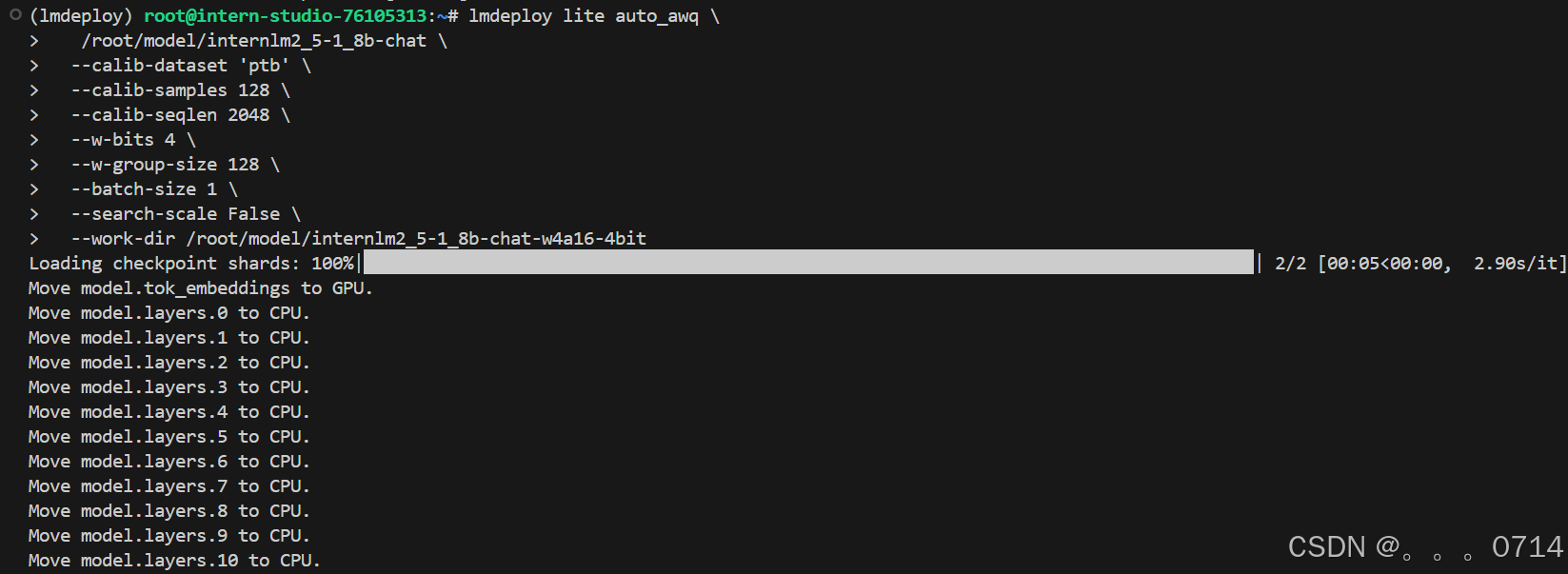
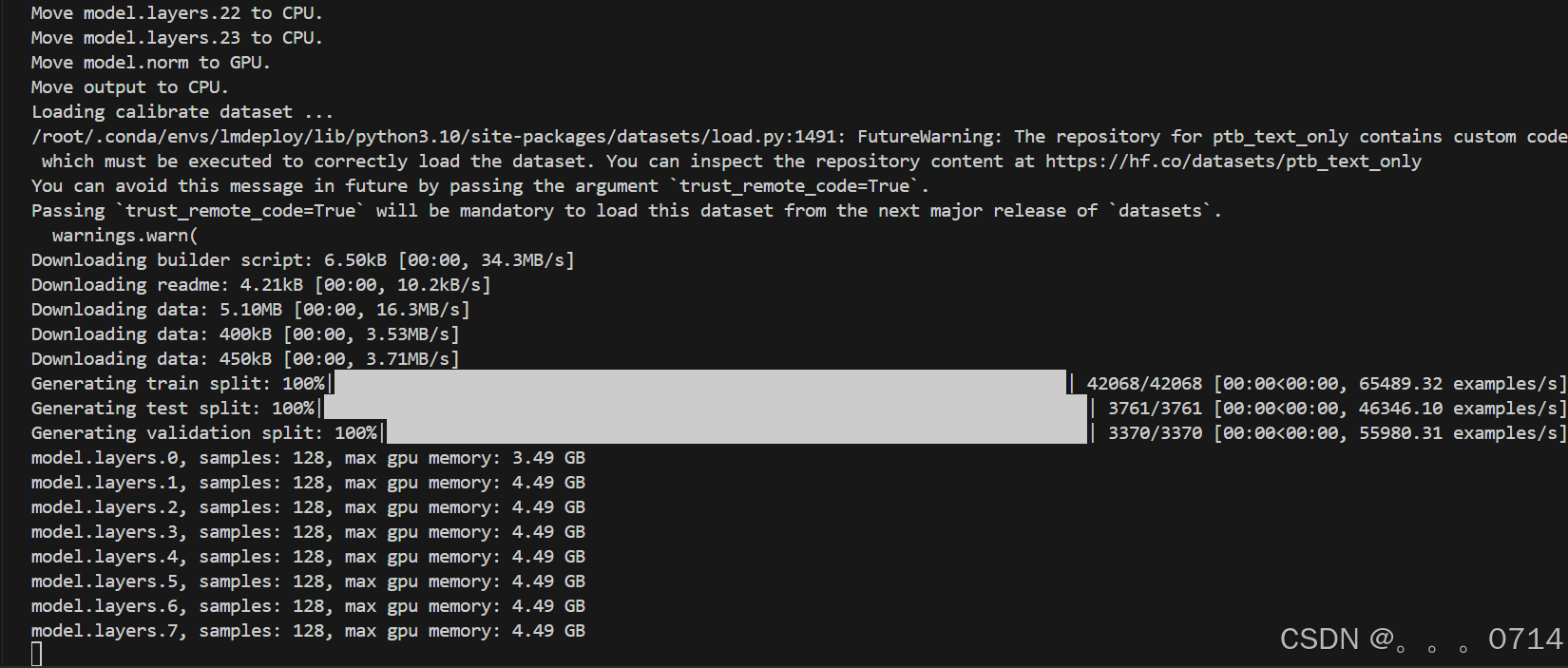
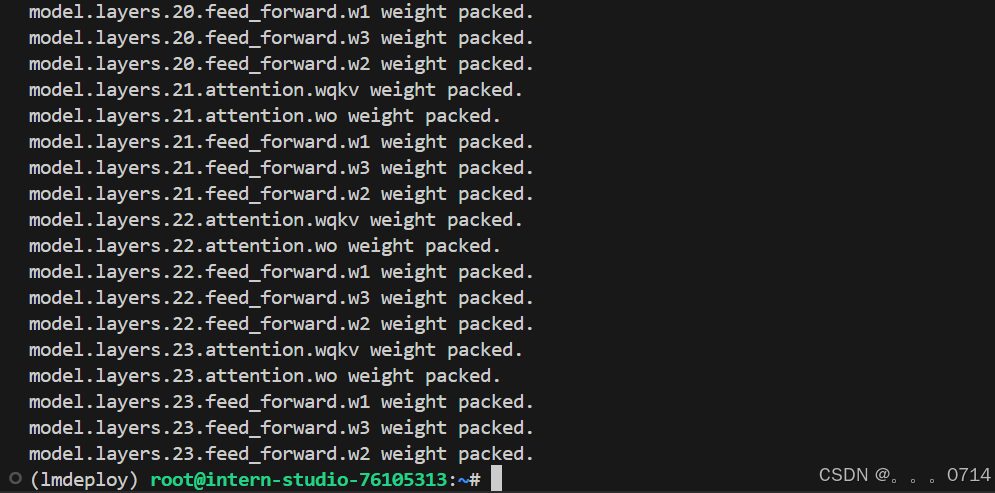
等待推理完成,便可以直接在设置的目标文件夹看到对应的模型文件,du -sh *命令查看当前目录中所有子目录的大小。
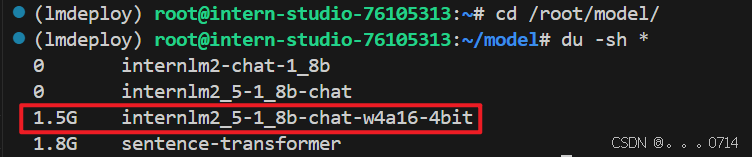
查看量化后模型大小:
cd /root/model/
du -sh *
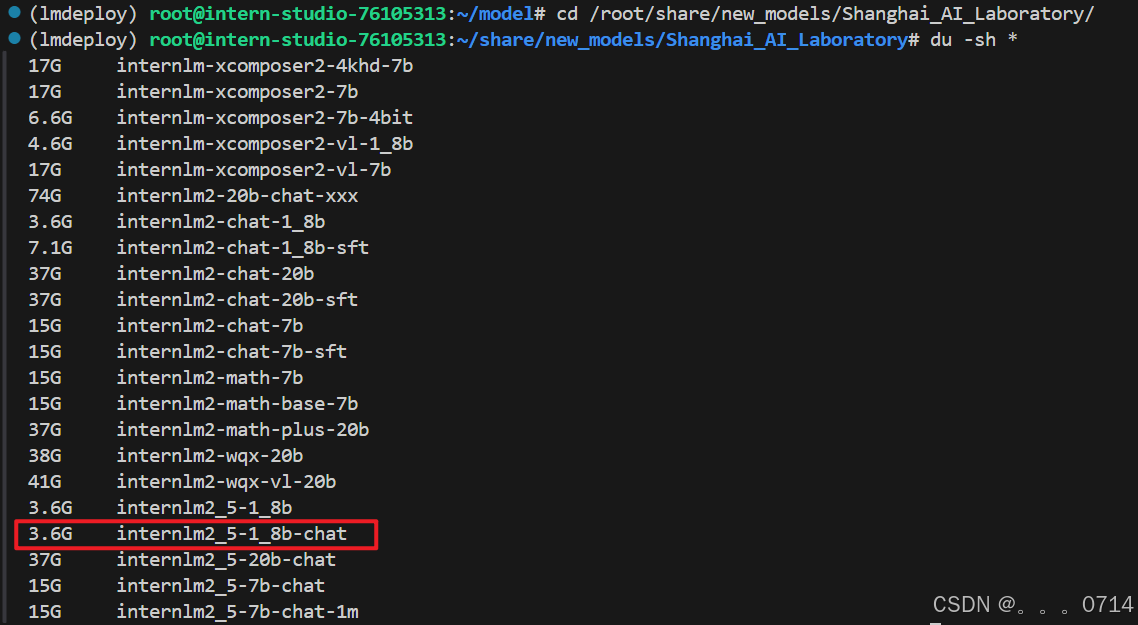
查看量化前模型大小:
cd /root/share/new_models/Shanghai_AI_Laboratory/
du -sh *
lmdeploy chat /root/model/internlm2_5-1_8b-chat-w4a16-4bit/ --model-format awq
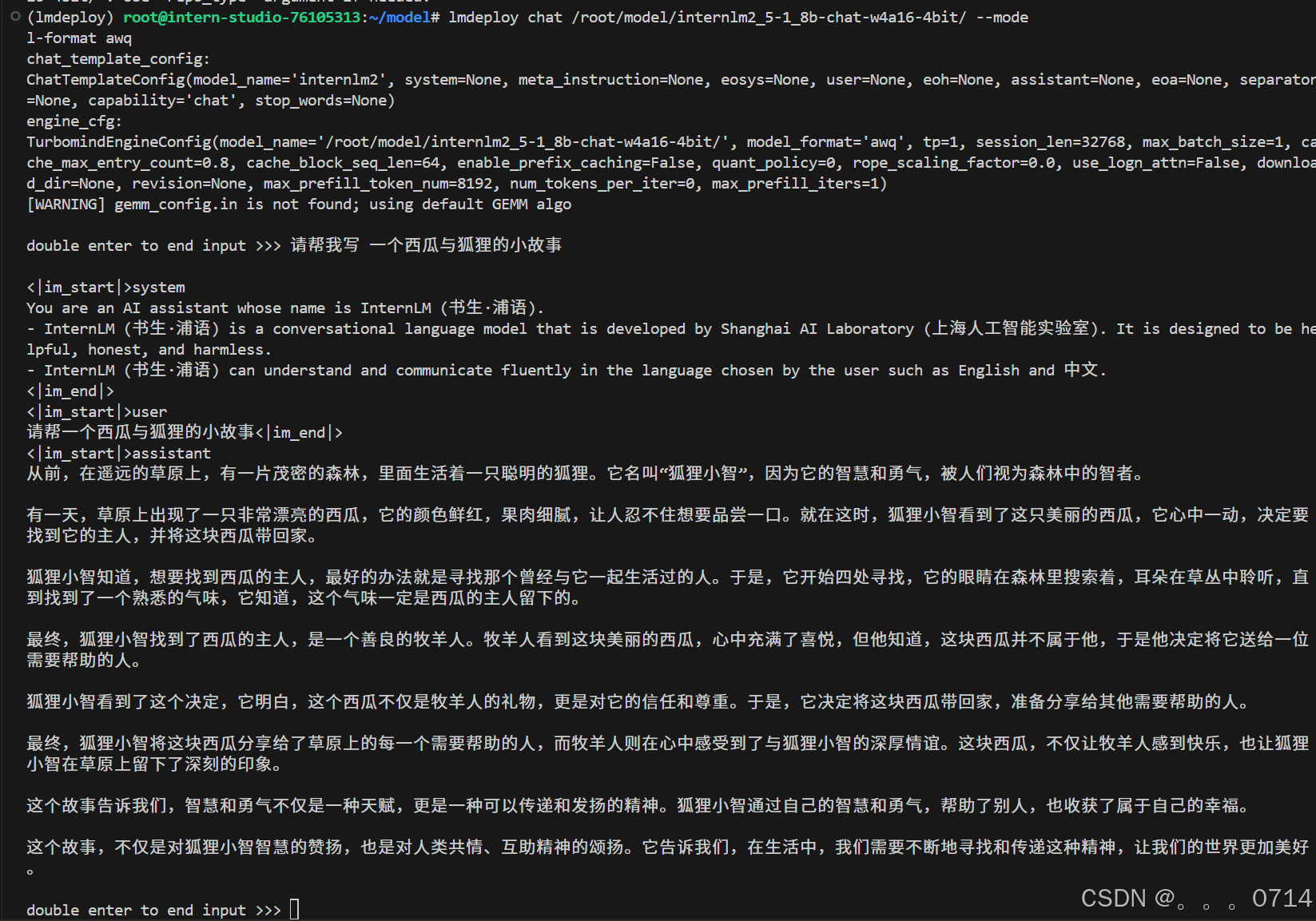
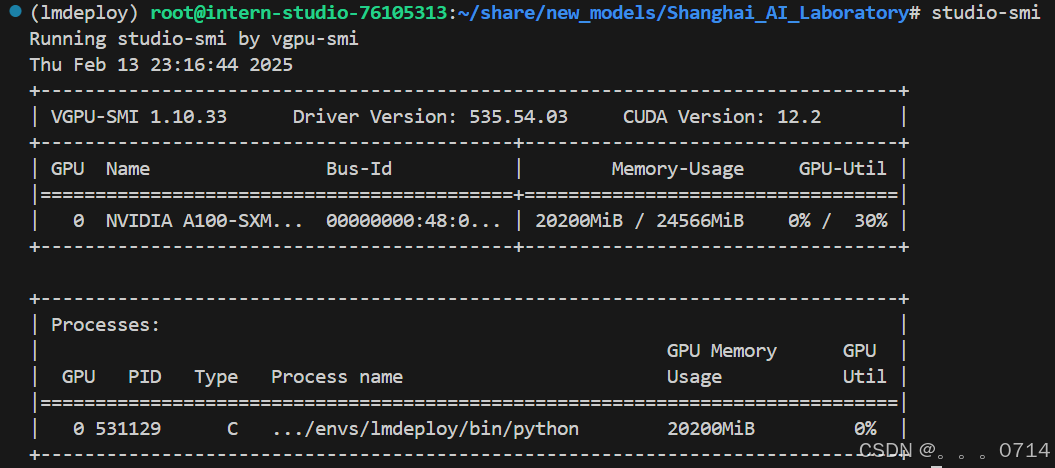
此时显存占用约20GB。
1.8 × 10⁹ parameters × 2 Bytes/parameter / 4 = 0.9
0.9 + (24-0.9)×0.8 GB + 1GB = 20.38 GB
W4A16 量化 + KV cache + KV cache 量化
lmdeploy serve api_server \
    /root/model/internlm2_5-1_8b-chat-w4a16-4bit/ \
    --model-format awq \
    --quant-policy 4 \
    --cache-max-entry-count 0.4\
    --server-name 0.0.0.0 \
    --server-port 23333 \
    --tp 1
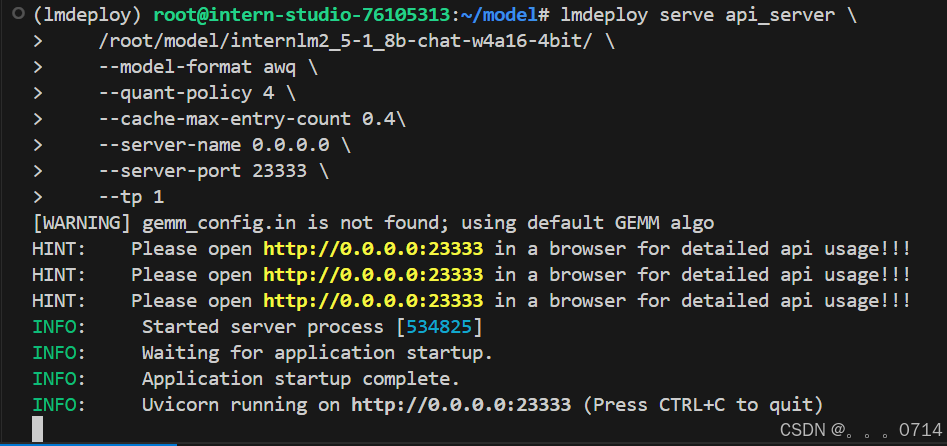
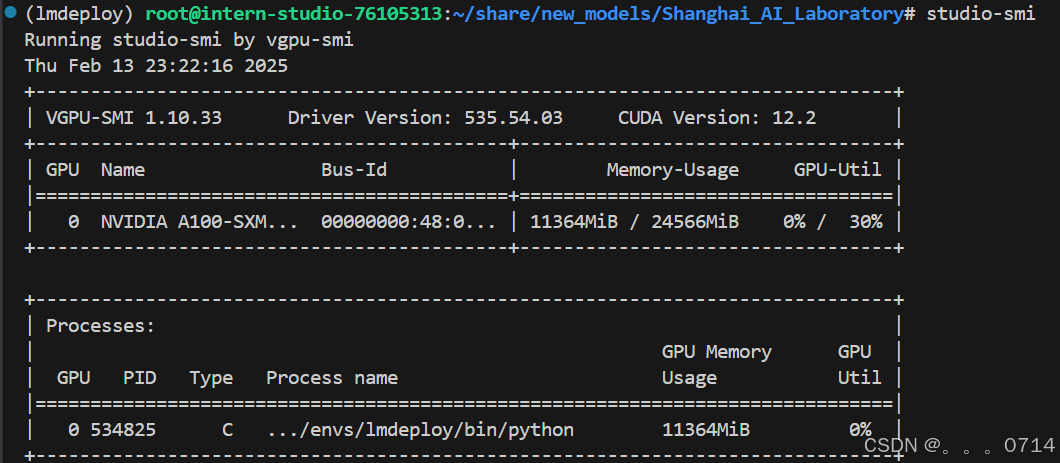
此时显存占用约11GB。
1.8 × 10⁹ parameters × 2 Bytes/parameter / 4 = 0.9
0.9 + (24-0.9)×0.4 GB + 1GB = 11.14 GB
lmdeploy serve api_client http://localhost:23333
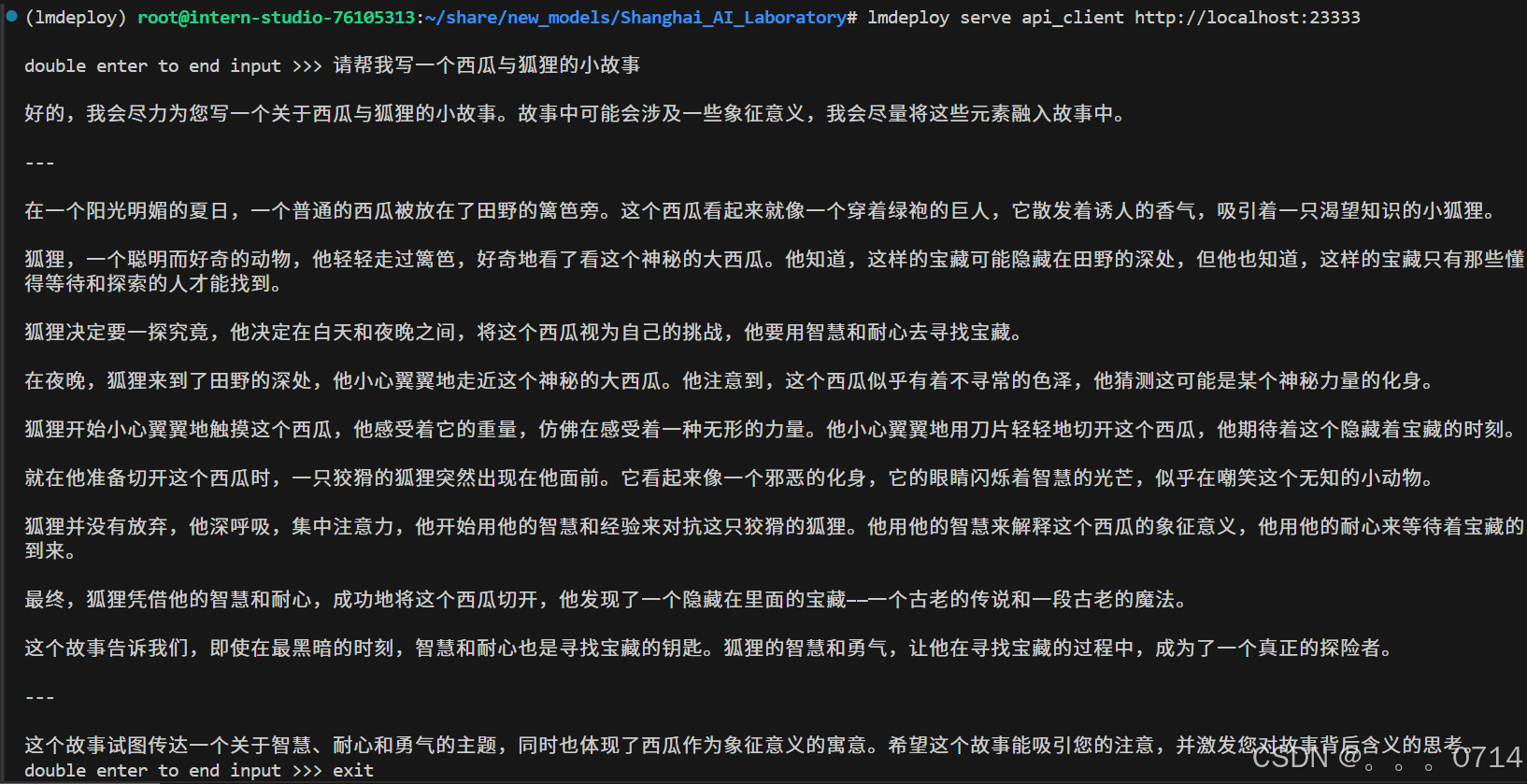
Function call 工具调用
此处使用之前启动未关闭的API服务器。
新建internlm2_5_func.py。
from openai import OpenAI

def add(a: int, b: int):
    return a + b

def mul(a: int, b: int):
    return a * b

tools = [{
    'type': 'function',
    'function': {
        'name': 'add',
        'description': 'Compute the sum of two numbers',
        'parameters': {
            'type': 'object',
            'properties': {
                'a': {
                    'type': 'int',
                    'description': 'A number',
                },
                'b': {
                    'type': 'int',
                    'description': 'A number',
                },
            },
            'required': ['a', 'b'],
        },
    }
}, {
    'type': 'function',
    'function': {
        'name': 'mul',
        'description': 'Calculate the product of two numbers',
        'parameters': {
            'type': 'object',
            'properties': {
                'a': {
                    'type': 'int',
                    'description': 'A number',
                },
                'b': {
                    'type': 'int',
                    'description': 'A number',
                },
            },
            'required': ['a', 'b'],
        },
    }
}]
messages = [{'role': 'user', 'content': 'Compute (3+5)*2'}]

client = OpenAI(api_key='YOUR_API_KEY', base_url='http://0.0.0.0:23333/v1')
model_name = client.models.list().data[0].id
response = client.chat.completions.create(
    model=model_name,
    messages=messages,
    temperature=0.8,
    top_p=0.8,
    stream=False,
    tools=tools)
print(response)
func1_name = response.choices[0].message.tool_calls[0].function.name
func1_args = response.choices[0].message.tool_calls[0].function.arguments
func1_out = eval(f'{func1_name}(**{func1_args})')
print(func1_out)

messages.append({
    'role': 'assistant',
    'content': response.choices[0].message.content
})
messages.append({
    'role': 'environment',
    'content': f'3+5={func1_out}',
    'name': 'plugin'
})
response = client.chat.completions.create(
    model=model_name,
    messages=messages,
    temperature=0.8,
    top_p=0.8,
    stream=False,
    tools=tools)
print(response)
func2_name = response.choices[0].message.tool_calls[0].function.name
func2_args = response.choices[0].message.tool_calls[0].function.arguments
func2_out = eval(f'{func2_name}(**{func2_args})')
print(func2_out)
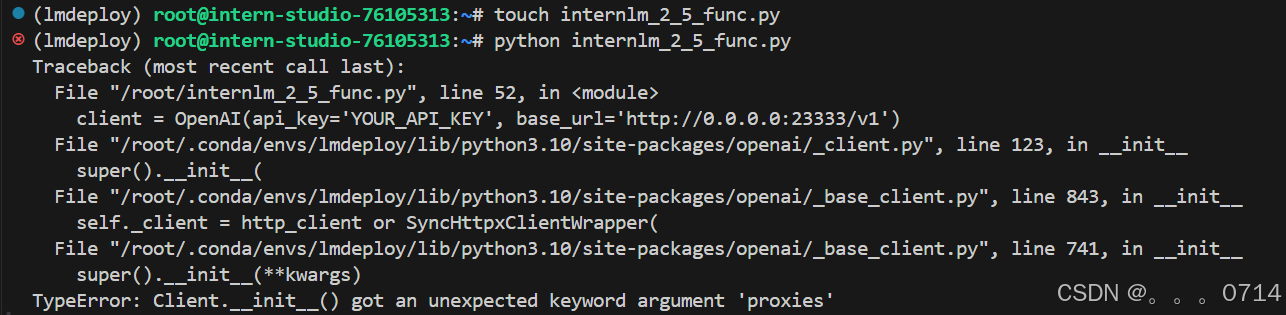
运行该文件。
出现报错,问题多半是httpx的版本问题。
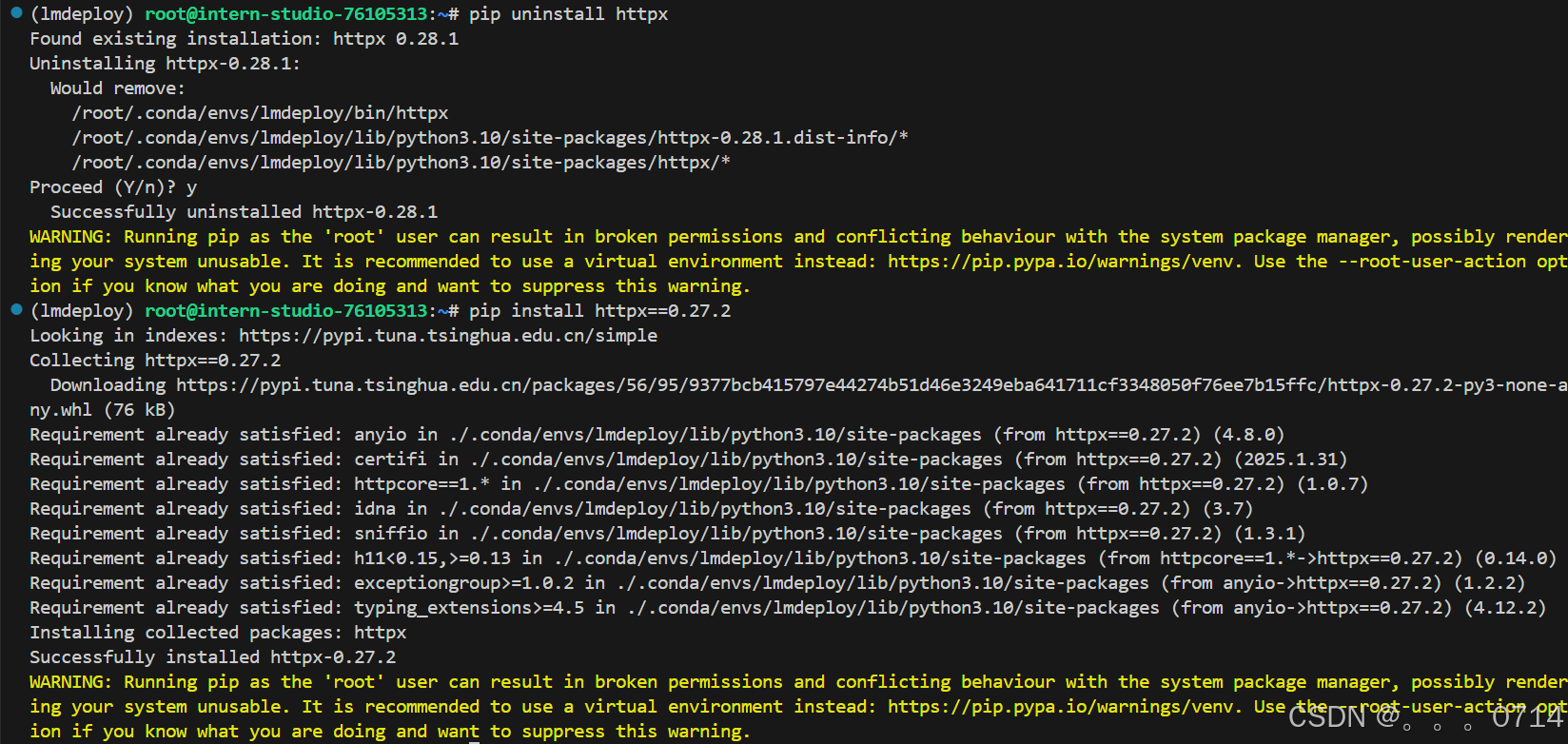
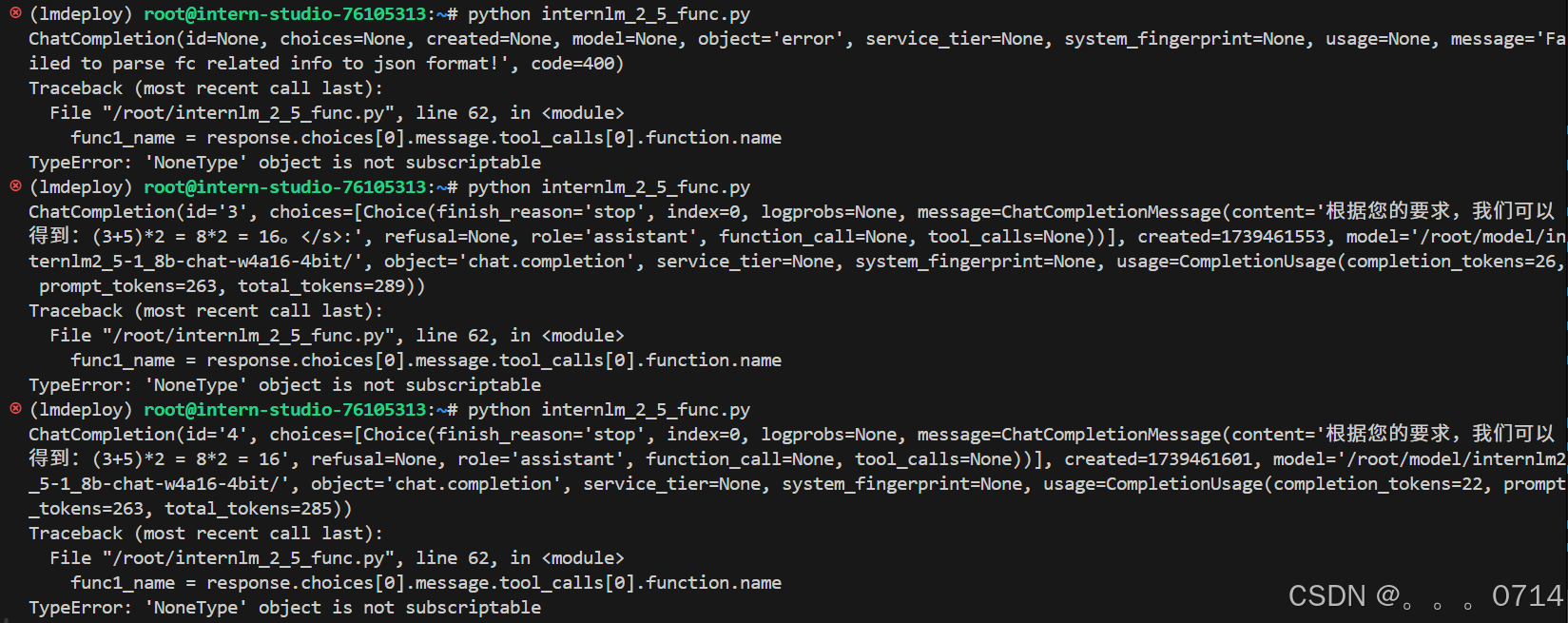
重新安装完httpx,再次运行输出如下,推测可能是模型量化后能力变差,无法进行方法调用。
重新开启API服务。
lmdeploy serve api_server \
    /root/model/internlm2_5-1_8b-chat \
    --model-format hf \
    --quant-policy 0 \
    --server-name 0.0.0.0 \
    --server-port 23333 \
    --tp 1
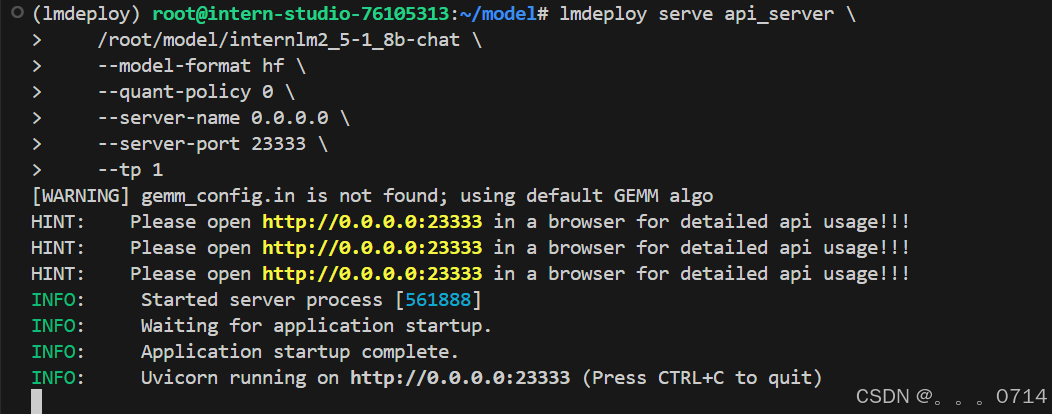

事实证明,似乎是internlm2_5-1.8b-chat模型的能力不如7b模型。
lmdeploy serve api_server \
    /root/model/internlm2_5-7b-chat \
    --model-format hf \
    --quant-policy 0 \
    --server-name 0.0.0.0 \
    --server-port 23333 \
    --tp 1
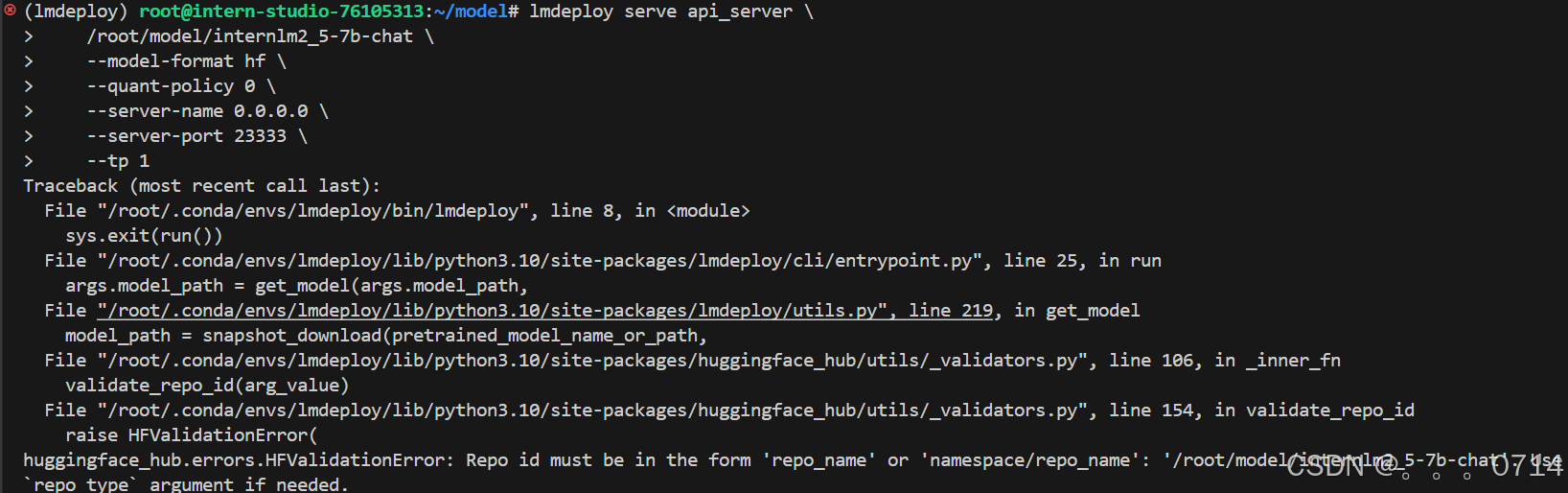
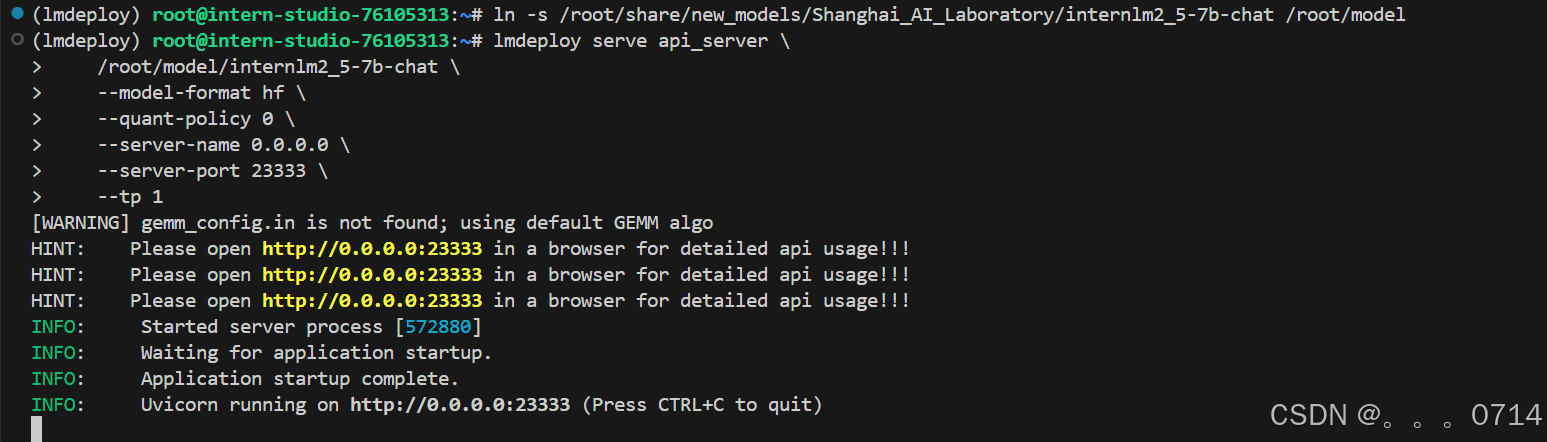
没有把internlm2_5-7b-chat模型软链接出来,服了!!!
ln -s /root/share/new_models/Shanghai_AI_Laboratory/internlm2_5-7b-chat /root/model
lmdeploy serve api_server \
    /root/model/internlm2_5-7b-chat \
    --model-format hf \
    --quant-policy 0 \
    --server-name 0.0.0.0 \
    --server-port 23333 \
    --tp 1
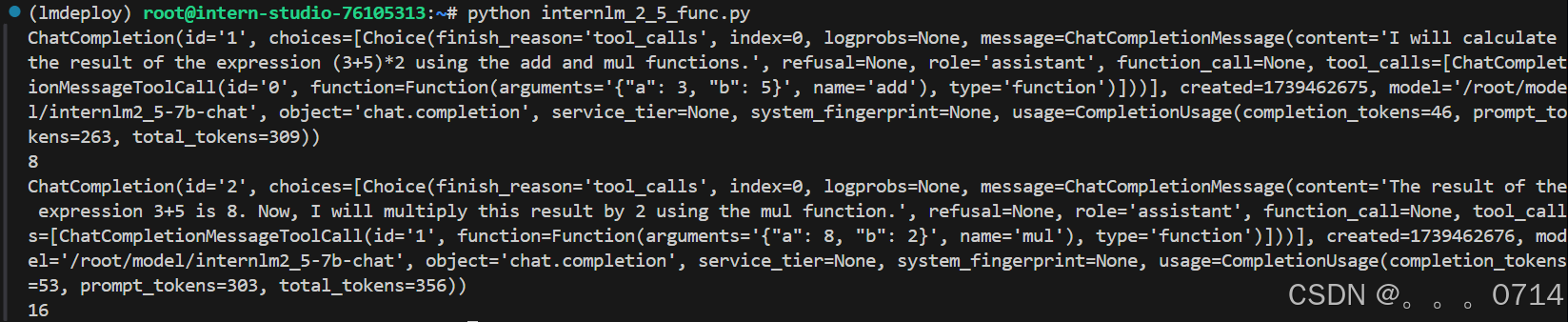
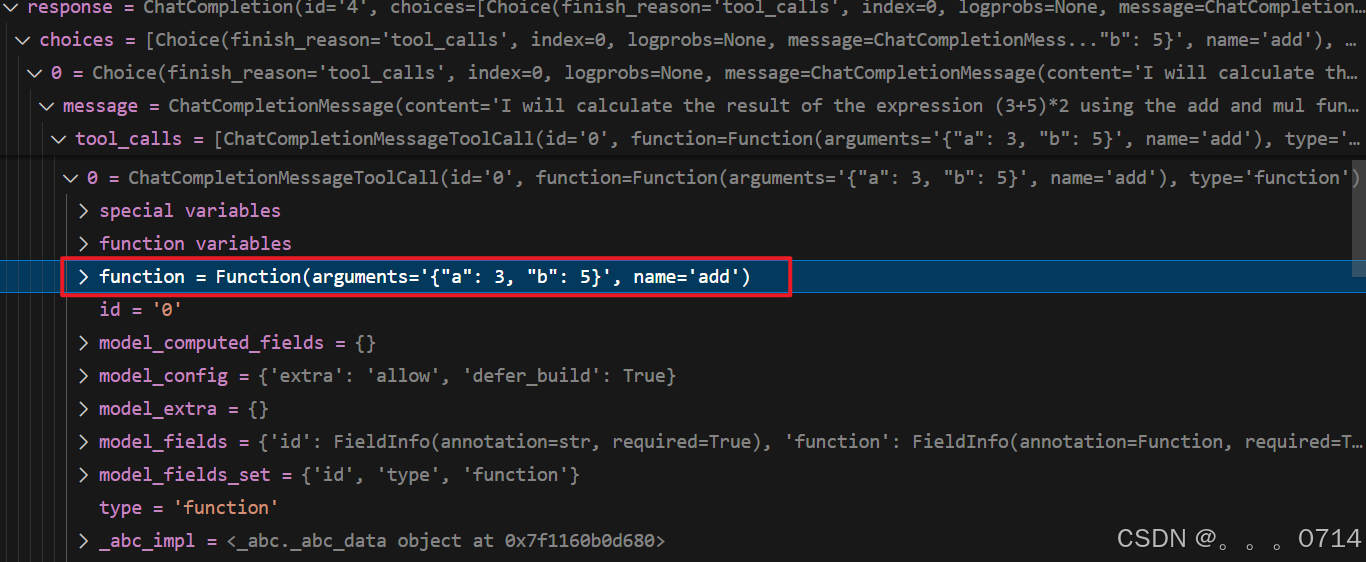
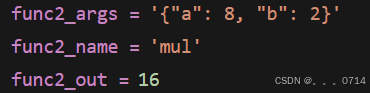
可以看出InternLM2.5将输入'Compute (3+5)*2'根据提供的function拆分成了"加"和"乘"两步,第一步调用function add实现加,再于第二步调用function mul实现乘,再最终输出结果16。
此时将输入'Compute (3+5)*2'送入模型得到 Response,根据提供的function拆分成了"加"和"乘"两步。
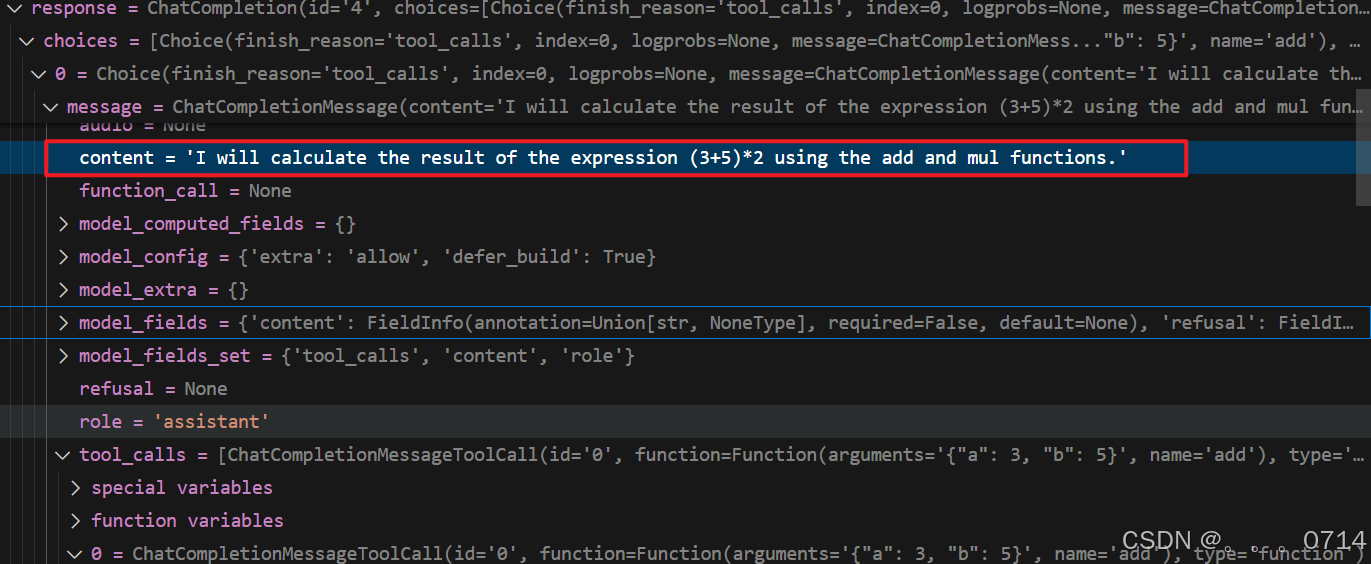
第一步调用function add实现加。
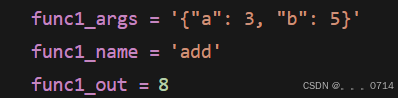
第二步模型的输入message包含初始输入,初始输出以及工具function add的输出。

第二步调用function mul实现乘。

 浙公网安备 33010602011771号