如何建立绿色便捷版的Windows Live Writer
没有想到Windows Live Writer也能做成绿色便捷版。这样,重装系统的时候再也不用重新安装了。
It has been over a year since I posted version 2 of a portable launcher for Windows Live Writer. In that time, WLW has moved out of beta and is now a big part of Microsoft’s Live initiative.
One of the biggest complaints about my portable launcher is that it required you to have Administrator level access on the machine you were running it on. For the most part this isn’t an issue on Windows XP but is big on Windows Vista because of User Account Control (UAC). In shared, locked down computer environments like colleges, this is a big problem and essentially renders the launcher useless. I have finally figured out how to fix that problem and am happy to announce version 3 of Windows Live Writer Portable. This version does not currently support U3. Truth is, I’ve never really liked U3 taking over my thumb drive. I use the excellent Portable Apps Menu instead. You can put it on anything, not just a SanDisk drive.
Download The File: Windows Live Writer Portable3.zip
This zip file does NOT contain everything you need to run Windows Live Writer. This is simply a launcher which will run Windows Live Writer in a self contained environment so you can take everything with you between computers via your USB memory device.
If you do not currently have Windows Live Writer, follow the instructions in the section below titled "Details on installing Windows Live Writer."
If you are currently using version 2 of my launcher, follow the instructions in section below titled "Upgrading from WLW Portable Version 2."
Installation Summary for New users
1. Unzip this file to somewhere on your hard drive.
2. Download Windows Live Writer from: http://get.live.com/writer/overview
3. Install Windows Live Write as usual. You don’t even have to run it, just so long as it is installed. This is fairly straight forward but you might want to look over the details I have written below.
4. Copy ALL of the files FROM C:\Program Files\Windows Live\Writer TO the new structure on your USB drive that looks like the graphic below \WindowsLiveWriterPortable\App\WindowsLiveWriter

Windows Live Writer绿色版
6. Copy the whole WindowsLiveWriter Portable folder to your USB stick.
To use Windows Live Writer from your USB drive simply double click on WindowsLiveWriterPortable.exe and it will take care of the necessary registry settings and document paths.
Details on installing Windows Live Writer
1. Download WLinstaller.exe from: http://get.live.com/writer/overview
2. Double click to start the installer.
3. The next screen will pop up. Accept the agreement.
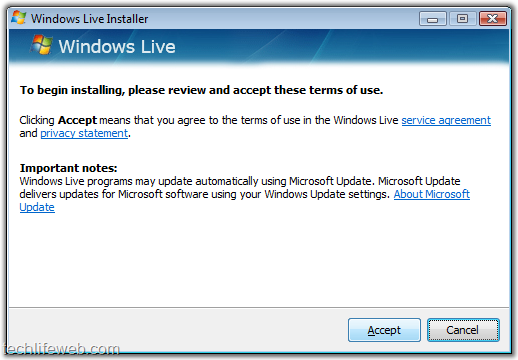
Windows Live Writer绿色版
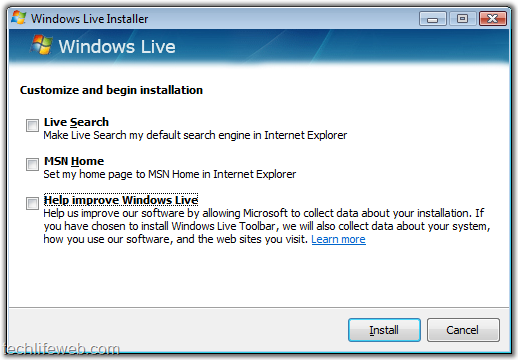
Windows Live Writer绿色版
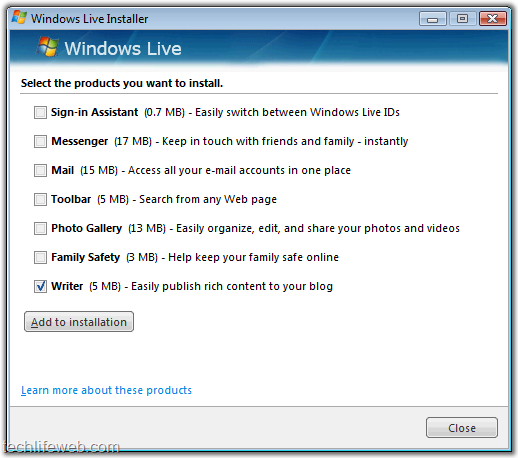
Windows Live Writer绿色版
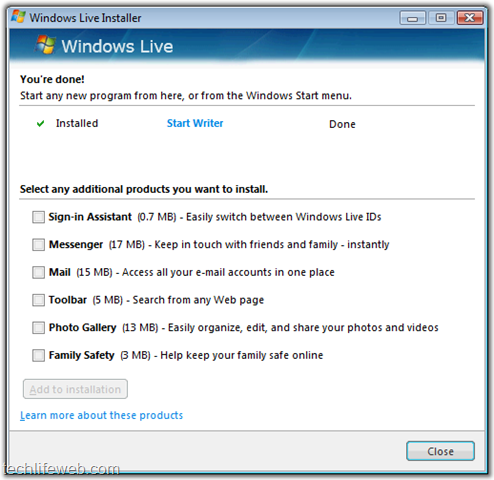
Windows Live Writer绿色版

 浙公网安备 33010602011771号