


【javafx 官方文档翻译 三】Getting Started with JavaFX Scene Builder
介绍
近期接到公司需求,需要做一个桌面系统,但由于自己java出身。前期做了可行性分析,可以用java1.8+javafx实现功能需求。但是在网上搜到的javafx相关文档较少。因此只能从官方文档下手。本人英文水平有限,特此将英文文档摘录下来,并用百度翻译逐步翻译。中间难免有些错误,还望理解。也欢迎大家一起讨论,共同进步。
官方目录
官方地址 Getting Started with JavaFX Scene Builder
- Title and Copyright Information
- Preface
- What's New
- Part I JavaFX Scene Builder Overview
- Part II Building a JavaFX Application Using Scene Builder
- 2 Prepare for This Tutorial
- 3 Open the Sample FXML File
- 4 Create the FXML File and the Base Panes
- 5 Bind the GUI to the Application Logic
- 6 Add the List and Table Views
- 7 Create the Details Section
- 8 Add the Toolbar
- 9 Use a Style Sheet and Preview the UI
- 10 Compile and Run the Application
内容
Title and Copyright Information
Getting Started with JavaFX Scene Builder
Release 2.0
E51278-01
April 2014
This document gives an overview of the JavaFX Scene Builder development tool and steps you through the creation of the GUI layout used in a simple JavaFX issue-tracking sample application.
JavaFX Scene Builder Getting Started with JavaFX Scene Builder Release 2.0
E51278-01
Copyright © 2012, 2014 Oracle and/or its affiliates. All rights reserved.
Primary Author: Cindy Castillo
Contributor: Yves Joan
This software and related documentation are provided under a license agreement containing restrictions on use and disclosure and are protected by intellectual property laws. Except as expressly permitted in your license agreement or allowed by law, you may not use, copy, reproduce, translate, broadcast, modify, license, transmit, distribute, exhibit, perform, publish, or display any part, in any form, or by any means. Reverse engineering, disassembly, or decompilation of this software, unless required by law for interoperability, is prohibited.
The information contained herein is subject to change without notice and is not warranted to be error-free. If you find any errors, please report them to us in writing.
If this is software or related documentation that is delivered to the U.S. Government or anyone licensing it on behalf of the U.S. Government, the following notice is applicable:
U.S. GOVERNMENT RIGHTS Programs, software, databases, and related documentation and technical data delivered to U.S. Government customers are "commercial computer software" or "commercial technical data" pursuant to the applicable Federal Acquisition Regulation and agency-specific supplemental regulations. As such, the use, duplication, disclosure, modification, and adaptation shall be subject to the restrictions and license terms set forth in the applicable Government contract, and, to the extent applicable by the terms of the Government contract, the additional rights set forth in FAR 52.227-19, Commercial Computer Software License (December 2007). Oracle America, Inc., 500 Oracle Parkway, Redwood City, CA 94065.
This software or hardware is developed for general use in a variety of information management applications. It is not developed or intended for use in any inherently dangerous applications, including applications that may create a risk of personal injury. If you use this software or hardware in dangerous applications, then you shall be responsible to take all appropriate fail-safe, backup, redundancy, and other measures to ensure its safe use. Oracle Corporation and its affiliates disclaim any liability for any damages caused by use of this software or hardware in dangerous applications.
Oracle and Java are registered trademarks of Oracle and/or its affiliates. Other names may be trademarks of their respective owners.
Intel and Intel Xeon are trademarks or registered trademarks of Intel Corporation. All SPARC trademarks are used under license and are trademarks or registered trademarks of SPARC International, Inc. AMD, Opteron, the AMD logo, and the AMD Opteron logo are trademarks or registered trademarks of Advanced Micro Devices. UNIX is a registered trademark of The Open Group.
This software or hardware and documentation may provide access to or information on content, products, and services from third parties. Oracle Corporation and its affiliates are not responsible for and expressly disclaim all warranties of any kind with respect to third-party content, products, and services. Oracle Corporation and its affiliates will not be responsible for any loss, costs, or damages incurred due to your access to or use of third-party content, products, or services.
Preface
This preface gives an overview about this tutorial and also describes the document accessibility features and conventions used in this tutorial - Getting Started with JavaFX Scene Builder.
About This Tutorial
This Getting Started tutorial is a compilation of two documents that were previously delivered with the JavaFX Scene Builder 1.x documentation set: JavaFX Scene Builder Overview and Getting Started with Scene Builder. The content has been updated with information about the new features and enhancements made in the JavaFX Scene Builder tool.
This document contains the following parts:
Audience
This document is intended for JavaFX developers.
Documentation Accessibility
For information about Oracle's commitment to accessibility, visit the Oracle Accessibility Program website at http://www.oracle.com/pls/topic/lookup?ctx=acc&id=docacc.
Access to Oracle Support
Oracle customers have access to electronic support through My Oracle Support. For information, visit http://www.oracle.com/pls/topic/lookup?ctx=acc&id=info or visit http://www.oracle.com/pls/topic/lookup?ctx=acc&id=trs if you are hearing impaired.
Related Documents
For more information, see the following documents in the JavaFX Scene Builder and JavaFX documentation sets:
- JavaFX Scene Builder Installation Guide
- JavaFX Scene Builder Release Notes
- JavaFX Scene Builder User Guide
- Using JavaFX Scene Builder with Java IDEs
- Mastering FXML
Conventions
The following text conventions are used in this document:
| Convention | Meaning |
|---|---|
| boldface | Boldface type indicates graphical user interface elements associated with an action, or terms defined in text or the glossary. |
| italic | Italic type indicates book titles, emphasis, or placeholder variables for which you supply particular values. |
monospace |
Monospace type indicates commands within a paragraph, URLs, code in examples, text that appears on the screen, or text that you enter. |
What's New
The following list gives a summary of the features and usability improvements made in the JavaFX Scene Builder 2.0 release. See Key Features and the JavaFX Scene Builder User Guide for more information.
以下列表总结了JavaFX Scene Builder 2.0版本中的功能和可用性改进。请参阅主要功能以及JavaFX场景生成器用户指南了解更多信息。
-
Ability to add custom GUI components to the Library has been added.
已添加向库中添加自定义GUI组件的能力。
-
Support for new JavaFX 8 GUI components is now available.
现在支持新的JavaFX 8 GUI组件。
-
Support of 3D objects is provided.
提供对3D对象的支持。
-
Support for Rich Text is available via the new container, TextFlow.
通过新的容器TextFlow可以支持富文本。
-
Improvements have been made to the Library, Hierarchy, Content, and Inspector panels. Also, the Preview window has been enhanced so that its content is now automatically refreshed as the current FXML document is being edited. See JavaFX Scene Builder User Guide for more information.
对库、层次结构、内容和检查器面板进行了改进。此外,预览窗口已得到增强,因此其内容现在会在编辑当前FXML文档时自动刷新。请参阅JavaFX场景生成器用户指南了解更多信息。
-
The new JavaFX 8 Modena theme is now used for the JavaFX Scene Builder tool's look and feel.
新的JavaFX 8 Modena主题现在用于JavaFX场景生成器工具的外观和感觉。
-
JavaFX Scene Builder Kit API is now available, allowing the integration of Scene Builder panels and functionalities directly into the GUI of a larger application, or a Java IDE, such as NetBeans, IntelliJ, and Eclipse. See JavaFX Scene Builder Release Notes for more information.
JavaFX场景生成器套件API现已推出,允许将场景生成器面板和功能直接集成到较大应用程序的GUI或Java IDE(如NetBeans、IntelliJ和Eclipse)中。请参阅JavaFX场景生成器发行说明了解更多信息。
Part I contains the following chapter:
1 Overview
This chapter gives an overview of the JavaFX Scene Builder 2.0 development tool, including information about key features, target audience, and download information.
本章概述了JavaFX Scene Builder 2.0开发工具,包括有关关键功能、目标受众和下载信息的信息。
JavaFX Scene Builder provides a visual layout environment that lets you quickly design user interfaces (UI) for JavaFX applications without needing to write any code. It allows simple drag-and-drop positioning of graphical user interface (GUI) components onto a JavaFX scene. As you build the layout of your UI, the FXML code for the layout is automatically generated. JavaFX Scene Builder provides a simple yet intuitive interface that can help even nonprogrammers to quickly prototype interactive applications that connect GUI components to the application logic.
JavaFX Scene Builder提供了一个可视化布局环境,使您无需编写任何代码即可快速设计JavaFX应用程序的用户界面(UI)。它允许将图形用户界面(GUI)组件简单地拖放到JavaFX场景上。在构建UI布局时,会自动生成布局的FXML代码。JavaFX Scene Builder提供了一个简单而直观的界面,即使是非程序员也可以帮助他们快速原型化将GUI组件连接到应用程序逻辑的交互式应用程序。
Intended Audience
The target audience for JavaFX Scene Builder includes the following:
JavaFX场景生成器的目标受众包括以下内容:
-
Java developers: They can quickly prototype the client application's GUI layout and develop the application logic separately.
Java开发人员:他们可以快速原型化客户端应用程序的GUI布局,并单独开发应用程序逻辑。
-
Designers: They can quickly prototype the client application's GUI layout without requiring any application code to be written first. They can design and preview the GUI layout and define its look and feel with style sheets.
设计者:他们可以快速原型化客户端应用程序的GUI布局,而不需要先编写任何应用程序代码。他们可以设计和预览GUI布局,并使用样式表定义其外观。
Key Features
JavaFX Scene Builder includes the following key features:
JavaFX场景生成器包括以下主要功能:
-
A drag-and-drop WYSIWYG interface allows you to quickly create a GUI layout without the need to write source code. You can add, combine, and edit JavaFX GUI controls to your layout by using the library of GUI controls and the content panel.
拖放所见即所得界面允许您快速创建GUI布局,而无需编写源代码。您可以使用GUI控件库和内容面板将JavaFX GUI控件添加、组合和编辑到布局中。
-
Tight integration with the NetBeans IDE provides optimal development workflow.
与NetBeans IDE的紧密集成提供了最佳的开发工作流程。
-
Integration with any Java IDE is easy since it is a standalone development tool. See Using JavaFX Scene Builder with Java IDEs for information on how to use Scene Builder with NetBeans IDE, Eclipse, and IntelliJ IDEA.
与任何Java IDE集成都很容易,因为它是一个独立的开发工具。请参阅在Java IDE中使用JavaFX场景生成器有关如何将场景生成器与NetBeans IDE、Eclipse和IntelliJ IDEA一起使用的信息。
-
Automatic FXML code generation occurs as you build and modify your GUI layout. The generated FXML code is stored in a separate file from the application logic source and style sheet files.
当您构建和修改GUI布局时,会自动生成FXML代码。生成的FXML代码存储在与应用程序逻辑源和样式表文件分开的文件中。
-
Live editing and preview features let you quickly visualize the GUI layout changes that you make without the need to compile. These features help minimize development time for your application. You can also assign Cascading Style Sheets (CSS) to your GUI layout and preview the resulting look and feel that is applied.
实时编辑和预览功能使您无需编译即可快速可视化所做的GUI布局更改。这些功能有助于最大限度地缩短应用程序的开发时间。您还可以将级联样式表(CSS)分配给GUI布局,并预览应用的最终外观。
-
Access to the complete JavaFX GUI controls library is provided. To see the full list of supported JavaFX 8 GUI components, type
FX8in the Library panel's Search text field. The list includes theTreeTableView,DatePicker,andSwingNodecomponents.提供对完整JavaFX GUI控件库的访问。要查看支持的JavaFX 8 GUI组件的完整列表,请在库面板的搜索文本字段中键入“FX8”。该列表包括“TreeTableView”、“DatePicker”和“SwingNode”组件。
-
Ability to add custom GUI components to the Library is now available. The Library of available GUI components can be extended by importing customized GUI components from third party JAR files, FXML files, or adding them from the Hierarchy or Content panels. See Scene Builder User Guide for more information.
现在可以向库中添加自定义GUI组件。通过从第三方JAR文件、FXML文件导入定制的GUI组件,或从层次结构或内容面板添加它们,可以扩展可用GUI组件库。请参见场景生成器用户指南了解更多信息。
-
3D support is provided. FXML documents containing 3D objects can now be loaded and saved in the Scene Builder 2.0 tool. You can view and edit properties of the 3D objects using the Inspector panel (Material and Mesh complex properties are not yet supported). You can not, however, create new 3D objects using the Scene Builder tool.
提供3D支持。现在可以在Scene Builder 2.0工具中加载和保存包含3D对象的FXML文档。您可以使用“检查器”面板查看和编辑三维对象的属性(尚不支持材质和网格复杂属性)。但是,您无法使用场景生成器工具创建新的三维对象。
-
Support for Rich Text has been added. A new container, TextFlow, is now available in the Library of GUI components. You can drag multiple text nodes and other types of nodes, into the a TextFlow container. You can also directly manipulate the text nodes to re-arrange them in the container. Inline and property editing features are also available for each text node.
已添加对RTF的支持。GUI组件库中现在提供了一个新的容器TextFlow。您可以将多个文本节点和其他类型的节点拖动到TextFlow容器中。您还可以直接操纵文本节点,以便在容器中重新排列它们。内联和属性编辑功能也可用于每个文本节点。
-
JavaFX Scene Builder Kit is provided with Scene Builder 2.0. The kit is an API that allows the integration of Scene Builder panels and functionalities directly into the GUI of a larger application, or a Java IDE, such as NetBeans, IntelliJ, and Eclipse. See JavaFX Scene Builder Release Notes for more details.
JavaFX场景生成器工具包随场景生成器2.0一起提供。该套件是一个API,允许将场景生成器面板和功能直接集成到较大应用程序或Java IDE(如NetBeans、IntelliJ和Eclipse)的GUI中。请参阅JavaFX场景生成器发行说明了解更多详情。
-
CSS support enables flexible management of the look and feel of your application's UI.
CSS支持可以灵活管理应用程序UI的外观。
-
Cross-platform support is provided on Windows, Linux, and Mac OS X operating systems.
在Windows、Linux和Mac OS X操作系统上提供跨平台支持。
Download Information
Use the following steps to get started using the JavaFX Scene Builder tool to build the GUI layout for your JavaFX application.
使用以下步骤开始使用JavaFX场景生成器工具为JavaFX应用程序构建GUI布局。
-
Go to the Additional Resources section of the Java SE Downloads page at
https://www.oracle.com/technetwork/java/javase/downloads/index.htmlto download the JavaFX Scene Builder installer. Use the JavaFX Scene Builder Installation Guide to learn about the system requirements and installation instructions.转到Java SE下载页面的附加资源部分,网址为
https://www.oracle.com/technetwork/java/javase/downloads/index.html下载JavaFX场景生成器安装程序。使用JavaFX场景生成器安装指南了解系统要求和安装说明。 -
Read the JavaFX Scene Builder Release Notes to learn about known issues and workarounds.
阅读JavaFX场景生成器发行说明了解已知问题和解决方法。
-
Use the JavaFX Scene Builder User Guide to learn more about the tool's user interface and Building a JavaFX Application Using Scene Builder to create a simple issue tracking application.
使用JavaFX场景生成器用户指南了解有关该工具的用户界面和使用场景生成器构建JavaFX应用程序的更多信息创建一个简单的问题跟踪应用程序。
-
Read Using JavaFX Scene Builder with Java IDEs to learn about how to use Scene Builder with NetBeans IDE, Eclipse, and IntelliJ IDEA.
阅读使用JavaFX场景生成器和Java IDE了解如何将场景生成器与NetBeans IDE、Eclipse和IntelliJ IDEA一起使用。
Additional Resources
To learn more about the JavaFX technology, see the JavaFX tutorials and articles at http://docs.oracle.com/javase/8/javase-clienttechnologies.htm.
要了解有关JavaFX技术的更多信息,请参阅JavaFX教程和文章http://docs.oracle.com/javase/8/javase-clienttechnologies.htm.
Part II Building a JavaFX Application Using Scene Builder
2 Prepare for This Tutorial
This chapter provides information about requirements and recommendations to prepare your development environment before you create the sample IssueTrackingLite FXML layout that you will build in this tutorial using JavaFX Scene Builder.
本章提供了有关在创建示例IssueTrackingLite FXML布局之前准备开发环境的要求和建议的信息,您将在本教程中使用JavaFX场景生成器构建该布局。
As you build the layout, the FXML code for the designed GUI is automatically generated. JavaFX Scene Builder provides a straightforward interface that can help you quickly prototype interactive applications that connect GUI components to the application logic. For the purpose of this tutorial, you will use a NetBeans project named IssueTrackingLite to illustrate the integration between NetBeans IDE and JavaFX Scene Builder. This tutorial also includes information that steps you through the creation of the IssueTrackingLite FXML layout without the use of NetBeans IDE.
在构建布局时,会自动生成所设计GUI的FXML代码。JavaFX Scene Builder提供了一个直观的界面,可以帮助您快速原型化将GUI组件连接到应用程序逻辑的交互式应用程序。在本教程中,您将使用一个名为“IssueTrackingLite”的NetBeans项目来说明NetBeans IDE和JavaFX场景生成器之间的集成。本教程还包括指导您在不使用NetBeans IDE的情况下创建IssueTrackingLite FXML布局的信息。
Note:
JavaFX Scene Builder does not have dependency on any particular IDE. However, since this tutorial was prepared using NetBeans IDE, it is recommended that you use NetBeans IDE to complete this tutorial. If Eclipse or IntelliJ IDEA is your preferred IDE, see Using JavaFX Scene Builder with Java IDEs for more information. You can also use Scene Builder as a standalone tool to create your GUI layout and edit the resulting FXML file using a text editor of your choice. If you choose to work with this tutorial outside of any IDEs, there are sections in this tutorial that highlight what you need to do to use the Apache Ant utility to connect the layout that you build to the sample application's Java source code, apply the style sheet, and run the sample application.
JavaFX场景生成器不依赖于任何特定的IDE。但是,由于本教程是使用NetBeans IDE编写的,建议您使用NetBeans集成开发环境来完成本教程。如果Eclipse或IntelliJ IDEA是您的首选IDE,请参阅将JavaFX场景生成器与Java IDE一起使用了解更多信息。您还可以使用场景生成器作为独立工具来创建GUI布局,并使用您选择的文本编辑器编辑生成的FXML文件。如果您选择在任何IDE之外使用本教程,本教程中有一些部分强调了使用Apache Ant实用程序将您构建的布局连接到示例应用程序的Java源代码、应用样式表和运行示例应用程序所需的操作。
Use the following requirements and recommendations before continuing with this tutorial:
在继续本教程之前,请使用以下要求和建议:
-
(Required) Install all the required software before you use JavaFX Scene Builder. See JavaFX Scene Builder Installation Guide for more details.
(必需)在使用JavaFX场景生成器之前,请安装所有必需的软件。请参阅JavaFX场景生成器安装指南了解更多详情。
-
(Required) Download the JavaFX Scene Builder samples from the Additional Resources section of the download page at
https://www.oracle.com/technetwork/java/javase/downloads/index.html. Extract the contents of thejavafx_scenebuilder_samples-2_0.zipfile, which includes the IssueTrackingLite sample folder. TheIssueTrackingLitefolder you extract contains a completed version of the FXML layout that you will build using this tutorial. The issue-tracking system enables you to query existing sample project issues, modify them, or add new issue.(必需)从下载页面的“附加资源”部分下载JavaFX场景生成器示例,网址为
https://www.oracle.com/technetwork/java/javase/downloads/index.html. 提取javafx_scenebuilder_samples-2_0.zip文件的内容,其中包括IssueTrackingLite示例文件夹。您提取的“IssueTrackingLite”文件夹包含您将使用本教程构建的FXML布局的完整版本。问题跟踪系统使您能够查询现有的示例项目问题、修改它们或添加新问题。 -
(Recommended) Use JavaFX Scene Builder User Guide to familiarize yourself with the JavaFX Scene Builder user interface that is shown in Figure 2-1.
(推荐)使用JavaFX场景生成器用户指南熟悉JavaFX Scene Builder用户界面,如图2-1所示.
-
(Recommended) Install NetBeans IDE 8, which is used in this tutorial to illustrate the integration between NetBeans IDE and JavaFX Scene Builder. As mentioned in the Note above, you can also create the IssueTrackingLite GUI layout using other Java IDEs, such as Eclipse or IntelliJ IDEA, or a standalone instance of Scene Builder.
(推荐)安装NetBeans IDE 8,本教程中使用它来说明NetBeans IDE和JavaFX场景生成器之间的集成。如上文注释所述,您还可以使用其他Java IDE(如Eclipse或IntelliJ IDEA)或Scene Builder的独立实例创建IssueTrackingLite GUI布局。
-
(Recommended) Familiarize yourself with the JavaFX concepts by reading the available documents on the JavaSE Client Technologies page at
http://docs.oracle.com/javase/8/javase-clienttechnologies.htm. In particular, learn about the FXML concepts by reading Using FXML to Create a User Interface and get familiar with layouts using Working with Layouts in JavaFX.(推荐)通过阅读JavaSE客户端技术页面上的可用文档,熟悉JavaFX概念,网址为
http://docs.oracle.com/javase/8/javase-clienttechnologies.htm. 特别是,通过阅读使用FXML创建用户界面来了解FXML的概念并使用在JavaFX中使用布局熟悉布局.
Figure 2-1 Main Window for JavaFX Scene Builder
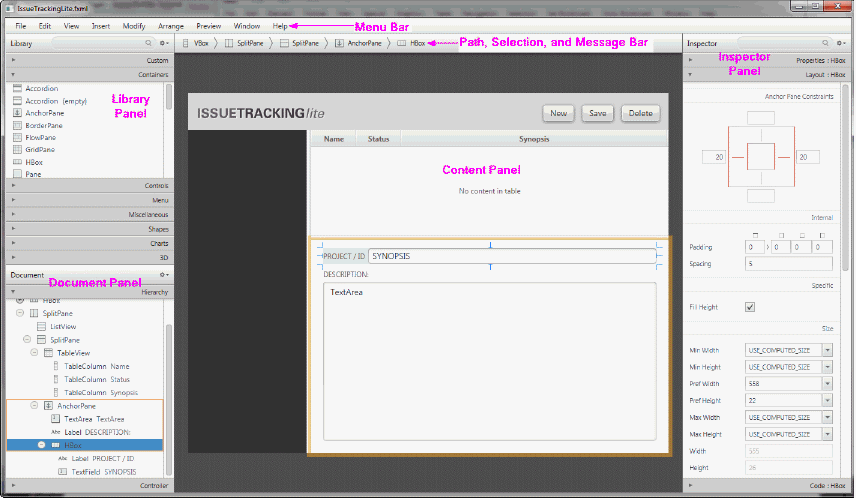
Description of "Figure 2-1 Main Window for JavaFX Scene Builder"
3 Open the Sample FXML File
This chapter shows you how to open the IssueTrackingLite.fxml sample file in a JavaFX Scene Builder window using the NetBeans IDE Open command or using the Scene Builder Open command.
本章将向您展示如何使用NetBeans IDE open命令或使用Scene Builder open命令在JavaFX Scene Builder窗口中打开IssueTrackingLite.fxml示例文件。
After you have familiarized yourself with the JavaFX concepts and the JavaFX Scene Builder user interface, begin building an FXML layout using JavaFX Scene Builder. Open the completed IssueTrackingLite.fxml file to see what the finished IssueTrackingLite GUI layout looks like. Use one of the following methods:
熟悉JavaFX概念和JavaFX场景生成器用户界面后,开始使用JavaFX场景构建器构建FXML布局。打开已完成的IssueTrackingLite.fxml文件,查看已完成的IssueTrackingLite GUI布局。使用以下方法之一:
-
Step through Use NetBeans IDE Projects Window to open the
IssueTrackingLitesample NetBeans project and double-click the node for the IssueTrackingLite.fxml file to invoke JavaFX Scene Builder.逐步完成使用NetBeans IDE项目窗口打开“IssueTrackingLite”示例NetBeans项目,双击IssueTrackingLite.fxml文件的节点以调用JavaFX场景生成器。
-
Follow Use JavaFX Scene Builder Open Command to open the
IssueTrackingLite.fxmlsample file in a standalone Scene Builder tool.遵循使用JavaFX场景生成器打开命令在独立的场景生成器工具中打开
IssueTrackingLite.fxml示例文件。
The controller source file and the Cascading Style Sheet (CSS) file used in this tutorial are already provided with the IssueTrackingLite sample NetBeans project. These files are in the same project folder that will contain the new FXML file.
本教程中使用的控制器源文件和级联样式表(CSS)文件已经随IssueTrackingLite示例NetBeans项目提供。这些文件位于将包含新FXML文件的同一项目文件夹中。
Use NetBeans IDE Projects Window
Open the completed IssueTrackingLite.fxml sample layout file using NetBeans IDE's Projects window:
使用NetBeans IDE的“项目”窗口打开已完成的“IssueTrackingLite.fxml”示例布局文件:
-
Start NetBeans IDE on your Windows platform by double-clicking the NetBeans IDE 8.0 shortcut, or select Start, then All Programs, then NetBeans, and finally, NetBeans IDE 8.0. On a Mac OS X platform, double-click the NetBeans IDE 8.0 application icon.
双击NetBeans IDE 8.0快捷方式,在Windows平台上启动NetBeans IDE,或选择“开始”,然后选择“所有程序”,再选择“NetBeans”,最后选择“NetBeans IDE 8.0”。在Mac OS X平台上,双击NetBeans IDE 8.0应用程序图标。
-
From the Menu bar, select File and then Open Project.
从菜单栏中选择“文件”,然后选择“打开项目”。
-
From the Open Project dialog box, go to the directory where you extracted the
IssueTrackingLitesample file and open the IssueTrackingLite project.从“打开项目”对话框中,转到提取“IssueTrackingLite”示例文件的目录,然后打开“IssueTracking Lite”项目。
-
In the Projects window, expand the IssueTrackingLite, Source Packages, and issuetrackinglite nodes. Double-click the IssueTrackingLite.fxml node to open the file in JavaFX Scene Builder.
在“项目”窗口中,展开IssueTrackingLite、源包和IssueTrackingLite节点。双击IssueTrackingLite.fxml节点,在JavaFX场景生成器中打开文件。
Note:
If the
IssueTrackingLite.fxmlfile opens in the IDE source editor instead of in a Scene Builder window, it may mean that the IDE is not aware of your Scene Builder installation. To verify, select Tools from the NetBeans IDE main menu and then Options. In the Options window, click the Java tab and then the JavaFX tab. The Scene Builder Home directory would be listed if NetBeans is aware of your Scene Builder installation. If it is not listed, see Prepare for This Tutorial chapter for the requirements before continuing with this tutorial.如果“IssueTrackingLite.fxml”文件在IDE源代码编辑器中打开,而不是在场景生成器窗口中打开,则可能意味着IDE不知道您的场景生成器安装。要验证,请从NetBeans IDE主菜单中选择“工具”,然后选择“选项”。在“选项”窗口中,单击“Java”选项卡,然后单击“JavaFX”选项卡。如果NetBeans知道您的“场景生成器”安装,则会列出“场景生成器主目录”。如果未列出,请参阅准备本教程在继续本教程之前,请参阅第章的要求。
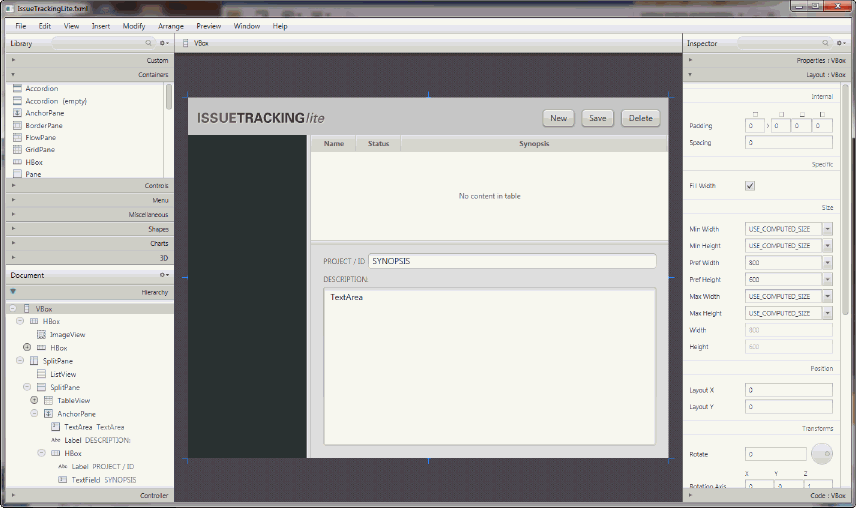
The main window for the JavaFX Scene Builder tool appears with the
IssueTrackingLite.fxmlfile opened in the Content panel, as shown in Figure 3-1.JavaFX场景生成器工具的主窗口出现,内容面板中打开了
IssueTrackingLite.fxml文件,如图3-1所示.Figure 3-1 Completed IssueTrackingLite.fxml Opened in JavaFX Scene Builder Window
![Description of Figure 3-1 follows]()
Description of "Figure 3-1 Completed IssueTrackingLite.fxml Opened in JavaFX Scene Builder Window " -
Save the file with a different name so that you can create your own FXML layout file. From the Menu bar, select File and then Save As. Enter
IssueTrackingLiteComplete.fxmlin the File Name text field and click Save. Keep the JavaFX Scene Builder window for this file open so that you can use it to compare with the version of the layout you are about to create.使用其他名称保存文件,以便您可以创建自己的FXML布局文件。从菜单栏中,选择文件,然后另存为。在文件名文本字段中输入
IssueTrackingLiteComplete.fxml,然后单击保存。保持此文件的JavaFX场景生成器窗口打开,以便您可以使用它与要创建的布局版本进行比较。 -
In the Projects window of the IDE, right-click the node for the IssueTrackingLite.fxml file and select Delete so that you can use the same file name for the FXML layout you will build. On the Confirm Object Deletion dialog box, click Yes.
在IDE的“项目”窗口中,右键单击IssueTrackingLite.fxml文件的节点,然后选择“删除”,这样您就可以为要构建的fxml布局使用相同的文件名。在“确认对象删除”对话框中,单击“是”。
Use JavaFX Scene Builder Open Command
Open the completed sample FXML file directly from a standalone JavaFX Scene Builder window.
直接从独立的JavaFX场景生成器窗口打开完成的示例FXML文件。
-
Start JavaFX Scene Builder on your Windows platform by double-clicking the JavaFX Scene Builder 2.0 shortcut, or select Start, then All Programs, then JavaFX Scene Builder, and finally, JavaFX Scene Builder 2.0. On a Mac OS X platform, double-click the JavaFX Scene Builder 2.0 application icon.
双击JavaFX Scene Builder 2.0快捷方式,在Windows平台上启动JavaFX场景生成器,或选择“开始”,然后选择“所有程序”,再选择“JavaFX场景构建器”,最后选择“JavaFX场景构建器2.0”。在Mac OS X平台上,双击JavaFX Scene Builder 2.0应用程序图标。
-
From the Menu bar, select File and then Open.
从菜单栏中选择文件,然后选择打开。
-
From the Open FXML dialog box, go to the folder in which you extracted the
IssueTrackingLitesample file and open the IssueTrackingLite, src, and issuetrackinglite folders.从Open FXML对话框中,转到提取“IssueTrackingLite”示例文件的文件夹,然后打开IssueTrackingLite、src和IssueTrackingLite文件夹。
-
Double-click the IssueTrackingLite.fxml file.
双击IssueTrackingLite.fxml文件。
The
IssueTrackingLite.fxmlfile is opened in the Content panel, as shown in Figure 3-1.“IssueTrackingLite.fxml”文件在“内容”面板中打开,如图3-1所示.
-
Save the file with a different name so that you can create your own FXML layout file using the original file name that is recognized by the IssueTrackingLite application.
使用其他名称保存文件,以便您可以使用IssueTrackingLite应用程序识别的原始文件名创建自己的FXML布局文件。
-
From the Menu bar, select File and then Save As.
从菜单栏中,选择文件,然后另存为。
-
Enter
IssueTrackingLiteComplete.fxmlin the File Name text field and click Save.在“文件名”文本字段中输入“IssueTrackingLiteComplete.fxml”,然后单击“保存”。
-
4 Create the FXML File and the Base Panes
In this chapter, you create a new FXML layout file using either the NetBeans IDE New command or the JavaFX Scene Builder New command. You then assign the cascading style sheet (CSS) to use for the FXML layout and create the base panes to start the application's GUI design.
在本章中,您将使用NetBeans IDE new命令或JavaFX Scene Builder new命令创建新的FXML布局文件。然后,您指定用于FXML布局的级联样式表(CSS),并创建基础窗格以启动应用程序的GUI设计。
The FXML layout that you are about to build for the IssueTrackingLite application is an interface that enables you to query existing project issues, modify them, or add new issues. Build your own IssueTrackingLite user interface by doing the following:
您即将为IssueTrackingLite应用程序构建的FXML布局是一个界面,使您能够查询现有的项目问题、修改它们或添加新问题。通过执行以下操作构建自己的IssueTrackingLite用户界面:
-
Create the new FXML file by following the steps in either Use NetBeans IDE New Wizard or Use JavaFX Scene Builder New Command.
按照使用NetBeans IDE新向导中的步骤创建新的FXML文件或使用JavaFX场景生成器新命令.
-
Set the Root Container, CSS, and Style Class to use for the entire layout.
设置根容器、CSS和样式类用于整个布局。
-
Create the Base Panes for the layout.
创建基础面板对于布局。
Use NetBeans IDE New Wizard
Create a new empty FXML file using the NetBeans IDE New wizard.
使用NetBeans IDE新建向导创建一个新的空FXML文件。
-
From the Projects window of the IDE, right-click the issuetrackinglite folder node under Source Packages, select New, and then Other.
在IDE的Projects窗口中,右键单击Source Packages下的issuetrackinglite文件夹节点,选择New,然后选择Other。
-
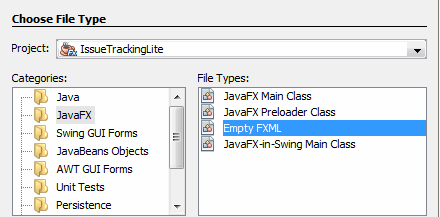
In the New File dialog box, select the JavaFX category and select the Empty FXML file type, as shown in Figure 4-1. Click Next.
在新建文件对话框中,选择JavaFX类别并选择空FXML文件类型,如图4-1所示. 单击下一步。
Figure 4-1 Choose Empty FXML File Type
-
In the New Empty FXML dialog box, enter
IssueTrackingLitein the FXML Name text field. Ensure that the Package text field has the valueissuetrackinglite. Click Finish在新建空FXML对话框中,在FXML名称文本字段中输入
IssueTrackingLite。确保“包”文本字段的值为“issuetrackinglite”。单击“完成”The
IssueTrackingLite.fxmlfile is opened in the IDE source editor. This new FXML file is in the same folder as the provided controller source code,IssueTrackingLiteController.java, that will connect with the user interface that you build with this tutorial.在IDE源代码编辑器中打开
IssueTrackingLite.fxml文件。这个新的FXML文件与提供的控制器源代码“IssueTrackingLiteController.java”位于同一文件夹中,该源代码将与您使用本教程构建的用户界面连接。 -
In the Projects window, double-click the IssueTrackingLite.fxml node to open the file in the JavaFX Scene Builder tool.
在“项目”窗口中,双击IssueTrackingLite.fxml节点,在JavaFX场景生成器工具中打开该文件。
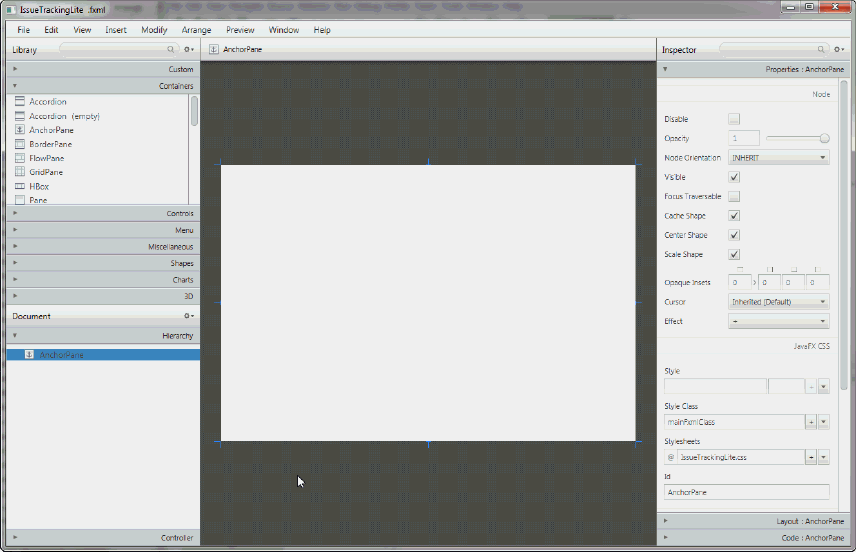
The main window for the JavaFX Scene Builder tool appears with an FXML file opened in the Content panel, as shown in Figure 4-2.
JavaFX场景生成器工具的主窗口出现,内容面板中打开了一个FXML文件,如图4-2所示.
Figure 4-2 JavaFX Scene Builder Main Window at Startup from NetBeans IDE
![Description of Figure 4-2 follows]()
Description of "Figure 4-2 JavaFX Scene Builder Main Window at Startup from NetBeans IDE" -
In the Scene Builder Hierarchy panel, right-click the AnchorPane node and select Delete.
在“场景生成器层次”面板中,右键单击AnchorPane节点并选择“删除”。
The IssueTrackingLite layout you build in this tutorial uses a different top container which you will add in Set the Root Container, CSS, and Style Class.
您在本教程中构建的IssueTrackingLite布局使用了一个不同的顶部容器,您将在设置根容器、CSS和样式类中添加该容器.
-
Select File and then Save from the JavaFX Scene Builder Menu bar.
从JavaFX场景生成器菜单栏中选择“文件”,然后选择“保存”。
Use JavaFX Scene Builder New Command
If you chose not to use NetBeans IDE to complete this tutorial, use the following steps to create a new empty FXML file using the Scene Builder New command.
如果您选择不使用NetBeans IDE完成本教程,请使用以下步骤使用场景生成器新建命令创建一个新的空FXML文件。
From the Scene Builder Menu bar, select File and then New.
从场景生成器菜单栏中,选择“文件”,然后选择“新建”。
A new JavaFX Scene Builder window appears with an empty FXML file opened in the Content panel, as shown in Figure 4-2. The Content panel is initially empty.
一个新的JavaFX场景生成器窗口出现,在内容面板中打开了一个空的FXML文件,如图4-2所示. “内容”面板最初为空。
Figure 4-3 JavaFX Scene Builder Main Window After New File Creation
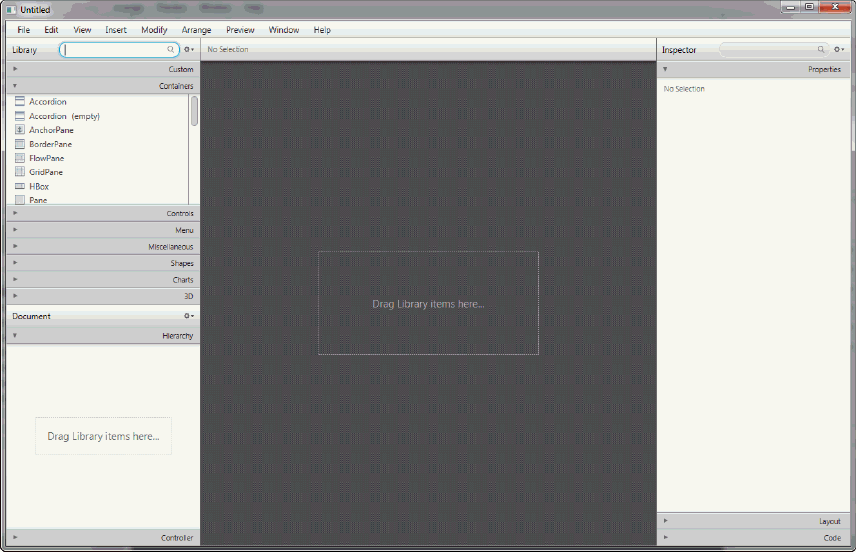
Description of "Figure 4-3 JavaFX Scene Builder Main Window After New File Creation"
Set the Root Container, CSS, and Style Class
Set the root container, stylesheet, and style class to use for the entire layout.
设置用于整个布局的根容器、样式表和样式类。
Tip:
From the Menu bar, select File and then Save command often. Also, from the Menu bar, select Edit and then Undo to undo actions when necessary while you build the IssueTrackingLite application.
从菜单栏中,选择文件,然后经常选择保存命令。此外,在构建IssueTrackingLite应用程序时,从菜单栏中选择“编辑”,然后选择“撤消”以在必要时撤消操作。
-
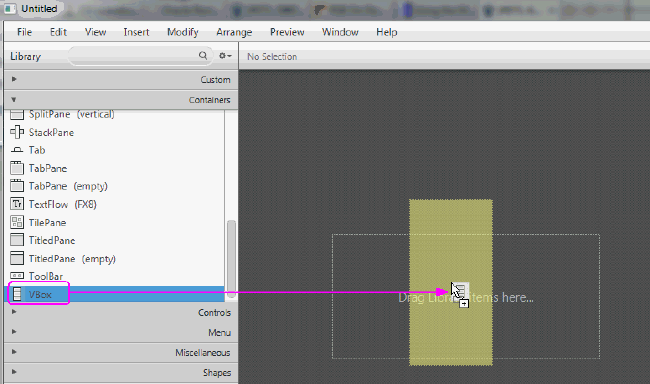
Drag a VBox container from the Library panel to the Content panel, as shown in Figure 4-4.
将VBox容器从库面板拖动到内容面板,如图4-4所示.
Figure 4-4 Add the Initial VBox Container
-
Set the CSS file to use for your new FXML layout.
设置用于新FXML布局的CSS文件。
-
In the Hierarchy section of the Document panel, ensure that the root VBox container element is selected.
在“文档”面板的“层次结构”部分,确保选中根VBox容器元素。
-
In the Properties section of the Inspector panel, go to the JavaFX CSS section and locate the Stylesheets text field. Click the button with the plus sign (+) symbol.
在检查器面板的属性部分,转到JavaFX CSS部分,找到样式表文本字段。单击带有加号(+)符号的按钮。
-
In the Add Style Sheet dialog box, navigate to where you extracted the
IssueTrackingLitesample file. Open theissuetrackinglitefolder and select the IssueTrackingLite.css file. Click Open.在“添加样式表”对话框中,导航到提取“IssueTrackingLite”示例文件的位置。打开“issuetrackinglite”文件夹,选择issuetrackinglite.css文件。单击“打开”。
-
-
Set the Style Class.
设置样式类。
-
Ensure that the root VBox container is still selected in the Hierarchy panel.
确保在“层次结构”面板中仍选择根VBox容器。
-
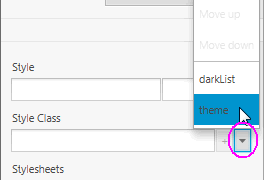
In the Properties section of the Inspector panel, locate the Style Class text field and click the drop-down arrow. The list of style classes is retrieved from the
IssueTrackingLite.cssfile. Select theme, as shown in Figure 4-5在“检查器”面板的“属性”部分,找到“样式类”文本字段,然后单击下拉箭头。样式类的列表是从“IssueTrackingLite.css”文件中检索的。选择主题,如图4-5所示
Figure 4-5 Set the Style Class for the Layout
![Description of Figure 4-5 follows]()
Description of "Figure 4-5 Set the Style Class for the Layout"
-
-
Save the new FXML file before you continue with the rest of the tutorial.
在继续本教程的其余部分之前,请保存新的FXML文件。
-
From the main menu bar, select File and then Save, if you created the file via the NetBeans IDE, or Save As, if you created the file via Scene Builder File > New command.
如果您是通过NetBeans IDE创建文件的,请从主菜单栏中选择“文件”,然后选择“保存”;如果是通过“场景生成器文件”>“新建”命令创建文件,请选择“另存为”。
-
In the Save As dialog window, navigate to where you extracted the
IssueTrackingLitesample file. Expand theIssueTrackingLite,src, and thenissuetrackinglitefolders.在“另存为”对话框窗口中,导航到提取“IssueTrackingLite”示例文件的位置。展开“IssueTrackingLite”、“src”,然后展开“issuestrackinglite”文件夹。
-
Enter
IssueTrackingLite.fxmlin the File name text field and click Save.在文件名文本字段中输入
IssueTrackingLite.fxml,然后单击保存。 -
Select Yes when asked if you want to replace the existing
IssueTrackingLite.fxmlfile.当系统询问您是否要替换现有的“IssueTrackingLite.fxml”文件时,选择“是”。
-
Resize the Scene and the Scene Builder Window
Resize the scene and the Scene Builder window so that you have a bigger working area.
调整场景和“场景生成器”窗口的大小,以便有更大的工作区域。
-
Resize the scene's width and height in the Content panel to get a larger working area.
在“内容”面板中调整场景的宽度和高度,以获得更大的工作区域。
-
In the Inspector panel, select the Layout section.
在“检查器”面板中,选择“布局”部分。
-
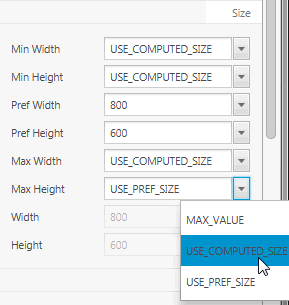
In the Size section, change the
Pref Widthproperty value to 800 and thePref Heightproperty value to 600.在“大小”部分,将“Pref宽度”属性值更改为800,将“Pref高度”属性值修改为600。
-
Change the Min Width, Min Height, Max Width, and Max Height property values to USE_COMPUTED_SIZE, as shown in Figure 4-6.
-
将“最小宽度”、“最小高度”、“最大宽度”和“最大高度”属性值更改为USE_COMPUTED_SIZE,如图4-6所示.
Figure 4-6 Resize the Scene
-
-
Resize the Scene Builder window so you are able to view the entire VBox container.
调整“场景生成器”窗口的大小,以便能够查看整个VBox容器。
Create the Base Panes
Create the base layout panes to define the different sections of your GUI layout.
创建基础布局窗格以定义GUI布局的不同部分。
-
Open the Hierarchy section of the Document panel, if not already opened.
打开“文档”面板的“层次结构”部分(如果尚未打开)。
-
Add a SplitPane object.
添加SplitPlane对象。
-
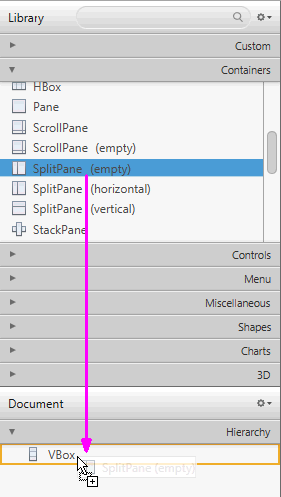
From the Library panel, drag a SplitPane (empty) container to the Document panel's Hierarchy section and drop it inside the VBox element, as shown in Figure 4-7.
从库面板中,将SplitPlane(空)容器拖动到文档面板的层次结构部分,并将其放入VBox元素中,如图4-7所示.
Figure 4-7 Add Empty SplitPane to the VBox Container
![Description of Figure 4-7 follows]()
Description of "Figure 4-7 Add Empty SplitPane to the VBox Container" -
Select the Split Pane in the Hierarchy panel and from the menu bar select Modify and then Use Computed Sizes.
在“层次”面板中选择“拆分窗格”,然后从菜单栏中选择“修改”,然后选择“使用计算尺寸”。
-
In the Inspector panel, select the Layout section. Set the Vgrow property value to ALWAYS.
在“检查器”面板中,选择“布局”部分。将Vgrow属性值设置为“始终”。
-
-
Add another
SplitPaneelement and modify its contents.添加另一个“SplitPlane”元素并修改其内容。
-
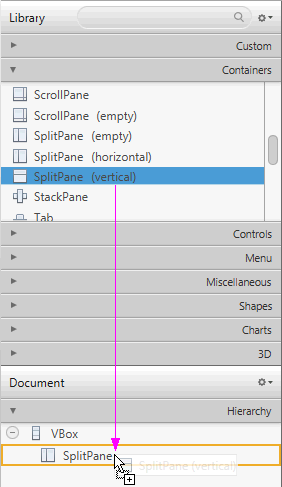
From the Library panel's Containers section, drag a SplitPane (vertical) element and drop it into the previously added SplitPane in the Hierarchy panel, as shown in Figure 4-8.
从库面板的容器部分,拖动SplitPlane(垂直)元素并将其放入层次结构面板中之前添加的SplitPlane中,如图4-8所示.
Figure 4-8 Add Split Pane (Vertical) Element
![Description of Figure 4-8 follows]()
Description of "Figure 4-8 Add Split Pane (Vertical) Element"Notice that after the SplitPane (Vertical) element is dropped, it is added to the Document panel with its AnchorPane children.
请注意,删除SplitPlane(垂直)元素后,它将与其AnchorPane子元素一起添加到“文档”面板中。
-
From the menu bar, select Modify and then Use Computed Size. Alternatively, you can press Ctrl+Shift+K.
从菜单栏中选择“修改”,然后选择“使用计算大小”。或者,您可以按Ctrl+Shift+K。
-
In the Hierarchy panel, expand the second SplitPane container element you just added to display its contents. Right-click the first AnchorPane node and select Delete from the contextual menu.
在“层次结构”面板中,展开刚才添加的第二个SplitPlane容器元素以显示其内容。在第一个AnchorPane节点上单击鼠标右键,然后从上下文菜单中选择“删除”。
-
Select the node for the remaining AnchorPane and from the main menu bar, select Modify and then Use Computed Sizes.
选择剩余AnchorPane的节点,然后从主菜单栏中选择“修改”,然后选择“使用计算尺寸”。
Notice that in the Layout section of the Inspector panel, the Sizes properties for the AnchorPane is updated to the value of
USE_COMPUTED_SIZE.请注意,在“检查器”面板的“布局”部分,AnchorPane的“大小”属性已更新为“USE_COMPUTED_SIZE”值`
-
-
From the Menu bar, select File and then Save. Alternatively, you can press Ctrl-S (for Windows or Linux platforms) or Cmd-S (for Mac OS platform).
从菜单栏中选择文件,然后选择保存。或者,您可以按Ctrl-S(适用于Windows或Linux平台)或Cmd-S(适用于Mac OS平台)。
Perform the Save action frequently to preserve your work.
经常执行“保存”操作以保留您的工作。
5 Bind the GUI to the Application Logic
This chapter describes the steps to bind the FXML layout you are building with JavaFX Scene Builder to the source controller file that has been provided with the IssueTrackingLite sample.
本章描述了将使用JavaFX Scene Builder构建的FXML布局绑定到IssueTrackingLite示例提供的源控制器文件的步骤。
The controller source file, IssueTrackingLiteController.java, manages the events and actions taken on each element you add to the FXML GUI layout that you are building. Setting the controller class file name enables Scene Builder to provide you with the names of the event handlers and instance variables that are declared in the controller source file.
控制器源文件“IssueTrackingLiteController.java”管理您添加到正在构建的FXML GUI布局的每个元素上的事件和操作。设置控制器类文件名使场景生成器能够为您提供在控制器源文件中声明的事件处理程序和实例变量的名称。
-
In the Document panel, select the Controller section.
在“文档”面板中,选择“控制器”部分。
-
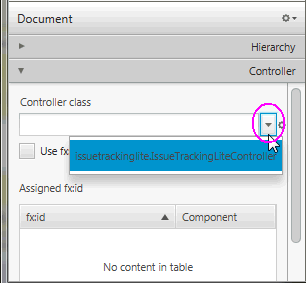
Set the value in the Controller class text field to
issuetrackinglite.IssueTrackingLiteControllerby selecting it from the drop-down list of available values.将控制器类文本字段中的值设置为
issuetrackinglite.IssueTrackingLiteController。通过从可用值的下拉列表中选择。Figure 5-1 Add Controller Class
6 Add the List and Table Views
In this chapter, you will continue to use JavaFX Scene Builder to add the JavaFX GUI controls that are used to list the projects and issues assigned to each project in the IssueTrackingLite sample application.
在本章中,您将继续使用JavaFX场景生成器添加JavaFX GUI控件,这些控件用于列出IssueTrackingLite示例应用程序中分配给每个项目的项目和问题。
Use the following sections to add List View and Table Views controls to your IssueTrackingLite GUI layout.
使用以下部分将列表视图和表视图控件添加到IssueTrackingLite GUI布局中。
Add a List View
Add the List View section, which will display the issue's project information.
添加“列表视图”部分,该部分将显示问题的项目信息。
-
Select the Hierarchy section of the Document panel.
选择“文档”面板的“层次结构”部分。
-
In the Library panel's Search box, clear any existing value and enter
viewto locate the view-styled GUI controls.在“库”面板的“搜索”框中,清除任何现有值,然后输入“视图”以定位视图样式的GUI控件。
-
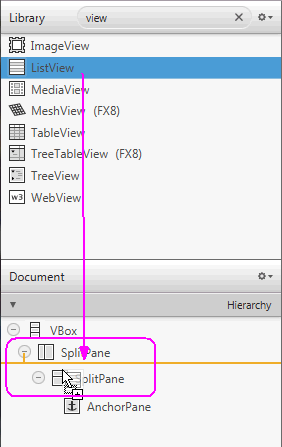
Drag a ListView control from the Library panel and drop into the first SplitPane node in the Hierarchy panel, as shown in Figure 6-1.
从“库”面板拖动ListView控件,并将其放入“层次”面板中的第一个SplitPlane节点中,如图6-1所示.
Figure 6-1 Add ListView Control to SplitPane
![Description of Figure 6-1 follows]()
Description of "Figure 6-1 Add ListView Control to SplitPane" -
From the Menu bar, select Modify and then Use Computed Sizes or press Ctrl+Shift+K.
从菜单栏中选择“修改”,然后选择“使用计算尺寸”或按Ctrl+Shift+K。
-
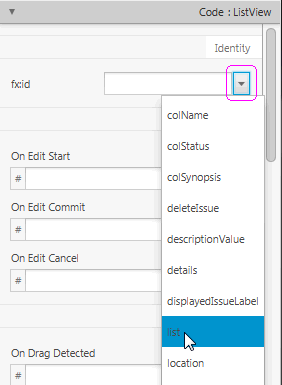
Click the Code section of the Inspector panel. In the fx:id field, select the choice button and select list from the drop-down list, as illustrated in Figure 6-2.
单击“检查器”面板的“代码”部分。在fx:id字段中,选择选择按钮并从下拉列表中选择列表,如图6-2所示.
Figure 6-2 Set fx:id for ListView Control
![Description of Figure 6-2 follows]()
Description of "Figure 6-2 Set fx:id for ListView Control"Note:
The
fx:idproperty value corresponds to the name of the controller class' instance variable in which the node will be inserted. All the fx:id field values must be entered exactly as shown. If they are improperly entered, the IssueTrackingLite sample application will not work correctly.fx:id属性值对应于将插入节点的控制器类实例变量的名称。所有fx:id字段值必须完全按照所示输入。如果输入不正确,IssueTrackingLite示例应用程序将无法正常工作。 -
Click the Layout section of the Inspector panel. Locate the Split Pane Constraints subsection and uncheck the Resizable With Parent check box.
单击“检查器”面板的“布局”部分。找到“拆分窗格约束”子部分,取消选中“随父对象调整大小”复选框。
Add a Table View
The Table View control will be used to display the list of issues.
表视图控件将用于显示问题列表。
-
From the search results list in the Library panel, select Table View.
从“库”面板的搜索结果列表中,选择“表视图”。
-
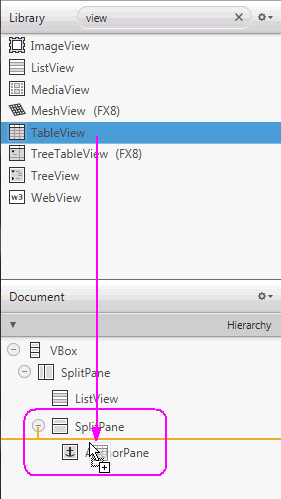
Drag and drop it in the Hierarchy panel, inside the second SplitPane element and just above the AnchorPane, as shown in Figure 6-3.
将其拖放到“层次”面板中,在第二个SplitPlane元素内,就在AnchorPane上方,如图6-3所示.
Figure 6-3 Add the Table View Control
-
From the Menu bar, select Modify and then Use Computed Sizes.
从菜单栏中选择“修改”,然后选择“使用计算尺寸”。
-
Click the Code section of the Inspector panel, type ”
t" in the fx:id text field to filter the list of available fx:id values, and select table.单击“检查器”面板的“代码”部分,在fx:id文本字段中键入“t”以筛选可用fx:id值的列表,然后选择表。
-
Tune the positions of the vertical and horizontal splitters shown in the Content panel.
调整“内容”面板中显示的垂直和水平分流器的位置。
-
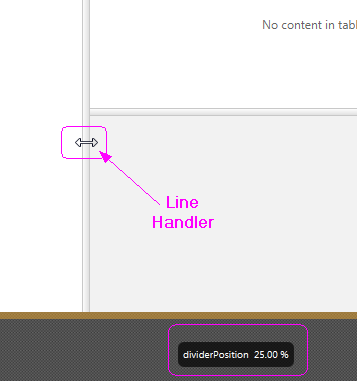
Select the first Split Pane node in the Hierarchy panel. In the Content panel, drag the vertical divider to the left until the dividerPosition percentage displays about 25%, as illustrated in Figure 6-4. Alternatively, enter
0.25in the Divider Positions property text field in the Properties section of the Inspector panel.在“层次结构”面板中选择第一个“拆分窗格”节点。在Content面板中,将垂直分隔符向左拖动,直到dividerPosition百分比显示约25%,如图6-4所示. 或者,在“检查器”面板“属性”部分的“分隔器位置”属性文本字段中输入“0.25”。
Figure 6-4 Move Vertical Divider
-
Select the second SplitPane node in the Hierarchy panel. In the Content panel, drag the horizontal divider up or down until the dividerPosition percentage displays about 35%. Alternatively, in the Properties section of the Inspector panel, enter
0.35in the Divider Positions property text field.在“层次”面板中选择第二个SplitPlane节点。在“内容”面板中,向上或向下拖动水平分隔符,直到dividerPosition百分比显示约35%。或者,在“检查器”面板的“属性”部分,在“分隔器位置”属性文本字段中输入“0.35”。
-
-
Set the properties of the two columns in the table view.
设置表视图中两列的属性。
-
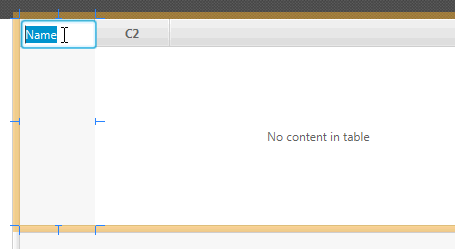
In the Content panel, double-click the C1 column title and type
Nameto replace the default value, as shown in Figure 6-5.在“内容”面板中,双击C1列标题并键入“名称”以替换默认值,如图6-5所示.
Figure 6-5 Change TableColumn Title
-
In the Code section of the Inspector panel, select colName from the fx:id field's drop-down list.
在“检查器”面板的“代码”部分,从fx:id字段的下拉列表中选择colName。
-
Back in the Hierarchy panel, double-click the C2 text in the row for the second TableColumn component. Type in
Statusto replace the default Text property value of C2.返回“层次结构”面板,双击第二个TableColumn组件行中的C2文本。键入“Status”以替换C2的默认Text属性值。
-
In the Code section of the Inspector panel, select colStatus from the fx:id field's drop-down list.
在“检查器”面板的“代码”部分,从fx:id字段的下拉列表中选择colStatus。
-
-
Add another column to the table view.
在表视图中添加另一列。
-
In the Library panel's Search box, clear any existing value and enter
column.在“库”面板的“搜索”框中,清除任何现有值并输入“列”。
-
Select the TableColumn control from the Library panel. Drag and drop it anywhere inside the table view in the Content panel. The new
ColumnXcolumn is added to the right of the Status column从库面板中选择TableColumn控件。将其拖放到“内容”面板中表视图内的任何位置。新的“ColumnX”列添加到“状态”列的右侧
-
Click the Properties section of the Inspector panel and set the Text property to Synopsis.
单击“检查器”面板的“属性”部分,并将“文本”属性设置为“概要”。
-
In the Code section of the Inspector panel, select colSynopsis from the fx:id field's drop-down list of available instance variables.
在检查器面板的代码部分,从fx:id字段的可用实例变量下拉列表中选择colSynopsis。
-
-
From the Menu bar, select View and then Show Sample Data.
从菜单栏中选择“查看”,然后选择“显示样本数据”。
Notice that the list view and the table view elements in the Content panel are populated with sample data. Select View and then Hide Sample Data from the Menu bar to turn off the display of the sample data.
请注意,“内容”面板中的列表视图和表视图元素都填充了示例数据。从菜单栏中选择“查看”,然后选择“隐藏样本数据”以关闭样本数据的显示。
-
Save all the changes you have made.
保存您所做的所有更改。
7 Create the Details Section
This chapter describes how to add the JavaFX GUI components for the Details section of the IssueTrackingLite GUI layout you are building with JavaFX Scene Builder. It also describes how to manage the resizing of the components when the application's window is resized.
本章介绍如何为使用JavaFX场景生成器构建的IssueTrackingLite GUI布局的详细信息部分添加JavaFX GUI组件。它还描述了如何在调整应用程序窗口大小时管理组件的大小调整。
Use the following sections to set up the area where the issue's details will be displayed.
使用以下部分设置显示问题详细信息的区域。
Add the GUI Components for the Details Section
Add the GUI components to create the section that will display the details about the issue that you are creating or modifying in the IssueTrackingLite application.
添加GUI组件以创建一个部分,该部分将显示您在IssueTrackingLite应用程序中创建或修改的问题的详细信息。
-
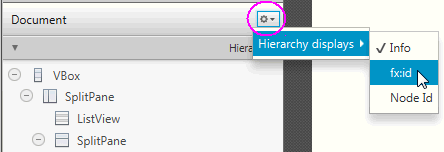
Click the menu button on the top right corner of the Hierarchy panel and select Show fx:id, as shown in Figure 7-1. By default, the Show info mode is selected. Notice that after you change the display mode to Show fx:id, the Hierarchy panel now displays the fx:id values next to the elements that have the fx:id property value assigned to them, as shown in Figure 7-2.
-
点击层次面板右上角的菜单按钮,选择Show fx:id,如图7-1所示. 默认情况下,选择“显示信息”模式。请注意,将显示模式更改为“显示fx:id”后,“层次结构”面板现在会在已分配fx:id属性值的元素旁边显示fx:id值,如图7-2所示.
Figure 7-1 Show fx:id Display Mode
-
Set up the details section.
设置详细信息部分。
-
In the Hierarchy panel, select the node for the only AnchorPane element.
在“层次结构”面板中,为唯一的AnchorPane元素选择节点。
-
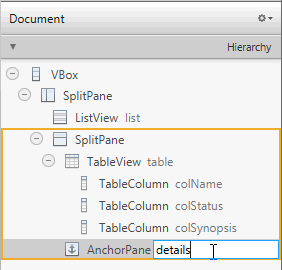
Double-click the right side of the row for the AnchorPane element to enter the fx:id inline edit mode. Enter
detailsin the inline text editor for the fx:id text property, as shown in Figure 7-2. This editor is available because the current display mode in the Hierarchy panel is set to Show fx:id. Alternatively, click the Code section of the Inspector panel and select details from the drop-down list of instance variables available for the fx:id field.双击AnchorPane元素所在行的右侧,进入fx:id内联编辑模式。在fx:id文本属性的内联文本编辑器中输入“details”,如图7-2所示. 此编辑器可用,因为“层次”面板中的当前显示模式设置为“显示fx:id”。或者,单击“检查器”面板的“代码”部分,并从fx:id字段可用的实例变量下拉列表中选择详细信息。
Figure 7-2 Use fx:id Inline Text Editor
-
-
Add a label.
添加标签。
-
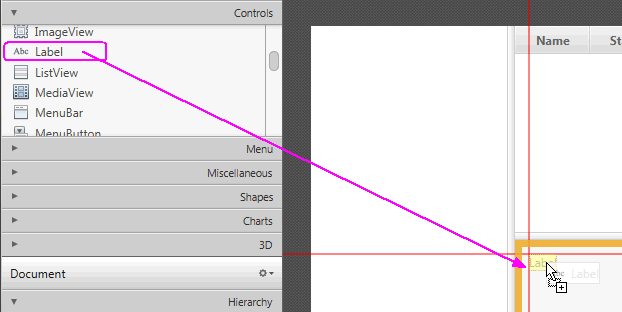
In the Controls section of the Library panel, drag the Label element and drop it on the upper left corner of the details area, as shown in Figure 7-3.
在库面板的控制部分,拖动标签元素并将其放置在详细信息区域的左上角,如图7-3所示.
Figure 7-3 Add Label Element
-
In the Content panel, double-click the new Label element to enter into inline edit mode. Enter
PROJECT / IDin the Text property field to replace the default value.在“内容”面板中,双击新的“标签”元素以进入内联编辑模式。在文本属性字段中输入“PROJECT/ID”以替换默认值。
-
In the Code section of the Inspector panel, select displayedIssueLabel in the fx:id field's drop-down list of available instance variables.
在检查器面板的代码部分,在fx:id字段的可用实例变量下拉列表中选择displayedIssueLabel。
-
In the Layout section of the Inspector panel, set the value of Min Width to
USE_PREF_SIZE. This setting will keep the labels of the HBox element to be visible when the size of the application window is so reduced that not all of the GUI elements can be displayed.在“检查器”面板的“布局”部分,将“最小宽度”的值设置为“USE_PREF_SIZE”。当应用程序窗口的大小减小到无法显示所有GUI元素时,此设置将保持HBox元素的标签可见。
-
-
Add a Text Field control.
添加文本字段控件。
-
From the Library panel, drag a Text Field control and drop it to the right side of the Label you just added.
从“库”面板中,拖动“文本字段”控件并将其放到刚刚添加的标签的右侧。
-
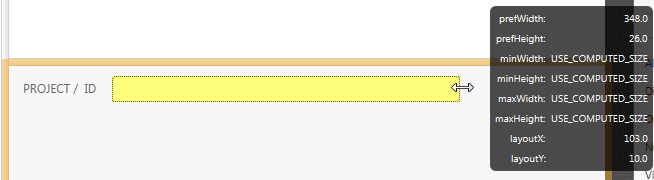
Resize the Text Field element so that it occupies the remaining space to the right, as shown in Figure 7-4.
调整文本字段元素的大小,使其占据右侧的剩余空间,如图7-4所示.
Figure 7-4 Resize the TextField Element
-
Double-click the Text Field element in the Content panel to enter Edit mode. Enter
SYNOPSISin the editor box.双击“内容”面板中的“文本字段”元素以进入编辑模式。在编辑器框中输入“SYNOPSIS”。
-
In the Code section of the Inspector panel, select synopsis from the drop-down list of instance variables available for the fx:id field.
在检查器面板的代码部分,从fx:id字段可用的实例变量下拉列表中选择概要。
-
-
Group the Label element with the synopsis Text Field element.
将标签元素与概要文本字段元素分组。
-
In the Content panel, hold the Ctrl key (on Windows and Linux platforms) or Cmd key (on Mac OS platform) to select the PROJECT/ID label and SYNOPSIS textfield components.
在“内容”面板中,按住Ctrl键(在Windows和Linux平台上)或Cmd键(在Mac OS平台上)以选择PROJECT/ID标签和SYNOPSIS文本字段组件。
-
From the Menu bar, select Arrange, then Wrap in, and then HBox from the submenu.
从菜单栏中选择“排列”,然后选择“包裹”,再从子菜单中选择“HBox”。
-
In the Properties section of the Inspector panel, select CENTER for the Alignment property value of the HBox element.
在“检查器”面板的“属性”部分,为HBox元素的“对齐”属性值选择“中心”。
-
Click the Layout section and set the Spacing property value to 10.
单击“布局”部分,并将“间距”属性值设置为10。
-
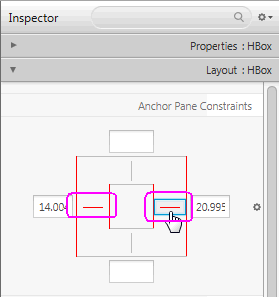
In the AnchorPane Constraints sub-section, click the left and right black anchor lines. After you click the anchor lines, the black lines change into solid red lines, which are circled in Figure 7-5. This action anchors the HBox element's right and left borders to its container and ensures that when the window is resized, the HBox element is also resized.
在AnchorPane约束子部分中,单击左右两侧的黑色锚线。单击锚线后,黑线变为实心红线,如图7-5所示. 此操作将HBox元素的左右边界锚定到其容器上,并确保在调整窗口大小时,HBox元素也会调整大小。
Figure 7-5 Setting the Anchor Lines
-
In the Hierarchy panel, select the row for the TextField SYNOPSIS element and locate the HBox Constraints sub-section. Set the Hgrow property to ALWAYS.
在层次结构面板中,选择TextField SYNOPSIS元素的行,并找到HBox约束子节。将Hgrow属性设置为“始终”。
This setting indicates that the Text Field: synopsis element will adjust horizontally when its parent container increases.
此设置表示当父容器增加时,文本字段:概要元素将水平调整。
-
-
Add a Label and a TextArea element in the details area.
在详细信息区域中添加标签和文本区域元素。
-
From the Controls section of the Library panel, select Label. Drag and drop it to the Content panel on the left side of the details section and below the row occupied by the HBox you just added. Use the guidelines to position the Label element in line with the HBox element's left side.
从库面板的控制部分,选择标签。将其拖放到详细信息部分左侧的“内容”面板中,位于您刚才添加的HBox所占行的下方。使用指南将Label元素定位在与HBox元素左侧对齐的位置。
-
Double-click Label to enter the edit mode. Enter
DESCRIPTION:to replace the default value.双击标签进入编辑模式。输入“描述:”以替换默认值。
-
Drag and drop a Text Area below the label that you just added.
在刚刚添加的标签下方拖放一个文本区域。
-
In the Layout section of the Inspector panel, locate the Anchor Pane Constraints sub-section and click the left, top, right, and bottom black anchor lines.
在“检查器”面板的“布局”部分,找到“锚定窗格约束”子部分,然后单击左、上、右和下黑色锚定线。
-
In the Code section of the Inspector panel, select descriptionValue from the drop-down list for the fx:id field.
在检查器面板的代码部分,从fx:id字段的下拉列表中选择descriptionValue。
-
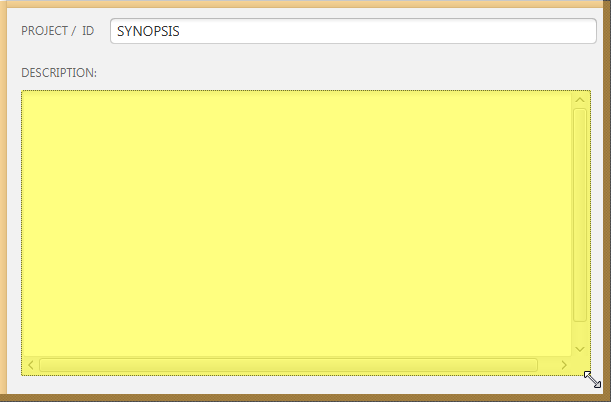
In the Content panel, click and drag the lower right handle of the Text Area element to increase its size and fill the remaining space in the details section, as shown in Figure 7-6.
在“内容”面板中,单击并拖动“文本区域”元素的右下手柄,以增加其大小并填充详细信息部分中的剩余空间,如图7-6所示.
Figure 7-6 Enlarge the Text Area
-
8 Add the Toolbar
This chapter gives the steps to add a tool bar GUI control to the layout that you are building with JavaFX Scene Builder.
本章介绍了将工具栏GUI控件添加到使用JavaFX Scene Builder构建的布局中的步骤。
Use the following steps to add a toolbar to the top portion of the IssueTrackingLite's GUI layout. It will contain an image file and three buttons.
使用以下步骤将工具栏添加到IssueTrackingLite的GUI布局的顶部。它将包含一个图像文件和三个按钮。
-
In the Document panel, change the display setting by clicking the Hierarchy display menu button on the top right corner and choosing Info, if it is not already chosen.
在“文档”面板中,通过单击右上角的“层次结构”显示菜单按钮并选择“信息”(如果尚未选择)来更改显示设置。
-
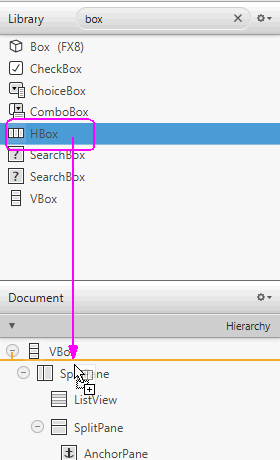
Drag an HBox container element from the Library panel to the Hierarchy section of the Document panel and drop it under the row for the VBox element, as shown in Figure 8-1.
将HBox容器元素从库面板拖动到文档面板的层次结构部分,并将其放在VBox元素的行下,如图8-1所示.
Figure 8-1 Add an HBox Control
-
Add three buttons to the toolbar.
在工具栏中添加三个按钮。
-
From the Library panel, drag a Button element to the Hierarchy panel and drop it in the HBox node that was just added.
从“库”面板,将Button元素拖动到“层次结构”面板,并将其放入刚刚添加的HBox节点中。
-
In the Content panel, right-click the new Button and select Duplicate from the contextual menu to add a second button.
在“内容”面板中,右键单击新按钮,然后从上下文菜单中选择“复制”以添加第二个按钮。
-
Repeat the previous step to add the third button to the toolbar.
重复上一步,将第三个按钮添加到工具栏。
-
-
Edit the button details.
编辑按钮详细信息。
-
In the Content panel, double-click the leftmost button in the toolbar to get into edit mode and enter
New. Click the Code section of the Inspector panel, select newIssue in the drop-down list for the fx:id property for the New button. In the On Action field, selectnewIssueFiredfrom the drop-down list of event handlers available in the controller source file. The leading # symbol tells your application to look for thenewIssueFiredmethod in the controller source code. The method used must be public, return void, and takeActionEventas parameter. Each time the New button is clicked, the public methodnewIssueFired(ActionEvent), which is defined in the controller source code, will be executed.在“内容”面板中,双击工具栏中最左侧的按钮进入编辑模式,然后输入“新建”。单击“检查器”面板的“代码”部分,在“新建”按钮的fx:id属性的下拉列表中选择newIssue。在On Action字段中,从控制器源文件中可用的事件处理程序下拉列表中选择“newIssueFired”。前导的#符号告诉您的应用程序在控制器源代码中查找“newIssueFired”方法。使用的方法必须是公共的,返回void,并将“ActionEvent”作为参数。每次单击“新建”按钮时,都会执行控制器源代码中定义的公共方法“newIssueFired(ActionEvent)”。
-
Double-click the middle button to get into edit mode. Enter
Savein the edit box. Click the Code section of the Inspector panel, and select saveIssue in the drop-down list for the fx:id property for the middle button. In the On Action field, set the value to#saveIssueFired.双击中间的按钮进入编辑模式。在编辑框中输入“保存”。单击“检查器”面板的“代码”部分,然后在中间按钮的fx:id属性的下拉列表中选择saveIssue。在“On Action”字段中,将值设置为“#saveIssueFued”。
-
Select the rightmost button in the toolbar. Click the Code section of the Inspector panel, and select deleteIssue from the fx:id property's drop-down list. In the Properties section of the Inspector panel, enter
Deletein the Text field. In the On Action field, set the value to#deleteIssueFired.选择工具栏中最右侧的按钮。单击“检查器”面板的“代码”部分,然后从fx:id属性的下拉列表中选择deleteIssue。在“检查器”面板的“属性”部分,在“文本”字段中输入“删除”。在“On Action”字段中,将值设置为“#deleteIssueFired”。
-
-
Put the buttons in a container and adjust the spacing between them.
将按钮放入容器中,并调整它们之间的间距。
-
Hold down the Ctrl-key and select each of the three buttons. From the Menu bar, select Arrange, Wrap in, and then HBox. The buttons are arranged in a row with even spacing between them.
按住Ctrl键并选择三个按钮中的每一个。从菜单栏中,选择排列、换行,然后选择HBox。按钮排成一行,间距均匀。
-
Select the Layout section of the Inspector panel and set the value for the Spacing property to
15. Notice that the buttons are adjusted to have more spaces in between them.选择“检查器”面板的“布局”部分,并将“间距”属性的值设置为“15”。请注意,按钮被调整为在它们之间有更多的空间。
-
-
Add an image to the toolbar.
将图像添加到工具栏。
-
From the Menu bar, select File, Import, and then Media. Select IssueTrackingLite.png from the
/IssueTrackingLite/src/issuetrackinglitefolder. The ImageView element is added at the bottom of the Hierarchy panel.从菜单栏中,选择文件、导入,然后选择媒体。从
/IssueTrackingLite/src/issueTracinglite文件夹中选择IssueTrackingLite.png。ImageView元素添加在“层次”面板的底部。 -
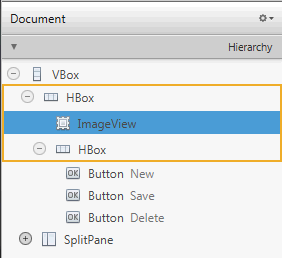
In the Hierarchy section of the Document panel, drag the ImageView element so that it is the first element in the top HBox container, as shown in Figure 8-2. Notice that in the Content panel, the image is moved to the left of the HBox container for the three buttons.
在“文档”面板的“层次结构”部分,拖动ImageView元素,使其成为顶部HBox容器中的第一个元素,如图8-2所示. 请注意,在“内容”面板中,图像被移动到三个按钮的HBox容器的左侧。
Figure 8-2 Move the ImageView Element to the HBox Container
![Description of Figure 8-2 follows]()
Description of "Figure 8-2 Move the ImageView Element to the HBox Container"
-
-
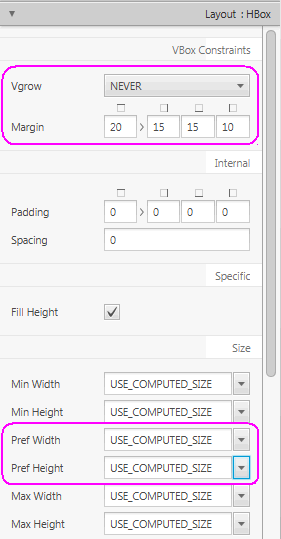
Modify the default values for some of the Layout properties for the first HBox container, so that they match the property values circled in Figure 8-3.
修改第一个HBox容器的某些布局属性的默认值,使其与图8-3中圈出的属性值相匹配.
-
In the Hierarchy panel, select the row for the top HBox container.
在“层次”面板中,选择顶部HBox容器的行。
-
Click the Layout section of the Inspector panel and in the VBox Constraints sub-section, set the
Vgrowproperty value toNEVER.单击检查器面板的布局部分,在VBox约束子部分中,将“Vgrow”属性值设置为“NEVER”。
-
Change the default values for the Margin property to
20,15,15, and10, respectively.将Margin属性的默认值分别更改为“20”、“15”、“十五”和“10”。
-
In the Size sub-section, change the prefWidth and prefHeight default values to
USE_COMPUTED_SIZE.在“大小”子节中,将prefWidth和prefHeight默认值更改为“USE_COMPUTED_Size”。
Figure 8-3 Modify the HBox Layout Default Properties
![Description of Figure 8-3 follows]()
Description of "Figure 8-3 Modify the HBox Layout Default Properties" -
-
Modify some of the default property values for the second HBox.
修改第二个HBox的一些默认属性值。
-
In the Hierarchy panel, select the HBox element that contains the three buttons.
在层次结构面板中,选择包含三个按钮的HBox元素。
-
Select the Layout section of the Inspector panel and change the value of the Hgrow property to
ALWAYS.选择检查器面板的布局部分,并将Hgrow属性的值更改为“始终”。
-
Select the Properties section of the Inspector panel and in the Node sub-section, change Alignment property value to
CENTER_RIGHT. The HBox with the three buttons are shifted to the right side of the Content panel.选择“检查器”面板的“属性”部分,在“节点”子部分中,将“对齐”属性值更改为“CENTER_RIGHT”。带有三个按钮的HBox被移动到“内容”面板的右侧。
-
-
Select File and then Save from the Menu bar to save your work.
从菜单栏中选择“文件”,然后选择“保存”以保存您的工作。
9 Use a Style Sheet and Preview the UI
This chapter describes how you can use the JavaFX Scene Builder to preview the FXML layout that you just created and also how to apply a style sheet to customize the look and feel of the IssueTrackingLite application.
本章介绍如何使用JavaFX场景生成器预览刚才创建的FXML布局,以及如何应用样式表来自定义IssueTrackingLite应用程序的外观。
Use the following sections to preview the GUI layout that you have created and then change its look and feel by using a style sheet.
使用以下部分预览您创建的GUI布局,然后使用样式表更改其外观。
Preview the UI
Use the following steps to preview the GUI work that you have done so far:
使用以下步骤预览您迄今为止完成的GUI工作:
-
From the Menu bar, select Preview, and then select Show Preview in Window.
从菜单栏中选择“预览”,然后选择“在窗口中显示预览”。
-
Resize the window multiple times to ensure that the buttons in the toolbar and the text area resize appropriately when the window is resized. You can also make modification to the layout and the Preview window is updated
多次调整窗口大小,以确保在调整窗口大小时工具栏中的按钮和文本区域会适当调整大小。您还可以修改布局,预览窗口也会更新
-
To stop viewing the preview, close the Preview window.
要停止查看预览,请关闭“预览”窗口。
Use a Style Sheet
You can customize the look and feel of your GUI by applying style sheets. For this tutorial, you use a style sheet file that has been provided with the IssueTrackingLite sample.
您可以通过应用样式表来定制GUI的外观和感觉。对于本教程,您将使用IssueTrackingLite示例中提供的样式表文件。
-
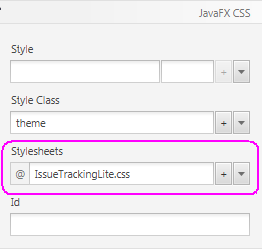
Verify that the Cascading Style Sheet (CSS) resource file that is bundled with the IssueTrackingLite sample is already set. In the Hierarchy panel, select the root VBox container. Click the Properties section of the Inspector panel. In the Stylesheets text field of the JavaFX CSS subsection, notice that the
IssueTrackingLite.cssstyle sheet is already set, as shown in Figure 9-1. This is the style sheet that was set when you created the FXML file.验证与IssueTrackingLite示例捆绑在一起的级联样式表(CSS)资源文件是否已设置。在“层次”面板中,选择根VBox容器。单击“检查器”面板的“属性”部分。在JavaFX CSS小节的Stylesheets文本字段中,请注意已经设置了
IssueTrackingLite.CSS样式表,如图9-1所示. 这是创建FXML文件时设置的样式表。Figure 9-1 Adding a Style Sheet File
-
Use a style class for one of the elements in the Content panel.
为“内容”面板中的某个元素使用样式类。
-
In the Hierarchy panel, select the row for the ListView element.
在“层次”面板中,选择ListView元素的行。
-
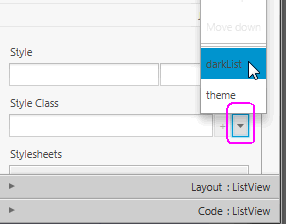
Click the Properties section of the Inspector panel, and click the button with the downward arrow in the Style Class list. Select darkList as shown in Figure 9-2. Notice that the appearance of the ListView element in the Content panel has changed to a dark grey color.
单击“检查器”面板的“属性”部分,然后单击“样式类”列表中带有向下箭头的按钮。选择darkList,如图9-2所示. 请注意,“内容”面板中ListView元素的外观已更改为深灰色。
Figure 9-2 Adding a Style Class to the ListView Element
![Description of Figure 9-2 follows]()
Description of "Figure 9-2 Adding a Style Class to the ListView Element"
-
-
From the Menu bar, select File and then Save.
从菜单栏中选择文件,然后选择保存。
You just completed building the FXML layout for a JavaFX application using JavaFX Scene Builder. Continue with the Compile and Run the Application to compile and run the IssueTrackingLite application.
您刚刚使用JavaFX场景生成器为JavaFX应用程序构建了FXML布局。继续编译并运行应用程序编译并运行IssueTrackingLite应用程序。
10 Compile and Run the Application
This chapter steps you through using NetBeans IDE or the Apache Ant utility to compile and run the IssueTrackingLite application for which you build the FXML layout using JavaFX Scene Builder.
本章将指导您使用NetBeans IDE或Apache Ant实用程序编译和运行IssueTrackingLite应用程序,您可以使用JavaFX场景生成器为该应用程序构建FXML布局。
Use either of the sections below to see the IssueTrackingLite application in action.
使用以下任一部分查看IssueTrackingLite应用程序的运行情况。
Use NetBeans IDE
Use NetBeans IDE to build and run the NetBeans project in which you saved the IssueTracking.fxml file.
使用NetBeans IDE构建并运行您保存IssueTracking.fxml文件的NetBeans项目。
-
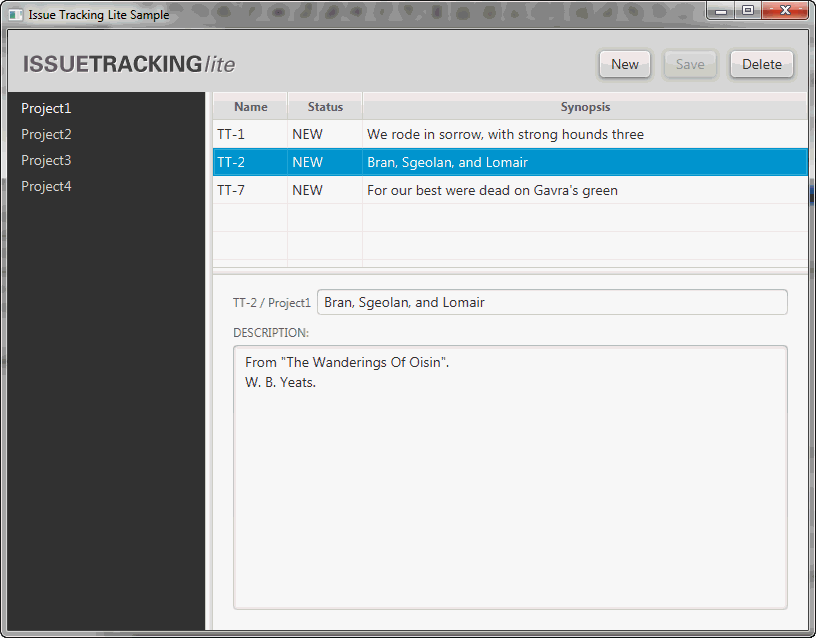
In the NetBeans IDE 8 window, right-click the IssueTrackingLite project node in the Projects window and select Run. NetBeans IDE compiles the project and if no errors are encountered, it displays an application similar to Figure 10-1. Click the image to enlarge it.
在NetBeans IDE 8窗口中,右键单击项目窗口中的IssueTrackingLite项目节点,然后选择运行。NetBeans IDE编译项目,如果没有遇到错误,它将显示类似于图10-1的应用程序. 点击图片放大。
Figure 10-1 Completed GUI Layout for Issue Tracking Sample
![Description of Figure 10-1 follows]()
Description of "Figure 10-1 Completed GUI Layout for Issue Tracking Sample " -
In the list view on the left, select Project1 and in the table view on the right, select the row with the TT-2 in the Name column. Data is displayed in the details section, as shown in Figure 10-1.
在左侧的列表视图中,选择Project1,在右侧的表视图中,在Name列中选择TT-2所在的行。数据显示在详细信息部分,如图10-1所示.
-
If you encounter any errors, look at the Output window and determine the possible causes of the errors. Some troubleshooting ideas are as follows:
如果遇到任何错误,请查看“输出”窗口并确定错误的可能原因。一些故障排除思路如下:
-
Check that all of the fx:id values were entered correctly. The fx:id values in the FXML layout must match the values that the controller source classes expect.
检查是否正确输入了所有fx:id值。FXML布局中的fx:id值必须与控制器源类期望的值匹配。
-
Check that you entered the method name correctly in the Event binding section.
请检查您在事件绑定部分中输入的方法名称是否正确。
-
Use the Apache Ant Utility
If you choose not to run the application in NetBeans IDE, use the Apache Ant utility (version 1.8 or later) to build and run the application on the command line. Enter a command similar to the one in Example 10-1. Note that the examples shown use JDK 8.
如果您选择不在NetBeans IDE中运行应用程序,请使用Apache Ant实用程序(1.8或更高版本)在命令行上构建和运行应用程序。输入类似于示例10-1中的命令. 请注意,所示示例使用JDK 8。
Example 10-1 Apache Ant Command to Run the Application
ant -f <JavaFX_App_Name>/build.xml <TARGET>
In the above example, the main values for clean, jar, and run. For example, to run the IssueTrackingLite application on the Windows or Mac OS platform, enter something similar to the command in Example 10-2. You can set -projecthelp to get a list of available targets.
在上面的例子中,
Example 10-2 Using Apache Ant to Run IssueTrackingLite
ant -f IssueTrackingLite/build.xml run
本文来自博客园,作者:积跬步小流臹千里江海,转载请注明原文链接:https://www.cnblogs.com/Hloveandshare/p/18847962

 浙公网安备 33010602011771号