// ConsoleApplication2.cpp : This file contains the 'main' function. Program execution begins and ends there.
//
#include <ctime>
#include <iostream>
#include <random>

using namespace std;

template<typename T>
void swap(T* x, T* y);

template<typename T>
int partitionAsc(T* arr, int low, int high);

template<typename T>
void quickSortAsc(T* arr, int low, int high);

template<typename T>
void printArray(T* arr, int len);

template<typename T>
void getTArray(T* arr, int len);

template<typename T>
void arrayTDemo(int len);


int main(int args,char**argv)
{
    arrayTDemo<uint32_t>(atoi(argv[1]));
    std::cout << "Hello World!\n";
}

template<typename T>
void arrayTDemo(int len)
{
    T* arr = new T[len];
    getTArray(arr, len);
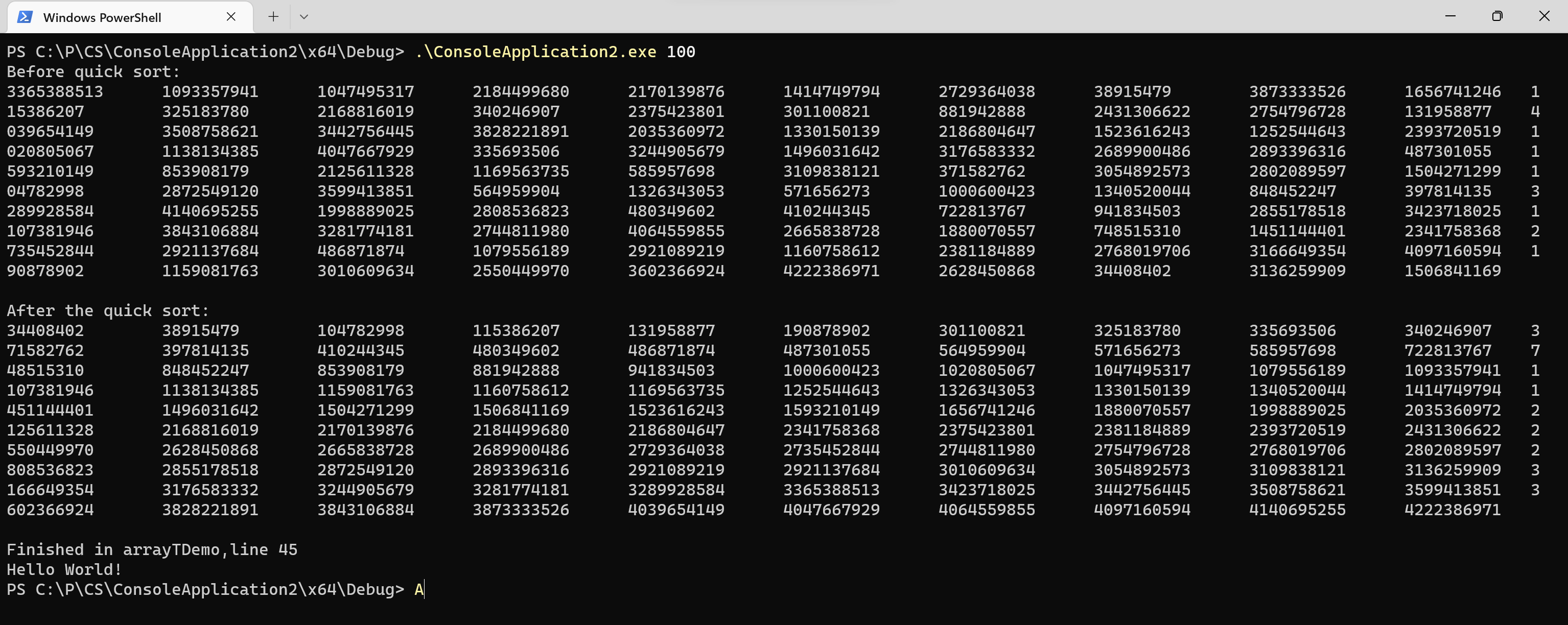
    cout << "Before quick sort:" << endl;
    printArray(arr, len);
    cout << "After the quick sort:" << endl;
    quickSortAsc(arr, 0, len - 1);
    printArray(arr, len);
    delete[]arr;
    cout << "Finished in " << __FUNCTION__ << ",line " << __LINE__ << endl;
}

template<typename T>
void getTArray(T* arr, int len)
{
    mt19937_64 mt(time(nullptr));
    for (int i = 0;i < len;i++)
    {
        arr[i] = mt();
    }
}

template<typename T>
void printArray(T* arr, int len)
{
    for (int i = 0;i < len;i++)
    {
        cout << arr[i] << "\t";
    }
    cout << endl << endl;
}

template<typename T>
void quickSortAsc(T* arr, int low, int high)
{
    if (low <= high)
    {
        int pivot = partitionAsc(arr, low, high);
        quickSortAsc(arr, low, pivot - 1);
        quickSortAsc(arr, pivot + 1, high);
    }
}

template<typename T>
int partitionAsc(T* arr, int low, int high)
{
    T pivot = arr[high];
    int i = low - 1;
    for (int j = low;j <= high;j++)
    {
        if (arr[j] < pivot)
        {
            i = i + 1;
            swap(&arr[i], &arr[j]);
        }
    }
    swap(&arr[i + 1], &arr[high]);
    return i + 1;
}

template<typename T>
void swap(T* x, T* y)
{
    T temp = *x;
    *x = *y;
    *y = temp;
}

// Run program: Ctrl + F5 or Debug > Start Without Debugging menu
// Debug program: F5 or Debug > Start Debugging menu

// Tips for Getting Started:
//   1. Use the Solution Explorer window to add/manage files
//   2. Use the Team Explorer window to connect to source control
//   3. Use the Output window to see build output and other messages
//   4. Use the Error List window to view errors
//   5. Go to Project > Add New Item to create new code files, or Project > Add Existing Item to add existing code files to the project
//   6. In the future, to open this project again, go to File > Open > Project and select the .sln file
![]()


 浙公网安备 33010602011771号