
【macOS】zsh增强:自动建议&语法高亮
✨Zsh
Zsh is a shell designed for interactive use, although it is also a powerful scripting language.
✨Oh My ZSH
!建议安装 Oh My Zsh
安装
- Install oh-my-zsh via curl
sh -c "$(curl -fsSL https://raw.github.com/ohmyzsh/ohmyzsh/master/tools/install.sh)"
- Install oh-my-zsh via wget
sh -c "$(wget https://raw.github.com/ohmyzsh/ohmyzsh/master/tools/install.sh -O -)"
✨自动建议
https://github.com/zsh-users/zsh-autosuggestions
安装
-
Clone this repository somewhere on your machine. This guide will assume
~/.zsh/zsh-autosuggestions.git clone https://github.com/zsh-users/zsh-autosuggestions ~/.zsh/zsh-autosuggestions -
Add the following to your
.zshrc:source ~/.zsh/zsh-autosuggestions/zsh-autosuggestions.zsh -
Start a new terminal session.
详情可参考:
https://github.com/zsh-users/zsh-autosuggestions/blob/master/INSTALL.md
以上操作可用如下命令行完成
git clone https://github.com/zsh-users/zsh-autosuggestions ~/.zsh/zsh-autosuggestions

echo "source ~/.zsh/zsh-autosuggestions/zsh-autosuggestions.zsh" >> ~/.zshrc

source ~/.zshrc
Homebrew 安装
我们直接在brew中搜索zsh
brew search zsh
发现可以搜索到zsh-autosuggestions
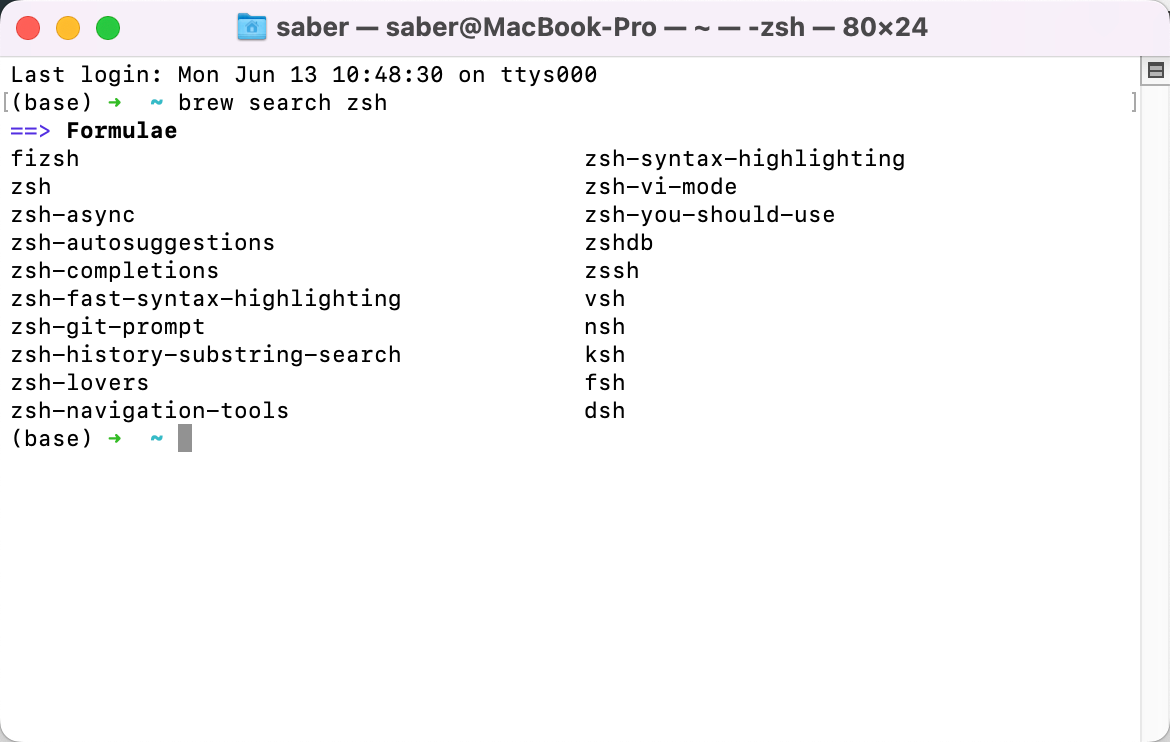
那我们直接使用homebrew安装
brew install zsh-autosuggestions
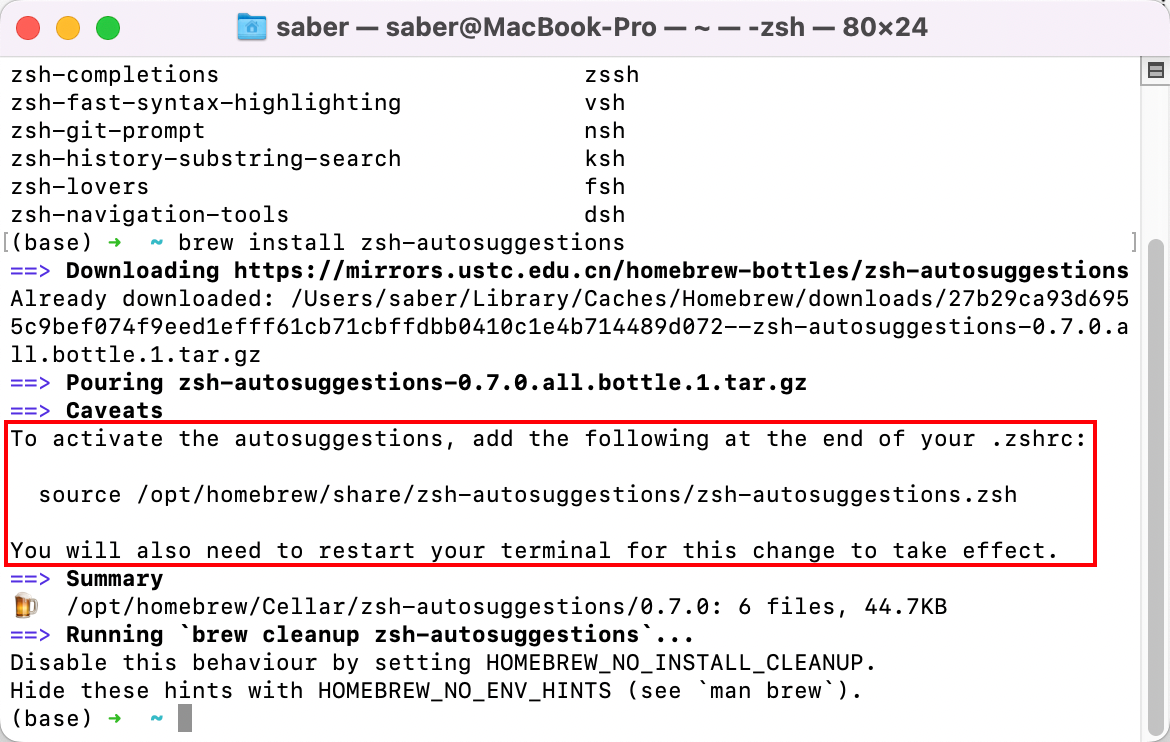
需要把 source /opt/homebrew/share/zsh-autosuggestions/zsh-autosuggestions.zsh写入.zshrc
echo "source /opt/homebrew/share/zsh-autosuggestions/zsh-autosuggestions.zsh" >> ~/.zshrc
效果
It suggests commands as you type based on history and completions.
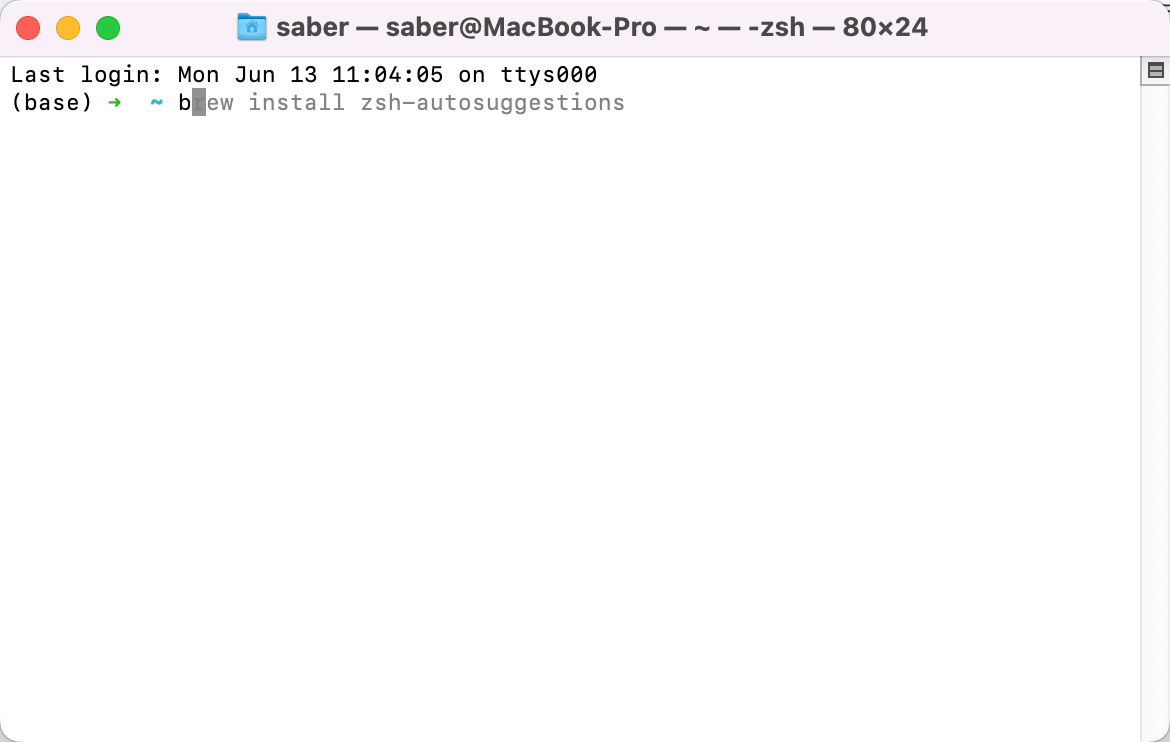
这个时候直接按 → 就能自动完成建议的命令
✨语法高亮
https://github.com/zsh-users/zsh-syntax-highlighting
安装
Simply clone this repository and source the script:
git clone https://github.com/zsh-users/zsh-syntax-highlighting.git
echo "source ${(q-)PWD}/zsh-syntax-highlighting/zsh-syntax-highlighting.zsh" >> ${ZDOTDIR:-$HOME}/.zshrc
Then, enable syntax highlighting in the current interactive shell:
source ./zsh-syntax-highlighting/zsh-syntax-highlighting.zsh
If git is not installed, download and extract a snapshot of the latest development tree from:
https://github.com/zsh-users/zsh-syntax-highlighting/archive/master.tar.gz
Note the source command must be at the end of ~/.zshrc.
详情可参考:
https://github.com/zsh-users/zsh-syntax-highlighting/blob/master/INSTALL.md
以上操作可用如下命令行完成
git clone https://github.com/zsh-users/zsh-syntax-highlighting.git ~/.zsh/zsh-syntax-highlighting

echo "source ~/.zsh/zsh-syntax-highlighting/zsh-syntax-highlighting.zsh" >> ~/.zshrc

source ~/.zshrc
Homebrew 安装
brew install zsh-syntax-highlighting
需要把source /opt/homebrew/share/zsh-syntax-highlighting/zsh-syntax-highlighting.zsh写入.zshrc
echo "source /opt/homebrew/share/zsh-syntax-highlighting/zsh-syntax-highlighting.zsh" >> ~/.zshrc
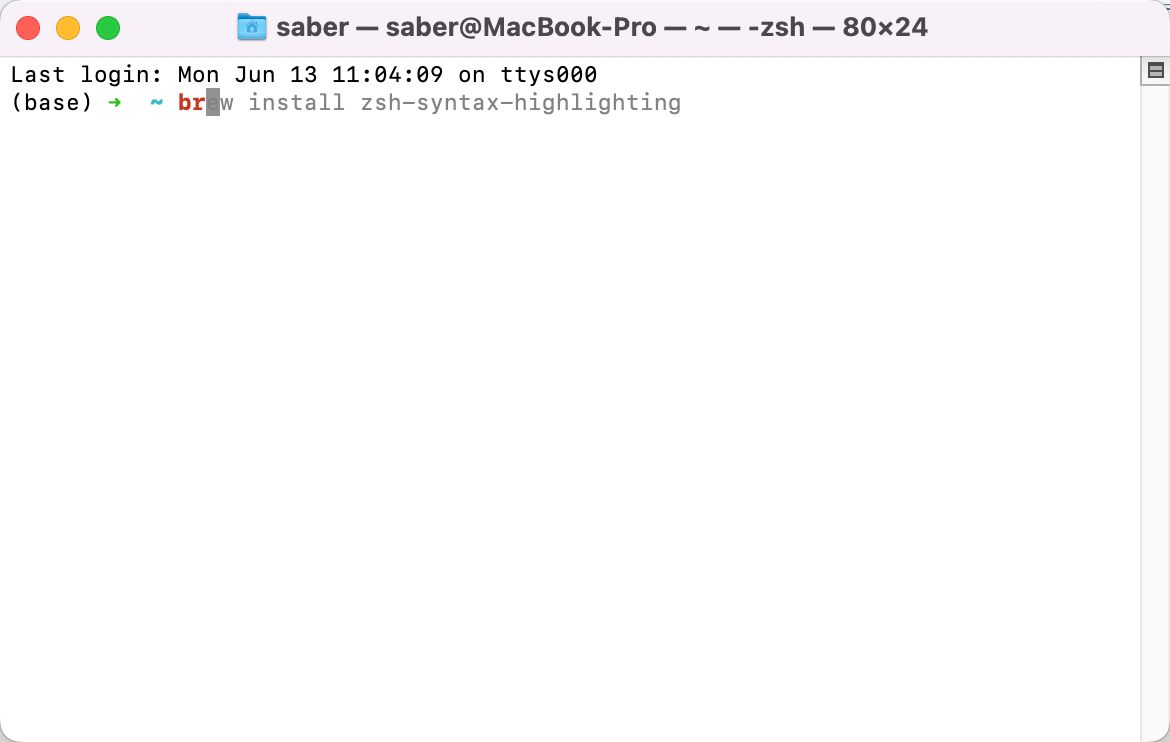
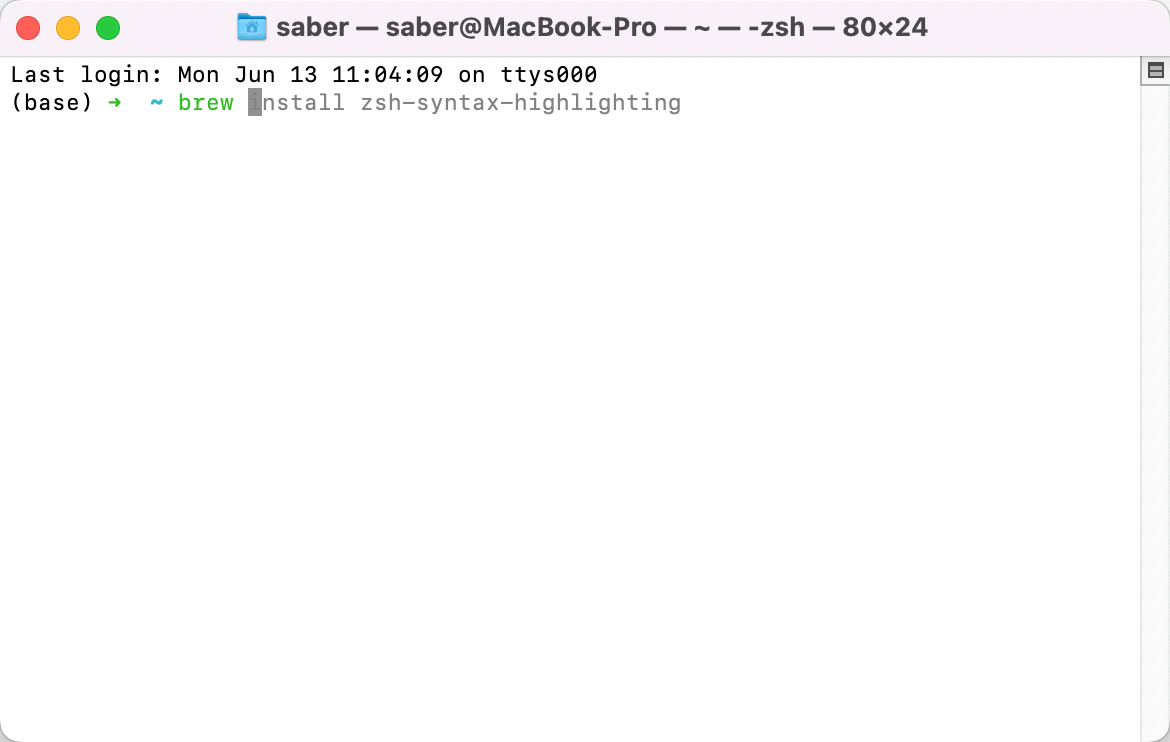
效果
Fish shell-like syntax highlighting for Zsh.
命令错误状态
命令正确状态
✨vim语法高亮 & 显示行号
配置
新建/编辑 .vimrc 文件
vim ~/.vimrc
写入如下
syntax on
set nu
wq保存退出
syntax on 为语法高亮
set nu 为显示行号
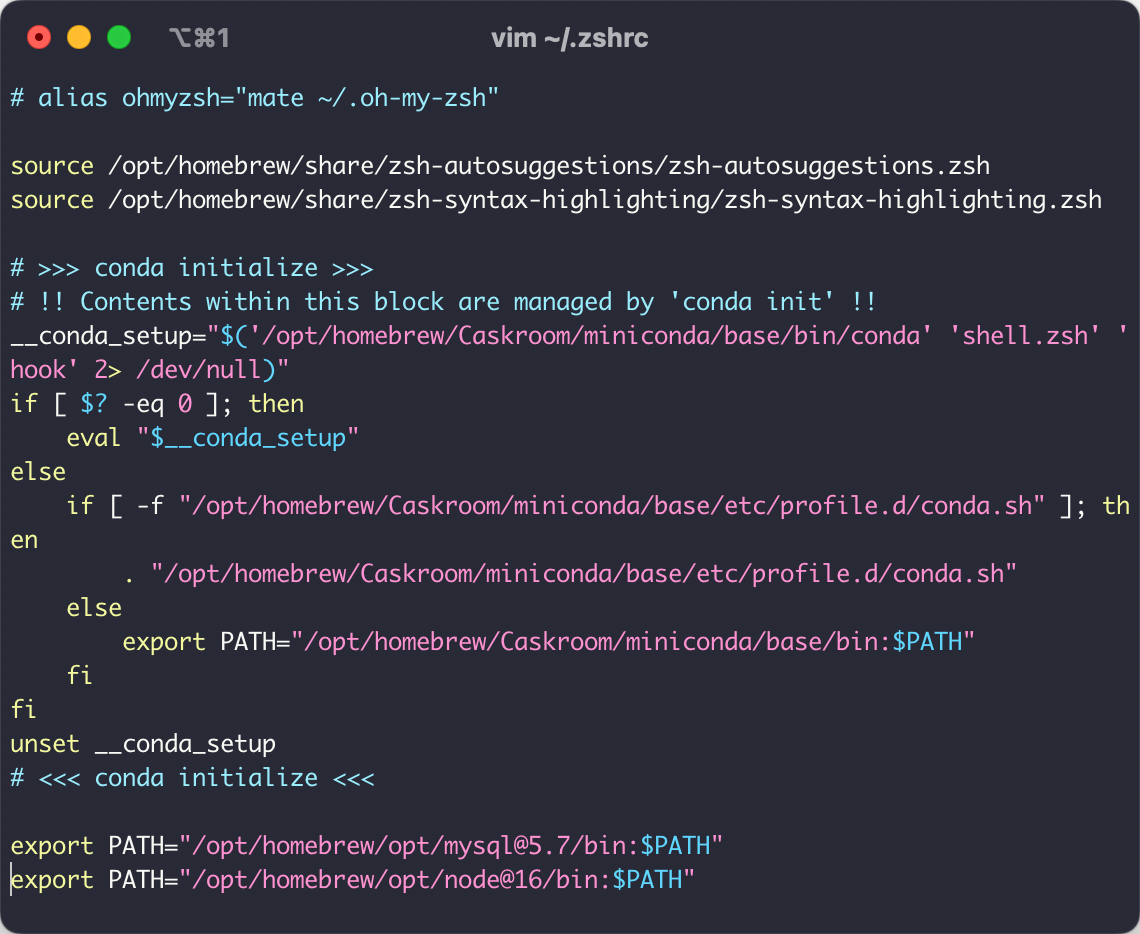
效果
更新这部分时候使用的是 iTerm2 + Dracula 的配色方案
比之前好看多了!
显示行号感觉用处不大所以没设置
平时用到vim不多
其实对于文本文件macOS其实可以直接使用系统自带的“文本编辑”
如下命令可以在将文本文件在“文本编辑”
open -t "文本文件"
或者为什么不直接用VSCode呢
真的要在服务器调试代码吗
⭐转载请注明出处
本文作者:双份浓缩馥芮白
原文链接:https://www.cnblogs.com/Flat-White/p/16370201.html
版权所有,如需转载请注明出处。

 浙公网安备 33010602011771号