
paddleocr识别电子发票,输出到Excel, 并用tkinter显示识别后的图片及结果
Python —paddleocr Demo
#paddleocr识别电子发票,输出到Excel, 并用tkinter显示识别后的图片及结果
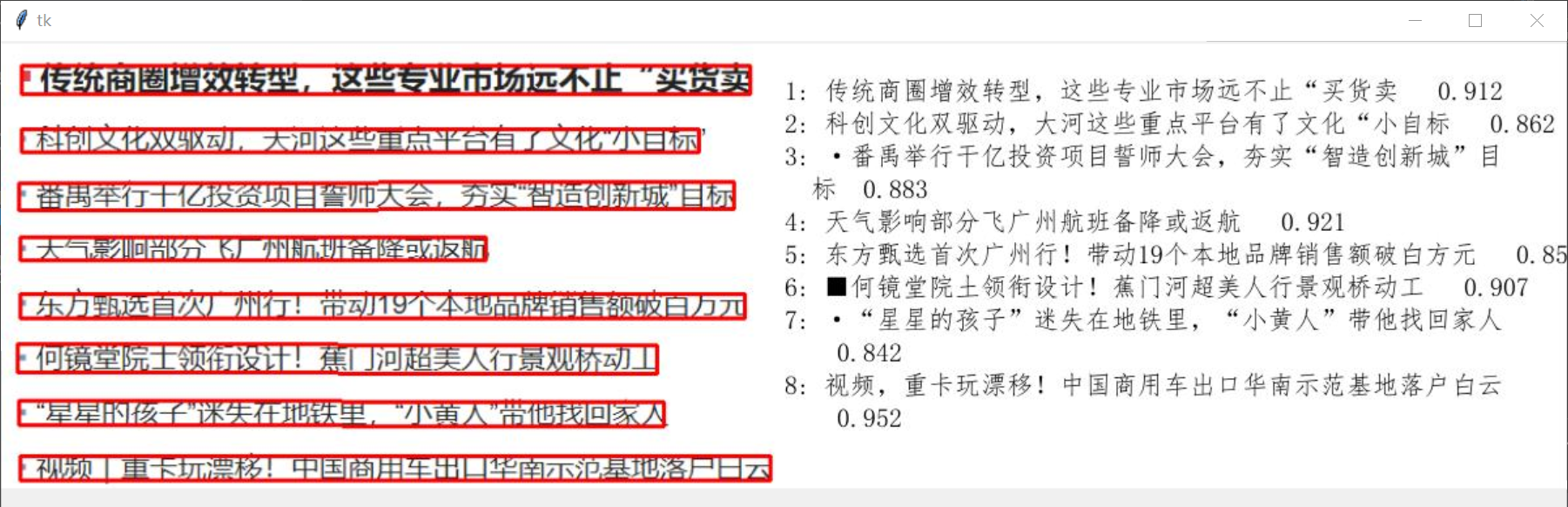
#由于发票数据比较机密,先随便找个新闻内容截图,识别文字看看效果,具体效果图如下!
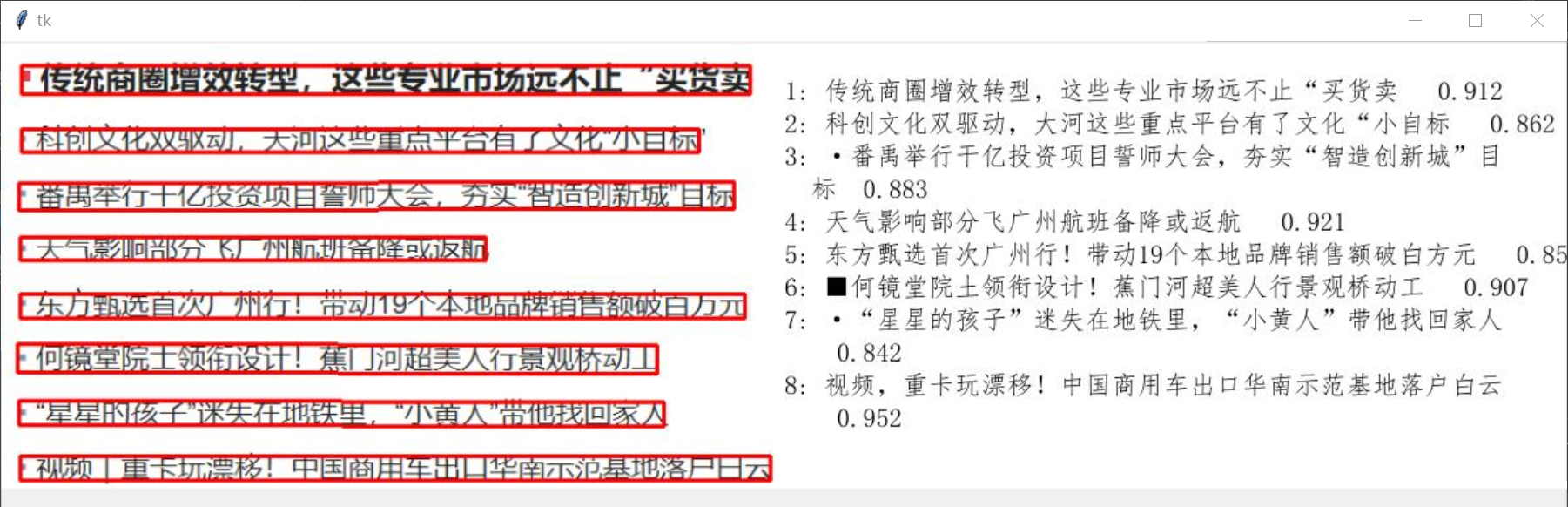
#python -m pip install paddlepaddle -i https://mirror.baidu.com/pypi/simple
from paddleocr import PaddleOCR, draw_ocr
ocr = PaddleOCR(use_angle_cls=True,use_gpu=False)
img_path = '1.png'
result = ocr.ocr(img_path, cls=True)
# for line in result:
# print(line[1])
# 显示结果
from PIL import Image
image = Image.open(img_path).convert('RGB')
boxes = [detection[0] for line in result for detection in line]
txts = [detection[1][0] for line in result for detection in line]
scores = [detection[1][1] for line in result for detection in line]
# txts_scores = [detection[1] for line in result for detection in line]
# print(txts_scores)
im_show = draw_ocr(image, boxes, txts, scores, font_path='./fonts/simfang.ttf')
im_show = Image.fromarray(im_show)
im_show.save(img_result+'_result.jpg')
#结果图片保存在代码同级文件夹中。
import datetime
dt = datetime.datetime.now()
img_result = dt.strftime("%Y%m%d%H%M%S")
print(img_result)
#输出到Excel
import pandas as pd
df = pd.DataFrame(txts)
df.to_excel(img_result+'_result.xlsx')
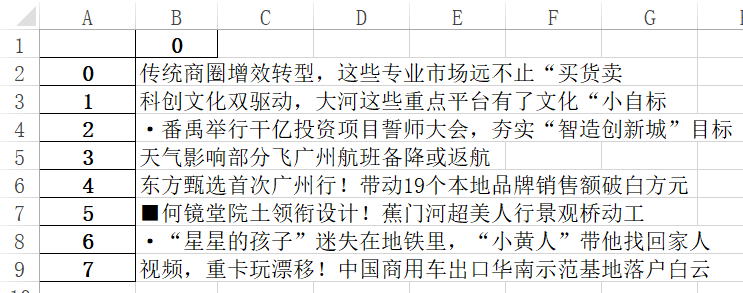
#显示识别后的图片及结果
import tkinter
from PIL import Image, ImageTk
root = tkinter.Tk()
img_open = Image.open(img_result+'_result.jpg')
img_png = ImageTk.PhotoImage(img_open)
label_img = tkinter.Label(root, image = img_png)
label_img.pack()
root.mainloop()

 浙公网安备 33010602011771号