
Docker镜像和容器管理
1. 镜像管理
1.1 镜像结构和原理
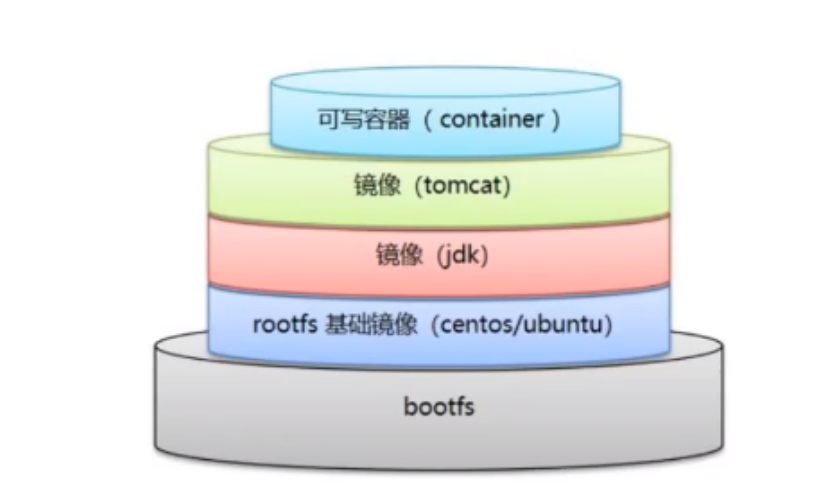
镜像即创建容器的模版,含有启动容器所需要的文件系统及所需要的内容,因此镜像主要用于方便和快速的创建并启动容器
镜像含里面是一层层的文件系统,叫做 Union FS(联合文件系统),联合文件系统,可以将几层目录挂载到一起(就像千层饼,洋葱头,俄罗斯套娃一样),形成一个虚拟文件系统,虚拟文件系统的目录结构就
像普通 linux 的目录结构一样,镜像通过这些文件再加上宿主机的内核共同提供了一个 linux 的虚拟环境,每一层文件系统叫做一层 layer,联合文件系统可以对每一层文件系统设置三种权限,只读(readonly)、读写(readwrite)和写出(whiteout-able),但是镜像中每一层文件系统都是只读的,构建镜像的时候,从一个最基本的操作系统开始,每个构建提交的操作都相当于做一层的修改,增加了一层文件系统,一层层往上叠加,上层的修改会覆盖底层该位置的可见性,这也很容易理解,就像上层把底层遮住了一样,当使用镜像的时候,我们只会看到一个完全的整体,不知道里面有几层,实际上也不需要知道里面有几层,结构如下:
一个典型的 Linux文件系统由 bootfs 和 rootfs 两部分组成
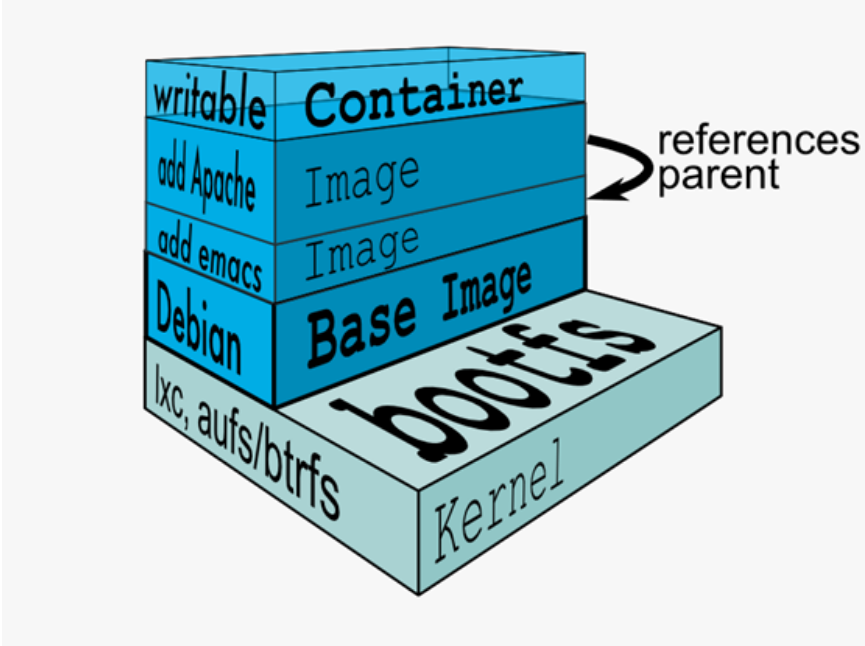
bootfs(boot file system) 主要包含bootloader和kernel,bootloader主要用于引导加载 kernel,Linux刚启动时会加载bootfs文件系统,当boot加载完成后,kernel 被加载到内存中后接管系统的控制权,bootfs会被 umount 掉
rootfs (root file system) 包含的就是典型 Linux 系统的/dev,/proc,/bin,/etc 等标准目录和文件,不同的 linux 发行版(如 ubuntu 和 CentOS ) 主要在 rootfs 这一层会有所区别。
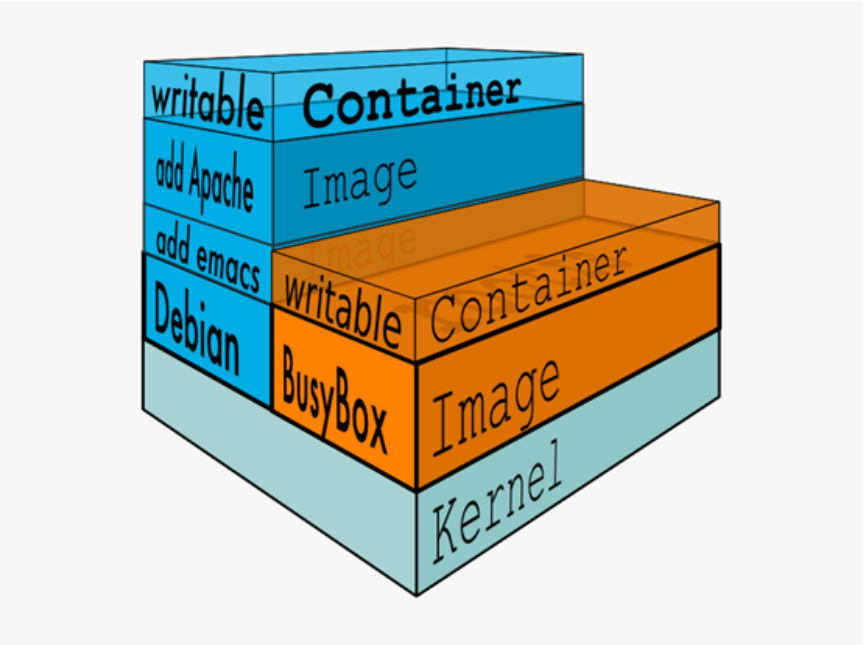
一般的镜像通常都比较小,官方提供的Ubuntu镜像只有60MB多点,而 CentOS 基础镜像也只有200MB左右,一些其他版本的镜像甚至只有几MB,比如: busybox 才1.22MB,alpine镜像也只有5M左右。镜像直接调用宿主机的内核,镜像中只提供 rootfs,也就是只需要包括最基本的命令,配置文件和程序库等相关文件就可以了。
下图就是有两个不同的镜像在一个宿主机内核上实现不同的rootfs。

**容器、镜像和父镜像关系: **
范例: 查看镜像的分层结构
[root@Ubuntu2204 ~]#docker pull nginx
Using default tag: latest
latest: Pulling from library/nginx
7cf63256a31a: Pull complete
bf9acace214a: Pull complete
513c3649bb14: Pull complete
d014f92d532d: Pull complete
9dd21ad5a4a6: Pull complete
943ea0f0c2e4: Pull complete
103f50cb3e9f: Pull complete
Digest: sha256:9d6b58feebd2dbd3c56ab5853333d627cc6e281011cfd6050fa4bcf2072c9496
Status: Downloaded newer image for nginx:latest
docker.io/library/nginx:latest

#查看镜像分层历史
[root@Ubuntu2204 ~]#docker image history nginx
IMAGE          CREATED       CREATED BY                                      SIZE      COMMENT
b52e0b094bc0   4 weeks ago   CMD ["nginx" "-g" "daemon off;"]                0B        buildkit.dockerfile.v0
<missing>      4 weeks ago   STOPSIGNAL SIGQUIT                              0B        buildkit.dockerfile.v0
<missing>      4 weeks ago   EXPOSE map[80/tcp:{}]                           0B        buildkit.dockerfile.v0
<missing>      4 weeks ago   ENTRYPOINT ["/docker-entrypoint.sh"]            0B        buildkit.dockerfile.v0
<missing>      4 weeks ago   COPY 30-tune-worker-processes.sh /docker-ent…   4.62kB    buildkit.dockerfile.v0
<missing>      4 weeks ago   COPY 20-envsubst-on-templates.sh /docker-ent…   3.02kB    buildkit.dockerfile.v0
<missing>      4 weeks ago   COPY 15-local-resolvers.envsh /docker-entryp…   389B      buildkit.dockerfile.v0
<missing>      4 weeks ago   COPY 10-listen-on-ipv6-by-default.sh /docker…   2.12kB    buildkit.dockerfile.v0
<missing>      4 weeks ago   COPY docker-entrypoint.sh / # buildkit          1.62kB    buildkit.dockerfile.v0
<missing>      4 weeks ago   RUN /bin/sh -c set -x     && groupadd --syst…   117MB     buildkit.dockerfile.v0
<missing>      4 weeks ago   ENV DYNPKG_RELEASE=1~bookworm                   0B        buildkit.dockerfile.v0
<missing>      4 weeks ago   ENV PKG_RELEASE=1~bookworm                      0B        buildkit.dockerfile.v0
<missing>      4 weeks ago   ENV NJS_RELEASE=1~bookworm                      0B        buildkit.dockerfile.v0
<missing>      4 weeks ago   ENV NJS_VERSION=0.8.9                           0B        buildkit.dockerfile.v0
<missing>      4 weeks ago   ENV NGINX_VERSION=1.27.4                        0B        buildkit.dockerfile.v0
<missing>      4 weeks ago   LABEL maintainer=NGINX Docker Maintainers <d…   0B        buildkit.dockerfile.v0
<missing>      4 weeks ago   # debian.sh --arch 'amd64' out/ 'bookworm' '…   74.8MB    debuerreotype 0.15


#查看镜像信息
[root@Ubuntu2204 ~]#docker inspect nginx
[
    {
        "Id":  "sha256:b52e0b094bc0e26c9eddc9e4ab7a64ce0033c3360d8b7ad4ff4132c4e03e8f7b", #镜像唯一标识符
        "RepoTags": [
            "nginx:latest"
        ],
        "RepoDigests": [
            "nginx@sha256:9d6b58feebd2dbd3c56ab5853333d627cc6e281011cfd6050fa4bcf2072c9496"
        ],
        "Parent": "",
        "Comment": "buildkit.dockerfile.v0",
        "Created": "2025-02-05T21:27:16Z",
        "Container": "",
        "ContainerConfig": {
            "Hostname": "",
            "Domainname": "",
            "User": "",
            "AttachStdin": false,
            "AttachStdout": false,
            "AttachStderr": false,
            "Tty": false,
            "OpenStdin": false,
            "StdinOnce": false,
            "Env": null,
            "Cmd": null,
            "Image": "",
            "Volumes": null,
            "WorkingDir": "",
            "Entrypoint": null,
            "OnBuild": null,
            "Labels": null
        },
        "DockerVersion": "",
        "Author": "",
        "Config": {
            "Hostname": "",
            "Domainname": "",
            "User": "",
            "AttachStdin": false,
            "AttachStdout": false,
            "AttachStderr": false,
            "ExposedPorts": {
                "80/tcp": {}
            },
            "Tty": false,
            "OpenStdin": false,
            "StdinOnce": false,
            "Env": [
                "PATH=/usr/local/sbin:/usr/local/bin:/usr/sbin:/usr/bin:/sbin:/bin",
                "NGINX_VERSION=1.27.4",
                "NJS_VERSION=0.8.9",
                "NJS_RELEASE=1~bookworm",
                "PKG_RELEASE=1~bookworm",
                "DYNPKG_RELEASE=1~bookworm"
            ],
            "Cmd": [
                "nginx",
                "-g",
                "daemon off;"
            ],
            "Image": "",
            "Volumes": null,
            "WorkingDir": "",
            "Entrypoint": [
                "/docker-entrypoint.sh"
            ],
            "OnBuild": null,
            "Labels": {
                "maintainer": "NGINX Docker Maintainers <docker-maint@nginx.com>"
            },
            "StopSignal": "SIGQUIT"
        },
        "Architecture": "amd64",
        "Os": "linux",
        "Size": 191998640,
        "VirtualSize": 191998640,
        "GraphDriver": {
            "Data": {
                "LowerDir": "/var/lib/docker/overlay2/f9f1e508f44b29f19d30d78c871dc93bc305446a6679efe6b274805b3b188ad9/diff:/var/lib/docker/overlay2/f2ecbcd2a059d655a4369a727a38363a1766f3b0b7087542246888751cdfbcec/diff:/var/lib/docker/overlay2/7a1423c5d1889fef8e970356f0d2d12fb54996fab24d9087d9612ee2552f311a/diff:/var/lib/docker/overlay2/01283801e43aeb847a9950788292edc6889fc9e6aa3d79fedcd0c0c75904dfd4/diff:/var/lib/docker/overlay2/6243d35fedd01d1db53751cb5ce1879f8c0ce6bc1ad3c4fcf53c2bc9d7789d30/diff:/var/lib/docker/overlay2/328bd9b5c3572212b4350b7675079a402935f4d8f47203c6b3ef48c669bd2ec4/diff",
                "MergedDir": "/var/lib/docker/overlay2/7ba6fc02e9db35f7f13cc36e3ece431db6827bf50f6ce4a666c0f69b997248f9/merged",
                "UpperDir": "/var/lib/docker/overlay2/7ba6fc02e9db35f7f13cc36e3ece431db6827bf50f6ce4a666c0f69b997248f9/diff",
                "WorkDir": "/var/lib/docker/overlay2/7ba6fc02e9db35f7f13cc36e3ece431db6827bf50f6ce4a666c0f69b997248f9/work"
            },
            "Name": "overlay2"
        },
        "RootFS": {
            "Type": "layers",
            "Layers": [
                "sha256:5f1ee22ffb5e68686db3dcb6584eb1c73b5570615b0f14fabb070b96117e351d",
                "sha256:c68632c455ae0c46d1380033bae6d30014853fa3f600f4e14efc440be1bc9580",
                "sha256:cabea05c000e49f0814b2611cbc66c2787f609d8a27fc7b9e97b5dab5d8502da",
                "sha256:791f0a07985c2814a899cb0458802be06ba124a364f7e5a9413a1f08fdbf5b5c",
                "sha256:f6d5815f290ee912fd4a768d97b46af39523dff584d786f5c0f7e9bdb7fad537",
                "sha256:7d22e2347c1217a89bd3c79ca9adb4652c1e9b61427fffc0ab92227aacd19a38",
                "sha256:55e9644f21c38d7707b4a432aacc7817c5414b68ac7a750e704c2f7100ebc15c"
            ]
        },
        "Metadata": {
            "LastTagTime": "0001-01-01T00:00:00Z"
        }
    }
]

#打包镜像,解压缩查看镜像分层信息
[root@Ubuntu2204 ~]#docker save nginx -o nginx.tar
[root@Ubuntu2204 ~]#docker images
REPOSITORY   TAG       IMAGE ID       CREATED       SIZE
nginx        latest    b52e0b094bc0   4 weeks ago   192MB

[root@Ubuntu2204 ~]#ll -h nginx.tar
-rw------- 1 root root 188M Mar 10 16:44 nginx.tar

[root@Ubuntu2204 ~]#tar xf nginx.tar -C /data
[root@Ubuntu2204 ~]#ll /data/
total 60
drwx--x--x 10 root root 4096 Mar 10 16:46 ./
drwxr-xr-x 21 root root 4096 Mar 10 15:00 ../
drwxr-xr-x  2 root root 4096 Feb  6 05:27 058a72beca3be14557a915e2808f1ba79e0aa83c0dbbded92939b6587b00b8ba/
drwxr-xr-x  2 root root 4096 Feb  6 05:27 0fab4af28450732f1f0f4eb3efdcebd4fdeb409b4c10bc855e5d7156c0a9905b/
drwxr-xr-x  2 root root 4096 Feb  6 05:27 304ad4ebca17b19743fc2d4eb1ab712f5d5f6376e0d9188381b2fd77e3fb2306/
drwxr-xr-x  2 root root 4096 Feb  6 05:27 66dcac68de8eb686367a45ef77a383767e10d46e53d3e6d1f0852b7befaf04e3/
drwxr-xr-x  2 root root 4096 Feb  6 05:27 7e144f2c87a36cb40f9d6e9a97ec9c92c5168e4f2dddbd566b9f69c261055a93/
-rw-r--r--  1 root root 8582 Feb  6 05:27 b52e0b094bc0e26c9eddc9e4ab7a64ce0033c3360d8b7ad4ff4132c4e03e8f7b.json
drwxr-xr-x  2 root root 4096 Feb  6 05:27 dfde27bb1b09427c5917717ddef716bc0cafd86d74ca4d44468fe9f4c08cc7b4/
drwx--x--- 13 root root 4096 Mar 10 16:21 docker/
drwxr-xr-x  2 root root 4096 Feb  6 05:27 f742d25501f512b79ec63d60b3b41d281232c4b7052b31cbd230be3df76aab3e/
-rw-r--r--  1 root root  663 Jan  1  1970 manifest.json
-rw-r--r--  1 root root   88 Jan  1  1970 repositories

[root@Ubuntu2204 ~]#cat /data/manifest.json
[{"Config":"b52e0b094bc0e26c9eddc9e4ab7a64ce0033c3360d8b7ad4ff4132c4e03e8f7b.json","RepoTags":["nginx:latest"],"Layers":["f742d25501f512b79ec63d60b3b41d281232c4b7052b31cbd230be3df76aab3e/layer.tar","7e144f2c87a36cb40f9d6e9a97ec9c92c5168e4f2dddbd566b9f69c261055a93/layer.tar","058a72beca3be14557a915e2808f1ba79e0aa83c0dbbded92939b6587b00b8ba/layer.tar","66dcac68de8eb686367a45ef77a383767e10d46e53d3e6d1f0852b7befaf04e3/layer.tar","0fab4af28450732f1f0f4eb3efdcebd4fdeb409b4c10bc855e5d7156c0a9905b/layer.tar","304ad4ebca17b19743fc2d4eb1ab712f5d5f6376e0d9188381b2fd77e3fb2306/layer.tar","dfde27bb1b09427c5917717ddef716bc0cafd86d74ca4d44468fe9f4c08cc7b4/layer.tar"]}]

[root@Ubuntu2204 data]#du -sh /data/*
16K	/data/058a72beca3be14557a915e2808f1ba79e0aa83c0dbbded92939b6587b00b8ba
16K	/data/0fab4af28450732f1f0f4eb3efdcebd4fdeb409b4c10bc855e5d7156c0a9905b
20K	/data/304ad4ebca17b19743fc2d4eb1ab712f5d5f6376e0d9188381b2fd77e3fb2306
20K	/data/66dcac68de8eb686367a45ef77a383767e10d46e53d3e6d1f0852b7befaf04e3
229M	/data/7e144f2c87a36cb40f9d6e9a97ec9c92c5168e4f2dddbd566b9f69c261055a93
12K	/data/b52e0b094bc0e26c9eddc9e4ab7a64ce0033c3360d8b7ad4ff4132c4e03e8f7b.json
20K	/data/dfde27bb1b09427c5917717ddef716bc0cafd86d74ca4d44468fe9f4c08cc7b4
4.6M	/data/docker
75M	/data/f742d25501f512b79ec63d60b3b41d281232c4b7052b31cbd230be3df76aab3e
4.0K	/data/manifest.json
4.0K	/data/repositories


[root@Ubuntu2204 data]#cd f742d25501f512b79ec63d60b3b41d281232c4b7052b31cbd230be3df76aab3e/
[root@Ubuntu2204 f742d25501f512b79ec63d60b3b41d281232c4b7052b31cbd230be3df76aab3e]#ls
VERSION  json  layer.tar
[root@Ubuntu2204 f742d25501f512b79ec63d60b3b41d281232c4b7052b31cbd230be3df76aab3e]#tar xf layer.tar
[root@Ubuntu2204 f742d25501f512b79ec63d60b3b41d281232c4b7052b31cbd230be3df76aab3e]#ls
VERSION  boot  etc   json       lib    media  opt   root  sbin  sys  usr
bin      dev   home  layer.tar  lib64  mnt    proc  run   srv   tmp  var
[root@Ubuntu2204 f742d25501f512b79ec63d60b3b41d281232c4b7052b31cbd230be3df76aab3e]#

[root@Ubuntu2204 f742d25501f512b79ec63d60b3b41d281232c4b7052b31cbd230be3df76aab3e]#cat etc/issue
Debian GNU/Linux 12 \n \l
1.2 搜索镜像
1.2.1 官方网站进行镜像的搜索
官网:
http://hub.docker.com
http://dockerhub.com
https://hub-stage.docker.com/
1.2.1 执行docker search命令进行搜索
[root@rocky8 ~]#docker search --help

Usage:  docker search [OPTIONS] TERM

Search the Docker Hub for images

Options:
  -f, --filter filter   Filter output based on conditions provided
      --format string   Pretty-print search using a Go template
      --limit int       Max number of search results (default 25)
      --no-trunc        Don't truncate output
说明:
OFFICIAL: 官方
AUTOMATED: 使用第三方docker服务来帮助编译镜像,可以在互联网上面直接拉取到镜像,减少了繁琐的编译过程
范例:
[root@ubuntu2204 ~]#docker search centos

#搜索点赞100个以上的镜像
[root@ubuntu2204 ~]#docker search --filter=stars=100 centos
1.2.2 alpine 介绍
Alpine 操作系统是一个面向安全的轻型 Linux 发行版。它不同于通常 Linux 发行版,Alpine 采用了musl libc 和 busybox 以减小系统的体积和运行时资源消耗,但功能上比 busybox 又完善的多,因此得到开源社区越来越多的青睐。在保持瘦身的同时,Alpine 还提供了自己的包管理工具 apk,可以通过 https://pkgs.alpinelinux.org/packages 网站上查询包信息,也可以直接通过 apk 命令直接查询和安装各种软件。
Alpine 由非商业组织维护的,支持广泛场景的 Linux发行版,它特别为资深/重度Linux用户而优化,关注安全,性能和资源效能。Alpine 镜像可以适用于更多常用场景,并且是一个优秀的可以适用于生产的基础系统/环境。
Alpine Docker 镜像也继承了 Alpine Linux 发行版的这些优势。相比于其他 Docker 镜像,它的容量非常小,仅仅只有 5 MB 左右(对比 Ubuntu 系列镜像接近 200 MB),且拥有非常友好的包管理机制。官方镜像来自 docker-alpine 项目。
目前 Docker 官方已开始推荐使用 Alpine 替代之前的 Ubuntu 做为基础镜像环境。这样会带来多个好处。包括镜像下载速度加快,镜像安全性提高,主机之间的切换更方便,占用更少磁盘空间等。
下表是官方镜像的大小比较:
REPOSITORY         TAG           IMAGE ID         VIRTUAL SIZE
busybox             latest       beae173ccac6      1.24MB
alpine             latest       4e38e38c8ce0      4.799 MB
debian             latest       4d6ce913b130      84.98 MB
ubuntu             latest       b39b81afc8ca      188.3 MB
centos             latest       8efe422e6104      210 MB
Alpine 官网: https://www.alpinelinux.org/
Alpine 官方仓库: https://github.com/alpinelinux
Alpine 官方镜像: https://hub.docker.com/_/alpine/
Alpine 官方镜像仓库: https://github.com/gliderlabs/docker-alpine
Alpine 阿里云的镜像仓库: https://mirrors.aliyun.com/alpine/
范例:alpine管理软件
#运行alpine容器查看alpine仓库文件
[root@Ubuntu2204 ~]#docker run -it --rm alpine sh
/ # cat /etc/apk/repositories
https://dl-cdn.alpinelinux.org/alpine/v3.21/main
https://dl-cdn.alpinelinux.org/alpine/v3.21/community

#将alpine容器文件拷到宿主机并修改镜像源地址
[root@Ubuntu2204 ~]#docker run -d --name alpine alpine
228b4953ce9516905d3f68c57ad1e9983ab1df9112f98a0e725ff9e32c583b1d
[root@Ubuntu2204 ~]#docker cp alpine:/etc/apk/repositories .

[root@Ubuntu2204 ~]#sed -i 's/dl-cdn.alpinelinux.org/mirrors.ustc.edu.cn/' repositories
[root@Ubuntu2204 ~]#cat repositories
https://mirrors.ustc.edu.cn/alpine/v3.21/main
https://mirrors.ustc.edu.cn/alpine/v3.21/community

#宿主机文件拷贝到容器内
[root@Ubuntu2204 ~]#docker cp repositories alpine:/etc/apk/repositories

#更新源
apk update

#安装软件
apk add vim

#删除软件
apk del openssh openntp vim

#安装常见软件
apk update && apk --no-cache add bash curl telnet  wget net-tools pstree zip unzip

#安装常用编译工具
apk update && apk --no-cache add gcc make curl zip unzip net-tools pstree wget libgcc libc-dev libcurl libc-utils pcre-dev zlib-dev libnfs pcre pcre2 libevent libevent-dev iproute2

#修改时区
apk update && apk --no-cache add tzdata && ln -s /usr/share/zoneinfo/Asia/Shanghai /etc/localtime && echo "Asia/Shanghai" > /etc/timezone
范例:
/ # apk --help
apk-tools 2.14.6, compiled for x86_64.

usage: apk [<OPTIONS>...] COMMAND [<ARGUMENTS>...]

Package installation and removal:
  add        Add or modify constraints in WORLD and commit changes
  del        Remove constraints from WORLD and commit changes

System maintenance:
  fix        Fix, reinstall or upgrade packages without modifying WORLD
  update     Update repository indexes
  upgrade    Install upgrades available from repositories
  cache      Manage the local package cache

Querying package information:
  info       Give detailed information about packages or repositories
  list       List packages matching a pattern or other criteria
  dot        Render dependencies as graphviz graphs
  policy     Show repository policy for packages
  search     Search for packages by name or description

Repository maintenance:
  index      Create repository index file from packages
  fetch      Download packages from repositories to a local directory
  manifest   Show checksums of package contents
  verify     Verify package integrity and signature

Miscellaneous:
  audit      Audit system for changes
  stats      Show statistics about repositories and installations
  version    Compare package versions or perform tests on version strings

This apk has coffee making abilities.
For more information: man 8 apk

/ #  apk add nginx #apk安装nginx软件包
(1/3) Installing pcre (8.45-r3)
(2/3) Installing nginx (1.26.2-r4)
Executing nginx-1.26.2-r4.pre-install
Executing nginx-1.26.2-r4.post-install
(3/3) Installing nginx-vim (1.26.2-r4)
Executing busybox-1.37.0-r12.trigger
OK: 43 MiB in 34 packages
/ # apk info nginx #显示nginx软件包信息

nginx-1.26.2-r4 description:
HTTP and reverse proxy server (stable version)

nginx-1.26.2-r4 webpage:
https://www.nginx.org/

nginx-1.26.2-r4 installed size:
1000 KiB

openresty-1.27.1.1-r1 description:
Scalable Web Platform by Extending NGINX with Lua

openresty-1.27.1.1-r1 webpage:
https://openresty.org/

openresty-1.27.1.1-r1 installed size:
3584 KiB

/ #
/ #  apk manifest nginx  #显示nginx软件版的文件和对应的SHA-1哈希值
sha1:d21a96358a10b731f8847e6d32799efdc2a7f421  etc/logrotate.d/nginx
sha1:cbf596ddb3433a8e0d325f3c188bec9c1bb746b3  etc/nginx/fastcgi.conf
sha1:da38e2a0dded838afbe0eade6cb837ac30fd8046  etc/nginx/fastcgi_params
sha1:9b85e5091018455091d7f135c4a160ad9487516a  etc/nginx/mime.types
sha1:120dc100822b0916cd6392c8c1eb2da79d4abf7e  etc/nginx/nginx.conf
sha1:379c1e2a2a5ffb8c91a07328d4c9be2bc58799fd  etc/nginx/scgi_params
sha1:cc2fcdb4605dcac23d59f667889ccbdfdc6e3668  etc/nginx/uwsgi_params
sha1:a18df249db49e6d0e7984de5891c45d11c1034f4  usr/sbin/nginx
sha1:7b2a4da1a14166442c10cbf9e357fa9fb53542ca  usr/share/nginx/http-default_server.conf
sha1:35db17c18ce0b9f84a3cc113c8a9e94e19f632b1  var/lib/nginx/logs
sha1:c3f02ca81f7f2c6bde3f878b3176f225c7781c7d  var/lib/nginx/modules
sha1:0510312d465b86769136983657df98c1854f0b60  var/lib/nginx/run
sha1:835b9dec419c01420e78602527a9fba8c463521c  var/lib/nginx/html/50x.html
sha1:c51a3f0e6de4eb802d5630941c3fd9e1d0efae4b  var/lib/nginx/html/index.html
/ # ls -l /bin  #工具包全是软连接指向busybox
total 792
lrwxrwxrwx    1 root     root            12 Feb 13 23:04 arch -> /bin/busybox
lrwxrwxrwx    1 root     root            12 Feb 13 23:04 ash -> /bin/busybox
lrwxrwxrwx    1 root     root            12 Feb 13 23:04 base64 -> /bin/busybox
lrwxrwxrwx    1 root     root            12 Feb 13 23:04 bbconfig -> /bin/busybox
-rwxr-xr-x    1 root     root        808712 Jan 17 18:12 busybox
lrwxrwxrwx    1 root     root            12 Feb 13 23:04 cat -> /bin/busybox
lrwxrwxrwx    1 root     root            12 Feb 13 23:04 chattr -> /bin/busybo
1.2.3 Debian(ubuntu)系统建议安装的基础包
在很多软件官方提供的镜像都使用的是Debian(ubuntu)的系统,比如:nginx,tomcat,mysql,httpd 等,但镜像内缺少很多常用的调试工具.当需要进入容器内进行调试管理时,可以安装以下常用工具包
# apt update #安装软件前需要先更新索引
# apt install procps #提供top,ps,free等命令
# apt install psmisc #提供pstree,killall等命令
# apt install iputils-ping #提供ping命令
# apt install net-tools #提供netstat网络工具等
1.3 下载镜像
从 docker 仓库将镜像下载到本地,命令格式如下
docker pull [OPTIONS] NAME[:TAG|@DIGEST]
Options:
  -a, --all-tags               Download all tagged images in the repository
      --disable-content-trust   Skip image verification (default true)
      --platform string         Set platform if server is multi-platform capable
  -q, --quiet                   Suppress verbose output
NAME: 是镜像名,一般的形式 仓库服务器:端口/项目名称/镜像名称
:TAG: 即版本号,如果不指定:TAG,则下载最新版镜像
镜像下载保存的路径:
/var/lib/docker/overlay2/{镜像层(只读),也包含容器的工作目录(可写层)ID}
注意: 镜像下载完成后,会自动解压缩,比官网显示的可能会大很多,如: centos8.1.1911下载时只有70MB,下载完后显示237MB
范例:
[root@Ubuntu2204 ~]#docker pull busybox
Using default tag: latest  #默认下载最新版本
latest: Pulling from library/busybox
9c0abc9c5bd3: Pull complete  #分层下载
Digest: sha256:498a000f370d8c37927118ed80afe8adc38d1edcbfc071627d17b25c88efcab0 #摘要
Status: Downloaded newer image for busybox:latest
docker.io/library/busybox:latest  #下载的完整地址

#指定 TAG下载特定版本的镜像
[root@ubuntu1804 ~]#docker pull docker.io/library/mysql:5.7.30
范例: 指定DIGEST下载特定版本的镜像
先到 hub.docker.com查到指定版本的DIGEST
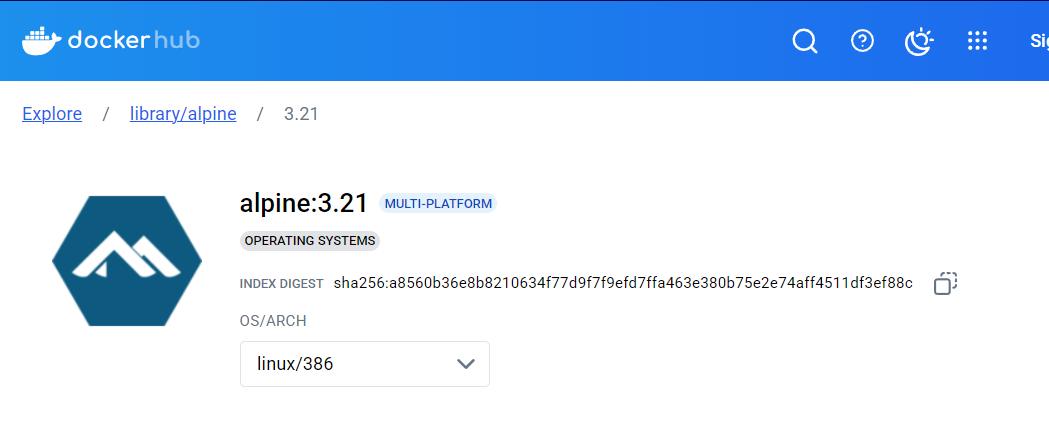
[root@Ubuntu2204 ~]#docker pull alpine@sha256:a8560b36e8b8210634f77d9f7f9efd7ffa463e380b75e2e74aff4511df3ef88c
docker.io/library/alpine@sha256:a8560b36e8b8210634f77d9f7f9efd7ffa463e380b75e2e74aff4511df3ef88c: Pulling from library/alpine
f18232174bc9: Pull complete
Digest: sha256:a8560b36e8b8210634f77d9f7f9efd7ffa463e380b75e2e74aff4511df3ef88c
Status: Downloaded newer image for alpine@sha256:a8560b36e8b8210634f77d9f7f9efd7ffa463e380b75e2e74aff4511df3ef88c
docker.io/library/alpine@sha256:a8560b36e8b8210634f77d9f7f9efd7ffa463e380b75e2e74aff4511df3ef88c

#摘要下载无tag标签
[root@Ubuntu2204 ~]#docker images
REPOSITORY   TAG       IMAGE ID       CREATED       SIZE
alpine       <none>    aded1e1a5b37   3 weeks ago   7.83MB
1.4 镜像加速配置和优化
docker 镜像官方的下载站点是: https://hub.docker.com ,从国内下载官方的镜像站点有时候会很慢,因此可以更改docker配置文件添加一个加速器,可以通过加速器达到加速下载镜像的目的
国内有许多公司都提供了docker 加速镜像,比如: 阿里云,腾讯云,网易云,以下以阿里云为例
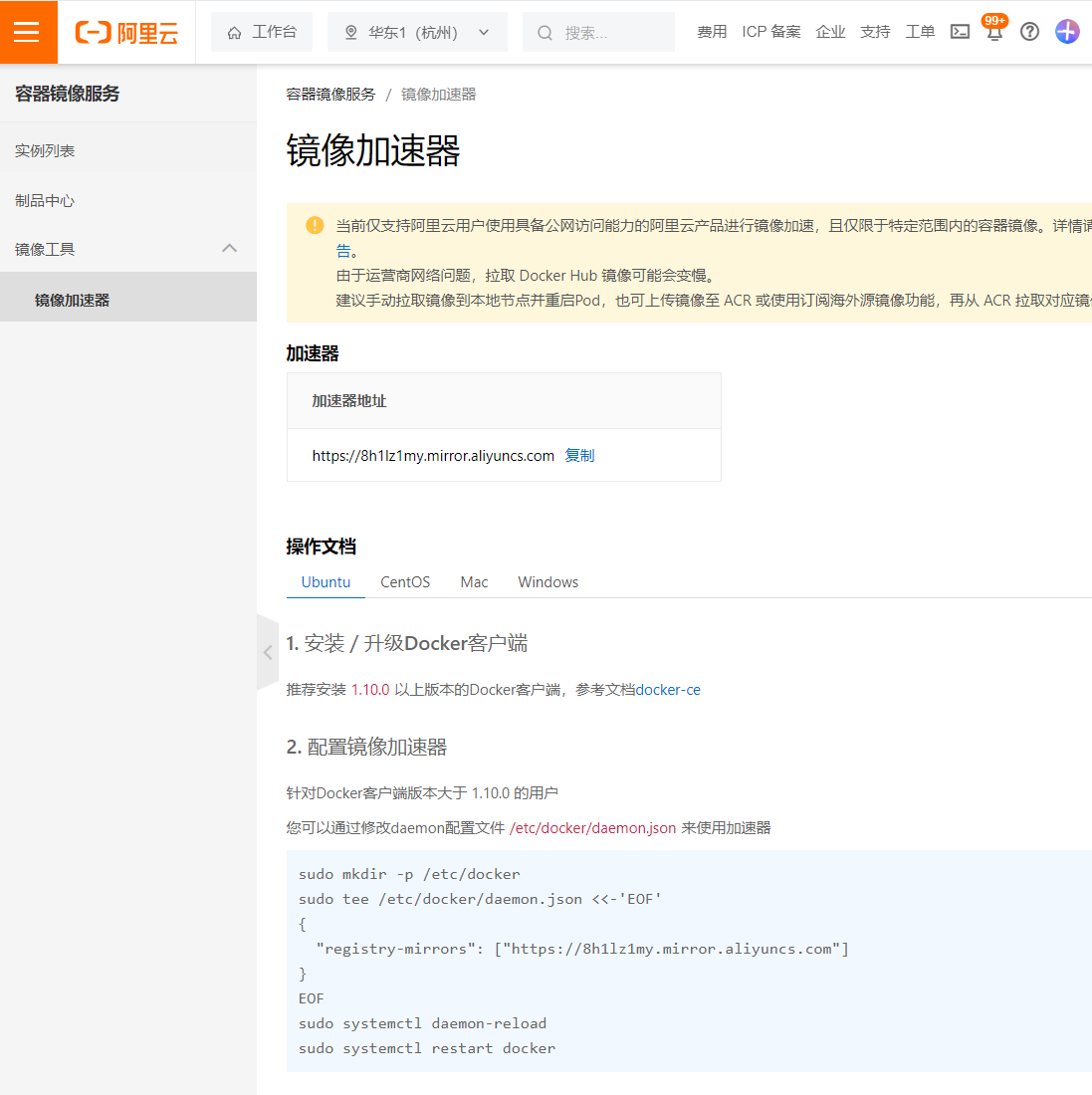
1.4.1 阿里云获取加速地址
浏览器打开 http://cr.console.aliyun.com ,注册或登录阿里云账号,点击左侧的镜像加速器,将会得到一个专属的加速地址,而且下面有使用配置说明:
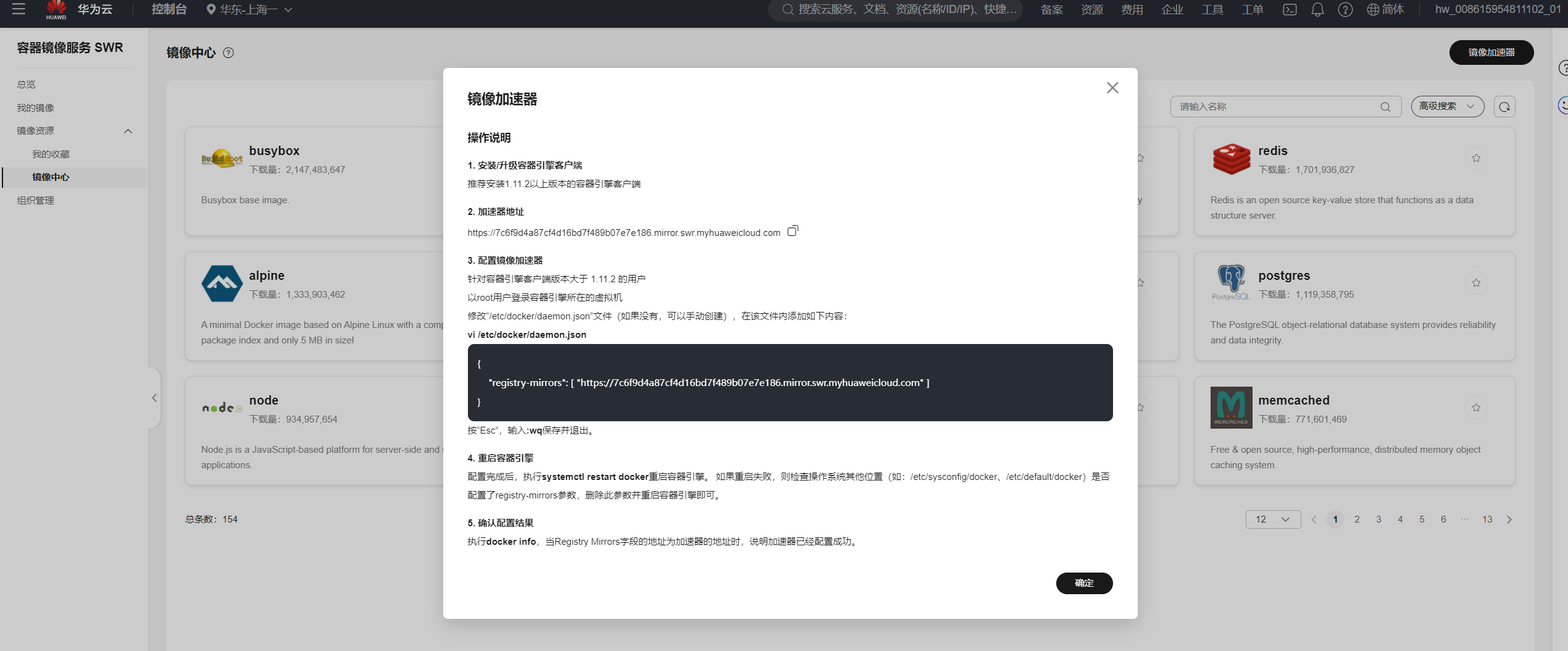
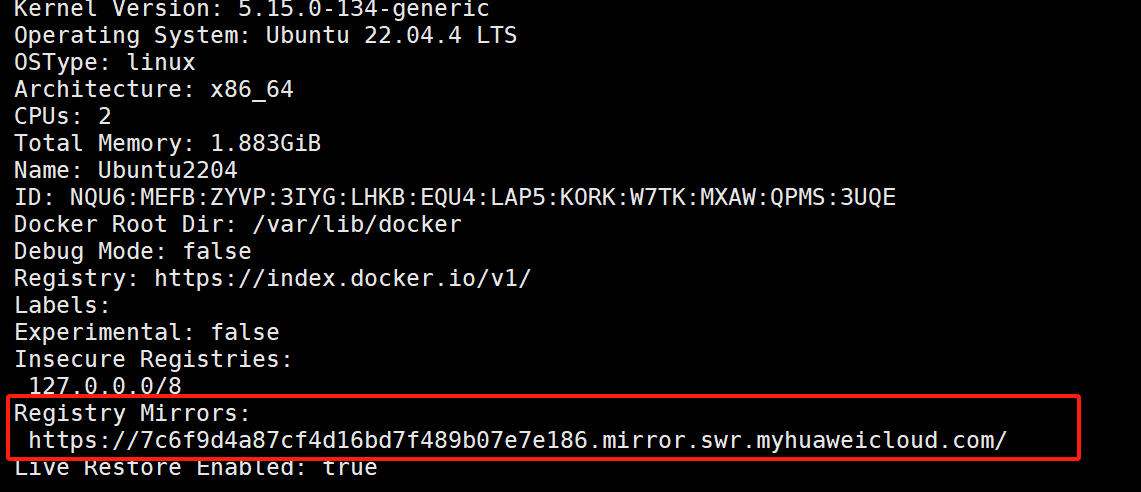
1.4.2 华为云镜像加速
1.4.3 Docker 镜像加速配置
1. 安装/升级Docker客户端
推荐安装1.10.0以上版本的Docker客户端,参考文档 docker-ce

2. 配置镜像加速器
修改daemon配置文件/etc/docker/daemon.json来使用加速器
mkdir -p /etc/docker
tee /etc/docker/daemon.json <<-'EOF'
{
  "registry-mirrors": ["https://docker.mirrors.ustc.edu.cn","http://hubmirror.c.163.com/","https://si7y70hh.mirror.aliyuncs.com"],
  "live-restore": true, #docker服务重启,不会重启容器,
}
EOF
#网易云: http://hub-mirror.c.163.com/
#中科大: https://docker.mirrors.ustc.edu.cn
#腾讯云: https://mirror.ccs.tencentyun.com
#七牛云: https://reg-mirror.qiniu.com
systemctl daemon-reload
systemctl restart docker
1.5 查看本地镜像
docker images 可以查看下载至本地的镜像
[root@Ubuntu2204 ~]#docker images --help

Usage:  docker images [OPTIONS] [REPOSITORY[:TAG]]

List images

Options:
  -a, --all             Show all images (default hides intermediate images)  #列出所有
      --digests         Show digests
  -f, --filter filter   Filter output based on conditions provided
      --format string   Pretty-print images using a Go template
      --no-trunc        Don't truncate output
  -q, --quiet           Only show image IDs  #只显示镜像ID
执行结果的显示信息说明:
REPOSITORY      #镜像所属的仓库名称
TAG         #镜像版本号(标识符),默认为latest
IMAGE ID       #镜像唯一ID标识,如果ID相同,说明是同一个镜像有多个名称
CREATED       #镜像在仓库中被创建时间
VIRTUAL SIZE    #镜像的大小
docker images --format命令用于指定在输出中显示映像信息的格式。格式字符串由多个占位符组成,每个占位符代表映像的特定属性。
#常用的格式占位符:
{{.Repository}}:映像的仓库名称。
{{.Tag}}:映像的标签。
{{.ID}}:映像的ID。
{{.Digest}}:映像的摘要值。
{{.CreatedAt}}:映像的创建时间。
{{.Size}}:映像的大小。

#示例
docker images --format "{{.Repository}}\t{{.Tag}}\t{{.Size}}"
docker images --format "{{.CreatedAt}}\t{{.Repository}}:{{.Tag}}" | sort -k 1 -r
Repository仓库
- 由某特定的docker镜像的所有迭代版本组成的镜像仓库
- 一个Registry中可以存在多个Repository
- Repository可分为“顶层仓库”和“用户仓库”
- Repository用户仓库名称一般格式为“用户名/仓库名”
- 每个Repository仓库可以包含多个Tag(标签),每个标签对应一个镜像
范例:
[root@Ubuntu2204 ~]#docker images
REPOSITORY   TAG       IMAGE ID       CREATED        SIZE
alpine       latest    aded1e1a5b37   3 weeks ago    7.83MB
busybox      latest    31311c5853a2   5 months ago   4.27MB
[root@Ubuntu2204 ~]#docker images -q
aded1e1a5b37
31311c5853a2
[root@Ubuntu2204 ~]#docker images --no-trunc
REPOSITORY   TAG       IMAGE ID                                                                  CREATED        SIZE
alpine       latest    sha256:aded1e1a5b3705116fa0a92ba074a5e0b0031647d9c315983ccba2ee5428ec8b   3 weeks ago    7.83MB
busybox      latest    sha256:31311c5853a22c04d692f6581b4faa25771d915c1ba056c74e5ec82606eefdfa   5 months ago   4.27MB

#只查看指定REPOSITORY的镜像
[root@Ubuntu2204 ~]#docker images nginx
REPOSITORY   TAG       IMAGE ID       CREATED         SIZE
nginx        latest    b52e0b094bc0   4 weeks ago     192MB
nginx        1.24.0    6c0218f16876   23 months ago   142MB


#只查看镜像的REPOSITORY和TAG
[root@Ubuntu2204 ~]#docker image ls --format "{{.Repository}}:{{.Tag}}"
alpine:latest
busybox:latest
范例:查看dangling状态的镜像
dangling images表示TAG为空的镜像
[root@ubuntu2204 ~]#docker images
REPOSITORY   TAG       IMAGE ID       CREATED         SIZE
alpine       latest   9ed4aefc74f6   3 weeks ago     7.05MB
<none>       <none>   0584b370e957   11 months ago   141MB
[root@ubuntu2204 ~]#docker images -f dangling=true
REPOSITORY   TAG       IMAGE ID       CREATED         SIZE
<none>       <none>   0584b370e957   11 months ago   141MB
范例: 查看指定镜像的详细信息
[root@ubuntu2204 ~]#docker inspect alpine:3.16.2
1.6 镜像导出
利用docker save命令可以将从本地镜像导出为一个打包 tar文件,然后复制到其他服务器进行导入使用
注意:镜像导出支持多个镜像导出
格式:
docker save [OPTIONS] IMAGE [IMAGE...]
选项:
-o, --output string   Write to a file, instead of STDOUT
#说明:
Docker save 使用IMAGE ID导出,在导入后的镜像没有REPOSITORY和TAG,显示<none>
常见用法:
#导出为tar格式
docker save -o /path/file.tar IMAGE1 IMAGE2 ...
docker save IMAGE1 IMAGE2 ... > /path/file.tar
#导出为压缩格式
docker save IMAGE1 IMAGE2 ... | gzip > /path/file.tar.gz
范例:导出指定镜像
[root@Ubuntu2204 ~]#docker images
REPOSITORY   TAG       IMAGE ID       CREATED         SIZE
alpine       latest    aded1e1a5b37   3 weeks ago     7.83MB
nginx        latest    b52e0b094bc0   4 weeks ago     192MB
busybox      latest    31311c5853a2   5 months ago    4.27MB
nginx        1.24.0    6c0218f16876   23 months ago   142MB
[root@Ubuntu2204 ~]#docker save nginx:1.24.0 alpine -o /data/myimages.tar
或者
[root@Ubuntu2204 ~]#docker save nginx:1.24.0 alpine > /data/myimages.tar
[root@Ubuntu2204 ~]#scp /data/myimages.tar 10.0.0.8:/data
范例:导出镜像并压缩
[root@Ubuntu2204 ~]#docker save nginx:1.24.0 alpine | gzip - > nginx:1.24.0.tar.gz
[root@Ubuntu2204 ~]#ll nginx:1.24.0.tar.gz -h
-rw-r--r-- 1 root root 56M Mar 10 19:05 nginx:1.24.0.tar.gz
范例: 导出所有镜像至不同的文件中
[root@Ubuntu2204 ~]#docker images | awk 'NR!=1{print $1,$2}' | while read repo tag ;do docker save   $repo:$tag -o /opt/$repo-$tag.tar ;done
[root@Ubuntu2204 ~]#ls /opt/*.tar
/opt/alpine-latest.tar  /opt/busybox-latest.tar  /opt/nginx-1.24.0.tar  /opt/nginx-latest.tar
范例:导出所有镜像到一个打包文件
#方法1: 使用image ID导出镜像,在导入后的镜像没有REPOSITORY和TAG,显示为<none>
[root@ubuntu1804 ~]#docker save `docker images -qa` -o all.tar

#方法2:将所有镜像导入到一个文件中,此方法导入后可以看REPOSITORY和TAG
[root@ubuntu1804 ~]#docker save `docker images | awk 'NR!=1{print $1":"$2}'` -o all.tar

[root@ubuntu1804 ~]#docker save `docker images | awk 'NR!=1{print $1":"$2}'` | gzip > all.tar.gz

#方法3:将所有镜像导入到一个文件中,此方法导入后可以看REPOSITORY和TAG
[root@centos8 ~]#docker image save `docker image ls --format "{{.Repository}}:{{.Tag}}"` -o all.tar
[root@centos8 ~]#docker image save `docker image ls --format "{{.Repository}}:{{.Tag}}"` | gzip > all.tar.gz
1.7 镜像导入
利用docker load命令可以将镜像导出的打包或压缩文件再导入
注意:镜像导入只能支持单个镜像导入,不支持多个镜像导入
格式:
docker load [OPTIONS]
#选项
-i, --input string   Read from tar archive file, instead of STDIN
-q, --quiet         Suppress the load output
常见用法:
docker load -i /path/file.tar
docker load < /path/file.tar.gz
范例: 镜像导入
[root@rocky8 ~]#docker images
REPOSITORY   TAG       IMAGE ID   CREATED   SIZE

[root@rocky8 ~]#docker load -i /data/myimages.tar
#或者
[root@rocky8 ~]#docker load < /data/myimages.tar
08000c18d16d: Loading layer [==================================================>]  8.121MB/8.121MB
Loaded image: alpine:latest
420179ad2efa: Loading layer [==================================================>]  84.18MB/84.18MB
13c8460bfc9a: Loading layer [==================================================>]  62.52MB/62.52MB
b9a187a24e19: Loading layer [==================================================>]  3.584kB/3.584kB
96c08fed6a4c: Loading layer [==================================================>]  4.608kB/4.608kB
29492f82bbc2: Loading layer [==================================================>]  3.584kB/3.584kB
bc4a3582faa9: Loading layer [==================================================>]  7.168kB/7.168kB
Loaded image: nginx:1.24.0
[root@rocky8 ~]#docker images
REPOSITORY   TAG       IMAGE ID       CREATED         SIZE
alpine       latest    aded1e1a5b37   3 weeks ago     7.83MB
nginx        1.24.0    6c0218f16876   23 months ago   142MB
1.8 删除镜像
docker rmi 命令可以删除本地镜像
格式
docker rmi [OPTIONS] IMAGE [IMAGE...]
docker image rm [OPTIONS] IMAGE [IMAGE...]

#选项:
-f, --force     Force removal of the image
    --no-prune   Do not delete untagged parents
范例:
#通过镜像ID和名称删除镜像
[root@rocky8 ~]#docker images
REPOSITORY   TAG       IMAGE ID       CREATED         SIZE
alpine       latest    aded1e1a5b37   3 weeks ago     7.83MB
nginx        1.24.0    6c0218f16876   23 months ago   142MB
[root@rocky8 ~]#docker rmi aded1

[root@rocky8 ~]#docker images
REPOSITORY   TAG       IMAGE ID       CREATED         SIZE
nginx        1.24.0    6c0218f16876   23 months ago   142MB

[root@rocky8 ~]#docker rmi nginx:1.24.0

[root@rocky8 ~]#docker images
REPOSITORY   TAG       IMAGE ID   CREATED   SIZE
范例: 旧版本强制删除正在使用的镜像,也会删除对应的容器,新版本不允许删除正在运行的容器对应的镜像
[root@rocky8 ~]#docker ps -a
CONTAINER ID   IMAGE     COMMAND                  CREATED          STATUS          PORTS     NAMES
84602194b548   nginx     "/docker-entrypoint.…"   23 seconds ago   Up 20 seconds   80/tcp    great_raman
[root@rocky8 ~]#docker rmi nginx
Error response from daemon: conflict: unable to remove repository reference "nginx" (must force) - container 84602194b548 is using its referenced image b52e0b094bc0

#强制删除正在使用的镜像不会删除正在运行的容器和镜像,镜像TAG为none
[root@rocky8 ~]#docker rmi -f nginx
Untagged: nginx:latest
Untagged: nginx@sha256:9d6b58feebd2dbd3c56ab5853333d627cc6e281011cfd6050fa4bcf2072c9496
[root@rocky8 ~]#docker ps -a
CONTAINER ID   IMAGE          COMMAND                  CREATED          STATUS          PORTS     NAMES
84602194b548   b52e0b094bc0   "/docker-entrypoint.…"   42 seconds ago   Up 40 seconds   80/tcp    great_raman
[root@rocky8 ~]#docker images
REPOSITORY   TAG       IMAGE ID       CREATED       SIZE
<none>       <none>    b52e0b094bc0   4 weeks ago   192MB
范例: 删除多个镜像
[root@ubuntu1804 ~]#docker rmi nginx tomcat
范例: 删除所有镜像
docker rmi -f `docker images -q
1.9 清理dangling状态的镜像
dangling images表示TAG为的镜像
范例:删除dangling状态的镜像
[root@rocky8 ~]#docker images
REPOSITORY   TAG       IMAGE ID       CREATED        SIZE
<none>       <none>    aded1e1a5b37   3 weeks ago    7.83MB
busybox      latest    31311c5853a2   5 months ago   4.27MB

[root@rocky8 ~]#docker images -q -f dangling=true
aded1e1a5b37

[root@rocky8 ~]#docker rmi -f `docker images -q -f dangling=true`
Deleted: sha256:aded1e1a5b3705116fa0a92ba074a5e0b0031647d9c315983ccba2ee5428ec8b
[root@rocky8 ~]#docker images
REPOSITORY   TAG       IMAGE ID       CREATED        SIZE
busybox      latest    31311c5853a2   5 months ago   4.27MB
范例: 清除dangling和不再使用的镜像
[root@ubuntu1804 ~]#docker image prune -a -f
1.10 镜像打标签
docker tag 可以给镜像打标签,类似于起别名,但通常要遵守一定的命名规范,才可以上传到指定的仓库
格式
docker tag SOURCE_IMAGE[:TAG] TARGET_IMAGE[:TAG]

#TARGET_IMAGE[:TAG]格式一般形式
仓库主机FQDN或IP[:端口]/项目名(或用户名)/image名字:版本
TAG默认为latest
范例:
[root@ubuntu1804 ~]#docker images
REPOSITORY         TAG                 IMAGE ID           CREATED
SIZE
alpine             latest             e7d92cdc71fe        11 days ago
5.59MB
centos             centos7.7.1908     08d05d1d5859        2 months ago
204MB
[root@ubuntu1804 ~]#docker tag alpine alpine:3.11
[root@ubuntu1804 ~]#docker images
REPOSITORY         TAG                 IMAGE ID           CREATED
SIZE
alpine              3.11               e7d92cdc71fe        11 days ago
5.59MB
alpine             latest             e7d92cdc71fe        11 days ago
5.59MB
centos             centos7.7.1908     08d05d1d5859        2 months ago
204MB
总结: 企业使用镜像及常见操作: 搜索、下载、导出、导入、删除
命令总结
docker search centos
docker pull alpine
docker images
docker save > /opt/centos.tar #centos #导出镜像
docker load -i /opt/centos.tar  #导入本地镜像
docker rmi 镜像ID/镜像名称  #删除指定ID的镜像,此镜像对应容器正启动镜像不能被删除,除非将容器全部关闭
2. 容器操作基础命令
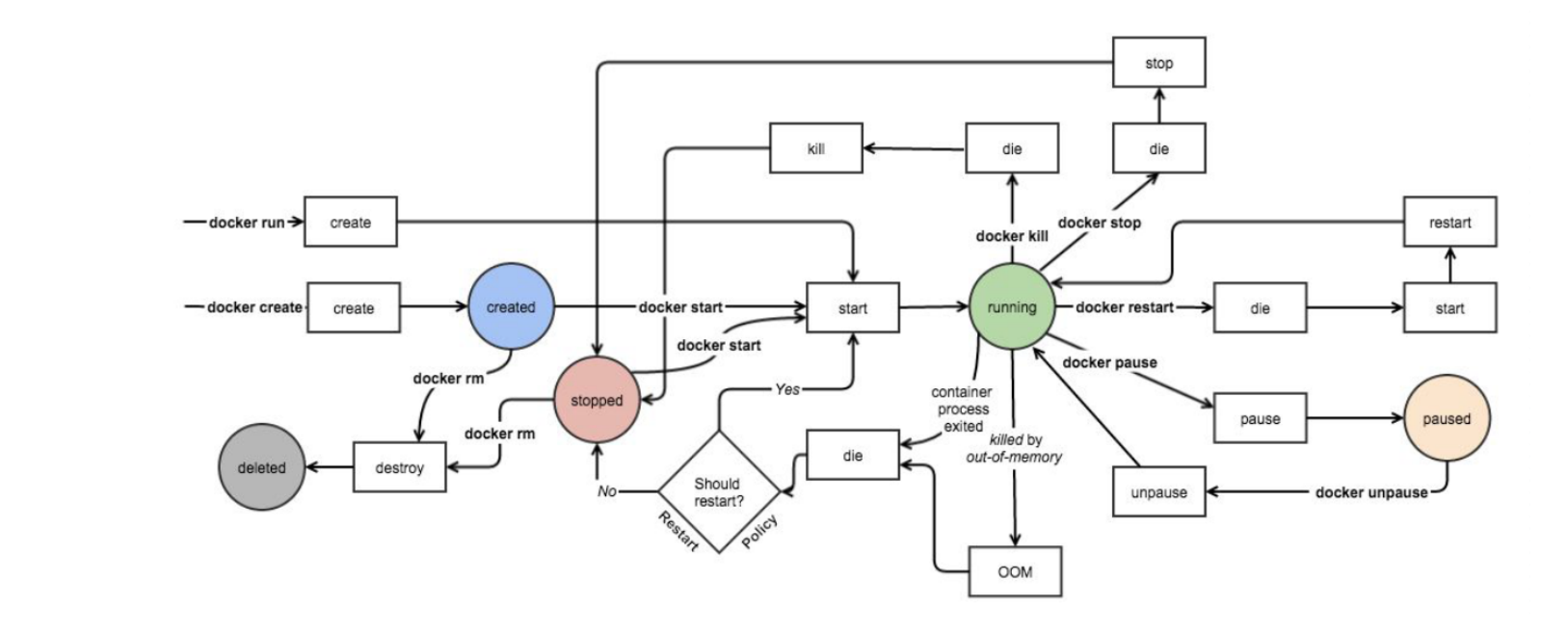
容器生命周期
容器相关命令
docker container
2.1 启动容器
docker run 可以启动容器,进入到容器,并随机生成容器ID和名称
2.1.1 启动第一个容器
范例: 运行docker 的 hello world
[root@rocky8 ~]#docker run  hello-world
[root@rocky8 ~]#docker images
REPOSITORY    TAG       IMAGE ID       CREATED       SIZE
hello-world   latest    74cc54e27dc4   6 weeks ago   10.1kB
[root@rocky8 ~]#docker ps -a
CONTAINER ID   IMAGE          COMMAND         CREATED          STATUS                        PORTS     NAMES
89cbd5b5f84c   hello-world    "/hello"        11 seconds ago   Exited (0) 9 seconds ago                practical_maxwell
2.1.2 启动容器的流程
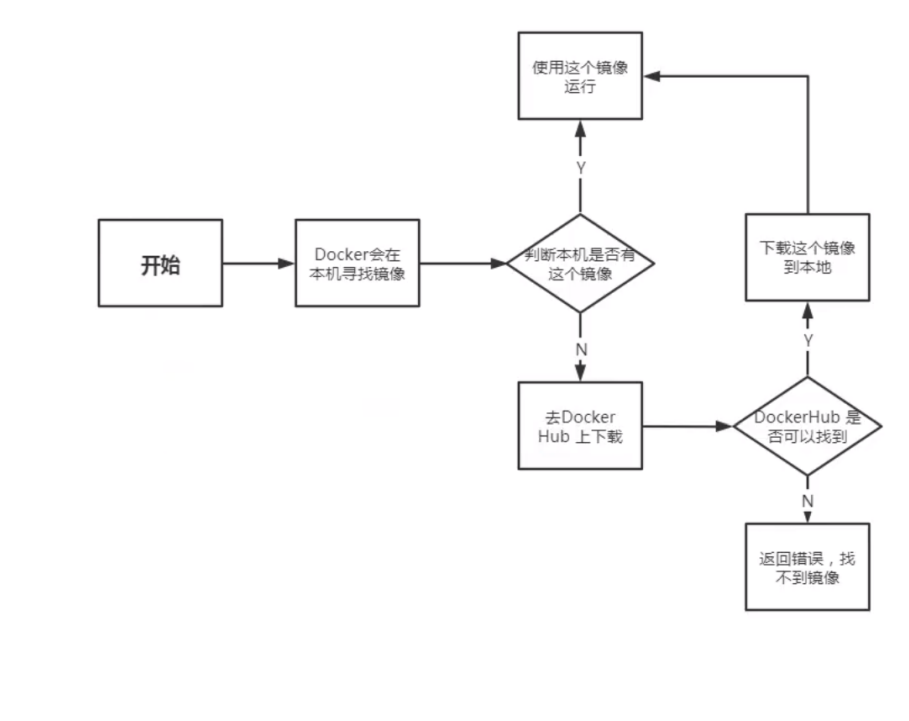
2.1.3 启动容器用法
帮助: man docker-run
命令格式
docker run [选项] [镜像名] [shell命令] [参数]

#选项:
-i, --interactive   Keep STDIN open even if not attached,通常和-t一起使用
-t, --tty           分配pseudo-TTY,通常和-i一起使用,注意对应的容器必须运行shell才支持进
入
-d, --detach         Run container in background and print container ID,台后运行,默认前台
--name string       Assign a name to the container
--h, --hostname string Container host name
--rm                 Automatically remove the container when it exits
-p, --publish list   Publish a container's port(s) to the host
-P, --publish-all   Publish all exposed ports to random ports
--dns list           Set custom DNS servers
--entrypoint string Overwrite the default ENTRYPOINT of the image
--restart policy
--privileged         Give extended privileges to container
-e, --env=[] Set environment variables
--env-file=[]       Read in a line delimited file of environment variables
 [shell命令] [参数]   #使用指定的命令和参数,替换容器默认的命令
--restart 可以指定四种不同的policy

如果 docker stop 停止容器后重启宿主机,always选项以外的其它选项的容器都不会随着宿主机启动而自动启动
- no:容器退出时 不会自动重启。
- on-failure:仅在容器 非正常退出(退出状态码非 0)时重启。可指定最大重启次数,例如 on-failure:3 表示最多重启 3 次
- always:无论容器以何种状态退出(包括正常退出),始终重启容器。
- unless-stopped:容器退出时自动重启,但 排除以下情况:容器被手动停止(如 docker stop)。Docker守护进程重启时,若容器已处于停止状态,则不重启。
注意: 容器启动后,如果容器内没有前台运行的进程,将自动退出停止
从容器内退出,并停止容器
exit
从容器内退出,且容器不停止
同时按三个键,ctrl+p+q
范例: 一次性运行容器中命令
#启动的容器在执行完shell命令就退出,用于测试
[root@rocky8 ~]#docker run busybox echo "Hello world"
Unable to find image 'busybox:latest' locally
latest: Pulling from library/busybox
9c0abc9c5bd3: Pull complete
Digest: sha256:498a000f370d8c37927118ed80afe8adc38d1edcbfc071627d17b25c88efcab0
Status: Downloaded newer image for busybox:latest
Hello world

[root@rocky8 ~]#docker ps -a
CONTAINER ID   IMAGE          COMMAND                CREATED          STATUS                        PORTS     NAMES
25a6948903f9   busybox        "echo 'Hello world'"   33 seconds ago   Exited (0) 31 seconds ago               intelligent_boyd
89cbd5b5f84c   hello-world    "/hello"               14 minutes ago   Exited (0) 14 minutes ago               practical_maxwell
9f25b54cad25   aded1e1a5b37   "sleep 10000"          31 minutes ago   Exited (137) 25 minutes ago             busy_montalcini
范例: 指定容器名称
#注意每个容器的名称要唯一
[root@rocky8 ~]#docker run --name a1 alpine

[root@rocky8 ~]#docker ps -a
CONTAINER ID   IMAGE         COMMAND                CREATED          STATUS                        PORTS     NAMES
6aacf2c81077   alpine        "/bin/sh"              7 seconds ago    Exited (0) 6 seconds ago                a1
范例: 运行交互式容器并退出
退出两种方式:
- exit 容器也停止
- 按ctrl+p+q 容器不停止
[root@rocky8 ~]#docker run -it docker.io/busybox sh
/ # exit
[root@rocky8 ~]#docker ps -l  #显示最新创建的容器(包括所有状态)
CONTAINER ID   IMAGE     COMMAND   CREATED          STATUS                     PORTS     NAMES
3326275003bc   busybox   "sh"      18 seconds ago   Exited (0) 2 seconds ago             dazzling_diffie


[root@rocky8 ~]#docker run -it docker.io/busybox sh
/ #  #同时按三个键:ctrl+p+q

#用同时按三个键ctrl+p+q退出后容器不会停止
[root@rocky8 ~]#docker ps -l
CONTAINER ID   IMAGE     COMMAND   CREATED          STATUS          PORTS     NAMES
2d02667cf992   busybox   "sh"      14 seconds ago   Up 13 seconds             eager_snyder
范例: 设置容器内的主机名.
/ # hostname
a1.dxj.org
/ # cat /etc/hosts
127.0.0.1	localhost
::1	localhost ip6-localhost ip6-loopback
fe00::0	ip6-localnet
ff00::0	ip6-mcastprefix
ff02::1	ip6-allnodes
ff02::2	ip6-allrouters
172.17.0.2	a1.dxj.org a1
/ # cat /etc/resolv.conf
# Generated by NetworkManager
search dxj.localdomain
nameserver 114.114.114.114
nameserver 223.5.5.5
范例: 一次性运行容器,退出后立即删除,用于测试
[root@ubuntu1804 ~]#docker run --rm alpine cat /etc/issue
Welcome to Alpine Linux 3.11
Kernel \r on an \m (\l)

[root@ubuntu1804 ~]#docker ps -a
CONTAINER ID       IMAGE               COMMAND             CREATED
STATUS             PORTS               NAMES
什么是守护式容器:
- 能够长期运行
- 无需交互式会话
- 适合运行应用程序和服务
范例: 启动前台守护式容器
[root@rocky8 ~]#docker run nginx
/docker-entrypoint.sh: /docker-entrypoint.d/ is not empty, will attempt to perform configuration
/docker-entrypoint.sh: Looking for shell scripts in /docker-entrypoint.d/
/docker-entrypoint.sh: Launching /docker-entrypoint.d/10-listen-on-ipv6-by-default.sh
10-listen-on-ipv6-by-default.sh: info: Getting the checksum of /etc/nginx/conf.d/default.conf
10-listen-on-ipv6-by-default.sh: info: Enabled listen on IPv6 in /etc/nginx/conf.d/default.conf
/docker-entrypoint.sh: Sourcing /docker-entrypoint.d/15-local-resolvers.envsh
/docker-entrypoint.sh: Launching /docker-entrypoint.d/20-envsubst-on-templates.sh
/docker-entrypoint.sh: Launching /docker-entrypoint.d/30-tune-worker-processes.sh
/docker-entrypoint.sh: Configuration complete; ready for start up
2025/03/10 14:36:30 [notice] 1#1: using the "epoll" event method
2025/03/10 14:36:30 [notice] 1#1: nginx/1.27.4
2025/03/10 14:36:30 [notice] 1#1: built by gcc 12.2.0 (Debian 12.2.0-14)
2025/03/10 14:36:30 [notice] 1#1: OS: Linux 4.18.0-425.3.1.el8.x86_64
2025/03/10 14:36:30 [notice] 1#1: getrlimit(RLIMIT_NOFILE): 1048576:1048576
2025/03/10 14:36:30 [notice] 1#1: start worker processes
2025/03/10 14:36:30 [notice] 1#1: start worker process 28
2025/03/10 14:36:30 [notice] 1#1: start worker process 29
2025/03/10 14:36:30 [notice] 1#1: start worker process 30
2025/03/10 14:36:30 [notice] 1#1: start worker process 31
172.17.0.5 - - [10/Mar/2025:14:40:14 +0000] "GET / HTTP/1.1" 200 615 "-" "Wget" "-"

[root@rocky8 ~]#docker run --rm --name b1 busybox wget -qO - 172.17.0.4
<!DOCTYPE html>
<html>
<head>
<title>Welcome to nginx!</title>
<style>
html { color-scheme: light dark; }
body { width: 35em; margin: 0 auto;
font-family: Tahoma, Verdana, Arial, sans-serif; }
</style>
</head>
<body>
<h1>Welcome to nginx!</h1>
<p>If you see this page, the nginx web server is successfully installed and
working. Further configuration is required.</p>

<p>For online documentation and support please refer to
<a href="http://nginx.org/">nginx.org</a>.<br/>
Commercial support is available at
<a href="http://nginx.com/">nginx.com</a>.</p>

<p><em>Thank you for using nginx.</em></p>
</body>
</html>
范例: 启动后台守护式容器
[root@rocky8 ~]#docker run -d nginx
21bf8faaa3fc5ff27522fdfbff49b490893d77c07ae6b28f69a45d5bec2fd858
[root@rocky8 ~]#docker ps -l
CONTAINER ID   IMAGE     COMMAND                  CREATED         STATUS         PORTS     NAMES
21bf8faaa3fc   nginx     "/docker-entrypoint.…"   8 seconds ago   Up 6 seconds   80/tcp    sweet_dijkstra

#有些容器没有前台进程,所以后台启动不会持续运行
[root@rocky8 ~]#docker run -d --name alpine4 alpine
04f891581541b52fcf2f830229811b0087adb0fed9fa85dcd37f477d0cd474cc
[root@rocky8 ~]#docker ps -a
CONTAINER ID   IMAGE         COMMAND                  CREATED          STATUS                        PORTS     NAMES
04f891581541   alpine        "/bin/sh"                6 seconds ago    Exited (0) 4 seconds ago                alpine4

#-td	/bin/sh 因伪终端保持活跃,容器持续运行。
[root@rocky8 ~]#docker run -td --name alpine5 alpine
a51890ab4dfd9e24e9fafa31b7effcf98e10d05ea072740995cd1b6a9bdb4f05
[root@rocky8 ~]#docker ps -a
CONTAINER ID   IMAGE         COMMAND                  CREATED          STATUS                        PORTS     NAMES
a51890ab4dfd   alpine        "/bin/sh"                2 seconds ago    Up 1 second                             alpine5
范例: 开机自动运行容器
[root@rocky8 ~]#docker run -d --name nginx --restart=always -p 80:80 nginx
36d05a4d639609233c99ea1f793a9c91ea3ac8ac74c1290d0a281e62768dfe283
[root@rocky8 ~]#reboot
[root@rocky8 ~]#docker ps
CONTAINER ID   IMAGE     COMMAND                  CREATED          STATUS         PORTS                               NAMES
6d05a4d63960   nginx     "/docker-entrypoint.…"   37 seconds ago   Up 2 seconds   0.0.0.0:80->80/tcp, :::80->80/tcp   nginx
--privileged 选项
大约在0.6版,--privileged 选项被引入docker。使用该参数,container内的root拥有真正的root权限。
否则,container内的root只是外部的一个普通用户权限。privileged启动的容器,可以看到很多host上的设备,并且可以执行mount。甚至允许你在docker容器中启动docker容器。
范例: 使用--privileged 让容器获取 root 权限
# 宿主机创建一个 10MB 的文件作为文件系统镜像
dd if=/dev/zero of=test.img bs=1M count=10
# 格式化该文件为 ext4 文件系统
mkfs.ext4 test.img

 #不使用 --privileged 选项运行容器进行挂载测试
 [root@Ubuntu2204 ~]#docker run -it -v /root:/mnt/host ubuntu bash
 # 在容器内创建一个挂载点
root@ff84c563585f:/# mkdir /mnt/test

#尝试挂载文件系统镜像
root@ff84c563585f:/# mount /mnt/host/test.img /mnt/test
mount: /mnt/test: mount failed: No such file or directory.

 #使用 --privileged 选项运行容器进行挂载测试
 [root@Ubuntu2204 ~]#docker run -it --privileged  -v /root:/mnt/host ubuntu bash
root@630a3369705d:/# mkdir /mnt/test
root@630a3369705d:/# mount /mnt/host/test.img /mnt/test

#验证挂载结果
root@630a3369705d:/# df -h
Filesystem                         Size  Used Avail Use% Mounted on
overlay                             18G  7.1G   10G  42% /
tmpfs                               64M     0   64M   0% /dev
shm                                 64M     0   64M   0% /dev/shm
/dev/mapper/ubuntu--vg-ubuntu--lv   18G  7.1G   10G  42% /mnt/host
/dev/loop0                         5.4M   24K  4.7M   1% /mnt/test
# 卸载文件系统
root@630a3369705d:/# umount /mnt/test
# 退出容器
exit
2.2查看容器信息
2.2.1 显示当前存在容器
格式
docker ps [OPTIONS]
docker container ls [OPTIONS]
选项:
-a, --all             Show all containers (default shows just running)
-q, --quiet           Only display numeric IDs
-s, --size           Display total file sizes
-f, --filter filter   Filter output based on conditions provided
-l, --latest         Show the latest created container (includes all states)
-n, --last int       Show n last created containers (includes all states)
(default -1)
--format             按格式输出信息
docker ps --format 命令中,你可以使用不同的占位符来指定要在输出中显示的容器信息。
#以下是一些常用的占位符:
{{.ID}}:容器的ID。
{{.Image}}:容器使用的映像名称。
{{.Command}}:容器的启动命令。
{{.CreatedAt}}:容器的创建时间。
{{.RunningFor}}:容器运行的时间。
{{.Ports}}:容器的端口映射信息。
{{.Status}}:容器的状态。
{{.Size}}:容器的大小。
{{.Names}}:容器的名称。
{{.Label}}:容器的标签。

#示例
docker ps --format "{{.ID}}\t{{.Image}}\t{{.Status}}"
范例:
#显示运行的容器
[root@ubuntu1804 ~]#docker ps

#显示全部容器,包括退出状态的容器
[root@ubuntu1804 ~]#docker ps -a

#只显示容器ID
[root@ubuntu1804 ~]#docker ps -a -q

#显示容器大小
[root@ubuntu1804 ~]#docker ps -a -s

#显示最新创建的容器(停止的容器也能显示)
[root@ubuntu1804 ~]#docker ps -l

#查看退出状态的容器
[root@ubuntu1804 ~]#docker ps -f 'status=exited'
2.2.2 查看容器内的进程
docker top CONTAINER [ps OPTIONS]
范例:
[root@Ubuntu2204 ~]#docker run -d nginx
85de34a590602f767655465a2fcf623f4b1a18fb8db7d6bf095a7e34c182b51e

[root@Ubuntu2204 ~]#docker top 85de34a590
UID                 PID                 PPID                C                   STIME               TTY                 TIME                CMD
root                5650                5623                0                   23:18               ?                   00:00:00            nginx: master process nginx -g daemon off;
systemd+            5700                5650                0                   23:18               ?                   00:00:00            nginx: worker process
systemd+            5701                5650                0                   23:18               ?                   00:00:00            nginx: worker process
[root@Ubuntu2204 ~]#docker run -d alpine /bin/sh -c 'i=1;while true;do echo hello$i;let i++;sleep 1;done'
63884ca9de174f59b06c659eae38f1a482ead8fba027f35128c0b06e156775c9

[root@Ubuntu2204 ~]#docker top 63884
UID                 PID                 PPID                C                   STIME               TTY                 TIME                CMD
root                5782                5745                0                   23:19               ?                   00:00:00            /bin/sh -c i=1;while true;do echo hello$i;let i++;sleep 1;done
root                5840                5782                0                   23:19               ?                   00:00:00            sleep 1
2.2.3 查看容器资源使用情况
[root@Ubuntu2204 ~]#docker stats --help

Usage:  docker stats [OPTIONS] [CONTAINER...]

Display a live stream of container(s) resource usage statistics

Options:
  -a, --all             Show all containers (default shows just running)
      --format string   Pretty-print images using a Go template
      --no-stream       Disable streaming stats and only pull the first result
      --no-trunc        Do not truncate output
范例:
#查看单个容器
[root@Ubuntu2204 ~]#docker stats 85de34a59060
CONTAINER ID   NAME                     CPU %     MEM USAGE / LIMIT     MEM %     NET I/O       BLOCK I/O         PIDS
85de34a59060   compassionate_williams   0.00%     8.379MiB / 1.883GiB   0.43%     1.16kB / 0B   10.3MB / 24.6kB   3

#查看所有容器
[root@Ubuntu2204 ~]#docker stats
CONTAINER ID   NAME                     CPU %     MEM USAGE / LIMIT     MEM %     NET I/O       BLOCK I/O         PIDS
63884ca9de17   awesome_wescoff          0.17%     1.031MiB / 1.883GiB   0.05%     866B / 0B     254kB / 0B        2
85de34a59060   compassionate_williams   0.00%     8.379MiB / 1.883GiB   0.43%     1.16kB / 0B   10.3MB / 24.6kB   3
2.2.4 查看容器的详细信息
docker inspect 可以查看docker各种对象的详细信息,包括:镜像,容器,网络等
[root@Ubuntu2204 ~]#docker inspect  --help

Usage:  docker inspect [OPTIONS] NAME|ID [NAME|ID...]

Return low-level information on Docker objects

Options:
  -f, --format string   Format the output using the given Go template
  -s, --size            Display total file sizes if the type is container
      --type string     Return JSON for specified type
范例:
[root@Ubuntu2204 ~]#docker inspect eaf4
[
    {
        "Id":  "eaf4333120dd4ce1fc479767375d75d82ebdc60828be7fb9c34602bb23e55b7b", ##容器唯一标识符 (64位SHA256哈希值)
        "Created": "2025-03-17T06:21:56.160393602Z", #容器创建时间 (UTC时区)
        "Path": "/docker-entrypoint.sh",  #容器入口脚本路径
        "Args": [   #传递给入口脚本的参数
            "nginx",
            "-g",
            "daemon off;"
        ],
        "State": {   #容器状态信息
            "Status": "running",  #运行状态
            "Running": true,   #是否在运行
            "Paused": false, #是否暂停
            "Restarting": false,  #是否正在重启
            "OOMKilled": false, #是否因内存不足被终止
            "Dead": false,  #是否已死亡
            "Pid": 11960, #容器主进程PID
            "ExitCode": 0, #上次退出代码 (0表示正常)
            "Error": "", #错误信息
            "StartedAt": "2025-03-17T06:21:56.190691553Z", #启动时间
            "FinishedAt": "0001-01-01T00:00:00Z"  #结束时间 (未结束保持默认)
        },
        "Image": "sha256:b52e0b094bc0e26c9eddc9e4ab7a64ce0033c3360d8b7ad4ff4132c4e03e8f7b", # #容器使用的镜像ID
		#配置文件路径
        "ResolvConfPath":  #DNS配置"/var/lib/docker/containers/eaf4333120dd4ce1fc479767375d75d82ebdc60828be7fb9c34602bb23e55b7b/resolv.conf",
        "HostnamePath":  #主机名文件"/var/lib/docker/containers/eaf4333120dd4ce1fc479767375d75d82ebdc60828be7fb9c34602bb23e55b7b/hostname",
        "HostsPath":  #hosts文件"/var/lib/docker/containers/eaf4333120dd4ce1fc479767375d75d82ebdc60828be7fb9c34602bb23e55b7b/hosts",
        "LogPath":  #日志路径"/var/lib/docker/containers/eaf4333120dd4ce1fc479767375d75d82ebdc60828be7fb9c34602bb23e55b7b/eaf4333120dd4ce1fc479767375d75d82ebdc60828be7fb9c34602bb23e55b7b-json.log",
        "Name": "/angry_yalow", #容器名称
        "RestartCount": 0 # 重启次数
		#存储驱动信息
        "Driver": "overlay2",
        "Platform": "linux",
        "MountLabel": "",
        "ProcessLabel": "",
        "AppArmorProfile": "docker-default", #安全相关配置
        "ExecIDs": null,
		 #主机配置 (容器运行时参数)
        "HostConfig": {
            "Binds": null, #数据卷绑定
            "ContainerIDFile": "",
            "LogConfig": {
                "Type": "json-file",
                "Config": {}
            },
            "NetworkMode": "bridge", #网络模式
            "PortBindings": {}, #端口映射 (空表示未映射端口)
            "RestartPolicy": { #重启策略
                "Name": "no", #不自动重启
                "MaximumRetryCount": 0
            },
            "AutoRemove": false,
            "VolumeDriver": "",
            "VolumesFrom": null,
            "ConsoleSize": [
                41,
                72
            ],
            "CapAdd": null,
            "CapDrop": null,
            "CgroupnsMode": "private",
            "Dns": [],
            "DnsOptions": [],
            "DnsSearch": [],
            "ExtraHosts": null,
            "GroupAdd": null,
            "IpcMode": "private",
            "Cgroup": "",
            "Links": null,
            "OomScoreAdj": 0,
            "PidMode": "",
            "Privileged": false,
            "PublishAllPorts": false,
            "ReadonlyRootfs": false,
            "SecurityOpt": null,
            "UTSMode": "",
            "UsernsMode": "",
            "ShmSize": 67108864,
            "Runtime": "runc",
            "Isolation": "",
            "CpuShares": 0, #CPU份额 (相对权重)
            "Memory": 0,  #内存限制 (0表示无限制)
            "NanoCpus": 0,
            "CgroupParent": "",
            "BlkioWeight": 0,
            "BlkioWeightDevice": [],
            "BlkioDeviceReadBps": [],
            "BlkioDeviceWriteBps": [],
            "BlkioDeviceReadIOps": [],
            "BlkioDeviceWriteIOps": [],
            "CpuPeriod": 0,
            "CpuQuota": 0,
            "CpuRealtimePeriod": 0,
            "CpuRealtimeRuntime": 0,
            "CpusetCpus": "",
            "CpusetMems": "",
            "Devices": [],
            "DeviceCgroupRules": null,
            "DeviceRequests": null,
            "MemoryReservation": 0,
            "MemorySwap": 0,
            "MemorySwappiness": null,
            "OomKillDisable": null,
            "PidsLimit": null,
            "Ulimits": [],
            "CpuCount": 0,
            "CpuPercent": 0,
            "IOMaximumIOps": 0,
            "IOMaximumBandwidth": 0,
            "MaskedPaths": [
                "/proc/asound",
                "/proc/acpi",
                "/proc/kcore",
                "/proc/keys",
                "/proc/latency_stats",
                "/proc/timer_list",
                "/proc/timer_stats",
                "/proc/sched_debug",
                "/proc/scsi",
                "/sys/firmware",
                "/sys/devices/virtual/powercap"
            ],
            "ReadonlyPaths": [
                "/proc/bus",
                "/proc/fs",
                "/proc/irq",
                "/proc/sys",
                "/proc/sysrq-trigger"
            ]
        },
        "GraphDriver": { #存储驱动详细信息
            "Data": {
                "ID": "eaf4333120dd4ce1fc479767375d75d82ebdc60828be7fb9c34602bb23e55b7b",
                "LowerDir":  "/var/lib/docker/overlay2/9bb0ad60f502ee7a7ef77c5ff4e8129f0fd9918b0c796ff2234a05e99736333c-init/diff:/var/lib/docker/overlay2/cb991cfca1859f51390c15a5c7eaac7b62e6de13ba2284deb1e1fb2aafcd033f/diff:/var/lib/docker/overlay2/3800ef313024b6d0f81a1576d8000f1cf2f11c8c86a3d391bab027a112b5ec03/diff:/var/lib/docker/overlay2/6033a4f66377841ac3b9f6655416a5648a641c986ec9b9ac1d915f0ff1f4b8cc/diff:/var/lib/docker/overlay2/d26d68ff461c16afcbec487837c1fa3747d7cd72367cf7fd29ebda731784312f/diff:/var/lib/docker/overlay2/5de13b003d251fb60032a61f2f86ff54e60fba0f00c6655c06efbb6d8d61d977/diff:/var/lib/docker/overlay2/b2f62f70167690b523bb20fbd73cdb7a539a3526c9137e65fbc6983261659926/diff:/var/lib/docker/overlay2/508de945b2b32042165aeeb1c3a2fcac4971f2305347051862c325c10694d5e6/diff", #所有只读的底层文件系统层(镜像层),按依赖顺序从低到高排列(最底层在前)
                "MergedDir": "/var/lib/docker/overlay2/9bb0ad60f502ee7a7ef77c5ff4e8129f0fd9918b0c796ff2234a05e99736333c/merged", # 联合挂载目录,将 LowerDir(镜像层)和 UpperDir(容器层)合并后的统一视图,供容器进程使用
                "UpperDir": "/var/lib/docker/overlay2/9bb0ad60f502ee7a7ef77c5ff4e8129f0fd9918b0c796ff2234a05e99736333c/diff", #容器独有的可写层,记录容器运行时的修改
                "WorkDir": "/var/lib/docker/overlay2/9bb0ad60f502ee7a7ef77c5ff4e8129f0fd9918b0c796ff2234a05e99736333c/work" #overlay2 内部用于协调文件系统操作(如文件删除、重命名)的临时工作目录
            },
            "Name": "overlay2"
        },
        "Mounts": [], #挂载点信息 (当前无挂载)
        "Config": { #容器配置 (创建时指定的参数)
            "Hostname": "eaf4333120dd",
            "Domainname": "",
            "User": "",
            "AttachStdin": false,
            "AttachStdout": false,
            "AttachStderr": false,
            "ExposedPorts": {  #暴露的端口
                "80/tcp": {}
            },
            "Tty": false,
            "OpenStdin": false,
            "StdinOnce": false,
            "Env": [  #环境变量
                "PATH=/usr/local/sbin:/usr/local/bin:/usr/sbin:/usr/bin:/sbin:/bin",
                "NGINX_VERSION=1.27.4",
                "NJS_VERSION=0.8.9",
                "NJS_RELEASE=1~bookworm",
                "PKG_RELEASE=1~bookworm",
                "DYNPKG_RELEASE=1~bookworm"
            ],
            "Cmd": [  #启动命令
                "nginx",
                "-g",
                "daemon off;"
            ],
            "Image": "nginx", #使用的镜像
            "Volumes": null,
            "WorkingDir": "",
            "Entrypoint": [
                "/docker-entrypoint.sh"
            ],
            "OnBuild": null,
            "Labels": { #标签信息
                "maintainer": "NGINX Docker Maintainers <docker-maint@nginx.com>"
            },
            "StopSignal": "SIGQUIT"
        },
        "NetworkSettings": {
            "Bridge": "",
            "SandboxID": "a86384918a83482b8c30e3ec01ac2b9b878bdbaf176b497c7826769534158429",
            "SandboxKey": "/var/run/docker/netns/a86384918a83",
            "Ports": {
                "80/tcp": null # 端口映射详情
            },
            "HairpinMode": false,
            "LinkLocalIPv6Address": "",
            "LinkLocalIPv6PrefixLen": 0,
            "SecondaryIPAddresses": null,
            "SecondaryIPv6Addresses": null,
            "EndpointID": "2ca9670286cd68c63f55e9b58734e46b1bc4c69c3cf342007d2d38433292f318",
            "Gateway": "172.17.0.1", #默认网关
            "GlobalIPv6Address": "",
            "GlobalIPv6PrefixLen": 0,
            "IPAddress": "172.17.0.2", #容器IP地址
            "IPPrefixLen": 16,
            "IPv6Gateway": "",
            "MacAddress": "e6:10:d4:e3:3f:8c", #MAC地址
            "Networks": { #所属网络
                "bridge": {  # 桥接网络配置
                    "IPAMConfig": null,
                    "Links": null,
                    "Aliases": null,
                    "MacAddress": "e6:10:d4:e3:3f:8c",
                    "DriverOpts": null,
                    "GwPriority": 0,
                    "NetworkID":  "9f73b6d5d0dc67967cf71e9211d8609bb7a93bb313f67d730652654cc930f150", #网络唯一ID
                    "EndpointID": "2ca9670286cd68c63f55e9b58734e46b1bc4c69c3cf342007d2d38433292f318",
                    "Gateway": "172.17.0.1",
                    "IPAddress": "172.17.0.2",
                    "IPPrefixLen": 16,
                    "IPv6Gateway": "",
                    "GlobalIPv6Address": "",
                    "GlobalIPv6PrefixLen": 0,
                    "DNSNames": null
                }
            }
        }
    }
]
2.3 删除容器
docker rm 可以删除容器,即使容器正在运行当中,也可以被强制删除掉
格式
Usage:  docker rm [OPTIONS] CONTAINER [CONTAINER...]

Options: 选项
  -f, --force     Force the removal of a running container (uses SIGKILL) #强制删除运行中的容器
  -l, --link      Remove the specified link #删除容器间的网络链接
  -v, --volumes   Remove anonymous volumes associated with the container #同时删除与容器关联的匿名卷

#删除停止的容器
Usage:  docker container prune [OPTIONS]

Options:
      --filter filter   Provide filter values (e.g. "until=<timestamp>")
  -f, --force           Do not prompt for confirmation #不提示确认,直接删除
范例:
[root@Ubuntu2204 ~]#docker ps -a
CONTAINER ID   IMAGE     COMMAND                  CREATED          STATUS                      PORTS     NAMES
df08a7631fba   alpine    "/bin/sh"                7 seconds ago    Exited (0) 6 seconds ago              alpine4
13a7123a0793   alpine    "/bin/sh"                10 seconds ago   Exited (0) 9 seconds ago              alpine3
2a45fde4f6b8   alpine    "/bin/sh"                13 seconds ago   Exited (0) 12 seconds ago             alpine2
d984a7f7533b   alpine    "/bin/sh"                16 seconds ago   Exited (0) 15 seconds ago             alpine1
f5cb17c39223   alpine    "/bin/sh"                18 seconds ago   Exited (0) 17 seconds ago             alpine
eaf4333120dd   nginx     "/docker-entrypoint.…"   29 minutes ago   Up 29 minutes               80/tcp    angry_yalow
[root@Ubuntu2204 ~]#docker rm df08a7631fba  #通过ID删除
df08a7631fba
[root@Ubuntu2204 ~]#docker rm alpine3 #通过容器名删除
alpine3
[root@Ubuntu2204 ~]#docker ps -a
CONTAINER ID   IMAGE     COMMAND                  CREATED          STATUS                      PORTS     NAMES
2a45fde4f6b8   alpine    "/bin/sh"                43 seconds ago   Exited (0) 43 seconds ago             alpine2
d984a7f7533b   alpine    "/bin/sh"                46 seconds ago   Exited (0) 46 seconds ago             alpine1
f5cb17c39223   alpine    "/bin/sh"                48 seconds ago   Exited (0) 48 seconds ago             alpine
eaf4333120dd   nginx     "/docker-entrypoint.…"   29 minutes ago   Up 29 minutes               80/tcp    angry_yalow


[root@Ubuntu2204 ~]#docker ps
CONTAINER ID   IMAGE     COMMAND                  CREATED          STATUS          PORTS     NAMES
eaf4333120dd   nginx     "/docker-entrypoint.…"   30 minutes ago   Up 30 minutes   80/tcp    angry_yalow
[root@Ubuntu2204 ~]#docker rm angry_yalow
Error response from daemon: cannot remove container "/angry_yalow": container is running: stop the container before removing or force remove
[root@Ubuntu2204 ~]#docker rm -f angry_yalow #强制删除运行中的容器
angry_yalow
[root@Ubuntu2204 ~]#docker ps -a
CONTAINER ID   IMAGE     COMMAND     CREATED              STATUS                          PORTS     NAMES
2a45fde4f6b8   alpine    "/bin/sh"   About a minute ago   Exited (0) About a minute ago             alpine2
d984a7f7533b   alpine    "/bin/sh"   About a minute ago   Exited (0) About a minute ago             alpine1
f5cb17c39223   alpine    "/bin/sh"   About a minute ago   Exited (0) About a minute ago             alpine
[root@Ubuntu2204 ~]#docker ps
CONTAINER ID   IMAGE     COMMAND   CREATED   STATUS    PORTS     NAMES
范例: 删除所有容器
[root@ubuntu1804 ~]#docker rm -f `docker ps -a -q`
[root@ubuntu1804 ~]#docker ps -a -q | xargs docker rm -f`
范例: 删除指定状态的容器
[root@Ubuntu2204 ~]#docker ps -a
CONTAINER ID   IMAGE     COMMAND                  CREATED          STATUS                     PORTS     NAMES
4c44beb69987   nginx     "/docker-entrypoint.…"   45 seconds ago   Up 44 seconds              80/tcp    serene_clarke
f5cb17c39223   alpine    "/bin/sh"                4 minutes ago    Exited (0) 4 minutes ago             alpine
[root@Ubuntu2204 ~]#docker rm -f `docker ps -q -f status=running`
4c44beb69987
[root@Ubuntu2204 ~]#docker ps -a
CONTAINER ID   IMAGE     COMMAND     CREATED         STATUS                     PORTS     NAMES
f5cb17c39223   alpine    "/bin/sh"   4 minutes ago   Exited (0) 4 minutes ago             alpine
[root@Ubuntu2204 ~]#docker rm `docker ps -qf status=exited`
f5cb17c39223
[root@Ubuntu2204 ~]#docker ps -a
CONTAINER ID   IMAGE     COMMAND   CREATED   STATUS    PORTS     NAMES
范例: 删除所有停止的容器
[root@ubuntu1804 ~]#docker rm `docker ps -qf status=exited`
[root@ubuntu1804 ~]#docker ps -f status=exited -q | xargs docker rm -f
[root@ubuntu1804 ~]#docker container prune -f
2.4 容器的启动和停止
格式
docker start|stop|restart|pause|unpause 容器ID
批量正常启动或关闭所有容器
docker start $(docker ps -a -q)
docker stop $(docker ps -a -q)
范例:
[root@Ubuntu2204 ~]#docker run -d --name nginx nginx
42bfd26629b881f758cb40713378ce27a05bc442d58d1bd389b409ed5365aadf
[root@Ubuntu2204 ~]#docker ps
CONTAINER ID   IMAGE     COMMAND                  CREATED         STATUS         PORTS     NAMES
42bfd26629b8   nginx     "/docker-entrypoint.…"   4 seconds ago   Up 3 seconds   80/tcp    nginx
[root@Ubuntu2204 ~]#docker stop nginx
nginx
[root@Ubuntu2204 ~]#docker ps
CONTAINER ID   IMAGE     COMMAND   CREATED   STATUS    PORTS     NAMES
[root@Ubuntu2204 ~]#docker ps -a
CONTAINER ID   IMAGE     COMMAND                  CREATED          STATUS                     PORTS     NAMES
42bfd26629b8   nginx     "/docker-entrypoint.…"   12 seconds ago   Exited (0) 3 seconds ago             nginx
[root@Ubuntu2204 ~]#docker start nginx
nginx
[root@Ubuntu2204 ~]#docker ps -a
CONTAINER ID   IMAGE     COMMAND                  CREATED          STATUS        PORTS     NAMES
42bfd26629b8   nginx     "/docker-entrypoint.…"   16 seconds ago   Up 1 second   80/tcp    nginx
范例: 暂停和恢复容器
[root@Ubuntu2204 ~]#docker run -d --name n1 nginx
77b3d1bc6d0caa59fe197102c08d0381f65cad606b0f2f5f263e9791d330dc77
[root@Ubuntu2204 ~]#docker top n1
UID                 PID                 PPID                C                   STIME               TTY                 TIME                CMD
root                14052               14030               0                   15:04               ?                   00:00:00            nginx: master process nginx -g daemon off;
systemd+            14107               14052               0                   15:04               ?                   00:00:00            nginx: worker process
systemd+            14108               14052               0                   15:04               ?                   00:00:00            nginx: worker process

[root@Ubuntu2204 ~]#docker pause n1
n1
[root@Ubuntu2204 ~]#docker ps
CONTAINER ID   IMAGE     COMMAND                  CREATED          STATUS                   PORTS     NAMES
77b3d1bc6d0c   nginx     "/docker-entrypoint.…"   30 seconds ago   Up 29 seconds (Paused)   80/tcp    n1

[root@Ubuntu2204 ~]#docker  unpause n1
n1
[root@Ubuntu2204 ~]#docker ps -a
CONTAINER ID   IMAGE     COMMAND                  CREATED              STATUS              PORTS     NAMES
77b3d1bc6d0c   nginx     "/docker-entrypoint.…"   About a minute ago   Up About a minute   80/tcp    n1
2.5 给正在运行的容器发信号
docker kill 可以给容器发信号,默认号SIGKILL,即9信号
格式
docker kill [OPTIONS] CONTAINER [CONTAINER...]

Options:
  -s, --signal string   Signal to send to the container #指定给容器发送的信号
root@Ubuntu2204 ~]#docker ps
CONTAINER ID   IMAGE     COMMAND                  CREATED          STATUS          PORTS     NAMES
77b3d1bc6d0c   nginx     "/docker-entrypoint.…"   19 minutes ago   Up 18 minutes   80/tcp    n1

[root@Ubuntu2204 ~]#docker kill n1
n1
[root@Ubuntu2204 ~]#docker ps -a
CONTAINER ID   IMAGE     COMMAND                  CREATED          STATUS                       PORTS     NAMES
77b3d1bc6d0c   nginx     "/docker-entrypoint.…"   20 minutes ago   Exited (137) 5 seconds ago             n1

#重新加载配置
[root@Ubuntu2204 ~]#docker kill -s 1 n1
n1
范例: 关闭所有容器
#强制关闭所有运行中的容器
[root@ubuntu1804 ~]#docker kill `docker ps -a -q`
2.6 进入正在运行的容器
注意:容器只有正在运行状态时,才能进入
2.6.1 使用attach命令
docker attach 容器名,attach 类似于vnc,操作会在同一个容器的多个会话界面同步显示,所有使用此方式进入容器的操作都是同步显示的,且使用exit退出后容器自动关闭,不推荐使用,需要进入到有shell环境的容器
格式:
docker attach [OPTIONS] CONTAINER
范例:
[root@Ubuntu2204 ~]#docker run -it ubuntu
root@e1046de27b4d:/# [root@Ubuntu2204 ~]#docker ps
CONTAINER ID   IMAGE     COMMAND       CREATED         STATUS         PORTS     NAMES
e1046de27b4d   ubuntu    "/bin/bash"   6 seconds ago   Up 6 seconds             thirsty_robinson
[root@Ubuntu2204 ~]#docker attach e1046de2
root@e1046de27b4d:/# ls
bin   etc   lib64  opt   run   sys  var
boot  home  media  proc  sbin  tmp
dev   lib   mnt    root  srv   usr
root@e1046de27b4d:/# exit #两个终端都同时退出
exit

#同时在第二个终端attach到同一个容器,执行命令,可以在前一终端看到显示图面是同步的
[root@Ubuntu2204 /]#docker attach e1046de2
root@e1046de27b4d:/# ls
bin   etc   lib64  opt   run   sys  var
boot  home  media  proc  sbin  tmp
dev   lib   mnt    root  srv   usr
root@e1046de27b4d:/# exit
exit

[root@Ubuntu2204 ~]#docker ps -a
CONTAINER ID   IMAGE     COMMAND       CREATED          STATUS                     PORTS     NAMES
e1046de27b4d   ubuntu    "/bin/bash"   32 seconds ago   Exited (0) 6 seconds ago             thirsty_robinson
2.6.2 使用exec命令
在运行中的容器启动新进程,可以执行单次命令,以及进入容器
测试环境使用此方式,使用exit退出,但容器还在运行,此为推荐方式
格式:
docker exec [OPTIONS] CONTAINER COMMAND [ARG...]

Options:
  -d, --detach               Detached mode: run command in the background
      --detach-keys string   Override the key sequence for detaching a container
  -e, --env list             Set environment variables
      --env-file list        Read in a file of environment variables
  -i, --interactive          Keep STDIN open even if not attached
      --privileged           Give extended privileges to the command
  -t, --tty                  Allocate a pseudo-TTY

#常见用法,-it交互式打开终端
docker exec -it 容器ID sh|bash
范例:
[root@Ubuntu2204 ~]#docker run -itd ubuntu
2d1a8190e1d3197b924c9511a708aed1e64d2f4dc5ff14539e07d11a3ff9a910

[root@Ubuntu2204 ~]#docker ps
CONTAINER ID   IMAGE     COMMAND       CREATED         STATUS         PORTS     NAMES
2d1a8190e1d3   ubuntu    "/bin/bash"   6 seconds ago   Up 5 seconds             hopeful_einstein
#执行一次性命令
[root@Ubuntu2204 ~]#docker exec 2d1a8 cat /etc/hosts
127.0.0.1	localhost
::1	localhost ip6-localhost ip6-loopback
fe00::	ip6-localnet
ff00::	ip6-mcastprefix
ff02::1	ip6-allnodes
ff02::2	ip6-allrouters
172.17.0.2	2d1a8190e1d3

#进入容器,执行命令,exit退出但容器不停止
[root@Ubuntu2204 ~]#docker exec -it 2d1a8 bash
root@2d1a8190e1d3:/# cat /etc/hosts
127.0.0.1	localhost
::1	localhost ip6-localhost ip6-loopback
fe00::	ip6-localnet
ff00::	ip6-mcastprefix
ff02::1	ip6-allnodes
ff02::2	ip6-allrouters
172.17.0.2	2d1a8190e1d3
root@2d1a8190e1d3:/# exit
exit

[root@Ubuntu2204 ~]#docker ps
CONTAINER ID   IMAGE     COMMAND       CREATED              STATUS              PORTS     NAMES
2d1a8190e1d3   ubuntu    "/bin/bash"   About a minute ago   Up About a minute             hopeful_einstein
2.7 暴露所有容器端口
容器启动后,默认处于预定义的NAT网络中,所以外部网络的主机无法直接访问容器中网络服务docker run -P 可以将事先容器预定义的所有端口映射宿主机的网卡的随机端口,默认从32768开始
使用随机端口时,当停止容器后再启动可能会导致端口发生变化
-P , --publish-all= true | false默认为false
#示例:
docker run -P docker.io/nginx  #映射容器所有暴露端口至随机本地端口
docker port 可以查看容器的端口映射关系
格式
docker port CONTAINER [PRIVATE_PORT[/PROTO]]
范例:
##前台启动的会话窗口无法进行其他操作,除非退出,但是退出后容器也会退出
[root@Ubuntu2204 ~]#docker run -P nginx
/docker-entrypoint.sh: /docker-entrypoint.d/ is not empty, will attempt to perform configuration
/docker-entrypoint.sh: Looking for shell scripts in /docker-entrypoint.d/
/docker-entrypoint.sh: Launching /docker-entrypoint.d/10-listen-on-ipv6-by-default.sh
10-listen-on-ipv6-by-default.sh: info: Getting the checksum of /etc/nginx/conf.d/default.conf

#另开一个窗口执行下面命令,查看端口映射情况
[root@Ubuntu2204 /]#docker ps -a
CONTAINER ID   IMAGE     COMMAND                  CREATED         STATUS         PORTS                                       NAMES
c6e4c7ed8fde   nginx     "/docker-entrypoint.…"   9 seconds ago   Up 8 seconds   0.0.0.0:32769->80/tcp, [::]:32769->80/tcp   hungry_einstein
[root@Ubuntu2204 /]#docker port hungry_einstein
80/tcp -> 0.0.0.0:32769
80/tcp -> [::]:32769

[root@Ubuntu2204 /]#ss -ntl
State       Recv-Q       Send-Q             Local Address:Port              Peer Address:Port      Process
LISTEN      0            128                      0.0.0.0:22                     0.0.0.0:*
LISTEN      0            4096                     0.0.0.0:32769                  0.0.0.0:*
LISTEN      0            4096               127.0.0.53%lo:53                     0.0.0.0:*
LISTEN      0            128                    127.0.0.1:6011                   0.0.0.0:*
LISTEN      0            128                    127.0.0.1:6010                   0.0.0.0:*
LISTEN      0            128                        [::1]:6010                      [::]:*
LISTEN      0            128                        [::1]:6011                      [::]:*
LISTEN      0            128                         [::]:22                        [::]:*
LISTEN      0            4096                        [::]:32769                     [::]:*
#自动生成iptables规则
[root@Ubuntu2204 /]#iptables -vnL -t nat
Chain PREROUTING (policy ACCEPT 0 packets, 0 bytes)
 pkts bytes target     prot opt in     out     source               destination
    4   216 DOCKER     all  --  *      *       0.0.0.0/0            0.0.0.0/0            ADDRTYPE match dst-type LOCAL

Chain INPUT (policy ACCEPT 0 packets, 0 bytes)
 pkts bytes target     prot opt in     out     source               destination

Chain OUTPUT (policy ACCEPT 0 packets, 0 bytes)
 pkts bytes target     prot opt in     out     source               destination
    0     0 DOCKER     all  --  *      *       0.0.0.0/0           !127.0.0.0/8          ADDRTYPE match dst-type LOCAL

Chain POSTROUTING (policy ACCEPT 0 packets, 0 bytes)
 pkts bytes target     prot opt in     out     source               destination
    0     0 MASQUERADE  all  --  *      !docker0  172.17.0.0/16        0.0.0.0/0

Chain DOCKER (2 references)
 pkts bytes target     prot opt in     out     source               destination
    0     0 RETURN     all  --  docker0 *       0.0.0.0/0            0.0.0.0/0
    1    60 DNAT       tcp  --  !docker0 *       0.0.0.0/0            0.0.0.0/0            tcp dpt:32769 to:172.17.0.2:80

#使用另一台主机访问映射暴露的端口
[root@rocky8 ~]#curl 10.0.0.101:32769


#容器前台进程查看访问日志
[root@Ubuntu2204 ~]#docker run -P nginx
......
10.0.0.8 - - [17/Mar/2025:07:45:23 +0000] "GET / HTTP/1.1" 200 615 "-" "curl/7.61.1" "-"
2025/03/17 07:46:54 [notice] 1#1: signal 28 (SIGWINCH) received
端口映射的本质就是利用NAT技术实现的
2.8 指定端口映射
docker run -p 可以将容器的预定义的指定端口映射到宿主机的相应端口
注意: 多个容器映射到宿主机的端口不能冲突,但容器内使用的端口可以相同
方式1: 容器80端口映射宿主机本地随机端口
docker run -p 80 --name nginx-test-port1 nginx
方式2: 容器80端口映射到宿主机本地端口81
docker run -p 81:80 --name nginx-test-port2 nginx
方式3: 宿主机本地IP:宿主机本地端口:容器端口
docker run -p 10.0.0.100:82:80 --name nginx-test-port3 docker.io/nginx
方式4: 宿主机本地IP:宿主机本地随机端口:容器端口,默认从32768开始
docker run -p 10.0.0.100::80 --name nginx-test-port4 docker.io/nginx
方式5: 宿主机本机ip:宿主机本地端口:容器端口/协议,默认为tcp协议
docker run -p 10.0.0.100:83:80/udp --name nginx-test-port5 docker.io/nginx
方式6: 一次性映射多个端口+协议
docker run -p 8080:80/tcp -p 8443:443/tcp -p 53:53/udp --name nginx-test-port6 nginx
范例:
[root@Ubuntu2204 /]#docker run -d -p 8080:80 -p 8443:443 -p 8053:53/udp nginx
4d3c8ff680b2257c5c8af0e6ebbbf5dd06d651482d762e9ca8dce9a7cf10506e
[root@Ubuntu2204 /]#docker ps
CONTAINER ID   IMAGE     COMMAND                  CREATED         STATUS         PORTS                                                                                                                         NAMES
4d3c8ff680b2   nginx     "/docker-entrypoint.…"   3 seconds ago   Up 2 seconds   0.0.0.0:8053->53/udp, [::]:8053->53/udp, 0.0.0.0:8080->80/tcp, [::]:8080->80/tcp, 0.0.0.0:8443->443/tcp, [::]:8443->443/tcp   frosty_saha
[root@Ubuntu2204 /]#ss -ntlpu
Netid State  Recv-Q  Send-Q   Local Address:Port   Peer Address:Port Process
udp   UNCONN 0       0              0.0.0.0:8053        0.0.0.0:*     users:(("docker-proxy",pid=16381,fd=7))
udp   UNCONN 0       0        127.0.0.53%lo:53          0.0.0.0:*     users:(("systemd-resolve",pid=650,fd=13))
udp   UNCONN 0       0                 [::]:8053           [::]:*     users:(("docker-proxy",pid=16387,fd=7))
tcp   LISTEN 0       4096           0.0.0.0:8443        0.0.0.0:*     users:(("docker-proxy",pid=16410,fd=7))
tcp   LISTEN 0       128            0.0.0.0:22          0.0.0.0:*     users:(("sshd",pid=772,fd=3))
tcp   LISTEN 0       4096     127.0.0.53%lo:53          0.0.0.0:*     users:(("systemd-resolve",pid=650,fd=14))
tcp   LISTEN 0       128          127.0.0.1:6011        0.0.0.0:*     users:(("sshd",pid=16111,fd=7))
tcp   LISTEN 0       128          127.0.0.1:6010        0.0.0.0:*     users:(("sshd",pid=13075,fd=7))
tcp   LISTEN 0       128          127.0.0.1:6012        0.0.0.0:*     users:(("sshd",pid=16248,fd=7))
tcp   LISTEN 0       4096           0.0.0.0:8080        0.0.0.0:*     users:(("docker-proxy",pid=16393,fd=7))
tcp   LISTEN 0       4096              [::]:8443           [::]:*     users:(("docker-proxy",pid=16418,fd=7))
tcp   LISTEN 0       128              [::1]:6010           [::]:*     users:(("sshd",pid=13075,fd=5))
tcp   LISTEN 0       128              [::1]:6011           [::]:*     users:(("sshd",pid=16111,fd=5))
tcp   LISTEN 0       128              [::1]:6012           [::]:*     users:(("sshd",pid=16248,fd=5))
tcp   LISTEN 0       128               [::]:22             [::]:*     users:(("sshd",pid=772,fd=4))
tcp   LISTEN 0       4096              [::]:8080           [::]:*     users:(("docker-proxy",pid=16402,fd=7))

[root@Ubuntu2204 /]#iptables -vnL -t nat
Chain PREROUTING (policy ACCEPT 0 packets, 0 bytes)
 pkts bytes target     prot opt in     out     source               destination
    5   268 DOCKER     all  --  *      *       0.0.0.0/0            0.0.0.0/0            ADDRTYPE match dst-type LOCAL

Chain INPUT (policy ACCEPT 0 packets, 0 bytes)
 pkts bytes target     prot opt in     out     source               destination

Chain OUTPUT (policy ACCEPT 0 packets, 0 bytes)
 pkts bytes target     prot opt in     out     source               destination
    0     0 DOCKER     all  --  *      *       0.0.0.0/0           !127.0.0.0/8          ADDRTYPE match dst-type LOCAL

Chain POSTROUTING (policy ACCEPT 0 packets, 0 bytes)
 pkts bytes target     prot opt in     out     source               destination
    0     0 MASQUERADE  all  --  *      !docker0  172.17.0.0/16        0.0.0.0/0

Chain DOCKER (2 references)
 pkts bytes target     prot opt in     out     source               destination
    0     0 RETURN     all  --  docker0 *       0.0.0.0/0            0.0.0.0/0
    0     0 DNAT       udp  --  !docker0 *       0.0.0.0/0            0.0.0.0/0            udp dpt:8053 to:172.17.0.2:53
    0     0 DNAT       tcp  --  !docker0 *       0.0.0.0/0            0.0.0.0/0            tcp dpt:8080 to:172.17.0.2:80
    0     0 DNAT       tcp  --  !docker0 *       0.0.0.0/0            0.0.0.0/0            tcp dpt:8443 to:172.17.0.2:443

#杀死nginx进程,nginx将关闭,相应端口也会关闭
[root@Ubuntu2204 /]#ps aux|grep nginx
root       16331  0.0  0.3  11452  7512 ?        Ss   16:05   0:00 nginx: master process nginx -g daemon off;
systemd+   16458  0.0  0.1  11948  2736 ?        S    16:05   0:00 nginx: worker process
systemd+   16459  0.0  0.1  11948  2736 ?        S    16:05   0:00 nginx: worker process
root       16476  0.0  0.1   4024  2200 pts/1    S+   16:08   0:00 grep --color=auto nginx
[root@Ubuntu2204 /]#kill 16331

[root@Ubuntu2204 /]#docker ps -a
CONTAINER ID   IMAGE     COMMAND                  CREATED          STATUS                      PORTS     NAMES
4d3c8ff680b2   nginx     "/docker-entrypoint.…"   3 minutes ago    Exited (0) 10 seconds ago             frosty_saha
c6e4c7ed8fde   nginx     "/docker-entrypoint.…"   23 minutes ago   Exited (0) 14 minutes ago             hungry_einstein
范例:实现 wordpress 应用
[root@Ubuntu2204 /]#docker  run -p 3306:3306 -e MYSQL_ROOT_PASSWORD=123456 -e MYSQL_DATABASE=wordpress -e MYSQL_USER=wordpress -e MYSQL_PASSWORD=123456 --name  mysql -d --restart=always mysql:8.0.29-oracle

[root@Ubuntu2204 /]#docker run -d -p 8080:80 --name wordpress -v /data/wordpess:/var/www/html --restart=always wordpress:php7.4-apache
2.9 查看容器的日志
docker logs 可以查看容器中运行的进程在控制台输出的日志信息
docker 日志是存放在宿主机的 /var/lib/docker/containers/XXXXX/YYYYY-json.log文件中
格式
 docker logs [OPTIONS] CONTAINER


Options:
      --details        Show extra details provided to logs
  -f, --follow         Follow log output #实时跟踪日志输出
      --since string   Show logs since timestamp (e.g. "2013-01-02T13:23:37Z") or relative (e.g. "42m"
                       for 42 minutes)
  -n, --tail string    Number of lines to show from the end of the logs (default "all") #显示最后N行日志
  -t, --timestamps     Show timestamps #显示每条日志的时间戳
      --until string   Show logs before a timestamp (e.g. "2013-01-02T13:23:37Z") or relative (e.g. "42m"
                       for 42 minutes)
范例: 查看容器日志
[root@Ubuntu2204 ~]#docker run -d alpine /bin/sh -c 'i=1;while true;do echo hello$i;let i++;sleep 2;done'
f4d5f9c2b450e07e45f81b68960ffa0992abfe14553e20d7a5637fc1d769f200
#查看容器输入日志
[root@Ubuntu2204 ~]#docker logs f4d5
hello1
hello2
hello3

#查看最后3行日志
[root@Ubuntu2204 ~]#docker logs --tail 3 f4d5
hello13
hello14
hello15

#查看最后1行日志并显示该条日志的时间戳
[root@Ubuntu2204 ~]#docker logs --tail 1 -t  f4d5
2025-03-17T08:32:32.910738119Z hello34

#-f实时跟踪日志输出
[root@Ubuntu2204 ~]#docker logs -f f4d5
hello1
hello2
hello3
hello4
hello5
.....
范例: 查看nginx服务访问日志
#查看一次
[root@Ubuntu2204 ~]#docker logs nginx01
/docker-entrypoint.sh: /docker-entrypoint.d/ is not empty, will attempt to perform configuration
/docker-entrypoint.sh: Looking for shell scripts in /docker-entrypoint.d/
/docker-entrypoint.sh: Launching /docker-entrypoint.d/10-listen-on-ipv6-by-default.sh
10-listen-on-ipv6-by-default.sh: info: Getting the checksum of /etc/nginx/conf.d/default.conf
10-listen-on-ipv6-by-default.sh: info: Enabled listen on IPv6 in /etc/nginx/conf.d/default.conf
/docker-entrypoint.sh: Sourcing /docker-entrypoint.d/15-local-resolvers.envsh
/docker-entrypoint.sh: Launching /docker-entrypoint.d/20-envsubst-on-templates.sh
/docker-entrypoint.sh: Launching /docker-entrypoint.d/30-tune-worker-processes.sh
/docker-entrypoint.sh: Configuration complete; ready for start up
2025/03/17 08:15:59 [notice] 1#1: using the "epoll" event method
2025/03/17 08:15:59 [notice] 1#1: nginx/1.27.4
2025/03/17 08:15:59 [notice] 1#1: built by gcc 12.2.0 (Debian 12.2.0-14)
2025/03/17 08:15:59 [notice] 1#1: OS: Linux 5.15.0-113-generic
2025/03/17 08:15:59 [notice] 1#1: getrlimit(RLIMIT_NOFILE): 1048576:1048576
2025/03/17 08:15:59 [notice] 1#1: start worker processes
2025/03/17 08:15:59 [notice] 1#1: start worker process 29
2025/03/17 08:15:59 [notice] 1#1: start worker process 30

#持续查看
[root@Ubuntu2204 ~]#docker logs -f nginx01
/docker-entrypoint.sh: /docker-entrypoint.d/ is not empty, will attempt to perform configuration
/docker-entrypoint.sh: Looking for shell scripts in /docker-entrypoint.d/
/docker-entrypoint.sh: Launching /docker-entrypoint.d/10-listen-on-ipv6-by-default.sh
10-listen-on-ipv6-by-default.sh: info: Getting the checksum of /etc/nginx/conf.d/default.conf
10-listen-on-ipv6-by-default.sh: info: Enabled listen on IPv6 in /etc/nginx/conf.d/default.conf
/docker-entrypoint.sh: Sourcing /docker-entrypoint.d/15-local-resolvers.envsh
/docker-entrypoint.sh: Launching /docker-entrypoint.d/20-envsubst-on-templates.sh
/docker-entrypoint.sh: Launching /docker-entrypoint.d/30-tune-worker-processes.sh
/docker-entrypoint.sh: Configuration complete; ready for start up
2025/03/17 08:15:59 [notice] 1#1: using the "epoll" event method
2025/03/17 08:15:59 [notice] 1#1: nginx/1.27.4
2025/03/17 08:15:59 [notice] 1#1: built by gcc 12.2.0 (Debian 12.2.0-14)
2025/03/17 08:15:59 [notice] 1#1: OS: Linux 5.15.0-113-generic
2025/03/17 08:15:59 [notice] 1#1: getrlimit(RLIMIT_NOFILE): 1048576:1048576
2025/03/17 08:15:59 [notice] 1#1: start worker processes
2025/03/17 08:15:59 [notice] 1#1: start worker process 29
2025/03/17 08:15:59 [notice] 1#1: start worker process 30
10.0.0.101 - - [17/Mar/2025:08:40:07 +0000] "GET / HTTP/1.1" 200 615 "-" "curl/7.81.0" "-"
10.0.0.101 - - [17/Mar/2025:08:40:08 +0000] "GET / HTTP/1.1" 200 615 "-" "curl/7.81.0" "-"
2.10 传递运行命令
容器需要有一个前台运行的进程才能保持容器的运行,可以在构建镜像的时候指定容器启动时运行的前台命令,也可以通过启动容器时传递运行参数实现
容器里的PID为1的守护进程的实现方式
- 服务类: 如: Nginx,Tomcat,Apache ,但服务不能停
- 命令类: 如: tail -f /etc/hosts ,主要用于测试环境,注意: 不要tail -f <服务访问日志> 会产生不必要的磁盘IO
范例:
[root@Ubuntu2204 ~]#docker run -d alpine tail -f /etc/hosts
7ff60ec4942cba60c5a62ea726d9cb6b4ac69c780cf9254949d2ba6259405f3f
[root@Ubuntu2204 ~]#docker ps -a
CONTAINER ID   IMAGE     COMMAND                CREATED          STATUS                      PORTS     NAMES
7ff60ec4942c   alpine    "tail -f /etc/hosts"   7 seconds ago    Up 6 seconds                          trusting_heisenberg
99db892a1e09   alpine    "/bin/sh"              17 seconds ago   Exited (0) 16 seconds ago             relaxed_gauss
[root@Ubuntu2204 ~]#docker exec -it 7ff60ec4942c sh
/ # ps aux
PID   USER     TIME  COMMAND
    1 root      0:00 tail -f /etc/hosts
    8 root      0:00 sh
   14 root      0:00 ps aux
/ # exit
[root@Ubuntu2204 ~]#docker ps -a
CONTAINER ID   IMAGE     COMMAND                CREATED          STATUS                      PORTS     NAMES
7ff60ec4942c   alpine    "tail -f /etc/hosts"   36 seconds ago   Up 36 seconds                         trusting_heisenberg
2.11 容器内部的hosts文件
容器会自动将容器的ID加入自已的/etc/hosts文件中,并解析成容器的IP
[root@Ubuntu2204 ~]#docker run -it ubuntu /bin/bash
root@dea1857cf134:/# cat /etc/hosts
127.0.0.1	localhost
::1	localhost ip6-localhost ip6-loopback
fe00::	ip6-localnet
ff00::	ip6-mcastprefix
ff02::1	ip6-allnodes
ff02::2	ip6-allrouters
172.17.0.3	dea1857cf134
root@dea1857cf134:/# hostname
dea1857cf134
root@dea1857cf134:/# ping dea1857cf134
PING dea1857cf134 (172.17.0.3): 56 data bytes
64 bytes from 172.17.0.3: icmp_seq=0 ttl=64 time=0.103 ms
64 bytes from 172.17.0.3: icmp_seq=1 ttl=64 time=0.102 ms

#在另一个会话执行
[root@Ubuntu2204 ~]#docker ps
CONTAINER ID   IMAGE     COMMAND                CREATED              STATUS              PORTS     NAMES
dea1857cf134   ubuntu    "/bin/bash"            About a minute ago   Up About a minute             confident_murdock
范例: 修改容器的 hosts文件
[root@Ubuntu2204 ~]#docker run -it --rm --add-host www.wangxiaochun.com:6.6.6.6 --add-host www.wang.org:8.8.8.8   busybox
Unable to find image 'busybox:latest' locally
latest: Pulling from library/busybox
9c0abc9c5bd3: Pull complete
Digest: sha256:498a000f370d8c37927118ed80afe8adc38d1edcbfc071627d17b25c88efcab0
Status: Downloaded newer image for busybox:latest
/ # cat /etc/hosts
127.0.0.1	localhost
::1	localhost ip6-localhost ip6-loopback
fe00::	ip6-localnet
ff00::	ip6-mcastprefix
ff02::1	ip6-allnodes
ff02::2	ip6-allrouters
6.6.6.6	www.wangxiaochun.com
8.8.8.8	www.wang.org
172.17.0.4	e322865241a4
2.12 指定容器 DNS
容器的dns服务器,默认采用宿主机的dns 地址,可以用下面方式指定其它的DNS地址
- 将dns地址配置在宿主机
- 在容器启动时加选项 --dns=x.x.x.x
- 在/etc/docker/daemon.json 文件中指定
范例: 容器的DNS默认从宿主机的DNS获取
#宿主机DNS配置
[root@rocky8 ~]#cat /etc/resolv.conf
# Generated by NetworkManager
search dxj.localdomain
nameserver 114.114.114.114
nameserver 223.5.5.5

#容器DNS继承宿主机DNS
[root@rocky8 ~]#docker run -it --rm   centos bash
[root@0e26d8619361 /]# cat /etc/resolv.conf
# Generated by Docker Engine.
# This file can be edited; Docker Engine will not make further changes once it
# has been modified.

nameserver 114.114.114.114
nameserver 223.5.5.5
search dxj.localdomain

# Based on host file: '/etc/resolv.conf' (legacy)
# Overrides: []
范例: 指定DNS地址
[root@rocky8 ~]#docker run -it --rm --dns 1.1.1.1 --dns 8.8.8.8 centos bash
[root@1c42f59a8819 /]# cat /etc/resolv.conf
# Generated by Docker Engine.
# This file can be edited; Docker Engine will not make further changes once it
# has been modified.

nameserver 1.1.1.1
nameserver 8.8.8.8
search dxj.localdomain

# Based on host file: '/etc/resolv.conf' (legacy)
# Overrides: [nameservers]
[root@1c42f59a8819 /]# exit
exit
范例: 指定domain名
[root@rocky8 ~]#docker run -it --rm --dns 1.1.1.1 --dns 8.8.8.8 --dns-search a.com --dns-search b.com busybox
/ # cat /etc/resolv.conf
# Generated by Docker Engine.
# This file can be edited; Docker Engine will not make further changes once it
# has been modified.

nameserver 1.1.1.1
nameserver 8.8.8.8
search a.com b.com

# Based on host file: '/etc/resolv.conf' (legacy)
# Overrides: [nameservers search]
范例: 配置文件指定DNS和搜索domain名
[root@rocky8 ~]#vim /etc/docker/daemon.json
[root@rocky8 ~]#cat /etc/docker/daemon.json
{
  "registry-mirrors": ["https://7c6f9d4a87cf4d16bd7f489b07e7e186.mirror.swr.myhuaweicloud.com"],
   "dns" : [  "114.114.114.114", "119.29.29.29"],
   "dns-search": [ "magedu.com", "wang.org"],
      "live-restore": true
}
[root@rocky8 ~]#systemctl restart docker
[root@rocky8 ~]#docker run -it --rm   centos bash
[root@8dad8f882f54 /]# cat /etc/resolv.conf
# Generated by Docker Engine.
# This file can be edited; Docker Engine will not make further changes once it
# has been modified.

nameserver 114.114.114.114
nameserver 119.29.29.29
search magedu.com wang.org

# Based on host file: '/etc/resolv.conf' (legacy)
# Overrides: [nameservers search]
[root@8dad8f882f54 /]# exit
exit

#用--dns指定优先级更高
[root@rocky8 ~]#docker run -it --rm --dns 8.8.8.8 --dns 8.8.4.4 centos bash
[root@540ff998189a /]# cat /etc/resolv.conf
# Generated by Docker Engine.
# This file can be edited; Docker Engine will not make further changes once it
# has been modified.

nameserver 8.8.8.8
nameserver 8.8.4.4
search magedu.com wang.org

# Based on host file: '/etc/resolv.conf' (legacy)
# Overrides: [nameservers search]
[root@540ff998189a /]#
2.13 容器内和宿主机之间复制文件
不论容器的状态是否运行,复制都可以实现
[root@rocky8 ~]#docker cp --help

docker cp [OPTIONS] CONTAINER:SRC_PATH DEST_PATH|-
docker cp [OPTIONS] SRC_PATH|- CONTAINER:DEST_PATH

Options:
  -a, --archive       Archive mode (copy all uid/gid information)
  -L, --follow-link   Always follow symbol link in SRC_PATH
范例: 复制容器的文件至宿主机
[root@ubuntu2004 ~]#docker run -it --name b1 busybox sh
[root@ubuntu2004 ~]#docker cp b1:/bin/busybox /usr/local/bin/
[root@ubuntu2004 ~]#ls /usr/local/bin/busybox
/usr/local/bin/busybox
范例:
[root@rocky8 ~]#docker run -itd centos
549e909ee73260f019001cb3093cdeed04d421a73a1810985894400e660d1006
[root@rocky8 ~]#docker ps
CONTAINER ID   IMAGE     COMMAND       CREATED         STATUS         PORTS     NAMES
549e909ee732   centos    "/bin/bash"   3 seconds ago   Up 2 seconds             keen_williamson
793e79235034   busybox   "sh"          2 minutes ago   Up 2 minutes             b1

#将容器内文件复制到宿主机
[root@rocky8 ~]#docker cp -a 549e:/etc/centos-release .
Successfully copied 2.05kB to /root/.
[root@rocky8 ~]#cat centos-release
CentOS Linux release 8.4.2105

#将宿主机文件复制到容器内
[root@rocky8 ~]#docker cp /etc/issue 549e:/root/
Successfully copied 2.05kB to 549e:/root/
[root@rocky8 ~]#docker exec 549e cat /root/issue
\S
Kernel \r on an \m
2.14 传递环境变量
有些容器运行时,需要传递变量,可以使用 -e <参数> 或 --env-file <参数文件> 实现
范例: 传递变量创建MySQL
变量参考链接: https://hub.docker.com/_/
#MySQL容器运行时需要指定root的口令
[root@Ubuntu2204 ~]#docker run --name mysql01 mysql:5.7.32
2025-03-17 09:48:18+00:00 [Note] [Entrypoint]: Entrypoint script for MySQL Server 5.7.32-1debian10 started.
2025-03-17 09:48:18+00:00 [Note] [Entrypoint]: Switching to dedicated user 'mysql'
2025-03-17 09:48:18+00:00 [Note] [Entrypoint]: Entrypoint script for MySQL Server 5.7.32-1debian10 started.
2025-03-17 09:48:18+00:00 [ERROR] [Entrypoint]: Database is uninitialized and password option is not specified
	You need to specify one of MYSQL_ROOT_PASSWORD, MYSQL_ALLOW_EMPTY_PASSWORD and MYSQL_RANDOM_ROOT_PASSWORD

#-e传递环境变量运行
[root@Ubuntu2204 ~]#docker run --name mysql-test1 -v /data/mysql:/var/lib/mysql -e MYSQL_ROOT_PASSWORD=123456 -e MYSQL_DATABASE=wordpress -e MYSQL_USER=wpuser -e MYSQL_PASSWORD=123456 -d -p 3306:3306 mysql:5.7.30

#--env-file使用环境变量参数文件传递环境变量运行
[root@Ubuntu2204 ~]#cat env.list
MYSQL_ROOT_PASSWORD=123456
MYSQL_DATABASE=wordpress
MYSQL_USER=wpuser
MYSQL_PASSWORD=wppass

[root@Ubuntu2204 ~]#docker run --name mysql-test2 -v /root/mysql/:/etc/mysql/conf.d -v /data/mysql2:/var/lib/mysql --env-file=env.list -d -p 3307:3306 mysql:5.7.30
2.15 清除不再使用的数据
#dangling images表示TAG为<none>的镜像
[root@ubuntu1804 ~]#docker system prune
WARNING! This will remove:
  - all stopped containers
  - all networks not used by at least one container
  - all dangling images
  - all dangling build cache
Are you sure you want to continue? [y/N] y
Deleted Containers:
408ee2891b50221c5ee6b70fcaa3053c95468d046e472212bca63a99d1e04bb2
547d1c1a43e4a72fe50f3905a96f8e47e0cea13c3f23c77f3b9bd0a2b05f3181
f0c2cb6901bfe6c1c3333a34c933a7383a13461c866874b1b7b24d00b95e1afa
74b66bf6fb5f1849f4f8200b428b84a600c32ed7539148bdc7c478fe77aad531
89b047c9b0985167401094dbbc506cfc3e0af48f03b8f420adb236fc55ee6973
9e6872b80a1feb8888622f28154b8bdc58a73afb9c4dde5e74510fa44c78234b
e9027e6be037ee05ca2b9e3210b1d4b3383941903a6357cf05cbb1462fccaf48
81c453b64200eb97390f700b2fb6eab9a27c6044b517e312bf029c3050ae9f4b
ae690adb63f916a3f06ee59fe9b9c736145a0d5cd8007d06253b5cfa00df0c78
83c9ca684d2c61cba8d89526e8dc06cedd954842262513d0042f30f925694dee
4f8892f079660d74e15107e59b3a8698cf75a023cd4c28e0ecde0a32ca30e2f8
679c17d943fec9c3a46ad9e25cdb1c2dfc5e4e1b1816c558c5cbb8bb99c64b8d
e4e76c0c2ddf86e9741e4564845acefe3887d1773226dfa9cffcb5bcebca9c79
09f0c6a59c417e753a1021340cf80ab3ef3369a7809e7da3d3789549490c1b9f
Total reclaimed space: 336B

#清除不再使用的镜像 -a删除所有未被容器使用的镜像,-f跳过确认提示直接执行
[root@ubuntu1804 ~]#docker system prune -f -a

 浙公网安备 33010602011771号