
pyside6基础知识
注意
这个笔记主要使用例子来解释,一些函数与类的使用会在代码中解释,可能不会单独去讲
QMainWindow的基本使用方法
from PySide6.QtWidgets import QApplication,QMainWindow
from PySide6.QtGui import QAction,QPixmap,QIcon
import sys
class MainWindow(QMainWindow):
    def __init__(self):
        super().__init__()
        self.setWindowTitle("Hello World")
        #固定窗口位置,前面两个数字设置窗口显示位置,后面两个设置窗口大小
        self.setGeometry(500,600,400,300)
        #固定窗口大小,不得拉伸
        self.setFixedSize(400, 300)
        #初始化菜单栏
        self._init_menu()
    def _init_menu(self):
        menu=self.menuBar()
        #使用addMenu添加菜单
        file=menu.addMenu(QIcon('./test.ico'),'文件')#使用QIcon添加图标
        edit=menu.addMenu('编辑')
        tool=menu.addMenu('工具')
        #下面两行主要是定义菜单中文件里面的动作,
        open_file=QAction(QIcon('./test.ico'),'打开文件',self)
        open_file.setShortcut('Ctrl+O')#设置快捷键
        #点击“打开文件”就会执行open_file_f函数
        open_file.triggered.connect(self.open_file_f)
        #将动作添加到“文件”菜单中
        file.addAction(open_file)
    def open_file_f(self):
        print('打开文件')

if __name__ == '__main__':
    app = QApplication([])
    window = MainWindow()#实例化主窗口
    window.show()
    sys.exit(app.exec())
布局(使用了垂直布局、水平布局、表单布局和布局的嵌套)
from PySide6.QtWidgets import QApplication,QMainWindow,QPushButton,QHBoxLayout,QVBoxLayout,\
    QTextEdit,QFormLayout,QLabel,QLineEdit,QWidget
from PySide6.QtGui import QAction,QPixmap,QIcon
from PySide6.QtCore import Qt
import sys
class MainWindow(QMainWindow):
    def __init__(self):
        super().__init__()
        self.setWindowTitle("Hello World")
        #固定窗口位置,前面两个数字设置窗口显示位置,后面两个设置窗口大小
        self.setGeometry(500,600,400,300)
        #固定窗口大小,不得拉伸
        self.setFixedSize(400, 300)
        #初始化菜单栏
        self._init_menu()
        self._init_layout()

    def _init_layout(self):
        self.w1=QWidget()
        self.mainlayout=QHBoxLayout()#水平布局
        self.left_layout=QVBoxLayout()#垂直布局

        self.form_layout=QFormLayout()#表单布局
        #qtextedit用于显示多行文字

        long_text=QTextEdit()
        self.left_layout.addWidget(long_text)

        button1=QPushButton('按钮1',self)
        self.left_layout.addWidget(button1)
        button1.clicked.connect(self.button1_f) #点击“按钮1”就会执行button1_f函数
        button2=QPushButton('按钮2',self)
        self.left_layout.addWidget(button2)
        #qlabel用于显示文字,图片等
        name_label=QLabel('姓名:')
        #qlineedit用于输入单行文字
        name_text=QLineEdit()
        passwd_label=QLabel('密码:')
        passwd_text=QLineEdit()
        self.form_layout.addRow(name_label,name_text)
        self.form_layout.addRow(passwd_label,passwd_text)

        #布局嵌套的关键:添加布局addLayout,设置布局setLayout,w1相当于一个画板,
        #所有布局都是放在这个画板上
        self.mainlayout.addLayout(self.left_layout)
        self.mainlayout.addLayout(self.form_layout)

        self.w1.setLayout(self.mainlayout)
        #zhelse.setCentralWidget(self.w1)#将w1画板设置为主窗口的中间窗口,这一步一定要有
        self.setCentralWidget(self.w1)

    def button1_f(self):
        print('按钮1被点击了')

    def _init_menu(self):
        menu=self.menuBar()
        #使用addMenu添加菜单
        file=menu.addMenu(QIcon('./test.ico'),'文件')#使用QIcon添加图标
        edit=menu.addMenu('编辑')
        tool=menu.addMenu('工具')
        #下面两行主要是定义菜单中文件里面的动作,
        open_file=QAction(QIcon('./test.ico'),'打开文件',self)
        open_file.setShortcut('Ctrl+O')#设置快捷键
        #点击“打开文件”就会执行open_file_f函数
        open_file.triggered.connect(self.open_file_f)
        #将动作添加到“文件”菜单中
        file.addAction(open_file)
    def open_file_f(self):
        print('打开文件')

if __name__ == '__main__':
    app = QApplication([])
    window = MainWindow()#实例化主窗口
    window.show()
    sys.exit(app.exec())
效果:
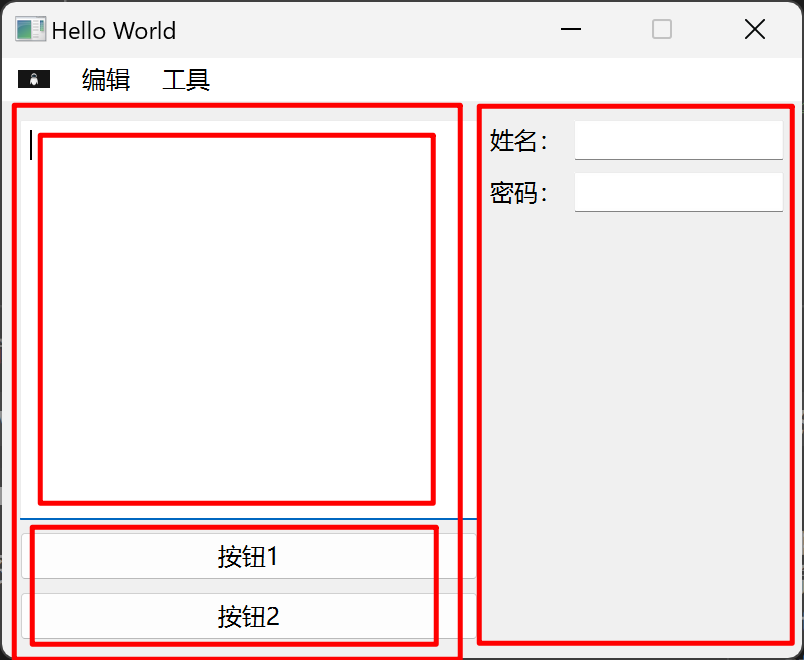
打开文件以及操作文本
from PySide6.QtWidgets import QApplication,QMainWindow,QPushButton,QHBoxLayout,QVBoxLayout,\
    QTextEdit,QFormLayout,QLabel,QLineEdit,QWidget,QFileDialog
from PySide6.QtGui import QAction,QPixmap,QIcon
from PySide6.QtCore import Qt
import sys
import os
class MainWindow(QMainWindow):
    def __init__(self):
        super().__init__()
        self.setWindowTitle("Hello World")
        #固定窗口位置,前面两个数字设置窗口显示位置,后面两个设置窗口大小
        self.setGeometry(500,600,400,300)
        #固定窗口大小,不得拉伸
        self.setFixedSize(400, 300)
        #初始化菜单栏
        self._init_menu()
        self._init_layout()


    def _init_layout(self):
        self.w=QWidget()
        self.main_layout=QHBoxLayout()
        self.left_layout=QVBoxLayout()
        self.right_layout=QVBoxLayout()
        #长文本,就只有获取文本的时候与短文本的使用方法不一样
        self.long_text=QTextEdit()
        self.left_layout.addWidget(self.long_text)
        #短文本
        self.line_text=QLineEdit()
        self.left_layout.addWidget(self.line_text)

        button1=QPushButton('按钮1')
        button1.clicked.connect(self.button1_fun)

        button2=QPushButton('按钮2')
        button2.clicked.connect(self.button2_fun)

        button_cls=QPushButton('按钮3')
        button_cls.clicked.connect(self.button3_fun)

        self.right_layout.addWidget(button1)
        self.right_layout.addWidget(button2)
        self.right_layout.addWidget(button_cls)

        self.main_layout.addLayout(self.left_layout)
        self.main_layout.addLayout(self.right_layout)
        self.w.setLayout(self.main_layout)
        self.setCentralWidget(self.w)

    def button3_fun(self):
        #清空文本框
        self.long_text.clear()
        self.line_text.clear()
    def button1_fun(self):
        #获取文本内容
        print(self.long_text.toPlainText())

    def button2_fun(self):
        text=self.line_text.text()
        #设置文本内容
        self.long_text.setText(text)


    def _init_menu(self):
        menu=self.menuBar()
        #使用addMenu添加菜单
        file=menu.addMenu(QIcon('./test.ico'),'文件')#使用QIcon添加图标
        edit=menu.addMenu('编辑')
        tool=menu.addMenu('工具')
        #下面两行主要是定义菜单中文件里面的动作,
        open_file=QAction(QIcon('./test.ico'),'打开文件',self)
        open_file.setShortcut('Ctrl+O')#设置快捷键
        #点击“打开文件”就会执行open_file_f函数
        open_file.triggered.connect(self.open_file_f)
        #将动作添加到“文件”菜单中
        file.addAction(open_file)
    def open_file_f(self):
        #返回文件路径,参数分别是:父类,“打开窗口的标题”,“打开的初始路径”,“筛选文件类型,只允许加载限定的文件”
        self.file_path=QFileDialog.getOpenFileName(self,"选择文件",os.getcwd(),"(*.jpg *.png *.bmp)")
        self.long_text.clear()
        self.long_text.setText(self.file_path[0])#显示文件路径
if __name__ == '__main__':
    app = QApplication([])
    window = MainWindow()#实例化主窗口
    window.show()
    sys.exit(app.exec())
在新建窗口中显示图片,并设置风格
from PySide6.QtWidgets import QApplication,QMainWindow,QPushButton,QHBoxLayout,QVBoxLayout,\
    QTextEdit,QFormLayout,QLabel,QLineEdit,QWidget,QFileDialog,QDialog
from PySide6.QtGui import QAction,QPixmap,QIcon
from PySide6.QtCore import Qt
import sys
import os
class MainWindow(QMainWindow):
    def __init__(self):
        super().__init__()
        self.setWindowTitle("Hello World")
        #固定窗口位置,前面两个数字设置窗口显示位置,后面两个设置窗口大小
        self.setGeometry(500,600,400,300)
        #固定窗口大小,不得拉伸
        self.setFixedSize(400, 300)
        #初始化菜单栏
        self.w=QWidget()
        layout=QVBoxLayout(self)
        self.button=QPushButton("打开图片",self)
        self.button.clicked.connect(self.open_image)
        layout.addWidget(self.button)
        self.w.setLayout(layout)
        self.setCentralWidget(self.w)
        #设置风格
        self.set_style()

    def open_image(self):
        file_name, _ = QFileDialog.getOpenFileName(self, "打开图片", "", "Image Files (*.png *.jpg *.bmp)")

        new_w=QDialog(self)
        new_w.setWindowTitle("图片预览")
        new_w_layout=QVBoxLayout(new_w)
        img_label=QLabel(new_w)
        img_label.setPixmap(QPixmap(file_name))
        new_w_layout.addWidget(img_label)
        new_w.setLayout(new_w_layout)

        new_w.show()#不阻塞

    def set_style(self):
        style="""
            color: black;
            font-weight: bold;
            font-size: 16px;
            font-family:宋体;
        """
        self.button.setStyleSheet(style)


if __name__ == '__main__':
    app = QApplication([])
    app.setStyle("Fusion")#设置整个app风格

    window = MainWindow()#实例化主窗口
    window.show()
    sys.exit(app.exec())#阻塞

 浙公网安备 33010602011771号