
How to Install and Enable OpenSSH on Ubuntu 20.04
https://linuxhint.com/how-to-install-and-enable-openssh-on-ubuntu/
https://linuxconfig.org/ubuntu-20-04-ssh-server
https://ubuntu.com/server/docs/service-openssh
OpenSSH, abbreviated from OpenBSD Secure Shell, is a tool used to secure remote connectivity between the host and its client via SSH protocol. Since it uses the SSH protocol for network communication, it cares about connection hijacking and attacks, and it also encrypts the network traffic communication by using different authentication methods. This post will learn how to install the OpenSSH server on Ubuntu 20.04 and how to enable it for remote network communication.
Installation
By default, remote access is not allowed in Ubuntu 20.04 using the SSH, and we first have to enable the SSH. Just follow the step-by-step guide given below, and you will have the OpenSSH server installed and enabled on your ubuntu 20.04 LTS system for remote access.
Step 1: Open up your terminal and update the system’s APT cache repository
First of all, fire up the terminal in your ubuntu system by using the shortcut keys (CTRL+ALT+T) and type the command given below to update the system’s APT cache repository.

The system’s APT cache repository is updated successfully.
Step 2: Install OpenSSH server
Right after updating your system’s APT package repository, install the OpenSSH server on your Ubuntu machine by typing the command provided below.

Type “Y” and hit “Enter” to grant permission for taking additional disk space for the OpenSSH server’s installation.
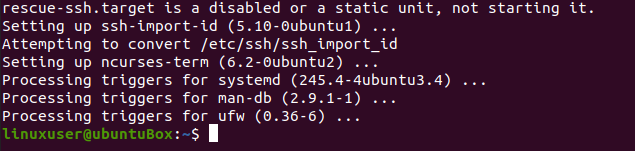
After taking some time, the OpenSSH server’s installation process will be completed, and the SSH server will automatically start.
Step 3: Verify that the SSH service is running
To verify the status of the SSH server, type the command given below.

If you have got the output that SSH service status is active, you must be perfectly ready to move forward.
Type “q” to go back and configure the firewall.
Step 4: Configure the firewall
Now you need to configure the firewall of Ubuntu using the UFW tool provided by Ubuntu itself. To enable the firewall for any remote machine to access this Ubuntu machine, you need to open an SSH port. The command for configuring and allowing remote access is typed below.

After allowing SSH, it is time to enable the firewall as well. To check if it is enabled or not, the command for checking the status of UFW is given below

If it is inactive and the case is the same for you, then you need to enable it by typing the command

After enabling the UFW, check the status again

You can see that SSH port 22 is opened. If you have the same output as shown in the picture, then the system is ready for remote connections via SSH.
Conclusion
This post has shown you the step-by-step guide on how to install and enable the OpenSSH server on Ubuntu 20.04 for remote connections. After this configuration, you can log in to this machine from any remote machine via SSH.
https://blog.csdn.net/zhou562334410/article/details/82999673
ssh服务的管理命令
1.什么是ssh?
SSH(全称 Secure Shell)是一种加密的网络协议。使用该协议的数据将被加密,如果在传输中间数据泄漏,也可以确保没有人能读取出有用信息。要使用 SSH,目标机器应该安装 SSH 服务端应用程序,因为 SSH 是基于客户-服务模式的。 当你想安全的远程连接到主机,可中间的网络(比如因特网)并不安全,通常这种情况下就会使用 SSH。
ssh的连接方式
通常使用 SSH 的方式就是不加任何选项参数,仅仅输入 "ssh"。下面是示例:

2. ssh的远程主机连接
ssh username@ip 表示文本模式的连接
ssh -X username@ip 表示可以在连接成功后开机图形
注意:第一次链接陌生主机是要建立认证文件;所以会询问是否建立,需要输入yes; 在次链接此台主机时,因为已经生成~/.ssh/know_hosts文件所以不需要再次输入yes。
远程复制:
scp file root@ip:dir 上传
scp root@ip:file dir 下载
.sshd的key认证
1.ssh-keygen 生成密钥的命令

2.加密服务:
ssh-copy-id -i /root/.ssh/id_rsa.pub root@ip1 加密sshd服务 (ip1 为服务机的ip)
3.分发钥匙:
scp /root/.ssh/id_rsa root@ip2:/root/.ssh/ 将钥匙发送到客户机上(ip2 为客户机ip)
4.测试:
在客户机中,ssh root@ip2 连接时发现直接登陆不需要root登陆系统的密码认证
| systemctl | 服务控制命令 |
| sysremctl status sshd | 查看服务状态,inactive(不可用),active (可用) |
| systemctl start sshd | 开启服务 |
| systemctl stop sshd | 关闭服务 |
| systemctl restart sshd | 重启服务 |
| systemctl reload sshd | 重新加载服务配置 |
| systemctl enable sshd | 设置服务开机启动 |
| systemctl disable sshd | 设置服务开机不启动 |
| systemctl list-units | 列出已经开启服务当前状态 |
| systemctl list-unit-files | 列出所有服务开机启动的状态disable,enable ,static |
| systemctl list-dependencies | 列出服务的依赖关系 |
| systemctl set-default multi-user.target | 设定系统启动级别为多用户模式 |
| systemctl set-default graphical.target | 设定系统启动级别为图形模式 |
3.指定端口
SSH 默认使用的端口号是 22。大多现代的 Linux 系统 22 端口都是开放的。如果你运行 ssh 程序而没有指定端口号,它直接就是通过 22 端口发送请求的。
一些系统管理员会改变 SSH 的默认端口号。让我们试试,现在端口号是 1234.要连上那主机,就要使用 **-p* 选项,后面在加上 SSH 端口号。一些系统管理员会改变 SSH 的默认端口号。让我们试试,现在端口号是 1234.要连上那主机,就要使用 *-p* 选项,后面在加上 SSH 端口号。
ssh [远程主机的ip] -p 1234
要改变端口号,我们需要修改 /etc/ssh/ssh_config 文件,找到此行:
Port 22
把它换成其他的端口号,比如上面示例的 1234 端口,然后重启 SSH 服务。

3. 添加sshd登陆登陆信息
vim /etc/motd 文件内容就是登陆后显示的信息
4.用户的登陆审计

w 查看正在使用当前系统的用户
-f 查看使用来源
-i 显示IP
last ##查看使用过并退出的用户信息
lastb ##试图登陆但没成功的用户

 浙公网安备 33010602011771号